

Jun 01, 2026Posted by Kevin Miller to Rip Blu-ray
Keeping a physical Blu-ray collection offers pristine quality, but it comes with the hassles of physical storage and the constant risk of disc degradation. Digitizing your Blu-ray discs to a PC is the ultimate way to future-proof your media library. By converting your discs to digital formats like MP4 or MKV, you can save space, avoid scratches, and play them more conveniently. This updated guide shows 4 easy ways to rip Blu-rays to a PC.

- Preparation for Ripping Blu-ray to PC
- Method 1. Extract Lossless MKV from Blu-ray via MakeMKV
- Method 2. Digitize Blu-ray to MP4/MKV with Blu-ray Master Free Blu-ray Ripper
- Method 3. Compress and Transcode Blu-ray Videos Using HandBrake
- Method 4. Convert Unencrypted Blu-ray to PC Formats via VLC Media Player
- FAQs about Ripping Blu-ray to Windows 10/11 PC
Our Test Methodology & Benchmark Environment
To deliver an objective and technically precise evaluation, we conducted hands-on benchmarking using a standardized, high-performance hardware environment. Each software solution was tested using the exact same commercial Blu-ray disc—a 2-hour feature film (dual-layer BD-50, approximately 42.5 GB of raw data) featuring a standard AACS copy protection layer.
- Test System OS: Windows 11 Pro (Version 23H2, Build 22631)
- Processor (CPU): Intel Core i7-13700K (Up to 5.4 GHz, 16 Cores / 24 Threads)
- Memory (RAM): 32GB DDR5 @ 5600MHz
- Graphics (GPU): NVIDIA GeForce RTX 4070 (12GB VRAM, supporting NVENC hardware acceleration)
- Optical Hardware: ASUS BW-16D1HT Internal Blu-ray Drive (Flashed with UHD-friendly firmware)
- Storage Target: Samsung 990 Pro 2TB NVMe M.2 SSD (Read/Write speeds up to 7450/6900 MB/s)
Deep-Dive Comparison Matrix (BD-50 Test Results)
The following matrix goes beyond basic speeds and feeds, grading each tool on structural decryption capability, container flexibility, structural integrity of audio pass-through, and compute resource utilization.
| Evaluation Metrics | MakeMKV (v1.17.6 Beta) | Blu-ray Master Free Ripper | HandBrake (v1.8.0) | VLC Media Player (v3.0.20) |
| Decryption Capability | Advanced (AACS, BD+, region-free bypass) | Basic (Standard region codes & old AACS) | None (Requires pre-ripped or unprotected sources) | None (Fails on commercial discs natively) |
| Ripping / Encoding Speed | Ultra-Fast (~14 mins) — Limited only by optical drive read speed. | Medium (~28 mins) — Basic software encoding. | Fast (~22 mins) — Highly optimized via NVIDIA NVENC. | Slow (~68 mins) — Real-time sequential stream rendering. |
| Output Video Quality | 1:1 Bit-Perfect | Compressed | User-Defined | Compressed |
| Audio Pass-through Support | Full Support (TrueHD, DTS-HD MA, Dolby Atmos 1:1) | Limited (Downmixes to AAC/AC3 2.0 or 5.1) | Advanced (Supports pass-through or custom multi-channel downmix) | Basic (Unreliable multi-channel mapping during conversion) |
| Output File Size | Massive (~35GB – 45GB) | Compact (~2GB – 5GB) | Highly Optimized (~4GB – 8GB via efficient CRF) | Moderate (~5GB – 10GB) |
| Hardware Acceleration | Not required (Direct disk-to-SSD I/O throughput) | Excellent | Excellent | Poor |
Preparation for Ripping Blu-ray to PC
Before ripping Blu-ray, you should make the following preparations to ensure successful ripping.
1. Verify Blu-ray Drive Compatibility.
Ensure that your PC has a Blu-ray drive. If your PC doesn't have an internal Blu-ray drive, you can connect an external Blu-ray drive via USB.
2. Check Disc Encryption.
Some Blu-ray discs may have encryption or copy protection. Not all rippers support the ripping of encrypted discs, and you should ensure that your chosen ripping software can handle the specific encryption method used on your Blu-ray discs. Blu-ray Master Free Blu-ray Ripper is region-free and supports ripping any disc type.
3. Install a Blu-ray Ripping Software.
Install the chosen Blu-ray ripping software on your PC. Follow the installation instructions provided by the software.
4. Make Backup Copies.
Before starting the ripping process, consider making a backup copy of your Blu-ray discs. This can be useful in case of any issues during the ripping process.
5. Check Available Storage Space.
Ensure your PC has sufficient space to store the ripped Blu-ray files. Blu-ray files may be large, especially if you are ripping in high quality.
Method 1. Extract Lossless MKV from Blu-ray via MakeMKV
MakeMKV is a proprietary, cross-platform Blu-ray ripper. It is designed primarily for decrypting and digitizing optical discs into open-source formats. As the industry standard, it performs well in reading and decrypting commercial Blu-ray discs. No matter AACS, BD+, and other advanced Blu-ray encryption technologies, it can handle them with ease. Without re-encoding the Blu-ray movies, it can fully maintain the information of Blu-ray movies, including original video tracks, HD audio streams, chapter markers, and meta-information. It offers a generous, recurring free beta period, making it the most vital first step for any high-fidelity disc backup project.
Now, follow us to see how to use MakeMKV to rip your Blu-rays to PC.
Step 1. Download and install MakeMKV from its official website. Launch the software, get the registration key from the MakeMKV forum, and activate it.
Step 2. Load the inserted Blu-ray movie into the software, and it will scan and show the Blu-ray's full information. You can select the title, audio tracks, and subtitles you want to convert.
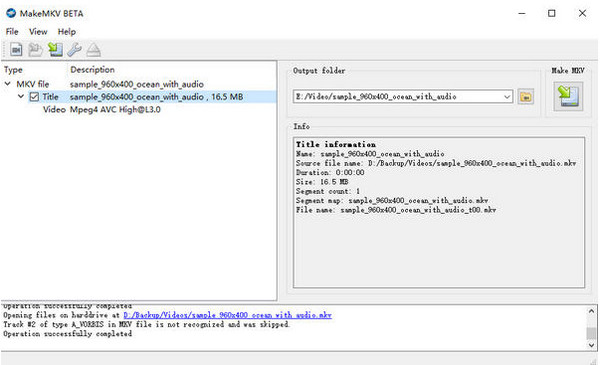
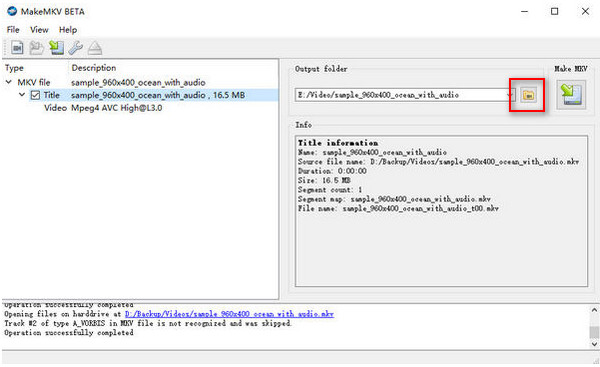
Step 3. Click the folder icon to set the download folder and click Make MKV to start the conversion.
Method 2. Digitize Blu-ray to MP4/MKV with Blu-ray Master Free Blu-ray Ripper
To rip your Blu-ray to your PC, use Blu-ray Master Free Blu-ray Ripper. It is one of the most outstanding Blu-ray rippers, which is easy to use. It is compatible with Windows 7/8/10 and 11, making it easy to access. Serving as an all-in-one consumer utility that integrates basic decryption, conversion, and editing, even beginners can master it. You can use it to rip Blu-rays from regions A, B, and C to MOV, MP4, AVI, FLV, MKV, M4V, and more. With an intuitive interface and simple steps, professionals and beginners can operate the program without issue. Plus, it can also offer a fast ripping process.
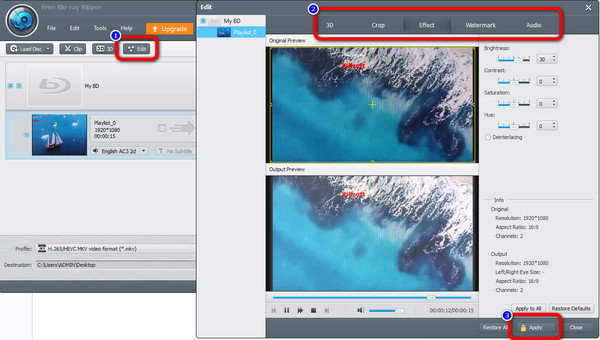
Aside from ripping Blu-ray movies, there are other features you can enjoy while operating the program. The tool also lets you edit your video using its editing function. If you want to remove unnecessary parts or edges of the video, you can use its cropping function. In addition, if you own the video and want to protect it from others, you can add a watermark using the watermark feature. Use the steps below and learn how to rip Blu-ray to PC.
Step 1. Go to your browser and look for the Blu-ray Master Free Blu-ray Ripper. Then, download and install it on your computer. You can also get the installer through the Download button below. Afterward, start installing the program.
Free Download
For Windows
Secure Download
Free Download
for macOS
Secure Download
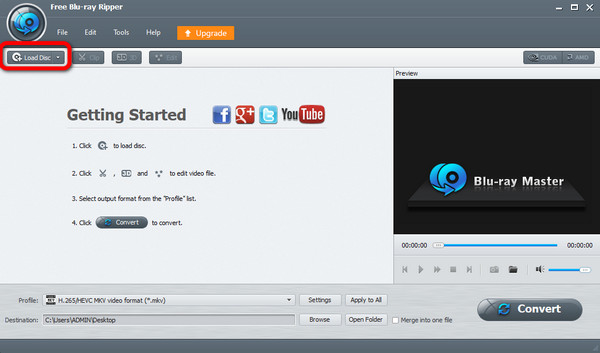
Step 2. The first process you need to do is to insert your Blu-ray movies on the interface. To do that, click the Load Disc option on the upper right part of the program’s interface. After clicking, select the file from the computer folder.
Step 3. When you are done uploading the Blu-ray, you can use the Edit function to enhance and improve the video. You can adjust the video color, crop videos, and add watermarks to videos. After the changes, click the Apply button.
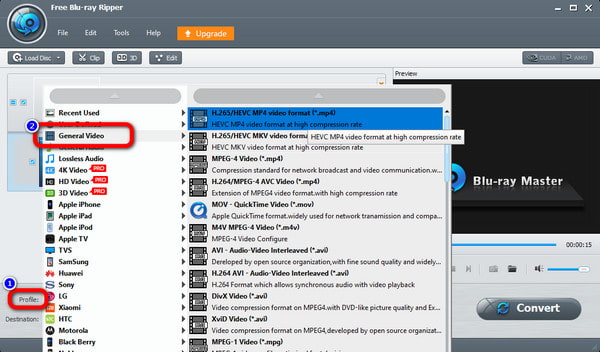
Step 4. After that, to change the Blu-ray to another video format, click the Profile button on the lower interface. Then, go to the General Video section and choose your preferred output format.
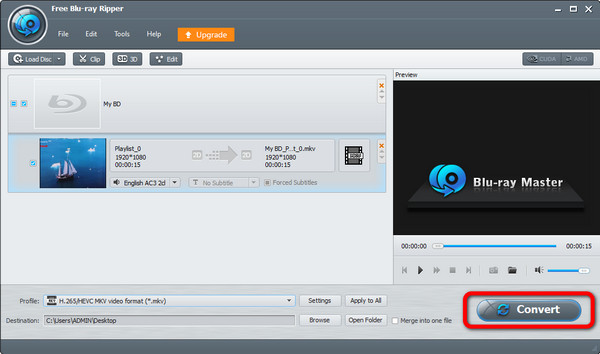
Step 5. Then, if you finished choosing the desired format for the video, click the Convert option. After that, the ripping process will instantly begin.
Method 3. Compress and Transcode Blu-ray Videos Using HandBrake
HandBrake is an open-source, GPL-licensed multi-threaded video transcoder. It also serves as a Blu-ray ripper that allows you to rip Blu-rays on a PC. It can load Blu-ray discs, ISO files, and folders and rip them to MP4, MKV, and WebM. While it lacks the native capability to decrypt copy-protected commercial discs on its own, it stands as the gold standard for post-rip video compression and formatting. Many people use MakeMKV to decrypt and HandBrake to compress and convert.
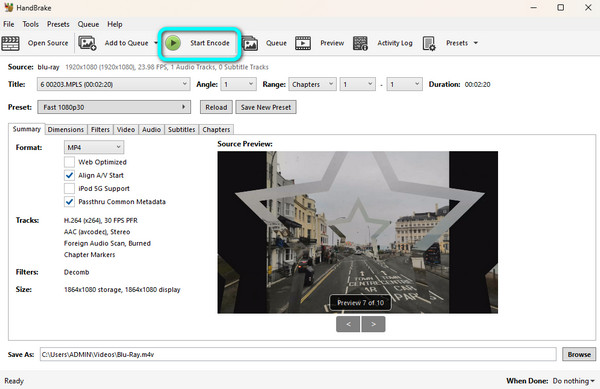
You can modify the video quality, frame rate, bitrate, video encoder, etc. Moreover, HandBrake has a Preview function that lets you see your Blu-ray video. This way, you will know the possible outcome after the ripping process. You can see the steps below to rip Blu-ray on your PC using HandBrake.
Step 1. Get the HandBrake program on your computer. Then, launch it after you finish the installation process.
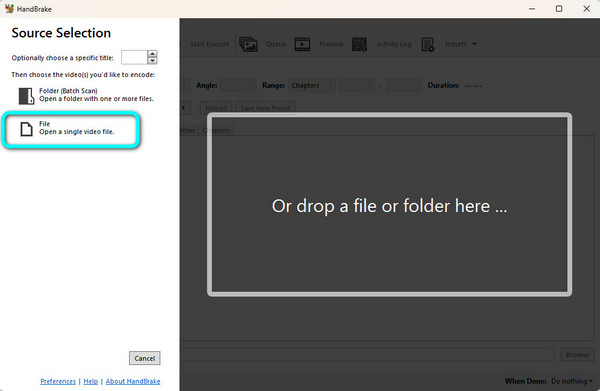
Step 2. On the left interface, click the Folder option to load the Blu-ray movie you want to rip.
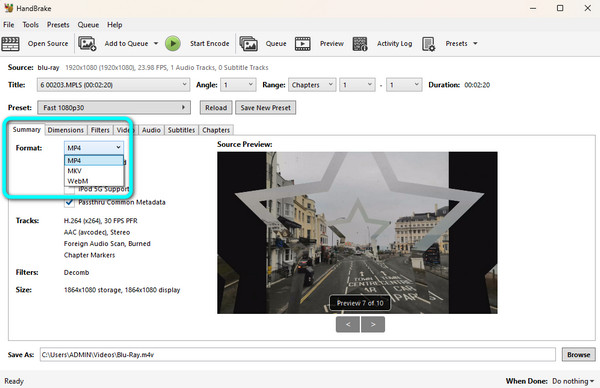
Step 3. Afterward, proceed to the Summary section and navigate to the Format option. Then, select the video format you want for the file.
Step 4. Hit the Start Encode button on the upper interface to begin ripping the Blu-ray movie on your chosen video format. Then, after a few moments, you can watch your ripped Blu-ray.
The chart below shows the top concerns with each of the four tools and aims to give you an obvious introduction of 4 tools to help you better make choices.
Method 4. Convert Unencrypted Blu-ray to PC Formats via VLC Media Player
VLC Media Player is a free, open-source, cross-platform modular media player and streaming server software developed by the VideoLAN project. It is one of the best ways to rip Blu-ray to PC. It has the Convert/Save feature to load and rip Blu-rays to multiple video formats, like MP4, MOV, AVI, and MKV. Moreover, it provides one setting that allows you to choose to start ripping Blu-ray from a certain title. It can rip the homemade Blu-ray movies quickly and smoothly. If you want to convert encrypted Blu-rays, you must download the specific KEYDB.cfg file.
Also, the interface of the program is a little bit confusing. We can say that if you are a beginner without any idea about the program, you can’t rip the Blu-ray easily. Don’t worry! Following are the detailed steps of how to copy Blu-ray to PC with VLC.
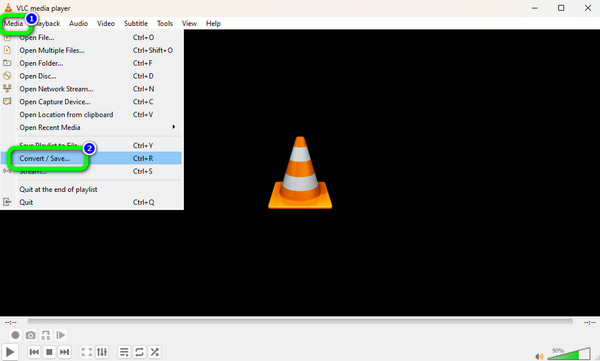
Step 1. Download and install VLC on your computer. After that, select the Media option and click the Convert / Save button.
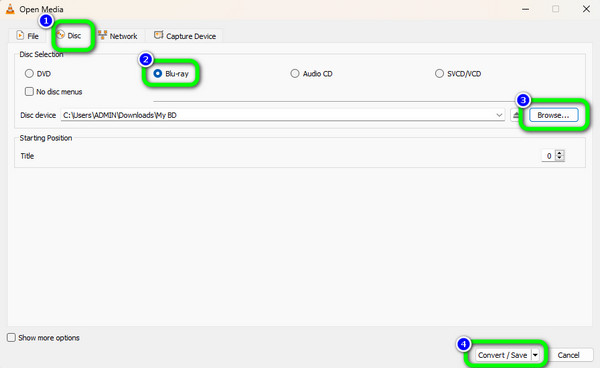
Step 2. Then, select the Disc > Blu-ray option. After that, to add the Blu-ray movie, click the Browse button on the right interface. When done, tick the Convert / Save button below.
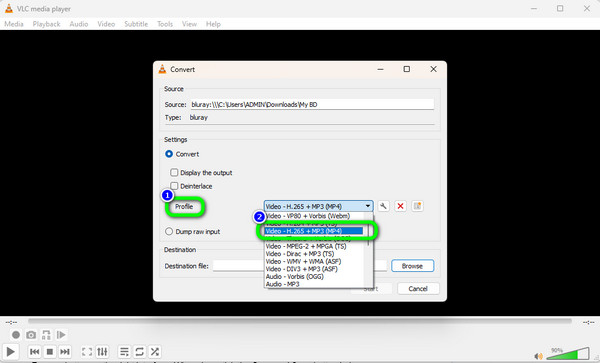
Step 3. Go to the Profile section and choose the output video format you want for the Blu-ray. After that, the final process is to click the Start option to rip the Blu-ray.
FAQs about Ripping Blu-ray to Windows 10/11 PC
-
Can I rip Blu-ray to my computer?
Yes, you can. You can use the Blu-ray ripper that was mentioned above. These are the Blu-ray Master Free Blu-ray Ripper, VLC Media Player, and HandBrake.
-
Can VLC rip Blu-ray?
Definitely, yes. VLC is not only reliable for playing videos or movies. It can also rip the Blu-ray and turn it into various video formats.
-
How do I rip a Blu-ray to MP4?
You can use Blu-ray Master Free Blu-ray Ripper to rip your Blu-ray to MP4 format. After launching the program, click the Load Disc option to add the Blu-ray. Then, select the Profile > General Video section to choose your preferred format. After that, tick the Convert option to begin ripping the file.
-
Is there a free Blu-ray ripper?
Yes, there is. You can use the free version of Blu-ray Master Free Blu-ray Ripper. With this program, you can instantly rip your Blu-ray without spending money. It is also among the Blu-ray rippers with a perfect interface, making it suitable for all.
-
Can Blu-ray be pirated?
Sad to say, but yes. Blu-rays can easily be pirated nowadays. It can easily be recorded using cams or any video recorder.
-
What is the best free alternative to MakeMKV for ripping Blu-rays to a Windows 11 PC?
Blu-ray Master Free Blu-ray Ripper is a good choice for you to rip Blu-rays on Windows 11. It can bypass most Blu-ray copy protection and has GPU acceleration to facilitate the ripping process.
-
How do I rip a commercial Blu-ray with HandBrake? Do I need to install libdvdcss or other plugins?
No, HandBrake fails to handle encrypted Blu-rays even with libdvdcss. You can use MakeMKV to process commercial Blu-rays.
-
Can VLC Player rip 4K UHD Blu-ray discs on Windows 10 without quality loss?
No. VLC Media Player is not designed for 4K UHD Blu-ray ripping.
-
What external Blu-ray drive should I buy for my laptop to digitize my movie collection?
You can try Pioneer BDR-XD07B or LG WP50NB40, which are reliable and portable.
-
Why is my ripped Blu-ray video showing a ‘No Disc Found’ or ‘Copy Protected’ error in HandBrake?
This error occurs because HandBrake encounters digital rights management (DRM) schemes like AACS, BD+, or cinematic decoy playlists that it is legally and technically blocked from parsing. When HandBrake fails to locate valid titles, it aborts the scan to protect system stability. To resolve this, you must run an active decrypting utility in tandem with your optical drive, or pre-rip the raw disc contents into an unprotected folder before importing the directory into HandBrake.
Wrapping up
How to rip a Blu-ray to a PC? Luckily, the post answered the question for you. We also give you the best Blu-ray rippers with methods you can check and operate. If you want to rip your Blu-ray to numerous video formats, use Blu-ray Master Free Blu-ray Ripper. Unlike the other two programs mentioned above, it can support almost all video formats.
More from Blu-ray Master
Rip Blu-ray to Device
Rip Blu-rays to any video and audio formats of different parameters for free in minutes.
100% Secure. No virus
