

Jul 24, 2025Posted by Kevin Miller to Rip DVD
Before digital files, VHS tapes were the standard format for recording and media consumption. VHS, short for Video Home System, was introduced in the 1970s and remained a popular format up to the early 2000s. Many families still have boxes of VHS tapes stored away, slowly deteriorating over time. Unfortunately, VHS tapes are highly prone to wear, magnetic degradation, and physical damage. With VHS players becoming rare, there's an urgent need to preserve these recordings in a more modern format. This is where a VHS-to-DVD converter comes in. This post will examine how these converters function, what to consider when selecting one, and which options are most suitable.

- Part 1. How to Choose a Good VHS to DVD Converter
- Part 2. Roxio Easy VHS to DVD 3 Plus
- Part 3. Clariviews VHS to DVD Recorder
- Part 4. Blu-ray Master DVD Creator
- Part 5. Bonus: How to Burn VHS to DVD
Part 1. How to Choose a Good VHS to DVD Converter
Converting VHS tapes to DVD is essential to preserve your irreplaceable videos in their original analog format. With numerous options available, it's essential to understand the key factors that influence your decision. Below are the main considerations you should evaluate before purchasing or using a VHS converter to DVD:
• Converter Type: Hardware converters are plug-and-play devices that connect a VHS player directly to your computer. On the other hand, software converters require a video capture device and a computer.
• Budget: Budget will heavily influence which converter is suitable for you. Select a converter that suits your needs without paying for unnecessary features.
• Ease of Use: The best VHS to DVD converters boast simplicity. Look for products with clear instructions and automated features to reduce your learning curve.
• Output Options: Check what types of output your converter supports. Some only create DVDs, while others also offer digital formats, which are easier to store and access.
• Editing and DVD Authoring Features: Choose a converter that surpasses basic transfer capabilities and offers integrated editing and disc-authoring features.
• Disc Type and TV System Support: Not all converters support the same disc formats or regional TV standards. Ensure your final DVDs will play correctly on standard DVD players in your country.
Part 2. Roxio Easy VHS to DVD 3 Plus
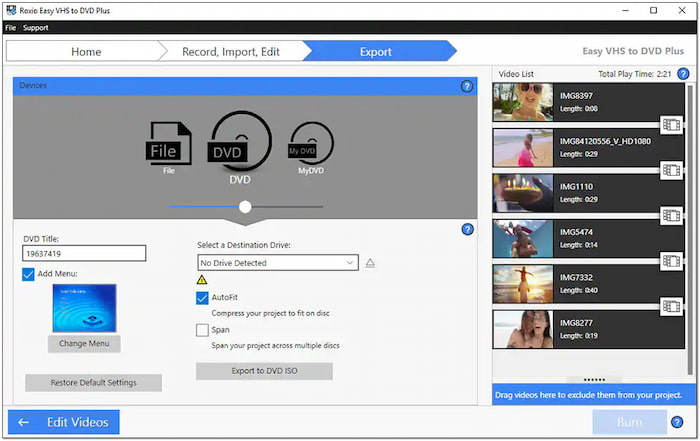
Roxio Easy VHS to DVD 3 Plus is a bundled software and hardware. This converter is fully compatible with Windows 11, 10, 8, and 7. It includes a USB capture device that connects the VHS player to the computer. The VHS to DVD burner software bundle allows you to burn videos to DVD, MiniDVD, and ISO image files. It supports video input in formats such as MPEG-2 and AVC (H.264). In addition to burning VHS to DVD, you can also convert VHS to MP4 format.
FEATURES:
• Convert LP or cassettes directly into a digital profile.
• Export video in DVD, MiniDVD, ISO file, or digital profile.
• Built-in tools include video stabilizer, transitions, and color correction, among others.
• Play videos on a camcorder to capture and convert VHS videos to DVDs.
Part 3. Clariviews VHS to DVD Recorder
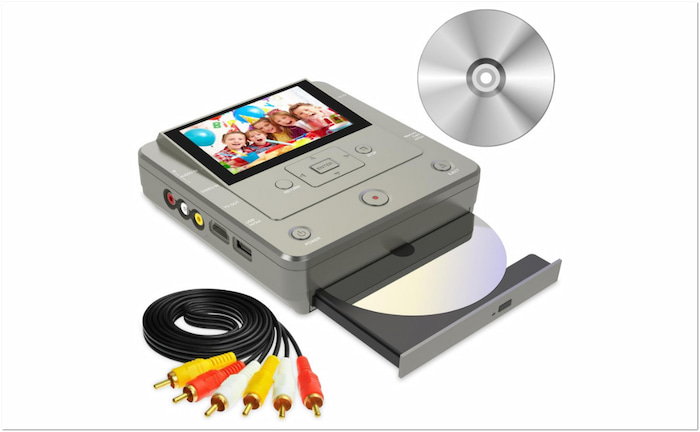
Clariviews VHS to DVD Recorder is a video capture and VHS-to-DVD converter hardware. It accepts various input sources, including VHS players, VHS cameras, camcorders, VCRs, and DVD players. This device requires no PC or cassette to convert videos to DVDs. It supports various DVD formats, including DVD+RW/R, D-RW/R, and DVD+R DL. This powerful burner delivers a fast and accurate transfer performance to save you time.
FEATURES:
• Record photos, videos, or music directly from a phone to a DVD.
• Preview video on its 4.3-inch LCD screen while recording/converting.
• Handles media from various sources, including VHS, VCR, DVD, CD, and camcorders.
• Convert videos, pictures, and music into different storage, including DVDs.
Part 4. Blu-ray Master DVD Creator
Blu-ray Master DVD Creator is a top-performing VHS video-to-DVD converter. It is fully accessible on Windows (7 to 11) and Mac (10.9 and later). It can easily convert digitized VHS files into high-quality, playable DVDs. Regardless of the file's format, you can add and burn multiple files simultaneously.
Free Download
For Windows
Secure Download
Free Download
For Windows
Secure Download
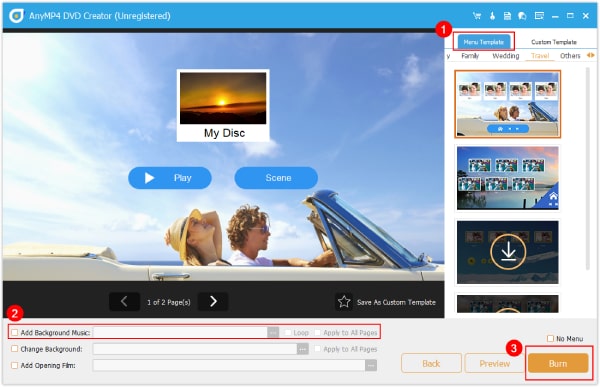
Additionally, you can set aspect ratios and video quality and even add DVD menu templates. It offers several pre-designed DVD menu templates with customization options. Additionally, it offers a video editing tool to enhance videos before transferring them to DVD.
FEATURES:
• Offers several DVD menu templates of different themes.
• Edit DVD videos before burning them using the built-in video editor.
• Burn any media to DVD, VIDEO_TS folder, ISO file, and even Blu-ray.
• Accepts digitized VHS files in formats like MP4, MOV, MKV, and 500+ others.
Part 5. Bonus: How to Burn VHS to DVD
5.1 Digitize the VHS Tape with a Blu-ray Master Screen Recorder
Digitizing VHS tapes is essential to keep your videos safe from deterioration. To make this possible, you can use Blu-ray Master picked Screen Recorder. This multi-functional screen recorder can capture VHS footage to create a permanent digital file. It provides a straightforward and high-quality way to capture what's playing on your screen. Aside from visuals, it can also capture audio from video. It can save the recordings in various formats with up to 4K resolution.
Step 1.Get started by downloading the Screen Recorder, preferred by Blu-ray Master, for free. It's available for both Windows and Mac, so click the appropriate Download button for your system. Install the video recording software, finish the installation, and then open the software.
Free Download
For Windows
Secure Download
Free Download
For Windows
Secure Download
Step 2.Once the software is open, you'll enter the Screen Recorder mode by default. In the Display tab, choose the area of your screen where the VHS playback window will appear. Enable System Sound to capture the audio from the VHS video playback.
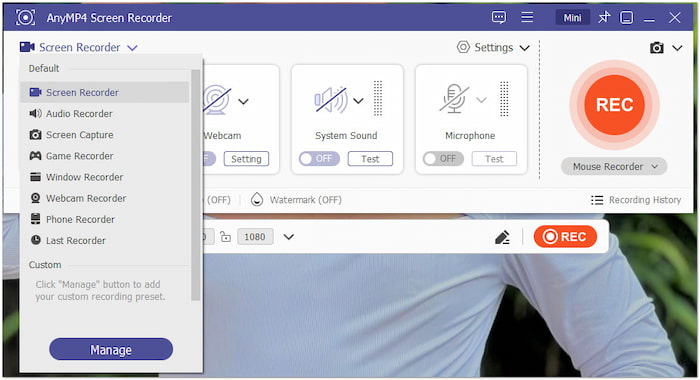
Step 3.With the software ready, open your video playback software. Pause the VHS tape at the point where you want to start recording. Switch back to the recording software and click the big REC button. Immediately after the recording begins, press Play on your VHS player.
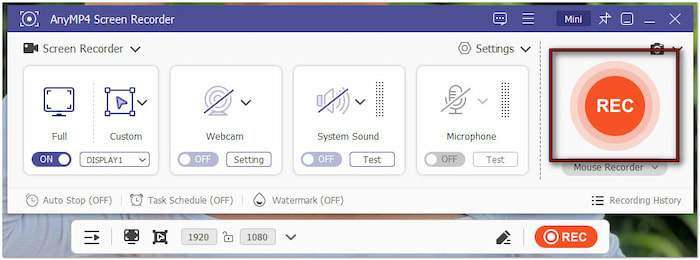
Step 4.Once the VHS tape finishes playing, click the Red Square button in the recording interface. A preview window will automatically appear, letting you review your captured video. You can also trim the video within the preview screen to cut out any unwanted sections.

Blu-ray Master Screen Recorder offers a convenient solution for capturing high-quality VHS videos. It's a go-to tool for digitizing VHS videos for DVD conversion. Once captured, the video will be ready for burning to DVD in the next stage of the process.
5.2 Burn VHS Videos to DVD with Blu-ray Master DVD Creator
After digitizing VHS tapes, the next step to long-term preservation is burning them to DVD. Blu-ray Master DVD Creator enables you to easily create a physical copy of the recorded VHS. With it, you can add DVD menus, make edits, and even add audio tracks and subtitles.
Step 1.Begin by downloading the DVD Creator, a preferred software of Blu-ray Master, for free. Install the DVD authoring software and complete the installation process. Once completed, place the blank DVD on your computer's disc drive and run the software.
Free Download
For Windows
Secure Download
Free Download
For Windows
Secure Download
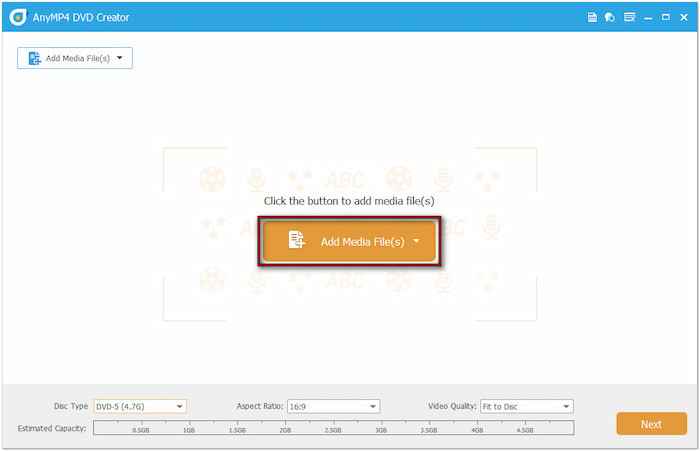
Step 2.Upon startup, choose the DVD Disc option as your disc type. Click the Add Media File(s) button to import the VHS videos you've previously recorded. After importing, set the disc type (DVD-5 or DVD-9), aspect ratio, and video quality. Then, click Next to move forward.
Step 3.In the next screen, you'll enter the DVD Menu customization window. Choose your preferred template under the Menu Template section. You can also add background music, upload background images, and insert an intro film. Click Burn to proceed.

Step 4.In the Burning Settings window, specify your output directory in the Folder Path selector. Check Burn to Disc and select your disc drive from the pulldown menu. Select the appropriate TV standard, then click Start to begin the DVD creation process.
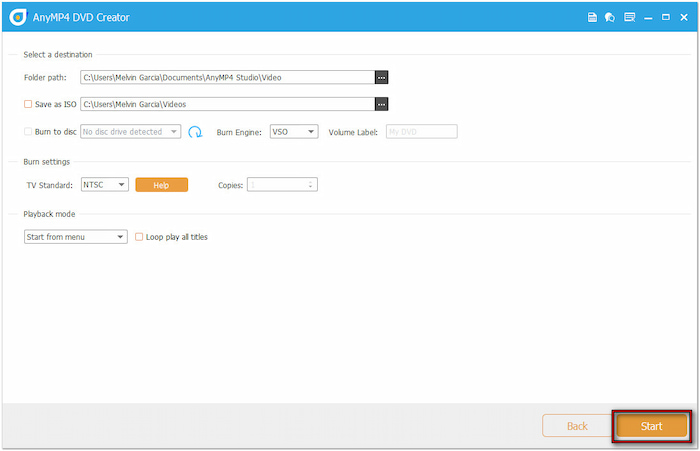
Blu-ray Master DVD Creator is the best DVD burner for burning VHS to DVD. It offers a fast and efficient way to convert your captured VHS recordings into DVDs. For optimal DVD output, utilize the Video, Audio, and Subtitle Edit tools to refine your videos before burning.
Conclusion
Converting your VHS tapes to DVD is the most effective way to preserve your videos. If you're saving family footage or archiving old collections, a reliable VHS-to-DVD converter provides the perfect bridge between analog and digital formats. To simplify and enhance the process, use Blu-ray Master Screen Recorder and Blu-ray Master DVD Creator. Blu-ray Master Screen Recorder can help you digitize your VHS tapes with high-quality output. Meanwhile, Blu-ray Master DVD Creator allows you to burn your digitized VHS videos to high-quality DVDs.
More from Blu-ray Master
Fast and free ripping software to decrypt all DVDs to digital easily on your computer.
100% Secure. No virus
