

Aug 19, 2025Posted by Kevin Miller to Create DVD
When you extract the VOB files from DVD, how to play the VOB just as the DVD? As for the case, you have to convert VOB to ISO instead. The VOB files are playback with VLC Media Player or other media players, but you cannot choose a chapter to playback desired the files as the original DVD. Both VOB and ISO files are involved with DVD data, but there are some major differences between the two file formats. In order to convert VOB to ISO, you can learn more about the differences and how to burn the VOB files to ISO image, you can learn more details from the article now.

- Part 1. Differences Between VOB and ISO
- Part 2. The Simple Method to Convert VOB to ISO
- Part 3. FAQs of Converting VOB to ISO
Part 1. Differences Between VOB and ISO
VOB is a container format that contains videos, audio tracks, menu, and subtitles for a DVD, which is available in the VIDEO_TS folder. It is encoded in MPEG-2, which is compatible with most of the media players. ISO is an archive and an image file of the DVD, which is a sector-by-sector copy of the data on an optical disc, stored in a binary file.
- DVD = ISO = AUDIO_TS+ VIDEO_TS
- VIDEO_TS = IFO + BUP + VOB
- VOB = digital video (H.262/MPEG-2 Part 2 or MPEG-1 Part 2) + digital audio (MPEG-1, MPEG-2, PCM, AC-3, DTS) + subtitles + DVD menus
Just in simple, when you need to convert VOB to ISO files, you need to add the IFO and BUP files, which is able to playback video according to the selected menu. (Check free VOB file player here)
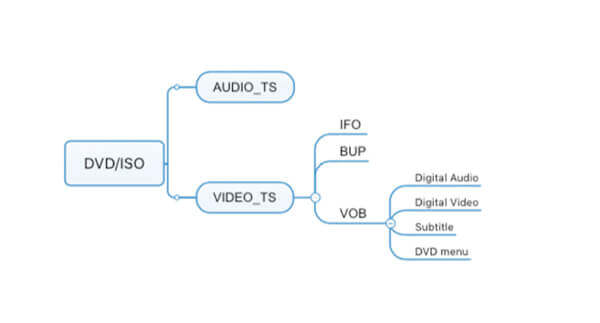
Here is the comparison table of VOB and ISO.
| ISO | VS | VOB |
| Disc image file. | File Type | Video file. |
| Full backup of DVD/Blu-ray disc data. | Core Purpose | Stores DVD video content. |
| Single file containing a complete disc partition table and file system structure internally | File Structure | Single or multiple independent files. |
| Needs to be mounted via a virtual optical drive or burned to a disc first, then read as a physical disc. | Compatibility | Requires DVD playback software/devices for reading. |
| Consistent with the original disc capacity (e.g., Blu-ray: 25 GB/50 GB). | File Size | A single file is usually 1-4 GB (limited by DVD capacity partitioning). |
Part 2. The Simple Method to Convert VOB to ISO
DVD Creator is an excellent VOB to ISO burner for Windows 11/10/8/7 and Mac 10.9 or above with the desired DVD menu, templates, IFO, BUP and more others. It enables you to convert VOB files directly into a DVD with high quality image and sound within clicks. Moreover, you can also edit the menu templates, add audio track, subtitle and more others.
- Convert VOB to ISO image, DVD or Blu-ray disc within a single click.
- Support a wide range of video formats including VOB, AVI, MKV, etc.
- Provide extensive video editing tools, like rotate, clip, crop, and more.
- Add or adjust audio tracks and subtitles of VOB videos for an ISO file.
- Edit videos with menu template to make ISO image of DVD/Blu-ray.
Free Download
For Windows
Secure Download
Free Download
for macOS
Secure Download
How to Convert VOB to ISO with Ease
Step 1.Install the VOB to ISO converter
Once you have installed the VOB to ISO burner, you can launch the program on your computer and click the Add Media Files menu at the upper left corner to load the VOB videos into the program.
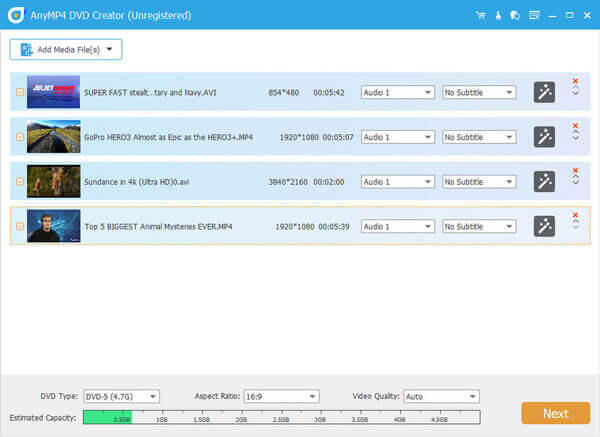
Step 2.Edit the video and add a chapter
Click the Power Tools button to edit the VOB files or adjust the chapters of the DVD. Choose the desired Video Edit tool on the right side, for example, will open the video editor window, and then you can polish the video file based on your requirement.
Note: The bottom bar also allows users to adjust DVD type (DVD-5, DVD-9, BD-25, and BD-50), aspect ratio (16:9 or 4:3), and video quality (fit to disc, low, medium, or high).
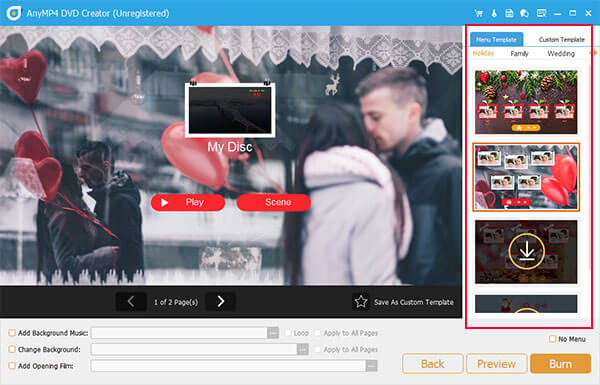
Step 3.Choose the desired DVD template
After that, click the Next button at the bottom right side to open the menu window. Locate the Menu Template tab to select your favorite template. If you prefer to make personalized menu, go to the Custom Template tab and add background music, picture and more.
Note: You are capable of adding background music, changing background, and adding opening film for your VOB files, which will bring more creativity.
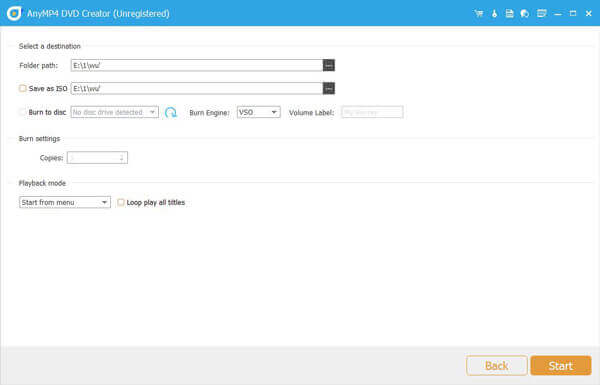
Step 4.Save the VOB files to ISO
Click the Preview button to view the effect. You can hit the Burn option if you are satisfied with the output ISO file. On the Profile window, you can check the Save as ISO option and click the button with a three-dot icon to set the destination folder for the ISO file.
Step 5.Create ISO from VOB file
Of course, you can also choose the Burn to disc option to burn VOB files into a DVD. Hit the Start button to begin converting VOB to ISO. It takes a period of time for the whole process; you can find the ISO file from the destination folder with ease.
With this DVD creator, you can also convert DVD to ISO image files.
Tips
After confirming that the ISO image file, it is recommended to make a backup. ISO files are suitable for long-term storage of VOB content and can be saved to an external hard drive, cloud storage, or burned to a physical disc to prevent data loss.
Part 3. FAQs of Converting VOB to ISO
-
Should I rip DVDs to ISO or VOB files?
There is no better and all depends on what you need. VOB files, inside the ISO file, are the video files that can be on most of the media players. ISO file is the complete DVD copy, which will need to mount the image for playback. When you play an ISO file, you can experience what is the same as the DVD playback, while VOB files do not always play back correctly like a DVD playback.
-
Can you burn VOB files directly to DVD?
Whether you can burn VOB files directly into DVD depends on what DVD burner you use. DVD Creator is the professional DVD creator which can convert VOB files into DVD directly.
-
How do I turn a folder into an ISO?
For turning the DVD folder into an ISO file, you will need DVD Copy to do it. Step 1. Freed download and run DVD Copy on computer. Step 2. Click File in the menu to choose Select Source to find Open DVD Folder to import the DVD folder. Step 3. Click Next and select Save as Folder from the Target drop-down list. Finally, click Start to turn a DVD folder into an ISO file.
-
How do I convert a VOB file to MP4?
For converting the VOB files into MP4 movies, you will need the professional MP4 converter, Video Converter Ultimate. Step 1. Run Video Converter Ultimate on the computer and click Add File to import the VOB file into this software. Step 2. Select MP4 from the drop-down list of Profile. Step 3. Click Convert to start change VOB to MP4. Detailed guide is here: How to convert to MP4.
Wrapping up
This article shares how to convert VOB to ISO with ease. You should learn more details about the differences between VOB and ISO. When you create an ISO file, you can playback the videos just as the DVD on your computer. DVD Creator is the best method to complete the task. It is not only easy to use, but also able to optimize video quality during the process. The bonus features can help you to create pro-level disc image files.
More from Blu-ray Master
Digital to DVD
