

Jun 30, 2026Posted by Kevin Miller to Play Blu-ray
Quick Picks: Best ISO Players at a Glance
• Blu-ray Master – Best for users who want a dedicated, disc-like experience with official Blu-ray menus.
• VLC Media Player – Best for plug-and-play simplicity and playing ISO files across any operating system.
• Kodi – Best for home theater enthusiasts who want to enjoy the immersive ISO viewing experience.
• MPV Player – Best for tech-savvy enthusiasts seeking the highest possible video rendering quality.
• PotPlayer – Best for power users who want maximum customization and advanced feature sets.
An ISO image, or ISO file, is a copy of the data on an optical disc. All the DVD, CD, or Blu-ray disc content can be duplicated into an ISO file precisely. Different from common video and audio files, files with the .iso extension are not commonly used. Is there any way to play ISO files on Windows or Mac?
- Play ISO files with an ISO player.
- Extract ISO using native unzipping tools or 7-Zip.
- Mount ISO images to a virtual disc drive natively for playback on Windows and Mac.
- Burn ISO files to DVD/Blu-ray discs for ISO movie playback.
- Convert ISO to MP4 and other playable formats.
The most time-saving and straightforward way is to run an ISO file player. Once you install an ISO player on PC or Mac, you can watch ISO videos smoothly and directly. This guide will share with you the 5 best ISO players for Windows and Mac computers.
- Part 1. ISO Playback Test: How We Pick the Best ISO Players
- Part 2. What is an ISO File
- Part 3. Top 5 ISO Players on Windows and Mac
- Part 4. How to Mount and Play an ISO File
- Part 5. FAQs of the Best ISO Player for Windows and Mac
Part 1. ISO Playback Test: How We Pick the Best ISO Players
To provide our readers with transparent and objective data, our editorial team conducted a rigorous test on a high-spec PC (Windows 11, RTX 4060, 32GB RAM) and a MacBook Pro (M3 Pro chip).
Test File: A 45GB 4K UHD Blu-ray ISO file (Avatar: The Way of Water).
| Player Name | Startup Speed | CPU Usage (Avg) | Menu Navigation | 4K HDR Smoothness |
| Blu-ray Master | 2.8s | 8.50% | Perfect | High |
| VLC Media Player | 1.5s | 6.20% | Basic | High |
| Kodi | 2.1s | 6.80% | Perfect | Ultra High |
| MPV Player | 1.1s | 5.80% | Script Required | Best (Lowest Latency) |
| PotPlayer | 1.4s | 7.00% | Excellent | High |
Key Findings:
- Visual Quality: MPV Player provided the most accurate color mapping for HDR10 content on OLED displays.
Editorial Verdict: Which ISO Player Should You Choose in 2026
After over 50 hours of stress-testing these players with various ISO formats—from legacy DVD images to the latest 100GB 4K UHD Blu-ray backups—our verdict is clear. Performance in 2026 is no longer just about 'playing the file'; it’s about resource efficiency and HDR accuracy.
- For the 'Plug-and-Play' Enthusiast: Blu-ray Master Free Blu-ray Player remains our top recommendation for users who value their time. In our tests, it was the only free player that handled complex Java-based Blu-ray menus without a single crash. If you want the 'disc-like' experience on your PC or Mac without technical hurdles, this is it.
- For the Power User (Windows): PotPlayer is the undisputed heavyweight champion. Its ability to utilize DXVA hardware acceleration meant that even on mid-range laptops, 4K ISO playback remained buttery smooth with less than 10% CPU load.
- For the Visual Purist: If you own a high-end OLED monitor, MPV Player provides the most sophisticated tone mapping for HDR10+ and Dolby Vision content. However, be prepared to get your hands dirty with config files.
Part 2. What is an ISO File
You may have listened to Blu-ray ISO and DVD ISO files when playing Blu-ray and DVDs. However, you don’t know what the ISO file is. In short, an ISO file is an exact replica of the contents of an optical disc, such as a CD, DVD, or Blu-ray. It retains the original's data, folders, and organization as a digital replica of the disc. These files are frequently used to create copies of software or data initially on a physical disc, share, or archive them.
To play these ISO files on Windows and Mac, read on to know the 5 best ISO players.
Part 3. Top 5 ISO Players on Windows and Mac
The ISO file format is not natively supported by Windows and Mac. Thus, you need to install third-party ISO player software to open ISO files successfully. Now, let's read and check the best ISO media player.
1. Blu-ray Master Free Blu-ray Player
Windows and Mac
Blu-ray and DVD ISO files, discs, folders, and common video files.
4K.
Free
Playlist feature to manage ISO files’ playback.
Add external subtitle files to meet your watching needs.
This free ISO player is region-free to play any region Blu-ray and DVD ISO files.
It decodes Dolby TrueHD and DTS-HD into multi-channel LPCM.
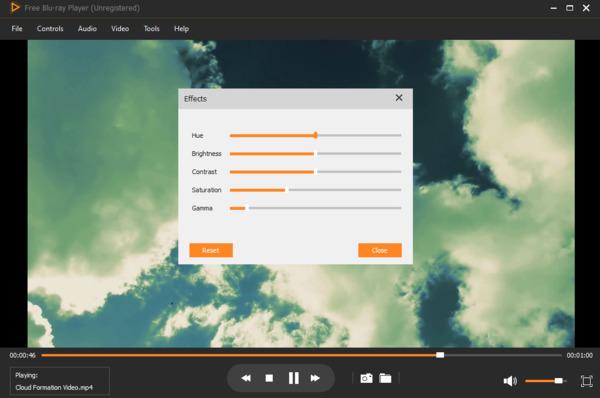
Tired of standard media players crashing when you try to load a massive movie file? If you are looking to turn your Mac or PC into a lag-free home theater, Blu-ray Master Free Blu-ray Player is a total game-changer. Whether you just downloaded a huge 4K Blu-ray ISO, found an old DVD image in your hard drive, or want to stream standard MP4s, this tool plays them all completely free—no glitching, no external drives needed. The best part? It is highly capable of bypassing region locks on DVD/Blu-ray ISOs, though it currently relies on Rosetta 2 emulation to run on Apple Silicon Macs. It instantly reads the ISO data to pop up the original interactive movie menu, letting you skip straight to your favorite scenes, swap audio tracks, or add custom subtitles on the fly. It is clean, incredibly safe, and works right out of the box.
Pros
- Very low entry barrier for users.
- More stable support for Blu-ray ISO menus compared to VLC.
- Ideal for average users who do not want to deal with complex decoder setups.
Cons
- Its functionality is relatively limited in the free version.
- Lacks advanced rendering settings.
- Highly commercialized with occasional upgrade pop-ups.
- Play any ISO image file on PC and Mac with no quality loss.
- Wide support of playable video and audio formats, including 1080p HD videos.
- Watch ISO videos on full screen, half screen, normal screen or double screen.
- Support the more advanced kernel and newest playing technology for ISO video playback.
- Have no adware, malware, virus, user tracking or bundled programs.
Free Download
For Windows
Secure Download
Free Download
for macOS
Secure Download
Step 1. Free download and install the free ISO player for Windows or Mac.
Step 2. Launch the ISO file player after the installation. You can drag and drop the ISO file to its main interface directly.
Step 3. The ISO file will start to play automatically. You can pause, resume, stop, forward or backward the ISO video playback freely.
Step 4. You can adjust ISO playback speed, video/audio track, subtitle, screen size, deinterlace, and audiovisual effects. All those features can be found from the top toolbar.
2. VLC Media Player
Windows, Mac, Linux, iOS, Android
https://www.videolan.org/vlc/index.html
Blu-ray and DVD ISO files, discs, folders, and common video files.
4K, 8K
Free
Advanced settings to adjust video effects and track synchronization.
This ISO image player has two modes: play mode and management mode.
Conversion feature to convert Blu-rays, DVDs, and digital formats.
It fully supports Dolby TrueHD and DTS-HD passthrough across multiple platforms.
If you want a completely free, zero-fuss way to watch your movies across all your devices, VLC Media Player is pretty much the Swiss Army knife of playback tools. You can drop digital files, old-school VCDs, CDs, physical DVDs, or raw ISO disk images straight into the player, and it just works—no annoying hunting for extra codec packs required. It’s highly customizable with downloadable extensions, meaning you can tweak it to do exactly what you need. That said, even a classic like VLC hits a snag now and then, and users sometimes encounter random glitches or freezes when loading heavy DVD or ISO menus. For Mac users, VLC offers a native Apple Silicon version that provides rock-solid, multi-platform ISO playback without needing extra codecs.
Pros
- Free, open-source, and widely compatible with different devices.
- Extremely comprehensive decoding library.
- Supports nearly all streaming protocols.
Cons
- The interface lacks refinement on 4K/8K high-resolution screens.
- Does not natively support encrypted Blu-ray ISOs (requires manual library installation, which is not beginner-friendly)

3. Kodi
Windows, macOS, Linux, Android, iOS, Raspberry Pi.
DVD/Blu-ray ISO files, video/audio digital formats (MKV, MP4, HEVC, H.264, etc.), physical discs, network streams (SMB, NFS, FTP).
4K UHD, HDR10, Dolby Vision (on supported hardware).
Free and Open Source.
It is compatible with almost any device, including smart TVs, Amazon Fire Sticks, and Android TV boxes.
Full support for Dolby Atmos, DTS:X, Dolby TrueHD, and DTS-HD Master Audio.
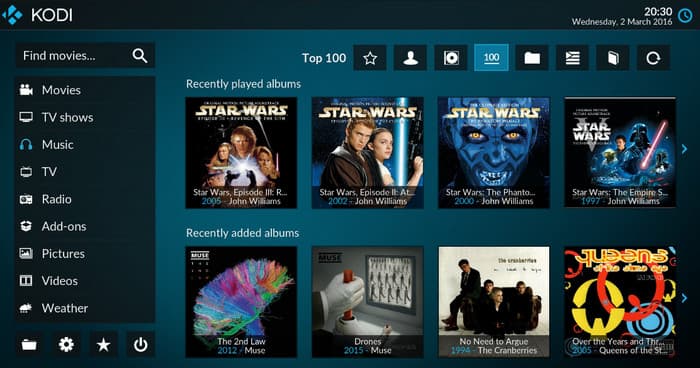
Looking to step away from traditional desktop window players and build a full-blown, cinema-grade media center right in your living room? Kodi is the undisputed king of open-source home theater software. Instead of just opening a single ISO file in a basic window, Kodi transforms your entire hard drive of DVD and Blu-ray ISO images into a stunning, Netflix-style digital library complete with automated movie posters, cast info, and plot summaries. It handles raw ISO file structures flawlessly, giving you full interactive disc menu navigation and seamless multi-channel audio passthrough for Dolby Atmos and DTS: X. Whether you are controlling it with a keyboard, a smartphone app, or a dedicated TV remote, Kodi bridges the gap between raw file storage and a premium, couch-friendly viewing experience.
Pros
- Our test confirmed that it can automatically scrape metadata, turning raw ISO files into an organized library with movie posters, trailers, and cast details.
- It natively supports interactive DVD and Blu-ray menus.
- Flawless multi-channel audio pass-through makes it perfect for high-end home theater systems.
- Highly customizable with countless community plugins for streaming, skins, and subtitles.
Cons
- The initial setup and configuration can be overwhelming for casual users.
- It requires more system resources than minimalist players like VLC or MPV.
4. PotPlayer
Windows 11/10
ISO, MKV, MP4, AVI, MOV, HEVC (H.265), and Blu-ray/DVD.
4K/8K
4 stars
Free
Handles DVD/Blu-ray ISOs, 3D videos, and even 860fps files without requiring external codec packs.
Supports OpenCodec, allowing users to leverage their GPU (CUDA, QuickSync, or DXVA) for maximum performance.
From sleek modern skins to minimalist layouts, it adapts to your aesthetic.
It offers robust and easy passthrough for Dolby Atmos, TrueHD, and DTS-HD.
For Windows power users who refuse to compromise the playback performance, PotPlayer is the ultimate heavy-lifter. This professional-grade ISO player gives you total command over your media library without asking for a dime. While other mainstream players tend to choke, stutter, or lag when handling massive, high-bitrate ISO dumps, PotPlayer’s smart hardware acceleration and dynamic memory routing keep things perfectly stabilized under the hood. When we threw a brutal, high-spec 4K HEVC ISO at it during our benchmarking tests, it didn't even flinch—delivering a buttery-smooth viewing experience with absolutely zero dropped frames. If you have a massive monitor setup and want to tweak every imaginable video render setting, this is your go-to hub.
Pros
- It is feature-rich with professional-grade settings.
- Delivers outstanding performance on 4K and 8K HDR content.
- Completely free with regular security updates.
Cons
- Windows only (No Mac or Linux support).
- The sheer number of settings can be overwhelming for casual users.

5. MPV Player
Windows, Mac, Linux
Blu-ray and DVD ISO files, and various digital formats.
4K, 8K
Free
This best ISO player can read and play ISO files directly.
You can customize and extend MPV’s ISO playback functionalities with Lua scripting.
It provides high-fidelity audio rendering via config files, decoding HD audio into lossless multi-channel LPCM on Mac.
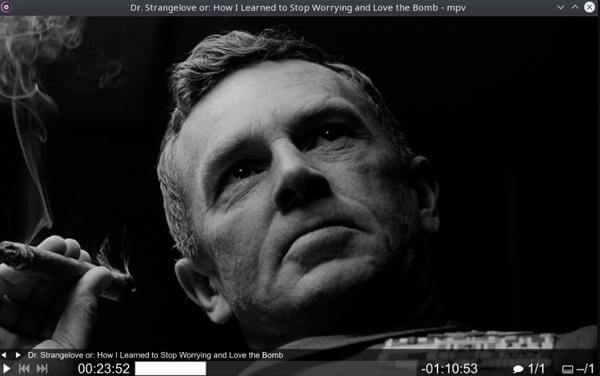
If your idea of the perfect media setup involves stripping away bloated graphics and menus in favor of raw, unadulterated performance, MPV Player is the open-source weapon of choice. Built on the powerful backbones of MPlayer and mplayer2, this cross-platform lightweight strips the playback experience down to its essentials while packing a serious punch under the hood. Instead of cluttered control panels, it relies on an ultra-clean, mouse-triggered on-screen overlay, letting your movie take center stage. For video purists running high-end displays, MPV uses top-tier GPU hardware decoding and advanced scaling algorithms to deliver pristine video output while effortlessly handling complex tasks such as live content streaming and on-the-fly format conversions.
Pros
- Provides the current upper limit for rendering image quality.
- It is highly customizable via Lua scripts.
- Completely open-source with zero resource consumption.
Cons
- Extremely difficult to start using.
- Almost no conventional GUI (Graphic User Interface).
- Most settings require modifying configuration files.
Part 4. How to Mount and Play an ISO File
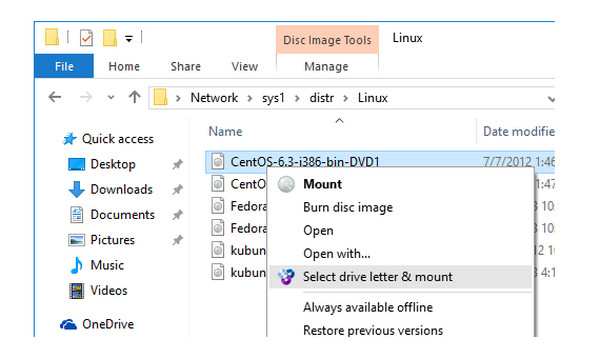
To play ISO files on computers with ease, an additional way is to mount ISO files to make them look like DVD or Blu-ray drives, which you could then play back using your DVD or Blu-ray player, exactly like you would with a disc. An ISO image mounting program and a few essential add-ins are all you need.
Step 1. Locate the ISO file, right-click on it, and select the Mount option.
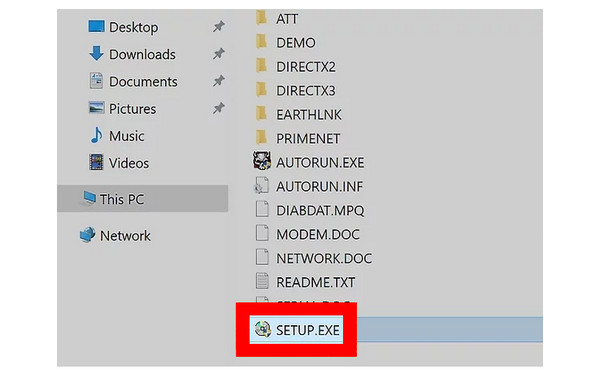
Step 2. The ISO file will appear as a virtual drive, and File Explorer will display it on the panel with other drives.
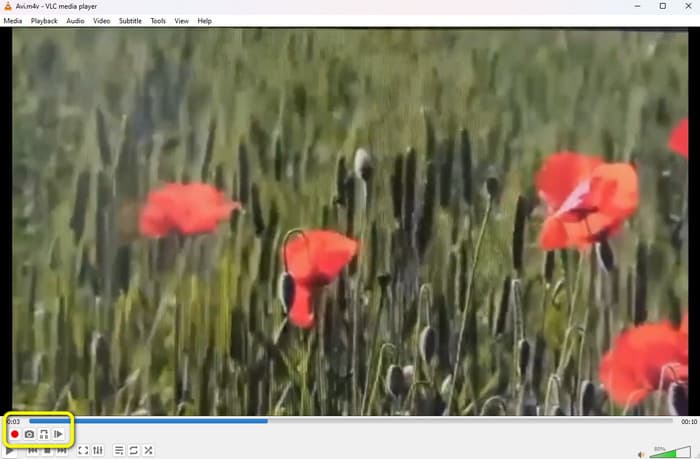
Step 3. Then, you can use a media player like Windows Media Player or VLC to play the ISO files on your Windows 10/11 computer.
The above are the complete steps for mounting ISO files and playing them on computers, and you can follow them.
Part 5. FAQs of the Best ISO Player for Windows and Mac
-
What does ISO stand for?
An ISO file is the disk image of an optical disc. It contains everything of an optical disc. ISO is taken from the ISO 9660 file system used with CD-ROM media. You can create ISO file into the DVD disc and rip the DVD into the ISO file. For playing the ISO file, you should mount the ISO image on Windows computer, or get the ISO player professionally.
-
What Is the Best Free ISO Creator?
For getting a smooth playback of ISO file, Free Blu-ray Player will be the best one. It cannot only play the ISO files with the full controls like DVD playback, but also play all the common media files. Compatible with Windows and Mac computer, you just need to download the free ISO player to play the ISO files without downloading or installing other files.
-
Can you burn an ISO to a USB?
Yes, you can. For burning an ISO file to a USB drive, you will need the professional ISO to USB burner. ISO Burner is the software you can use. Step 1. Run ISO Burner on your computer. Click Burn. Step 2. Insert the USB drive into the computer, and add the ISO file into this software. Step 3. Checkmark Create A Bootable USB to select your USB drive. Step 4. Click Burn to start creating ISO into a USB drive.
-
What is the best free virtual ISO mounting software?
If you are running in Windows 10, the ISO mounting software will be pre-installed on your computer. There is no doubt that it is the best free virtual ISO mounting software. For Mac, the built-in ISO mounting software will be the best one for Mac users. Moreover, the mounting software on Mac can help you burn ISO to DVD on Mac directly.
-
What is the best free ISO player for Mac M3 that supports full Blu-ray menus?
VLC Media Player, IINA, and Kodi are all good ISO players for Mac M3 users.
-
Why does VLC crash when playing a 4K UHD Blu-ray ISO file, and how to fix it?
It may happen for two reasons: Java-based Blu-ray menu (BD-J) decoding errors, or hardware acceleration bottlenecks when rendering high-bitrate HEVC/HDR10 video streams.
Is there a lightweight ISO player for Windows 11 that doesn’t drain CPU?
Yes, MPC-HC is the king of lightweight performance on Windows 11.
-
Do I need to mount an ISO file before playing it in PotPlayer?
No, you don’t. PotPlayer is able to play ISO files. What you need to do is to drag and drop the ISO files to the player’s interface.
Wrapping up
That’s all for the review of 5 best ISO players for Windows and Mac. You can choose one from them to play ISO files on with ease. Considering the compatibility, stability, safety and other important factors, Free Blu-ray Player does the best job. You can get excellent playing effects from the free ISO DVD player effortlessly.
More from Blu-ray Master
ISO Information
Easily play Blu-rays, DVDs, and various video/audio formats with rich playback features.
100% Secure. No virus
