

Aug 28, 2026Posted by Kevin Miller to Rip Blu-ray
Quick Summary:
Can BDMV be directly packaged into an ISO file?
1. Yes, absolutely. You can package a decrypted BDMV folder directly into an ISO image file without re-encoding or quality loss.
2. UDF 2.50 is mandatory. When packing, you must select the UDF 2.50 or 2.60 file system, or Smart TVs and Blu-ray players won’t be able to read the ISO.
3. Free & Paid options exist. You can use free tools like ImgBurn (requires manual UDF 2.50 setup) or dedicated software like Blu-ray Master Free Blu-ray Copy for one-click lossless creation with menus retained.
BDMV file is a high-definition movie storage format commonly used for Blu-ray discs, which can provide an excellent audio-visual experience. In contrast, the ISO file is a common disk image file format, which usually packs the disc data into a file and makes a separate file for backup, transfer, and other operations on the computer. Sometimes, people would like to convert BDMV to ISO for reasons such as the portability of ISO files. If you want to know how to do that, this article is for you! We will provide easy ways using three different tools to let you do it on Windows or Mac.
- Part 1. Introduction of BDMV and ISO
- Way 1. How to Copy BDMV to ISO on Windows
- Way 2. How to Convert BDMV to ISO on Mac
- Way 3. How to Convert BDMV to ISO for Free
- Part 5. FAQs about BDMV to ISO
To provide you with real, accurate data, we tested all three tools on a Windows 11 PC (Intel i7, 16GB RAM) with a 32GB decrypted BDMV movie folder. We measured the actual creation speed, system resource usage, and checked whether the final ISO file played smoothly with full original disc menus on VLC and PowerDVD.
| Feature / Metric | Blu-ray Master Free Blu-ray Copy | Leawo Blu-ray Creator | ImgBurn |
| Best For | Fast 1:1 direct folder-to-ISO copy | Users who want to customize/edit menus | Tech-savvy users looking for a 100% free solution |
| Price | Free Trial (Paid Version available) | Paid (Free trial with limits) | 100% Free |
| Platform | Windows | Windows & Mac | Windows only |
| UDF 2.50 Auto-Setting | Yes (Handled automatically) | Yes (Handled automatically) | Manual setup required (Must pick UDF 2.50) |
| Menu Preservation | 100% Retained | Custom/Re-created | 100% Retained |
| Avg. Time (32GB BDMV) | ~4-6 mins | ~10-15 mins (if menu building) | ~3-5 mins |
| Ease of Use | Very Easy | Easy | Moderate (Slight learning curve) |
Part 1. Introduction of BDMV and ISO
First of all, in this section, let us take a look at what BDMV and ISO files are.
BDMV File
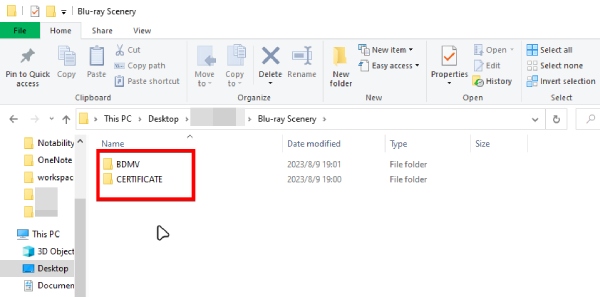
BDMV file stands for Blu-ray Disc Movie. As a file storage format used by Blu-ray discs, it can store high-quality video and audio content, providing a superior viewing experience to DVDs. However, it does not contain video or audio data but information about the disc's content. A BDMV folder usually consists of folders such as STREAM, PLAYLIST, CLIPINF, etc., which hold the main video, audio, subtitle streaming files, playlist files, and so on for the movie. It is worth mentioning that BDMV files are not video files, so they can't be played like normal video files. You can choose a professional BDMV player to decrypt and play BDMV folders properly.
ISO File
ISO files, also known as ISO images. It is a file that contains all the contents of the data storage medium of the original CD-ROM, including the file system, directory structure, all files and folders, and so on. It can be thought of as a copy of the physical CD-ROM in digital format: that is, it can be used to easily store, share, and use the contents of the CD-ROM without the need for an actual physical CD-ROM. Overall, ISO files are a powerful and widely used disk image file format that can be used well for software distribution, creating backups and more.
To sum up, converting BDMV to an ISO file is useful for the following main reasons:
• It is easier to manage, copy and store;
• It is easier to transfer and share with others.
• It is more convenient to play Blu-ray movies;
• It provides digital backup and archive for disc content.
Overall, BDMV to ISO provides a convenient and efficient way to backup, store and watch Blu-ray movies.
To convert BDMV to ISO, remember to select UDF 2.50/2.60 to ensure your TV or media box reads the directory structure correctly and plays the Blu-ray movie along with its menus.
Way 1. How to Copy BDMV to ISO on Windows
Blu-ray Master Free Blu-ray Copy is a powerful Blu-ray cloning tool that can copy a BDMV folder to an ISO file. It can maintain the original video quality and 1:1 copy the BDMV information, including menus, metadata, raw video files, and others, to an ISO image file. With decryption ability, it can easily handle commercial BDMV folders. The utilized GPU acceleration greatly improves the copying speed.
Free Download
For Windows
Secure Download
Now, let's see the specific copying process.
Step 1.Download and install Blu-ray Master Free Blu-ray Copy on your Windows computer. Launch the software and locate the Main Movie mode.
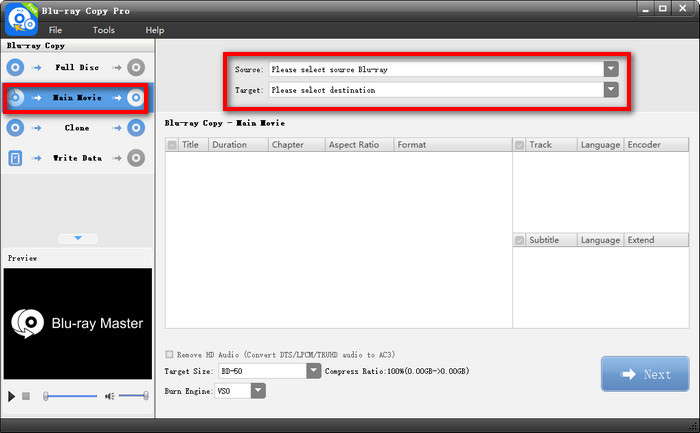
Step 2.Then, click and open the Source drop-down to select the BDMV folder. Or, you can click File from the top menu bar and choose Load Blu-ray Folder to import the BDMV folder.

Step 3.Next, click Target and choose Save as ISO, as well as set an export folder. You can also adjust titles, audio tracks, and subtitles.
Click Next to proceed.

Step 4.Lastly, set Target Size, Burn Engine, and others. Then, click Start to copy the BDMV folder to an ISO.

This free tool provides a simple workflow for you to copy BDMV folders to ISO files. With the four copy modes, you are allowed to make various types of Blu-ray copies. The free version is limited in features, and you can upgrade to the premium version to enjoy the full set.
Way 2. How to Convert BDMV to ISO on Mac
Leawo Blu-ray Creator is a Blu-ray and DVD burning software for Mac and Windows that can handle both Blu-ray/DVD burning tasks, including outputting video files from BDMV folders to ISO image files. It provides diverse preset disc menu options, which allow you to design disc menus as you like. It also has a built-in video editor that makes it more fun to personalize Blu-ray/DVD content with clips, watermarks, 3D video effects, and more. The following are the steps to convert BDMV to ISO using it:
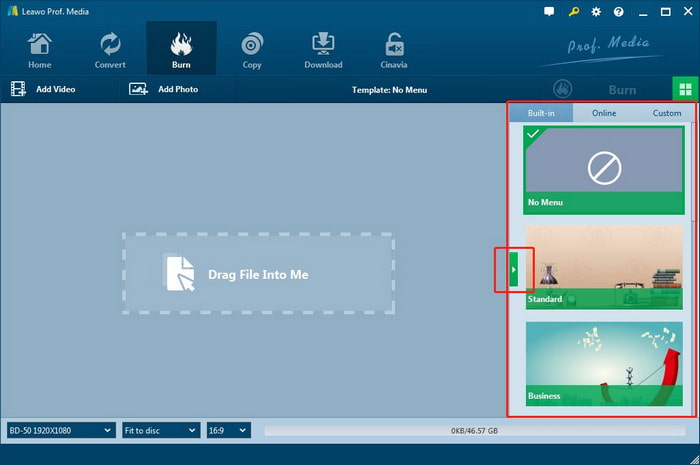
Step 1.Open Leawo Blu-ray Creator and go to the Burn tab. Click the Add Video button or drag and drop the BDMV file into the program.
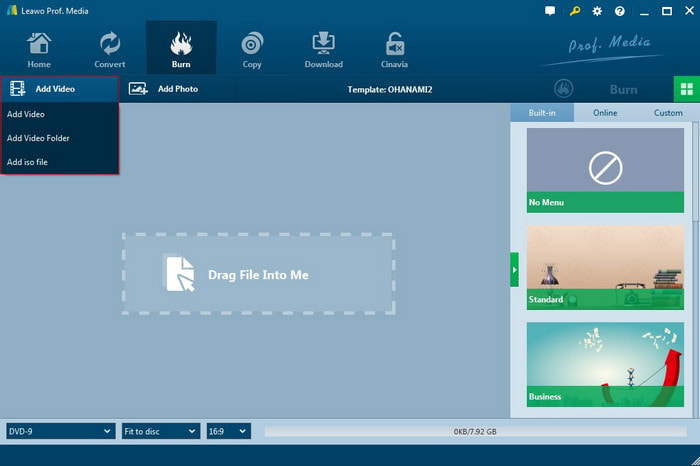
Step 2.In the right sidebar, you can choose from different preset menu templates. Moreover, it allows you to instantly preview the selected menu and edit it according to your needs.
Step 3.Set Burn to, Disc Label, and Save to options. One thing to note in this step is that to convert a BDMV file to an ISO file, you must check the ISO file option. Then, click the Burn button to start converting BDMV to ISO immediately.
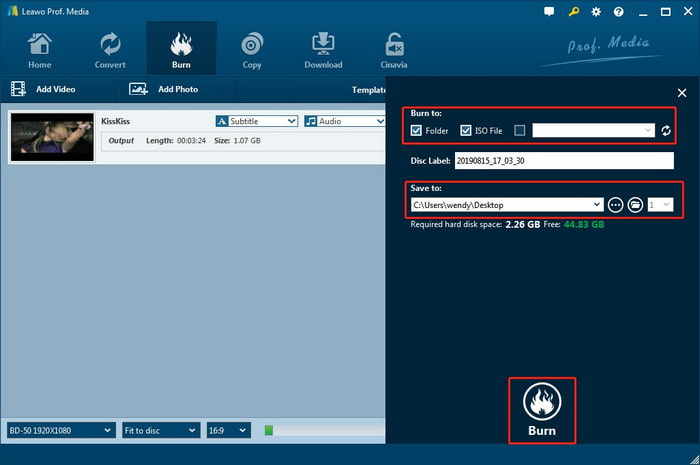
Once the burning is complete, you can access the converted ISO image file in your selected folder.
Way 3. How to Convert BDMV to ISO for Free
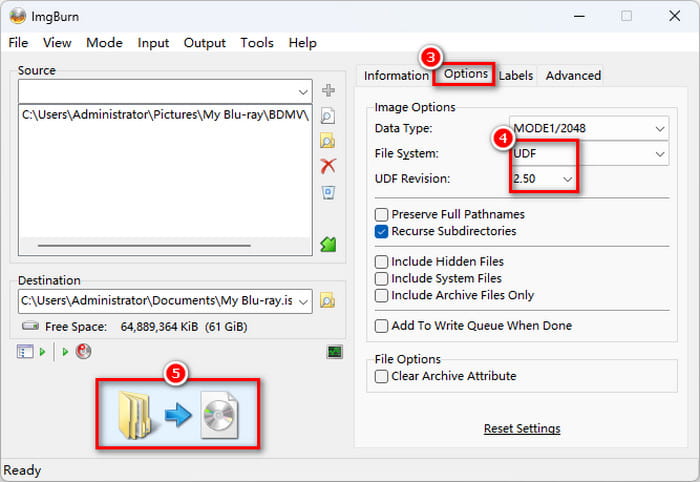
ImgBurn is a free and lightweight DVD/Blu-ray disc-burning program. Though it is legacy software with no official updates since 2013, it supports all Windows operating systems, including some older versions. It supports creating image files from discs and writing them to discs, so it can be used to burn BDMV files to ISO files. Its outdated interface requires manual configuration to set the correct UDF file system. We will show you the steps for it below:
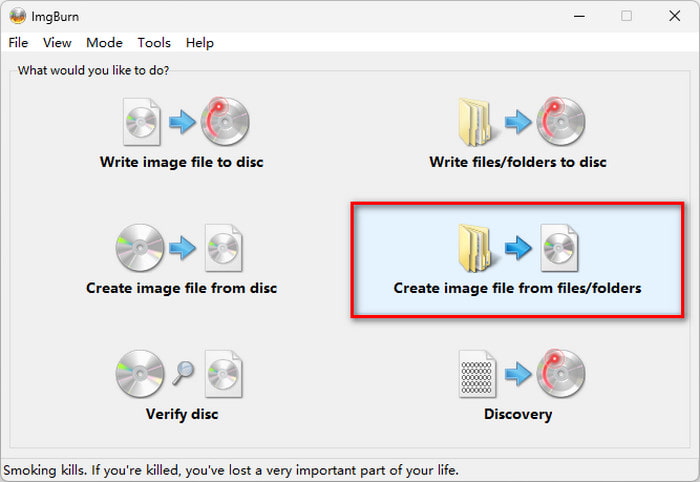
Step 1.Run ImgBurn. Then, click the Create image from files/folders option to enter the next window.
Note: If your BDMV folder is directly copied from a commercial disc with AACS protection, ImgBurn will create an ISO, but it won't play. You must decrypt it first using tools like MakeMKV or DVDFab.
Step 2.Click the Browser for a file/folder button to import a BDMV file or a folder containing BDMV into ImgBurn. Then click Browser for a file under Destination to select a save path to save the ISO file.
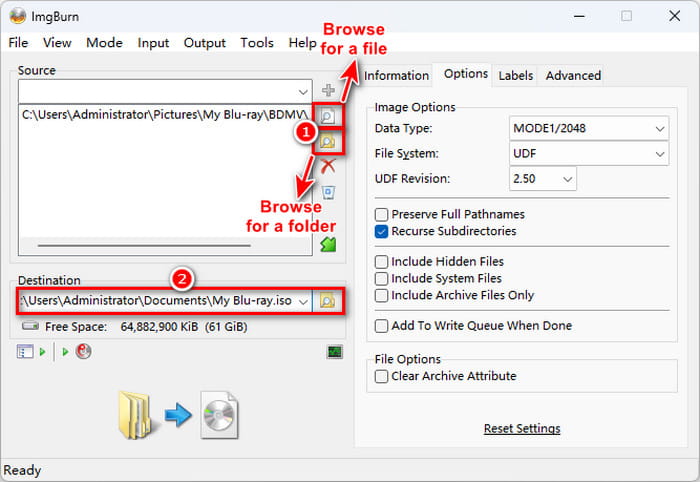
Step 3.Set the File System to UDF 2.50. Then, click the Build button in the lower left corner to start burning BDMV to ISO, and wait for the burning to finish.
Note: To burn BDMV to ISO on Mac computers, try alternatives to ImgBurn for Mac.
Part 5. FAQs about BDMV to ISO
-
How can I package a BDMV folder into an ISO image on Windows 11 without losing the original Blu-ray menu?
ImgBurn helps you. You can choose its 'Create image file from files/folders' feature to copy your BDMV folder to an ISO image file. Remember to set the file system to UDF 2.50.
-
What's the best free alternative to ImgBurn for converting BDMV to ISO on macOS?
You can use the Mac built-in Terminal app with hdiutil or mkisofs. Run mkisofs -udf -o output.iso /path/to/BDMV_folder. If you prefer a simple visual app, Burn (free/open-source) works well for basic disc image creation.
-
Why does my converted BDMV ISO file refuse to play on VLC Player, and how do I fix it?
VLC usually fails because of two things: missing Java or leftover AACS encryption. To fix it, install Java (JRE) so VLC can render menus, or go to VLC Settings > Input/Codecs and set 'Disc Menu' to direct playback/title selection to bypass the menu entirely.
-
What UDF revision should I select in ImgBurn when creating a Blu-ray ISO from a BDMV folder?
You must choose UDF2.50. It requires UDF2.50 or higher versions to play Blu-rays on modern media players.
-
Is it possible to convert a decrypted BDMV folder to ISO without re-encoding the video?
Yes. Creating an ISO is a container packaging process that doesn't need to re-encode the video files.
-
Can Plex natively stream BDMV folders or ISO files, or should I convert them to MKV instead?
No. Plex cannot natively play BDMV folders or ISO files. MakeMKV is a good choice to 1:1 copy the BDMV or ISO information to MKV files.
Conclusion
In this article, we have introduced you to three ways to convert BDMV to ISO using software suitable for Windows and Mac, respectively. You should have known how to convert BDMV folder to ISO now. This process is simply a container repackaging process rather than video re-encoding. This means you get a 100% 1:1 bit-for-bit backup with zero quality loss and fully functional original disc menus, though the final ISO file size will remain identical to the original folder.
Free Download
For Windows
Secure Download
More from Blu-ray Master
ISO Information

Free tool to copy any Blu-ray file to disc, folder, or ISO images losslessly.
100% Secure. No virus
