

Jun 03, 2026Posted by Kevin Miller to Rip DVD
ISO files are complete copies of DVDs, but in digital format. These formats are commonly used for archiving and backing up the physical discs. Although they keep a complete disc structure, they are inconvenient to play and are incompatible with most devices and media players. However, through ISO to MKV conversion, you can make it playable across devices and players. MKV is a good option as it offers high-quality video containers supporting multiple tracks and high-definition video. This post will show reliable ways to convert ISO files to the Matroska video format. This way, you can improve playback compatibility for modern devices and media players. Plus, you can keep the video quality without needing disc images.

- Pro Tips: Remuxing vs. Transcoding – Which One Should You Choose
- Way 1. Convert ISO to MKV with Blu-ray Master Free DVD Ripper
- Way 2. Convert ISO to MKV with MakeMKV
- Way 3. Convert ISO to MKV with DVDFab DVD Copy
- Way 4. Convert ISO to MKV with HandBrake
- FAQs About Converting ISO to MKV Format
| Blu-ray Master Free DVD Ripper | MakeMKV | DVDFab DVD Copy | HandBrake | |
| Decryption Support | CSS-encrypted and bypasses protected discs. | AACS, BD+, CSS, and protected Blu-ray/DVD support. | Protected DVD/Blu-ray ISO and disc support. | Requires libdvdcss plug-in to access encrypted DVDs. |
| Conversion Speed | Fast (GPU-accelerated) | Standard Speed | Fast (GPU-accelerated) | Standard to Fast |
| Quality | High quality but re-encoded. | Lossless | Supports lossless and compressed MKV. | Re-encoded (noticeable quality loss). |
| Output Formats | MKV, MP4, AVI, MOV, and more | MKV only | MKV, MP4, HEVC, AVI, 300+ formats | MKV, MP4, WebM |
| Best Use Case | Easy DVD to ISO conversion | Archival-quality backups | Fast, flexible ISO conversion | Compressing large video files. |
| Ease of Use | Beginner-friendly | Very simple | Feature-rich but manageable | Intermediate |
| Price | Free | Free | $59.99–$84.99 | Free (Open-source) |
Pro Tips. Remuxing vs. Transcoding – Which One Should You Choose
Remux (Lossless Passthrough)
Best Tool: MakeMKV
Remuxing works by extracting the original video stream (MPEG-2 or VC-1) and audio tracks (DTS-HD, Dolby TrueHD) from the ISO and places them into an MKV container without altering the data. This results in practical advantages such as digital video with 100% original quality, fast conversion, and full preservation of all audio tracks and subtitles.
Transcoding (Re-encoding/Compression)
Best Tool: Blu-ray Master Free DVD Ripper, HandBrake
Transcoding involves recalculating and compressing the video using codecs such as H.264 or H.265/HEVC. This results in a practical 70–90% reduction in file size and improved compatibility with mobile devices. However, it has several drawbacks, including lossy quality and heavy CPU/GPU usage.
Way 1. Convert ISO to MKV with Blu-ray Master Free DVD Ripper
Blu-ray Master Free DVD Ripper is a free yet highly efficient tool for converting ISO to MKV. It is compatible with Windows 11/10/8/7 and macOS 10.12 or above. It can handle DVD ISO files for conversion to over 500+ media formats, including MKV. Don’t stress out if your ISO file is encrypted with copy protection! The software can bypass any copy protection to make the conversion possible and easy. You can also customise your profile settings by adjusting parameters such as encoder, bitrate, resolution, etc. Plus, it has built-in editing tools for adding subtitles, changing audio tracks, configuring effects, etc.
Here’s how to convert an ISO file to MKV:
Step 1. Get started by downloading the Blu-ray Master Free DVD Ripper for free. Install the ISO ripping software on your computer and complete the installation process. Once finished, place the DVD into your computer’s disc drive and launch the software.
Free Download
For Windows
Secure Download
Free Download
for macOS
Secure Download
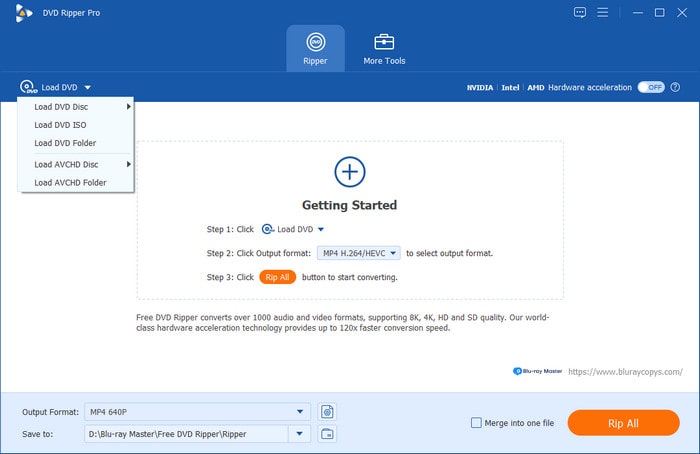
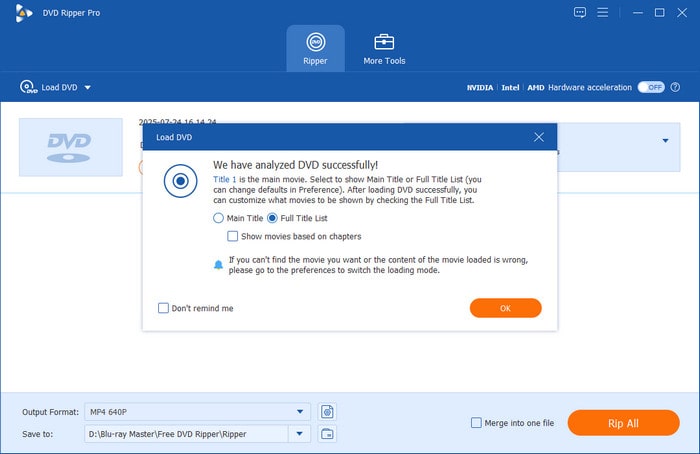
Step 2. Click Load Disc to add the DVD containing the ISO file. Apart from discs, you can also load a VIDEO_TS folder or IFO files. Click the pulldown menu to access the Load DVD Folder and Load ISO Files buttons. Next, select a loading mode in the pop-up window.
You can select between the Main Title and the Full Title List.
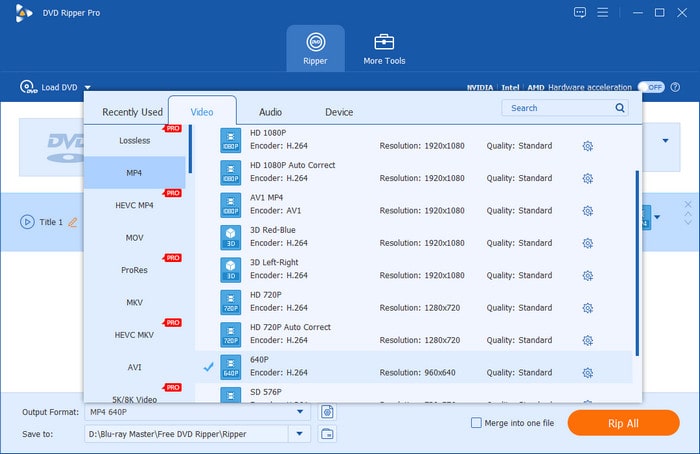
Step 3. Then, select the Output Format option and choose MKV among the available formats. If you need, you can click the gear icon to customize the encoder, resolution, bitrate, and other parameters.
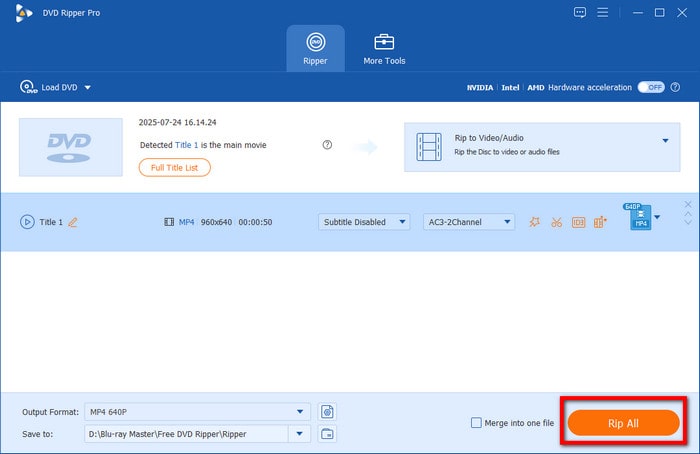
Step 4. Move to the Destination field and click Browse to set the output directory. After specifying the destination path, click Rip All to transform ISO files to MKV. The software will initiate the ISO file conversion without losing quality.
We were surprised by how easy the Blu-ray Master Free DVD Ripper is to use. It detected the ISO file without any issues and quickly converted it to MKV format. We also liked how it handles copy-protected DVDs effortlessly, eliminating additional steps for DVD decryption.
Using the MKV format also allows all the audio tracks and embedded subtitles to remain intact with your converted digital video. Even advanced tracks such as 5.1/7.1 surround sound can be preserved when using Blu-ray Master Free DVD Ripper to save videos in MKV.
Way 2. Convert ISO to MKV with MakeMKV
MakeMKV is a specialized software that converts ISO files to MKV format. It can extract videos, multiple audio tracks, and subtitles for conversion into a single container. Best of all, the software can handle copy-protected DVDs efficiently and maintain the full original quality. However, it doesn’t offer compression and converts content without re-encoding, resulting in a large size.
Step 1. Open MakeMKV, click File, and select Open Files to access the ISO file from your drive. Browse to the folder that contains the ISO, select it, and click Open to import. The software will scan the loaded ISO file and display all the available content.
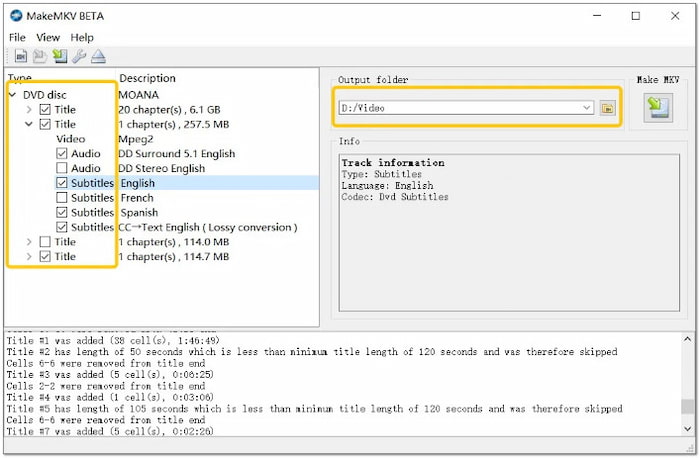
Step 2. Toggle all the titles you want to convert to MKV if the ISO file contains multiple titles. Uncheck bonus content, such as previews or short featurettes, if you don’t need them. Double-click each selected title to expand and choose specific audio tracks you want to keep.
Step 3. Move to the Output Folder section and click Folder to select a destination path. Then, click the MakeMKV button to convert the file to an MKV container. You don’t need to specify the output format; it automatically converts the files to MKV.
MakeMKV was perfect for converting ISO files without losing quality. It felt powerful because it kept everything in an MKV file. However, the file sizes were too large, and its output format was limited to the MKV container only.
To ensure that your converted ISO files to MKV retain their audio track and subtitles, make sure to enable the Select All Tracks option in the program’s settings.
Note: When adding Subtitles to converted MKV files, you have to learn the difference between Soft-coded and Hard-coded subtitles:
Soft-coded Subtitles - Embeds SRT or PGS subtitle streams inside the MKV file, allowing toggling on/off. Recommended for clean playback.
Hard-coded Subtitles - Burns subtitles directly into the video. Use only when the playback device cannot display subtitles.
If you encounter outdated PGS subtitles, we recommend performing OCR to convert these files to SRT format, which is more compatible with modern video players.
Way 3. Convert ISO to MKV with DVDFab DVD Copy
DVDFab DVD Copy is a flexible piece of software that can batch-convert ISO to MKV. It provides multiple formats, including lossless MKV, with the option to select all audio and subtitle tracks. Aside from MKV, it also supports MP4, H.264, AVI, and 350+ other formats. Additionally, you can finish the conversion quickly.
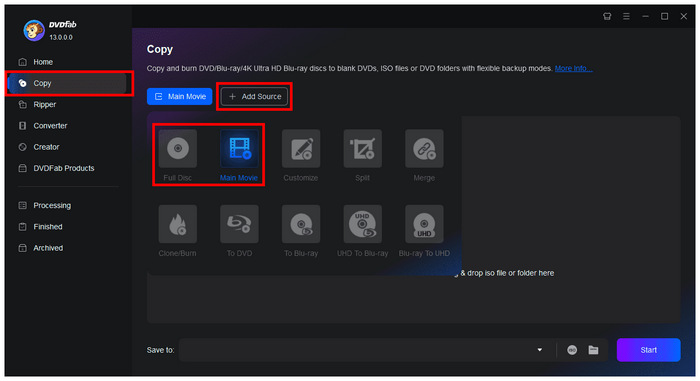
Step 1. Launch DVDFab DVD Copy on your operating system. In DVD Fab’s main interface, go to the Copy section and click on Add Source to select the ISO file. Then, choose how you want to convert your ISO image, whether Main Movie or Full List, based on how you want to convert the ISO file to MKV.
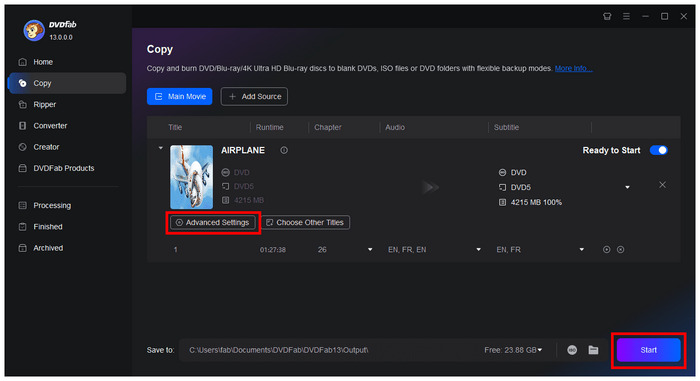
Step 2. Once the ISO content is loaded, you can select Advanced Settings to access more complex editing options for your ISO file before converting it to MKV format. Once done, click on Start to begin the MKV conversion.
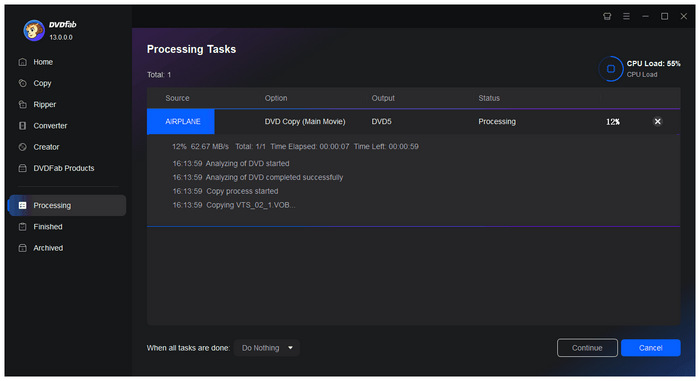
Step 3. With the conversion process now launched, simply wait for the ISO-to-MKV conversion to finish.
DVDFab DVD Copy is almost a complete tool for converting ISO files. However, the software is not free. It is a paid software that requires a subscription for full access. This means there are several features, mainly advanced ones, that you won’t be able to access.
Want to know more about ISO files? Check the full description here to learn what the ISO file is.
Way 4. Convert ISO to MKV with HandBrake
HandBrake is a highly recognised video transcoding software to convert ISO to MKV for free. It offers powerful encoding technology and advanced customisation options, including modern compression codecs. You can choose the main title, adjust the resolution, set the bitrate, and add subtitles/audio tracks. Now, a small heads-up: HandBrake does not support encrypted ISO files.
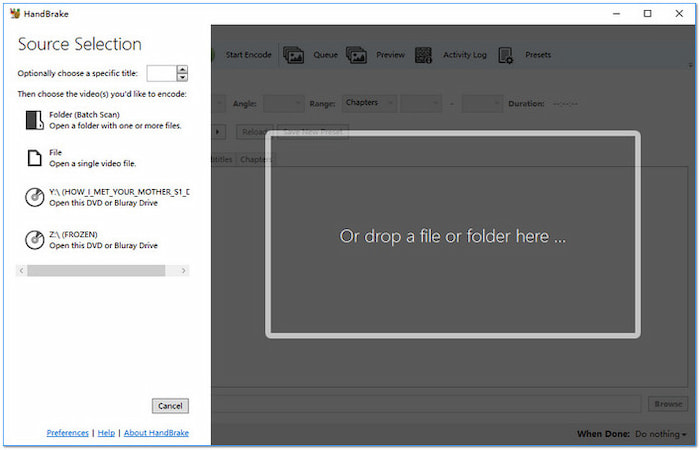
Step 1. Run HandBrake on your system and select the File option as your source selection. The software will scan the file and list the available titles as soon as it loads. But here’s the deal: You must download libdvdcss first if you’re ripping protected ISO files.
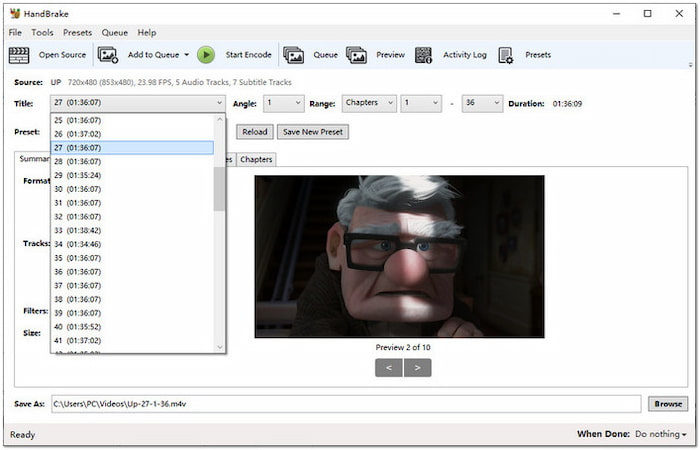
Step 2. Click the Titles pulldown menu and select the title of the ISO file for conversion. If you are unsure which is the main movie title, look for the title with the longest duration. Move to the Summary tab and select the MKV option from the Format field.
Step 3. Proceed to the Save As field and click the Browse button to select a folder destination. Now, move to the top section of the software and click the Start Encode button. The software will begin the ISO conversion immediately to MKV format.
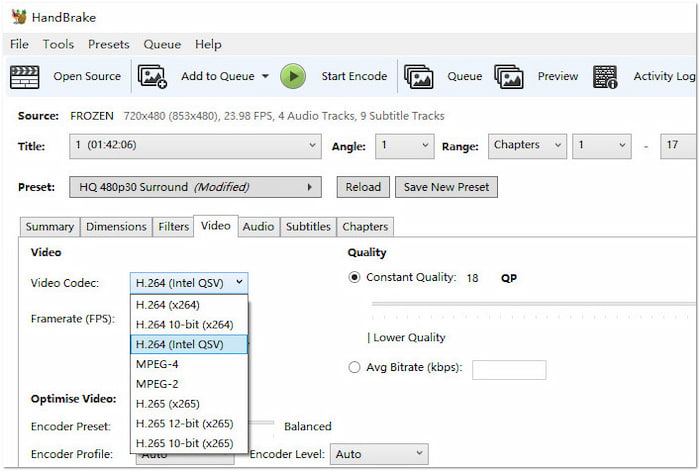
This best open-source DVD ripper was great for compressing ISO files into smaller MKV sizes. The open-source software is a big plus, and it works across various platforms. Unfortunately, it can’t handle encrypted ISO files, and the interface is confusing.
Make sure to take advantage of HandBrake’s Audio tab settings. Set the Codec to Auto Pasthru to avoid downmixing from 5.1 or 7.1 to regular stereo.
FAQs About Converting ISO to MKV Format
-
What is the best lossless tool to convert a DVD ISO to MKV?
All of these programs are good choices for lossless conversion. However, MakeMKV has a significant edge in lossless quality. However, Blu-ray Master Free DVD Ripper has a significant advantage in terms of ease of use.
-
MakeMKV vs. HandBrake for ISO conversion: which one preserves 5.1 surround sound?
Between MakeMKV and HandBrake, MakeMKV preserves 5.1 surround sound more reliably due to its native Dolby Digital support. HandBrake can only preserve surround sound via audio passthrough. For pure quality preservation and simpler setup, MakeMKV is usually the better choice.
-
Can I convert an ISO to MKV without re-encoding to save time?
Yes, you can convert an ISO to MKV without re-encoding by using a remuxing tool like MakeMKV and Blu-ray Master Free DVD Ripper. Since the video and audio streams are copied directly. This approach also keeps the original file size relatively large because the content remains uncompressed.
-
Which free ISO to MKV converter has no watermark or time limit?
MakeMKV is one of the best free ISO to MKV converters with no watermark or time limit. It supports ISO files, preserves original quality, and does not add branding or playback restrictions. It is usually preferred over HandBrake for fast lossless conversions as it avoids mandatory re-encoding.
Wrapping up
ISO to MKV conversion is a smart way to modernise your digital library. Though convenient for backups, ISO files are not easily playable across devices and media players. Meanwhile, MKVs offer more flexibility in playback, storage, and editing. Among the tools presented, the Blu-ray Master Free DVD Ripper stands out as a highly recommended solution for its superior reliability, lossless quality, and ease of use. The free software supports over 500 formats and efficiently handles encrypted ISO files, with superb audio and subtitle preservation.
More from Blu-ray Master
ISO Information
Fast and free ripping software to decrypt all DVDs to digital easily on your computer.
100% Secure. No virus
