

Jun 05, 2026Posted by Kevin Miller to Rip Blu-ray
Quick Summary:
If you’re short on time, see this quick guide: Blu-ray Master Free DVD Ripper is an all-in-one Blu-ray ripping tool that offers various video editing tools for improving video effects. HandBrake is a free and open-source tool for converting ISO to MP4. VLC is suitable for occasional small ISO conversion.
You may encounter a situation where you are ready to enjoy your DVD ISO movies, but your media player refuses to open. It is a frustrating but common bottleneck: because ISO files are exact sector-by-sector disc images cloned from DVDs or Blu-rays, they lack the universal plug-and-play flexibility of digital video. One common way to solve this is to convert your ISO files to MP4 format, which is compatible with most media players and devices. Now, keep reading this article to learn 3 easy ways to convert ISO to MP4 in high quality.

Table of Contents
- Part 1. Why Do You Need to Convert ISO to MP4
- Part 2. Which is the Best Way to Convert ISO to MP4
- Part 3. How to Convert ISO to MP4 Using the Easiest and Fastest Method
- Part 4. How to Convert ISO to MP4 in VLC Using 2 Methods
- Part 5. How to Convert ISO to MP4 in HandBrake
- Part 6. FAQs About How to Convert ISO to MP4
Disclaimer:
This guide is intended solely for personal backup of legally copyrighted DVD ISO files. Don’t use it for any commercial infringement purposes.
Part 1. Why Do You Need to Convert ISO to MP4
Most ISO files are data ripped from DVD or Blu-ray discs. These file types are often only accessible to third-party multimedia players. Because of that, running these files now requires downloading additional software, making them more challenging to access. Another option to access ISO files is by treating them as DVDs/Blu-rays since these disc images can be mounted on modern computers. Unfortunately, this method is extremely advanced and even intermediate users might face several obstacles in order to read ISO files.
Because ISO images are tricky and advanced, converting them into a much more accessible digital format is the way to go. MP4, the most common video format, is a popular file type into which ISO files can be converted. This is true for ISO images extracted from home releases of movies or television series.
To learn how to convert ISO files into MP4, please proceed to the following sections of this article.
Part 2. Which is the Best Way to Convert ISO to MP4
To ensure the accuracy, objectivity, and reliability of our recommendations, we conducted hands-on testing of all the featured ISO to MP4 converters. Rather than relying on theoretical speeds, we created a standardized testing environment to measure real-world performance, CPU optimization, and output video quality.
All tests were executed on a mainstream consumer PC to replicate a typical user experience. The operating systems are Windows 11 Home (64-bit, Version 23H2) & macOS Sonoma (Version 14.5).
| How We Test | |
| How many ISO files were tested? | Along with the ISO files we presented in the tutorial on how to use each tool, we tested five ISO files to be converted into MP4. |
| What is the file size of each ISO file? | The five tested ISO files have an average file size of 3.5 GB, with the smallest being 2 GB and the largest being 5 GB. |
| What is the converted MP4 video duration? | The converted ISO files have different video durations. Two of them are long-form movies with a 2-hour duration each. The other two are standard movies that have a duration of 1 hour and 30 minutes each. Meanwhile, the fifth video is a TV series episode that is 1 hour long. |
| ISO Converter Software | Supported Platform | Speed(A DVD of 2h) | Maintains Video Quality | Bulk Conversion | Pros | Cons |
| Blu-ray Master Free DVD Ripper | • Windows • macOS | 32 mins |  | | • Simple to use. • Efficient processing speed. • It can be used to rip ISO files from DVD and Blu-ray. | • The free version is limited to profiles prior to the HD resolution for output. • The acceleration technologies are only available for the premium version. |
| VLC Media Player | • Windows • macOS • Android iOS | 67 mins |  | | • Reliable media player. • Offers additional features. | • Prone to crashes when outdated. • Additional features are hard to use. |
| HandBrake | • Windows • macOS • Linux | 55 mins | | | • Built for advanced users. • Free to download and developed as an open-source file | • Highly-technical to use. • Not beginner-friendly. • The main interface is hard to navigate. |
Part 3. How to Convert ISO to MP4 Using the Easiest and Fastest Method
We will start this guide by providing a tutorial on how to use the most reliable DVD ripper, Blu-ray Master Free DVD Ripper, which can efficiently convert ISO to MP4. As its name suggests, this software is primarily a tool used to extract data from DVD releases, including DVD discs, folders, and, of course, ISO files. Once you load the DVD ISO file, the software can automatically analyze the ISO information, and you can choose from the Main Movie and Full Title List options to present the ISO file. Before changing ISO to MP4, you need to choose one MP4 profile from the provided options, like 4K Video and HD 1080P, enabling you to meet different playback requirements.
Now, please read our step-by-step guide below to learn how to use this tool to convert an ISO file to MP4.
Step 1.Download the Blu-ray Master Free DVD Ripper first via the download button below and install it on your computer.
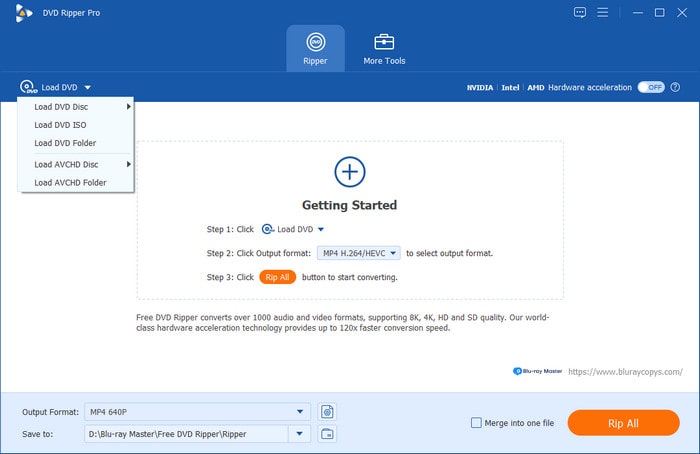
Double-click the software to launch it, and choose Load DVD > Load DVD ISO to add an ISO file into this tool.
Note: After loading the ISO file, it will provide the Main Movie and Full Title List options for you to list the ISO information.
Free Download
For Windows
Secure Download
Free Download
for macOS
Secure Download
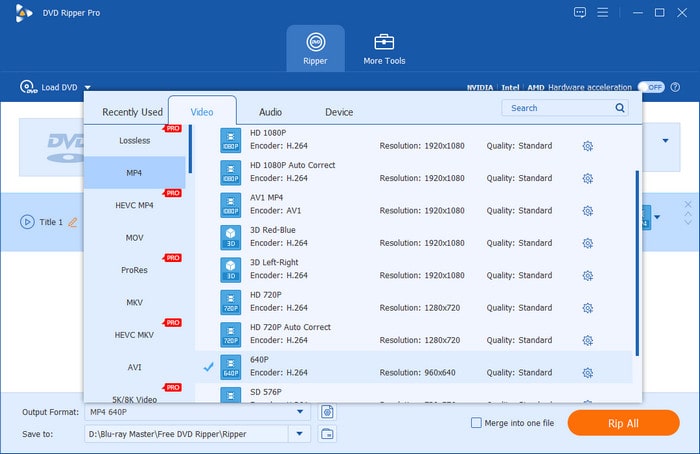
Step 2.Go to the Output Format > Video to choose a proper MP4 profile. Here, we choose MP4 HD 1080P as an example.
Note: You can use the provided editing tools to additionally adjust video effects, like watermarks, audio tracks, and subtitles.
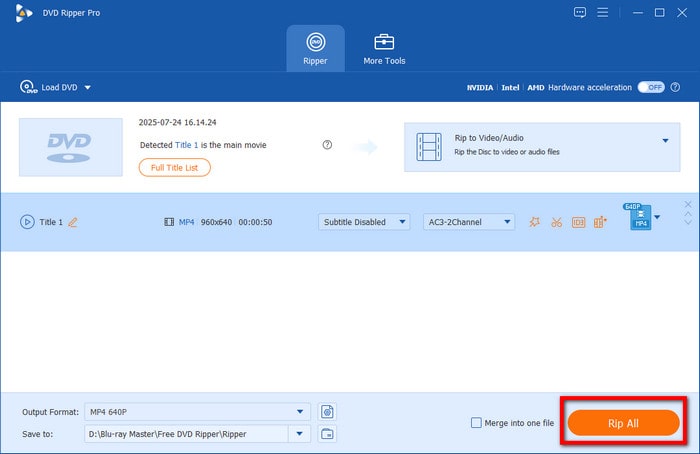
Step 3.The last step is easy. You only need to set the download destination and click Rip All to start the ISO to MP4 conversion.
Note: It offers many extra functions, and you can explore them by selecting the More Tools option.
By following this guide, you can now convert any content of an ISO file into MP4 or any digital format that you decide. This option is reliable, making it the best tool in this guide in terms of versatility, ease of use, and processing efficiency.
Part 4. How to Convert ISO to MP4 in VLC Using 2 Methods
The next tool we will feature is VLC Media Player. Although commonly known as one of the most reliable multimedia players across multiple platforms, this software also offers practical conversion features, enabling you to convert Blu-ray or DVD ISO files to MP4. The interface is clear, and the steps are easy. It is not a professional ripping tool, so the ripping speed is not very quick. But it allows you to convert ISO to MP4 for free.
While VLC Media Player is an absolute Swiss Army knife for playing almost any media format, it is important to understand that its conversion engine is built on a stream-saving architecture rather than a dedicated transcoding framework.
In real-world testing, using VLC to convert large ISO files is unreliable. There are occasionally the situation of software freeze, audio-video desynchronization, or crashes halfway. In addition, it fails to allow you to select and maintain some specific audio tracks or subtitles.
So, VLC is suitable for handling small ISO files for free. If you want to process large ISO backups, the other two tools may serve you much better.
Direct Conversion
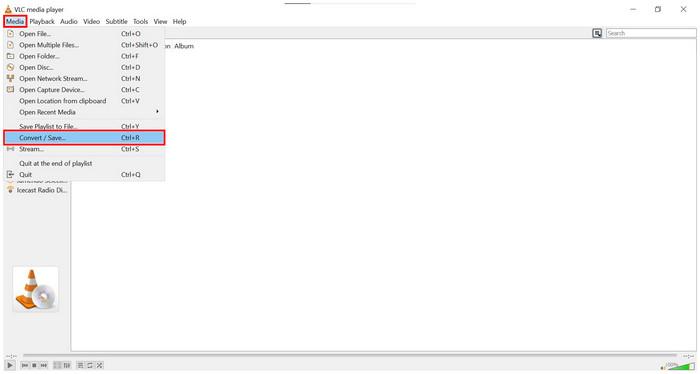
Step 1. Open VLC Media Player and select Media on the toolbar. Then, select Convert/Save.
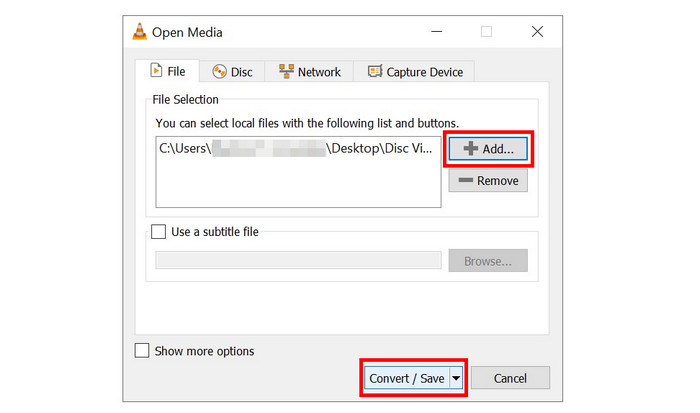
Step 2. In the window that will pop up, click on Add and browse your file manager for the ISO file that you want to convert. Click on Convert/Save once it is added.
Step 3. After the ISO file has been selected, set the convert Profile to MP4, then click on Browse to set the destination where the converted MP4 will be saved. Finally, select Start to begin the conversion process.
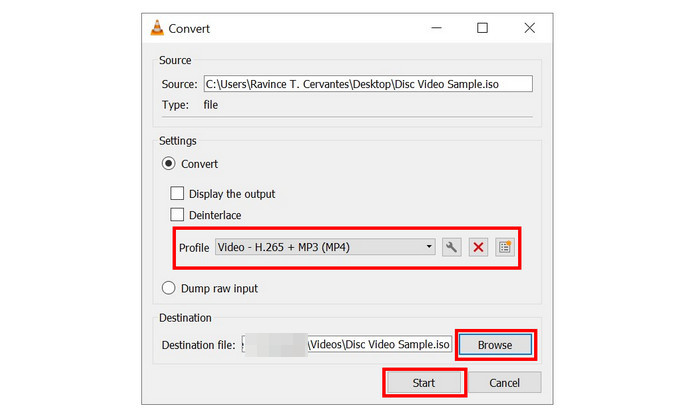
This first method uses VLC's standard video converter feature, and it was labeled as a direct conversion because it uses a linear file conversion process.
Mounting ISO File as a Disc
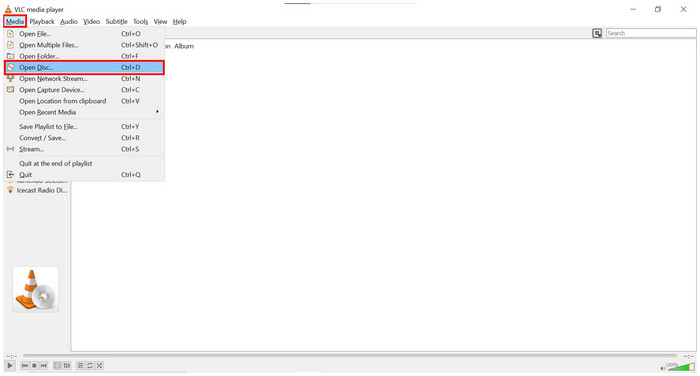
Step 1. Open VLC Media Player and select Media on the toolbar. Then, select Open Discs.
Step 2. In the Disc window of media settings, click on Browse, then select the Disc device to locate the ISO file. Click on Convert/Save to proceed.
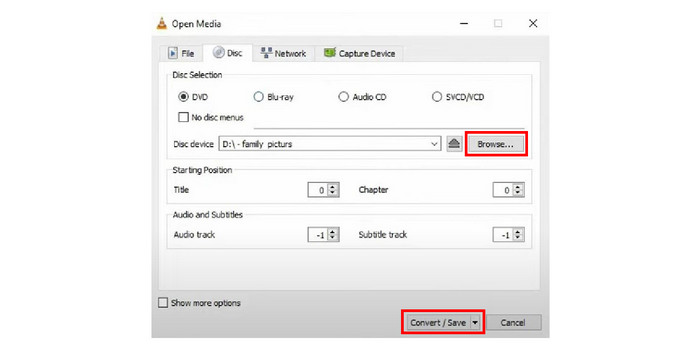
Step 3. After the mounted ISO disc has been located, set the convert Profile to MP4, then clih3-v1ck on Browse to set the destination where the converted MP4 will be saved. Finally, select Start to begin the conversion process.
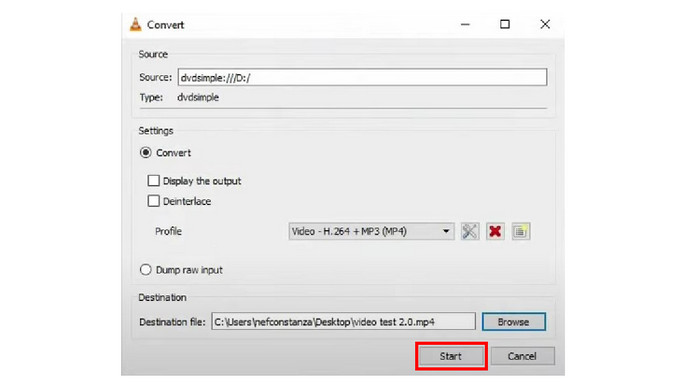
Unlike the first solution, this option uses the ISO file mounted as a disc. This requires slight adjustments from the steps done in direct conversion, but these differences are small. The answer to whether VLC can convert ISO to MP4 is a resounding yes.
Part 5. How to Convert ISO to MP4 in HandBrake
HandBrake is another DVD/Blu-ray ripper software that is developed as an open-source software. You can use it to load one or many ISO files and convert ISO movies to MP4. This tool is more advisable for advanced users since it is not friendly for beginners due to the technical knowledge and complex presets to run it effectively. Despite that, it still maintains a community of advanced users that trust it for ISO to MP4 conversion and other uses.
To learn how to use this software, please read our short guide below.
Step 1. Open HandBrake on your computer. Then, click the Open Source option to select and import the DVD/Blu-ray ISO files you want to convert.
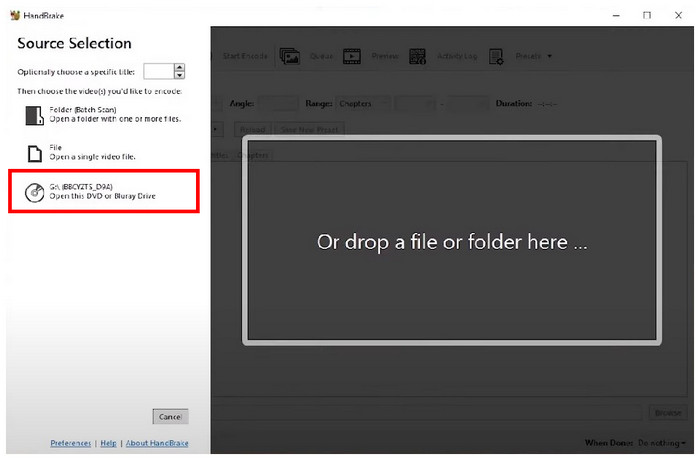
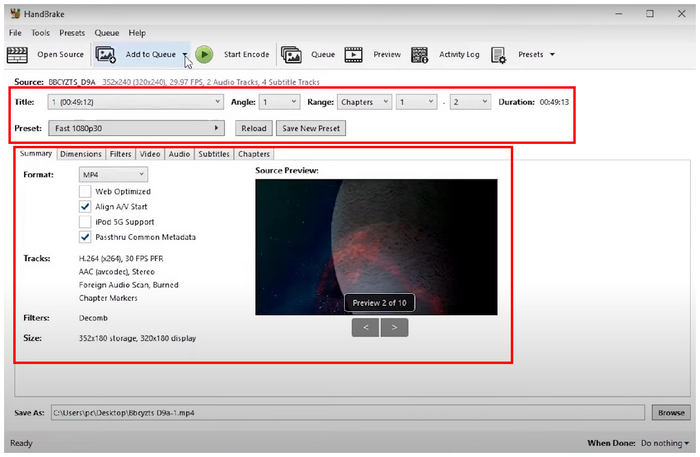
Step 2. After HandBrake loads the DVD/Blu-ray ISO, choose MP4 as the output format under the Summary section. You can now adjust multiple video parameters to improve its quality.
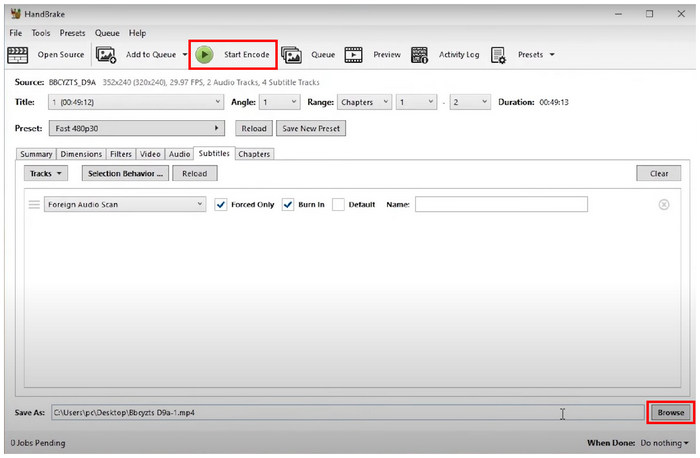
Step 3. Once you are satisfied with the video adjustments or do not want to add any, simply click on Browse to set a saving destination for the video. Click on Start Encode to begin the conversion process. The converted video will be automatically saved as an MP4 file.
Although more advanced than Blu-ray Master Free DVD Ripper and VLC Media Player, HandBrake is still capable of converting ISO to MP4 files. If you are experienced enough in its technicalities, this tool is a good option. If you are unsure whether the HandBrake can convert ISO to MP4, we hope that this guide has provided you with the answer.
Part 6. FAQs About How to Convert ISO to MP4
-
Can ISO be converted to MP4?
Yes, they can. You can use multiple software to do this. Blu-ray Master Free DVD Ripper is one of the most reliable options.
-
How do I extract an ISO from a movie?
You need DVD/Blu-ray Ripper software. The easiest to use in the market is Blu-ray Master Free DVD Ripper. Read our guide above to learn how to use it.
-
Can 7Zip extract ISO files?
Yes, it can. 7Zip is enough for ISO file extraction. You can use this tool reliably for basic file-extracting needs.
-
Can I extract an ISO file without burning Windows 7?
Yes, you can. Multiple tools are available for Windows 7 that can do this. HandBrake is available for this older Windows version.
-
Are ISO files the same as disk images?
Yes, they are. ISO files are also known as optical disc images. The name ISO comes from their file extension.
-
Can HandBrake convert a DVD ISO directly to MP4, and what are the best video settings for Plex?
VLC relies on a stream-saving architecture rather than a dedicated transcoding engine, which leads to memory leaks and buffer overflows. You can go to the Tools > Preferences > Input / Codecs and set Hardware-accelerated decoding to Disable.
-
Why does VLC Media Player crash every time I try to convert a large ISO file to MP4? How to fix it?
VLC relies on a stream-saving architecture rather than a dedicated transcoding engine, leading to the problem of memory leaks and buffer overflows. You can go to the Tools > Preferences > Input / Codecs and set Hardware-accelerated decoding to Disable.
-
How to convert ISO to MP4 on a Mac for free without downloading sketchy software?
HandBrake is a good choice that is compatible with Windows, Mac, and Linux computers.
-
If I convert an ISO movie to MP4, will it preserve all the original subtitles and multiple audio tracks (like director’s commentary)?
This depends on the tool you used. Some advanced Blu-ray ripping tools can preserve the full ISO information after conversion.
-
Is there a way to remux/extract video from an ISO file to MP4 instantly without full re-encoding?
Yes. You can use XMedia Recode (Windows) or Subler (Mac) to remux ISO files with re-encoding.
Wrapping up
We hope that this article has provided you with the necessary information to help you learn how to convert ISO to MP4. For an easier time doing this process, please read our guide regarding Blu-ray Master Free DVD Ripper since it is the easiest to use among the tools presented in this guide.
More from Blu-ray Master
