

Jul 16, 2025Posted by Kevin Miller to Copy Blu-ray
Blu-ray to ISO backup is a method used to preserve high-definition movies digitally. An ISO image is a single, exact duplicate of the entire Blu-ray disc. It contains all the video, audio, menus, and file structures. The major benefit of using the ISO format is that it enables disc-free playback. Additionally, it simplifies storage and archiving and protects your Blu-ray from damage over time. There are several reasons why someone might want to back up a Blu-ray. It could be for digital media consumption, creating long-term storage, or simply to have a convenient way to access your movies. This post aims to help you rip physical Blu-ray discs into an ISO image file. We'll guide you through the preparations, tools, and instructions necessary to create effective ISO backups of your Blu-ray content.

- Part 1. What is an ISO Image?
- Part 2. Preparations for Ripping Blu-ray to ISO
- Part 3. How to Backup Blu-ray to ISO
- Part 4. FAQs about Blu-ray to ISO
Part 1. What is an ISO Image?
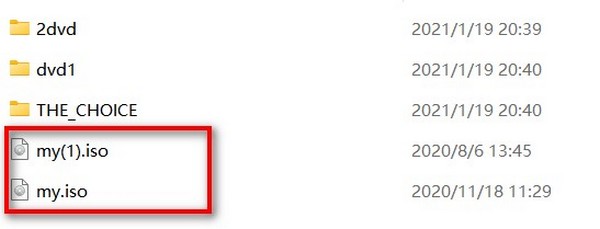
An ISO image is a single digital file that contains the entire structure of a disc, such as a Blu-ray disc. Simply put, it's a replica of the disc saved with the .iso extension. In addition to video, audio, and menus, it also includes metadata and any copy protection information, if present. ISO images are preferred for backup because they preserve all the data from the original disc.
For Blu-ray backups, ISO files offer significant advantages over other digital formats. They maintain the disc's original structure, quality, and features without compression or alteration. It means all menus, chapters, languages, and high-definition video remain intact. Therefore, ISO files are ideal as they serve as true digital replicas of the disc.
Part 2. Preparations for Ripping Blu-ray to ISO
Before you rip Blu-ray to ISO, it is essential to make a few preparations to ensure everything goes smoothly. These preparations help you avoid errors and compatibility issues and ensure you're acting within your local regulations:
System Requirements
A computer must meet certain system requirements to ensure a successful process. First, check that your operating system is compatible with the software you plan to use. Additionally, Blu-ray files are large, ranging in size from 50GB to more. So, you'll need enough free disk space for the ripped or copied Blu-ray content. For optimal performance, a minimum of 8GB of RAM and a multi-core processor are recommended to handle the decoding and encoding tasks effectively.
Drive Requirements
Unlike DVDs, Blu-ray discs require a specialized optical disc drive. Not to mention, DVD drives cannot read Blu-ray media. You'll need an internal or external Blu-ray reader or Blu-ray writer connected to your computer. If you don't have a built-in drive, use a USB 3.0 external Blu-ray drive for faster and more stable data transfer. Additionally, ensure the drive is compatible with your operating system and supports the disc type you intend to rip.
Legality and Personal Use
It's essential to understand the legal implications when planning to convert Blu-ray to ISO. This legality can vary greatly depending on your country or region. In many places, ripping copyrighted content may violate anti-circumvention laws, especially when bypassing DRM protection. However, some jurisdictions allow personal-use exemptions. It means if you own the disc, you may be legally permitted to make a backup for personal viewing only.
Part 3. How to Backup Blu-ray to ISO
Blu-ray Master Free Blu-ray Copy is a zero-cost yet powerful software to backup Blu-ray to ISO. It allows you to clone a Blu-ray disc or BDMV folder into various formats, including ISO. It offers four copy modes: Full Disc, Main Movie, Clone, and Write Data. Even for Blu-rays with encryptions, this software can bypass any copy protections and region codes. Additionally, it utilizes the latest GPU acceleration technology to accelerate copying speeds up to 6 times.
Step 1. Get started by downloading the Blu-ray Master Free Blu-ray Copy for free. Install the Blu-ray cloner software on your system and finish the installation process. Once completed, place the source Blu-ray disc into your external Blu-ray drive and run the software.
Free Download
For Windows
Secure Download
Step 2. Click the File tab and select the Load Blu-ray Disc option to import the Blu-ray disc. In addition to the physical Blu-ray disc, you can also load a BDMV folder. During the loading process, ensure your system is connected to the internet to decrypt encrypted Blu-rays.
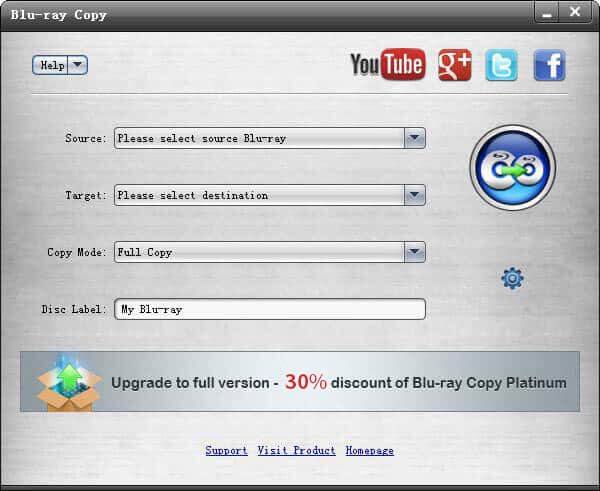
Step 3. Choose your preferred copy mode: Full Disc, Main Movie, Clone, or Write Data. Since you're converting Blu-ray to ISO image file, select the Full Disc mode. Switch to the Target field and select Save as ISO (*.iso) from the pulldown menu.
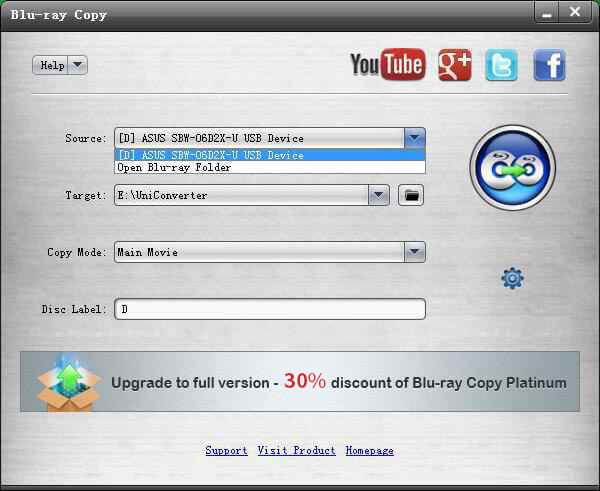
Important Note: To make things clear, the Full Disc mode copies the entire Blu-ray disc, including menus and extras. The Main Movie duplicates only the main title of your Blu-ray. Meanwhile, the Clone mode makes an exact 1:1 copy of the Blu-ray losslessly. Lastly, the Write Data model is used to copy an existing BDMV folder or ISO file to a blank disc or create an ISO file.
Step 4. In the Volume Label field, enter a file name for your copied ISO. Then, in the Copies field, choose how many copies you want to make. After confirming all settings, click the Start button to begin duplicating the ISO file. Once complete, the file will be stored on your local drive.
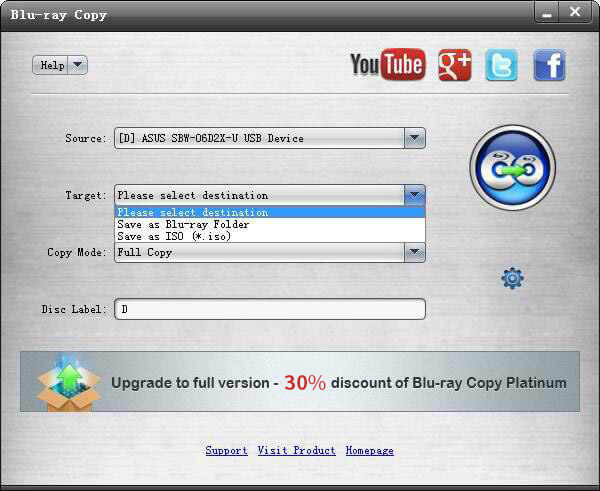
Blu-ray Master Free Blu-ray Copy offers a hassle-free solution for backing up physical Blu-ray discs to an ISO file. Additionally, it allows converting 4K Blu-rays to ISO without compromising quality. Beyond the physical disc, you can also duplicate the Blu-ray folder (BDMV) to ISO.
Part 4. FAQs about Blu-ray to ISO
-
How much data can be stored on an ISO file?
ISO files can store data up to the full capacity of the disc it represents. However, the traditional ISO 9660 standard imposes a 4GB file size limit. Fortunately, this can be bypassed by using the multi-extent feature of ISO 9660 Level 3.
-
What file format does Blu-ray use?
Blu-ray discs use the MPEG-2 transport stream format (.m2ts) for storing video and audio content. The disc's structure is organized under the Universal Disk Format file system. Blu-ray video is stored in the BDMV directory, which includes all the necessary files.
-
Can I rip Blu-ray to VOB file?
Yes, you can rip a Blu-ray to a VOB file, but it's not a standard process. These files are designed for DVD-Video and are not supported by Blu-ray's structure or format. To create a VOB file from a Blu-ray disc, you'll need to use Blu-ray ripping software that supports format conversion.
Wrapping up
Creating a backup of Blu-ray discs to ISO is a smart solution to protect them from damage. It also simplifies storage and lets you enjoy playback without relying on physical media. For a reliable and user-friendly solution, use Blu-ray Master Free Blu-ray Copy. This software supports full disc copying, customizable settings, and ISO output, all while maintaining the original quality.
More from Blu-ray Master
How to Copy Blu-rays

Free tool to copy any Blu-ray file to disc, folder, or ISO images losslessly.
100% Secure. No virus
