

Jul 25, 2025Posted by Brittany Garcia to Copy Blu-ray
Do you want to copy your Blu-ray on your computer hard drive to secure them from possible damage? If so, we have the best ways you can follow. By reading the post, we included three effective methods you can check to efficiently copy or back up your Blu-ray to a hard drive. So, without anything else, we are convincing you to come to this post as we give you the best software to

- Part 1. Back Blu-ray to Hard Drive Using Free Blu-ray Copy
- Part 2. How to Rip Blu-ray to Hard Drive on MakeMKV
- Part 3. How to Copy Blu-ray Disc to Computer Hard Drive on VLC
- Part 4. FAQs about How to Backup Blu-ray to Hard Drive
| OS Compatibility | Ease of Use | Supported Formats | Output Quality | Editing Capabilities | Cost | |
| Blu-ray Master Free Blu-ray Copy | Windows 11/10 | Blu-ray disc, folder, and ISO | Lossless |  | Free | |
| MakeMKV | Windows 11/10, 10.7 or later | MKV | Same as the original quality | | Free | |
| VLC | Windows 11/10, macOS 10.7 or later | MP4, AVI, MKV, etc. | HD | | Free |
Part 1. Back Blu-ray to Hard Drive Using Free Blu-ray Copy
Blu-ray discs come in different storage capacities, mainly BD-25 and BD-50. BD-25 is a single-layer disc that can hold up to 25GB of data. It is commonly used for standard Blu-ray movies and backups. Meanwhile, BD-50 is a dual-layer disc that can store up to 50GB of data. It's ideal for longer movies, higher bitrates, multiple audio tracks, and bonus content.
These days, having a Blu-ray movie on a Blu-ray disc is becoming inconvenient. It is because the disc has scratches or can be damaged for any reason. With this, the content or the movie from the disc is in danger. One possible thing to happen is it can’t be playable anymore. In that case, you must copy or backup your Blu-ray to your computer hard drive. So, if you are looking for the best copying/cloning software, use the Blu-ray Master Free Blu-ray Copy. It is an offline software that is workable on Windows operating systems. When using the program, you can copy any content from the Blu-ray without facing any struggles. The process of copying or backing up the Blu-ray is too simple.
With its simple yet understanding interface, you can back up your Blu-ray quickly. It is because after setting up all the essential things to do, you can just click the burning button to start the procedure. Aside from that, the Free Blu-ray Copy allows you to change the language from Blu-ray if you want. It supports languages like Deutsch, English, Francais, and more. Also, the offline program is free to download software wherein you can get the Free Blu-ray Copy without needing a costly plan. So, if you are eager to learn how to save Blu-ray movies to the hard drive, come below and learn the methods.
Pros
- It is free and easy to use.
- It can bypass DVD copy protection to copy it to disc, folder, and ISO.
- It can copy your Blu-ray to disc, folder, and ISO image.
- Its copy speed is fast with the GPU acceleration.
Cons
- It is only available for Windows computers.
- It lacks advanced features for DVD copying.
Step 1. Go to your computer and visit the Free Blu-ray Copy website. Then, click the Download button to access it on your device. You can also tick the Download button below. Once done, set up the installation and run the program on your computer.
Free Download
For Windows
Secure Download
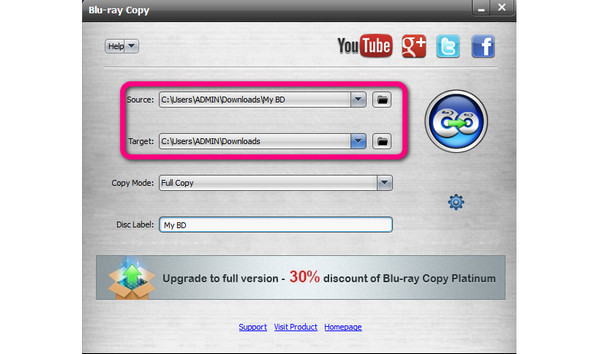
Step 2. For the following procedure, open the program after the installation process. After that, you can continue to the next step. From the main interface, click the Source option to insert the Blu-ray from your computer. Then, click the Target to set the designated file where you want to copy the Blu-ray. Ensure that the Blu-ray is connected to your computer before starting the process.
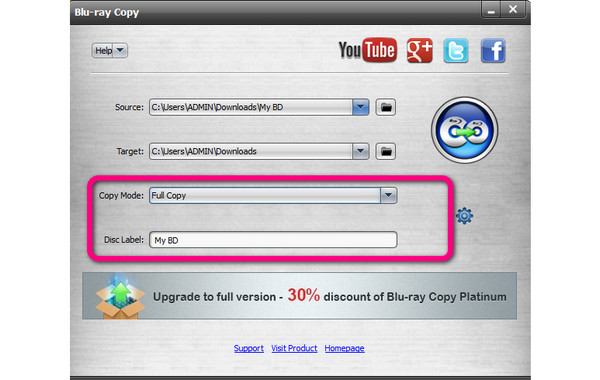
Step 3. You can also click the Copy Mode button to choose how to copy the Blu-ray. Then, if you want to rename the file, insert the name into the Disc Label option.
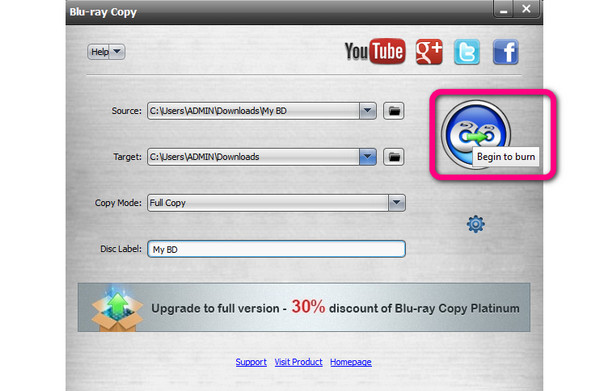
Step 4. To start the backup process, click the big icon on the right interface of the program. Then, the procedure will start. After the procedure, you can navigate to the assigned folder and play the Blu-ray on your computer.
Part 2. How to Rip Blu-ray to Hard Drive on MakeMKV
If you want an open-source offline program to rip and back up Blu-ray to your hard drive, use MakeMKV. With its ripping feature, you can back up the Blu-ray to your computer with a simple click. Also, its interface is perfect for all users. It is because you don’t need to look for more functions after launching the program. The simple way you do this is to insert the Blu-ray and set the designated file where you want to keep the Blu-ray on your computer. However, there are some drawbacks when using the MakeMKV software. You can’t edit the Blu-ray if you want because the program has no basic features. Also, there are times when MakeMKV is not opening well, and you must get the latest software version. In addition, after backing up the video, it will be saved as an MKV format.
Well, it is not questionable since the program's name is MakeMKV. With that, you can’t change the video format if you want. Playing the video on some platforms that don’t support the MKV formats will become hard. If you want the best way to copy Blu-ray to a hard drive using MakeMKV, we put the information below.
Pros
- It can handle Blu-ray copy protection to rip Blu-rays to MKV.
- It allows you to check the titles you want to retain in the conversion process.
- Its operation is intuitive and simple.
Cons
- It can only output MKV files.
- Some people think its design is outdated.
Step 1. Download the MakeMKV software on your computer. Then, launch it after the installation process. Before going to the next process, ensure the Blu-ray is already on your computer.
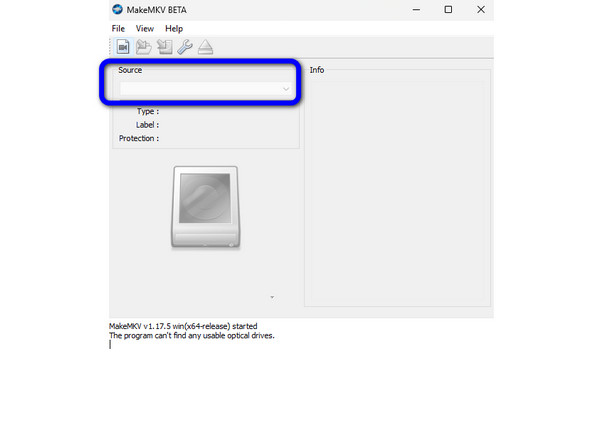
Step 2. Click the Source button from the MakeMKV’s interface to browse the Blu-ray from your computer.
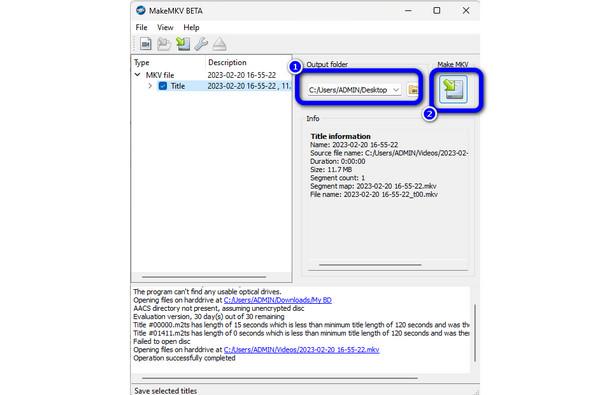
Step 3. After you insert the Blu-ray, go to the Output Folder section to select the computer hard drive as your assigned file folder to back up the Blu-ray. For the last step, hit the MakeMKV button to begin the backing up process to your Blu-ray.
Part 3. How to Copy Blu-ray Disc to Computer Hard Drive on VLC
The VLC Media Player is among the best programs to copy Blu-ray to a hard drive by recording the movie. Some users just knew that VLC was one of the best Blu-ray players on PC. But little did they know, they could copy the Blu-ray if they wanted. In addition, the offline program is simple to download and install. It only takes a few seconds before you can operate the VLC to achieve your goal. However, the VLC has disadvantages you must be aware of. The interface of the program is too confusing. You must be knowledgeable about the tool before utilizing it. Also, if you want to improve the video before saving, it is impossible to do for VLC. Well, the program is lacking basic editing functions for the video. See the instructions below to record Blu-ray to a hard drive.
Pros
- It can load Blu-ray discs, folders, and ISO files, and convert them to digital.
- It provides many output options, such as MP4, MOV, MP3, FLAC, etc.
- It has settings that allow you to adjust video and audio parameters.
Cons
- Some people complain that it has no advanced features.
- It can only handle unprotected Blu-rays.
Step 1. Access the VLC Media Player on your computer. After that, you can run it on your computer. But before that, you must first insert the Blu-ray on your computer.
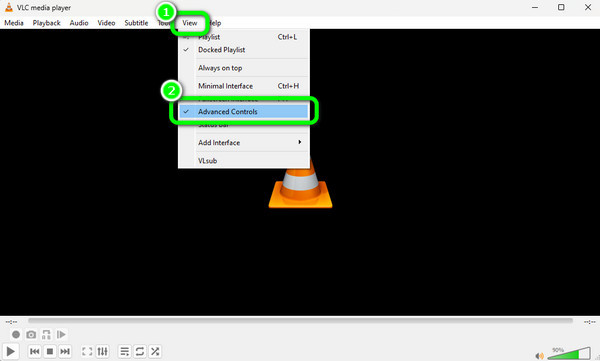
Step 2. Go to the View > Advanced Controls options to display more buttons on the VLC’s interface.
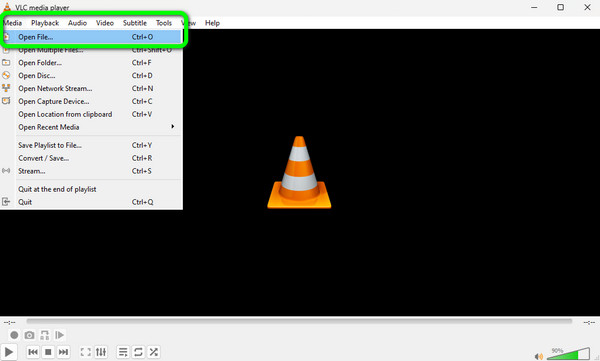
Step 3. Then, go to the Media > Open File button to insert the Blu-ray from your computer. Then, you can play the video.
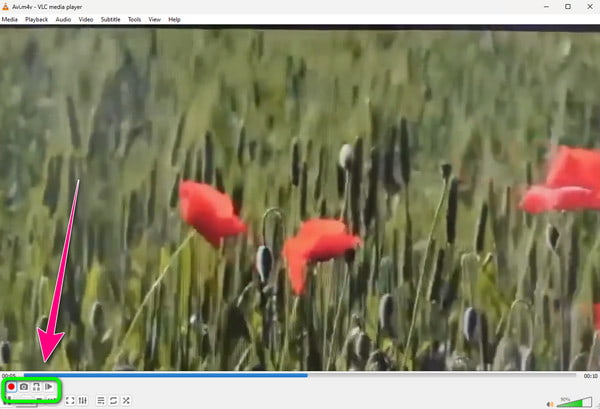
Step 4. But before you play the video, hit the Record button below to begin the recording process/ After you recorded the video. Click the Stop button. This way, you can have the Blu-ray movie with the help of VLC Media Player. If you are unsatisfied with this tool, click here to get top VLC Media Player’s alternatives.
Part 4. FAQs about How to Backup Blu-ray to Hard Drive
-
Can I copy a Blu-ray to my hard drive?
Yes, you can. Copying a Blu-ray to your hard drive is straightforward when using the Free Blu-ray Copy. After launching the software, you can insert the Blu-ray and select the target option to save the Blu-ray to your hard drive. Since it has a simple interface, all users, like beginners, can copy their Blu-ray easily and instantly.
-
How many Blu-ray movies can 1 TB hold?
It depends on the size of the movie. If the movie has smaller file sizes, then there will be more movies you can have in 1TB.
-
What is the biggest Blu-Ray storage?
The most extensive Blu-ray storage holds up to 50GB. With this, you can insert various movies you like. You can even collect them if you prefer preserving movies on your disc.
-
How many Blu-Ray movies can 10 TB hold?
If your movie is encoded in Blu-ray format, you can have hundreds of movies on 10TB.
Wrapping up
In this post, you learned how to back up Blu-ray to a hard drive using the best three methods you can try. With this, you can secure the safety of your Blu-rays on your computer. However, some of the programs have a confusing interface. So, if you are a non-professional user who prefers a simple interface, use the Free Blu-ray Copy. It has a user-friendly interface that allows you to copy your Blu-ray to a hard drive straightforwardly.
More from Blu-ray Master
How to Copy Blu-rays

Free tool to copy any Blu-ray file to disc, folder, or ISO images losslessly.
100% Secure. No virus
