

Sep 18, 2026Posted by Kevin Miller to Rip DVD
Quick Summary: How HandBrake Decrypts DVDs
1. The standard build of HandBrake does NOT decrypt protected DVDs out of the box.
2. Windows: Download `libdvdcss-2.dll` -> Paste it into your HandBrake folder.
3. Mac: Install via Homebrew command (`brew install libdvdcss`).
4. Limitation: Only works for basic CSS and region code encryption.
Tired of popping a movie DVD into your computer only to have HandBrake show a cryptic ‘No valid source found’ error? You are not alone. In modern times, there are still many people who stick to physical media to enjoy a stable and reliable video-watching experience. However, digitizing your DVD collection is also a good way to back them up. When people use HandBrake, HandBrake’s native limitations hit a wall. By default, HandBrake cannot bypass standard commercial copy protections like CSS, APS, or strict region codes without help.
This master guide walks you through everything you need to know to safely unlock, decrypt DVDs with HandBrake and the essential external libraries required to get the job done right.

- Part 1. Why HandBrake Alone Fails on Commercial DVDs
- Part 2. Step-by-Step Guide: Ripping Encrypted DVDs Using HandBrake
- Part 3. Critical Limitations of Using HandBrake for DVD Ripping
- Part 4. The Best Alternative for Heavy-Duty DVD Ripping: Blu-ray Master Free DVD Ripper
- Part 5. Comparative Analysis: HandBrake vs. Dedicated DVD Rippers
- Part 6. FAQs about HandBrake Decrypting DVDs
Part 1. Why HandBrake Alone Fails on Commercial DVDs
If you use a standard HandBrake to load your new-buy DVD disc, you will almost certainly run into read errors or a message saying 'No valid source found.' This isn't a glitch—it is by design. HandBrake was developed strictly as an open-source video transcoder, not a disc-cracking utility. To comply with copyright legislation, HandBrake contains zero built-in tools to bypass commercial DRM (Digital Rights Management).
Understanding DVD Copy Protections (CSS, Region Codes, and Sony ARccOS)
Commercial DVDs use multiple layers of digital locks to prevent unauthorized copying:
- CSS (Content Scramble System): The most common encryption method used on commercial DVDs. It encrypts the video data on the disc using secret keys stored in the DVD header. Without the key, the file just looks like random noise.
- DVD Region Codes: DVD discs use a geographic region-locking mechanism (e.g., North America corresponds to Region 1, Europe to Region 2). If the region set in your drive firmware does not match the disc region, playback and scanning of the disc will be prevented.
- Sony ARccOS & Structural Protection: Advanced protection systems deliberately create bad sectors, fake titles, and corrupted file maps on the disc. Standard software gets stuck in an infinite loop or crashes when trying to read them.
The Role of libdvdcss: What It Is and Why You Need It
One solution to decrypt DVDs with HandBrake is to install libdvdcss on HandBrake. What is it? Libdvdcss is a free, open-source software library designed to access and read DVDs encrypted with CSS without needing a licensed decryption key.
Because HandBrake does not ship with this functionality, libdvdcss acts as the missing link. When installed correctly alongside HandBrake, libdvdcss works silently in the background: it dynamically unscrambles the CSS encryption keys on the fly as HandBrake reads the disc. Without libdvdcss, HandBrake simply cannot read the scrambled video data on encrypted commercial titles.
Part 2. Step-by-Step Guide: Ripping Encrypted DVDs Using HandBrake
2.1 Download and Install Libdvdcss
The Libdvdcss extension is an open-source library plug-in that can bypass the Content Scramble System (CSS), the most common copy protection system used on DVD releases. To learn how to install this extension, please follow our three-step guide below.
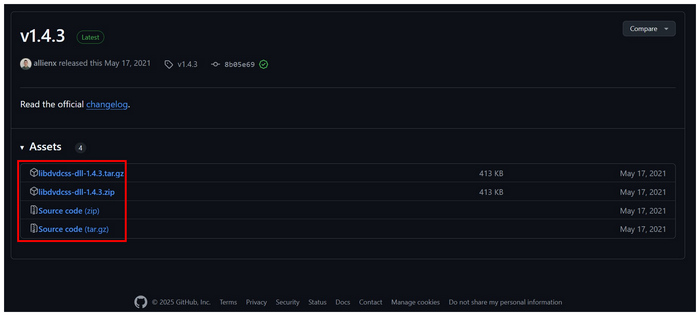
Step 1. Search for the Libdvdcss extension from their GitHub page. Since the plug-in is developed as an open-source tool, the file can be downloaded from GitHub for free.
Note: The downloaded file often includes version suffixes in its filename (e.g., libdvdcss-2-x64.dll or simply libdvdcss.dll). If you do not manually rename the file to exactly libdvdcss-2.dll, HandBrake will ignore the file entirely, and you will continue to see the ‘No valid source found’ error.
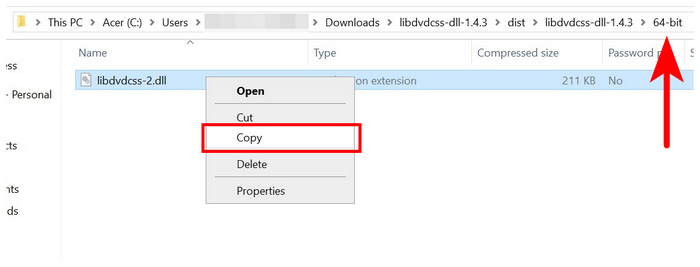
Step 2. After uploading the file, extract the compressed file you downloaded from Github. Select the dll file based on your computer, whether 32-bit or 64-bit. Then, copy the file named libdvdcss-2.dll.
Step 3. Open the file location of HandBrake. You can do so by right-clicking its desktop icon and selecting Open File Location. Inside the installation folder where HandBrake is located, paste the libdvdcss-2.dll file.
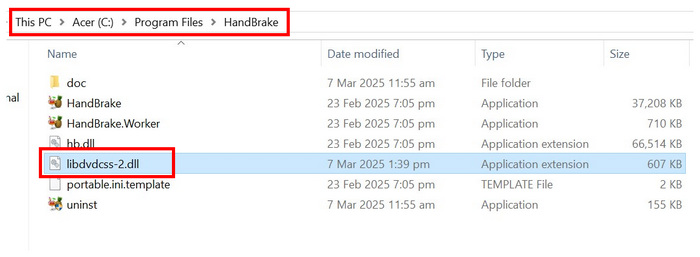
Once the DLL file has been placed in HandBrake’s install location, you can use the tool to decode DVDs with copy-protection measurements.
Tips
If you use a Mac computer, here is a simple guide for you.
Step 1. Press Cmd + Space to open Spotlight, type Terminal, and press Enter to open it.
Step 2. Open Homebrew, copy and paste this command into Terminal, then press Enter: brew install libdvdcss.
If you don’t have Homebrew installed, paste the following command into Terminal and hit Enter: /bin/bash -c ‘$(curl -fsSL https://raw.githubusercontent.com/Homebrew/install/HEAD/install.sh)
Step 3. Homebrew will automatically download, compile, and place libdvdcss into the correct system folder: /opt/homebrew/lib on Apple Silicon Macs or /usr/local/lib on Intel Macs.
Warning: On Apple Silicon Macs (M1/M2/M3), attempting to manually place system files into protected folders will trigger macOS System Integrity Protection (SIP) blocks, causing decryption to fail. Installing via Homebrew is the cleanest solution because it automatically handles environment paths and permissions by placing the library directly into /opt/homebrew/lib.
2.2 Decrypt DVDs with Easy Steps
After installing the copy-protection bypass extension in HandBrake’s installation location, you can now start decrypting DVDs in it. Simply follow our guide to learn how to decrypt and rip DVDs with HandBrake bypassed by the installed plug-in.
Step 1. Load the DVD into your computer using a built-in disc drive or third-party DVD hardware. Check your computer’s file manager to ensure the DVD has been loaded.
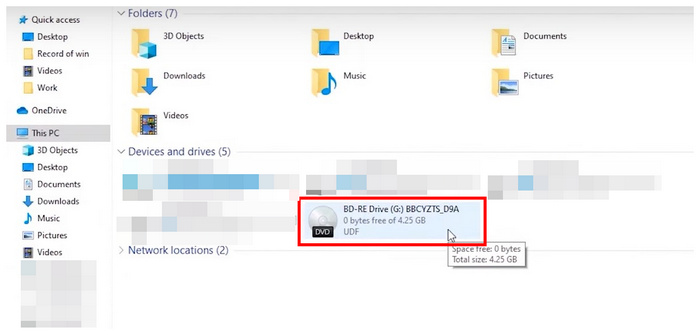
Note: we test HandBrake v1.7.0 version on Windows 11, we occasionally found that if you paste the libdvdcss-2.dll file into the installation folder while HandBrake is already running, the software will not detect it. You must completely exit HandBrake (check Task Manager to ensure no background processes remain) and relaunch it for the DLL to load properly.
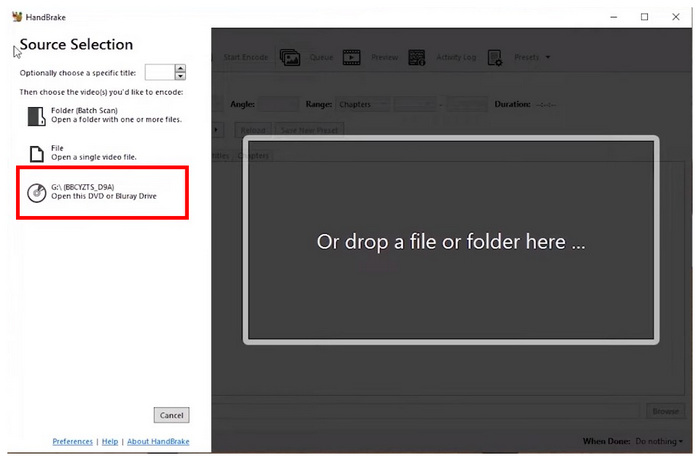
Step 2. Open HandBrake, then select the loaded DVD in the program’s opening menu to set it as the source. HandBrake will now read the loaded device.
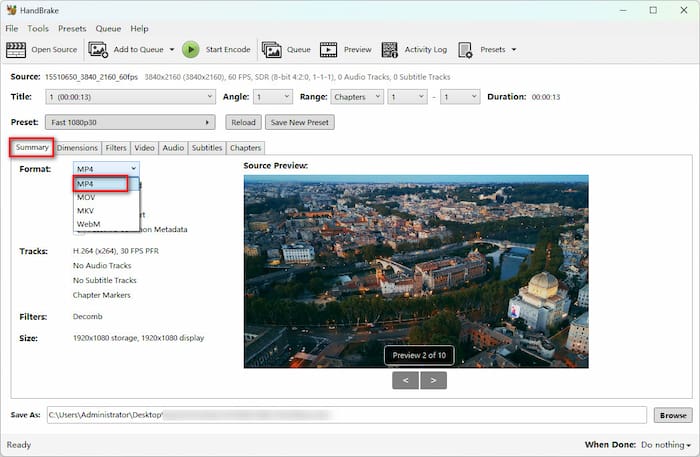
Step 3. Once HandBrake has read the loaded DVD, you can adjust the different settings that can be accessed in HandBrake’s menu. Under the Summary section, select MP4 as the output format. You can also explore other settings.
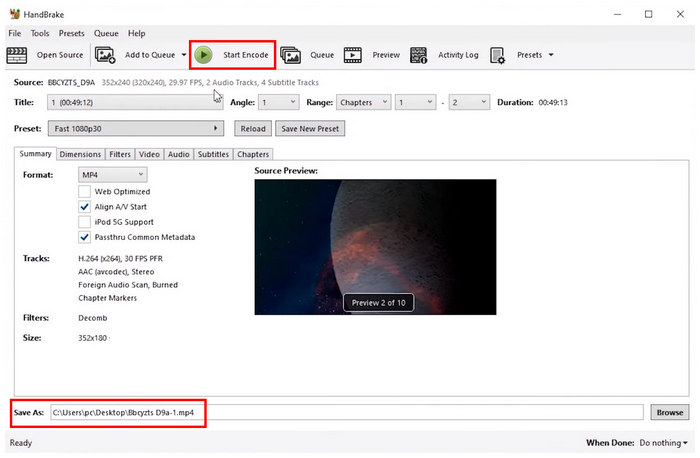
Step 4. The last step is to click on Start Encode to begin the DVD decryption process. Note that the encoded file’s location may be adjusted using the Save As location path on the lower part of the menu.
When decrypting DVDs on HandBrake, note that the Libdvdcss plug-in was only designed to bypass CSS protection, so it may fail to remove more advanced copy protection. To learn about more advanced HandBrake alternatives for ripping or decrypting DVDs, the following HandBrake alternative tool help you.
Part 3. Critical Limitations of Using HandBrake for DVD Ripping
While HandBrake is a popular, cost-effective choice for basic digitizing, it is far from a dedicated disc-cloning tool. Users frequently run into significant bottlenecks when using it for large-scale or modern DVD collections.
Perform a Software or System Restart
HandBrake mainly relies on CPU-intensive re-encoding rather than direct frame-by-frame copying. Since the software converts the original MPEG-2 stream of DVDs to modern codecs (such as H.264 or H.265), the time required to transcribe a single full movie can vary from 15 minutes to over an hour, depending on your hardware configuration. If you attempt to digitize a TV series containing multiple seasons or dozens of movies, this encoding overhead can create a significant time bottleneck.
Frequent Compatibility Failures with Newest Commercial Discs
Even with libdvdcss correctly installed, HandBrake frequently fails when faced with modern commercial encryption schemes. Major film and television companies often update their structured DRM technologies (e.g., Disney's obfuscation issues involving 99 movie playlists). Libdvdcss only supports standard CSS encryption; it cannot decrypt forged movies or corrupted unit maps, which can cause the program to get stuck in endless read loops, corrupted output files, or complete software crashes. For many people, using MakeMKV to decrypt DVDs and HandBrake to compress and convert ripped MKV files is a good solution to deal with this situation.
Complex Setup Overhead for Non-Technical Users
Unlike many modern DVD decoding software that support 'one-click' DVD decryption and conversion, you need to make complex configurations on HandBrake before processing commercial discs. Finding the correct 64-bit DLL files, matching precise filenames, configuring system directories, or executing terminal scripts via Homebrew on a Mac all present significant learning curves. For users without a technical background, troubleshooting these environment-related errors and path permission issues can be a frustrating and time-consuming process.
Part 4. The Best Alternative for Heavy-Duty DVD Ripping: Blu-ray Master Free DVD Ripper
HandBrake with libdvdcss only handles basic CSS encryption. If you want to process modern Disney or other complex DVD copy protections, Blu-ray Master Free DVD Ripper can help you. Designed to perform all forms of DVD ripping, this HandBrake alternative was designed to handle most DVD copy protection and restrictions.
The program does not require additional plug-ins since it has a built-in hyper-threading and super encoder engine capable of decrypting protected DVD files.
In addition to its effective decryption engine, it supports 200+ digital output formats, including MP4, MKV, AVI, and other popular formats.
With GPU acceleration, it can decrypt and convert DVDs in a fast and lossless way. It is available for Windows and Mac computers. For a detailed guide on decrypting DVDs using this powerful tool, please refer to our guide below. Download the software first to make it easier to follow each step.
Free Download
For Windows
Secure Download
Free Download
for macOS
Secure Download
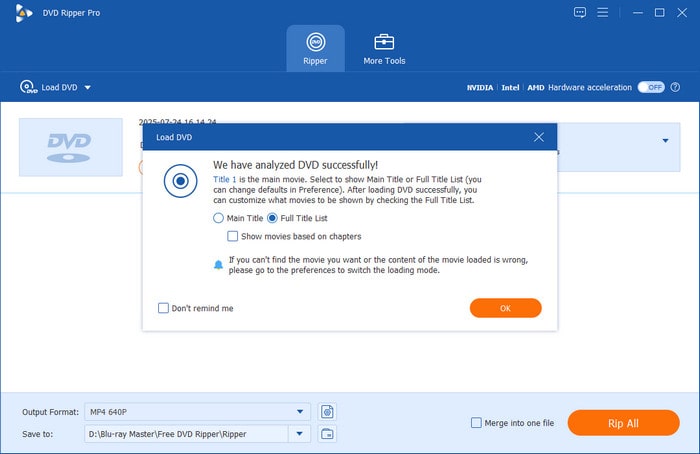
Step 1. Launch Blu-ray Master Free Blu-ray Ripper on your computer. Select the Load DVD > Load DVD Disc to scan and load the inserted DVD disc. Choose Full Title List mode and click OK.
Step 2. Once the program reads the DVD, the content of the DVD will be present in the menu. Click on Output Format to select a preferred profile. MP4, Same as source is a good choice.
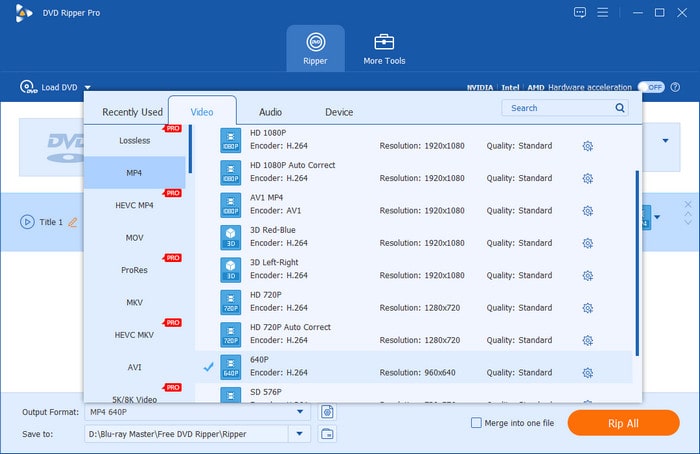
Step 3. At the bottom, click the folder button to customize a download folder for you to quickly locate. Lastly, click Rip All to start the decryption and conversion.
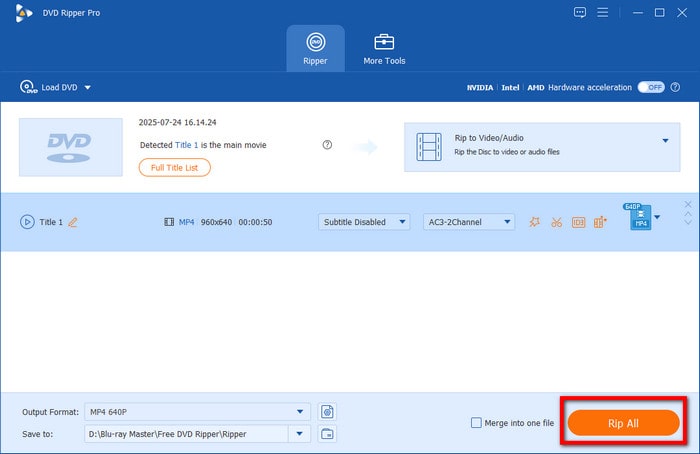
With simple steps, you can decrypt and convert DVDs to common digital formats. It also has many editing tools for you to adjust video effects flexibly. While high-resolution exporting requires the Pro version, its powerful decryption capabilities are fully functional in the free plan.
Part 5. Comparative Analysis: HandBrake vs. Dedicated DVD Rippers
Here, we want to give an in-depth review to help you compare the two tools for decrypting DVDs.
| HandBrake (+ libdvdcss) | vs | Blu-ray Master Free DVD Ripper |
| Relies primarily on CPU transcoding. | Processing Speed & Hardware Acceleration | Built-in GPU hardware acceleration and hyper-threading for direct extraction and fast transcoding. |
| Outputs MP4, MKV, MOV, and WebM for maximum file-size reduction with customizable quality controls. | Output Formats & Compression | Pre-configured profiles for 200+ formats/devices (MP4, AVI, MOV, WMV, iPad, Android) for quick targeted export. |
| Always re-encodes the original MPEG-2 video stream. Cannot perform true 1:1 original bit-for-bit remuxing without compression. | Quality Retention & Remuxing | Retains near-original visual fidelity and multi-channel audio tracks while converting or backing up discs. |
| Basic CSS only and requires manual libdvdcss setup. | Copy Protection & DRM Handling | Built-in Decryption Engine: Handles CSS, Region Codes, Sony ARccOS, and Disney 99-title protections natively without external plug-ins. |
| 3/5 | Ease of Setup & Usability | 4.5/5 |
| 100% Free & Open-Source | Licensing & Cost | Freemium Model |
Part 6. FAQs about HandBrake Decrypting DVDs
-
Why won't HandBrake scan my copy-protected movie DVD on Windows 11?
HandBrake fails to handle copy-protected DVDs natively. You can install libdvdcss on HandBrake to process your commercial DVDs.
-
How do I get libdvdcss for HandBrake on Mac using Homebrew?
On Mac, open the Terminal app and run this command: /bin/bash -c '$(curl -fsSL https://raw.githubusercontent.com/Homebrew/install/HEAD/install.sh)' brew install libdvdcss
Then, Homebrew will place the libdvdcss library in /usr/local/lib/ (Intel Macs) or /opt/homebrew/lib/ (Apple Silicon Macs), enabling HandBrake to automatically detect it. -
Is it legal in the US to decrypt DVDs I bought for personal digitizing?
Strictly, it is illegal. However, non-commercial personal use is rarely prosecuted in practice.
-
HandBrake says 'No valid source or titles found' when inserting a DVD, how to fix?
It can happen for several possible reasons, and you can do the following:
1. Make sure you have installed libdvdcss on your computer.
2. Make sure you have installed a 64-bit libdvdcss DLL for 64-bit HandBrake.
3. Your drive access permissions are limited. Run HandBrake as Administrator on Windows.
4. If the disc is encrypted with -
What is the latest 64-bit libdvdcss-2.dll download link for HandBrake?
The official, safe source is through the VideoLAN repository:
https://download.videolan.org/pub/libdvdcss/ -
Can HandBrake bypass Disney 99-title DVD copy protection?
No. Even with libdvdcss, HandBrake generally cannot bypass Disney 99-title protection.
Conclusion
Now that we have provided this guide on decrypting DVDs with HandBrake, we hope this article has solved your confusion about HandBrake and helped you learn how to use it in detail. In all, it is a good tool for handling homemade DVDs and CSS-protected DVDs. If you want to digitizing the DVDs with other copy protections, choose Blu-ray Master Free DVD Ripper.
