

Sep 23, 2026Posted by Kevin Miller to Rip DVD
Quick Summary
This article will discuss a comprehensive guide on storing a digital DVD collection in the Cloud. This includes all the mandatory phases for digitizing DVDs, from preparing the physical media to optimizing the output format, ripping the data using Blu-ray Master Free DVD Ripper, and uploading the digitized content to the cloud.
When it comes to physical media, DVDs are the most popular option today due to the high-quality video content they can store. Unfortunately, physical DVDs are not immune to disc rot and physical degradation from scratches, which makes digitizing their content still the superior backup choice. Moreover, DVDs take up so much shelf space, and this hardware fails without warning. As such, learning how to store DVDs in the cloud is a necessary solution to preserve DVD data. This can be done by efficiently ripping DVDs and saving the resulting digital copies to cloud storage as digital backups. In this article, we will provide a detailed solution for converting physical discs into secure, cloud-ready digital files while preserving 1:1 original quality.

Table of Contents
- Part 1. Why Cloud Storage is the Ultimate Safety Net for DVD Collections
- Phase 1. Preparing Your Physical Media for Ripping
- Phase 2. Optimizing Digital Files for Cloud Uploads
- Phase 3. Ripping Your DVDs for Cloud Compatibility
- Phase 4. Uploading and Securing Your Library in the Cloud
- Part 6. Frequently Asked Questions & FAQ Schema
Part 1. Why Cloud Storage is the Ultimate Safety Net for DVD Collections
The Hidden Threat of Disc Rot and Physical Wear
Due to their physical nature, DVDs are vulnerable to wear and tear, accidental drops, and the natural disc rot that even well-preserved DVDs are not immune to. Although DVDs are protected, the risk of data degradation remains. This is where digital backups serve their purpose.
Local Hard Drives vs. Cloud Storage: Why Offsite Redundancy Wins
Creating digital backups in cloud storage is a smart way to ensure you have a copy of your original DVD content. This is the purpose of media backups. If ever your physical copy is compromised, you can still use your digital backup to access it and vice versa.
Phase 1. Preparing Your Physical Media for Ripping
The first step when storing DVDs in the cloud is to prepare the DVD itself. To do so, observe for any damage in your DVD and use an appropriate DVD drive for your computer.
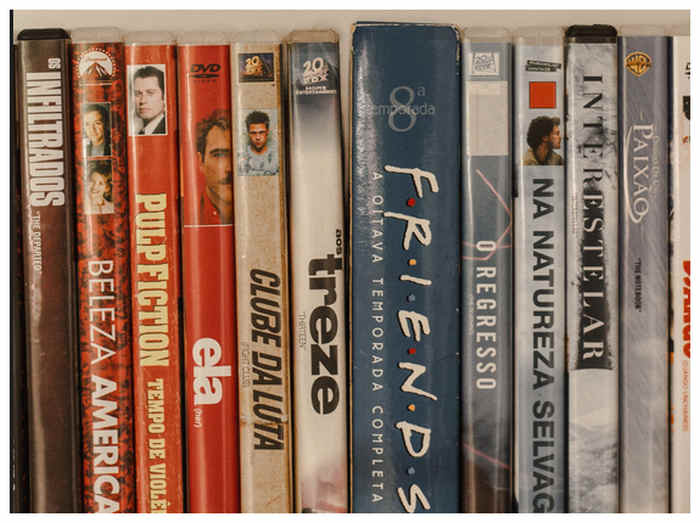
Step 1.Find the DVD you want to create a physical backup of. Then, observe whether the casing has any damage. Also check the DVD itself to inspect if there are visible scratches.
Step 2.Once the DVD’s integrity is verified, look for an external drive that connects directly to your computer. Make sure to use this type of hardware, as it is very practical for modern computers.
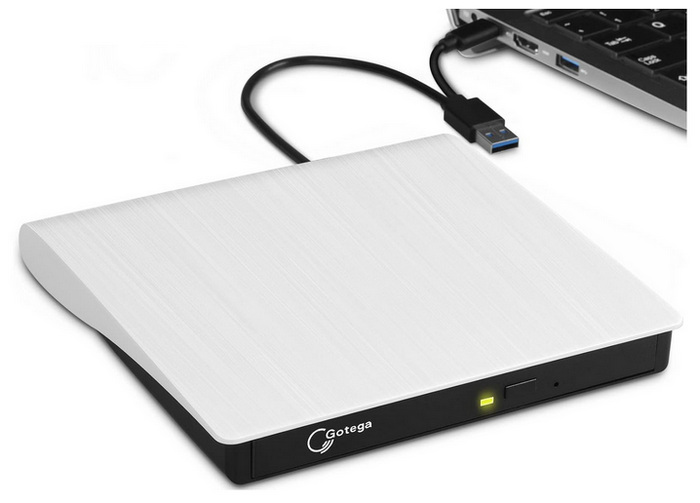
Pro Tip / Note: Always clean discs radially from the center outward using a microfiber cloth. Avoid circular wiping to prevent micro-abrasions that can trigger read errors or cause ripping software to crash mid-process. Ensure your external USB DVD drive is plugged into a powered USB hub or direct port to avoid voltage drops during high-speed extraction.
Phase 2. Optimizing Digital Files for Cloud Uploads
Once your DVD is loaded onto your computer, you have to use a modern DVD ripper to convert it to a digital format. Before proceeding to the ripper tools we recommend, we will first outline the optimal settings for ripping DVDs.
First, the format you should use for DVD ripping is MKV or MP4, both of which are good for quality and compression. You should also use a DVD ripper tool that can compress files with minimal visual fidelity.
Finally, make sure to select where your ripped digital video will be saved. Ideal cloud storage options include streaming services like Plex or Emby, as well as traditional cloud storage such as Google Drive or Dropbox.
Phase 3. Ripping Your DVDs for Cloud Compatibility
Method 1: Using Blu-ray Master Free DVD Ripper (Best for Fast, High-Quality Conversions)
The first DVD method we will highlight is Blu-ray Master Free DVD Ripper, the best DVD ripper for fast, high-quality conversions. Among modern DVD ripper programs, this software offers a significant advantage in performance and in preserving quality.
Designed exclusively for DVD ripping, this software offers the best balance in terms of performance, speed, and quality preservation. Moreover, it is also very easy to use, making it an accessible solution for users of all skill levels.
However, it lacks advanced multi-angle editing for heavily copy-protected DVDs, resulting in subpar performance on new DVD releases. Despite that, it can still get the job done for general DVD ripping for data backups.
Make sure to download the software using the link below to make it easier to learn how to use the program.
Free Download
For Windows
Secure Download
Free Download
for macOS
Secure Download
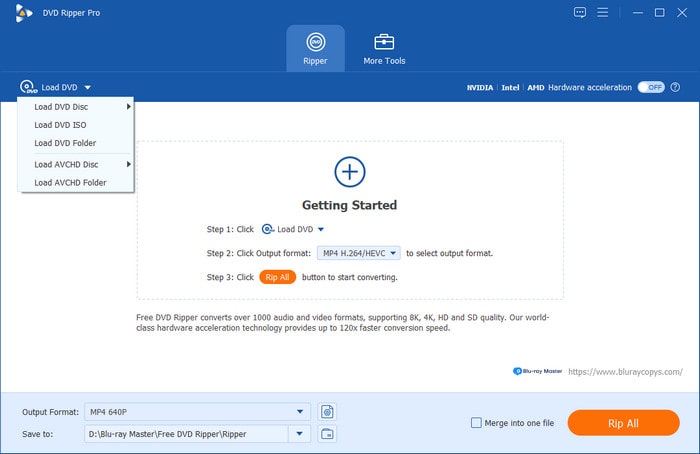
Step 1.Load the DVD into your computer, then open Blu-ray Master Free DVD Ripper. Then, select Load DVD, and choose Load DVD Disc.
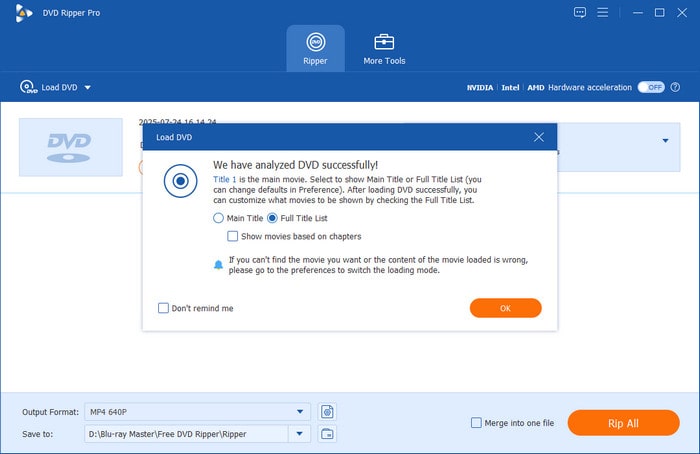
In the Load DVD option, select Main Title if you only want to digitize the video, or choose Full Title List to create a 1:1 copy of the DVD content.
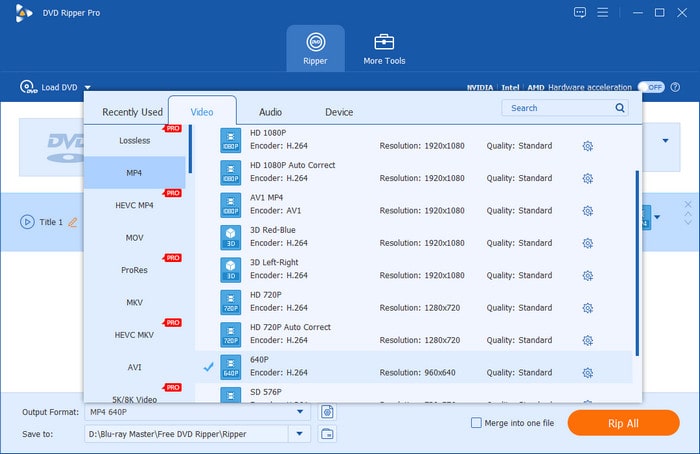
Step 2.Once the DVD is loaded, select Output Format and choose MP4 to save your DVD as a video file with universal compatibility. Alternatively, you may select MKV for better video quality.
Step 3.With the Output Format now set, you will be redirected to the main Ripper tab. There, select Rip All to begin ripping the DVD data digitally.
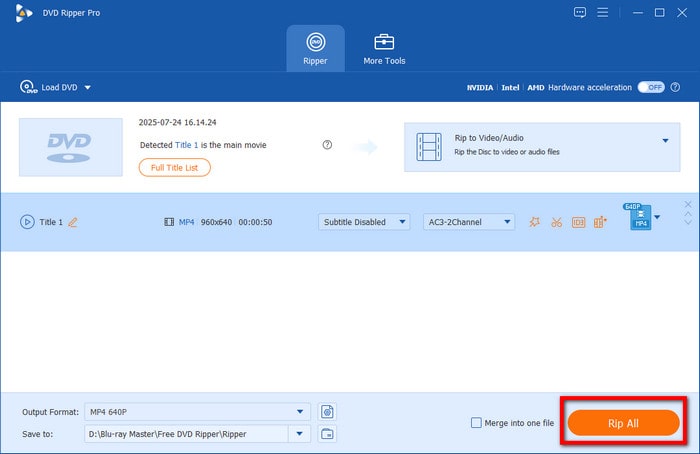
Once your DVD content is converted to digital, you can upload the video to the cloud or to a streaming server where you want to store your files.
Editor’s Tip: For advanced output format editing, you can select the Settings option in the output format you selected. There, you can adjust the video’s encoder, frame rate, resolution, and bitrate.
Method 2: Using VLC Media Player (Best Free Open-Source Alternative)
If you are using a Windows or Mac computer, the chance of using VLC as your primary multimedia option is high. Fortunately, you can simply use its advanced settings to rip DVD content.
To avoid downloading a dedicated DVD ripper, you can use VLC Media Player’s Media and Convert/Save function to process DVD content into digital video media. This makes the tool a versatile solution for basic conversions.
Unfortunately, VLC’s advanced settings have a steep learning curve compared to dedicated DVD ripper tools. It also performs suboptimally due to a lack of hardware acceleration; as a result, its conversion speed is very slow, especially when handling full-length movies.
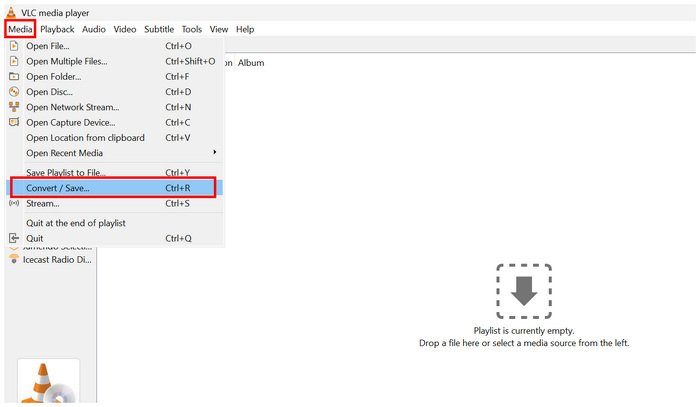
Step 1.Load the DVD you want to back up, then open VLC Media Player, select Media, and select Convert/Save.
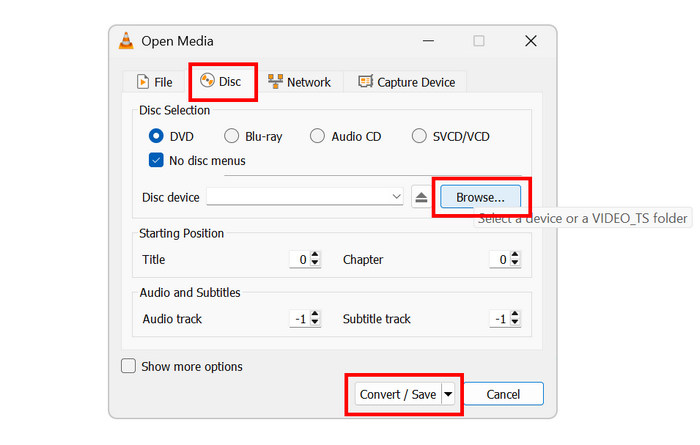
Step 2.In the Open Media menu, go to Disc, then select Browse to load the DVD. Then click Convert/Save.
Step 3.With the DVD loaded, you will proceed to the Convert menu. Then, select Profile and choose Video - H.264 + MP3 (MP4). Then, select Browse to set where the converted video will be saved. Click on Start to begin the process.
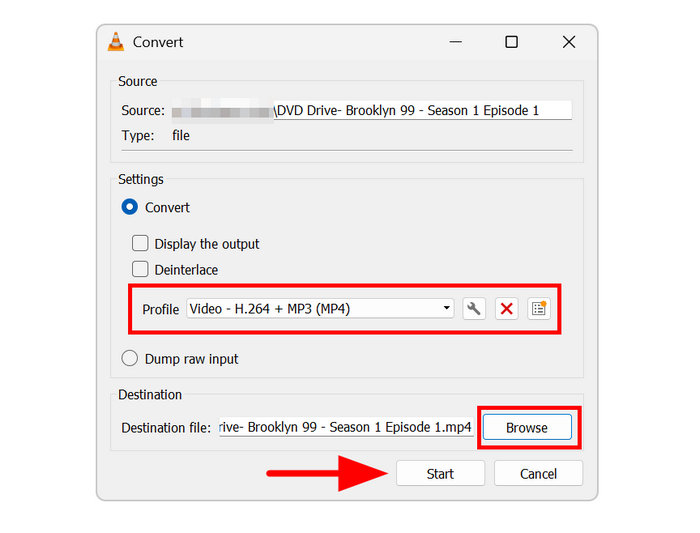
If you’re already using VLC as your primary player, this option is a solid way to convert DVDs without installing anything. All you have to do is learn the basics of its advanced features.
Editor’s Tip: When handling large DVD files, it is not advisable to use VLC, as it can consume significant computer resources. We suggest using a dedicated ripper for larger DVD content.
Phase 4. Uploading and Securing Your Library in the Cloud
Selecting a Cloud Provider (Google Drive, OneDrive, Dropbox, or pCloud)
The most direct solution for backing up converted DVD media is to upload them to a cloud storage service of your choice. Some of the most popular options are Google Drive, OneDrive, Dropbox, or pCloud. These programs will all solve your problems and help you decide whether you can store DVDs in the cloud.
Automating Syncs and Managing Bandwidth Constraints
Since raw DVD videos are inherently large, you should keep in mind that uploading them will use a lot of bandwidth. Also keep in mind that automated syncing will significantly increase storage usage.
Privacy and Encryption Best Practices for Personal Media Archives
If you want to save your converted video locally on your device, you can do so in your file manager. To ensure that your personal archives are secured, one good option is to compress them in an archive and set a password.
Part 6. FAQs About Storing DVDs in the Cloud
-
Can I upload a DVD directly to Google Drive without ripping it first?
No, you cannot. DVDs cannot be uploaded directly to Google Drive. You have to convert the DVD to an ISO image or a direct video file.
-
What is the best video format for storing DVDs in the cloud?
MP4 is a good option. This file type offers the best compression-to-quality ratio. This makes the tool a good choice for saving a bulk of video files.
-
How much cloud storage do I need for a large DVD collection?
Save up to 4- 5 GB of cloud storage. This should be enough for a single DVD collection. However, if your DVDs have a lot of content, save up to 10 GB or more.
-
Is it legal to rip my own DVDs for cloud storage?
No, it is not. DVDs can be uploaded to cloud storage without any legal issues. However, make sure not to share them online, as that would constitute piracy.
-
How can I stream my cloud-stored DVDs to my TV?
There are streaming apps that you can use. One good example is Plex. To open them on a smart TV, download the app and then log in to your account on the streaming platform you selected.
Conclusion
With the full preparation for storing DVDs in cloud services now discussed, we hope this article will help you create DVD backups faster and more efficiently. The step-by-step guide we discussed is designed to better protect your DVDs against physical damage. To rip DVD content, make sure to use Blu-ray Master Free DVD Ripper, available for download from the link below.
