

Aug 14, 2025Posted by Kevin Miller to Create DVD
DVDs have long been a medium for storing digital content, from software to personal data backups. Over time, various types of DVDs have emerged to serve different needs. Some are for permanent data storage, while others are for rewriting and editing files. Among these types, DVD-ROM and DVD-RAM excel due to their unique purposes and functionalities. While both belong to the DVD family, they are designed for very different tasks. This post aims to help you better understand the differences between DVD-ROM vs DVD-RAM. This way, you make a smart decision about which format to use for your storage or playback requirements.

- Part 1. What are DVD-ROM and DVD-RAM
- Part 2. DVD-ROM vs DVD-RAM
- Part 3. What are the Differences Between DVD-ROM and DVD-RAM
- Part 4. Bonus: Create Any DVD Type Freely
Part 1. What are DVD-ROM and DVD-RAM
What Is a DVD-ROM?
DVD-ROM means Digital Versatile Disc Read-Only Memory. As the name suggests, it's a read-only disc format used for distributing large amounts of data. The content on a DVD-ROM is pressed and cannot be modified or erased by anyone. It can hold up to 4.7 GB for single-layer discs and 8.5 GB for dual-layer ones. DVD-ROMs are intended for storing permanent data and are compatible with most DVD players and drives.
What Is DVD-RAM?
DVD-RAM, or Digital Versatile Disc Random Access Memory, is a rewritable optical disc format. It is made for data storage and backup. Unlike DVD-R or DVD-RW, which handle data more like sequential tape, DVD-RAM offers random access. This DVD type can be rewritten up to 100,000 times. It is far more durable for repeated use than other formats. However, they are not compatible with most standard DVD players, which limits their popularity.
Is DVD-RAM still used? Unfortunately, DVD-RAM is largely obsolete today. Portable and higher-capacity storage solutions have mostly replaced this DVD format. Some of these are external hard drives, SSDs, USB flash drives, and cloud storage.
Part 2. DVD-ROM vs DVD-RAM
| DVD-ROM | Aspect | DVD-RAM |
| Digital Versatile Disc Read Only Memory | Full Form | Digital Versatile Disc Random Access Memory |
| Read-only | Function | Read/write (rewritable) |
| Data distribution | Best For | Data storage |
| Cannot be modified or erased | Modification | Can be rewritten |
| Sequential access | Access Type | Random access |
| Compatible with most DVD players and drives | Compatibility | Requires specific DVD-RAM drives |
| 4.7 GB (single-layer) and 8.5 GB (dual-layer) | Storage Capacity | 4.7 GB per side |
| Slow | Speed of Access | Fast |
| Not rewritable | Durability | Suited for frequent use |
| Still used for media distribution | Usage | Rarely used |
Part 3. What are the Differences Between DVD-ROM and DVD-RAM
DVD-ROM vs DVD-RAM are two different DVD types with distinct purposes. Although they are both part of DVDs, they differ in several key factors. Below is an explanation of their differences, followed by a section on the disadvantages of DVD-RAM:
Functionality and Usage
A DVD-ROM is a read-only disc format, meaning the data is permanently written and cannot be changed. Meanwhile, DVD-RAM is a rewritable format that allows data to be written, erased, and rewritten repeatedly.
Data Access Method
DVD-ROM uses sequential access, which means the drive linearly reads data from the disc. This method results in slower performance when accessing multiple files scattered across the disc. DVD-RAM utilizes random access, enabling faster and more efficient file handling.
Rewritability
A DVD-ROM is not rewritable. Once the data is pressed onto the disc, it is permanent and cannot be modified. DVD-RAM is highly rewritable, supporting up to 100,000 write-erase cycles. It is more advanced than other rewritable DVD formats, such as DVD-RW or DVD+RW.
Compatibility
Most DVD players, DVD-ROM drives, gaming consoles, and PCs support DVD-ROM discs. DVD-RAM has limited compatibility. It requires a special DVD-RAM-compatible drive or recorder.
Performance and Reliability
DVD-ROM offers stable playback and reliable data retrieval. However, it lacks flexibility for users who want to update or modify content. DVD-RAM offers superior performance for tasks that require frequent access and rewriting. It has built-in error correction and defect management.
Part 4. Bonus: Create Any DVD Type Freely
Blu-ray Master DVD Creator is a one-stop disc authoring software compatible with Windows and Mac. It offers two modes of burning: DVD and Blu-ray. With it, you can add nearly all media stream profiles and output different DVD types. You can burn downloaded online videos, personal videos, and videos from other sources to DVDs, VIDEO_TS folders, or ISO files. If you're dealing with multiple media files, it lets you import more than a single file and process them simultaneously. It offers 20 pre-designed templates to enhance menu navigation appearance with customization options. In addition to disc burning, it comes with a built-in editor with essential tools for editing video, audio, subtitles, and chapters.
Step 1. Get started by downloading the Blu-ray Master DVD Creator for free. Install the disc authoring software on your system and wait for the installation process to finish. During installation, prepare the blank DVD and insert it into your external disc drive.
Free Download
For Windows
Secure Download
Free Download
for macOS
Secure Download
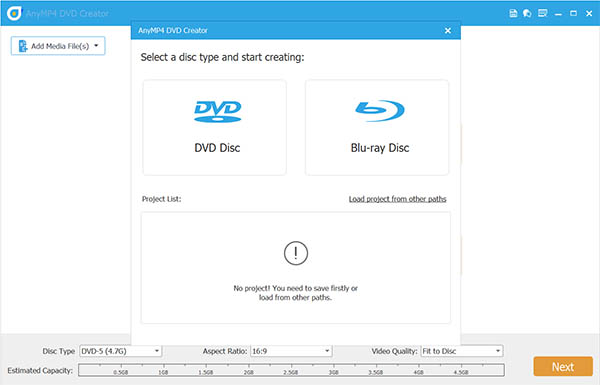
Step 2. Upon launching the software, select the DVD Disc option as your output type. Click Add Media File(s) to import the video file(s) you want to burn. Once loaded, set the disc type (DVD-5 or DVD-9), aspect ratio, and video quality. Afterward, click Next to proceed.
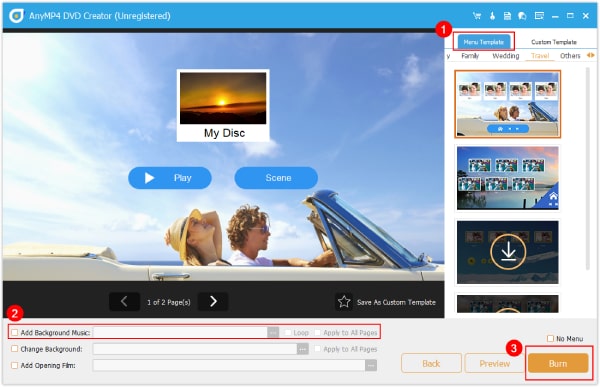
Step 3. In the next window, you'll enter the DVD Menu creation window. Choose a theme that matches your video's style: Holiday, Family, Wedding, Travel, or Others. You can also customize it by adding music, replacing the background image, and inserting an introductory film.
Step 4. Click the Burn button to open the Burning Settings window. Check Burn to Disc and select your disc drive from the pulldown menu. Then, select the appropriate TV standard (NTSC or PAL) and click Start to create a DVD from your media files.
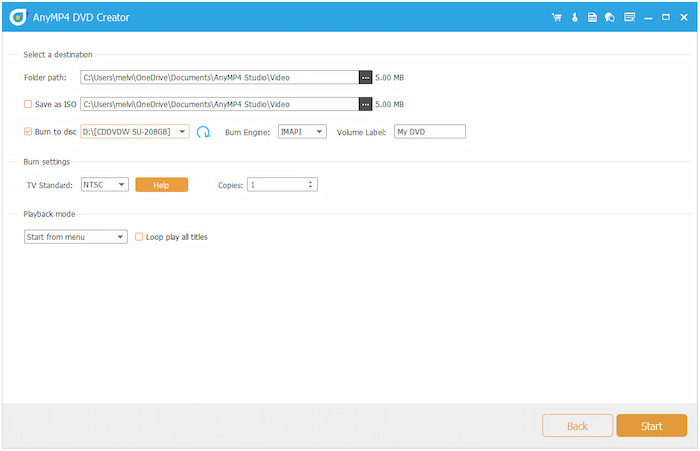
Professional Tip: Not sure about your region's TV standard? Click the Help button next to the TV Standard option. A new window will open where you can select your country or location to match the exact TV standard automatically.
Want to learn more about the difference between NTSC and PAL? Find the answer here.
Personal Experience: I've used Blu-ray Master DVD Creator to compile personal videos into a single disc for family viewing. What I loved most was its customizable menu and the ability to add a short intro film. It also enabled me to edit my videos before burning, enhancing the overall visuals.
CONCLUSION
DVD-ROM vs DVD-RAM serve very different roles in the optical media. DVD-ROM is ideal for read-only purposes, while DVD-RAM was designed for frequent rewrites and reliable data storage. By understanding these differences, you can select the appropriate disc type for your specific needs. If ever you need to burn videos or data to any DVD type, use Blu-ray Master DVD Creator. It is a powerful and easy-to-use tool that lets you burn media to DVD-5 or DVD-9 discs. It is complete with custom menus, video editing tools, and options for subtitles and audio.
More from Blu-ray Master
