

Aug 15, 2025Posted by Kevin Miller to Create DVD
Do you want to collect various videos and preserve them by burning them on a DVD using a Mac? In that case, we are glad that you are in the right place. In this guidepost, we will give detailed instructions on how to burn DVDs on a Mac using the two most popular and effective programs you can use. With that, you have more options on what tool to use to achieve your goal. Without further ado, begin reading this whole content and learn everything about the methods to follow for burning DVDs on a Mac.

- Part 1. Why Doesn’t Mac Come with Optical Drives Anymore
- Part 2. How to Burn DVD with DVD Creator on Mac
- Part 3. How to Burn DVD with iDVD on Mac
- Part 4. FAQs about Burning DVDs on Mac
| Workable Solutions | Step-by-step Troubleshooting |
| How to Burn DVD with DVD Creator on Mac | DVD Creator provides a convenient and efficient DVD burning solution for Mac… Full steps |
| How to Burn DVD with iDVD on Mac | If your Mac version is older, you may try this software developed by Apple to burn your DVD… Full steps |
Part 1. Why Doesn’t Mac Come with Optical Drives Anymore
Well, there are various reasons and considerations why Mac doesn’t offer an optical drive. As we all know, in this modern world, technologies, especially devices, are always updating and upgrading. In terms of using optical drives, there are various alternatives you can use, which are more convenient and affordable. With that in mind, there is no doubt that for some users, there is no need to use an optical drive. But if you want to learn more reasons why Apple removed the optical drive on Mac, see the details below.
Shift Towards Digital Media
Nowadays, we can notice that there are various streaming services you can find online. It includes Apple Music, Apple TV, and other helpful applications, like iTunes. It makes it easier to access various movies and music since all you need is to search for your preferred content. With the help of these streaming services, you may conclude that you don’t have to use an optical drive to have effective video and audio playback. Aside from that, there is also a software distribution. Since the App Store is developing, most software is now installed electronically. With that, you don’t have to need any physical installation disc on your Mac.
Functionality and Design
When thinking about optical drives, we can think of hardware that is thick and heavyweight. It is the reason why Apple removed it on Mac. Apple prefers lightweight and thin designs for its Mac. With that, it is necessary to remove the drive. In addition to that, Apple prioritizes internal space. Without the optical drive, Apple can insert other components, such as a powerful processor and a larger battery.
More Convenient Optical Drive Alternative
Well, there are various external drives you can use instead of optical drives. The best external CD/DVD drive is a flash drive. It is among the external drives that you can insert and connect on your Mac when needed. With this, you can keep your files, such as movies, audio, documents, and more. Also, since we are now in a modern era, there is digital storage you can use, which is called Cloud storage. With this, you don’t have to use any physical drives for storing different contents.
Part 2. How to Burn DVD with DVD Creator on Mac
Plus, you can also add background music and an opening film. What’s more, you can even use the Audio Edit function. With this, you can edit the volume, and the delays and use various languages. You can even edit the video to enhance your file. You can add effects, change video color, crop, clip, and add a watermark. With all of that, we can conclude that is among the best programs you can operate to create DVDs on Mac smoothly. So, you can follow the simple instructions below and learn how to burn a DVD on a Mac.
Step 1.First and foremost, go to the main website of DVD Creator and hit the Free Download button. Ensure that a blank DVD is already inserted on your device.
Free Download
For Windows
Secure Download
Free Download
for macOS
Secure Download
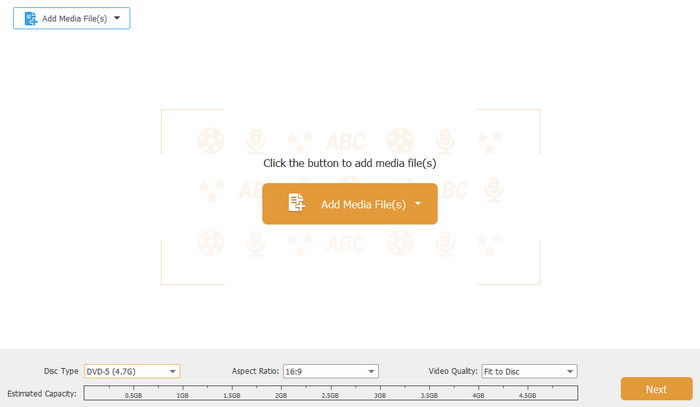
Step 2.Then, from the main user interface, click Add Files to see the computer file folder. After that, choose the file that you want to burn and click OK.
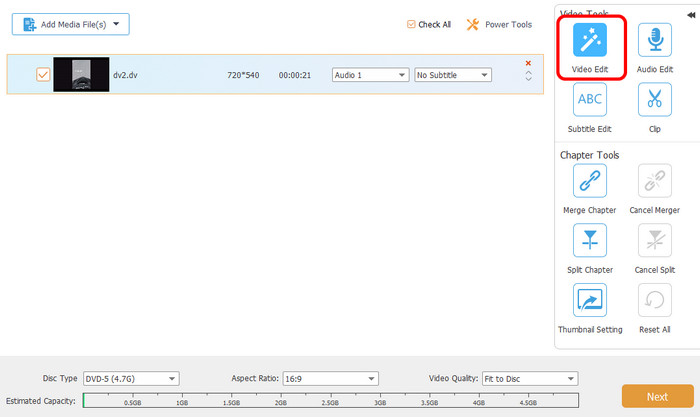
Step 3.If you insert a video file, you can enhance it using the Video Edit function. In this function, you can crop the video, rotate, add effects, change the video color, and more. Once done, click Apply > Next option.
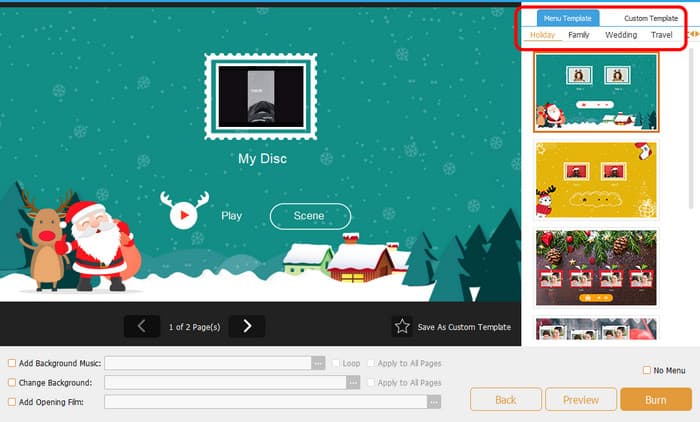
Step 4.After that, you can also add a menu template to your file. There are various templates you can use for free, so choose your preferred templates.
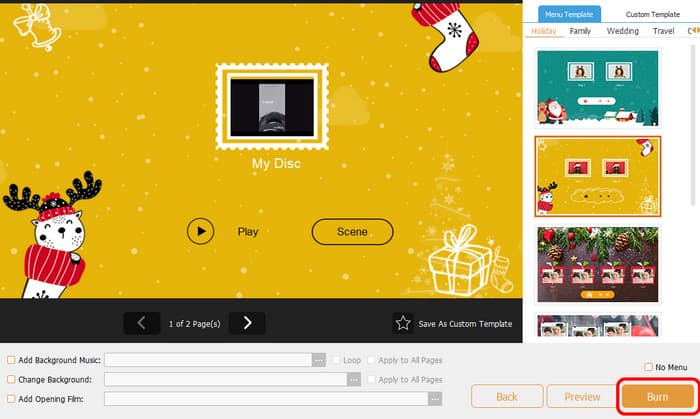
Step 5.Once you are done with everything, you can hit the Burn button below. Then, wait for a few seconds to get the outcome.
Pros
- The interface is intuitive and user-friendly, and the usage steps are easy.
- It supports a wide range of input formats, such as MP4, AVI, MKV, MOV, etc.
- It allows users to personalize DVDs with background music, pictures, and opening films.
- It allows users to choose and add their preferred subtitles and audio tracks.
- The burning speed is quick, and the burning performance is stable.
Cons
- Some advanced features are not available in the free version.
Part 3. How to Burn DVD with iDVD on Mac
Another best free DVD burning software on a Mac is iDVD. Using this DVD-burning software, you can make a DVD in just a few minutes. Also, since its core feature is to burn DVDs, you can use everything you need. It includes various templates or themes that can improve your files. You can also customize your menus by adding chapters, background images, music, titles, and more. In addition to that, iDVD comes with a collection of more than 150 pre-made themes crafted by Apple. These themes dictate the layout, text style, background imagery, and music for DVD menus and submenus. Plus, users have the flexibility to customize the fonts and incorporate text boxes. It can even adjust the appearance and placement of buttons.
But, even though the program is helpful, there is also a drawback you might encounter. Even though the interface is simple, it is still looking outdated, which users don’t like. It is best to deal with its interface to attract more users for burning DVDs. Lastly, the biggest disadvantage of this program is that iDVD is a discontinued Mac software created by Apple. So, you won’t get any updates about the program. You can follow the instructions below to learn how to burn DVDs on a Macbook or Mac.
Step 1.Access the iDVD on your Mac. After that, launch it to begin the DVD-burning process.
Step 2.After you launch the iDVD software, add the file that you want to burn. You can get all the files from your file folder.
Step 3.Then, you can use various templates and themes on the right interface. Select your preferred interface and add some text to it.
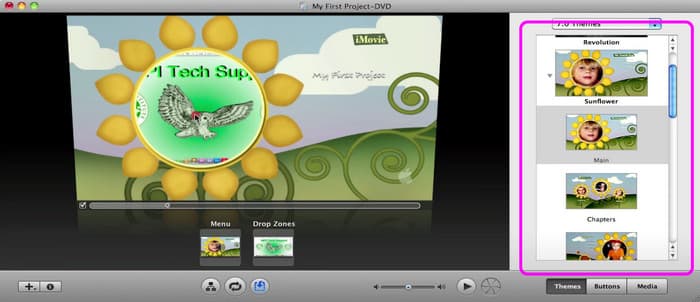
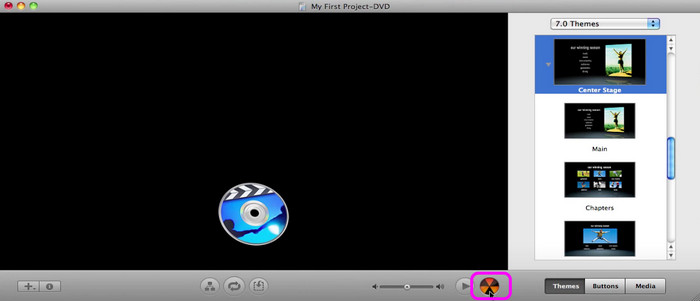
Step 4.Once you are done with everything, you can begin with the DVD-burning princess by hitting the Burn button on the bottom interface. After a few seconds, you can already have your DVD.
Pros
- iDVD allows users to easily import and work with media from iMovie, iPhoto, and iTunes.
- It has the ability to customize menu layouts, buttons, and background music.
- It offers a variety of themes and templates to customize the appearance of your DVDs.
- It also supports burning slideshows to DVDs on Mac.
Cons
- The interface is too outdated, which is less attractive to users.
- iDVD is no longer supported by Apple, and it doesn’t support newer macOS versions.
- As a discontinued product, iDVD is not receiving any further updates or bug fixes.
- Some users encounter problems with iDVD freezing or stopping during the burning process.
Part 4. FAQs about Burning DVDs on Mac
-
Can I burn a DVD on my Mac?
Definitely, yes. Burning a DVD on a Mac is simple. All you need is to download the DVD Creator. With this program, you can already convert your MP4 videos to DVDs without any hassle. After you run the program, add the media file that you want to burn. After that, you can even select various templates from the right interface. If you are done with everything you need, you can begin burning DVDs by clicking the Burn button.
-
Can I burn a DVD to an ISO on a Mac?
Absolutely, yes. To burn a DVD to an ISO file, install DVD Creator on your computer. After adding the file, go to the Next button. After that, proceed to the Burn button to see another interface. After that, check the box beside the Save as ISO section. Then, click Start to begin burning the DVD to an ISO file.
-
Can I burn a playable CD on my Mac?
Of course, yes. To burn a playable CD, you will need the help of the Music app, especially if you want to deal with music. First, you can create a playlist on the Music app. After that, click File > Burn Playlist to Disc. With that, you can already have your CD.
Conclusion
More from Blu-ray Master
Videos to DVD
