

Jun 05, 2026Posted by Kevin Miller to Create DVD
| Method | Blu-ray Master DVD Creator | iDVD | Mac Finder |
| Best Used For | Creating high-quality DVDs with menus, subtitles, and templates. | Making DVDs at home with optimized menu design for Apple computers. | Burning data DVDs, backing up files, or copying media to discs without extra software. |
| Pros | ●Wide video format support. ●Burns DVDs, ISO files, and DVD folders. ●Beginner-friendly interface. | ●Extremely easy for beginners. ●Integrated well with native Apple apps. ●Built-in themes and menus. | ●Built directly into macOS. ●Free and easy to use. ●Works well for simple file storage and sharing. |
| Cons | ●Paid software for full features. ●Editing tools are limited compared to other DVD creator apps. | ●Discontinued by Apple in 2011. ●Does not work natively on modern macOS. ●Limited format support. | ●Cannot create professional DVD-Video menus. ●Burned movie files may not play on standalone DVD players. ●Limited customization and editing features. |
Do you want to collect various videos and preserve them by burning them on a DVD using a Mac? In that case, we are glad that you are in the right place. In this guidepost, we will provide detailed instructions for burning DVDs on a Mac using two of the most popular and effective programs. With that, you have more options on what tool to use to achieve your goal. Without further ado, begin reading this whole content and learn everything about the methods to follow for burning DVDs on a Mac.

- Part 1. Why Doesn’t Mac Come with Optical Drives Anymore
- Part 2. How to Burn a DVD with the Finder Feature on Mac
- Part 3. How to Burn a DVD with Blu-ray Master DVD Creator on Mac
- Part 4. How to Burn a DVD with iDVD on a Mac
- Part 5. How to Burn a DVD on a Mac Using Roxio Toast
- Part 6. FAQs about Burning DVDs on Mac
| Workable Solutions | Step-by-Step Troubleshooting |
| How to Burn a DVD on Mac Finder | Built-in burning tool in Mac’s file manager program. Check out the second section of the article to learn how to use it… Full steps |
| How to Burn a DVD with Blu-ray Master DVD Creator on Mac | Blu-ray Master DVD Creator provides a convenient and efficient DVD burning solution for Mac… Full steps |
| How to Burn a DVD with iDVD on a Mac | If your Mac version is older, you may try this Apple-developed software to burn your DVD… Full steps |
| How to Burn a DVD on Roxio Toast | A third-party DVD, CD, and Blu-ray authoring tool is best used for advanced DVD media production. Check out the fifth section of the article to learn how… Full steps |
Part 1. Why Doesn’t Mac Come with Optical Drives Anymore
Shift Towards Digital Media
Nowadays, we can find various streaming services online. It includes Apple Music, Apple TV, and other helpful applications, like iTunes. It makes it easier to access various movies and music, since all you need to do is search for your preferred content. With the help of these streaming services, you may conclude that you don’t have to use an optical drive to have effective video and audio playback. Aside from that, there is also a software distribution. Since the App Store is developing, most software is now installed electronically. With that, you don’t need any physical installation disc for your Mac.
Functionality and Design
When we think of optical drives, we think of bulky, heavy hardware. It is the reason why Apple removed it from Mac. Apple prefers lightweight, thin designs for its Macs. With that, it is necessary to remove the drive. In addition, Apple prioritizes internal space. Without the optical drive, Apple can insert other components, such as a powerful processor and a larger battery.
More Convenient Optical Drive Alternative
Well, there are various external drives you can use instead of optical drives. The best external CD/DVD drive is a flash drive. It is among the external drives that you can insert and connect to your Mac when needed. With this, you can keep your files, such as movies, audio, documents, and more. Also, since we are now in the modern era, there is digital storage you can use called Cloud storage. With this, you don’t need any physical drives to store different content.
Limitations on Modern Mac Computers
When using modern Mac computers equipped with M1/M2/M3/M4/M5 chips, compatibility issues often arise due to power limitations, typically with basic USB-C adapters. This causes recognition failure or third-party apps not being able to read your loaded disk. In some cases, macOS file systems such as APFS may also affect how the loaded DVDs will run on your computer.
Hardware Buying Guide
Since modern Macs no longer include optical drives, you have to learn how to choose an external DVD burner with basic USB-C compatibility. Among our reliable DVD brands, LG is an excellent third-party option. If you want a native tool for Apple devices, the Apple SuperDrive is the safest choice.
Part 2. How to Burn a DVD with the Finder Feature on Mac
For basic burning of data or media files to DVDs for simple backups and copying, the built-in burn feature in Mac’s Finder is an excellent choice. This option was featured first because the tool is the most accessible, being built into macOS.The program is also easier to use than third-party solutions and works well for creating data DVDs for file storage and offline media sharing. Unfortunately, this option cannot create professional DVD menus, and burned video files will not play the way a commercial DVD will. Data DVDs will basically work like an external hard drive.To learn how to use Finder for burning DVDs, read our guide below.
Step 1. Load the DVD you want to burn on your Mac computer.
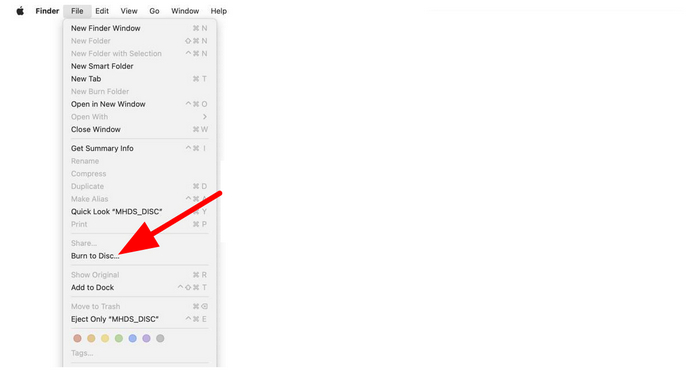
Step 2. Next, select the media file you want to burn. Then, select File and click on Burn to Disc.
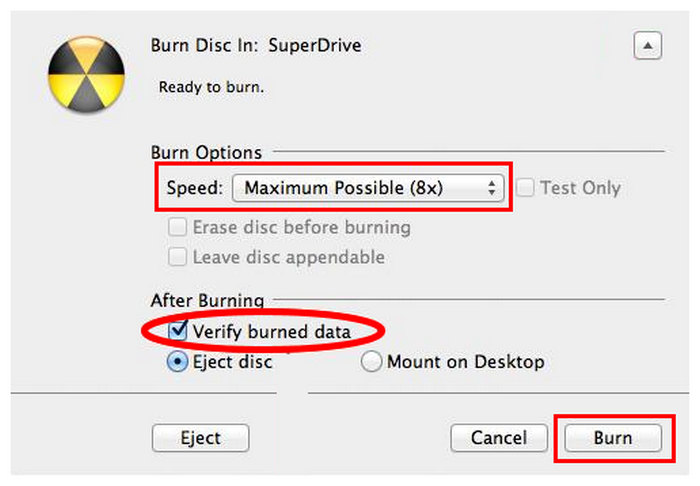
Step 3. In the Burn Settings, enable Verify Burned Data, set the Speed to your preferred option, and select Burn.
Pros
- Highly accessible built-in option.
- Easy to use.
- Works great for producing offline file storage.
Cons
- No file customization features, especially for videos.
- It cannot handle burning DVD videos.
- Made only for data writing.
Part 3. How to Burn a DVD with Blu-ray Master DVD Creator on Mac
When it comes to burning DVD movies on Mac, Blu-ray Master DVD Creator is an all-around option for DVD production, with support for DVD menus, subtitles, and customizable templates. Plus, you can also add background music and an opening film. What’s more, you can even use the Audio Edit function. With this, you can edit the volume and delays and use various languages. You can even edit the video to enhance your file. You can add effects, change video color, crop, clip, and add a watermark. With all of that in mind, we can conclude that it is among the best programs for creating DVDs on a Mac. Follow the simple instructions below to learn how to burn a DVD on a Mac.
Step 1. First and foremost, go to the main website of DVD Creator and hit the Free Download button. Ensure that a blank DVD is already inserted in your device.
Free Download
For Windows
Secure Download
Free Download
for macOS
Secure Download
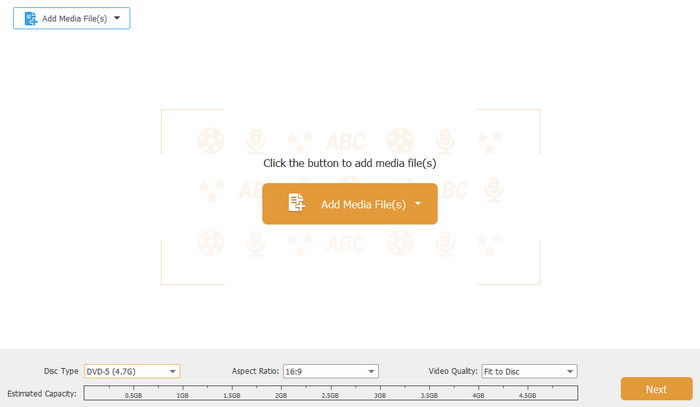
Step 2. Then, from the main user interface, click Add Files to see the computer file folder. After that, choose the file that you want to burn and click OK.
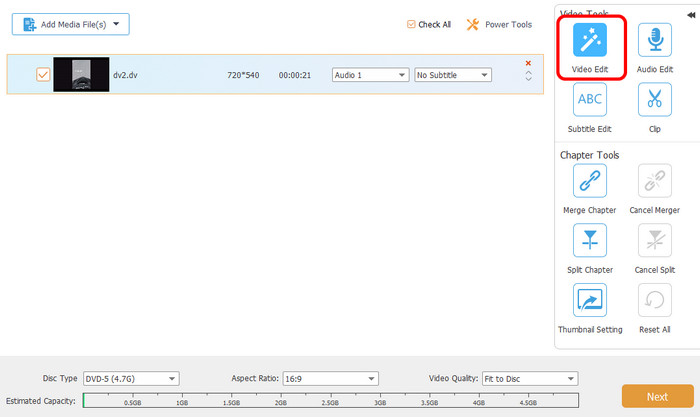
Step 3. If you insert a video file, you can enhance it using the Video Edit function. In this function, you can crop the video, rotate, add effects, change the video color, and more. Once done, click Apply > Next option.
Step 4. After that, you can also add a menu template to your file. There are various free templates you can use, so choose your preferred one.
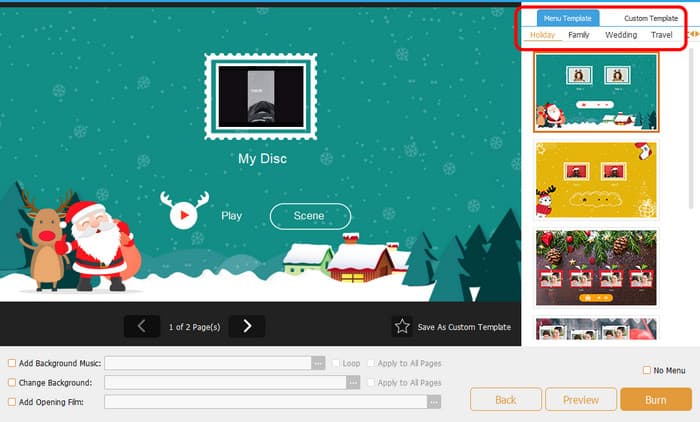
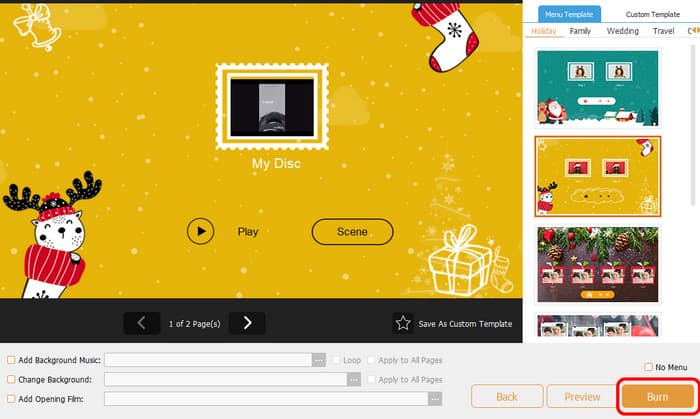
Step 5. Once you are done with everything, you can hit the Burn button below. Then wait a few seconds for the outcome.
Pros
- The interface is intuitive and user-friendly, and the steps for use are easy.
- It supports a wide range of input formats, such as MP4, AVI, MKV, MOV, etc.
- It allows users to personalize DVDs with background music, pictures, and opening films.
- It allows users to choose and add their preferred subtitles and audio tracks.
- The burning speed is quick, and the burning performance is stable.
Cons
- Some advanced features are not available in the free version.
Part 4. How to Burn a DVD with iDVD on a Mac
Another best free DVD burning software on a Mac is iDVD. Using this DVD-burning software, you can make a DVD in just a few minutes. Also, since its core feature is to burn DVDs, you can use everything you need. It includes a variety of templates and themes to improve your files. You can also customize your menus by adding chapters, background images, music, titles, and more. In addition, iDVD comes with a collection of more than 150 premade themes crafted by Apple. These themes dictate the layout, text style, background imagery, and music for DVD menus and submenus. Plus, users can customize fonts and incorporate text boxes. It can even adjust the appearance and placement of buttons.But, even though the program is helpful, there is also a drawback you might encounter. Even though the interface is simple, it still looks outdated, which users don’t like. It is best to promote its interface to attract more users to burn DVDs. Lastly, the biggest disadvantage of this program is that iDVD is a discontinued Mac application. So, you won’t get any updates about the program. You can follow the instructions below to learn how to burn DVDs on a MacBook or Mac.Unfortunately, iDVD is outdated and does not work on modern macOS versions running 10.15 or later. As such, it is only a viable and reliable option for older Mac computers.
Step 1. Access the iDVD on your Mac. After that, launch it to begin the DVD-burning process.
Step 2. After you launch iDVD, add the file you want to burn. You can get all the files from your file folder.
Step 3. Then, you can use various templates and themes on the right interface. Select your preferred interface and add some text to it.
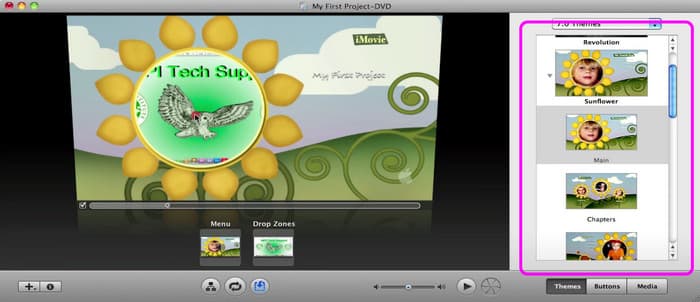
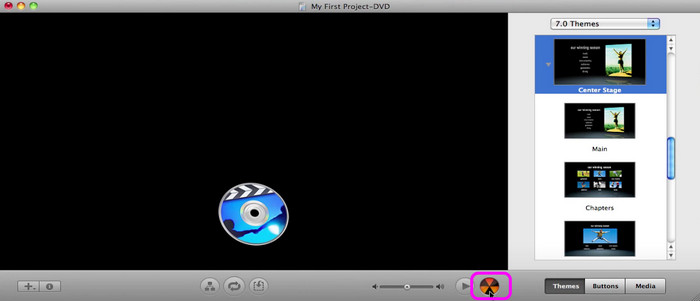
Step 4. Once you are done with everything, you can begin with the DVD-burning process by hitting the Burn button on the bottom interface. After a few seconds, you can already have your DVD.
Pros
- iDVD allows users to easily import and work with media from iMovie, iPhoto, and iTunes.
- It can customize menu layouts, buttons, and background music.
- It offers a variety of themes and templates to customize the appearance of your DVDs.
- It also supports burning slideshows to DVDs on Mac.
Cons
- The interface is too outdated, which is less attractive to users.
- iDVD is no longer supported by Apple, and it doesn’t support newer macOS versions.
- As a discontinued product, iDVD is not receiving any further updates or bug fixes.
- Some users report that iDVD freezes or stops during the burning process.
Part 5. How to Burn a DVD on a Mac Using Roxio Toast
Roxio Toast Titanium's official website is a popular multimedia and disc-burning software made for Mac users. It was primarily designed to burn DVDs, CDs, and Blu-ray discs and featured specialized DVD menus.Compared to other Mac DVD tools, Roxio Toast offers more advanced DVD authoring features, including customizable menus, chapter creation, video editing, and video conversion. Due to these features, creating home movie DVDs, backing up files, digitizing media, and managing disc-based content are some of the best uses of Roxio Toast.
Step 1. Insert the DVD you want to burn into your Mac computer.
Step 2. Open Roxio Toast and go to the Burn tab. In the Media files, select the video you want to burn and add it to the program. Then, adjust the Output Settings to suit your needs.
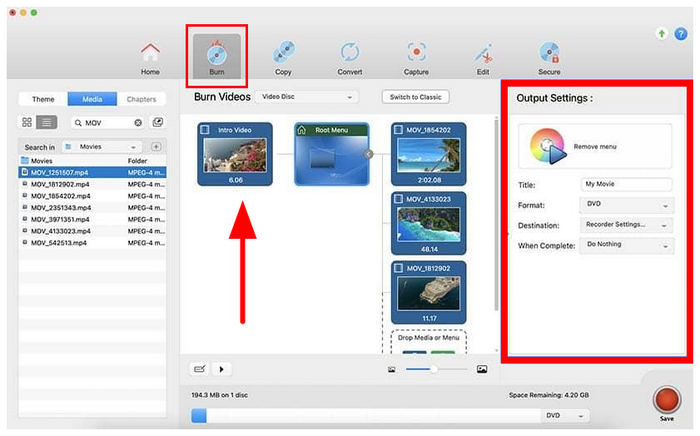
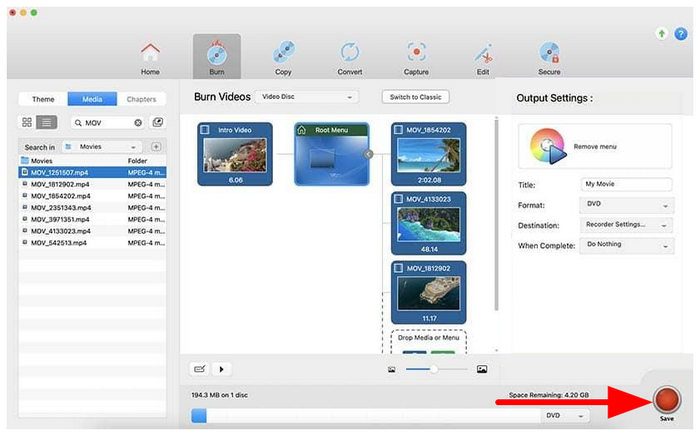
Step 3. Once the media are set up, click on Burn to start the process.
Pros
- Easy drag-and-drop workflow.
- Produces DVD menu, chapters, and playable movie DVDs.
- Equipped with media converter, backup, and disc-copying tools.
Cons
- Expensive paid software.
- Slow performance on newer Macs.
- Advanced features may be too much for users who only want basic DVD burning.
Part 6. FAQs about Burning DVDs on Mac
-
Can I burn a DVD on my Mac?
Definitely, yes. Burning a DVD on a Mac is simple. All you need to do is download the DVD Creator. With this program, you can already convert your MP4 videos to DVDs without any hassle. After you run the program, add the media file that you want to burn. After that, you can even select various templates from the right interface. If you are done with everything you need, you can begin burning DVDs by clicking the Burn button.
-
Can I burn a DVD to an ISO on a Mac?
Absolutely, yes. To burn a DVD to an ISO file, install DVD Creator on your computer. After adding the file, go to the Next button. After that, proceed to the Burn button to see another interface. After that, check the box beside the Save as ISO section. Then, click Start to begin burning the DVD to an ISO file.
-
Can I burn a playable CD on my Mac?
Of course, yes. To burn a playable CD, you will need the help of the Music app, especially if you want to deal with music. First, you can create a playlist on the Music app. After that, click File > Burn Playlist to Disc. With that, you can already have your CD.
-
What is the best free DVD burner for macOS Sequoia?
Blu-ray Master DVD Creator is one of the best free DVD burners for macOS Sequoia because it is lightweight and fully free. However, Mac Finder may be a better choice for simple data discs. For advanced DVD-Video creation with menus, paid tools like Roxio Toast are usually better.
-
Does Apple SuperDrive work with the new MacBook Pro M3?
Yes, Apple SuperDrive-equipped M3 MacBook Pro models, together with a USB-C adapter. Apple recommends connecting it directly instead of through a USB hub. However, be careful when using these tools since some adapters may cause power or detection issues.
-
Can I burn an MP4 file to a DVD that will play on a regular DVD player using a Mac?
Yes, however, you need to convert the MP4 to DVD-Video format first. Simply copying an MP4 onto a disc will store it as data. Apps like Roxio Toast can author and burn compatible movie DVDs.
-
Why won’t my Mac recognize my external DVD burner?
This is commonly due to insufficient power or compatibility issues. Try connecting the drive directly to the Mac and avoid unsupported USB hubs. You can also test another cable, restart the Mac, or check Disk Utility for detection.
Conclusion
Now that we have provided some of the best options for burning DVDs on Mac, we hope you can choose the one that best suits you. When looking for the most reliable and user-friendly solution, Blu-ray Master DVD Creator is a solid option.
More from Blu-ray Master
Videos to DVD
