

Jun 03, 2026Posted by Kevin Miller to Create DVD
When keeping and collecting videos, the best way is to transfer them to a blank disc. With that, you can keep content your own way. However, some users have no idea how to make DVDs, which is challenging. Luckily, if you intend to burn videos to DVD, you are on the right page. In this guidepost, you will learn the most effective way to transfer your videos to DVD. We will also include what you must prepare before proceeding with the main process. So, to learn all of that, let’s begin exploring the best ways to burn DVDs.

- Part 1. Things to Prepare for Burning DVDs
- Part 2. How to Burn Videos to DVD in DVD Creator
- Part 3. How to Create Videos for a DVD in AnyBurn
- Part 4. How to Burn Videos to DVD on Mac With Built-in Tools
- Part 5. Troubleshooting for Burning DVDs
- Part 6. FAQs about Burning Video to DVD
| Workable Solutions | Step-by-step Troubleshooting |
| How to Burn Videos to DVD in Blu-ray Master DVD Creator | DVD Creator provides an efficient way to burn a DVD quickly. You can follow these steps to finish burning the DVD… Full steps |
| How to Create Videos for a DVD in AnyBurn | If you want to make some changes to your content while burning, you can use DVD Flick to burn your DVDs… Full steps |
| How to Burn Videos to DVD on Mac With Built-in Tools | You can burn videos to DVD on a Mac without burning software… Full steps |
Part 1. Things to Prepare for Burning DVDs
Learn the Basics of Bitrate and Aspect Ratio
One of the first things to understand when burning DVDs is the concept of bitrate and aspect ratio, because both affect video quality and playback. Bitrate controls how much data is used for the video; this affects video quality in exchange for file size. If the bitrate is too low, the video may appear blurry or low-quality. On the other hand, aspect ratio determines the video’s screen shape, such as 4:3 or 16:9 widescreen. Using the wrong aspect ratio can make the video appear stretched, squished, or surrounded by black bars. With these technical parameters now discussed, we hope your DVDs will look better and play properly on most players and televisions.
DVD Driver
A DVD driver or DVD-ROM drive is among the core requirements you need for creating DVDs. It has important functions you need. First, it plays a vital role in writing data to the disc. If you are not yet aware, a DVD has a laser that can write the digital data you want to insert and store into the DVD media. Plus, it burns a little pit in the disc’s surface, which represents the encoded data. Aside from that, a DVD driver serves as a means of communication between a computer and a DVD drive.
Blank DVD Disc
Since you are preparing the materials you need to burn DVDs, another important item is a blank disc. This is where you put the video you want to burn. But when preparing a disc, there are things to consider. There are DVD types you must know, such as DVD-R and DVD-RW.
Videos
To burn DVDs, you must also prepare the videos that you want to burn. Well, the video's size limit may vary depending on the DVD you use. A standard DVD burner can burn videos up to 4.7 GB on a DVD-5 disc. The video will be up to 2.5 hours long. When using DVD-9, the file size limit will be up to 8.5 GB. The video will be up to 4 hours long.
Appropriate DVD-Burning Software
If your disc, video, and DVD drives are already set up, you need excellent DVD-burning software. It is important to choose the right software for burning DVDs, as it will give you the results you want. When choosing DVD-burning software, you must consider its burning capabilities, additional features, quality, and whether it provides a smooth process.
Part 2. How to Burn Videos to DVD in DVD Creator
Blu-ray Master DVD Creator is an excellent DVD burning program with more functionality than you might expect. DVD Creator provides an easy-to-use interface with a simple burning process. You can also import any video format, making it more convenient for all users. What’s more, it has a preview option that lets you see your potential final output after the burning process. In terms of burning speed, you won’t be disappointed, as it offers a fast burning procedure, allowing you to burn videos to DVD in just a few seconds. Also, during the process of burning videos to DVD, you can perform additional tasks, especially to improve the video. DVD Creator lets you edit your video. It includes adding effects, adjusting video brightness, saturation, and contrast, adding watermarks, and more. So, to learn more about creating DVDs, use the methods below.
To cater to modern users, Blu-ray Master DVD Creator features a modern interface and is fully optimized to run smoothly on modern Windows 11 desktops.
Step 1. Download DVD Creator on your Mac and Windows computers. After that, launch the program and start the DVD-burning procedure.
Free Download
For Windows
Secure Download
Free Download
for macOS
Secure Download
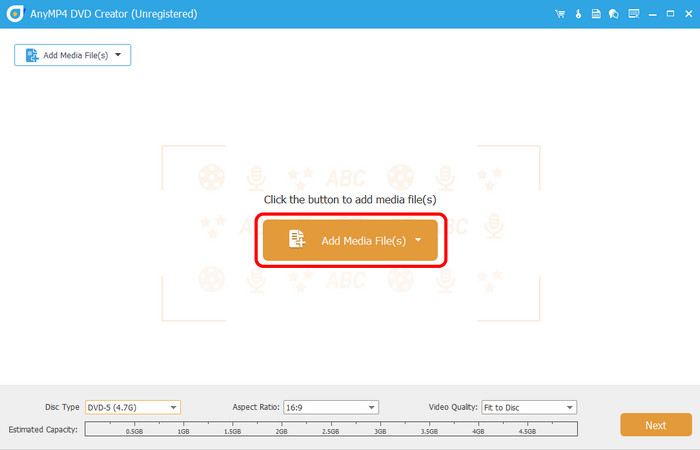
Step 2. Click Add Media Files from the center interface. Then, when the computer folder appears, you can select the video you want to burn.
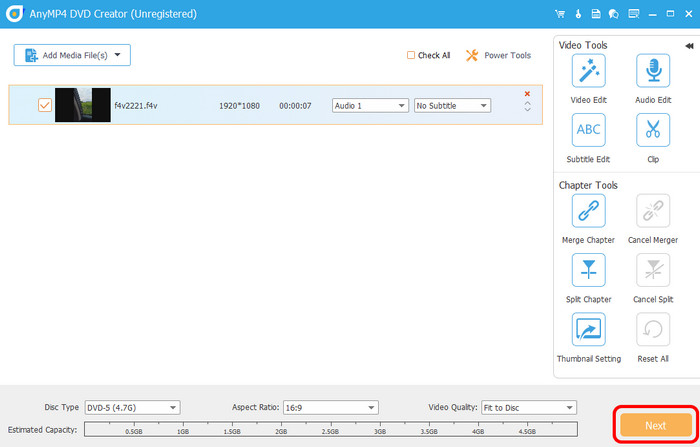
Step 3. Once the video is added to the interface, hit Next to proceed to the next process.
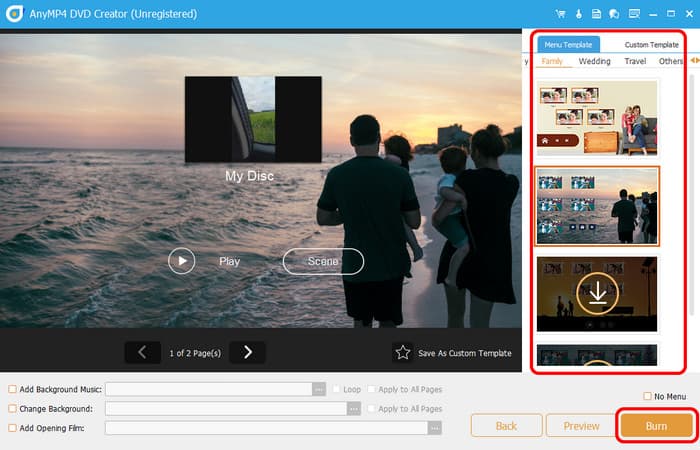
Step 4. In this part, you can customize the menu on your videos. You can also use menu templates to help you improve your video. Click Burn to proceed to the burning process. Then, when you finish the process, you can already have your DVD.
Pros
- It can burn DVDs using simple methods.
- The video quality won’t be affected during the burning procedure.
- It is accessible on both Mac and Windows.
- It can offer ready-to-use menu templates.
- Adding backgrounds is applicable.
Cons
- Access more features by getting the paid version.
Tips
Make sure to control the bitrate you use, since it significantly affects the size of the video you burn. You have to ensure it fits in the DVD's storage.
Part 3. How to Create Videos for a DVD in AnyBurn
To burn videos to a DVD, you can use AnyBurn. This lightweight DVD-burning software lets you create video DVDs quickly and efficiently, with a main function designed for simple, beginner-friendly use. Aside from basic video burning, creating ISO files, and erasing rewritable discs, the program also offers these features. During the test, the burning process was smooth, and the video quality was retained, resulting in good-quality output. It is also lightweight and has low system requirements, making it ideal for older or low-spec computers. However, there are still some limitations to consider. Compared to advanced DVD-burning software, AnyBurn offers fewer customization options, especially for DVD menus and editing. Its interface may also look outdated for some users. Still, if you want a simple and reliable way to burn videos to DVDs on Windows, AnyBurn is a practical choice.
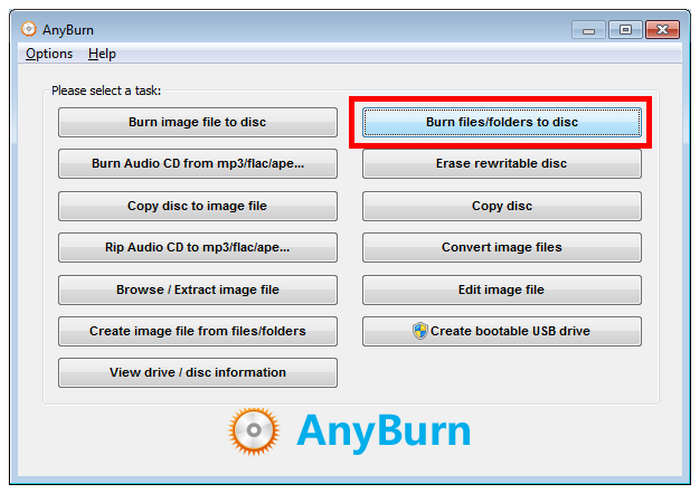
Step 1. Insert the DVD you want to have the digital video burned into. Then, open AnyBurn software and select the Burn Files/Folders to Disc option.
Step 2. Then, click on Add and import the files you want to burn. Click on Next after selecting the media files you want to burn.
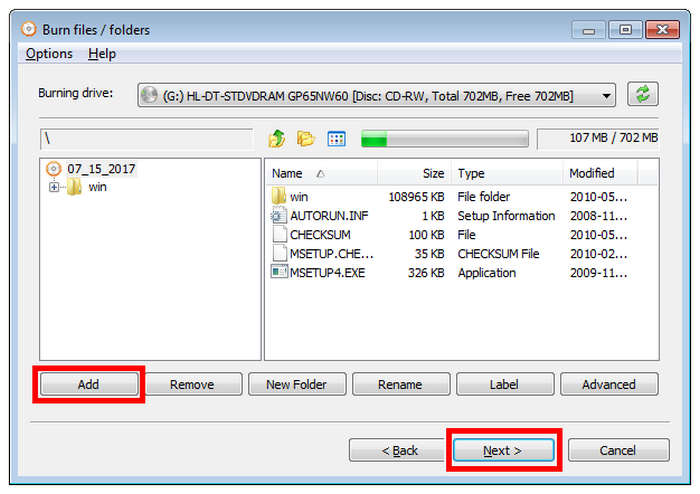
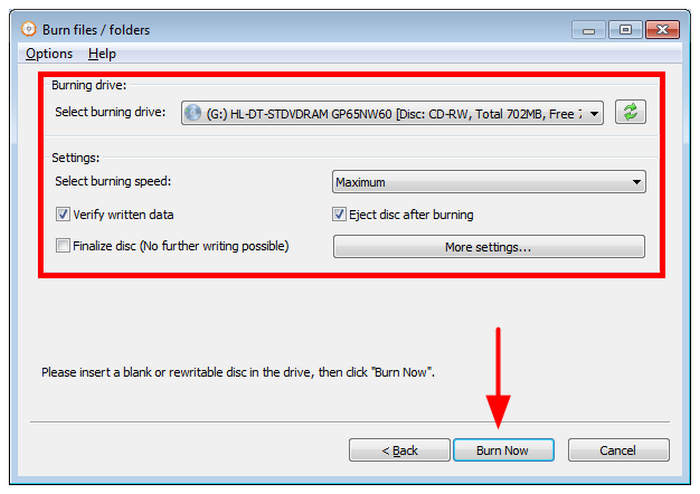
Step 3. Set the Burning Drive to the loaded DVD on your computer. Then adjust the Settings to your preference. Then select Burn Now to start the burning process.
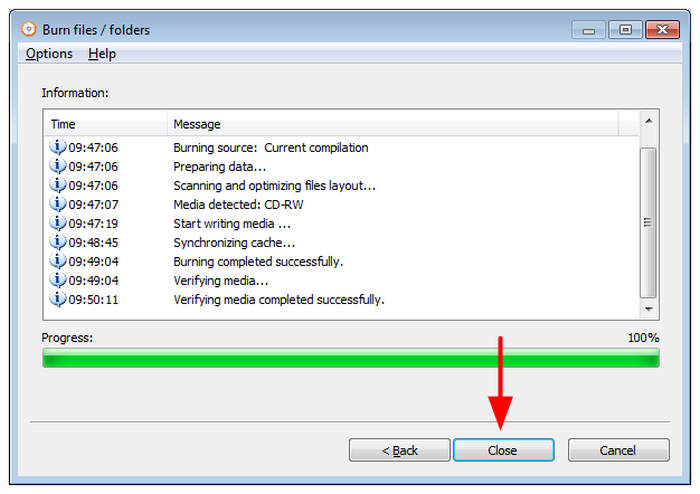
Step 4. Once the burning process is complete, click Close to finish.
Pros
- Simple and beginner-friendly interface.
- Fast DVD burning process.
- Maintains good video quality after burning.
- Lightweight software that works well on low-spec PCs.
Cons
- Limited DVD menu and editing customization.
- The interface looks outdated compared to modern tools.
- Fewer advanced features for complex DVD burning.
- Available only for Windows.
Note: AnyBurn may be lightweight and fast, but its DVD authoring features may be considered limited compared to other options. Keep this trade-off in mind.
Part 4. How to Burn Videos to DVD on Mac With Built-in Tools
If you are using a Mac, you can use its built-in DVD burner. Please make sure the following prerequisites are satisfied before burning a DVD on a Mac. First, your Mac should have a built-in DVD drive. If not, you should prepare an external DVD drive. In addition, you also need a blank DVD. And then you can start to burn movies to DVD on Mac.
If you are using a modern Mac computer, note that most of their modern releases do not include optical drives by default, unlike older versions. As such, the burn function on Finder has declined in reliability over time.
Despite these limitations, you can still use built-in solutions on Mac for DVD burning, as long as you have access to a reliable and optimized external DVD drive for macOS.
Note:
- iMac: Versions before 2012 had DVD drives, while those after 2013 did not.
- MacBook Pro: Versions before 2012 had DVD drives, while those after 2013 did not.
- MacBook: The 2006-2012 versions have DVD drives, while the others do not.
- Mac mini: Versions before 2011 had DVD drives, while those after 2012 did not.
- Mac Pro: Versions before 2013 had DVD drives, while those after 2013 did not.
- When using macOS's built-in burner, large video files consume so many CPU resources that processing can take too long.
Step 1. If your Mac has a built-in DVD drive, insert a blank DVD. If not, connect the Blank DVD to the external drive, and then insert the USB interface of the external drive into the Mac.
Step 2. From the top screen, navigate to the File menu. Then, click the New Burn Folder option. After that, the new burn folder will appear on your desktop.
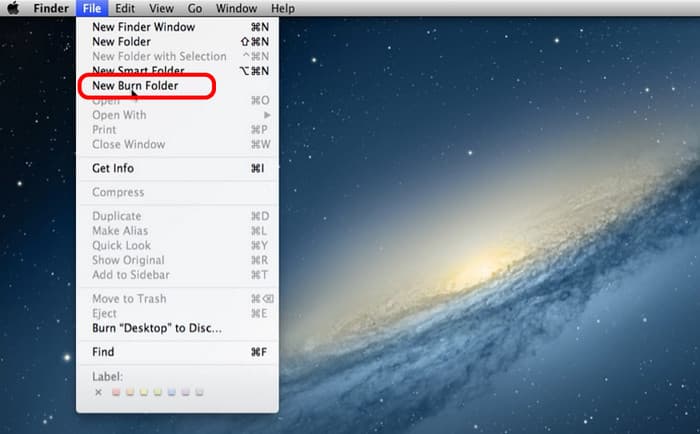
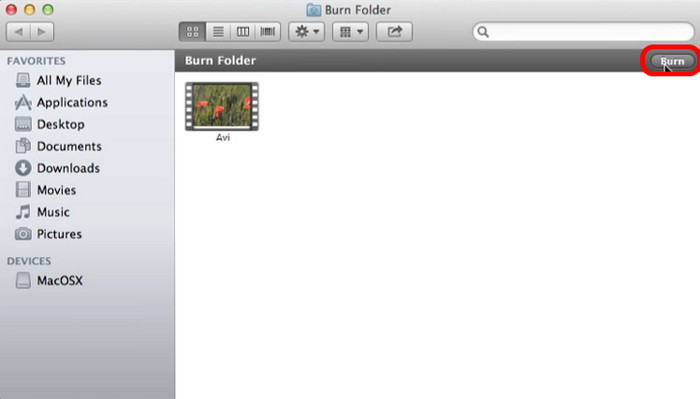
Step 3. After that, double-click the New Burn Folder to open it. Then you can also open the video file you want to burn. Drag and drop the file to the New Burn Folder.
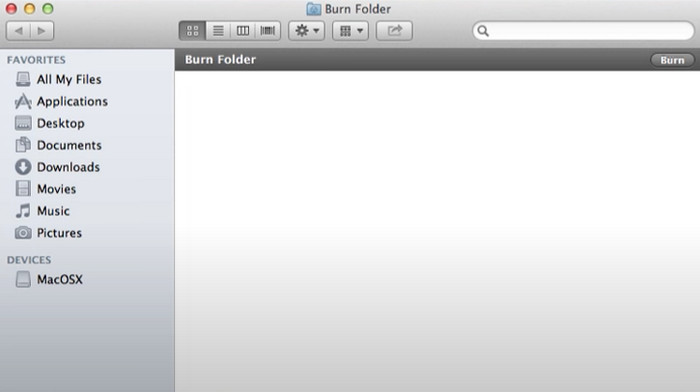
Step 4. To finish the process, click Burn in the top-right corner of the interface. Then, you can already have your DVD.
Even though Mac has a built-in DVD burner, you might encounter various shortcomings when burning DVDs. The burning process is too slow, making it more time-consuming. Also, it can only offer a simple burning process. It lacks some functions, such as chapters, menus, and customization options. It is also unable to edit videos. Therefore, we recommend the DVD Creator for DVD creation. With this, you can burn smoothly, edit videos, customize menus, and more. Click here to check more ways to make DVDs from videos on Mac.
Pros
- Readily available on macOS computers.
- Works great for creating offline storage.
- Very easy to use.
Cons
- It cannot write DVD videos.
- No editing features.
- Not supported by DVD players.
Tips
Mac’s built-in DVD burner only burns data, so it does not write it to the disc itself. It cannot create DVD videos but only uses it as offline storage.
Part 5. Troubleshooting for Burning DVDs
Burning Speed Issues
When facing burning speed issues, make sure to allot enough resources to the DVD burning software you are using. A good way to do this is to close other open tabs during the DVD burning process so your hardware can focus on writing the DVD data.
Mac with No Built-in Optical Drivers
If your Mac computer lacks built-in drivers, you unfortunately have to rely on third-party DVD drivers. They are vital for opening DVDs on your computer, since DVD burning will only be possible if they are accessible on your device.
Lack of USB-A Ports
The lack of USB-A ports may be solved by using the right DVD driver. Fortunately, external DVD drives are now equipped with modern USB-C ports. These tools are also optimised for modern usage, making them more reliable and generally faster.
Part 6. FAQs about Burning Video to DVD
-
Why can’t I burn a DVD on my computer?
One reason is that the DVD you use may not be compatible with the disc drive. For example, there are times when the disc drive doesn’t support DVD-R. With that in mind, it would be best to use another DVD to ensure an effective burn.
-
Is it better to transfer VHS to DVD or USB?
Yes, especially if your main purpose is to have a collection. With that, you can keep your content for a long time.
-
Is it illegal to burn a video to DVD for sale?
Definitely, yes. Burning DVDs is illegal. It is suggested to get consent from the owner before burning a DVD. But if you want to burn a video to DVD for personal use, you can.
-
Can I burn an MP4 to a DVD?
Yes, you can burn MP4 files to a DVD, but you’ll likely need to convert the MP4 to a DVD-compatible format like MPEG-2. Many DVD-burning software programs can handle this conversion and the disc-creation process automatically. Some DVD players can also play MP4 files directly from a DVD data disc, but it’s not guaranteed.
-
What’s the best format for DVD burning?
The best format for burning a DVD to be playable on most DVD players is MPEG-2 (also known as H.262). This format is specifically designed for DVDs and offers a good balance between video quality and file size.
-
How do I test a burned DVD for playback?
To test a burned DVD for playback, ensure the disc is properly finalised, clean it if necessary, and then try playing it on multiple DVD players or a computer with DVD playback software.
-
What is the best free DVD burning software for Windows 11 in 2026?
When burning on modern Windows computers, Blu-ray Master DVD Creator is a safe option. It was designed to have capable features for basic DVD data burning. It is also easy to use, improving accessibility.
-
Does Windows 11 have a built-in DVD maker like the old Windows 7?
No, Windows 11 no longer includes a built-in DVD Maker, as it did in Windows 7. You can still burn data discs using File Explorer, but creating playable video DVDs requires third-party software. Among the options in this article, Blu-ray Master DVD Creator and AnyBurn are good options.
-
Why won’t my burned DVD play in my Sony DVD player?
The DVD may have been burned in an unsupported format by your Sony player. Some players cannot read certain disc types, video codecs, or improperly finalised DVDs. Fortunately, you can avoid these issues by using the compatibility settings of your DVD burning tool.
-
Can I burn a video to DVD on a Mac without an external drive?
No, you need a DVD drive to physically burn a DVD on a Mac. Since most modern Macs no longer include built-in optical drives, an external USB DVD burner is usually required. Fortunately, there are modern external driver options also designed for modern Mac hardware.
Wrapping up
With this helpful guide, you have learned how to burn videos to DVDs on Windows and Mac computers. Also, you discovered that you need to prepare certain things before proceeding with the DVD-burning procedure. Plus, if you want to burn DVDs and edit videos simultaneously, the best program to use is DVD Creator. With that in mind, consider using the program for a successful final result.
More from Blu-ray Master
Videos to DVD
