

Sep 03, 2025Posted by Kevin Miller to Create DVD
Do you want to convert those AVI home videos and old movies into physical discs that can be played in your DVD player? Do you want your elders, who are not familiar with smart devices, to be able to watch those precious images easily? In fact, even in today's world, DVDs are still a great choice for saving and sharing videos, especially the classic AVI format.
This guide will show you how to burn AVI to DVD with a paid and free tool, and how to pick the best DVD creator software for your needs. Follow the instructions, and the AVI digital files in your hands will soon be turned into physical memories that you can touch and share.

- Part 1. What Is AVI
- Part 2. How to Burn AVI Files to DVDs with a Paid DVD Burner
- Part 3. How to Burn AVI Files to DVDs with a Free DVD Burner
- Part 4. Which Is the Best Method to Burn AVI to DVDs
- Part5. FAQs
Part 1. What Is AVI
AVI (Audio Video Interleave) is a multimedia container format developed by Microsoft in 1992. Unlike some video formats that rely on specific codecs, AVI acts as a ‘container’ for storing audio and video data encoded in a variety of codecs, such as DivX, XviD, or MPEG-4. This flexibility made it compatible with many media players, editing software, and operating systems.
One of the key features of AVI is simplicity, and its straightforward structure makes it easy to process and edit. However, this simplicity comes with a drawback: AVI files tend to be larger than more modern formats such as MP4. Larger file sizes are one of the reasons why users may want to convert AVI files to DVD. In addition, DVDs offer a convenient way to store and play these files without relying on large hard disk space.
Therefore, let’s explore how to create DVDs from AVI.
Part 2. How to Burn AVI Files to DVDs with a Paid DVD Burner
For users seeking a dependable, feature-rich AVI to DVD converter with expert support, paid DVD burning software is frequently worth trying. Blu-ray Master picked DVD Creator is the best DVD burning software for Windows and Mac that specializes in burning a wide range of video formats, including AVI to DVD. It simplifies the DVD burning process while offering advanced customization options for both beginners and experienced users. Additionally, it has other superb features as follows:
• Wide Format Support: Besides AVI, it also supports burning other popular video formats such as MP4, MOV, WMV, MKV, etc. to DVD or Blu-ray discs.
• DVD Menu Templates: Provides a series of DVD menu templates (e.g., Family, Holiday, Business, etc.) that can be customized with background images, music, and text.
• Video Editing Tools: Allows basic editing such as trimming, cropping, adding watermarks, adjusting brightness/contrast, and merging multiple AVI files before burning AVI files to DVDs.
• Accelerated Burning Speed: Equipped with GPU acceleration support, this DVD burner program offers you a fast speed for converting AVI to DVD.
Next, let’s learn the steps to burn AVI to DVD using DVD Creator.
Step 1. Download and Installation
Visit the official website to download the software and then follow the installation instructions to install it on your Windows or Mac. Also, you can click below Free Download button to get it.
Free Download
For Windows
Secure Download
Free Download
for macOS
Secure Download
Step 2. Add AVI File
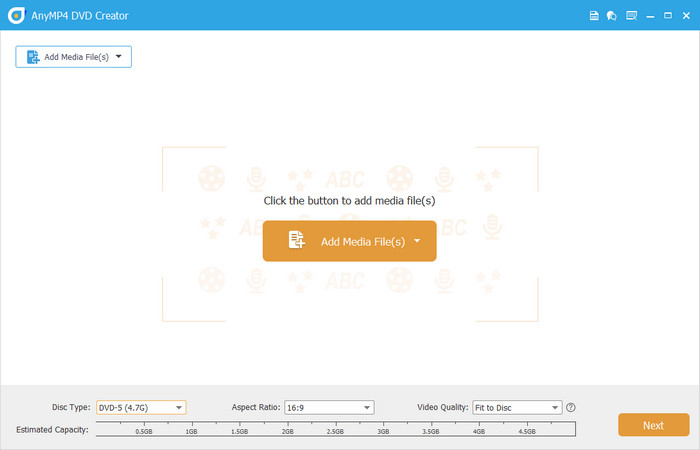
Start the software and choose the DVD Disc option. Then, click the Add Media File(s) button to upload your AVI file that needs to be converted.
Step 3. Edit Audio and Subtitle
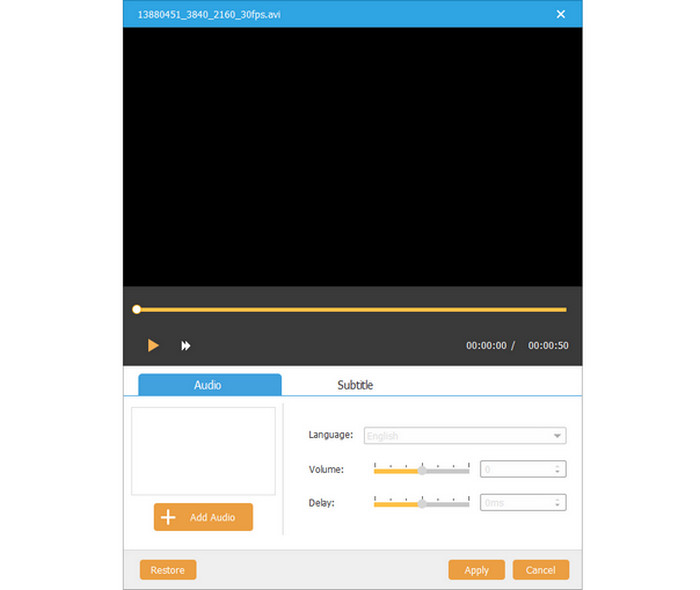
Check the video file and click the Audio or Subtitle button to enter a window to add audio and subtitles. And it allows you to adjust the audio’s volume and delay, as well as edit subtitles’ language, position, transparency, and delay.
Step 4. Edit AVI Videos
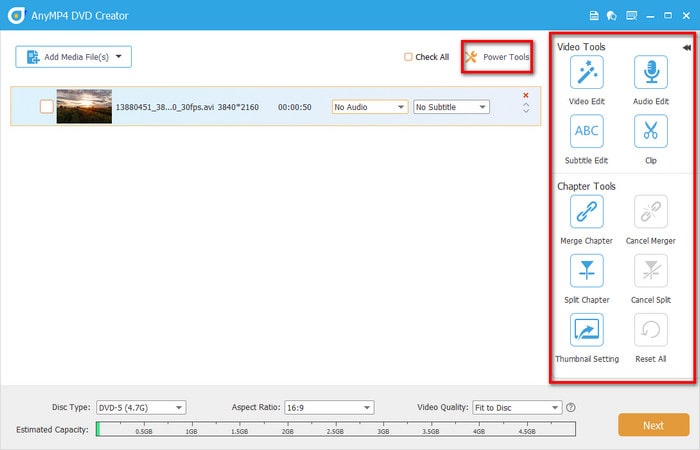
Click the Power Tools button, and the right editing panel will appear. Then, you can rotate, clip, crop your AVI videos, as well as add watermarks and adjust the visual effects by adjusting filters, brightness, contrast, saturation, and hue. Moreover, it supports merging or splitting the chapter and making some thumbnail settings.
Step 5. Adjust DVD Settings
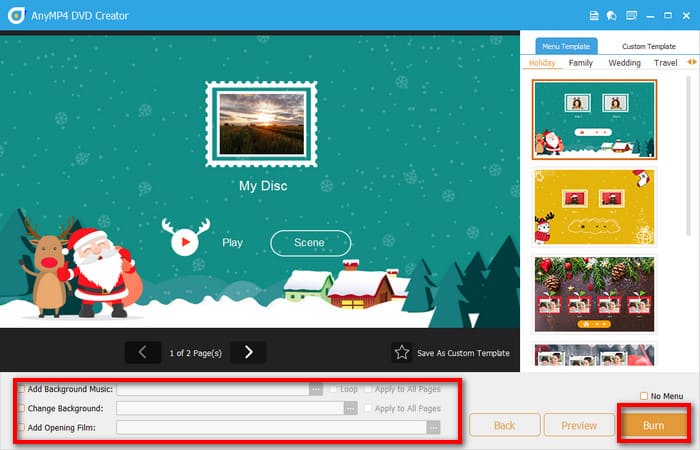
After that, at the bottom of the interface, there are three options that support changing disc type, aspect ratio, and video quality. Then click the Next button to continue. In the following interface, you can choose a suitable menu for your DVD, such as wedding, travel, family, and so on. Besides, you can also add background music, change the background, and add opening film. After doing the above, click the Burn button.
Note: It allows previewing the DVD before burning your AVI file by clicking the Preview button.
Step 6. Set the DVD Path
In the final interface, you should select the destination path, burning engine, TV standard, volume label, and playback mode. After that, click the Start button to start burning your AVI video to DVD. After a few seconds, the process will be completed.
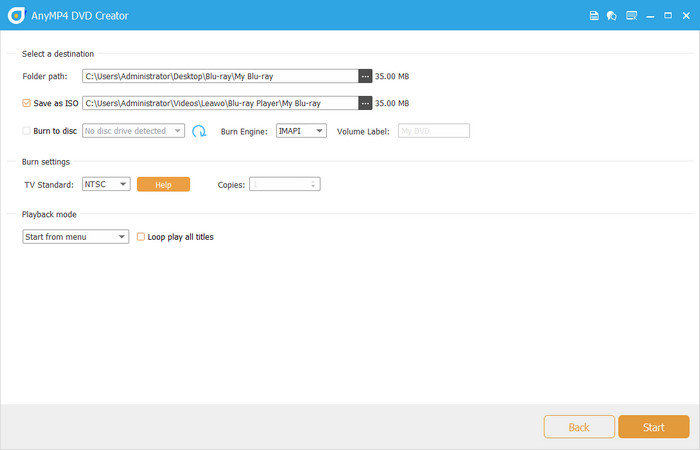
Overall, DVD Creator is suitable for users who need to burn AVI to DVDs frequently and edit DVDs. And if you are on a sufficient budget and are looking for rich features and cross-system compatibility, it is an absolutely reliable choice.
Part 3. How to Burn AVI Files to DVDs with a Free DVD Burner
For users with limited budgets or just simple burning needs, free tools are a great option. WinX DVD Author is a free AVI to DVD converter without watermarks. WinX DVD Author is a lightweight software for Windows 10/11. It focuses on simplicity and allows users to easily burn AVI and other video files to DVD. Although it lacks some of the advanced features, it is ideal for basic DVD burning tasks.
• Basic Format Support: Supports AVI, MP4, MPEG, WMV, and other common video formats to burn to DVD.
• Simple Menu Templates: Provides basic menu templates with customizable text and background images.
• Video Trimming: Allows users to trim AVI files to remove unwanted clips before burning to DVD.
Then, how to use it to convert AVI files to DVDs?
Step 1. Download and Installation
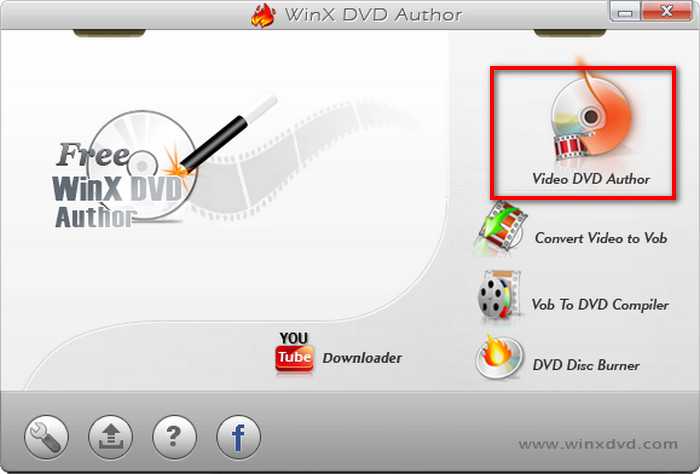
Go to the WinX DVD Author website, download the free version, and install it on your Windows. Launch the software and click the Video DVD Author button.
Step 2. Add AVI File
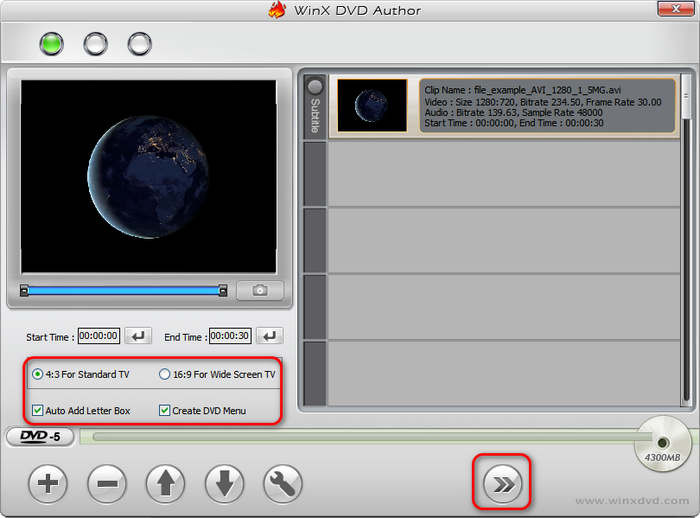
Click the Add clips button to upload your AVI videos that you want to burn. And you can change the aspect ratio, create the DVD menus, and set the start & end time for the AVI video. After that, click the Next button to continue.
Step 3. Adjust DVD Settings
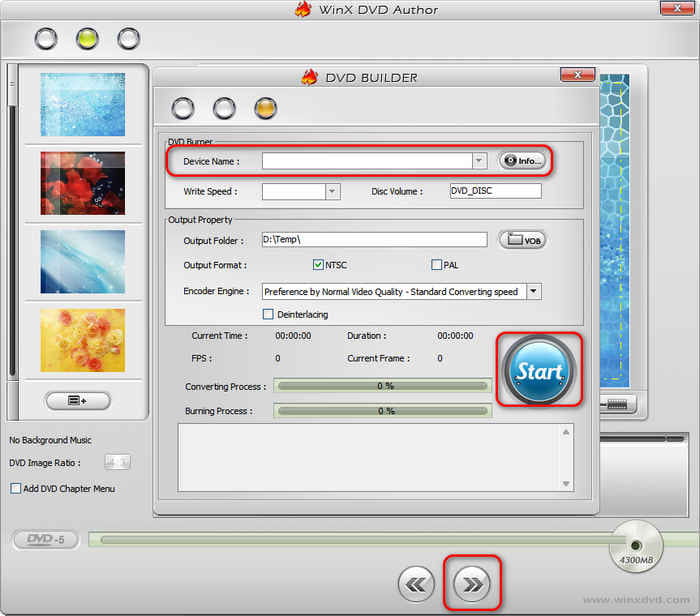
In the following interface, you can choose the DVD menu from the templates. And then, select the output folder, output format, and encoder engine.
Step 4. Start Burning
Finally, click the Start button to convert your AVI files to DVD. And after a few minutes, the burning process will be finished.
Therefore, WinX DVD Author is ideal for users who only need occasional basic burning, have a limited budget, and have a Windows computer, or for those who don't require a lot of editing and menu customization.
Part 4. Which Is the Best Method to Burn AVI to DVDs
After learning about the characteristics of the AVI format and trying out both paid and free tools, you may ask: Which method is best for burning AVI files to DVD? The answer depends on what factors you value most, such as budget, device, and your burning needs.
• Usage and Frequency: Although WinX DVD Author can satisfy the basic AVI to DVD burning demands, it lacks key features such as chapter markers and custom menus. If you burn AVI to DVDs frequently or need to create professional menus, the paid tool DVD Creator is absolutely performs better.
• Operating System: DVD Creator supports Windows and Mac, while WinX only supports Windows. Therefore, if you have cross-platform needs, Blu-ray Master picked DVD Creator provides the best solution, which has better compatibility.
• Burning Speed and Quality: Compared with WinX DVD Author, Paid tools like DVD Creator are usually faster and offer better quality. Free tools may be slower when working with large files.
Therefore, in general, the paid option DVD Creator is the best method to burn AVI to DVDs.
Part 5. FAQs
-
What is the best video format for burning to DVD?
The best video format for burning to DVD is MPEG-2, specifically using the H.262 codec. This format is compatible with most DVD players and is the standard for DVD-Video. While other formats like MP4 or AVI might be used for other purposes, MPEG-2 is the most reliable choice for DVD playback.
-
Can the AVI format play on a DVD player?
No, in general, DVD players cannot directly play AVI files. To play an AVI file on a DVD player, it needs to be converted to a DVD-compatible format like MPEG-2 and then burned onto a DVD. on a standard DVD
-
Do I need to format a DVD before burning?
No, you do not need to format a DVD before burning data onto it, especially for DVD-R and DVD+R discs. These types of DVDs are designed to be written to once and are pre-formatted during the manufacturing process.
-
Is WinX DVD Author free?
Yes, WinX DVD Author is free software. It's a DVD authoring and burning tool that allows users to convert videos to DVD format and burn them to disc. It supports a wide range of video formats and includes features like DVD menu creation and subtitle addition.
Conclusion
Burning AVI to DVD is a practical way to preserve and share video content, and with tools like DVD Creator and WinX DVD Author, the process will be easy. By clarifying your needs, such as customization requirements, budget, and platform compatibility, we have learned that Blu-ray Master picked DVD Creator is the best choice. Get a move on to download it!
More from Blu-ray Master
Digital to DVD
