

Jul 24, 2025Posted by Kevin Miller to Create Blu-ray
An ISO is a complete disc image that contains all the data, structure, and content of a disc. Burning an ISO to a Blu-ray is a common need for many. Some want to backup large media collections, while others want to archive HD videos in a physical format. Since Blu-ray discs offer large capacities, they are ideal for storing high-quality content preserved in ISO format. However, simply having an ISO file isn't enough. You need the right tools and know-how to burn it properly to a Blu-ray disc. That's where this guide comes in. The goal of this post is to help you effectively create Blu-ray from ISO files in three different ways. If you're someone looking for a dependable method, you'll find practical steps and tips here.

- Way 1. Burn ISO to Blu-ray with Blu-ray Master DVD Creator
- Way 2. Burn ISO to Blu-ray with ImgBurn
- Way 3. Burn ISO to Blu-ray with AnyBurn
- Tips for ISO to Blu-ray Conversion
Way 1. Burn ISO to Blu-ray with Blu-ray Master DVD Creator
Blu-ray Master picked DVD Creator is a flexible disc authoring software that goes beyond DVD creation. Though the name suggests otherwise, it can also burn ISO to Blu-ray. It is available for free download on Windows (7-11) and Mac (10.9 or later). It features a Blu-ray burning mode, allowing you to create a Blu-ray disc from media files and other sources, such as ISO images. You can even load a DVD ISO and burn it to Blu-ray with no error. Additionally, it provides a 20-disc menu template of different themes to suit your content.
Step 1.Begin by downloading the Blu-ray Master DVD Creator for free. It's available for both Windows and Mac, so please click the correct Download button for your system. Install the Blu-ray burner software, complete the installation, and then run the software.
Free Download
For Windows
Secure Download
Free Download
for macOS
Secure Download
Step 2.Before proceeding, place a blank Blu-ray disc in your external Blu-ray drive. Upon startup, select the Blu-ray Disc option as your disc type. Then, click Add Media File(s) to import the ISO image file. If you're burning a high-capacity ISO, set the disc type to BD-50 (50GB).
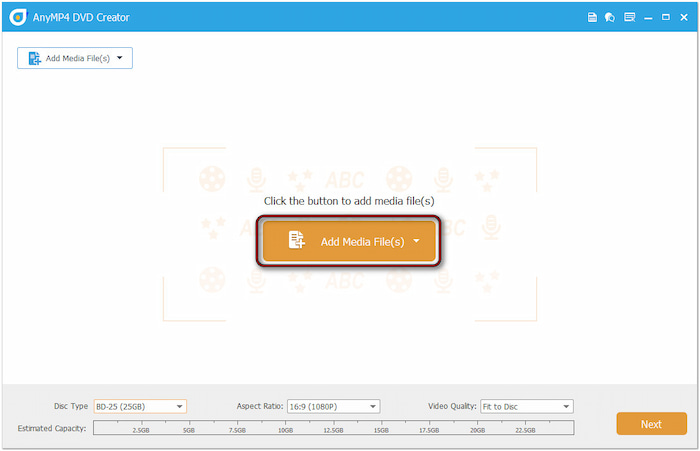
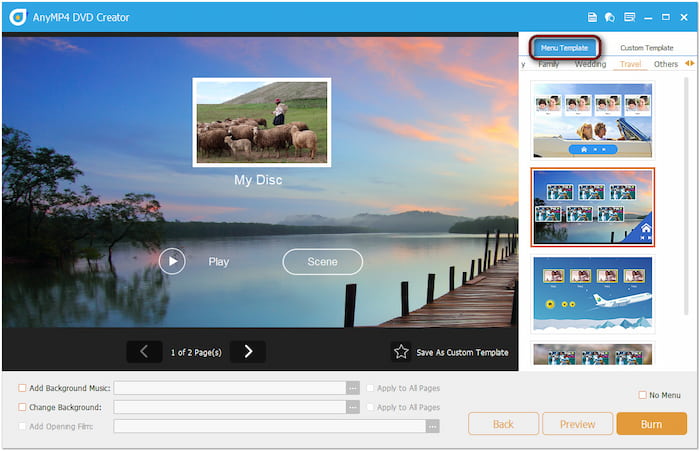
Step 3.Click the Next button to access the disc menu window. Here, choose a menu template that suits your style or customize your disc menu. You can add background music, upload an image, and insert an introductory film. Click the Burn button to move forward.
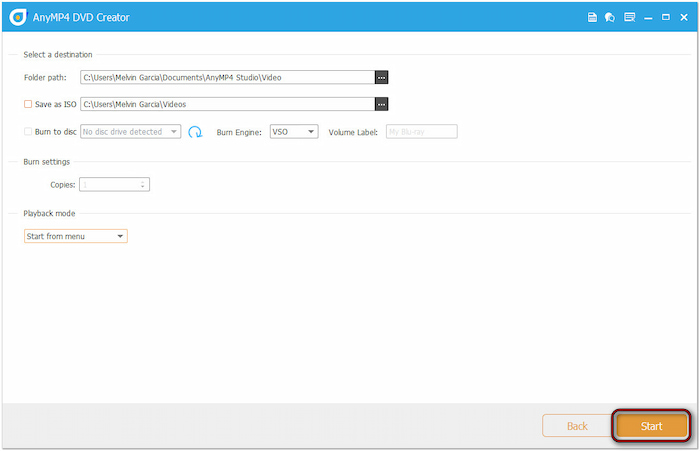
Step 4.In the Burning Settings window, check Burn to Disc and select your Blu-ray drive from the pulldown menu. Optionally, click the Folder Path selector to set an output directory for the BDMV folder. After confirming all settings, click Start to burn the ISO image file to a Blu-ray disc.
Blu-ray Master DVD Creator is ideal for those who want to easily burn an ISO to Blu-ray. In addition to burning functionality, this software comes with a built-in editor. It boasts essential tools to enhance your ISO content before burning. Options include a rotator, clipper, cropper, effects, watermarks, sound booster, subtitle insertion, and more.
Way 2. Burn ISO to Blu-ray with ImgBurn
ImgBurn is a lightweight, free disc authoring software to burn ISO to Blu-ray discs. Although the software is known and commonly used for DVD burning, it also fully supports Blu-ray disc burning. It lets you take an ISO and write it directly to a blank Blu-ray disc.
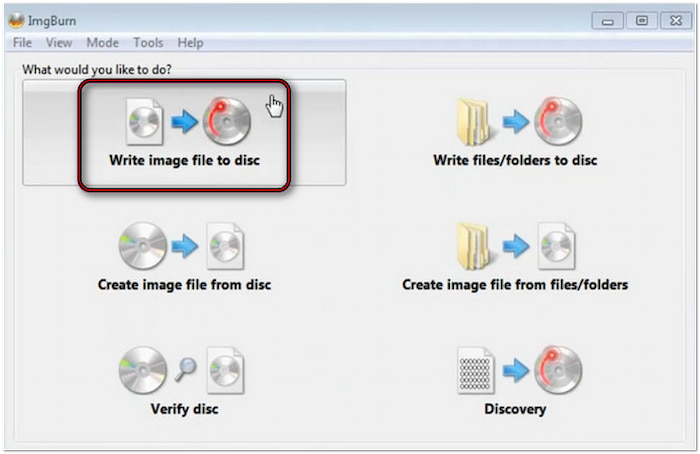
Step 1.Run ImgBurn on your system and select the Write Image File to Disc option. Navigate to the Source selector and click the Folder button to open your local drive. Browse the ISO image file you want to convert to Blu-ray and click Open to import it.
Step 2.Once the ISO image file is added, move to the lower left section of the software. Click the Disc/Write button, represented by the optical disc, to begin the Blu-ray creation. However, before that, ensure you have inserted the blank Blu-ray disc into your Blu-ray disc drive.
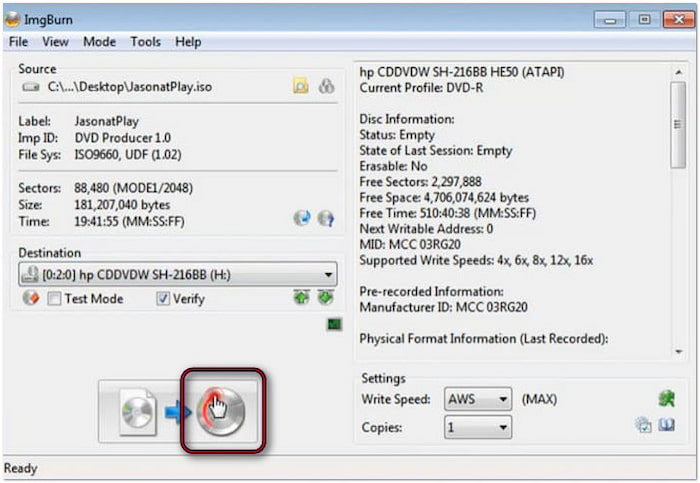
Using ImgBurn to create a Blu-ray disc from an ISO image file is a straightforward process. While it effectively performs this task on a Windows system, the software cannot be used to burn ISO to Blu-ray on Mac. Furthermore, it is only compatible with Windows 10 and earlier versions of Windows. If you want to burn DVD/Blu-ray ISOs on a Mac, you can try alternatives to ImgBurn for Mac.
Way 3. Burn ISO to Blu-ray with AnyBurn
AnyBurn is a comprehensive Windows-based software for burning Blu-ray, DVD, and CDs, as well as imaging. It supports burning ISO to Blu-ray discs and other physical mediums. Aside from disc creation, it features audio CD ripping, audio CD burning, and creating bootable USB drives.
Step 1.Open AnyBurn and select the Burn Image File to Disc option as your task. In the Burn Image File window, click the Folder button to load the source ISO image file. Now, prepare the blank Blu-ray disc and place it on your computer's external Blu-ray drive.
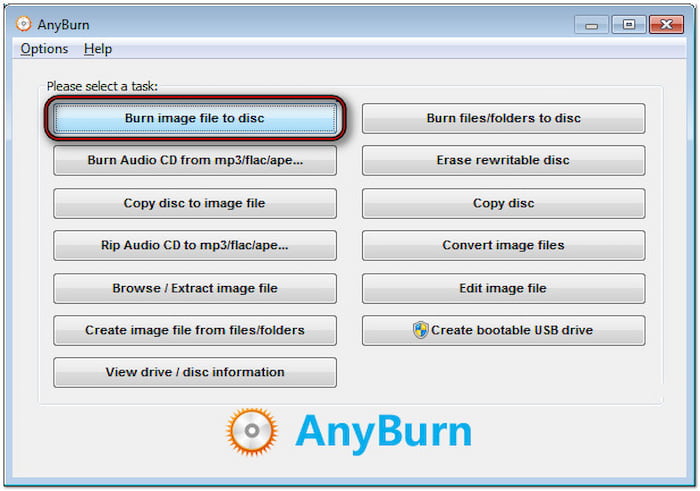
Step 2.Optionally, check Verify Written Data to compare the data written to the disc with the original one. This action ensures that the new Blu-ray disc is readable and all data are identical. Once everything is set, click the Burn button to initiate the burning of the ISO file.
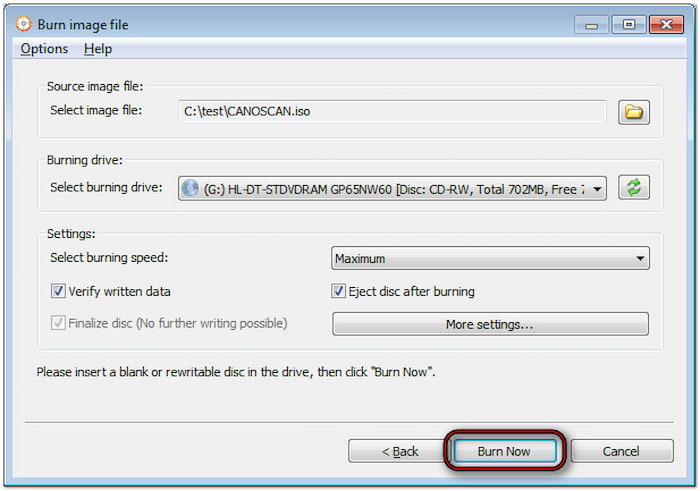
AnyBurn is a straightforward and efficient tool for burning ISO image files to Blu-ray discs. However, if you need Blu-ray authoring with menus and extra features, it is not your best choice. This software focuses solely on burning Blu-ray discs rather than authoring them.
Tips for ISO to Blu-ray Conversion
This section provides essential tips that cover everything you need to know before burning. We'll highlight critical measures that can affect the quality, reliability, and longevity of your Blu-ray disc. By following these best practices, you can minimize errors and maintain optimal video quality.
Choose the Correct Output Blu-ray Type
Blu-ray discs come in two capacities: BD-25 (25 GB, single-layer) and BD-50 (50 GB, dual-layer). The size of your ISO file should determine which disc to use. If the source ISO exceeds 25GB, using a BD-25 will either result in an error or force compression.
Burning Speed
A slower burning speed yields better results, especially for large ISO files, such as those from Blu-ray discs. Slower burning minimizes the risk of data corruption, write errors or unreadable discs. Though the process may take longer, the payoff is a more stable and error-free disc.
Sufficient Hard Drive Space and System Resources
Burning large ISO files to Blu-ray requires a significant amount of free hard drive space. It's recommended to have at least twice the size of the ISO file available in free space. It reduces the chance of buffer underruns, lag, or interruptions, all of which could lead to a failed burn.
Use High-Quality Blu-ray Discs
Not all Blu-ray blanks are created equal. Opt for high-quality, branded Blu-ray discs, such as those from Sony or Panasonic. Cheaper, generic discs are more prone to burning errors, degradation, and playback incompatibility with Blu-ray players.
Conclusion
Burning ISO to a Blu-ray allows you to preserve high-quality content and create physical backups. Following the right steps and using the right software is essential for a successful Blu-ray disc creation. This post has shown you the top methods and key tips to ensure a smooth and error-free process. Among the tools we featured, Blu-ray Master DVD Creator stands out. With its support for high-quality ISO burning and additional features, it's the perfect tool for all your Blu-ray authoring needs.
More from Blu-ray Master
