

Sep 26, 2025Posted by Kevin Miller to Create DVD
Anyone would love to burn videos into DVD without too much hassle. However, it takes time to find the best DVD-authoring program to accomplish the task easily. Fortunately, some users claim that DVDStyler is one of the best tools to use on Windows, Linux, and Mac. But before installing it, we prepared the things you should know about the software and if it aligns with your desired DVD burner. Here, you will discover if DVDStyler is effective in burning DVDs, affordable in price, and will not hold you back from getting a high-quality output.
Table of Contents
Part 1. What is DVDStyler
DVDStyler is a free, open-source DVD authoring tool developed by Alex Thuring in 2003. Available for Windows, macOS, and Linux, it allows users to create professional-looking DVDs with interactive menus, multiple audio tracks, and subtitles. Its drag-and-drop interface and customizable templates make it suitable for both beginners and intermediate users who want more control over DVD layout and playback.
DVDStyler is packed with essential tools for the best DVD burning. Here is the full list of benefits of the software.
- Burn videos with interactive DVDStyler chapter, menu, title, etc.
- A simple user interface with a drag-and-drop algorithm.
- Ready-to-use menu templates without downloading.
- Support creating slideshows with audio tracks, subtitles, and others.
- It supports most formats like MPEG, MP4, AVI, MOV, OGG, and so on.
- Optionally burn MPEG and VOB files without reencoding.
- More customization options, including various parameters for fonts, objects, and place buttons.
Part 2. What We Like About DVDStyler
Clean Interface
Overall rating :
DVDStyler offers a clean drag-and-drop interface that makes basic DVD authoring accessible to beginners. Users can import videos, choose templates, and arrange menu buttons with minimal effort.
Secure Installation Experience
Overall rating :
DVDStyler is open-source and free of bundled malware or adware when downloaded from its official site. It does not collect user data or require internet access to function. However, the official website lacks HTTPS encryption, which may raise concerns for privacy-conscious users. Additionally, because development has ceased since 2021, no recent security patches have been issued.
Robust Editing Features
Overall rating :
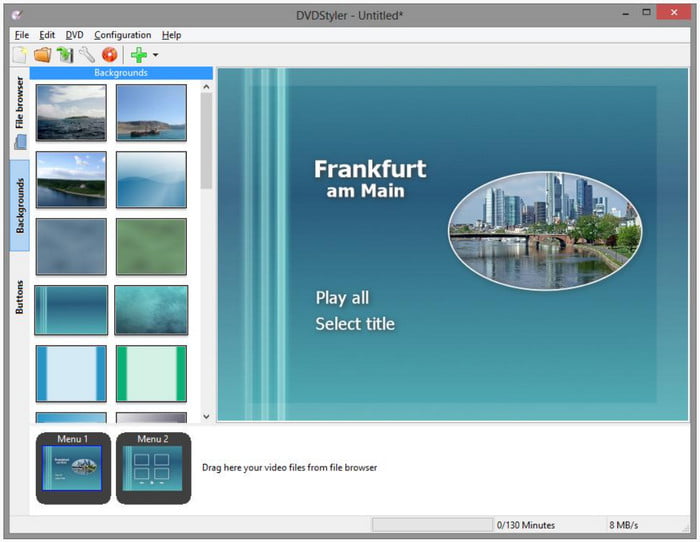
Just like its name, DVDStyler purposely edits videos and DVD menus with excellent sets of editing tools. We experience using its trimmer, merger, and splitter, as well as effects and filters. On top of that, you can find various backgrounds and buttons to create a stylish DVD menu, or you can upload your own pictures from your computer folder.
Wide-Ranged File Format Support
Overall rating :
Most of the time, a DVD-authoring program can only accept a handful of input formats, but DVDStyler proves that it supports more than the popular formats. And so, this can open an opportunity to burn videos from camcorders or with unique file extensions without the need to convert them.
Outstanding DVD Player
Overall rating :
Downloading DVDStyler not only gives you the power to turn videos into DVDs but also allows you to use it as a media player to play almost all kinds of media. This includes MP4, MP3, Xvid, VOB, and more.
Proficient Output Settings
Overall rating :
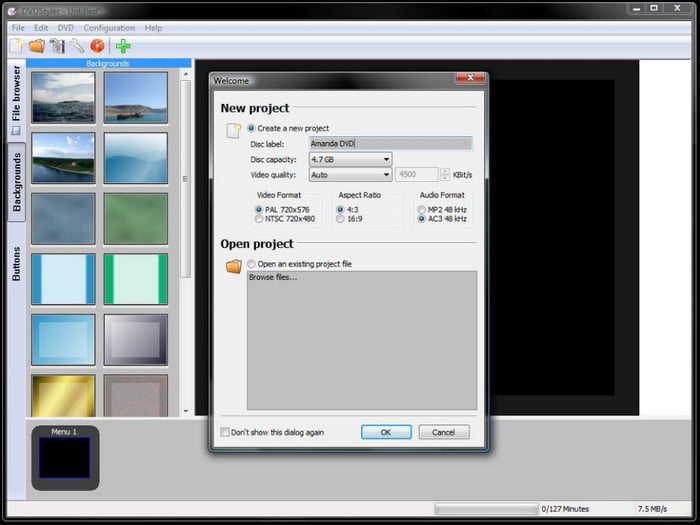
Of course, the DVD burner is more noteworthy when it has the proper settings to select the desired DVD output. DVDStyler has the capacity to change the disc label, video/audio bitrate, format, capacity, and more.
Overall, DVStyler is enough to provide your needs for DVD burning. Not only is it efficient, but it is also free to download on Windows, Linux, and Mac. However, it is only right to learn about the downsides that are inevitable on the software. Let’s see in the next part.
Part 3. What We Don’t Like About DVDStyler
Insufficient Output Support
Although it supports more input formats, DVDStyler does not recognize DVD-RW for output. Many reasons can cause this, such as software and drive incompatibility, the system is not updated, and more. In another case, you will need to format DVD-RW for it to be accepted on the DVD burner. However, the software itself does not have this ability. So, you will need to find another solution.
Fewer Documented Support/Help
It is easy to use DVDStyler to add video subtitles and audio tracks and burn them to DVD. However, its advanced features are challenging for beginners, and only a few forums and documentation are available. It is unlikely to build newer communities since the software is already outdated.
Limited Stability
The software performs reliably under typical use cases, such as burning MPEG or VOB files with simple menus. However, stability issues arise when handling large video files, complex menu structures, or unsupported formats. Mac users on newer OS versions (e.g., Ventura, Sonoma) may experience compatibility problems due to the lack of recent updates.
Note: To make your DVDs better, you can try DVD menu creators to add personalized menu templates.
Part 4. How to Use DVDStyler
Despite being free and open-source, DVDStyler offers a surprisingly capable authoring workflow. Here’s a clear breakdown of how to create a DVD using the software:
Step 1.Configure Your Project
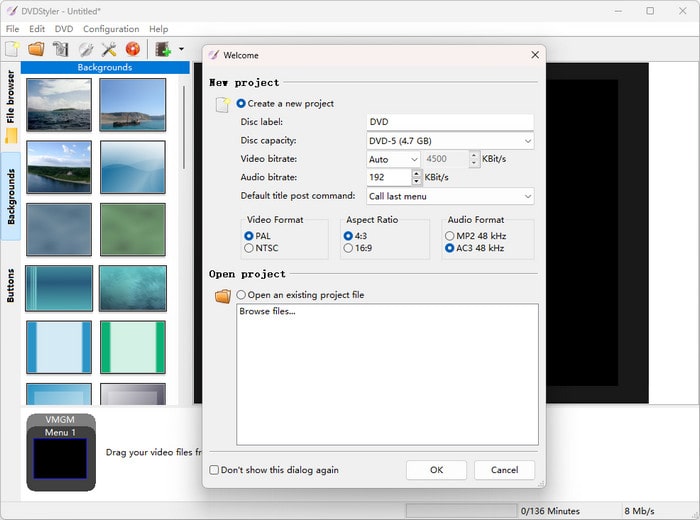
After installing and launching DVDStyler, begin by setting up a new project. In the initial dialog box, you’ll be prompted to define key parameters such as the disc title, storage capacity (e.g., 4.7GB or 8.5GB), video and audio bitrates, format standard (PAL or NTSC), aspect ratio, and audio format.
Step 2.Choose a Menu Template
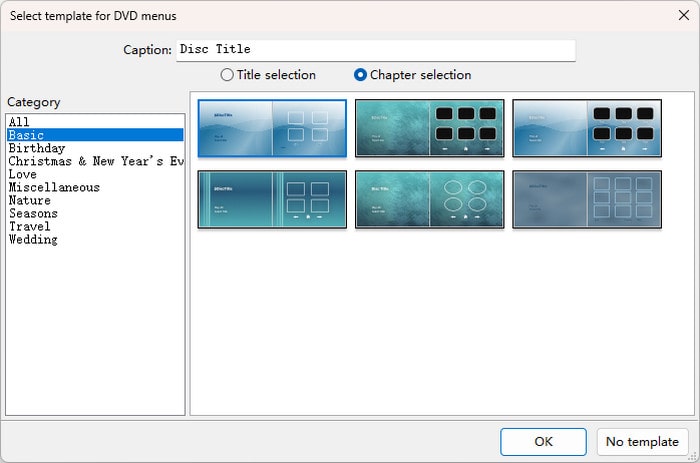
Next, select a DVD menu style from the available options, including Basic, Birthday, Love, Nature, and more. Once you’ve made your selection, click the OK button to proceed.
Note: If you prefer to create a DVD without a menu, simply choose the No template.
Step 3.Import Your M4V Video
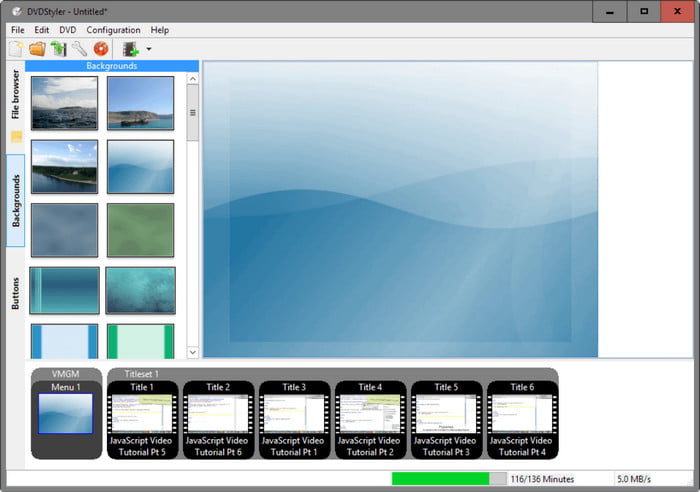
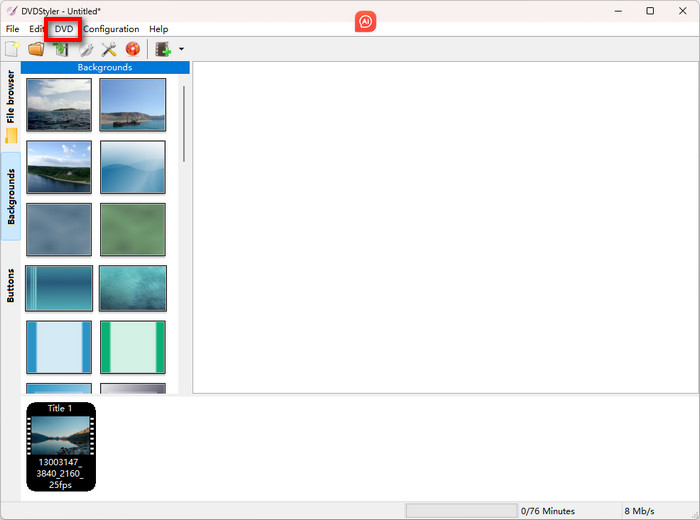
To add your video, either click the DVD button to browse and upload your file, or drag the file directly into the timeline area. DVDStyler supports multiple clips, allowing you to build chaptered or multi-title DVDs.
Step 4.Begin the Burning Process
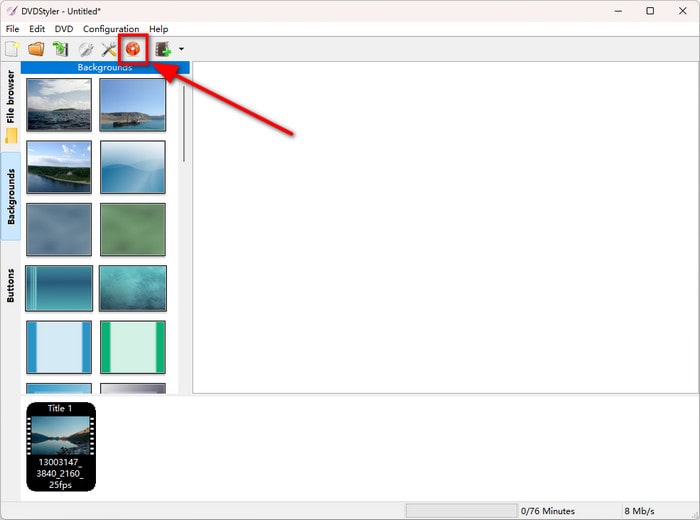
Click the orange burn button in the upper-left corner to initiate the disc creation. A burn settings window will appear, where you can confirm your choices and click the Start button to begin. You’ll be able to monitor the progress as the software encodes and writes the data.
Note: Make sure a blank writable DVD is inserted into your internal or external DVD drive before starting the burn.
Part 5. DVDStyler Performance and Pricing
Performance
In our test of DVDStyler version 3.2.1, the software delivered a smooth experience for basic DVD authoring tasks. The drag-and-drop interface made it easy to arrange video clips and design menus, while built-in templates helped speed up the process. Burning a 1-hour MPEG file to disc took around 12-15 minutes on a standard Windows setup. The program accepted a wide range of formats, including MP4, AVI, MOV, and FLV, and allowed multiple audio tracks and subtitles. While stability was generally acceptable, we did encounter occasional crashes when importing damaged files or using complex menu structures.
Price
DVDStyler is completely free and open-source under the GNU General Public License. There are no hidden fees, subscriptions, or feature limitations. Users can download the full version directly from the official website and use it without registration. For budget-conscious creators, educators, or anyone needing a simple DVD authoring tool, DVDStyler offers excellent value at zero cost.
Part 6. Final Verdict
After reviewing DVDStyler, is it still worth it? The benefits you can get on the tool are unlimited, whether you want to use it as a player or burn videos. On the other hand, it is also important to learn about its downsides because they can affect your burning experience. In the end, it is still your decision to decide whether or not it’s a good DVD burner. Nevertheless, DVDStyler remains free to use, so you can try it anytime. If you find it lacking in your needs, we have prepared an alternative for you.
Part 7. Best Alternative to DVDStyler
DVD Creator is a Blu-ray Master tool made with advanced burning technology. It is cross-platform, which you can download on the latest version of Windows and Mac. It offers a sleek interface that makes it easy to upload, edit, and burn videos like MP4, AVI, MOV, VOB, and others. Of course, the alternative also has editing tools that allow you to cut, rotate, merge, and flip your videos effortlessly. Since it is modern, DVD Creator is the best pick for creating your personalized DVDs, Blu-ray, or ISO image files.
- Create high-quality DVDs with output DVD-RW, DVD+R, DVD-9, etc.
- Built-in menu templates with themes and customizable buttons.
- Configurable output quality, resolution, disc type, aspect ratio, and more.
- High-speed burning algorithm with guaranteed no quality loss.
Free Download
For Windows
Secure Download
Free Download
for macOS
Secure Download
The table below guides you on DVDStyler and DVD Creator. Here, you can check the comparisons to decide which is better for DVD burning.
| Blu-ray Master DVD Creator | VS | DVDStyler |
| Free, $12.45 | Price | Free |
| MP4, MPEG, MOV, WMV, AVI, VOB, MKV, MP3, AAC, FLAC, FLV, etc. | Supported Input Formats | MPEG-1, MPEG-2, MPEG-4, MP3, AC-3, MKV, etc. |
| DVD/Blu-ray disc, folder, and ISO image file | Supported Output Formats | DVD disc, folder |
| Windows 11/10/8/7. Mac OS X 10.9, Sonoma, and later | Platforms | Windows 10/8/7, Mac OS X 10.15 Catalina, Linux Mint, and later |
 | Video Editor | |
| Menu Templates | |
| Regular Updates | Final release in 2021 |
| Low CPU Usage |  |
| Support Guide | |
Part 8. FAQs about DVDStyler
-
Is DVDStyler safe?
Yes, it is safe to use on your computer for DVD burning. However, note that it is possible to get malware from downloading the software outside its main source. So, make sure that you download the app from the official website or use antivirus to protect your computer.
-
Can DVDStyler burn 1080p?
Yes. The software has an HD option for output resolution. The only problem is a DVD only supports up to 720p, so burning the videos to 1080p might lead to downscaling instead of the intended resolution. Possibly, you can insert a Blu-ray disc and choose 1080p, but there is no guarantee that your videos will upscale.
-
Is DVDStyler free?
Definitely, yes. DVDStyler is registered as freeware under the GNU license. Since its release in 2021, the software continues to provide free service without any charge to the user.
-
Is DVDStyler good?
We can say that it is a good tool. It creates decent DVDs, while providing an easy learning curve. Only, it stops updating in 2021, so it might be irrelevant for modern or future video types.
-
Is DVDStyler on Wikipedia?
You can find DVDStyler on Wikipedia. But as mentioned, its documentation is few, and only the important descriptions are on the website. Even with a thorough search, you can only find a few supports about DVDStyler.
Wrapping up
The DVDStyler review concludes here. As you have learned, the software was released in 2003, providing free DVD-burning service on Windows, Mac, and Linux. While it is prosperous in output settings and video editing tools, its few selected output formats might not help you create the best DVD. Also, support is scarce because there are only a few websites and forums that can help you understand the tool deeply. On the other hand, DVD Creator is the suggested solution for DVD burning, with its advanced technology and excellent output results. In this case, a seamless experience is reachable with a click on the Free Download button.
Best DVD Creator Review
