

Aug 15, 2025Posted by Kevin Miller to Create DVD
Whether you need to backup an important MKV file, or simply need some MKV videos for DVD player, convert MKV to DVD is a recommended solution. How to burn MKV video to a DVD disc for free? Actually, you only need to get some free MKV to DVD burners to author a DVD by yourself.
- Part 1. Why Convert MKV to DVD
- Part 2. 3 Free Methods to Burn MKV Videos to DVD
- Part 3. Best Way to Convert MKV to DVD
- Part 4. 2 Online Methods to Convert MKV to DVD
- Part 5. FAQs of Converting MKV to DVD
| Essential Functionality & Output | Customization & Advanced Features: | Performance & User Experience: | |||||||
| OS Compatibility | Direct DVD Burning | Output | Supported Input Formats (Beyond MKV) | DVD Menu Creation | Subtitle Support | Audio Track Support | Video Editing Features | Ease of Use | |
| WinX DVD Author | Windows 11/10/8 |  | DVD discs, folders, and ISO files | MP4, MOV, AVI, FLV, etc. | | | | | |
| BurnAware Free | Windows 11/10/8 | | DVD | MP4, AVI, FLV, etc. |  | | | | |
| Freemake Video Converter | Windows 11/10/8 | | DVD disc, folder , ISO | MP4, MKV, AVI, WMV, etc. | | | | | |
| Blu-ray Master DVD Creator | Windows 11/10/8, Mac OS X 10.9 or above | | DVD discs, folders, and ISO files | MP4, MKV, MOV, WMV, FLV, and more | | | | | |
| Office Converter | Online | | DVD VOB | MP4, MOV, WMV, etc. | | | | | |
| Aconverter | Online | | DVD VOB | MP4, AVI, WMV, and others | | | | | |
Part 1. Why Convert MKV to DVD
What is an MKV File
MKV is an open source Matroska video format, which includes video, audio, subtitles and other metadata in one file. Different from the other video formats, MKV video supports for multiple audio tracks and subtitles. Moreover, here are more excellent key features of the MKV file.
- Support more hard coded subtitles and soft coded subtitles.
- Add chapter, menu and more the metadata information.
- Select different audio and video streams.
- Playback of the corrupted MKV files with error recovery feature
Why Convert MKV to DVD
Why do many people try to burn MKV files to DVDs? Here are some common reasons.
Wide Compatibility: MKV files cannot be played natively by many older DVD players, particularly those made before the widespread use of contemporary codecs like H.264 and HEVC. You can make a disc that works with almost any standalone DVD player by converting the MKV to a regular DVD format. For families or individuals who continue to use outdated, non-smart TVs and DVD players, this is a huge benefit.
Archiving and Physical Backup: Your MKV files can be physically backed up offline by storing them on a DVD. Your content is guarded from potential digital accidents such as cyberattacks, data corruption, and hard disk failures. Your video is safe on the disc even if the hard drive in your computer fails.
Preserve Media Collections: Burning your MKV files to actual DVDs can be a tidy and efficient way to manage your library if you have a sizable collection. Labeling the DVDs and keeping them on a shelf will make it simple to locate and play the desired content.
Part 2. 3 Free Methods to Burn MKV Videos to DVD
If you need to further edit the MKV videos, combine MKV clips, crop the video frame, or apply some video effects, here are 3 recommended free methods to burn MKV videos to a DVD.
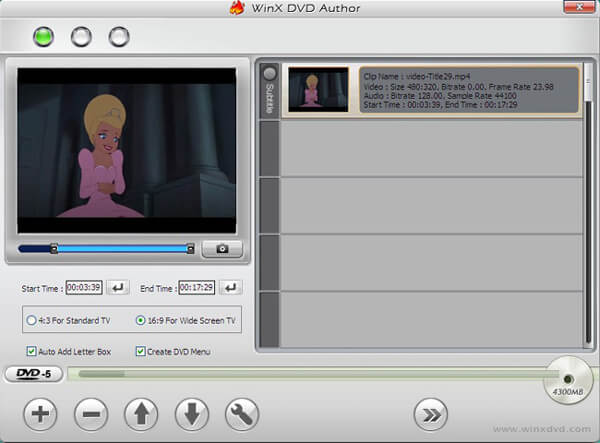
Top 1: How to Convert MKV to DVD via WinX DVD Author
WinX DVD Author is a free and versatile MKV to DVD creator, which is able to burn most of the video formats to DVD, such as MKV, M2TS, MP4 and more others.
Step 1. Once you download and install the program, you can click the "Add File +" button to load the MKV files. You can also adjust the video position, remove videos, add subtitles and more.
Step 2. After that you can click the "Title Menu" to create title menu and chapter menu. Click the "Chapter Menu" to change the picture of title menu. Then the "TT" button to add text for title and chapter menu.
Step 3. Choose the output video file folder, format and click the "Start" button. The program will auto convert MKV to DVD disc with ease. Just wait a period of time to get the desired disc.
Pros
- It has a user-friendly interface for you to burn MKV to DVD.
- It has a menu feature for you to create DVDs.
- It offers built-in editing features for you to adjust video effects before burning.
Cons
- It is only available for Windows computers.
- Some users have complained about burning mistakes or sporadic problems with specific file types.
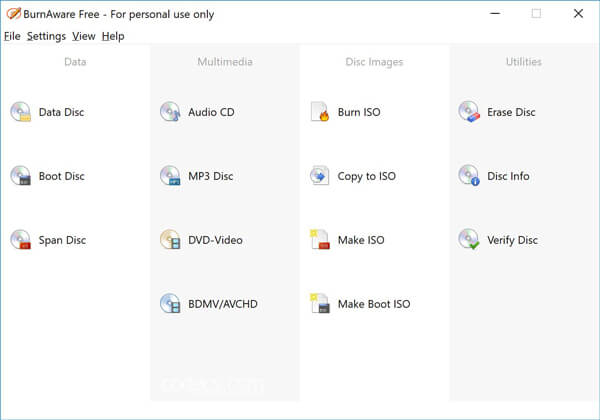
Top 2: How to Burn MKV to DVD with BurnAware Free
BurnAware Free is another best free DVD burning software. Besides converting MKV to DVD discs, you can also copy and burn CDs, Blu-Ray discs and data discs.
Step 1. Download and install the program, launch the free MKV to DVD converter on your computer. Then click the "DVD-Video" option to start burning your disc.
Step 2. Click on the "Add" button to upload MKV files into the program. You can also drag and drop files from Windows Explorer to VIDEO_TS folder. The program does not support AVI, MOV and WMV.
Step 3. When you get everything done, you can click the "Burn" button to burn MKV videos to a DVD disc. It might take a period of time for the whole process before you get a DVD disc.
Pros
- It is renowned for being lightweight and not demanding the CPU of your machine.
- It supports burning MKV to Video DVDs.
- It is free and easy to use for even beginners.
Cons
- The burning process would damage the video quality.
- It lacks advanced features for DVD burning, like menu templates, chapter selection, etc.
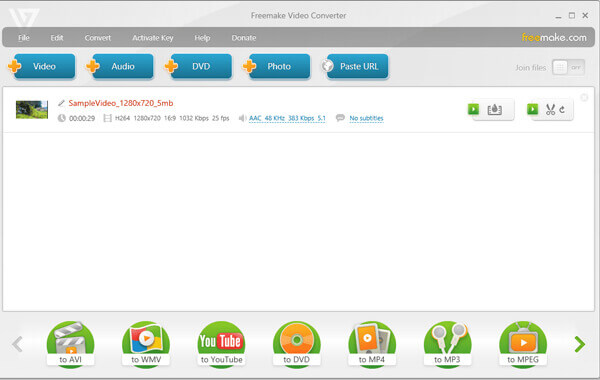
Top 3: How to Convert MKV to DVD through Freemake Video Converter
When you want to save the MKV to DVD as backup, Freemake Video Converter is another recommended DVD burner to save movies to a DVD you can take into consideration.
Step 1. Download and install the free MKV to DVD converter. After that you can launch the program and click the "Video" blue button to add the MKV videos and more others into the program.
Step 2. Choose the "to DVD" format, when there are various subtitles and voice tracks, you can keep the necessary one for each file. After that you can insert a writable disc.
Step 3. Set up the parameters for the DVD, such as the NTSC or PAL. Then click the "No menu" to select the menu type and apply. After that you can click the "Burn" button to convert MKV to DVD.
Pros
- It supports a wide range of video input formats, including MKV.
- It includes basic editing functions like cutting, merging, and rotating clips.
- It provides many customization settings for you to create custom menus, add background music, and do others.
Cons
- It would add watermarks to the created DVDs in the free version.
- Its functions are limited in the free version.
Part 3. Best Way to Convert MKV to DVD
You can simply burn MKV to DVD with the DVD authoring software. As a professional but easy-to-use DVD burning program, DVD Creator can help you burn any video formats to DVD, such as MKV, MP4, WMV, MOV, 3GP and more.
- Edit MKV videos with the desired menu template to make professional DVD.
- Edit subtitles and video/audio settings, merge/split chapters for the DVD.
- Extra editing features like crop/clip MKV video, add effects and watermark.
- Convert MKV to DVD disc quickly with advanced acceleration technology.
Free Download
For Windows
Secure Download
Free Download
for macOS
Secure Download
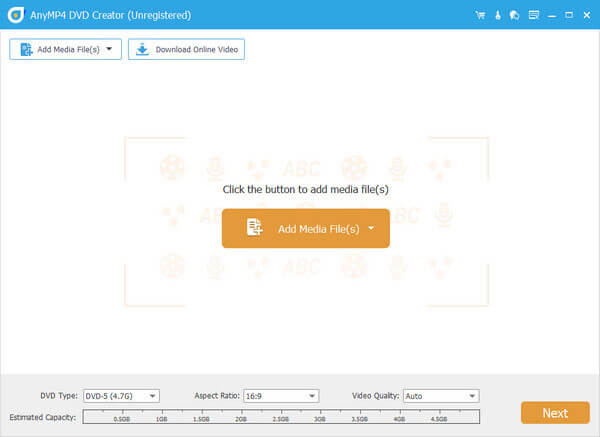
Step 1. Install and launch DVD Creator
Insert a blank DVD disc to the DVD drive. Free download, Install and launch DVD Creator on your computer. Select "DVD Disc" option to create a DVD. Click "Add Media File(s)" on the top bar to load the MKV video you want to burn to DVD disc.
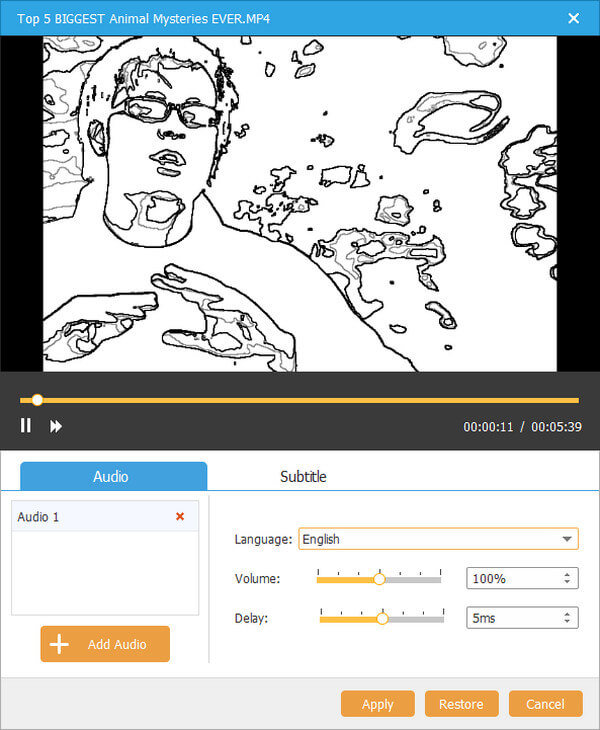
Step 2. Add subtitles or audio files to DVD
If you want to edit the MKV video, you can click "Power Tools" and click "Video Edit" to rotate, clip, crop, watermark the MKV video, as well as add effects. If not, just skip the step.
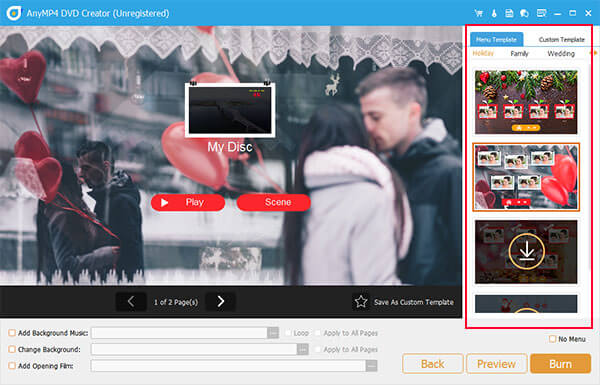
Step 3. Customize DVD template
Click the "Next" button to go to the menu template window. There are different menu templates like Holiday, Family, Wedding, Travel and more. Choose the proper one for your DVD. Meanwhile, you can tick "Add Background Music" option at the bottom to add external music to your DVD. Then click "Burn" button to move on.
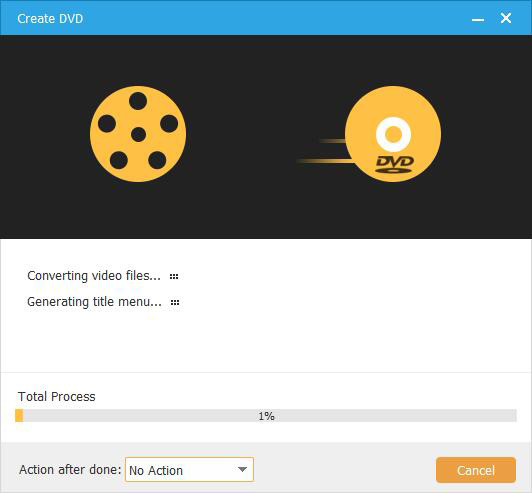
Step 4. Convert MKV to DVD
Pros
- It can burn MKV to various DVD types, like DVD-R, DVD+R, DVD-RW, DVD+RW, etc.
- It has editing tools for you to edit videos, adjust audio tracks, and add subtitles.
- It provides multiple menu templates of different topics for you to choose from.
Cons
- The free trial version can be used for a limited time.
- Its fast speed largely depends on the hardware acceleration.
Part 4. 2 Online Methods to Convert MKV to DVD
Is there a method to convert MKV to DVD online? If you do not want to download programs to burn DVD disc, the online solution might be a great help. Here are the recommended solutions. It also supports burning slideshows to DVDs on Mac.
Top 1: How to Convert MKV to DVD with Office Converter
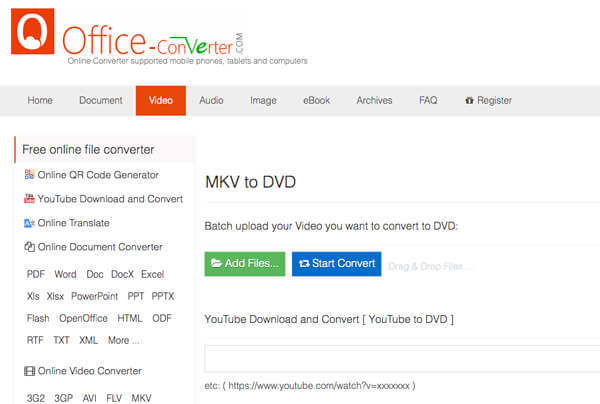
Actually, Office Converter is an online video converter that burn MKV files into a DVD. But there are some restrictions to create DVDs, such as the size of the videos.
Step 1. Go to MKV to DVD page of Office Converter. Then click the "Add Files" button to load the MKV files into the online program. You can also add the videos from YouTube or other URLs.
Step 2. Once you upload the videos into the program, you can click the "Option" icon to change optional settings, such as the DVD types, trim videos and more others to get a satisfied result.
Step 3. Then click the "Start Convert" button to burn the MKV videos to a DVD. It would take a period of time for the whole process. The preview feature is not available for the output DVD.
Pros
- It is an online tool that does not require downloading software.
- It can be used on any platform with ease.
- It has a straightforward interface for DVD burning.
Cons
- It lacks advanced DVD burning features.
- There are many ads in its interface.
Top 2: How to Burn MKV to DVD via Aconvert
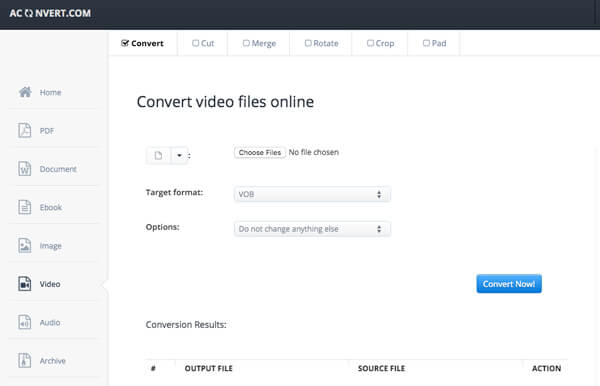
Aconvert is an online MKV to DVD VOB converter, which convert videos to VOB files, instead of DVD discs. You can use the VOB files directly to create DVD disc if required.
Step 1. Go to Aconvert and choose the MKV to VOB page, click the "Choose Files" option to upload MKV files from your local folder. You can also add files from online URL, Google Drive or Dropbox.
Step 2. Then choose the "Target format" is VOB. Choose the "Change size, bitrate or frame rate" to further adjust the output format. Of course, you can remain the original codec.
Step 3. Click the "Convert Now!" button to starting converting MKV to DVD VOB files. The output files will be listed in the "Conversion Results" section that you can download with QR code.
Pros
- It is an online tool that can be used anytime and anywhere.
- It allows you to add files by choosing a video file in your folder and pasting the URL to the tool.
- It has a clear and intuitive interface.
Cons
- It can only convert MKV files to DVD VOB files.
- The conversion process would reduce video quality.
Part 5. FAQs about MP4 to ISO
-
Can you burn DVDs with HandBrake?
No. HandBrake is a program that allows you to rip DVDs or convert video files to a commonly used format. The program can also convert videos to a format for use on mobile devices. However, it can't burn a DVD with HandBrake. You need to turn to a DVD burning program to burn your videos to DVD format.
-
Can Nero burn MKV to DVD?
Yes, Nero can burn huge amounts of content on multiple DVDs or even different types of DVDs at once, as well as burning audio and data files to a disc using hybrid mode. As a versatile burning program, Nero can edit, burn, and play DVD and Blu-ray disc content. Also, it can convert high-definition content to AVCHD format for PlayStation® 3 or to play on a Blu-ray player.
-
How do I view MKV files?
A file with the .MKV file extension is a Matroska Video file. It's a video container much like MOV and AVI, but also supports an unlimited number of audio, picture and subtitle tracks (like SRT or USF). You can use VLC media player to open MKV files since it has built-in support and doesn't require that you install anything else. Just download and install the program on your computer.
-
What type of files play on DVD Players?
Most standard DVDs are MPEG-2 format discs. Home DVD players will also play AC-3 or PCM audio discs. MPEG-2 is also called H.222 or H.262. Also, the audio format is called A/52. These formats support video and audio reproduction and playback.
Wrapping up
When you need to convert MKV videos to DVD, you can learn more about the 6 recommended free methods from the article. Whether you need to burn DVD discs for free, or convert MKV to DVD online, you can find a suitable method from the article. If you have any query about how to burn MKV to DVD, you can share more details in the comments.
More from Blu-ray Master
Digital to DVD
