

Jul 24, 2025Posted by Kevin Miller to Create DVD
Today, USB flash drives are a common method for storing and transferring files. However, there are many situations where burning files from a USB to DVD becomes necessary. For instance, DVDs are a practical format for playing content on traditional DVD players that don't support USB inputs. This process also helps preserve important data in a non-rewritable and long-lasting format. This post will guide you through two easy steps to burn videos from a USB flash drive to a DVD, allowing you to create long-term storage and backups of your favorite videos.

- Part 1. Considerations Before Burning USB to DVD
- Part 2. Burn USB to DVD with Blu-ray Master DVD Creator
- Part 3. Burn USB to DVD with DVDFab DVD Creator
- Part 4. Troubleshooting of Burning USB to DVD
Part 1. Considerations Before Burning USB to DVD
Before you convert USB to DVD, it is important to understand that the process involves more than just transferring data. To ensure compatibility, quality, and successful playback, several key factors must be taken into account. Taking these considerations into account will help avoid wasted discs and ensure a smooth burning process.
Choose the Right Type of DVD
DVDs come in various formats, and selecting the correct one is crucial. The common types are DVD-R/+R and DVD-RW/+RW. DVD-R and DVD+R are write-once discs, which means you can burn your data only once. On the other hand, DVD-RW and DVD+RW are rewritable. It means you can erase and re-burn data multiple times.
Understand DVD Storage Space
Storage space is another important aspect to consider. Standard DVDs are available in two main sizes: DVD-5 and DVD-9. A DVD-5 can hold approximately 4.7 GB of data, which is suitable for short video projects. Meanwhile, DVD-9 supports up to 8.5 GB, making it ideal for longer videos or higher-quality files.
Check Burning Software Compatibility and Features
Not all DVD-burning software offers the same functionality. Ensure the software you use supports the video formats of your USB files. Additionally, it should support custom menu creation, chapter setup, and video editing tools as needed.
Part 2. Burn USB to DVD with Blu-ray Master DVD Creator
Blu-ray Master DVD Creator is a highly capable DVD authoring and burning software. It is compatible with Windows (7 to 11) and Mac (10.9 and later). It lets you convert videos directly from a USB to DVD. It supports more than 500 video formats, including MP4, MKV, MOV, AVI, and FLV. You can also add and burn multiple files, even of different formats, onto a single DVD. The software offers comprehensive DVD settings, allowing you to customize the disc type, aspect ratio, and video quality. Furthermore, it includes a built-in editor with essential tools to enhance your videos. Best of all, it offers several customizable DVD menu templates.
Step 1.Begin by downloading the Blu-ray Master DVD Creator for free. Install the DVD authoring software on your system and follow the installation process to completion. Once finished, insert the blank, writable DVD into your disc drive and run the software.
Free Download
For Windows
Secure Download
Free Download
for macOS
Secure Download
Step 2.Insert the USB flash drive containing the video you want to burn. Upon startup, select the DVD Disc option as your disc type. Click the Add Media File(s) button and navigate to the USB flash drive. Select the video(s) and click Open to load the media file.
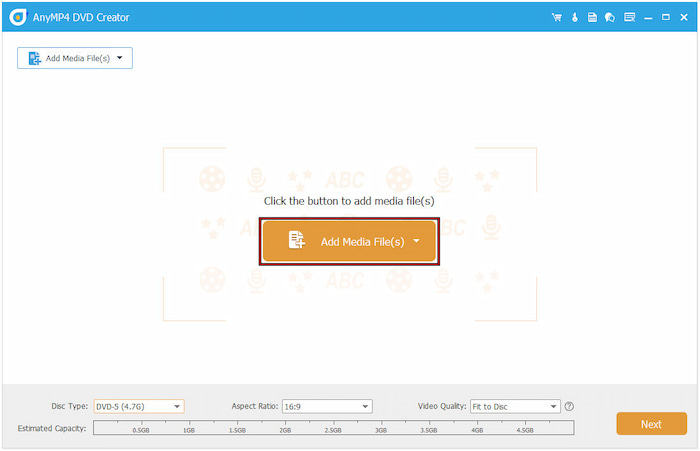
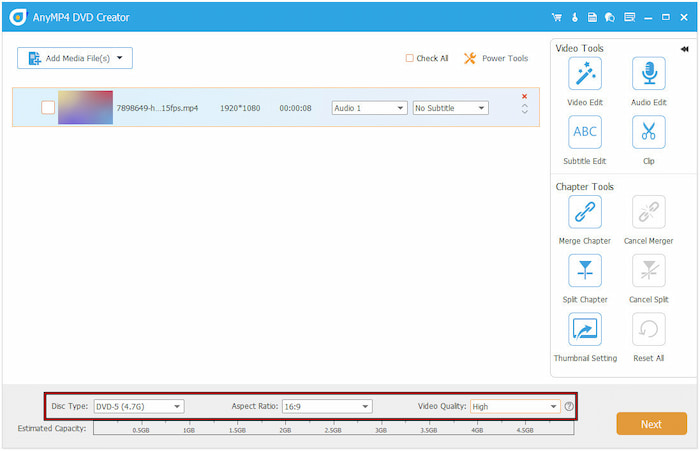
Once the files are added, set the disc type (DVD-5 or DVD9), aspect ratio, and video quality. If needed, use the Power Tools, like video tools and chapter tools, to make edits. In Video Tools, click Video Edit to access tools like rotate, clip, crop, etc. Click Next for the next step.
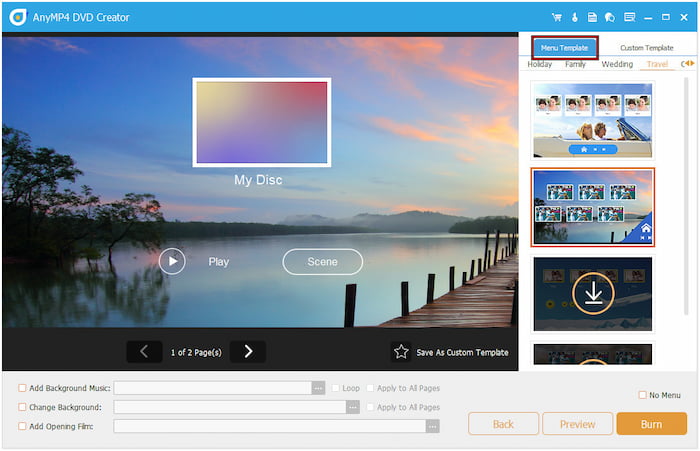
Step 3.In the menu creation window, choose a DVD menu template under the Menu Template tab. You can also add background music, insert opening film, or change the menu background image. If you don't want a menu, check the No Menu option and click Burn when ready.
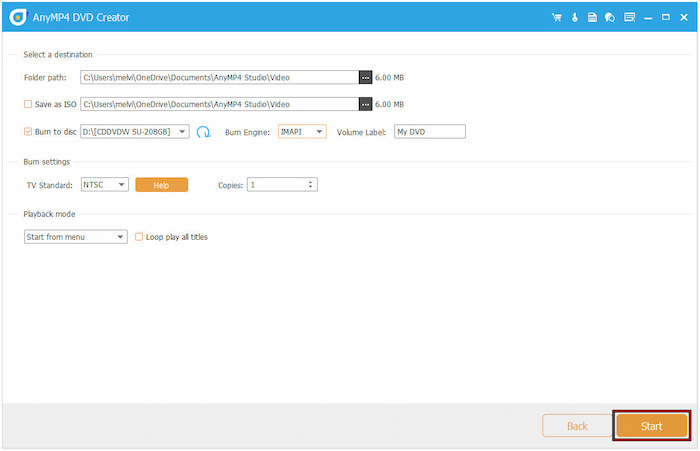
Step 4.In the final window, check Burn to Disc and select your disc drive. Select a TV Standard, NTSC, or PAL to ensure an error-free playback. Optionally, set the Playback Mode to Start From the Menu option. Finally, click Start to transfer the USB video to DVD.
Blu-ray Master DVD Creator provides a convenient solution to burn USB to DVD. It is the best DVD burner software, offering a fast and simple DVD creation process. What's best is that you can customize the DVD menu template according to your preferred output.
Part 3. Burn USB to DVD with DVDFab DVD Creator
DVDFab DVD Creator is a premium DVD authoring software that is part of the DVDFab module. It allows you to burn almost any media stream formats to DVD easily, including those saved on a USB flash drive. It also supports customizing DVD menus by choosing from pre-designed templates or creating your own.
Here's how to burn USB to DVD:
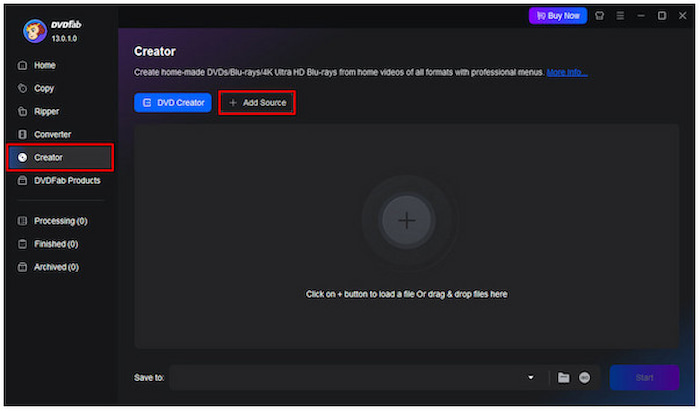
Step 1.Insert the blank disc into your DVD drive, and then insert the USB drive into one of your computer's USB ports. In the DVDFab interface, proceed to the Creator section and select DVD Creator. Click the +Add Source button and select your USB flash drive to import the video.
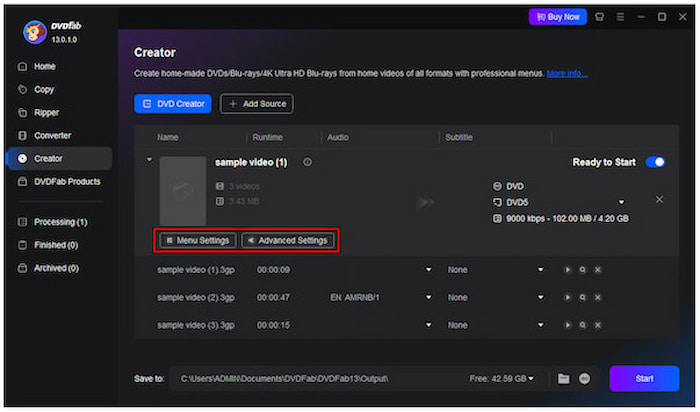
Step 2.Click the Menu Setting button to customize your DVD menu. Choose from various pre-designed templates or customize the layout, background image, and text to suit your needs. If needed, configure the output type (DVD-5 or DVD9) and other parameters in Advanced Settings.
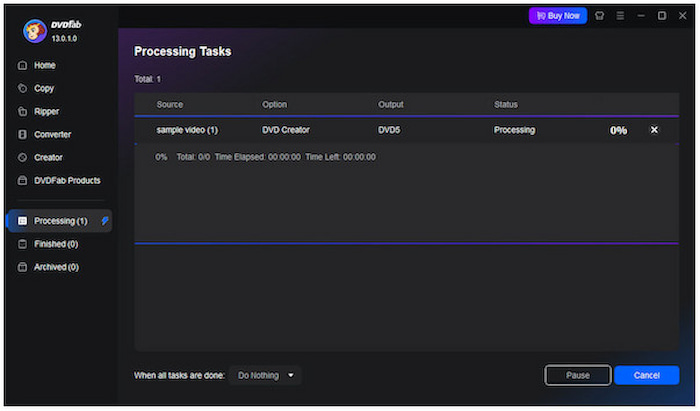
Step 3.After all configurations are complete, click the Start button in the lower-right navigation. The software will begin to copy the videos from the USB flash drive to DVD. It will handle the encoding and authoring process, ensuring your DVD is playable on standard DVD players.
DVDFab DVD Creator is a professional software that can help you create DVDs from videos saved on USB flash drives. This software can retain the original quality even after the burning process is complete. However, it is commercial software that requires a subscription for full access.
Part 4. Troubleshooting of Burning USB to DVD
Burning files from a USB drive to a DVD can seem straightforward. However, it runs into unexpected obstacles. Understanding the root cause is essential for a successful burn. Here's how to identify and fix these issues effectively:
Burning Software Issues
Sometimes, the problem lies within the burning software you're using. Incompatible file formats or incorrect configuration settings can cause errors or failed burns. To resolve this, ensure your software fully supports the video formats you intend to burn. Also, check if it allows you to adjust settings like video quality, disc type, and aspect ratio.
Burning Process Issues
The actual burning process may fail due to incorrect settings or insufficient system resources. Common signs include incomplete burning, DVDs that won't play on other devices, or errors such as burn failed. To minimize these risks, close unnecessary applications while burning and avoid using the computer heavily during the process.
DVD Drive or Disc Issues
A faulty or outdated DVD drive is a common cause. If your computer doesn't recognize the blank disc, your DVD drive may be unsupported for DVD burning. Not to mention, some drives only read DVDs. Always use high-quality blank discs and ensure they're compatible with your drive. If problems persist, check your Device Manager (Windows) or System Information (Mac) to determine if the drive is functioning properly or if a driver update is required.
Conclusion
Burning USB to DVD is an effective way to preserve and enjoy your videos on a physical medium. If you're backing up important videos or creating a playable disc, the process ensures your files are accessible and protected for the long term. By selecting the appropriate tools, disc type, and settings, you can prevent common issues and produce high-quality DVDs. For a smooth and reliable experience, use Blu-ray Master DVD Creator. It supports hundreds of formats and customizable menu templates for converting USB videos into DVDs.
More from Blu-ray Master
Videos to DVD
