

Aug 19, 2022Posted by Selena Thomas to Convert Video, Create DVD
It's fascinating to see the list of VOB files on your computer. But, nothing will be good if your device storage becomes full. Plus, VOB, or the Video Object file container, is known for containing a large size. To make some room for your device, why not create playback for them on a DVD? If that's what you need, here is the list of the VOB to DVD makers.
- Top 1. Blu-ray Master DVD Creator
- Top 2. InfraRecorder
- Top 3. Cisdem DVD Burner
- Top 4. AnyBurn
- How to Burn VOB to DVD
- FAQs about Burning VOB to DVD
| Blu-ray Master DVD Creator | InfraRecorder | Cisdem DVD Burner | AnyBurn | |
| Output DVD Quality | High | Average to Good | High | Average |
| Output DVD Type | Video DVD (with menus), ISO, DVD Folder | Data DVD, ISO, Audio CD | Video DVD (with menus), ISO, DVD Folder | Data DVD, ISO |
| Burning Speed | Fast (GPU-accelerated) | User-controlled | Fast (GPU-accelerated) | User-controlled |
| Additional Settings | Offers a full suite of DVD authoring features, including menu templates, video editing, subtitle support, etc. | It can erase rewritable discs, create multi-session discs, and verify the disc after burning. | Provides a rich set of editing tools: trim, crop, rotate, add watermarks, effects, etc. to adjust video effects. |  |
Top 1. Blu-ray Master DVD Creator
Windows 11/10/8, Mac OS X 10.9 or above
Fast burning speed and various advanced settings.
This software provides perfect performance on VOB to DVD burning.
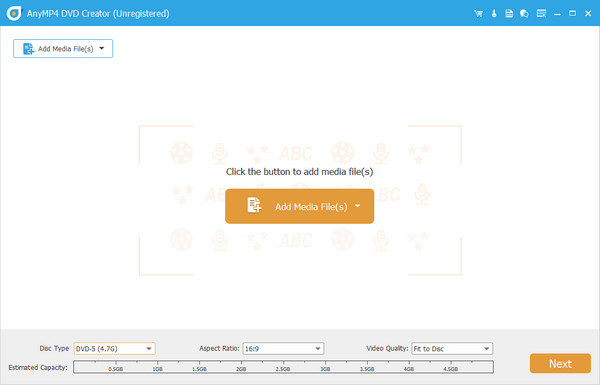
Blu-ray Master DVD Creator is one of the top-rated VOB to DVD burners with an easy-to-use interface. It is able to handle a wide range of video formats, including VOB files. You are allowed to add multiple video files to the software and burn them to a DVD. It provides an Estimated Capacity function to estimate the size of the imported files, and the supported ceiling is 5GB. Not only that, this VOB to DVD creator is geared up with advanced technology, which allows the burning speed to be 50x faster than its competitors. Besides that, you can burn your video to DVD discs, folders, and ISO files.
But what makes the tool even better? It offers you various video editing tools and many menu templates for DVD menu customization. On top of that, it offers two main TV Standard formats: the NTSC and PAL, to fit your needs.
Pros
- Compatible with Windows and Mac operating systems.
- Supports hundreds of video formats like MTS, MOV, AVI, WMV, and more.
- It contains a comprehensive set of tools for video editing.
Cons
- You can only create 3 DVD/Blu-ray on the free trial version.
Top 2. InfraRecorder
Windows 7/8/8.1 and before
Simple steps to burn VOB files to DVD.
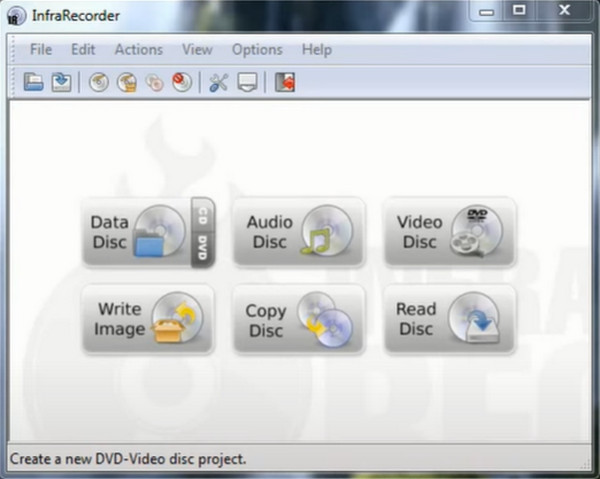
It provides easy steps for VOB to DVD, but it lacks advanced burning features.
If your budget is tight, InfraReocrder is for you. This program is an open-source and free VOB to DVD burner which you can install on a 32- or 64-bit Windows operating system. When it comes to its function, InfraRecorder supports dual-layer DVDs. On the other hand, you can also back up your favorite music covers on a CD.
Pros
- Open source and free of charge.
- Can burn files on DVD or CD.
Cons
- Not compatible with Mac platforms.
- The program cannot burn VOB files on Blu-ray discs.
Top 3. Cisdem DVD Burner
Windows 10/11, macOS 10.13 and later
Various editing tools for adjusting DVD output effects.
The program is commended for preserving the quality of the original video while burning it to DVDs.
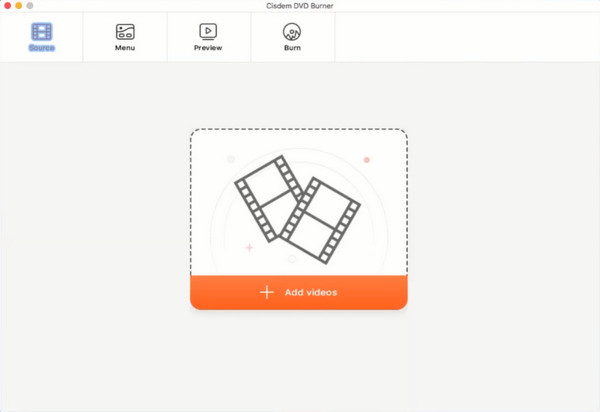
Mac lover? You may resort to using Cisdem DVD Burner! Using this tool, you can burn movies to DVD on Mac. One more thing, this program can facilitate DVD menu making and offers a variety of templates for your needs. Lastly, this tool contains a real-time preview for your output to avoid the obscene mistakes you will encounter later after burning.
Pros
- Mac OS X 10.12 (Sierra) compatible.
- Ads-free.
Cons
- Unsupported on Windows platforms.
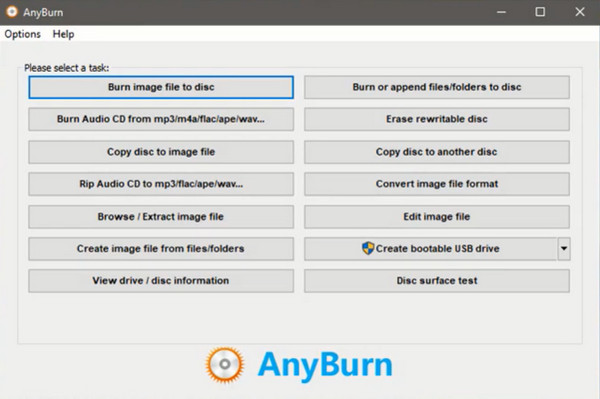
Top 4. AnyBurn
Windows XP to Windows 11
Free and easy burning of VOB files to DVD.
This free VOB to DVD burner is praised as being lightweight and fast.
Pros
- Available in 32-bit and 64 bit Windows.
- Free-of-charge.
Cons
- Not available in Linux and Mac.
- The DVD menu make is not available.
How to How to Burn VOB to DVD
Now that you have learned the comprehensive information about the best VOB to DVD burners, we will move on to the breakdown of the steps in using the AnyMP4 DVD Creator. But before anything else, you should have the program installed on your device. Don't worry. Choose the appropriate Free Download button below, double-click the file and follow the setup wizard.
Free Download
For Windows
Secure Download
Free Download
for macOS
Secure Download
Let's begin!
Step 1.Import the VOB files on the DVD Burner
After launching the program, you first need to select the DVD Disc option. Then, add your target VOB files by hitting the Add Media File/s button. Alternatively, you may do the drag and drop method.
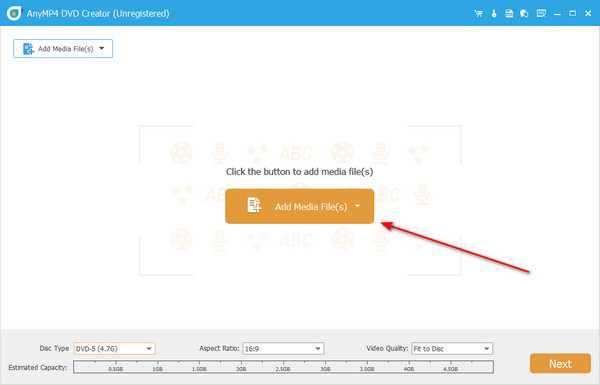
Also, insert your blank disc on the DVD tray, and the program should detect it.
Step 2.Adjust the DVD Settings
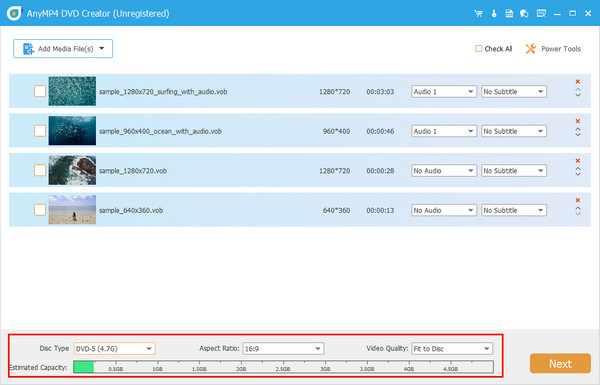
After adding the files, refer to the settings below the interface. You can change the DVD Disc, Aspect Ratio, and the Video Quality by expanding their drop-down menus. Moreover, you can refer to the indicator right at the bottom of the settings. This will show the estimation size of your files, which can serve as the basis for your needed disc capacity.
Step 3.Enhance VOB effects (Optional)
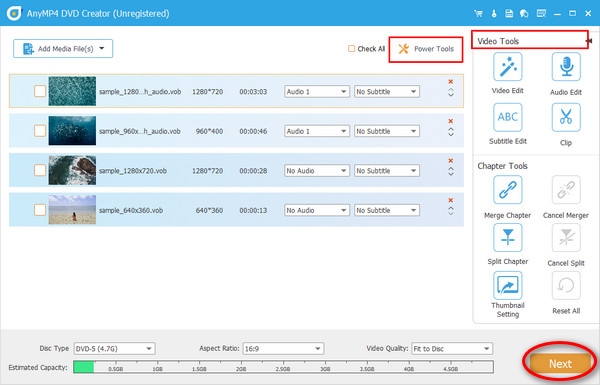
There is also an a way to edit your videos before burning them. Select one file, then tick the Power Tools tab > Video Edit. You can add a watermark or effects, adjust the brightness, trim or rotate your VOB file. After editing, hit Next.
Step 4.Choose DVD Menu (Optional)
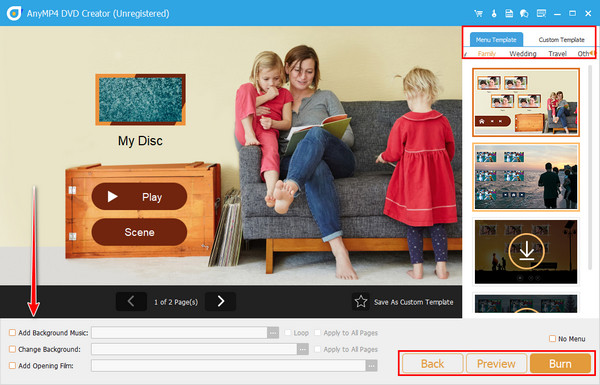
There are available templates for customizing a DVD menu that come in different designs for your occasion. After selecting one, you can control the buttons, background music, and the opening film. If you are okay with the Preview of your DVD menu, hit the Burn button.
Step 5.Burn VOB to DVD
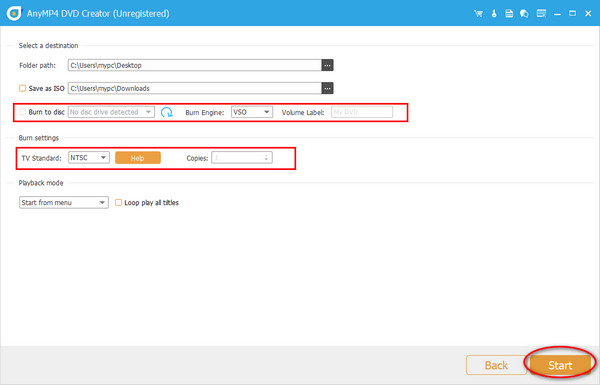
Now, select the DVD Disc you inserted a while ago. Next, change the burn engine and the volume level. After that, choose the TV standard in line with your country. Suppose you do not have a disc. You can save the VOB file as an ISO folder. When all is ready, click Start.
FAQs about VOB to DVD Burning
-
Can I burn VOB files without a DVD burner?
Unfortunately, no. You will need software that burns VOB files to DVD, or else your files will not be playable on your DVD player.
-
What is a VOB file?
Usually, you will see VOB files contained in a VIDEO_TS folder. Specific files are encrypted in a VOB file container, like the audio track, subtitle, and navigation menu of a movie.
-
Is converting VOB to MP4 possible?
Definitely, yes! One way to access your vob files on any media player is to convert them to MP4. One application you can use is the Video Converter Ultimate.
Wrapping up
Well done! Wash your worries now, as you can access the 4 paid and free VOB to DVD burners in this article. As the free programs can do the job successfully, there are limitations that you will encounter, such as the lack of a DVD menu maker or OS incompatibility. If you want to ignore these limitations, Blu-ray Master DVD Creator is what we highly recommend.
More from Blu-ray Master
