Free Blu-ray PlayerFree Blu-ray Ripper
User Guide
  • Part 1. Preparation
    1. Download & Installation
    2. Update
    3. Preference Settings
  • Part 2. Rip Blu-ray
  • Part 3. Edit Blu-ray Video
    1. Cut Video
    2. Enhance Video
    3. Edit Media Metadata
    4. Rotate&Crop Video
    5. Add Effect & Filter
    6. Add a Watermark
    7. Edit Audio
    8. Edit Subtitles
  • Part 4. More Tools
    1. Media Metadata Editor
    2. Video Compressor
    3. GIF Maker
    4. 3D Maker
    5. Video Enhancer

Part 1. Preparation

Download&Installation

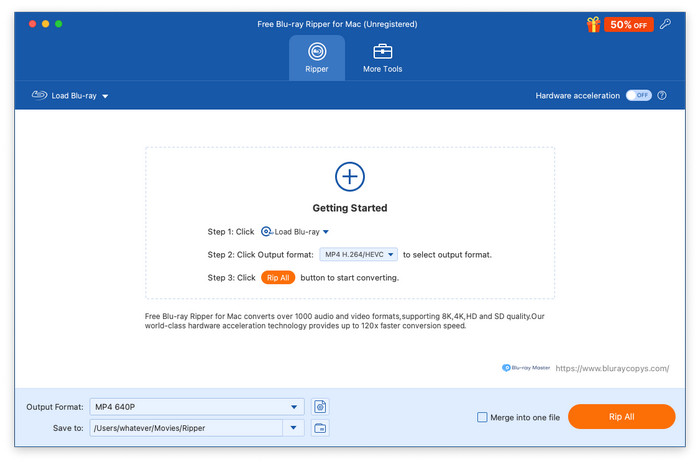
Go to the official website to download Free Blu-ray Ripper, and install it on your computer by following the onscreen instructions. Then, open the software.

Update

Click the Menu button at the top right corner to select the Check Update option to check the latest version. And then you can follow the instructions to update the software.
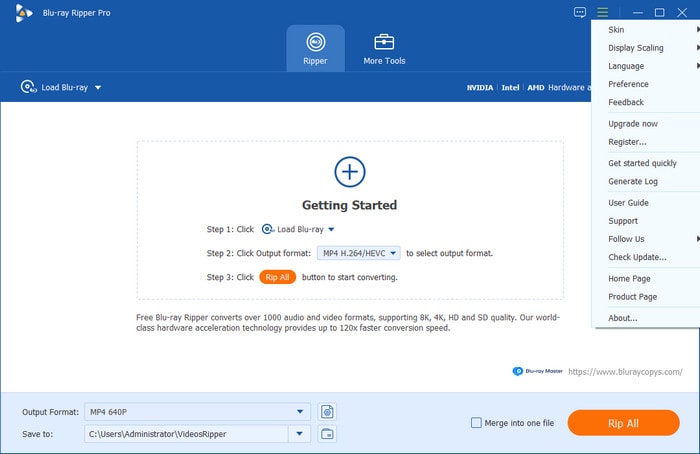
Update

Preference Settings

Before ripping Blu-rays, you can adjust the preference settings based on your habits by clicking the Preference button under the Menu option. The preference settings allow you to change the general preference, ripper preference, toolbox preference and task schedule preference.

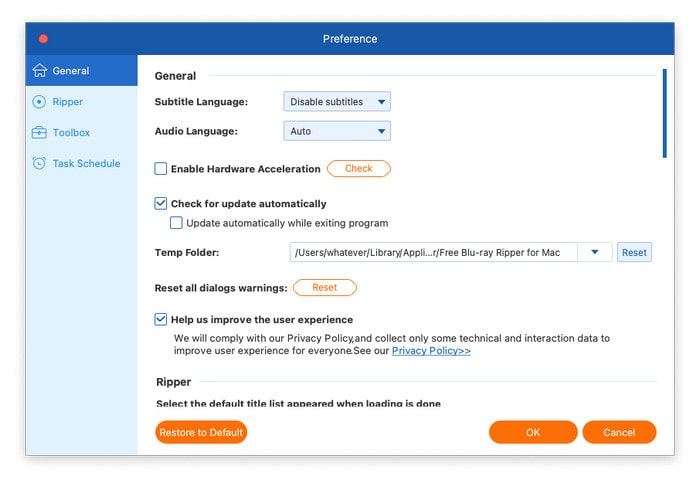
General: Navigate to the General tab, where you can choose the subtitle language, audio language, and temp folder. Also, it allows you to enable hardware acceleration, check for updates automatically, and reset all dialog warnings.
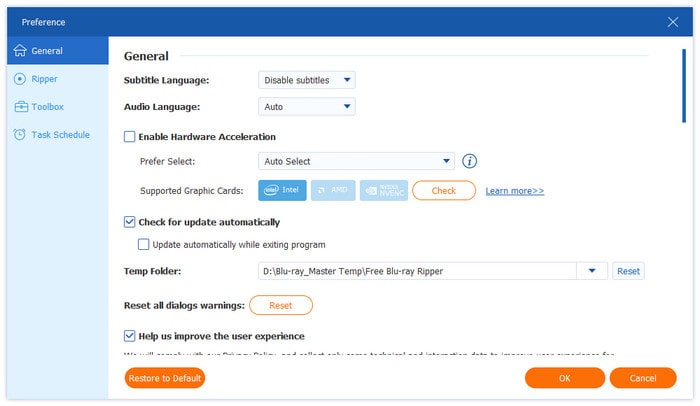
General Preference Settings

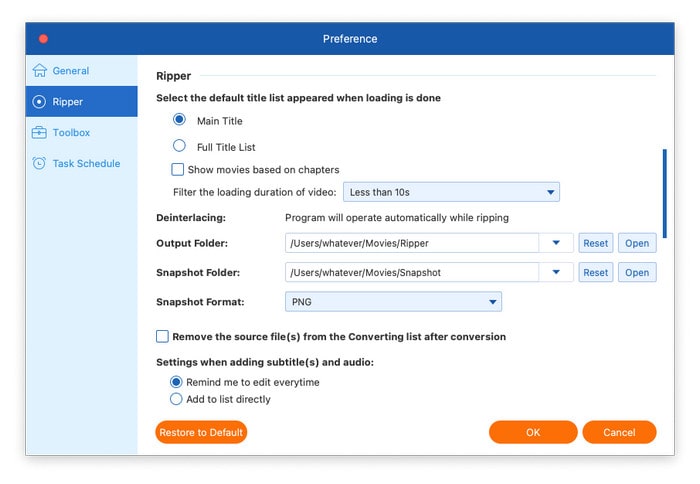
Ripper: Navigate to the Ripper tab, where you can select the default title list, output folder, snapshot folder, snapshot format, and settings when adding subtitles and audio, as well as whether to remove the source file after conversion and eject the disc after ripping.
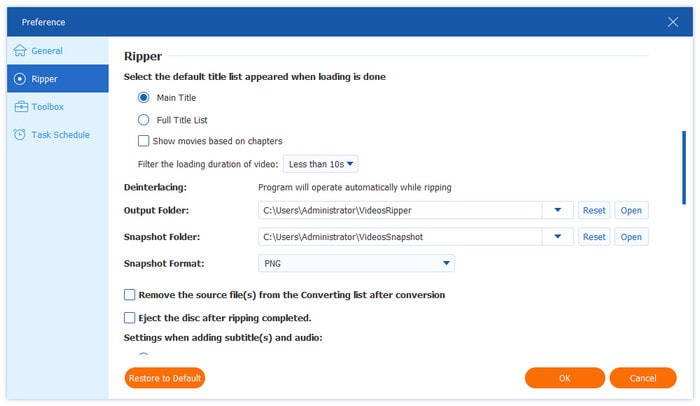
Ripper Preference Settings

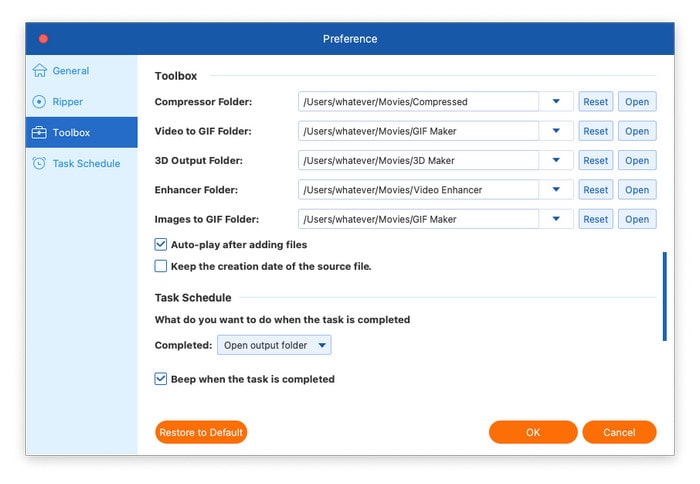
Toolbox: The Toolbox tab enables you to adjust the compressor folder, video to GIF folder, 3D output folder, enhancer folder, and images to GIF folder. You can determine whether to auto-play after adding files and whether to keep the creation date of the source file.
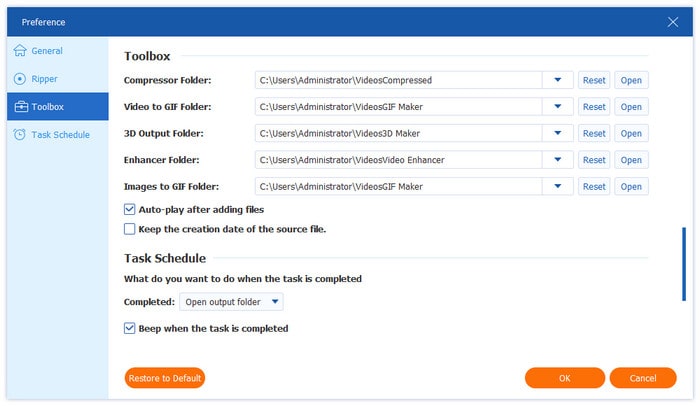
Toolbox Preference Settings

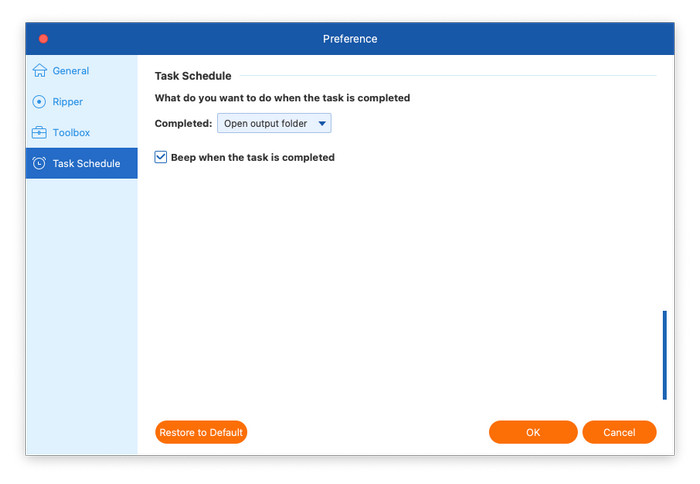
Task Schedule: The Task Schedule tab offers several options about what you want to do after the task is completed: open the output folder, shut down the computer, sleep the computer, exit the program, or do nothing. And you can choose whether to beep when the task is completed.
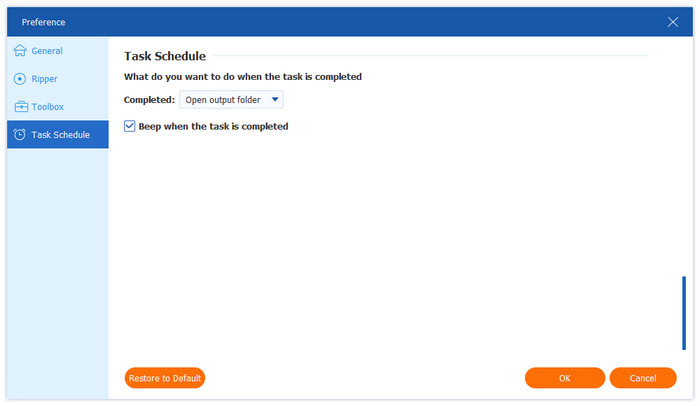
Task Schedule Preference Settings

Part 2. Rip Blu-ray

Step 1. Load Blu-ray Files

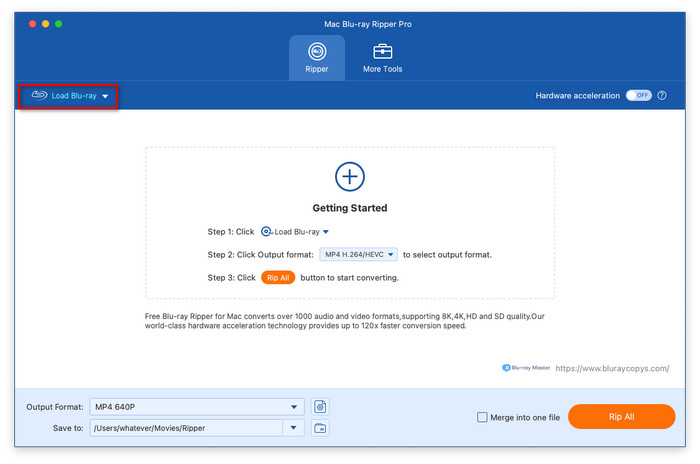
Click the Load Blu-ray button to open the drop-down list, then select from Load Blu-ray Disc, Load Blu-ray ISO, Load Blu-ray Folder, Load AVCHD Disc, or Load AVCHD Folder. Also, you can click the + icon to upload the Blu-ray files you want to rip.

Note: If it is a Blu-ray disc, please remember to insert the Blu-ray disc into your PC.
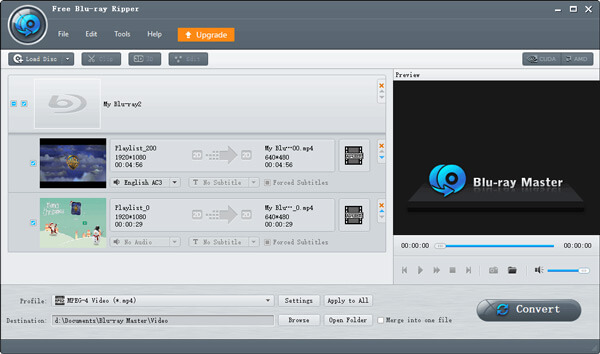
Load Blu Ray

Step 2. Select Titles

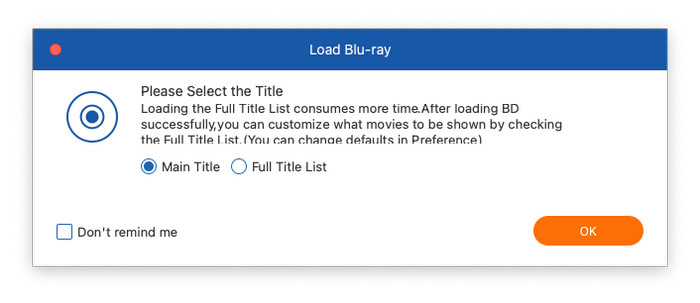
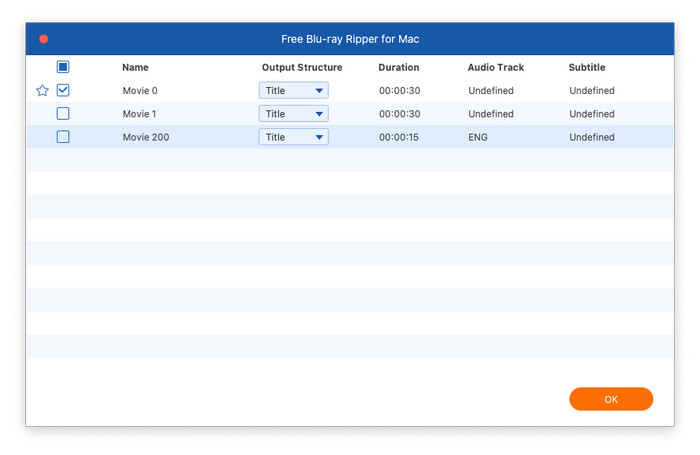
After that, it will show a pop-up window about Blu-ray files’ primary titles, where you can select to show Main Title or Full Title List, then click OK.
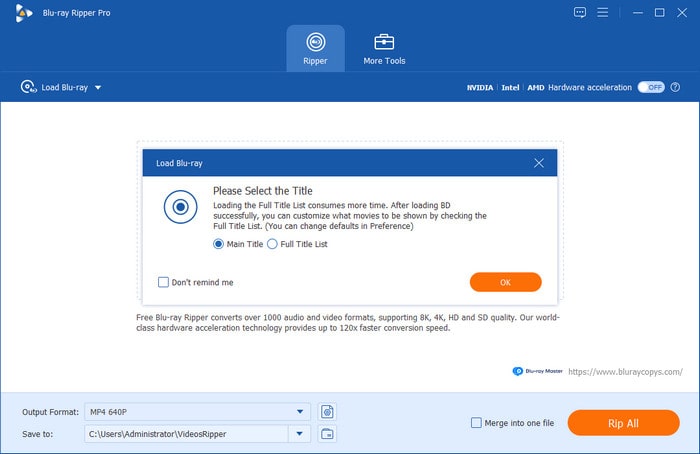
Load Full Title List

Either click the Full Movie List button to select the titles you wish to add, and then click OK to continue.
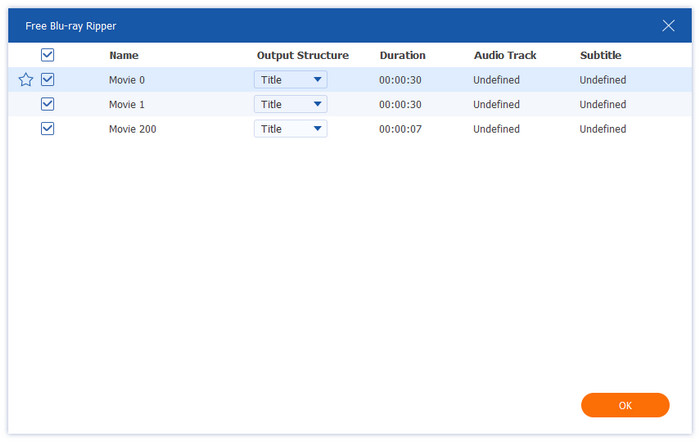
Select Title

Step 3. Select the Output Format

Click the Output Format button at the bottom left corner to choose a suitable output format. There are 3 types of formats offered.

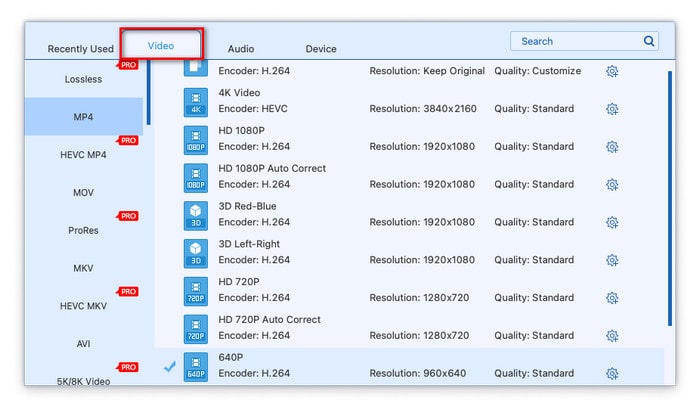
Video formats: Navigate to the Video tab, where a lot of video formats allow you to select, such as MP4, MOV, MKV, AVI, and M4V. And it will show you the relevant encoder, resolution, and quality.
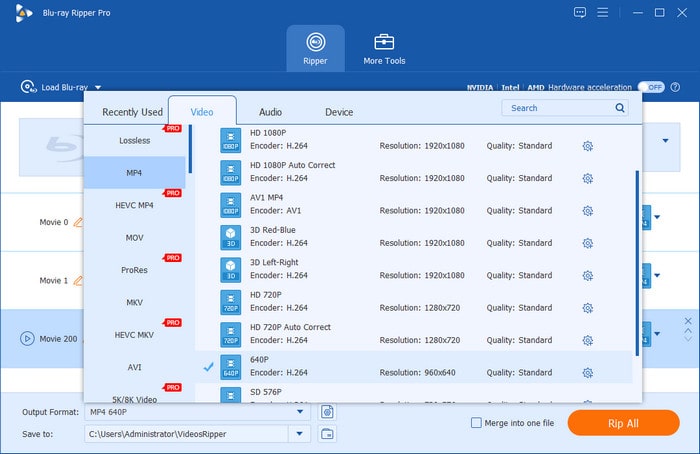
Video Formats

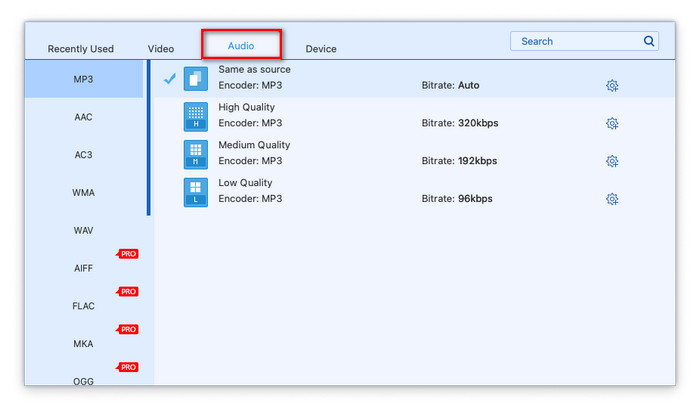
Audio formats: Click the Audio tab to choose the audio format you want, including WAV, WMA, FLAC, AAC, AC3, etc. Also, you can see the encoder and bitrate.
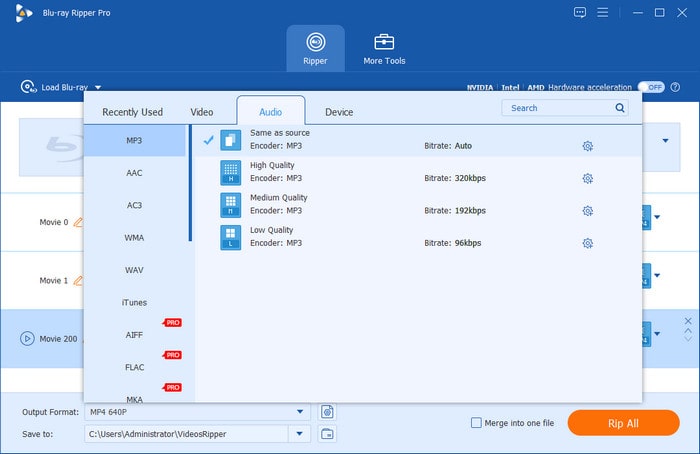
Audio Formats

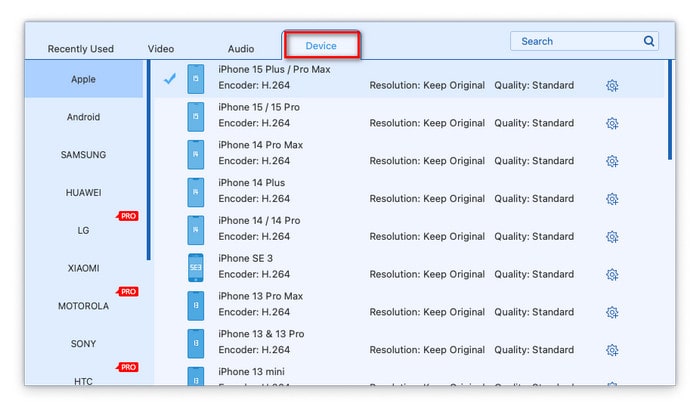
Formats based on device: Navigate to the right-side tab, where you are capable of directly select the format compatible with various devices, such as Samsung, Apple, Sony, Android, and so on
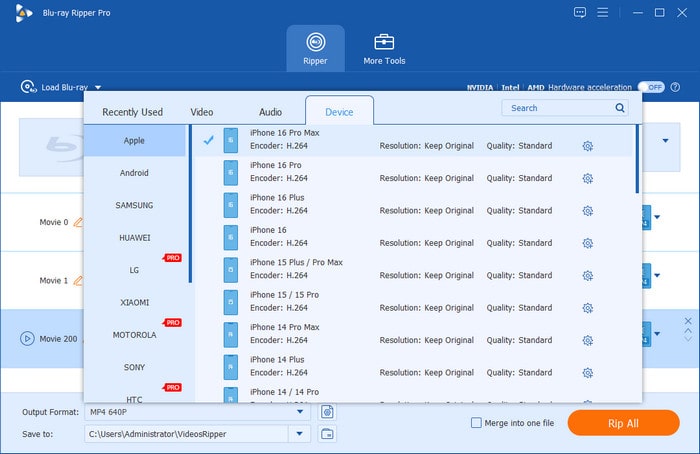
Formats Based on Device

Next, click the Output Format Settings button to enter the Edit Profile window.
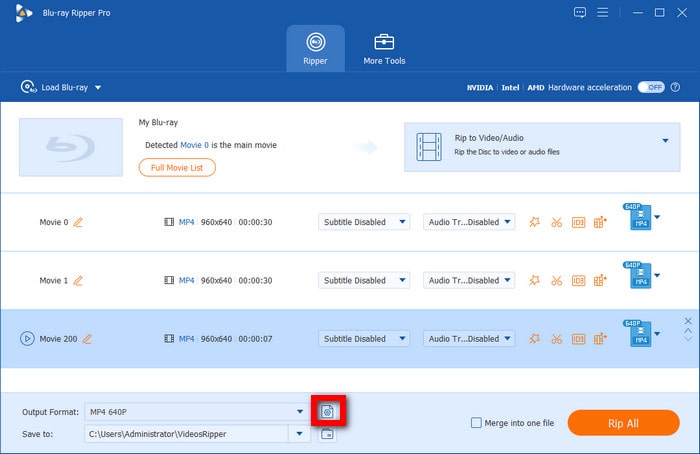
Open Output Format Settings

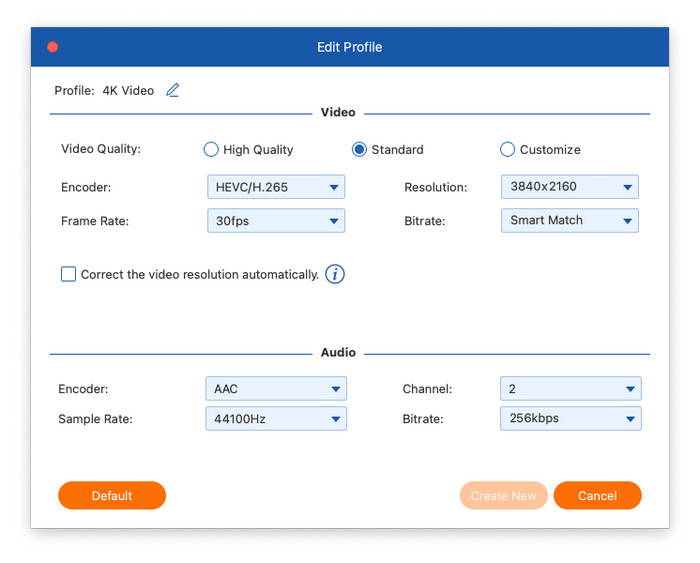
Here you can edit the video profile, including video quality, encoder, resolution, frame rate, and bitrate. Also, it allows you to adjust the audio encoder, channel, sample rate, and bitrate.
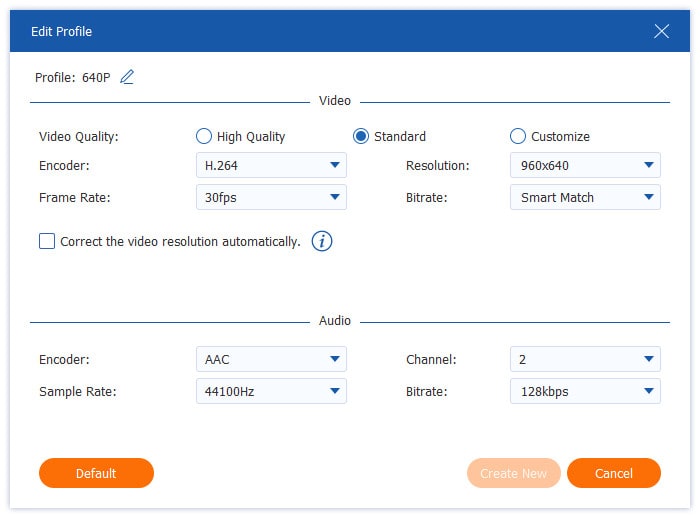
Edit Profile

Step 4. Rip Blu-ray

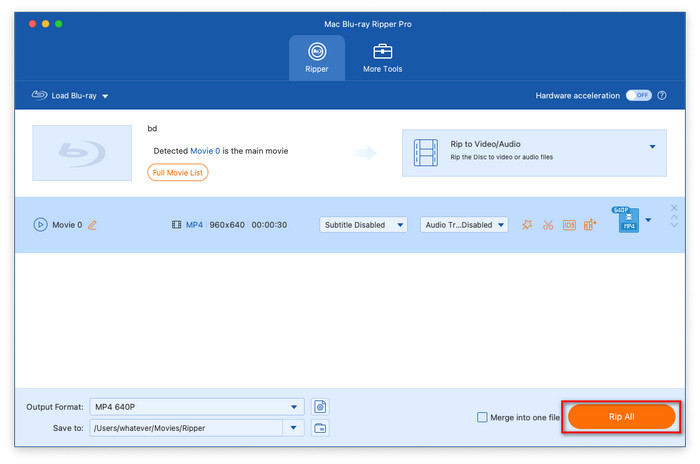
After finishing the above steps, click the Save to option to choose the destination file. Finally, click the Rip All button to rip your Blu-ray. After a few seconds, the ripping process will be finished. Then, click the Open output folder button to find the ripped file.
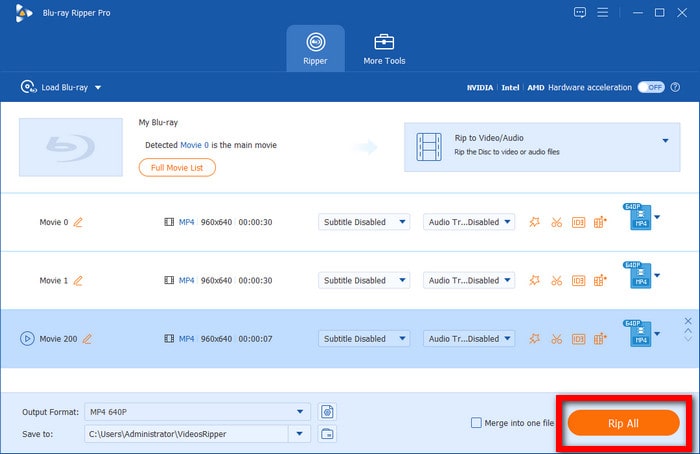
Rip Blu Ray

Part 3. Edit Blu-ray Video

Free Blu-ray Ripper provides a variety of editing tools to edit Blu-ray videos before ripping to digital formats.

Cut Video

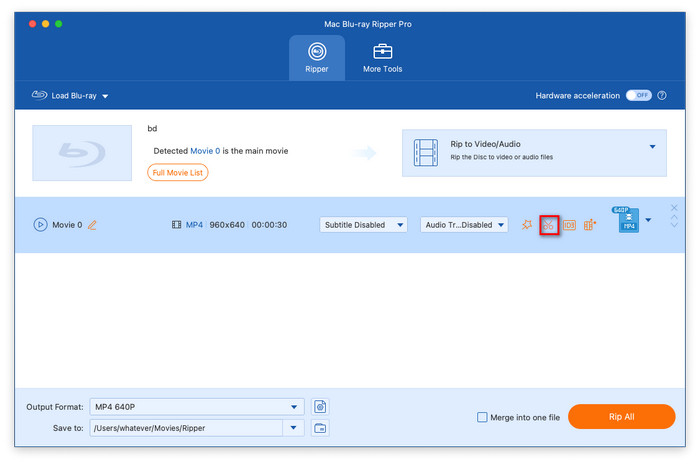
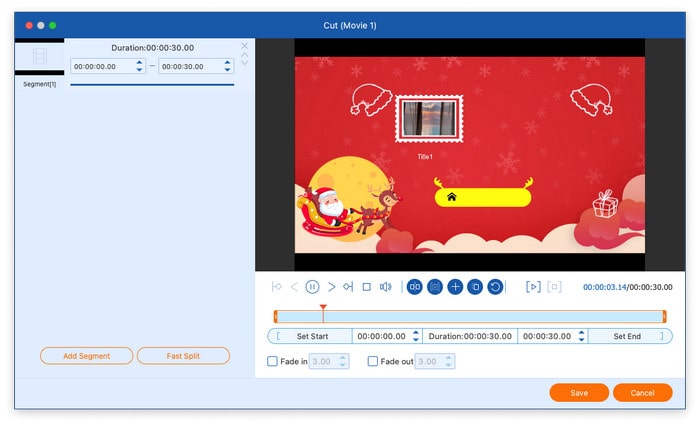
Click the scissors icon to use the cutting tools. It allows you to cut the video into several segments by clicking the Add Segment button. You can also click the Fast Split button to evenly cut a video file into multiple segments by setting the average time or the number of files.
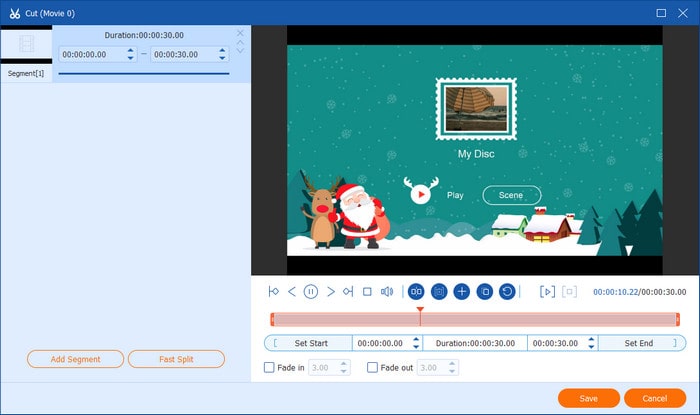
Cut Video

Enhance Video

Click the Enhance Video button to open the video enhancer. It offers four options to enhance the video effects: Upscale Resolution, Optimize Brightness and Contrast, Remove Video Noise, and Reduce Video Shaking. After choosing the options according to your needs, you can preview the effects by clicking the Preview button.
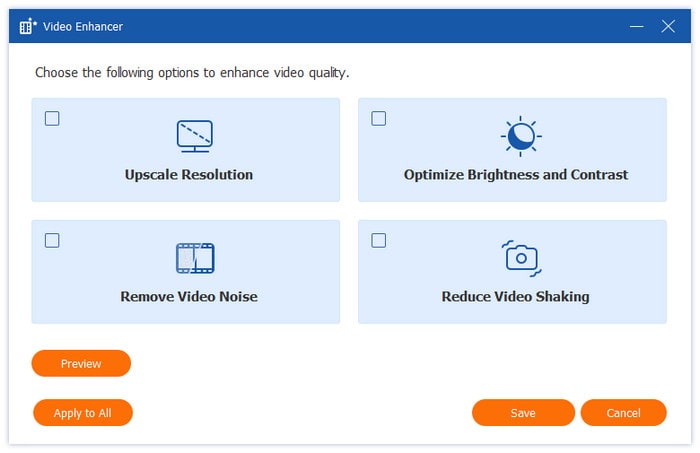
Enhance Video

Edit Media Metadata

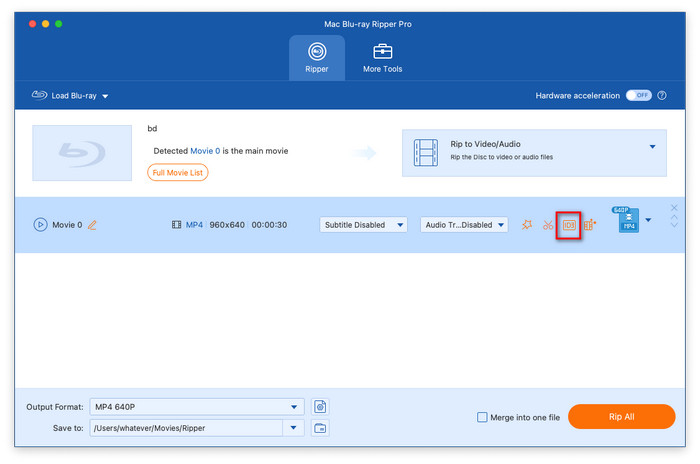
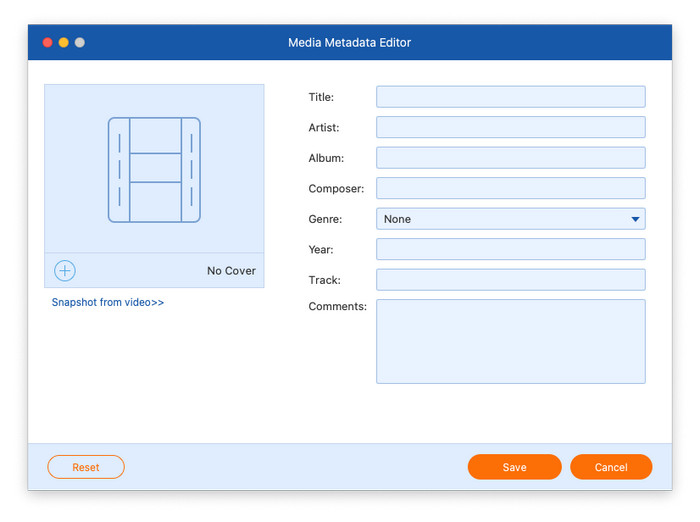
Click the Edit Media Metadata button to access the metadata editor. Here you can add the video thumbnail and edit various details, including the title, artist, album, composer, genre, year, track, and comments.
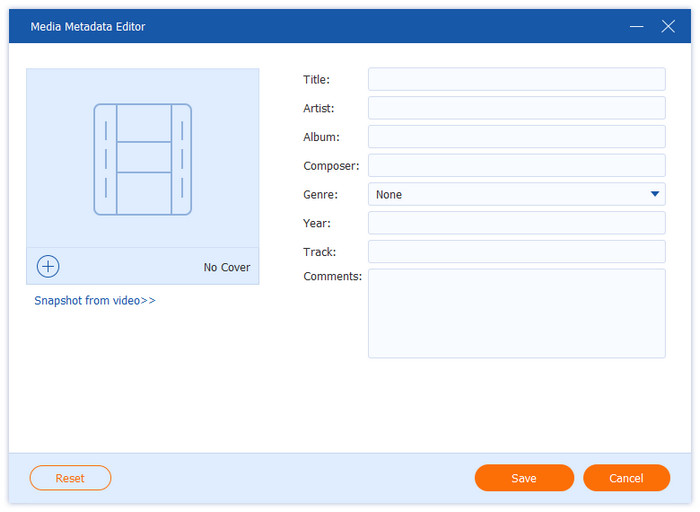
Edit Media Metadata

Rotate&Crop Video

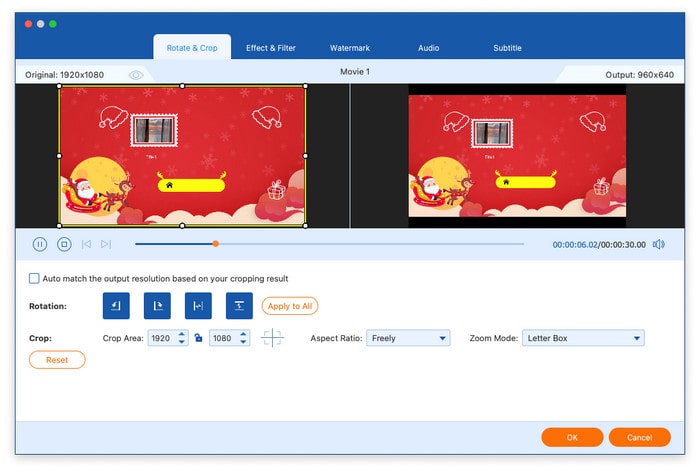
Select the Rotate&Crop tab after clicking the Edit button. Videos can be flipped vertically or horizontally by rotating them by 90, 180, or 270 degrees. Additionally, you can crop the video by dragging the mouse directly or by selecting the crop area. Moreover, you can alter the zoom mode and aspect ratio.
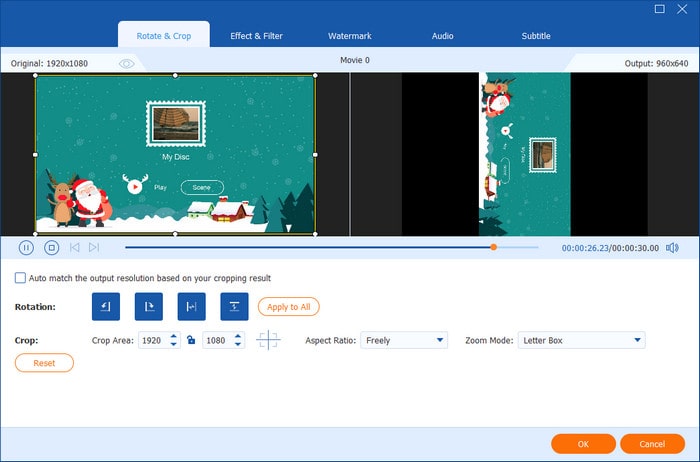
Rotate And Crop Video

Add Effect & Filter

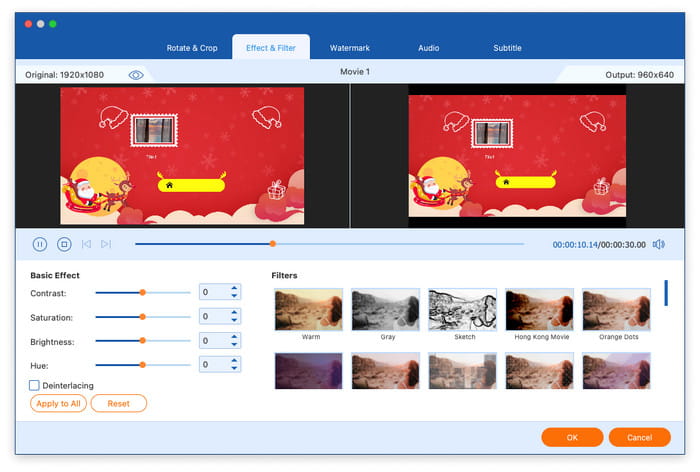
Go to the Effect&Filter tab after clicking the Edit button. Next, make adjustments to contrast, saturation, brightness and hue in the left section and select the filter in the right section.
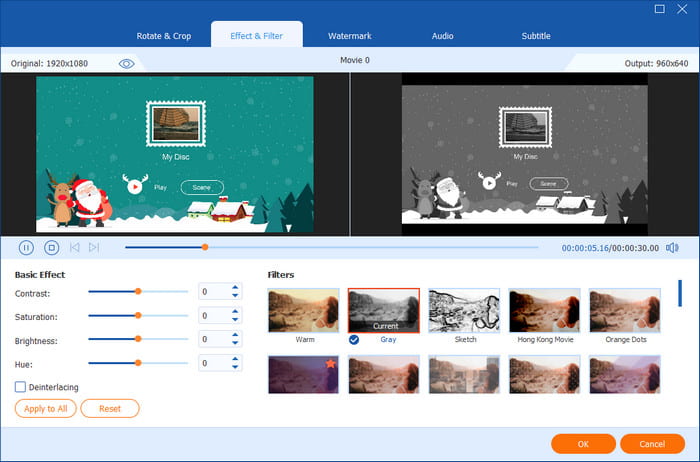
Add Effect And Filter

Add a Watermark

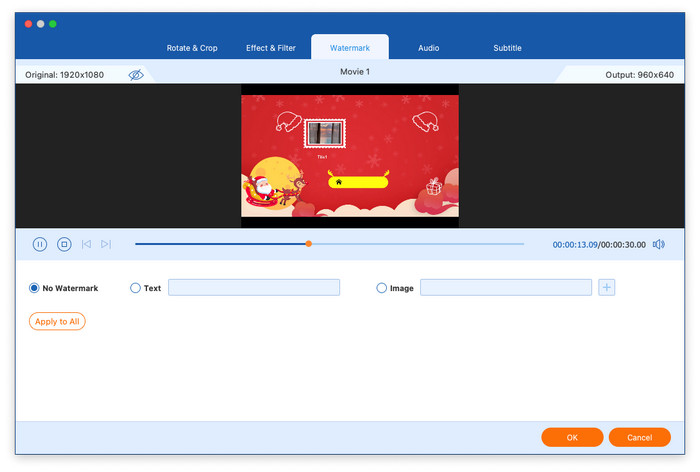
Click the Edit button, then navigate to the Watermark tab. Next, you can add a text or an image as a watermark to your video by clicking the front circle of Text or Image. Additionally, you are allowed to change the watermark’s size, color, opacity, and position.
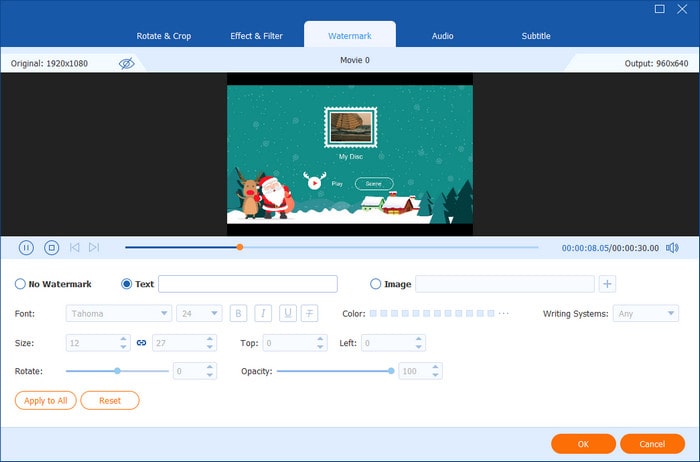
Add Watermark

Edit Audio

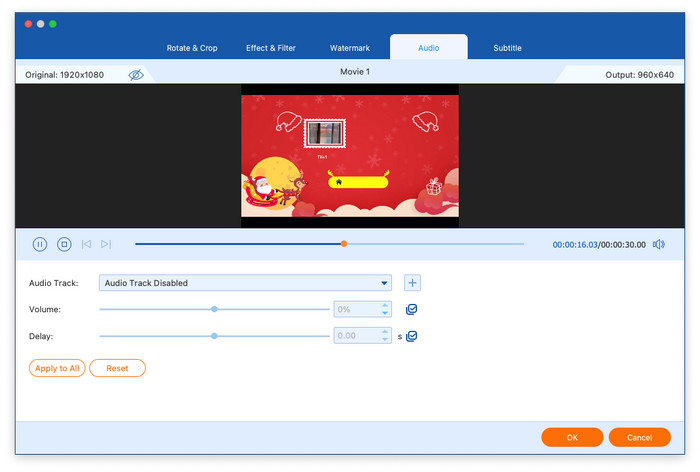
Similarly, click the Edit button to go to the Audio tab, where you are able to add an audio track, adjust the volume, and change the delay time.
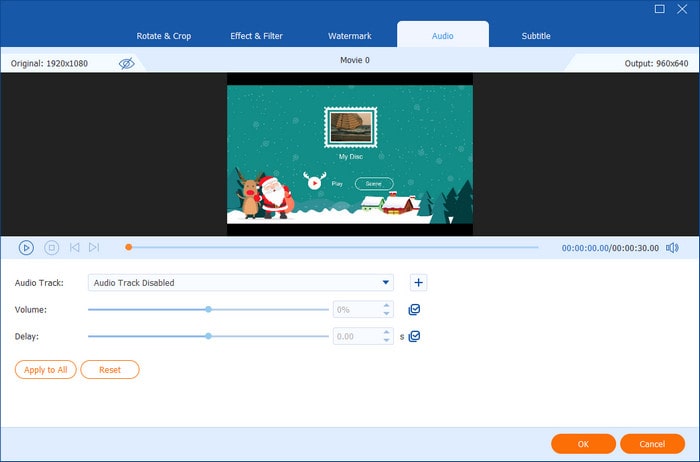
Edit Audio

Edit Subtitles

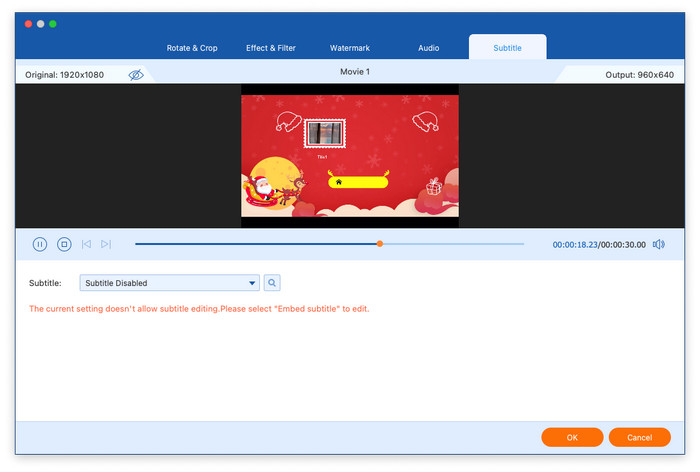
Choose the final tab, Subtitle, to change the subtitle settings. There are four choices about subtitles: exporting subtitle file, keeping subtitle tracks, embedding subtitle, or subtitle disabled. Select the most suitable choice based on your needs.
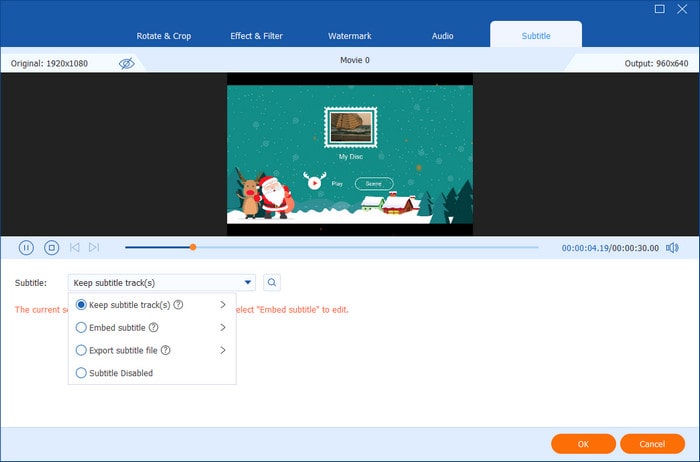
Edit Subtitles

Part 4. More Tools

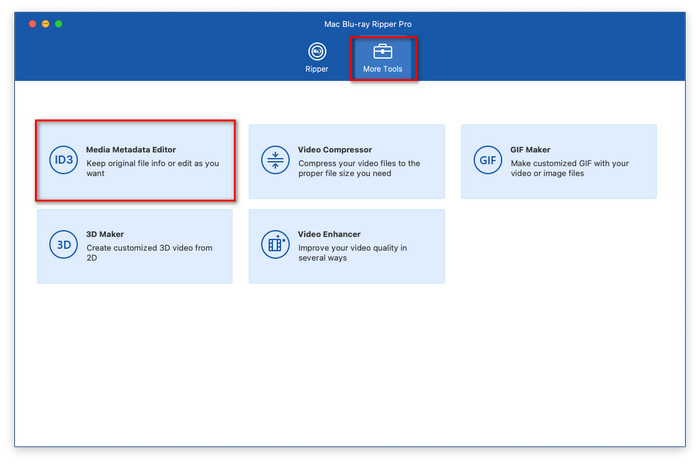
Click the More Tools button in the main interface to access the additional features, including Media Metadata Editor, Video Compressor, GIF Maker, 3D Maker, and Video Enhancer.
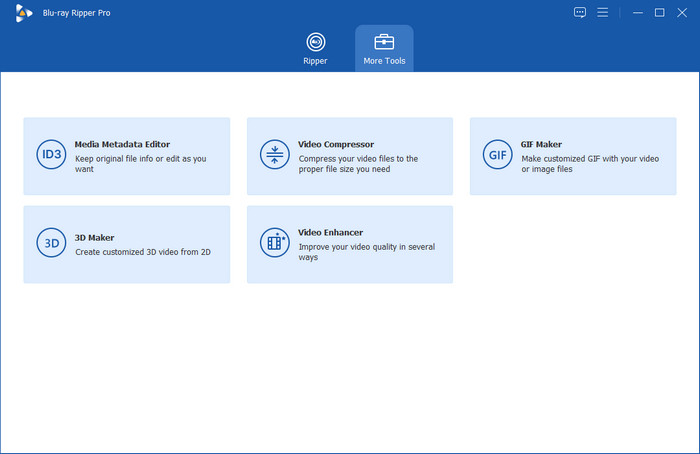
More Tools Interface

Media Metadata Editor

Step 1: Open the Media Metadata Editor, and add the video file you wish to edit.
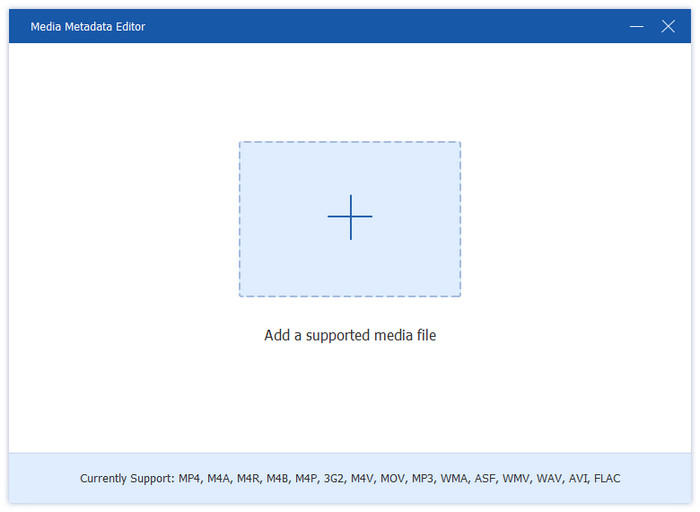
Media Metadata Editor Add Video File

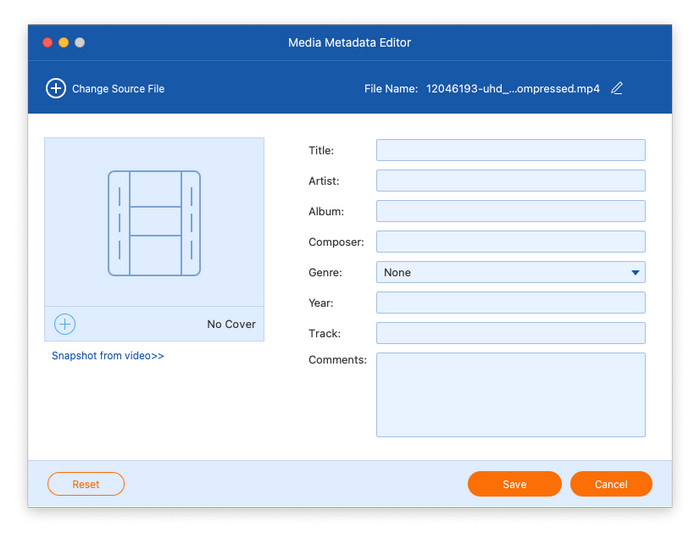
Step 2: After loading, you can edit various metadata information, including the cover image, title, artist, album information, composer, genre, year, track, and any additional comments.
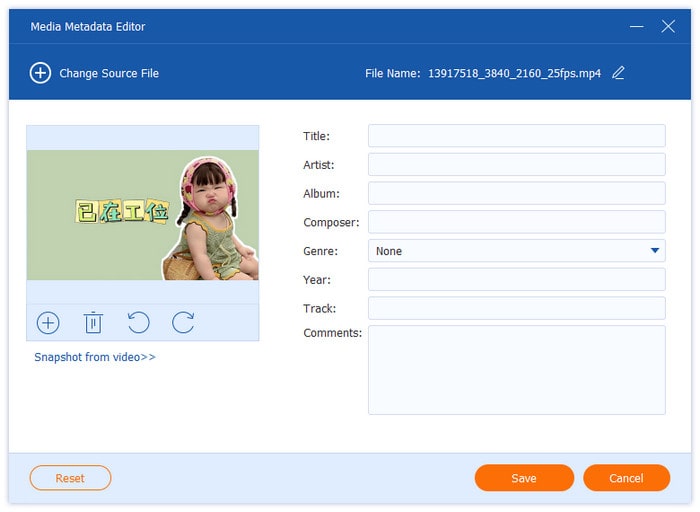
Media Metadata Editor Edit Video Information

Video Compressor

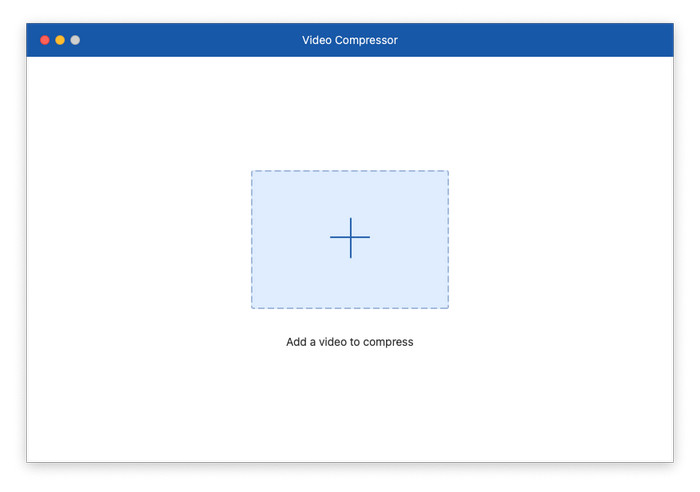
Step 1: Open the Video Compressor, and add a video that needs to be compressed.
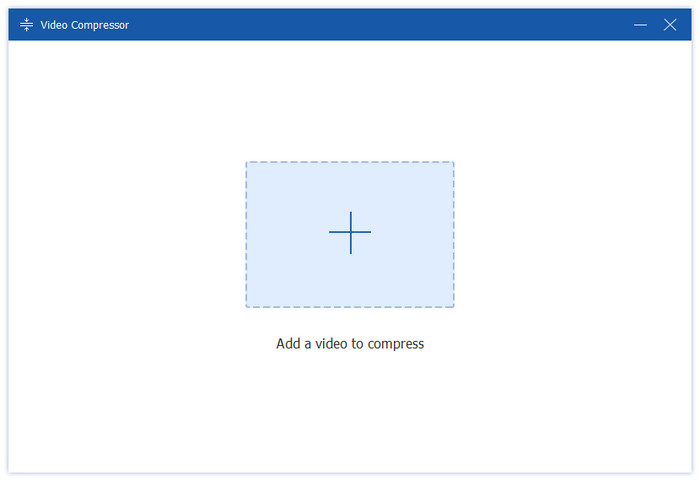
Video Compressor Add Video File

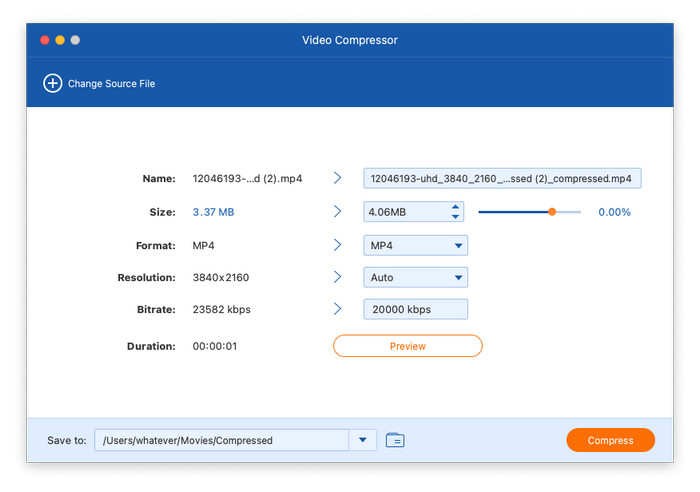
Step 2: Choose the size, format, resolution, and bitrate for the compressed video. It also supports renaming the output file. And then, click the Compress button to start the compressing process.
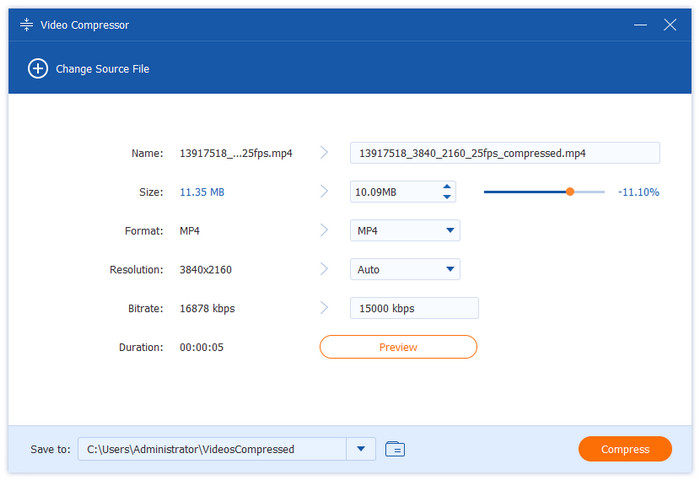
Video Compressor Compress Video File

GIF Maker

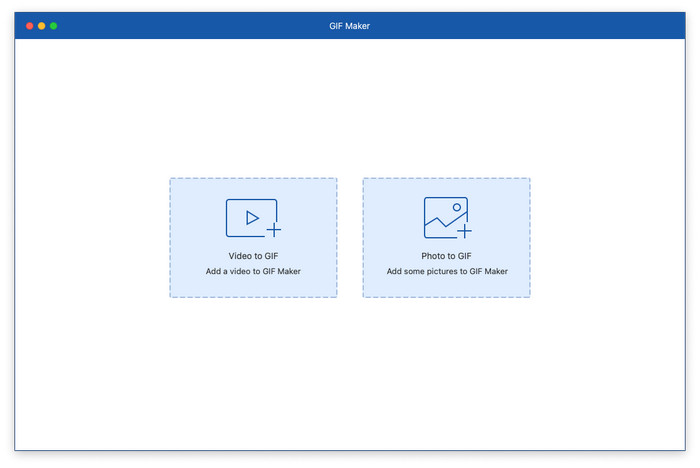
Step 1: Select GIF Maker in Toolbox and click Video to GIF or Photo to GIF option to upload a video or a photo file.
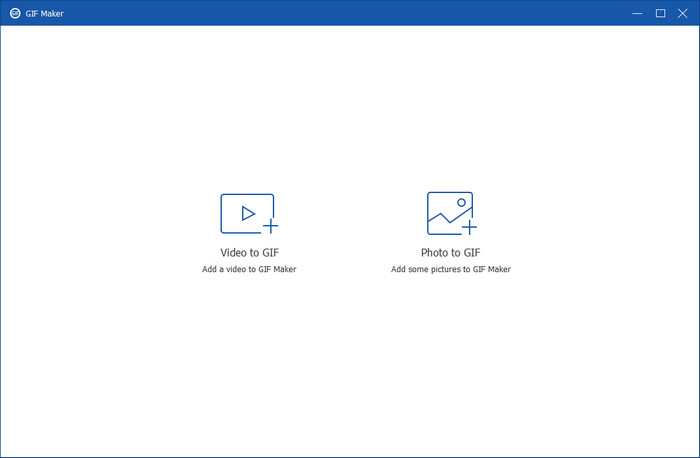
Gif Maker Add File

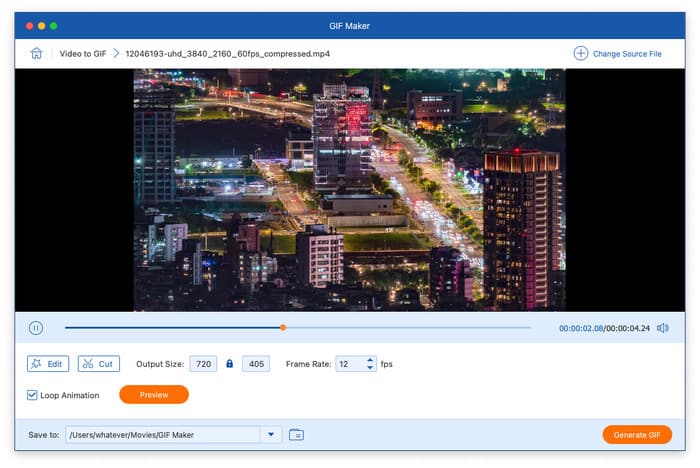
Step 2: Turn Video to GIF: You can edit the video by clicking the Edit button, including changing the contrast, saturation, brightness, hue and adding a filter. And click the Cut button to cut the video. You are also allowed to set the output size, frame rate and loop animation. Finally, click the Generate GIF button to finish the process.
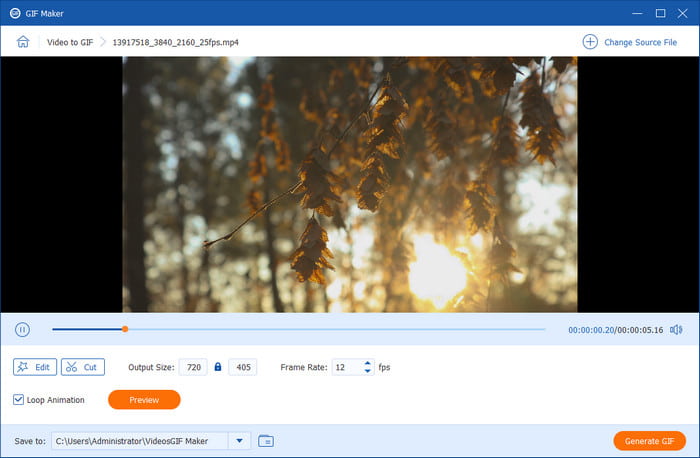
Gif Maker Turn Video to Gif

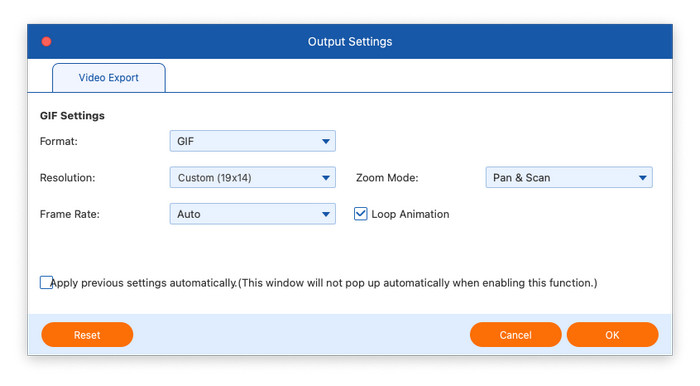
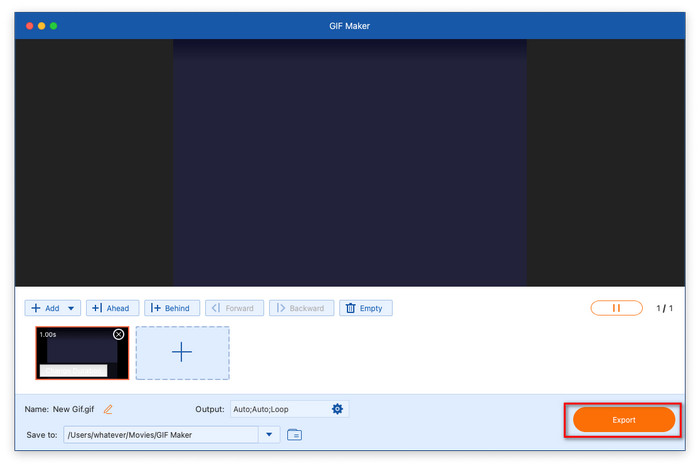
Step 3: Turn Photo to GIF: After uploading a photo, change the resolution, frame rate, and Zoom mode if needed. Then, click the Export button to make a GIF.
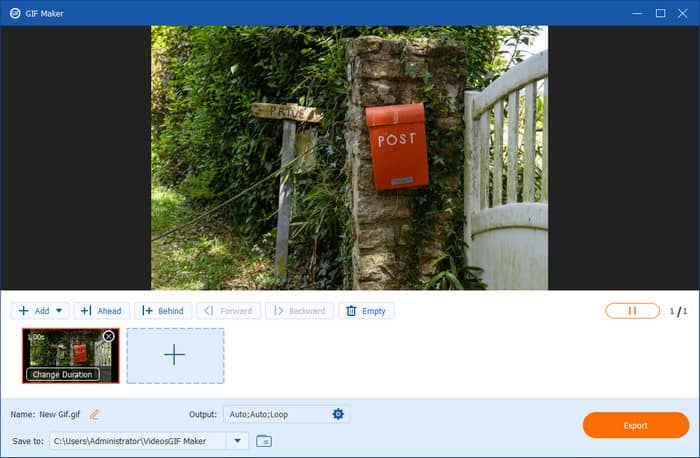
Gif Maker Turn Photo to Gif

3D Maker

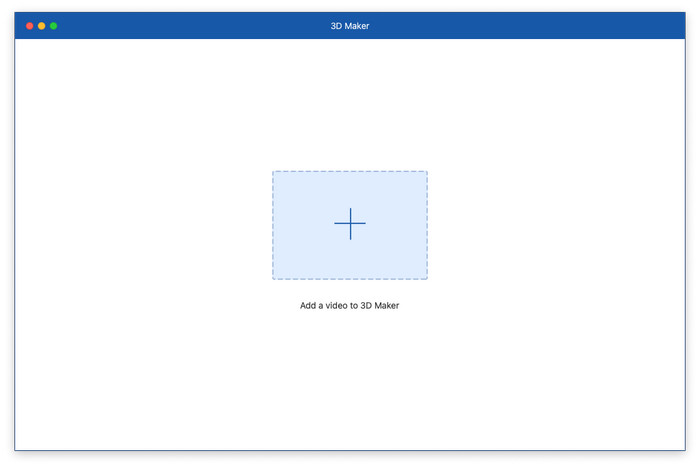
Step 1: Click the 3D Maker, and add a video file to 3D Maker.
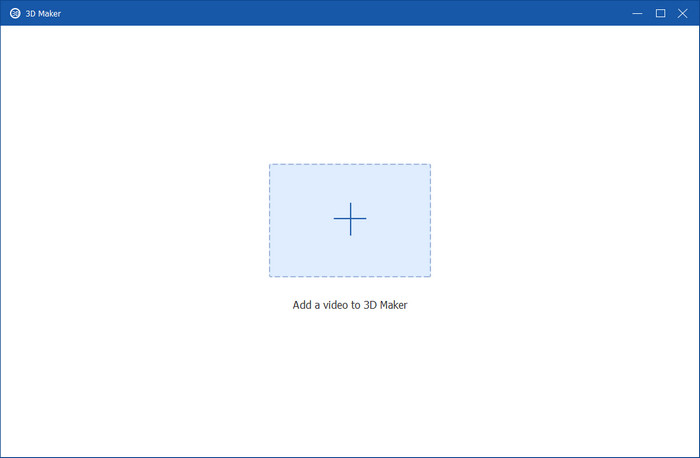
3d Maker Add Video File

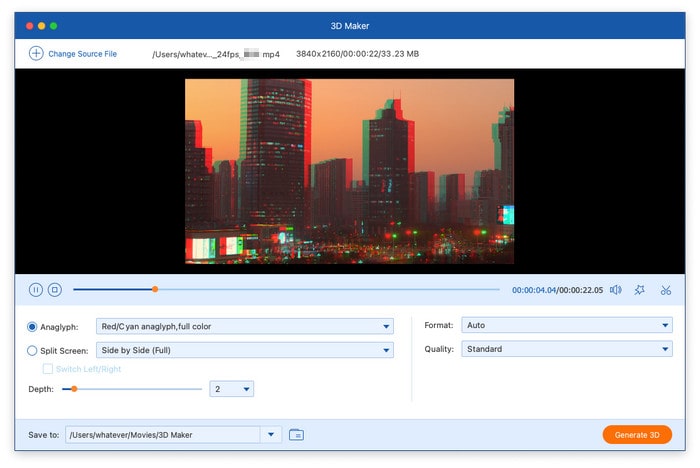
Step 2: After loading the file, you can either use the split-screen feature or select an anaglyph from the pre-set templates. Finally, select your preferred output format and quality, then click Generate 3D to produce your customised 3D video.
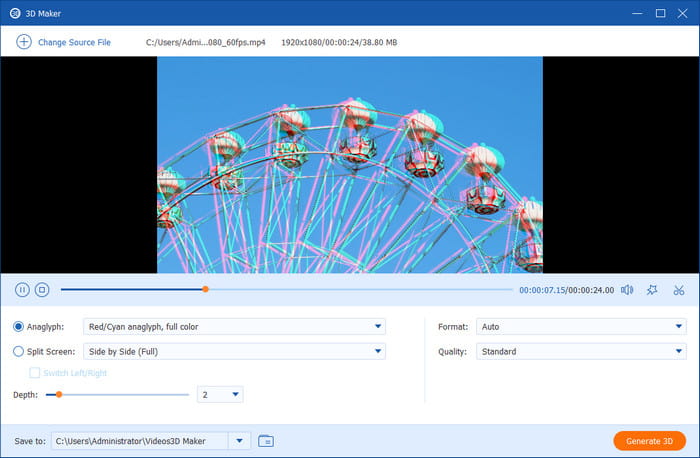
3d Maker Create Video

Video Enhancer

Step 1: Open the Video Enhancer, and add a video file that needs to be enhanced.
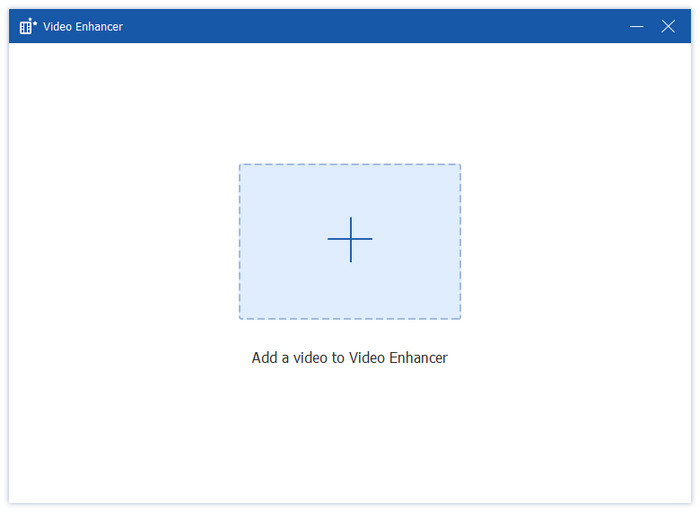
Video Enhancer Add Video File

Step 2: There are 4 options to improve your video quality: Upscale Resolution, Optimize Brightness and Contrast, Remove Video Noise, and Reduce Video Shaking. You can select a few from them to enhance your video quality. It also supports cutting the video and selecting the output format and resolution. After that, click the Enhance button to start the enhancing process.
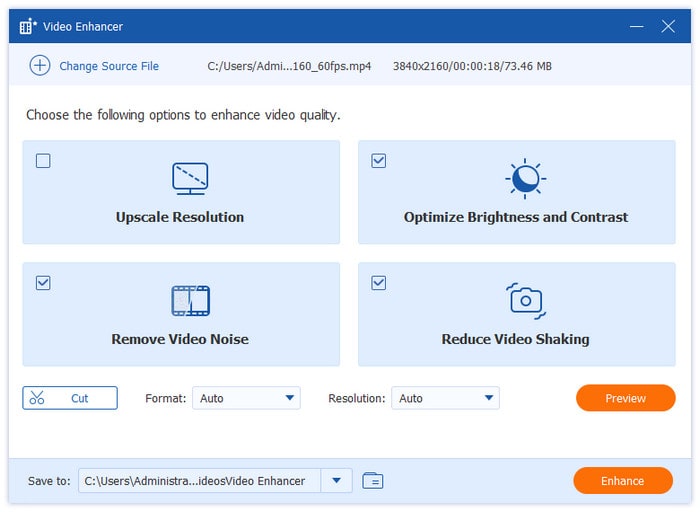

Video Enhancer Options
User Guide
  • Part 1. Get Started
    1. Download and Install
    2. Preference
  • Part 2. How to Use Blu-ray Ripper
  • Part 3. How to Edit Blu-ray Video Before Ripping
    1. Edit Video
    2. Cut Video
    3. Edit Media Database
    4. Enhance Video
    5. Merge Output Video
  • Part 4. How to Use the Toolbox
    1. Media Metadata Editor
    2. Video Compressor
    3. GIF Maker
    4. 3D Maker
    5. Video Enhancer

Part 1. Get Started

Download and Install

Download Blu-ray Master Free Mac Blu-ray Ripper from the official Blu-ray Master website, and then install it on your Mac computer.

Download And Install

Preference

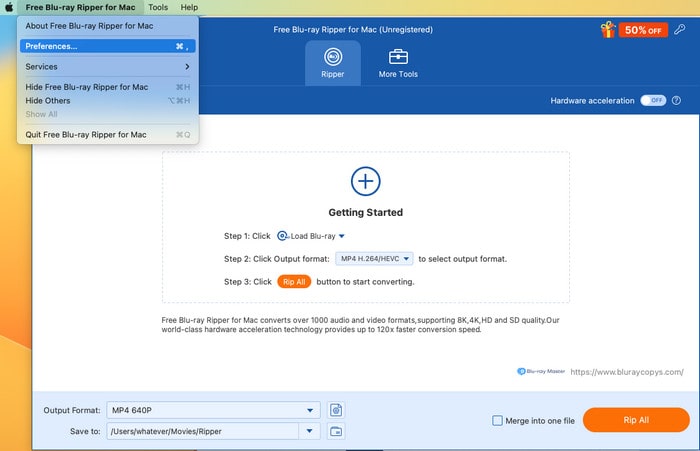
You can click the software name in the upper left corner of the computer screen, then select Preferences to open the Preference window.

Open Preference

General

Under the General section, you can manually adjust the subtitle and audio language. You can also select the acceleration method. Moreover, you can also set the software to check for updates automatically or not.

Preference General

Ripper

In this section, you are allowed to set the default Blu-ray copy mode and choose the output folder, snapshot folder, and snapshot format.

Preference Ripper

Toolbox

You can set the saving path of each tool in Toolbox here.

Preference Toolbox

Task Schedule

This section is for you to set what you want to do when the software completes the conversion task.

Preference Task Schedule

Part 2. How to Use Blu-ray Ripper

Step 1. Open the Software and Load a DVD

Double-click the icon of the Blu-ray Master Free Mac Blu-ray Ripper to launch it.

Then, choose Load Blu-ray > Load Blu-ray Disc to add a Blu-ray you want to rip.

Note: If it is a Blu-ray disc, please remember to insert the Blu-ray disc into your PC.

Load Blu Ray

Step 2. Choose A Ripping Mode and Select Titles

Choose one from the Main Title or Full Title List, and click OK to proceed.

Choose Copy Mode

Whether you choose what ripping mode, you can click the Full Movie List icon in the profile panel to select the titles you want to convert.

Select Title

Step 3. Select the Output Profile

Navigate to the Output Format, click it, and there are multiple digital profiles of different parameters for you to choose from.

Video: Choose the Video button, and you will see a variety of video formats on the left. Choose one format, and it will show different profiles of different parameters in the right section, like resolution, encoder, etc., which can fit your various needs.

Choose Output Video

Audio: Choose Audio, and there are multiple audio formats of different profiles.

Choose Output Audio

Device: If you select the Device section, you will see a wide range of profiles that are directly compatible with various devices, including Apple, Android, HUAWEI, XIAOMI, etc.

Choose Output Device

Customization: On each profile, you will see a gear icon, which enables you to customize the output file parameters, such as encoder, resolution, frame rate, channel, and more.

Choose Output Customization

Step 4. Start Blu-ray Conversion

Lastly, click the folder icon beside the Save to option to set the download folder, and click Rip All at the bottom right corner to start the conversion process.

Start Conversion

Part 3. How to Edit Blu-ray Video Before Ripping

Before starting to convert Blu-rays to digital, you can use the editing tools to improve video effects.

Edit Video

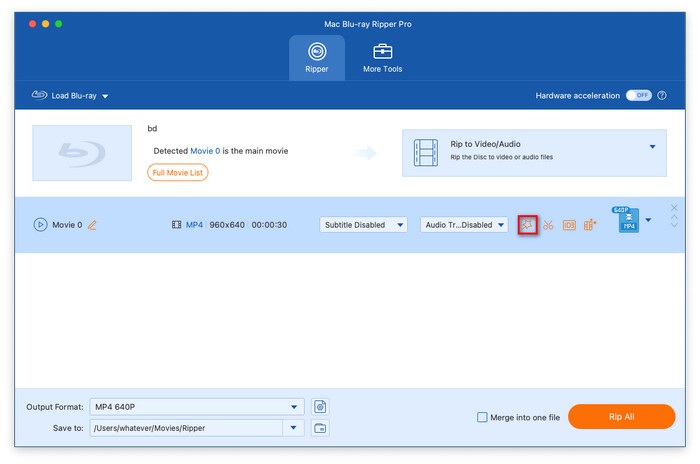
In the main interface, click the Edit icon to enter the new window to edit videos.

Choose Edit

The Rotate & Crop section allows you to rotate the video and adjust the crop area, aspect ratio, and zoom mode.

Choose Edit Rotate And Crop

The Effect & Filter section enables you to apply various filters and set effect data.

Choose Edit Effect And Filter

You can choose No Watermark in the Watermark section. Besides, you can manually add the text or image watermark to the output videos and adjust the watermark effects, like size, opacity, and more.

Choose Edit Watermark

The Audio section allows you to select an audio track and even add external audio tracks to the software. Moreover, you can adjust the Volume by set the percent of the original volume. You can also apply the Delay effects and set the specific delay time.

Choose Edit Audio

The Subtitle section allows you to choose from Keep subtitle track, Embeded subtitle, Export subtitle file, and Subtitle disabled. In addition, you can add external subtitle files to the software to improve your watching experience.

Choose Edit Subtitle

Cut Video

Click the Cut icon in the main interface to enter the Cut window.

Choose Cut

You can add a segment to the video, fast split video, and set the fade-in/out effect to the video.

Choose Cut Adjust Video

Edit Media Database

When you click the Edit Media Database, you will enter the Media Metadata Editor.

Choose Edit Media Database

You can set the Title, Artist, Album, Composer, Genre, etc.

Choose Edit Media Database Adjust Data

Enhance Video

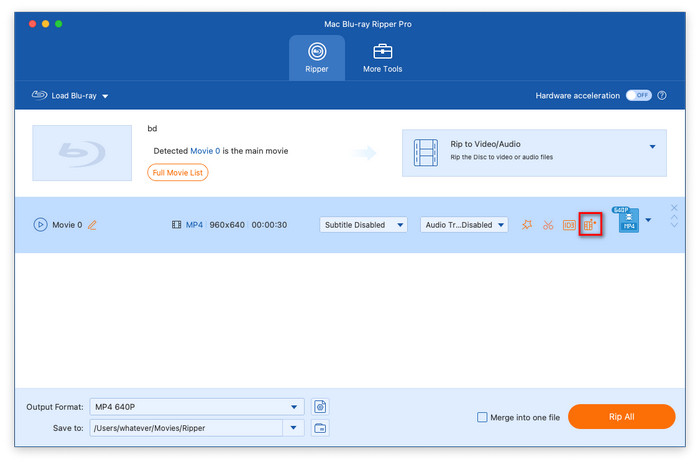
Click the Enhance Video icon to open the Video Enhancer window.

Choose Enhance Video

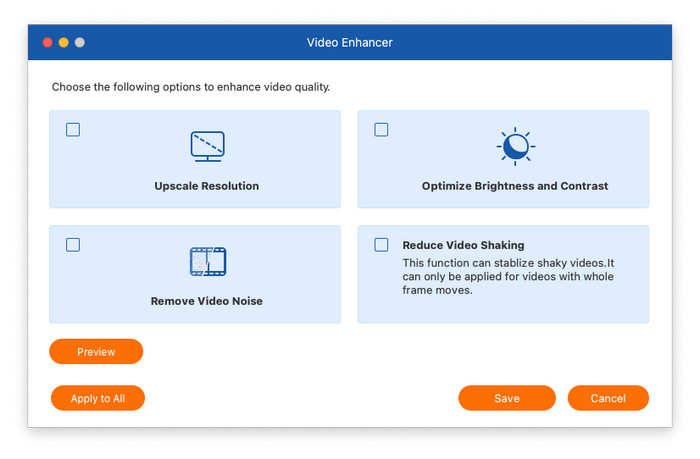
There are four functions: Upscale Resolution, Optimize Brightness and Contrast, Remove Video Noise, and Reduce Video Shaking, which you can choose to improve the video quality.

Choose Enhance Video Select Function

Merge Output Video

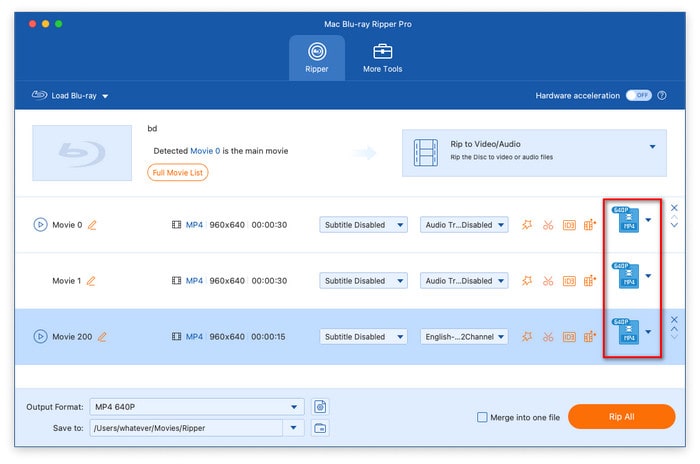
If your Blu-ray has different titles, you are allowed to output them to different formats by editing each title.

Choose Output Format for Each Title

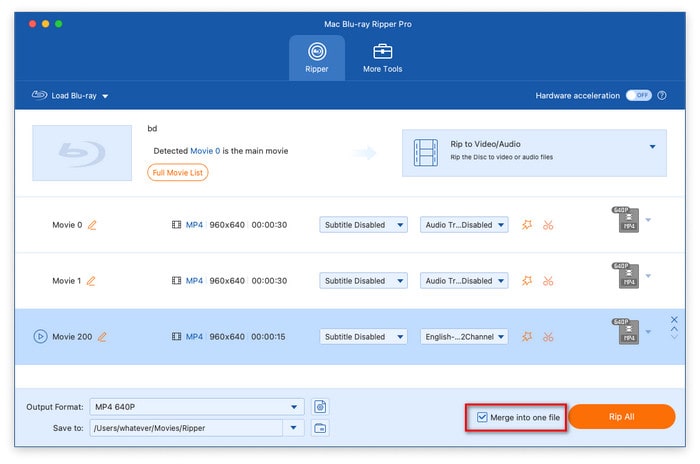
If you want to output them to one video file, you can check Merge into one file, which is located in the bottom right corner. Then, you need to choose one final output format under the Output Format drop-down option.

Merge Output Video And Choose Output Format

Part 4. How to Use the Toolbox

To further improve your video quality, it provides a More Tools section for you to use other advanced tools.

Media Metadata Editor

Step 1: Go to the More Tools section and select Media Metadata Editor.

Choose Media Metadata Editor

Step 2: Click the big plus button to load the files you want to edit. Then, you can set the title, artist, album, etc., and click Save to complete the adjustment.

Media Metadata Editor Edit Video Data

Video Compressor

Step 1: Under the More Tools section, select Video Compressor. Click the + icon to import one file you are ready to compress.

Choose Video Compressor

Step 2: In the Video Compressor window, you can adjust the video size, select the output format, and choose the desired resolution. After that, click Compress in the corner to start the compression.

Note: You can click the Preview button to see the video effects before conversion.

Video Compressor Compress Video

GIF Maker

Step 1: After choosing GIF Maker under the More Tools section, you will see a pop-up window, and you can choose Video to GIF or Photo to GIF.

Choose Gif Maker

Step 2: Choose Video to GIF and select one video to import into the software. You can click Edit and Cut to adjust video effects. Moreover, you can adjust output size and frame rate.

Choose Video to Gif

Choose Photo to GIF to load one or several pictures you want to edit. You can click the gear icon to edit output resolution, zoom mode, and frame rate.

Choose Photo to Gif

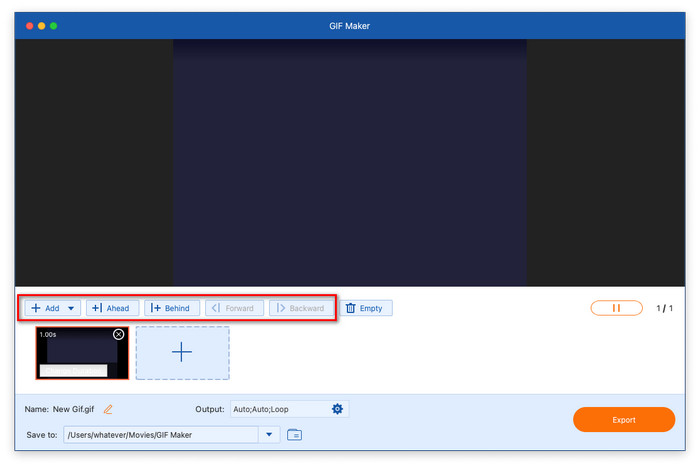
The Add option allows you to add more pictures to make a GIF.

The Ahead and Behind options enable you to add pictures in a specific position.

The Forward and Backward options allow you to adjust the pictures’ positions.

Video to Gif Adjust Photo Position

Step 3: Lastly, click the folder icon to set a download folder, and select Generate GIF or Export to begin the generation.

Output Gif

3D Maker

Step 1: Choose 3D Maker and click the + icon to add a video file. Then, you will see the 3D Maker window.

Choose 3d Maker

Step 2: There are multiple Anaglyph options for you to choose from. You can also select different Split Screen modes. Besides, you can choose the output format and quality.

Output 3d Video

Video Enhancer

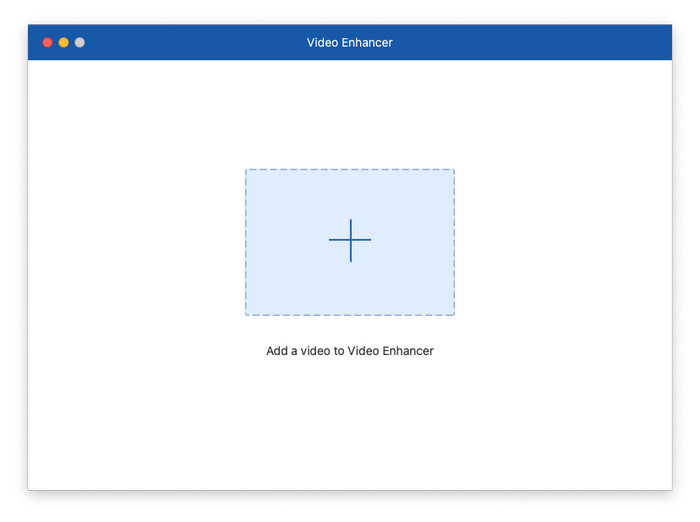
Step 1: Select Video Enhancer and click the + icon at the center to import a video file into the software.

Choose Video Enhancer

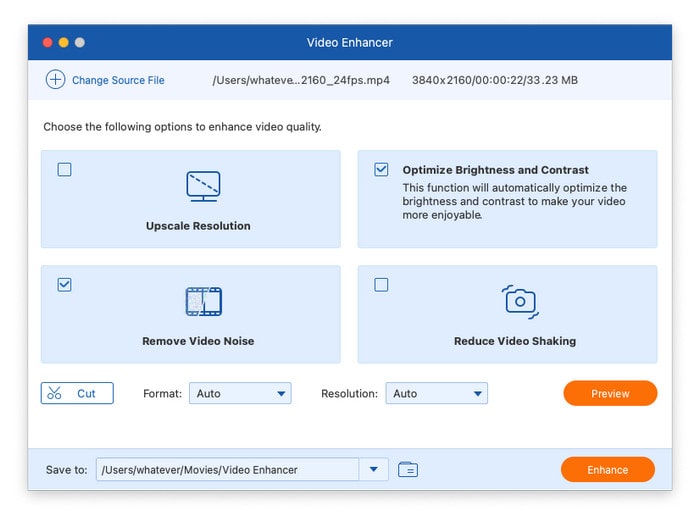
Step 2: There are four features for you to apply: Upscale Resolution, Optimize Brightness and Contrast, Remove Video Noise, and Reduce Video Shaking. You can choose one or all of them to optimize your video. After that, click Enhance to begin to optimize the video.

Note: It provides a Preview feature for you to see video effects in advance. You can also set the output format and resolution.

Video Enhancer Improve Video Quality

Home > Free Blu-Ray Ripper > User Guide