Download Free DVD Ripper from the official website, and install it on your computer following the on-screen instructions. Then, launch it.
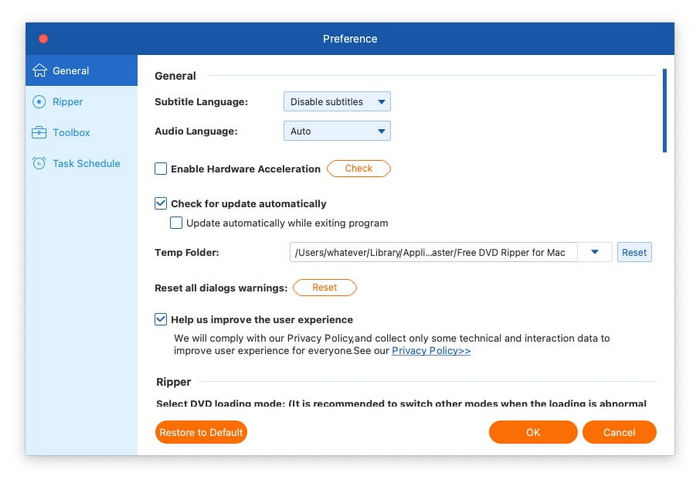
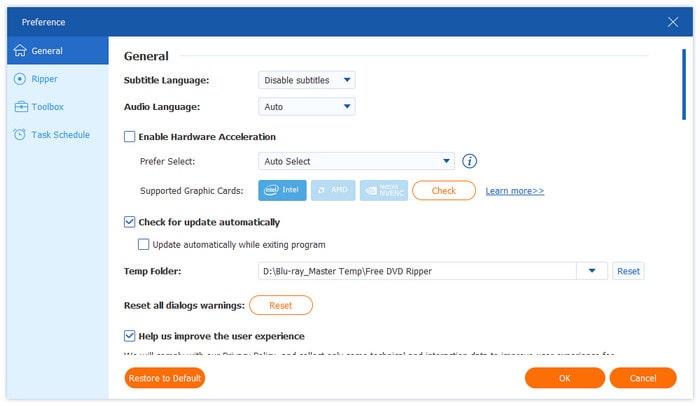
Click the Menu button at the top right corner to find the Preference option. Then, click it to enter the following interface, where you can see four types of preference settings: General, Ripper, Toolbox, and Task Schedule.
• General: In the first tab, General, you can choose the subtitle language and audio language, enable hardware acceleration, check for updates automatically, select temp folder, and reset all dialogs warnings.
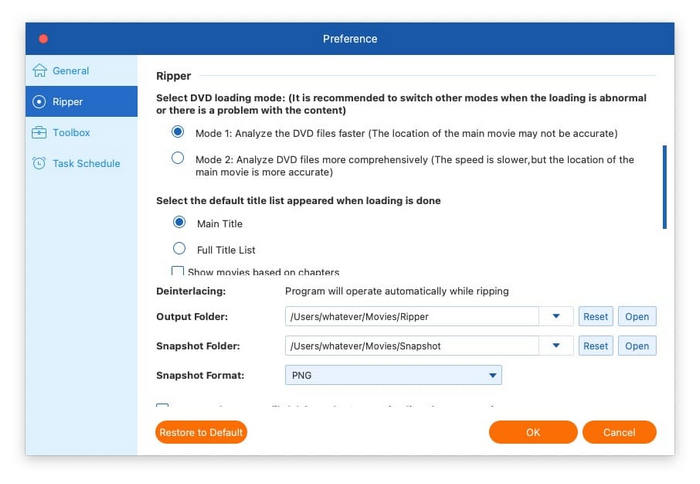
• Ripper: In the Ripper tab, it allows you to select DVD loading mode, default title list, output folder, snapshot folder, snapshot format, and settings when adding subtitles and audio, as well as whether to remove the source file after conversion and eject the disc after ripping.
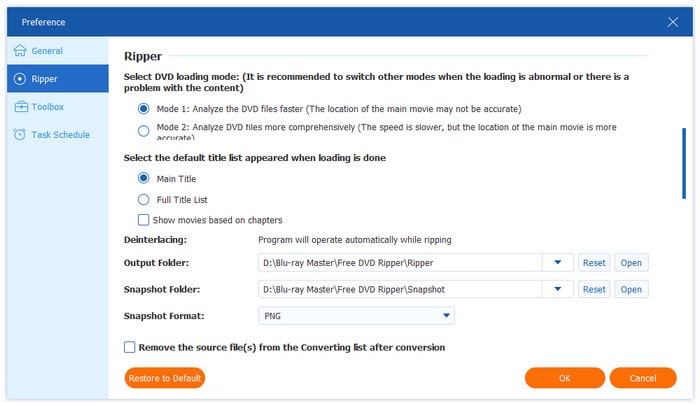
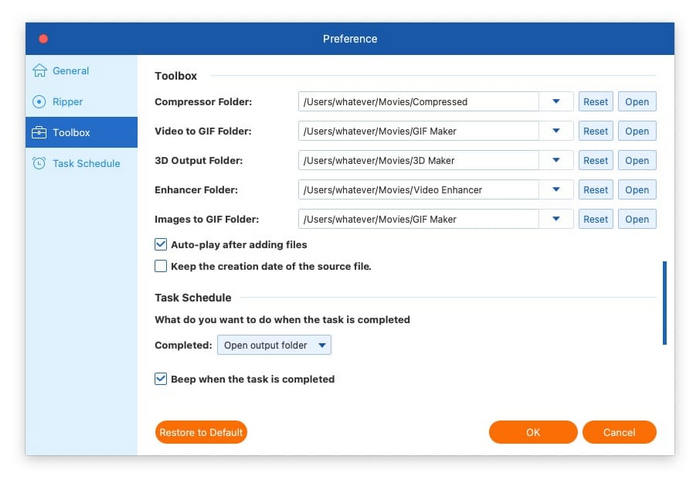
• Toolbox: Navigate the Toolbox tab, where you are capable of choosing the output folders, including compressor folder, video to GIF folder, 3D output folder, enhancer folder, and images to GIF folder. Also, it allows you to determine whether to auto-play after adding files and whether to keep the creation date of the source file.
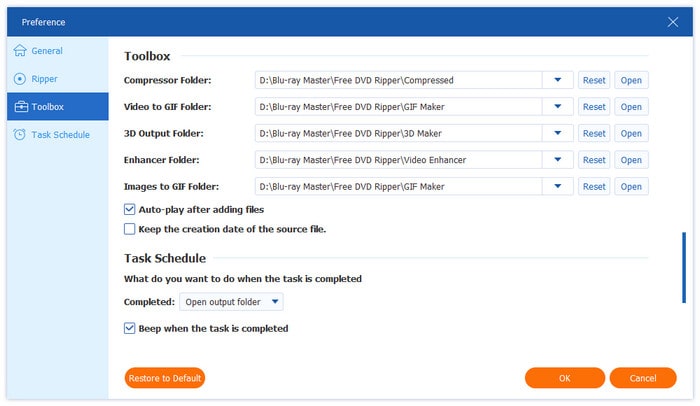
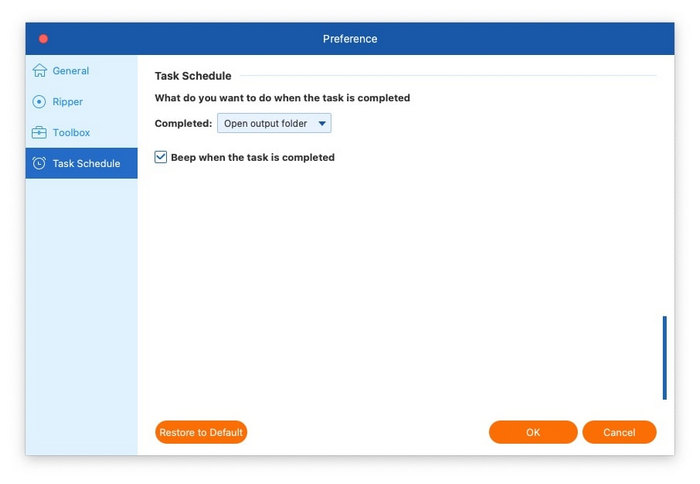
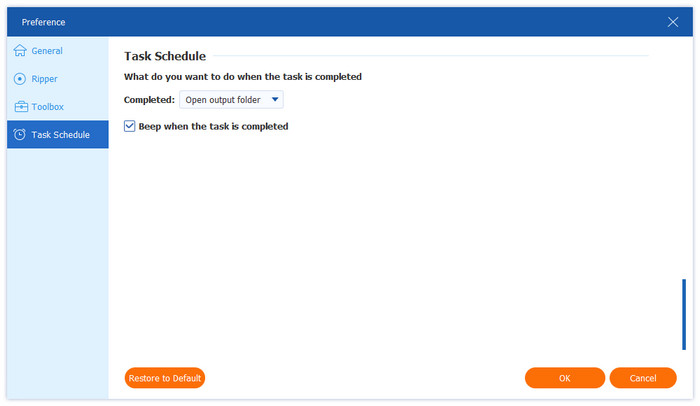
• Task Schedule: At the last tab, it offers several options about what you want to do after the task is completed: open output folder, shut down computer, sleep computer, exit program, or do nothing. And you can choose whether to beep when the task is completed.
Step 1. Load DVD Files
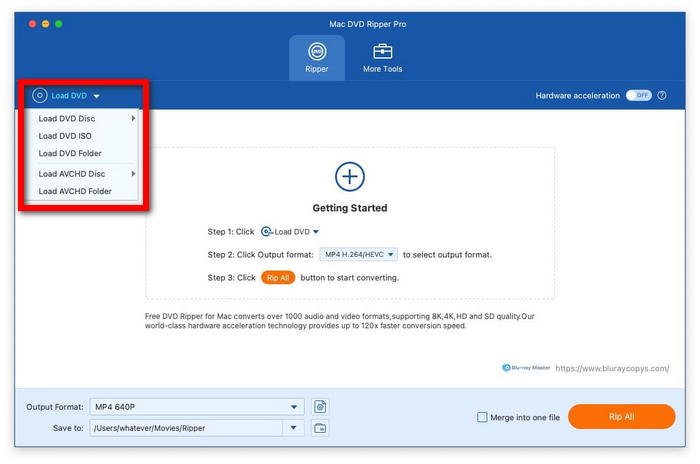
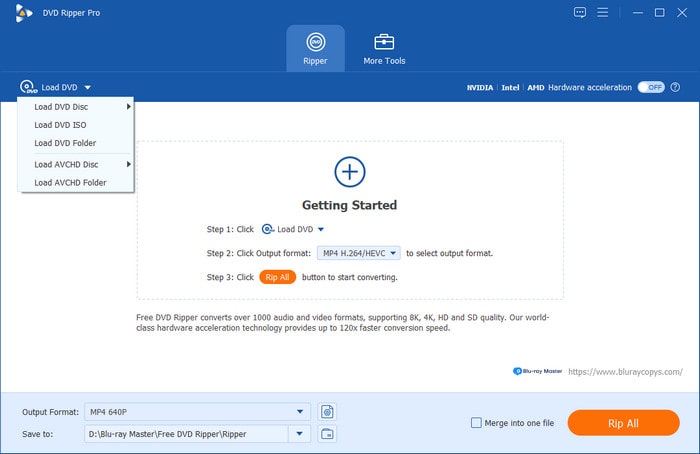
Click Load DVD from the drop-down options in the upper left corner, select Load DVD Disc, Load DVD ISO, Load DVD Folder, Load AVCHD Disc, or Load AVCHD Folder.
Note: If you wish to rip a DVD disc, remember to place the disc into your computer’s DVD drive.
Step 2. Choose Titles
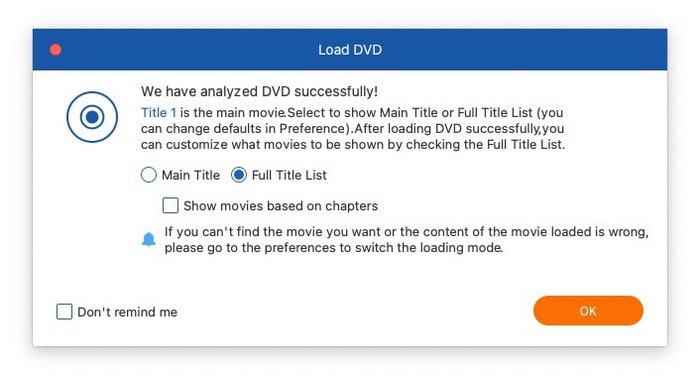
After that, it will automatically analyze the DVD file and load the DVD files’ primary title. You can select to show Main Title or Full Title List, then click OK.
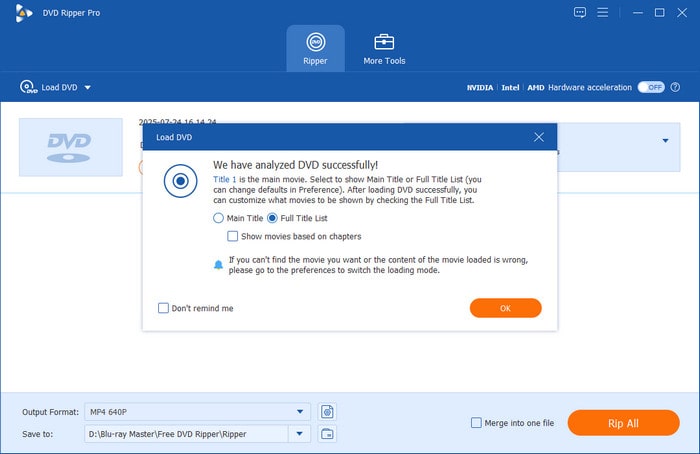
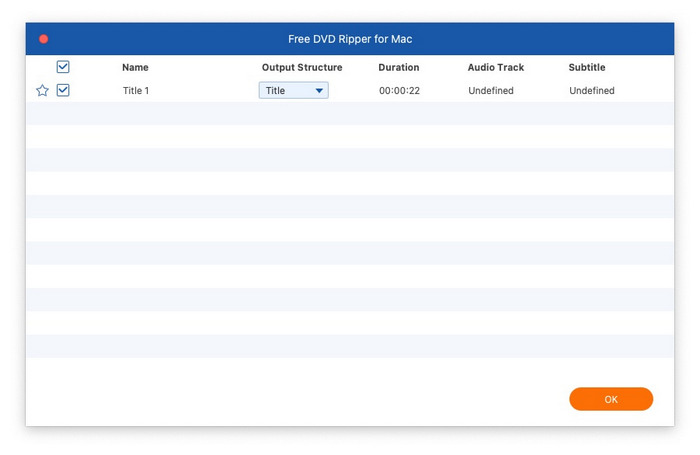
Then, it will display all the titles. Simply check the box next to the titles you wish to add, and then click OK to confirm.
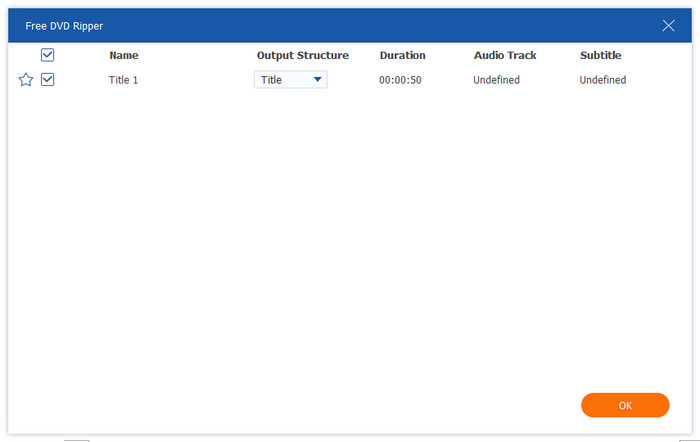
Step 3. Select the Output Format
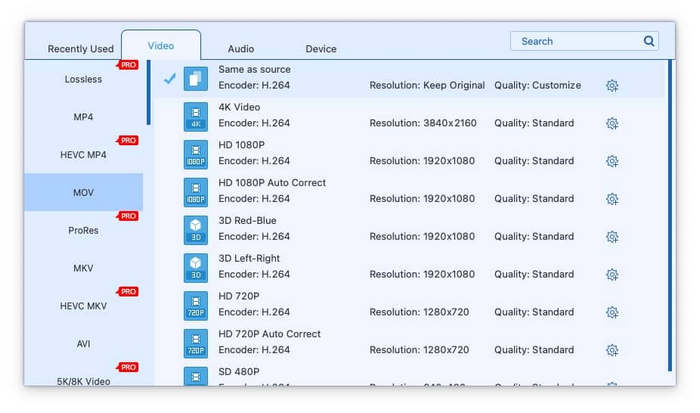
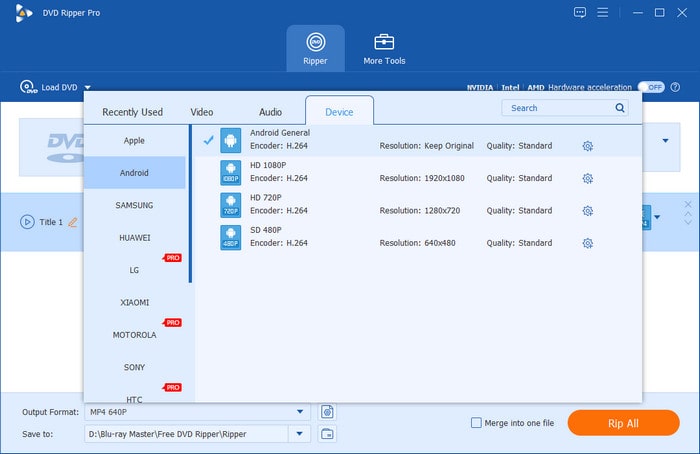
Click Output Format at the bottom left corner to choose the digital output format you want. Here there are 3 types of options for the output file.
• Video formats: Click the Video tab, where you can see a variety of video formats, includingMP4, MOV, MKV, AVI, M4V, etc. Choose a specific video format, then it will show its encoder, resolution, and quality.
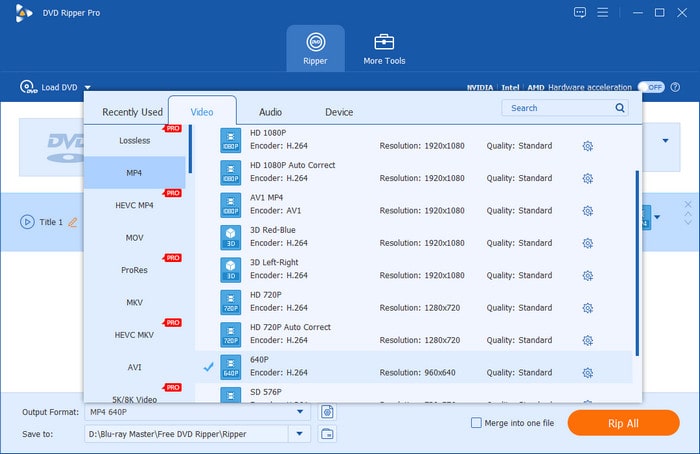
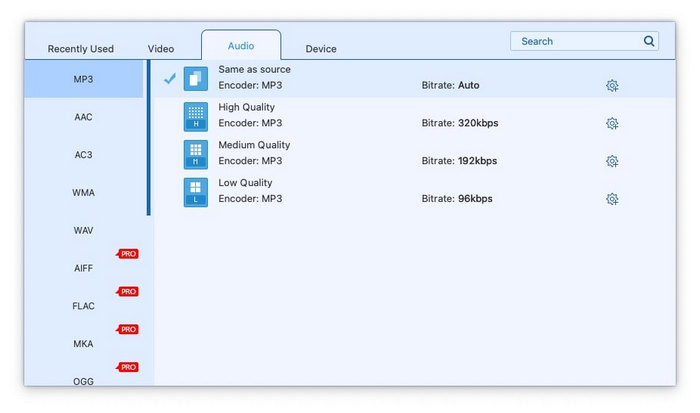
• Audio formats: Click the Audio tab to choose the audio format you need, including WAV, WMA, FLAC, AAC, AC3, etc.
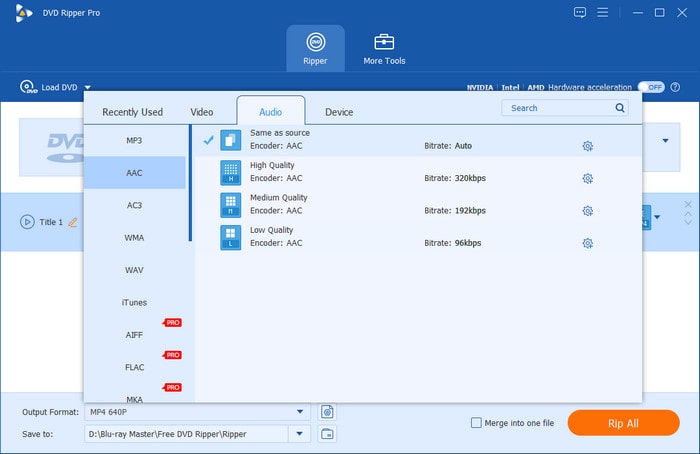
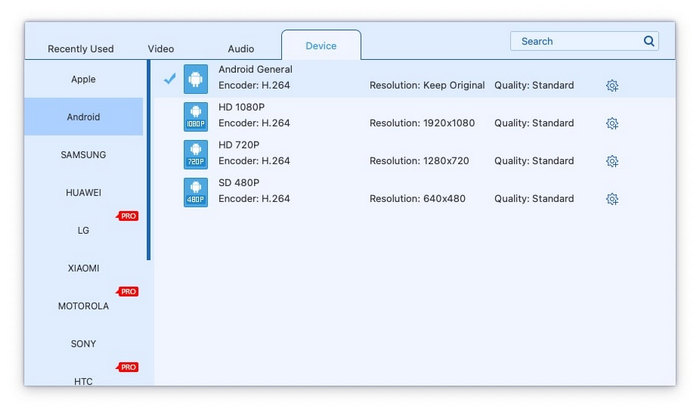
• Formats based on device: You can also directly select the output formats according to your device by clicking the Device tab, which contains Samsung, Apple, Sony, Android, and so on.
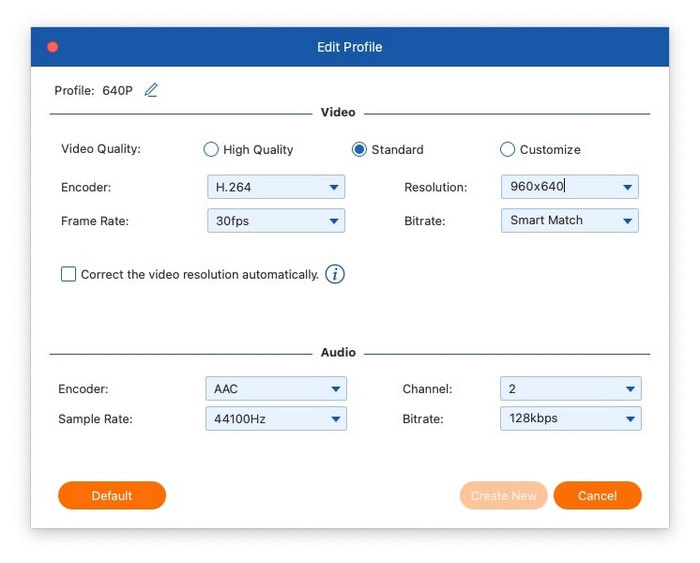
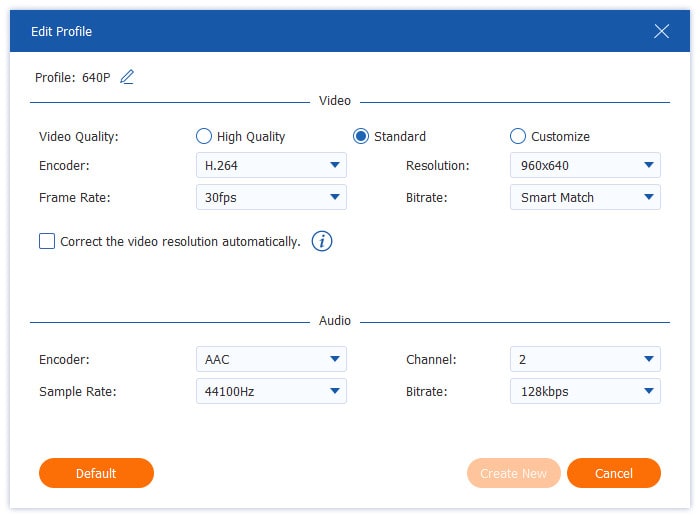
After selecting the output format, click the Output Format Settings button to edit profile. According to your needs, you can choose the video’s quality, encoder, resolution, frame rate, and bitrate, as well as the audio’s encoder, channel, sample rate, and bitrate.
Step 4. Rip DVD
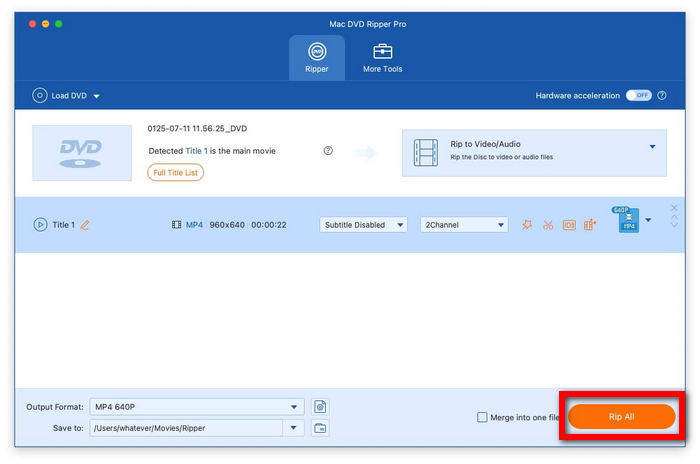
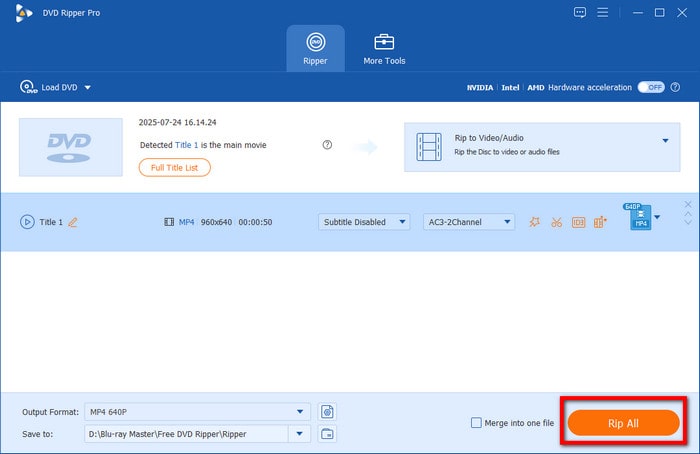
Finally, click the Rip All button to rip DVD. After a few seconds, the ripping process will be finished. Then, click the Open output folder button to find the ripped file.
Before ripping the DVD, you can edit the DVD from the main interface.
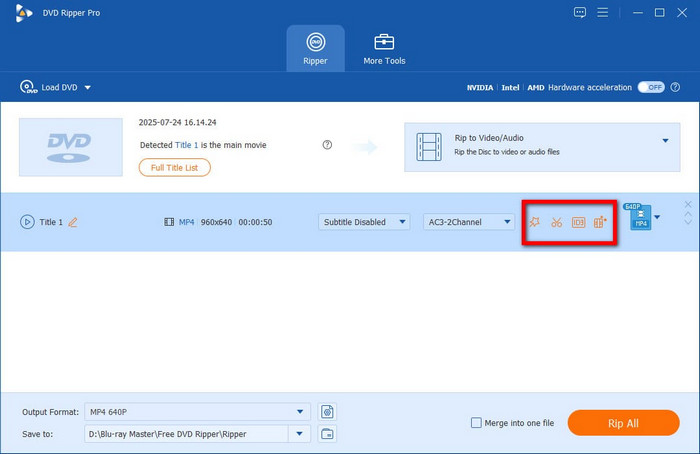
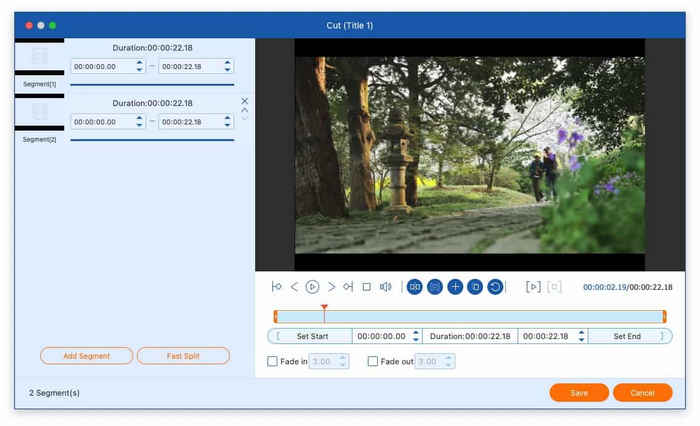
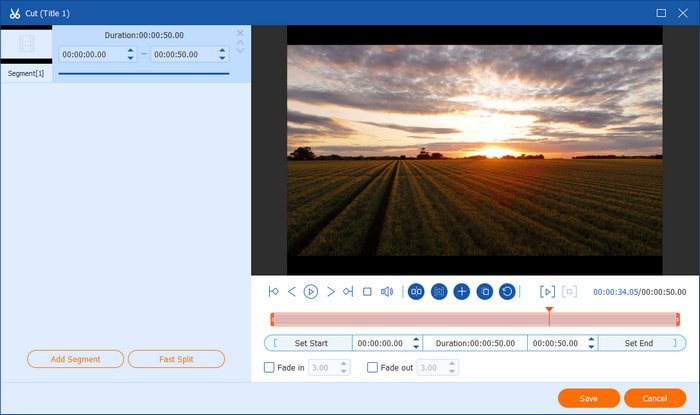
Click the scissors image, and then click Add Segment to split the video into two segments or more. Also, if you want to evenly cut a video file into multiple segments, this software can also assist you by setting the average time or the number of files.
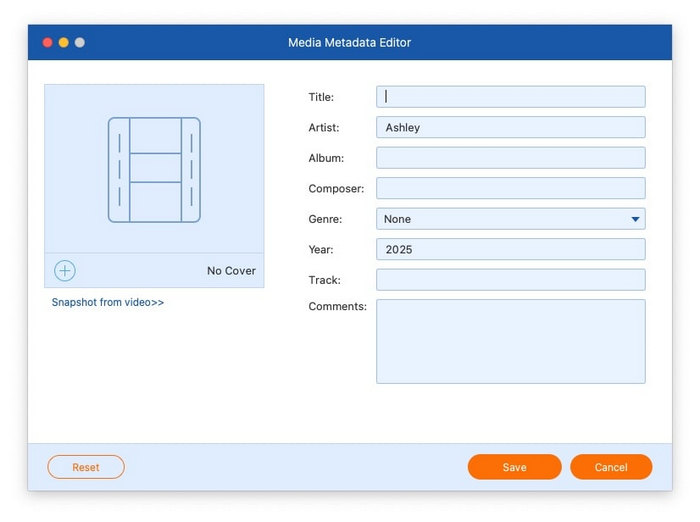
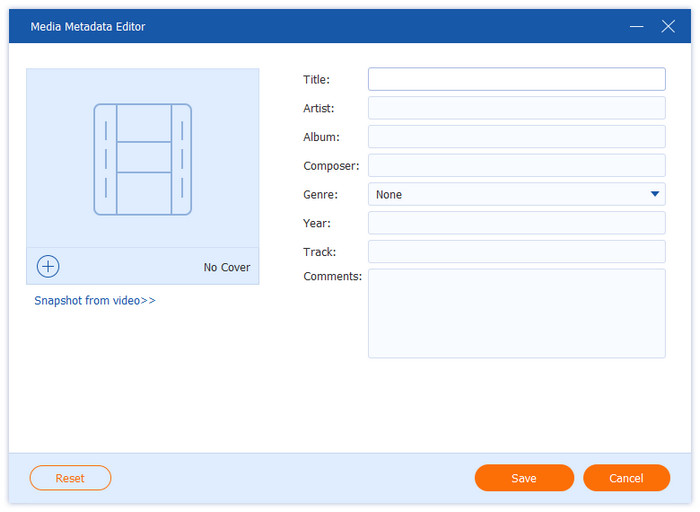
Click the button next to the scissors image, then you will enter the media metadata editor, where you are able to add a snapshot for the video. In addition, you can edit title, artist, album, composer, genre, year, track, and comments.
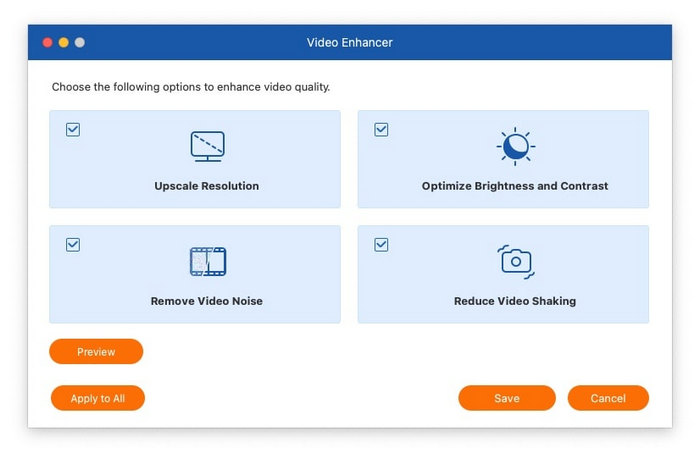
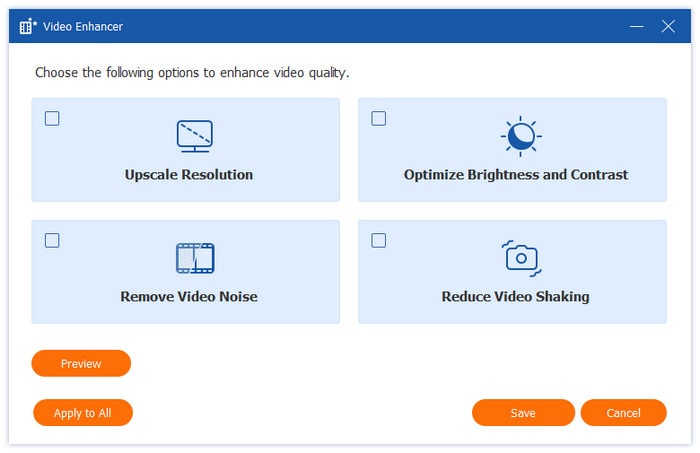
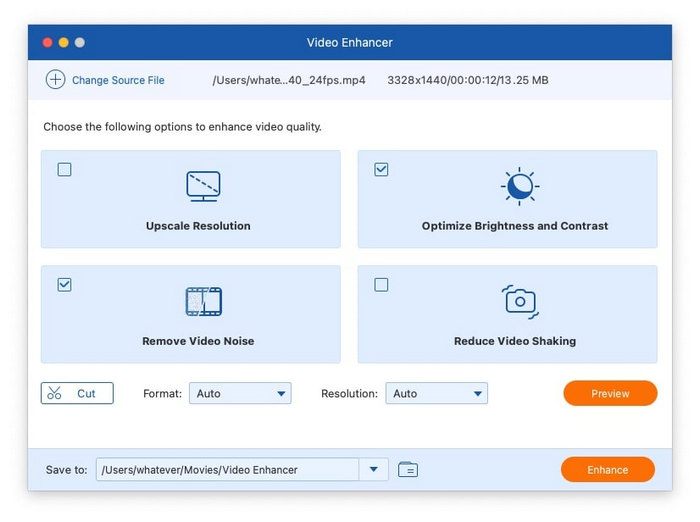
Click the last orange button, and then you will open the video enhancer. There are four options to choose from: Upscale Resolution, Optimize Brightness and Contrast, Remove Video Noise, and Reduce Video Shaking. After choosing the options according to your needs, you can preview the effects by clicking the Preview button.
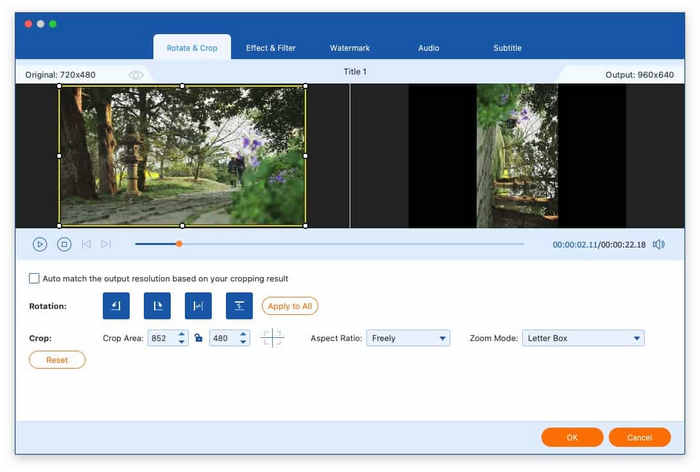
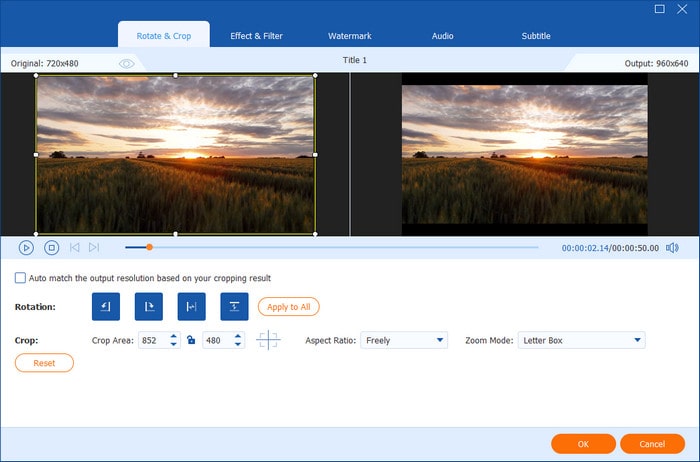
Click the first orange button, and then navigate to the Rotate&Crop tab. Here, you can rotate videos by 90, 180, or 270 degrees, flipping them horizontally or vertically. And you are allowed to choose the crop area or drag the mouse directly to crop the video. In addition, you can also change the aspect ratio and zoom mode.
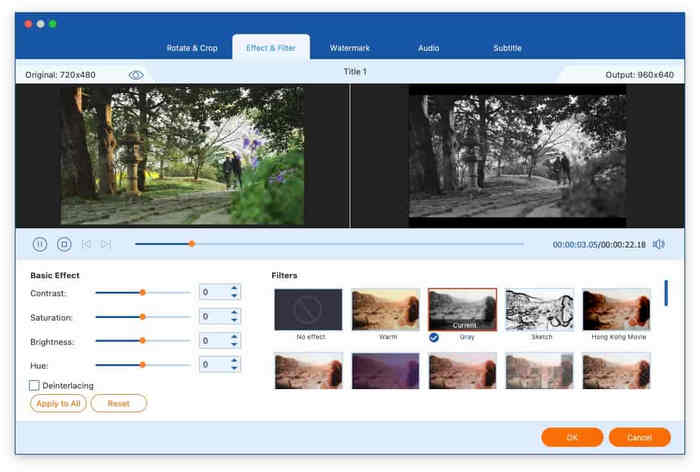
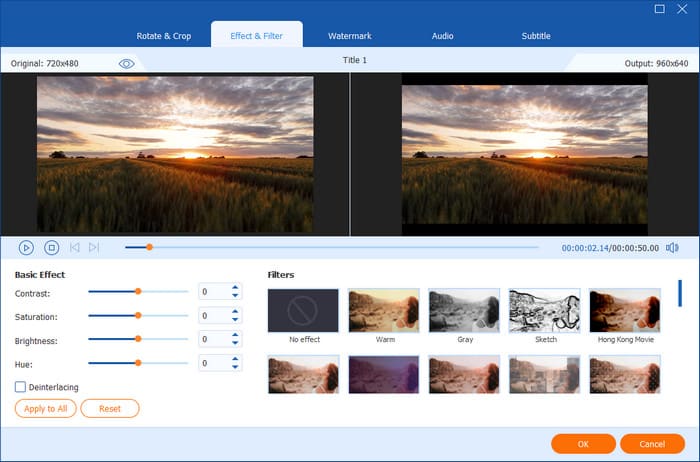
Click the first orange button, and navigate to the Effect&Filter tab. Then edit the contrast, saturation, brightness, and hue in the left section, and choose the filter in the right section.
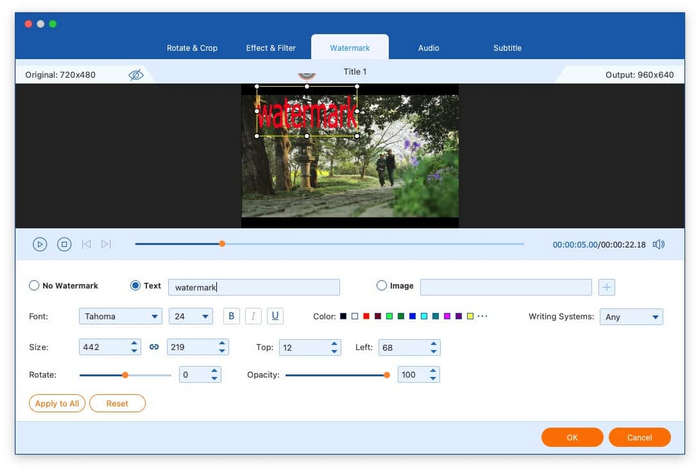
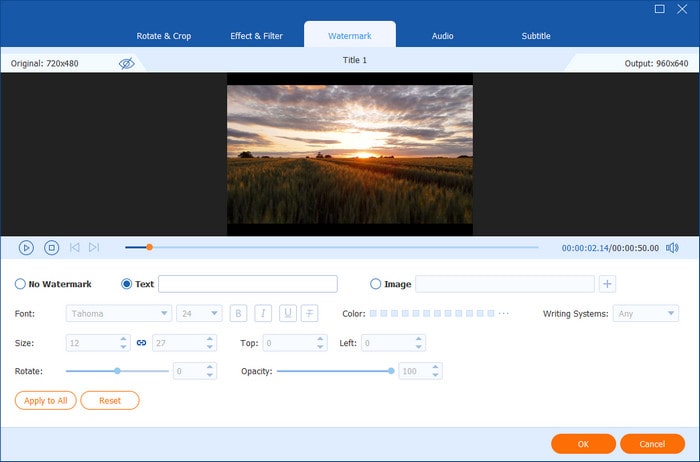
Similarly, click the first orange button, and select the Watermark tab. Then click the circle of Text or Image to insert a text or an image as your video watermark. And you can change the watermark’s position, color, size, and opacity.
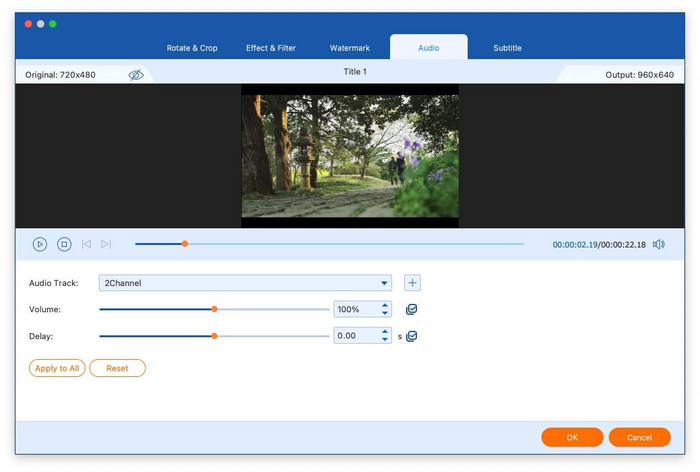
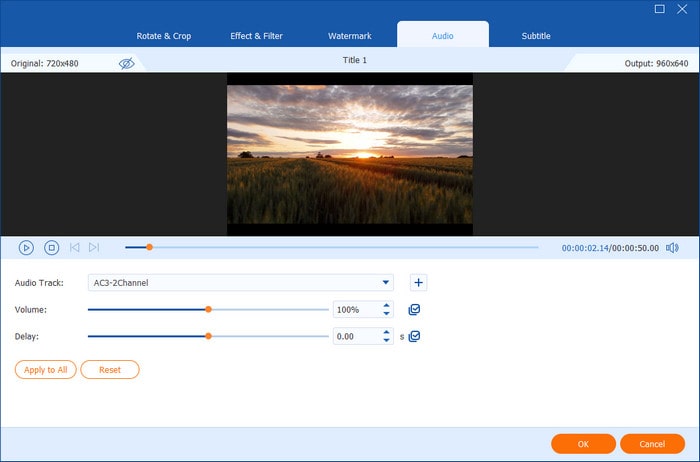
Click the first orange button and navigate to the Watermark tab to edit the audio track, volume, and delay.
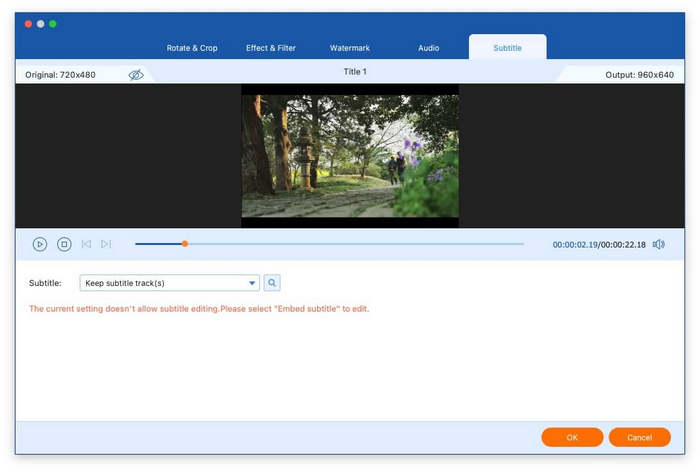
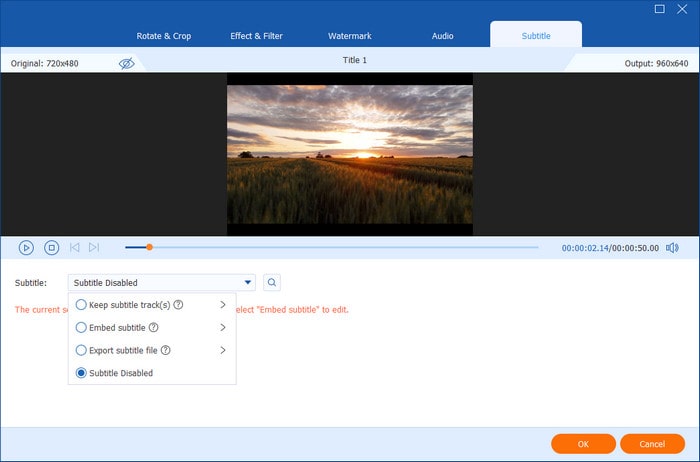
Click the first orange button and select the last tab, Subtitle. There are four choices about subtitle: exporting subtitle file, keeping subtitle tracks, embedding subtitle, or subtitle disabled.
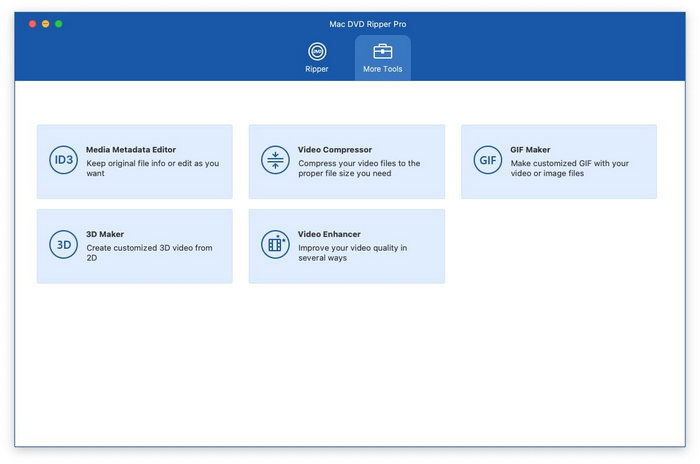
The additional feature of this DVD-ripping program is called More Tools. This tab allows you to compress large video files, edit media metadata, convert 2D videos into 3D customized videos, create GIFs from videos, and enhance the quality of your videos. Additionally, it offers four additional DVD and Blu-ray software programs that you can download and utilize if needed.
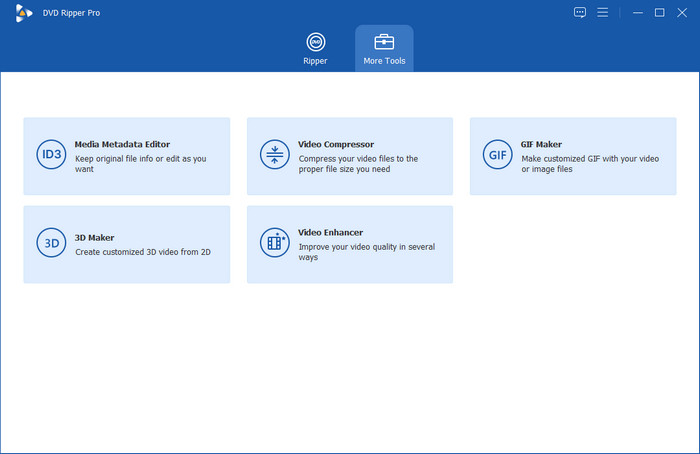
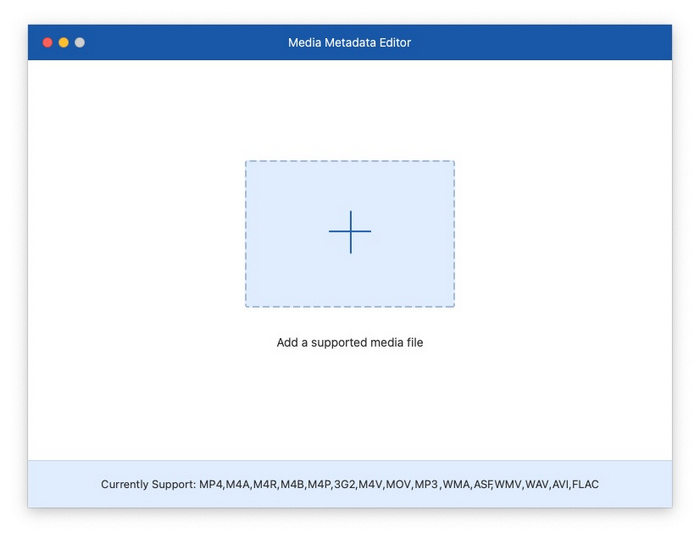
You can modify or preserve the original file information by using this media metadata editor.
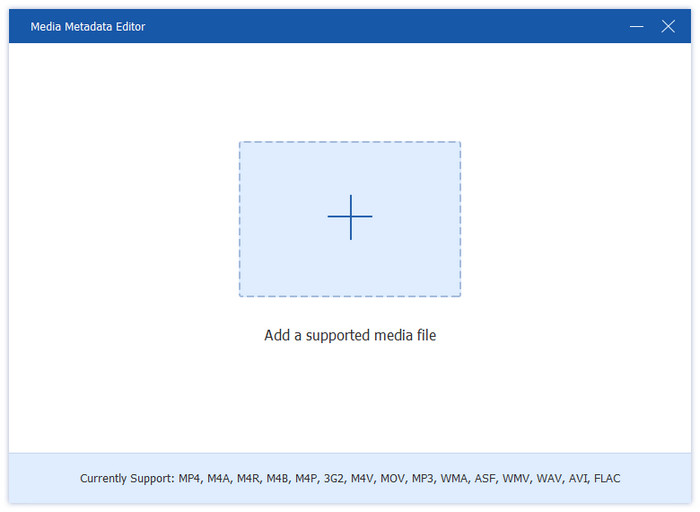
Step 1. Open the Media Metadata Editor, and add the video file you wish to edit.
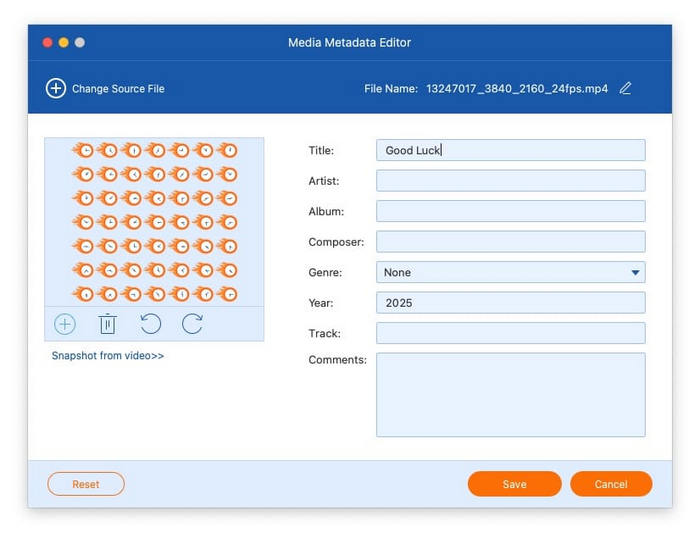
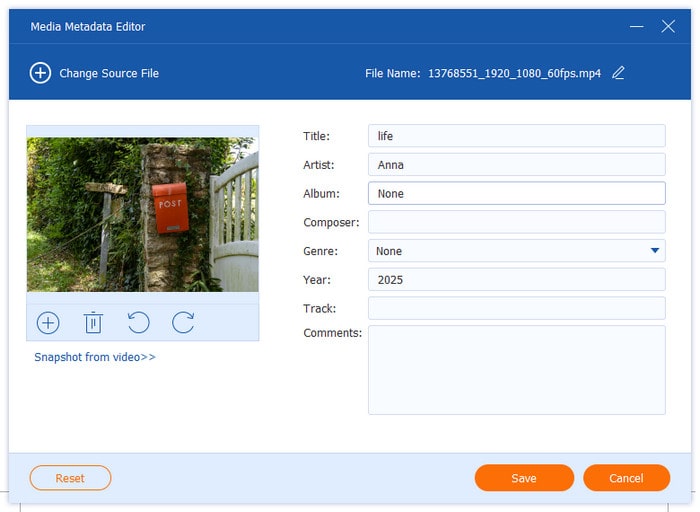
Step 2. After uploading the video file, you can start editing the video information like cover, title, artist, album, composer, genre, year, track, and comments.
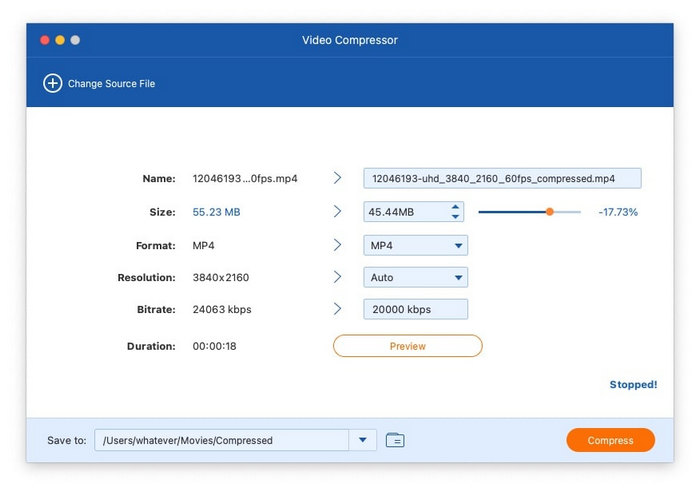
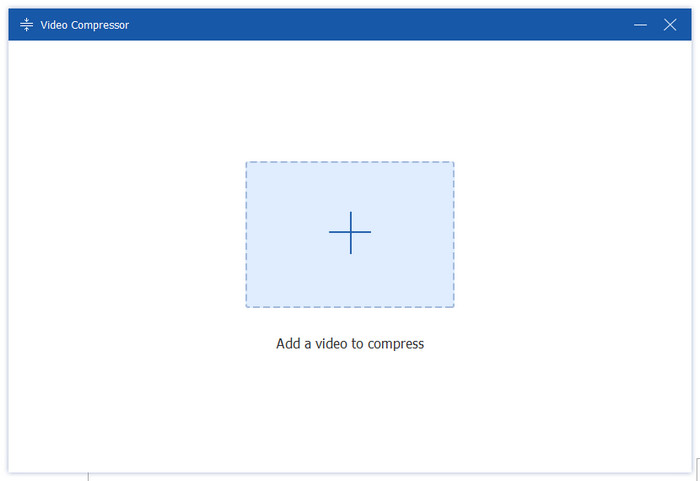
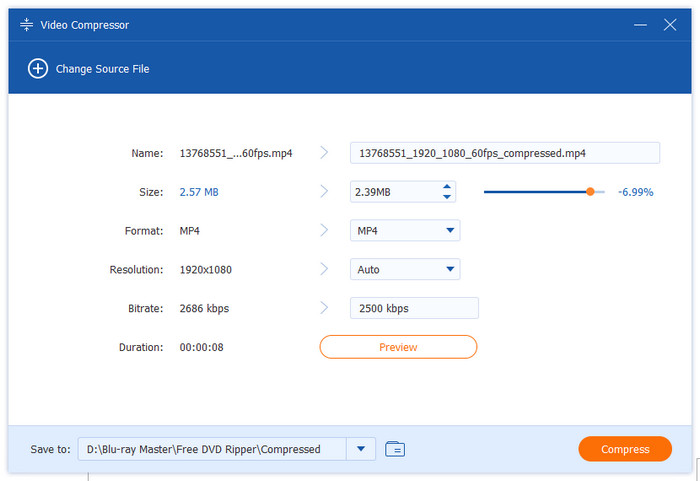
Free DVD Ripper has the ability to compress your video files into the proper file size you need.
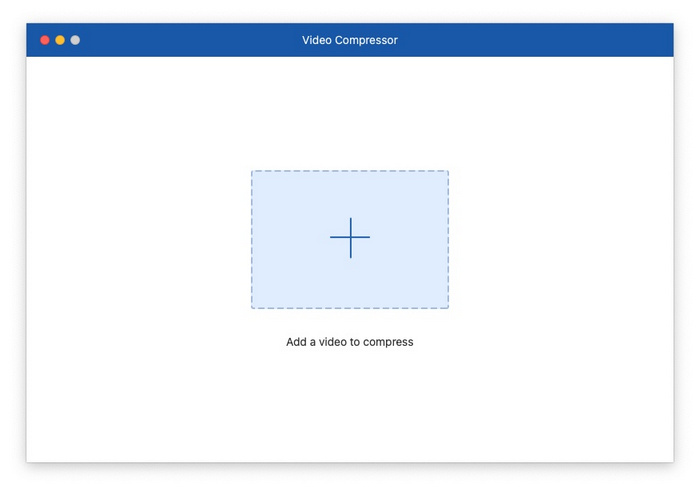
Step 1. Open the Video Compressor, and add a video that needs to be compressed.
Step 2. Choose the size, format, resolution, and bitrate for the compressed video. Also, you can edit the video’s name.
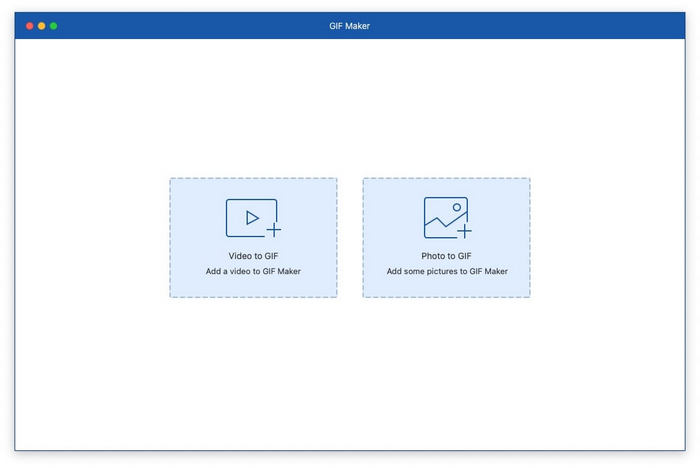
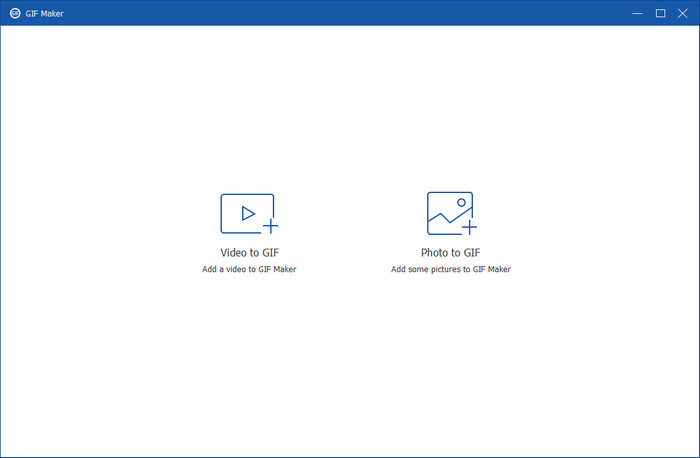
Free DVD Ripper supports turning your video clips or photos into eye-catching GIFs in seconds.
Step 1. Open the GIF Maker, and add the video or photo that you want to turn into a GIF.
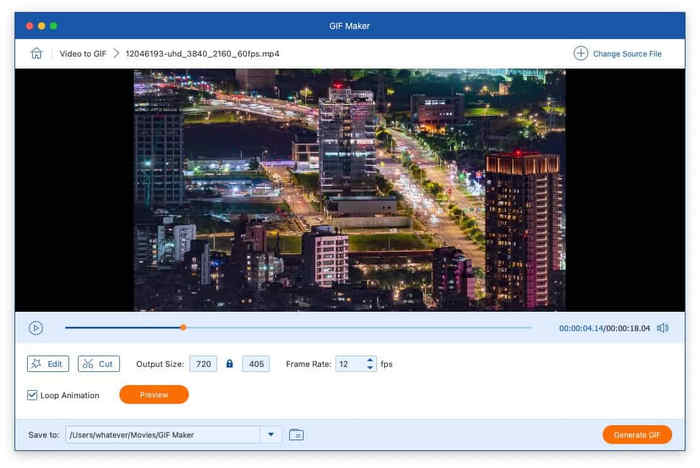
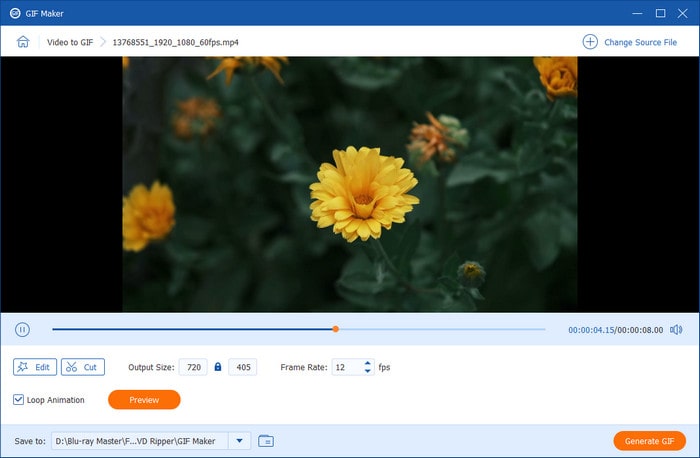
Step 2. Turn Video to GIF: Click Edit and Cut to alter video effects and remove extraneous portions. After that, you can begin turning the video file into a GIF by adjusting the output size, frame rate, and loop animation.
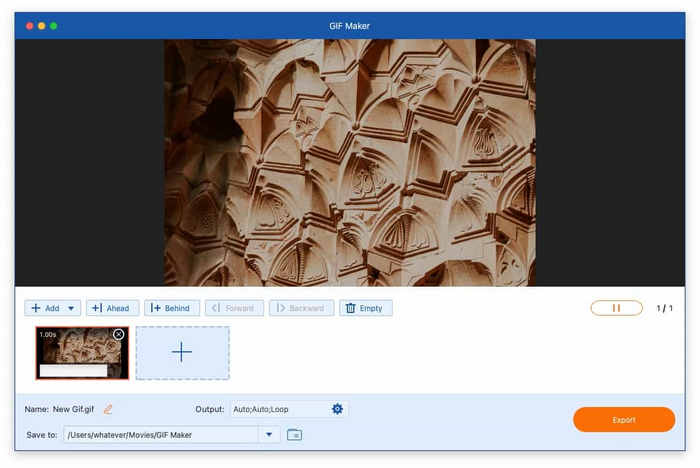
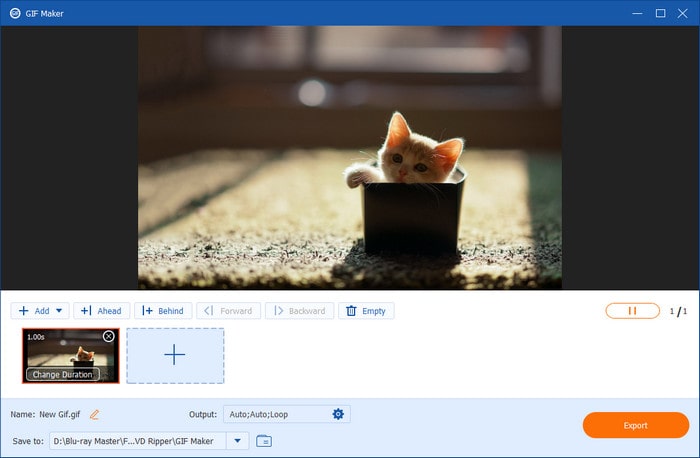
Step 3. Turn Photo to GIF: Click Add Photo to GIF to add a picture. Then, you can change the resolution, frame rate, and Zoom mode. Finally, click Export to finish the process.
You may make fashionable 3D videos with a variety of visual effects with the 3D Maker tool.
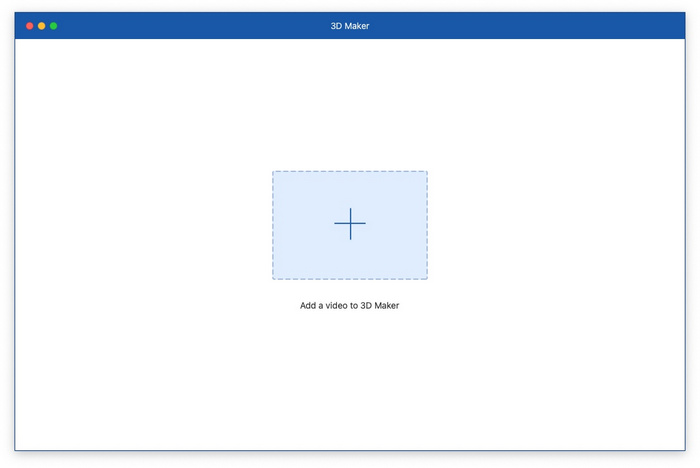
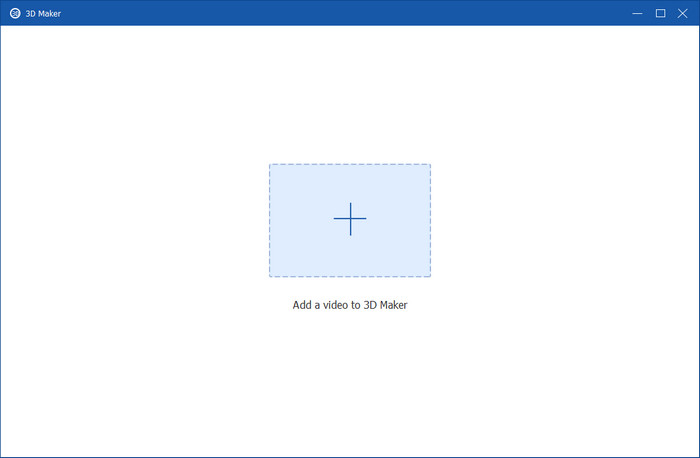
Step 1. Open the 3D Maker, and add a video file.
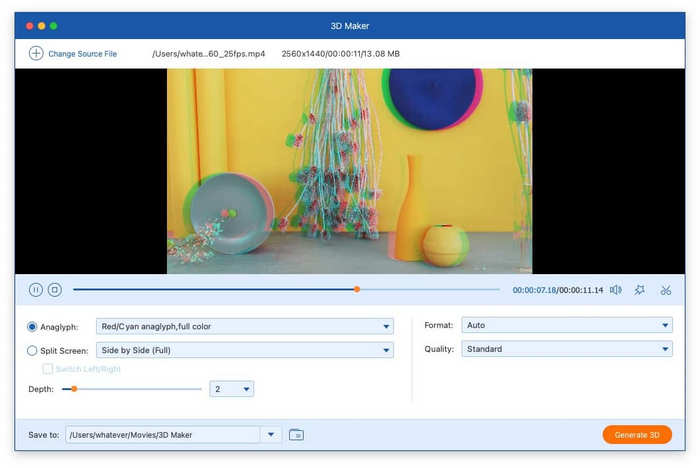
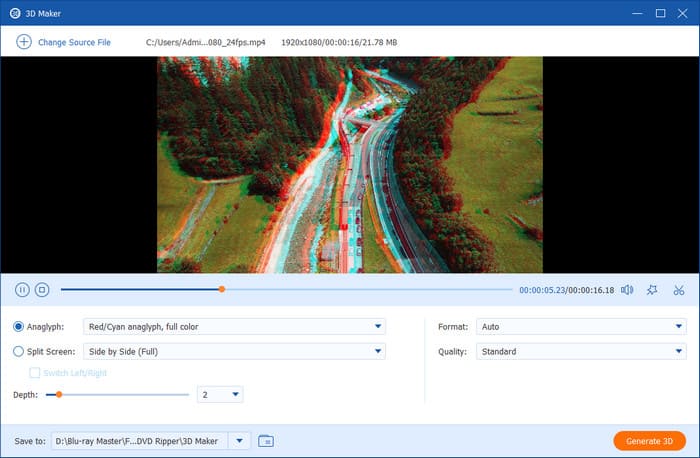
Step 2. Once the file has been uploaded, you have the option to split screen or select an anaglyph from the pre-set templates. After that, click Generate 3D to create a 3D movie after choosing the output format and quality.
Video enhancer is capable of improving your video quality in several ways.
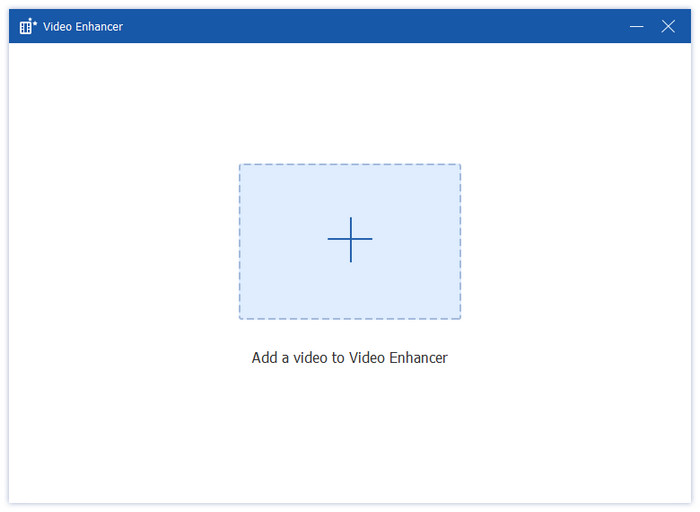
Step 1. Open the Video Enhancer, and add a video file.
Step 2. Upscale Resolution, Optimize Brightness and Contrast, Remove Video Noise, and Reduce Video Shaking are the four options available in the Video Enhancer window to help you improve the quality of your video file. Select a few to improve your video quality based on your needs. After that, you can choose the output format and resolution. Also, it supports preview before export.
Visit the official website to download Free DVD Ripper for Mac, then install it on your Mac by following the step-by-step on-screen guide provided. After that, open the software.
If your Mac version is older (pre-2012), it havs a built-in DVD drive. Therefore, you just need to place the DVD disc into the drive.
But if your Mac doesn’t have a built-in drive, you should get a compatible USB DVD drive, such as Apple USB SuperDrive or a third-party one. Then insert the DVD disc into the drive, and connect the external drive to your Mac.
To adjust the preference settings, click the Free DVD Ripper for Mac button located in the upper-left corner and select Preferences. Then a configuration panel will appear, which contains four distinct tabs: General, Ripper, Toolbox, and Task Schedule.
• General: The General tab contains basic program configurations. Here, you can select your preferred subtitle and audio languages, turn on hardware acceleration to improve performance, and set up automatic software updates. Additionally, this section allows you to select the temp folder and restore all the dialogs warning.
• Ripper: In the Ripper tab, you can choose between different DVD loading modes, set a default title list display format, and configure the output folder for converted files and snapshots. This section also allows you to adjust subtitle and audio settings, enable automatic source file deletion after conversion, and set the drive to eject discs once ripping is complete.
• Toolbox: The Toolbox tab provides customisation options for various utility functions. You can define separate output folders for different tools, including the compressor folder, the video to GIF folder, the 3D output folder, the enhancer folder, and the images to GIF folder. Other available options include enabling automatic playback of imported files and preserving the original creation dates of source files.
• Task Schedule: The final tab provides several options for what you want to do when the task is finished, including whether to beep when the task is finished, open the output folder, shut down the computer, sleep the computer, exit the program, or do nothing.
Step 1. Load DVD Files
To begin, click the Load DVD dropdown menu in the top-left corner. You will see multiple options: Load DVD Disc, Load DVD ISO, Load DVD Folder, Load AVCHD Disc, and Load AVCHD Folder. Then, choose the correct DVD formats you want to rip.
Step 2. Choose Titles
Once the DVD is loaded, the software will automatically scan and detect the primary title. You can choose to show between the Main Title and Full Title List, and click OK to proceed.
The program will then present a complete list of all available titles. You just need to click the checkbox next to each desired title, and then click Ok to confirm.
Step 3. Select the Output Format
Click the Output Format button in the bottom-left corner to select your desired digital format. The software provides three categories of output options:
• Video formats: Switch to the Video tab to browse supported video formats, such as MP4, MOV, MKV, AVI, and M4V. Upon clicking a format, you’ll see its encoder type, resolution, and quality.
• Audio formats: Navigate to the Audio tab to pick from various audio formats, including WAV, WMA, FLAC, AAC, and AC3. This is an ideal option if you only need to extract the soundtrack from your DVD.
• Formats based on device: For optimised playback, go to the Device tab, where you can select formats tailored for popular devices like Samsung, Apple, Sony, and Android devices. This ensures compatibility without manual adjustments.
If you want to further set your output file specifications, click the Output Format Settings button after selecting your preferred format, which allows you to fine-tune various parameters for both video and audio output.
For video output, you may adjust video quality, encoder, resolution, frame rate, and bitrate. For audio output, you can change the audio encoder, channel, sample rate, and bitrate.
Step 4. Rip DVD
Simply click the Rip All button to begin converting your DVD. Once finished, you may access your converted files by clicking the Open Output Folder button, where all successfully ripped content will be listed.
Before starting the ripping process, you can make adjustments to your DVD content directly from the main interface.
To split your video content, click the scissors icon and select Add Segment to divide the video into multiple parts. It also offers an automatic splitting function that can evenly distribute segments by either specifying duration intervals or choosing a fixed number of sections.
Click the button next to the scissors icon to access the metadata editor. Here you can add the video thumbnail and edit various details, including the title, artist, album, composer, genre, year, track, and comments.
Click the last orange button to access the video enhancement tool. This feature provides four adjustment options: Upscale Resolution, Optimise Brightness and Contrast, Remove Video Noise, and Reduce Video Shaking. After selecting your desired enhancements, use the Preview button to examine the improvements.
Click the first orange button and select the Rotate&Crop tab. This section enables you to rotate clips by 90, 180, or 270 degrees and apply horizontal/vertical flips. You can also manually select crop areas by dragging your mouse or choose predefined aspect ratios and zoom modes.
To apply visual adjustments to your video, click the first orange button and go to the Effect&Filter tab. In the left panel, you can fine-tune various parameters including contrast, saturation, brightness and hue. The right panel offers a selection of filters to enhance your video’s appearance with different visual styles.
Access the Watermark tab after clicking the first orange button. Then click the circle of Text or Image to insert a text or an image as your video watermark. And you can change the watermark’s position, colour, size, and opacity.
Click the first orange button and access the Audio tab, where you can adjust the audio track, volume level, and delay.
Click the first orange button and go to the Subtitle tab. Here you’ll find four configuration choices: exporting subtitle files, keeping subtitle tracks, embedding subtitles, or disabling subtitles.
The software includes a versatile More Tools section that expands its functionality beyond basic DVD ripping. This feature enables you to compress large video files, edit media metadata, convert 2D videos into 3D customised videos, create GIFs from videos, and enhance the quality of your videos. The section also provides access to four specialised DVD and Blu-ray software available for separate download, offering other capabilities when required.
The media metadata editor allows you to either change or preserve the existing file details of your videos.
Step 1. Open the Media Metadata Editor, and add the video file you wish to edit.
Step 2. Once loaded, you can edit various metadata fields, including the cover image, title, artist name, album information, composer, genre, year, track, and any additional comments.
Free DVD Ripper for Mac has powerful video compression capabilities to reduce your video files to your desired size.
Step 1. Open the Video Compressor, and add a video that needs to be compressed.
Step 2. Once loaded, you’ll be able to select your preferred output size, file format, resolution and bitrate. The compression tool also allows you to rename the output file.
Free DVD Ripper for Mac has a built-in GIF creator that lets you convert both videos and photos into animated GIFs with just a few clicks.
Step 1. To get started, launch the GIF Maker tool and import your source video file or photo.
Step 2. Turn Video to GIF: Click Edit and Cut to alter video effects and remove extraneous portions. After that, you can begin turning the video file into a GIF by adjusting the output size, frame rate, and loop animation.
Step 3. Turn Photo to GIF: Click Add Photo to GIF to add a picture. Then, you can change the resolution, frame rate, and Zoom mode. Finally, click Export to finish the process.
The 3D Maker tool enables you to create stylish 3D videos with multiple visual effect options.
Step 1. Launch the 3D Maker and import your desired video file.
Step 2. After loading the file, you can either use the split-screen feature or select an anaglyph from the pre-set templates. Finally, select your preferred output format and quality, then click Generate 3D to produce your customised 3D video.
The Video Enhancer feature provides multiple methods to significantly improve your video quality.
Step 1. Open the Video Enhancer and add a video file.
Step 2. The enhancement options include: Upscale Resolution, Optimize Brightness and Contrast, Remove Video Noise, and Reduce Video Shaking. Select the desired improvements, then choose your preferred output format and resolution.
> Free DVD Ripper > User Guide