

Oct 17, 2025Posted by Kevin Miller to Rip DVD
If you need to convert DVDs into MP4, MKV or other formats, HandBrake is an open source and well-known DVD ripper that supported by a developer community. It means you can use HandBrake to convert DVDs to digital formats without paying a penny.
How to rip DVDs with HandBrake, especially when you have a large collection of DVDs? Does HandBrake work with the protection DVDs? What are the best alternative solutions? Just find the right answer from the article now.

- Part 1. The Easy Guide to HandBrake Rip DVDs
- Part 2. Troubleshooting of HandBrake DVD Ripping
- Part 3. Top 2 HandBrake Alternatives for Ripping DVDs
- Part 4. FAQs of Ripping A DVD with HandBrake
Part 1. The Easy Guide to HandBrake Rip DVDs
Brief Instruction of HandBrake DVD Ripper
HandBrake is a versatile DVD Ripper available on Windows, Mac and Linux with extensive features. Except for the common video formats, you can convert DVDs to iPhone, iPad, Android phone and more other presets. Moreover, there is a wide range of custom options related to video, audio, chapter, titles and more. HandBrake DVD Ripper is always a nice choice for ripping your DVD collections.
Pros
- Rip a DVD to HQ videos up to 1080P, or iPhone, iPad and other presets.
- Free DVD ripper for all platforms without zero limitations, virus, or malware.
- Convert DVDs to digital formats in a batch process for multiple DVDs.
Cons
- Complicated to tweak and master the best output format for beginners.
- The hardware acceleration for DVD ripping is not available on Linux.
- Limited video formats and presets by default, MP4, MKV and iOS devices.
How to Use HandBrake to Rip DVD
Since HandBrake works consistently on Windows, Mac and Linux, the workflow is the same to use HandBrake to rip DVD on Mac, and other platforms.
Read on to see how to rip a video from a DVD.
Step 1.Put the optical disc into your DVD drive. Then launch the HandBrake DVD Ripper. If you do not have it, download the program from the official website and install it on your computer.
Step 2.Click the "Open Source" menu to open the source dialog and then select your DVD drive to import the DVD files. For encrypted DVDs, you need to install "libdvdcss" beforehand.
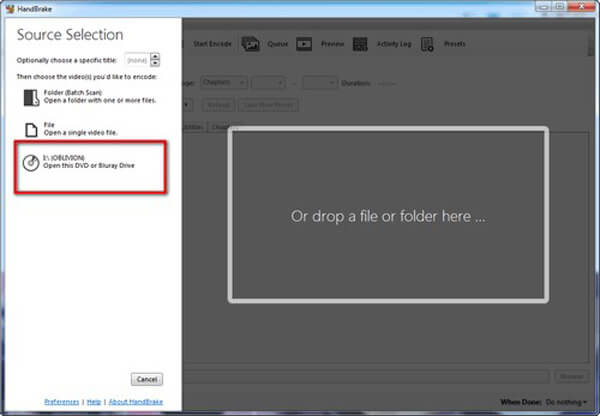
Step 3.If you want to rip the whole DVD, skip this step. Locate the "Title" area and select the desired chapter and title. The "Duration" area will tell you the length of the video.
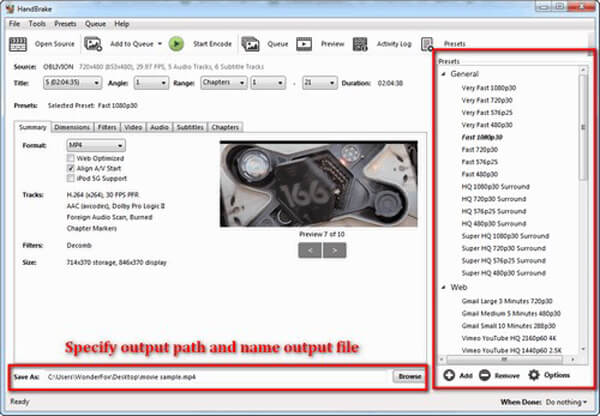
Step 4.Click the "Presets" menu on the top ribbon to expand the preset dialog. Select your preset option or the target portable device. Just check the desired one from the drop-down list.
Tips
It is not recommended to choose 720P or 1080P for ripping DVD with HandBrake. The resolution of PAL DVD is 576P and the resolution of NTSC DVD is 480P. Using presets with higher resolution will not upgrade DVD video quality. Moreover, the "Fast" and "Very Fast" presets will speed up the process but sacrifice some output quality.
Step 5.Go to the "Summary" tab, customize other options, such as Web Optimized and more, as well as look at the information of output videos. Next, go to the "Filters", "Video", "Audio", "Subtitle" and other tabs to get more custom options.
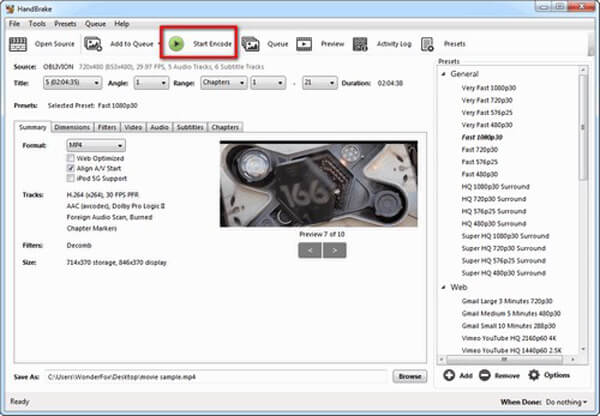
Step 6.Move to the bottom area, click the "Browse" button and select a location to store the DVD movies. Finally, go to the top ribbon and click the "Start Encode" button to begin ripping DVDs with HandBrake. Monitor the process bar and you can get the time remaining to complete.
Part 2. Troubleshooting of HandBrake DVD Ripping
HandBrake says "No valid source or titles found"
This usually means HandBrake can't read the DVD due to encryption or an unsupported structure. Install or update libdvdcss, try playing the disc in VLC to unlock it, or use MakeMKV to extract the content before converting with HandBrake.
HandBrake only rips part of the DVD
HandBrake may select the wrong title or encounter read errors. You can manually choose the correct title, use the preview scan to verify length, and consider ripping with MakeMKV first if the issue persists.
HandBrake crashes or freezes during scan
This can be caused by copy protection, damaged discs, or software bugs. Update HandBrake, ensure libdvdcss is installed, test the disc in VLC, and avoid running other heavy apps during the scan.
Libdvdcss not working or randomly stops
If libdvdcss is missing or outdated, HandBrake can’t decrypt DVDs. Download the latest version, and place it in the correct folder.
Part 3. Top 2 HandBrake Alternatives for Ripping DVDs
| System Compatibility | Ease of Use | Decrypt Ability | Processing Speed | Output Formats | Output Quality | Other Features | |
| HandBrake | Windows, Mac, and Linux |
|  (with Libdvdcss) (with Libdvdcss) | Slow | MP4, MKV, and WebM | Moderate | Multiple presets and customization settings. |
| Blu-ray Master Free DVD Ripper | Windows and Mac |
| | Moderate | MP4, MKV, MOV, FLV, etc. | Good | Rich editing tools for adjusting video effects. |
| AnyMP4 Video Converter Ultimate | Windows and Mac |
| | Fast | MP4, MOV, AVI, M4V, and more | Good | A wide range of video and audio tools for you to use. |
HandBrake DVD Ripper should always be a nice solution for ripping DVDs. But if you have a large collection of DVDs, the complicated process and settings, and limited presets should take a large amount of time. Here are the two HandBrake alternatives to rip DVDs.
Free DVD Ripper – Best Free HandBrake DVD Ripper Alternative
Blu-ray Master Free DVD Ripper is a free HandBrake DVD Ripper alternative, which is able to rip DVD disc/movie to MP4, AVI, MKV and more other 200 formats with a super fast speed and a high quality. It helps you backup and commercial DVD movies with ease.
- Rip DVD and commercial DVD to MP4, AVI, MKV, etc.
- Convert DVD to presets for iPhone, iPad, Android phone or tablet.
- Optimize output videos automatically using the advanced algorithm.
- Easily customize and edit profile effects via the free DVD ripper.
Free Download
For Windows
Secure Download
Free Download
for macOS
Secure Download
Step 1.Download and install Free DVD Ripper on your computer. Open the program and insert the disc into the drive. Click "Load Disc" and select the DVD you want to convert.

Step 2.Go to the Output Format to open the profile list and choose a preferred video format. There are MP4, MKV, AVI, MOV, FLV, etc.
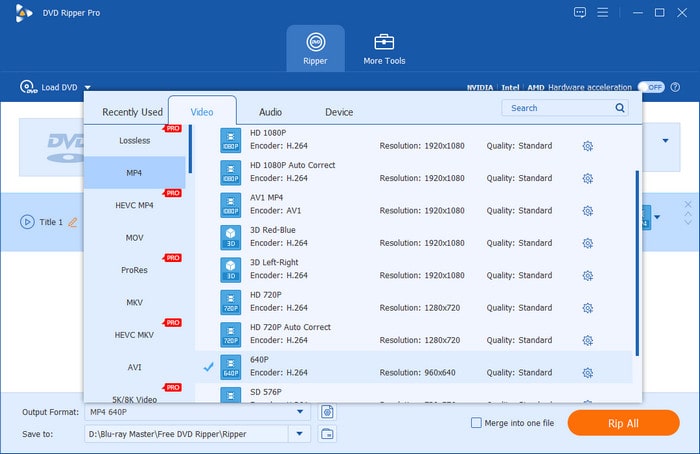
If you want to edit DVD videos, you can choose the Edit button to enter the corresponding interface to adjust filters, effects, subtitles, etc.
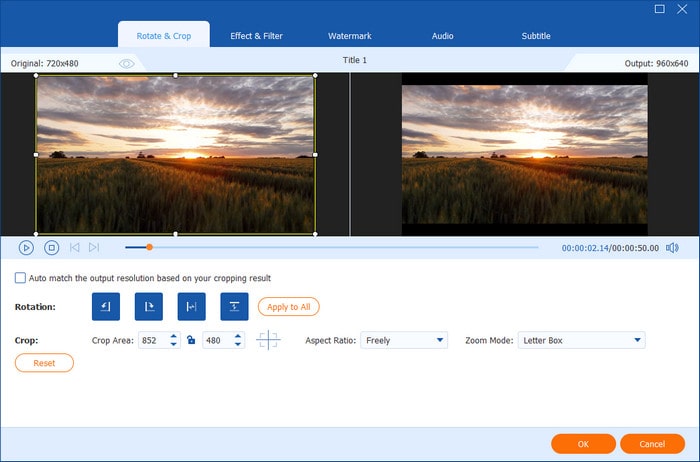
Step 3.Finally, hit the "Rip All" button to start. The ripping process will be completed within a few minutes.
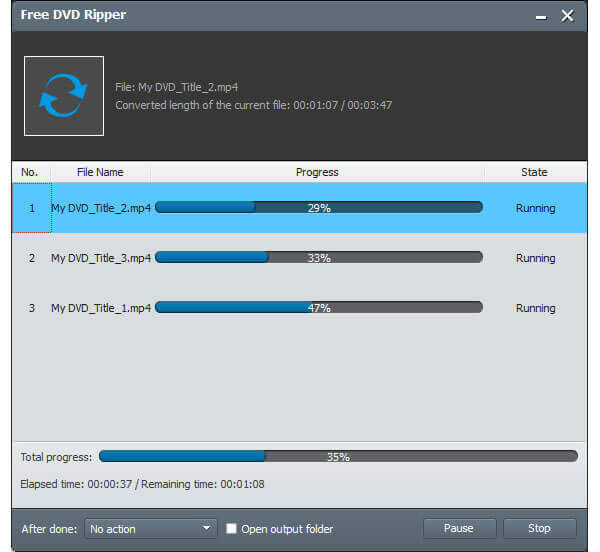
AnyMP4 Video Converter Ultimate – Professional HandBrake DVD Ripper Alternative
AnyMP4 Video Converter Ultimate is a professional DVD ripper provides more advanced features. As a professional alternative of HandBrake DVD ripper, it is able to convert DVD to 4K/HD/3D videos and more than 200 video formats. Moreover, it has advanced editing features to clip, crop, rotate, add watermark, adjust brightness and more.
- Extract videos from any DVD to more than 200 video/audio formats, like MP4, AVI, FLV, etc.
- Rip movies from optical discs to digital videos up to 4K and full HD.
- Integrate extensive video editing tools for modifying DVD videos simply.
- Tweak audio track, subtitle, video and audio codec, and so on.
Free Download
For Windows
Secure Download
Free Download
for macOS
Secure Download
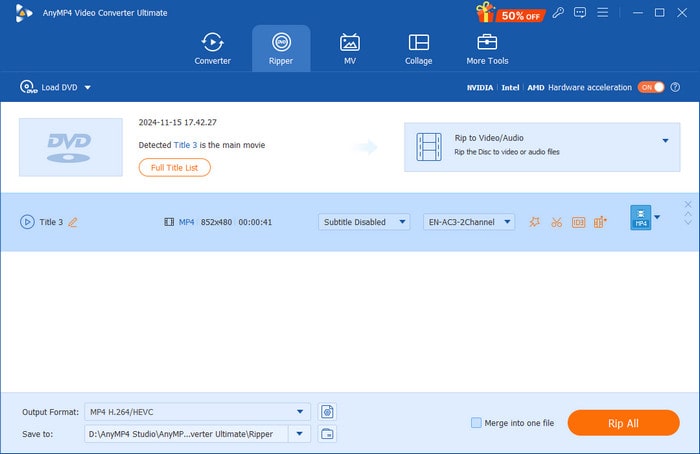
Step 1.Download and install this HandBrake DVD Ripper alternative, launch the program, and choose the Ripper section in the top menu.
Then, click the Load Disc button to upload the DVD you want to convert.
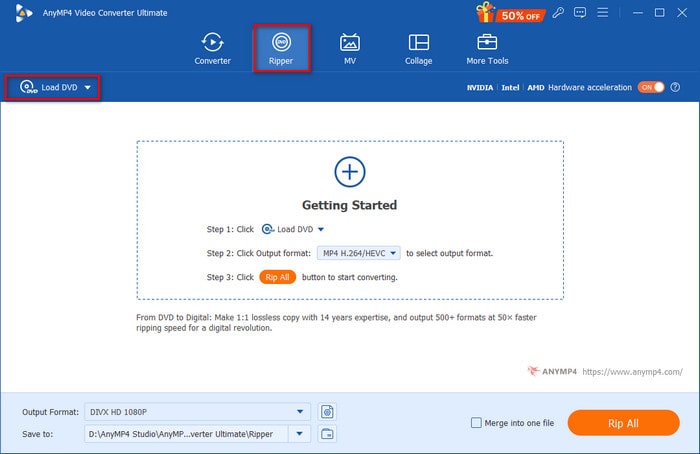
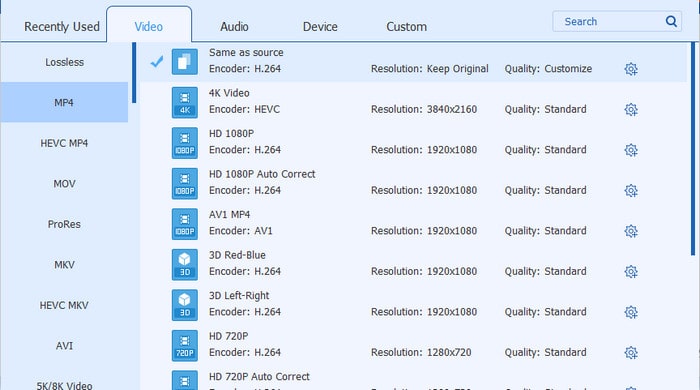
Step 2.Choose one format profile from the Output Format drop-down list. Here, we choose the MP4, Same as source profile.
Note: You can click the gear icon to customize the output parameter easily.
Step 3.Lastly, set the destination folder for the ripped videos, and choose Rip All to begin the conversion.
Note: If you need, you can use its various video editing features to adjust the videos.
Part 4. FAQs of Ripping A DVD with HandBrake
-
Can HandBrake convert DVD to MP4?
Yes. HandBrake is a popular DVD ripper, which is able to rip DVD to popular video formats. So you can use HandBrake to convert Your DVD disc to MP4 video format.
-
Can HandBrake convert DVD to MKV?
Yes, HandBrake is also able to convert your DVD to MKV format. You just need to download and install it on your computer, and you can free rip your DVD to digital video format.
-
What is the best setting for HandBrake ripping a DVD?
The recommended settings for an H.264 (x264) video encoding (which is the default on Handbrake) is RF (Rate Factor) 18 to 22 for Standard Definition. For higher definitions, you can play with the Quality bar, 19 to 23 for High Definition, RF 20 to 24 for Full High Definition and 22 to 28 for Ultra High Definition.
-
Can HandBrake rip protected DVDs?
No. In fact, Handbrake doesn't decrypt any protected DVD. Handbrake can rip a DVD that is not protected, but the reality is that most of DVDs you purchase in the store are copy-protected.
Conclusion
When you want to rip DVDs with HandBrake on Windows, macOS, and Linux, here is the ultimate guide you should know. As an open-source DVD ripper, HandBrake is a good approach to convert your DVD to digital videos. But there are some limitations for HandBrake, such as the protection, limited video formats and presets, and more others. As for the case, you can take Free DVD Ripper or AnyMP4 Video Converter Ultimate into consideration. If you have any queries about how to use HandBrake to rip DVD, you can share more detailed information in the comments.
More from Blu-ray Master
HandBrake Solutions

Fast and free ripping software to decrypt all DVDs to digital easily on your computer.
100% Secure. No virus
