

Jul 10, 2025Posted by Kevin Miller to Copy DVD
Copying DVDs to DVDs remains a common practice for many users with extensive DVD collections. They usually do it to back up their physical discs, preserve personal videos, or shift content into a portable format. This way, they can enjoy their media on different devices without relying on the original disc. Whatever the purpose, having a reliable method for copying DVDs to DVDs can be incredibly useful. However, the process isn't always straightforward. Encryptions and users may have different goals. Additionally, Windows and Mac have different built-in tools and system requirements, which adds to the complexity. This post will cover best practices to copy DVD to DVD on Windows and Mac. We will introduce third-party and built-in tools you can use for free. No matter your system, you can achieve reliable, cost-free DVD duplication.

- Part 1. Understanding the Basics of DVD Copying
- Part 2. How to Free Copy DVD to DVD on Windows
- Part 3. How to Free Copy DVD to DVD on Mac
- Part 4. FAQs about Copying DVD to DVD
Part 1. Can you Withdraw the Video from the DVD
What You'll Need
Original DVD
It is the disc that contains the content you want to copy. It may be a data disc, personal videos, home movies, or even a commercial DVD. However, commercial DVDs may contain copy protection or region codes that require specialized software to bypass.
A Blank DVD
A blank disc is used to create a physical copy of a copied DVD. These come in several types: DVD-R/DVD+R (write-once discs) and DVD-RW/DVD+RW (rewritable discs). You can also use DVD+R DL/DVD-R DL, also known as Dual-Layer DVDs, which can hold up to 8.5GB of data.
Computer with DVD Drive (Built-in or External)
You'll need a DVD-ROM drive to read the original disc and a DVD-writer drive to burn the content onto a new blank DVD. Most modern computers don't come with internal DVD drives. Therefore, you may need an external DVD drive, which can be easily found in the market.
DVD Copying Software
It is a program that allows you to . These tools are designed to read the content of the DVD and write it to another disc. Some models have additional functionality that allows you to save the DVD video in an ISO file or a VIDEO_TS folder.
Key Concepts Explained Simply
Ripping vs. Burning
Ripping is the process of extracting data from a DVD and saving it onto your PC. Conversely, burning is the opposite: it writes and records data onto a blank DVD. However, without ripping, you won't be able to copy and burn those files back to a disc to create a duplicate. Simply put, ripping is the process of copying data from a DVD to a computer, and burning is the process of copying data from a computer to a DVD.
ISO Images
An ISO image is a replica of a DVD's contents packed into a single image file. It retains the original file structure, menus, subtitles, and all other features exactly as they are on the physical disc. ISO files are especially useful because they can be burned to a blank DVD later to create an exact copy. Think of it as a digital backup of the physical disc.
Copy Protection
Most commercial DVDs include copy protection such as CSS, region codes, and encryptions. It is to prevent unauthorized duplication and distribution of movies. You'll need advanced DVD copying software that can bypass these restrictions to perform DVD copying.
Part 2. How to Free Copy DVD to DVD on Windows
The DVD Copy is the preferred choice for Blu-ray Master to copy DVDs to DVDs. It lets you clone exact 1:1 copies or compressed copies of DVDs to blank discs. It supports multiple outputs, including blank discs in various formats such as DVD-R, DVD+R, DVD-RW, and DVD+RW. Additionally, you can save them as VIDEO_TS folders or back them up as ISO files.
Moreover, DVD Copy enables both full DVD duplication and selective copying. It offers three main copy modes: Full Copy, Main Movie, and Custom Mode. What's more, it can bypass DVD protection and region codes effortlessly. This software can output the resulting file close to the original disc, all without compromising the source.
Here's how to copy DVD to DVD on Windows:
Step 1.Start by downloading the DVD Copy software, recommended by Blu-ray Master, for free. Be sure to click the correct download button for your Windows and finish the installation. Once completed, place the source disc on the DVD drive and run the software.
Free Download
For Windows
Secure Download
Free Download
for macOS
Secure Download
Step 2.Click the Source field and select your DVD drive to add the source DVD. In addition to physical discs, you can also import a VIDEO_TS folder or ISO file. Move to the Target field and select the second drive containing your blank disc.
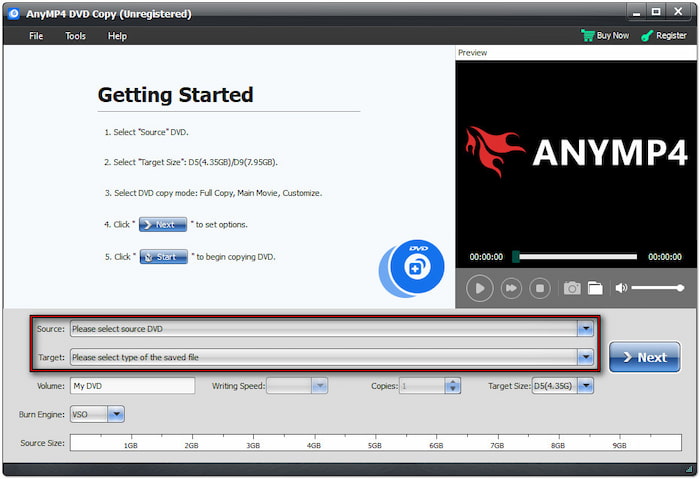
Professional Tip: For direct disc-to-disc copying, your computer should have two DVD drives. Otherwise, backup the source DVD as a VIDEO_TS folder or ISO file for the meantime.
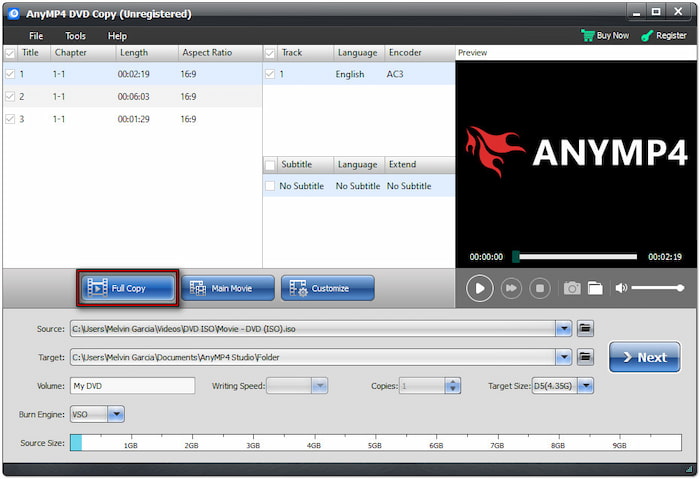
Step 3.Choose your preferred copy mode: Full Copy, Main Movie, and Custom. Full Copy clones the entire DVD structure, Main Movie copies only the main title, and Custom allows the selection of specific titles or chapters. For exact duplication, select Full Copy, then click Next.
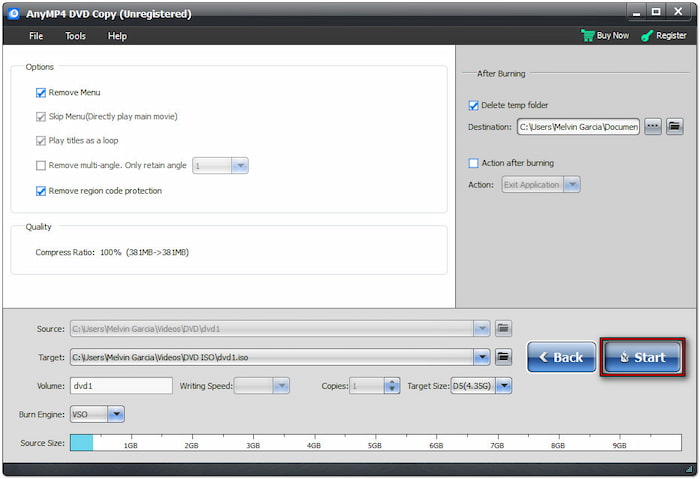
Step 4.In the following window, configure other DVD settings based on your preferences. You can remove menus, skip menus, play titles in loop mode, and more, including multi-angle and region-code protection. After reviewing your preferences, click Start to initiate the DVD-to-DVD cloning process.
DVD Copy, preferred by Blu-ray Master, provides a convenient solution to clone DVD to DVD. This DVD cloner can copy DVD content from physical discs to create a new disc or save them as an ISO or VIDEO_TS folder. Best of all, it works with most DVD readers and writer drives.
Part 3. How to Free Copy DVD to DVD on Mac
How do I copy a DVD to a DVD? Mac's built-in Disk Utility app lets you copy a DVD to another DVD freely and easily. This application works best for data DVDs, personal videos, home movies, and any other unprotected discs. However, it won't work on commercial and encrypted DVDs.
Step 1.Insert the source DVD into your Mac's built-in or external disc drive and run Disk Utility. In the left navigation under the External section, click your disc drive to select your DVD as a source. Next, click File, select New Image, then click [Image from Your Drive Name]
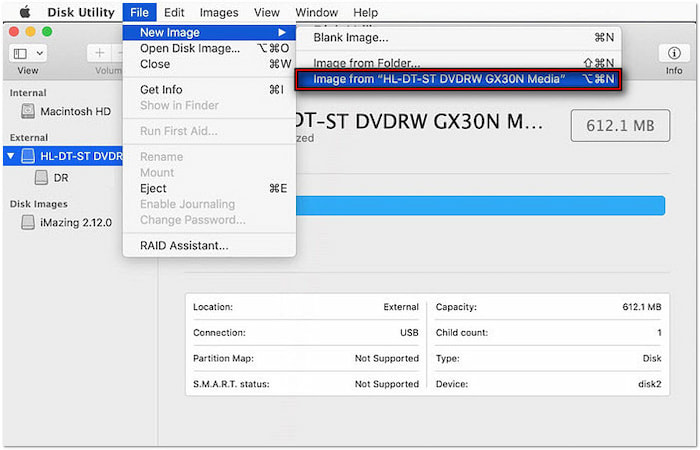
Step 2.In the next window, enter a name for the DVD duplicate in the Save As field. Meanwhile, select a temporary output directory of the DVD in the Where field. Proceed to the Format field and change the read-only option to DVD/CD Master.

Step 3.After setting up everything, click the Save button to begin the DVD copying process. Disk Utility will now begin ripping the DVD and saving it in the directory you selected. Once the ripping is completed, eject the source DVD from your disc drive.
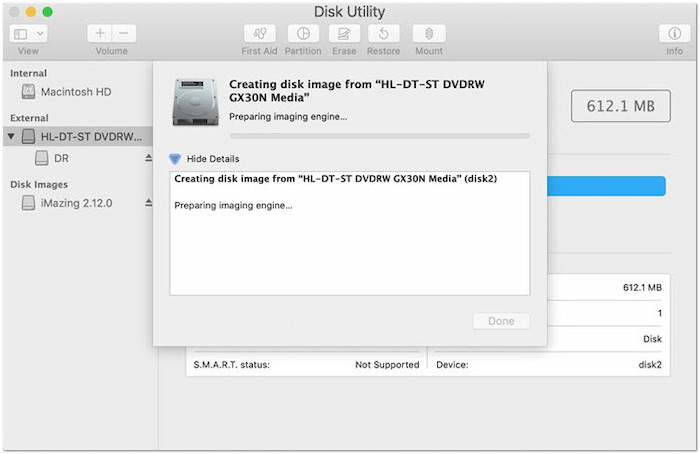
Step 4.Put the blank DVD into your Mac's built-in or external disc drive. Navigate to the output directory you set earlier and right-click the disk image (.cdr file). Select Burn [disc name] to Disc… to open the burning option window. Click Burn to complete the DVD copying.
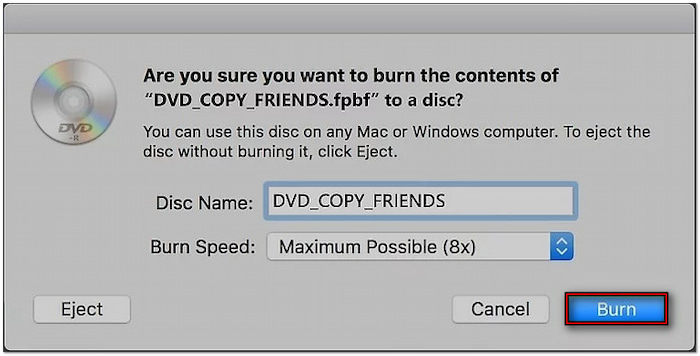
The Disk Utility app offers an effective solution to copy DVDs to DVDs on Mac. Although it doesn't support copy-protected DVDs, it works smoothly for unprotected content. No third-party DVD copy software is required, and Mac handles everything from ripping to burning.
Part 4. FAQs about Copying DVD to DVD
-
Can you just copy and paste a DVD to your Mac?
Yes, you can copy and paste a DVD to a Mac, but only if it is unprotected. Right-click the DVD drive, and copy and paste the VIDEO_TS folder to a new directory on your Mac. If it works, you should be able to access .VOB (video), .IFO (navigation), and .BUP (backup) files.
-
Can you tell if a DVD has been copied?
Yes, you can spot a copied DVD, known as a pirated DVD, by its physical quality and packaging. Illegally copied DVDs have poor labels and are distributed in plastic instead of proper cases. Sometimes, they include no region code or a ALL region designation.
-
How to tell if a DVD is copy-protected?
The most straightforward way to determine if a DVD is copy-protected is to check the packaging. Most commercial DVDs include phrases like Protected by copyright. This disc uses copy protection technology or a list of copy protections.
Wrapping up
Learning how to copy DVDs to DVDs is an effective way to preserve your physical media. Whether you're using a Windows PC or a Mac, there are free and reliable tools available to help you. For the most efficient experience on Windows, use DVD Copy, the trusted software endorsed by Blu-ray Master. It handles copy protections, supports all major DVD formats, and delivers high-speed duplication with excellent quality.
More from Blu-ray Master
