

Jul 24, 2025Posted by Kevin Miller to Copy Blu-ray
Blu-ray discs offer high-definition video and audio quality, so it's no surprise they can take up a large amount of storage space. For those looking to save storage space, create smaller backups, or make Blu-ray content more portable, compressing a Blu-ray becomes a practical solution. However, a common concern many face when compressing Blu-rays is the loss of quality. Blu-ray content is prized for its clarity, so naturally, users want to shrink the file size without compromising the quality. This post aims to help you compress Blu-rays without losing quality. Whether you're backing up a BD-50 to BD-25 or converting Blu-ray to a digital format, you'll find the right tools and techniques here.

- Part 1. Understanding Blu-ray Compression
- Part 2. How to Compress Blu-ray (Lossy Method)
- Part 3. FAQs about Compressing Blu-rays
Part 1. Understanding Blu-ray Compression
Blu-ray discs come in different storage capacities, mainly BD-25 and BD-50. BD-25 is a single-layer disc that can hold up to 25GB of data. It is commonly used for standard Blu-ray movies and backups. Meanwhile, BD-50 is a dual-layer disc that can store up to 50GB of data. It's ideal for longer movies, higher bitrates, multiple audio tracks, and bonus content.
In the context of Blu-ray compression, two main types are used: lossless and lossy. Lossless compression keeps 100% of the original quality. It reduces file size without discarding any data. Lossy compression, on the other hand, minimizes file size by removing data that is typically imperceptible to the viewer. It is common when re-coding Blu-rays, like converting BD-50 to BD-25 or ripping to a digital media format.
Part 2. How to Compress Blu-ray (Lossy Method)
Compress BD 50 to BD 25 Directly Without Losing Quality
Blu-ray Master Free Blu-ray Copy is a highly efficient software that enables you to compress Blu-ray without losing quality. This Blu-ray compression software can help you create a compressed copy of a BD-50 disc to a BD-25 disc. It supports copying Blu-ray discs to Blu-ray discs, Blu-ray discs to BDMV folders, and Blu-ray discs to ISO files. It offers four copy modes: Full Disc, Main Movie, Clone, and Write Data. It can also handle Blu-ray DRM protections, such as AACS, BD+, and region codes efficiently. Additionally, it features a fast copying speed of up to 6 times.
Step 1. Begin by downloading the Blu-ray Master Free Blu-ray Copy for free. Install the BD-50 to BD-25 compression tool and allow the installation process to complete. Once finished, insert the BD-50 disc into the external Blu-ray drive and run the software.
Free Download
For Windows
Secure Download
Step 2. Navigate to the File tab and choose Load Blu-ray Disc to load the BD-50 disc. Beyond physical Blu-ray discs, you can also import BDMV folders. During the disc reading, ensure your system is connected to the internet to decrypt copy-protected Blu-rays.
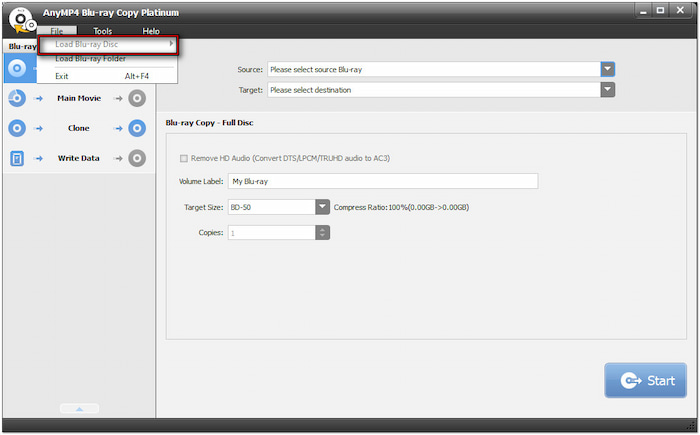
Step 3. Following that, select a copy mode: Full Disc, Main Movie, Clone, or Write Data. To compress the entire disc, select the Full Disc mode. Move to the Target field and select your second Blu-ray drive, which contains the blank BD-25.
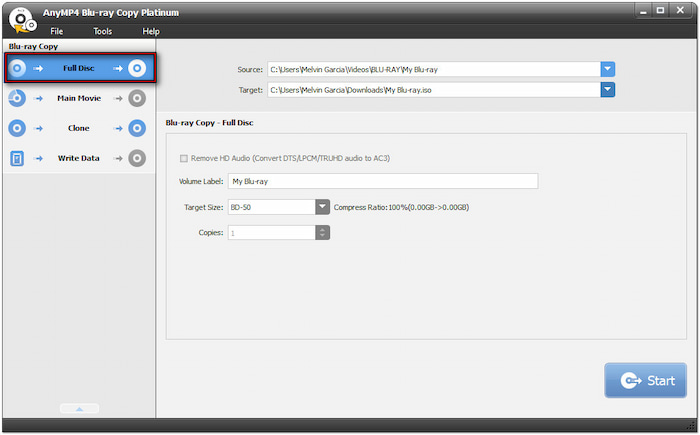
Professional Tip. I If you have only a single Blu-ray drive, save the copied Blu-ray to an ISO file first. Then, burn the created ISO into a BD-25 later.
Step 4. Proceed to the Volume Label field and enter a file name for your Blu-ray. Next, change the default option of the Target Size to BD-25. Once all settings are configured, click the Start button to start compressing the BD-50 to BD-25. The software will analyze the content and compress it accordingly while preserving high-definition quality.
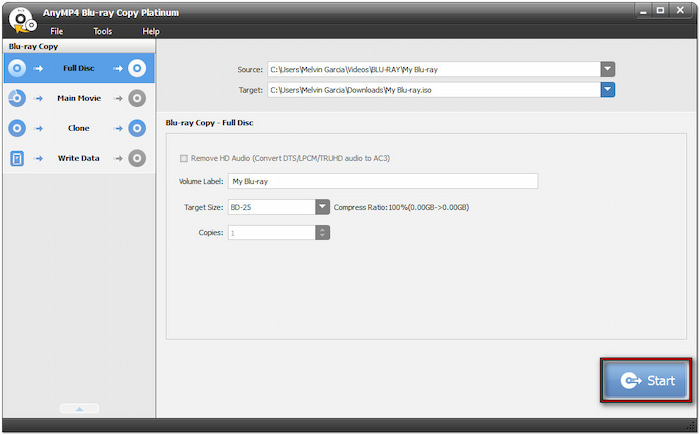
That's how to compress Blu-ray discs with Blu-ray Master Free Blu-ray Copy! This software, without a doubt, is your go-to solution for shrinking BD-50 to BD-25 effortlessly. Additionally, it can handle any Blu-ray type, including those with strong DRM encryption.
Shrink Blu-ray by Re-coding
Blu-ray Master Free Blu-ray Ripper is a top-performing software for Blu-ray ripping. This software can help you shrink Blu-ray content efficiently through re-coding. With it, you can convert Blu-ray discs to over 500+ profiles to compress large Blu-ray files. Additionally, you can adjust settings such as video and audio encoder, resolution, video and audio bitrate, and more. Yoo also has the option to rip the entire Blu-ray disc or selected titles only.
Step 1. Start by getting a free download of Blu-ray Master Free Blu-ray Ripper. Install the Blu-ray ripping software and finish the installation process. Once completed, place the Blu-ray disc in your external Blu-ray drive and launch the software.
Free Download
For Windows
Secure Download
Free Download
for macOS
Secure Download
Step 2. Click the Load Disc button to add the Blu-ray source for re-coding. If you have previously backed up your Blu-ray as a BDMV folder, use Load BD Folder instead. The software will then scan and display all the available titles on the interface.
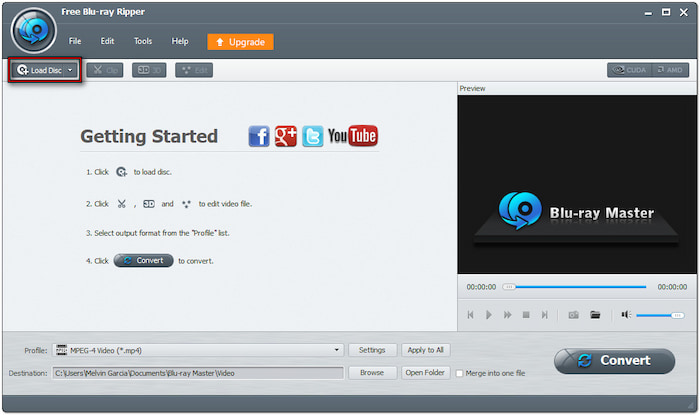
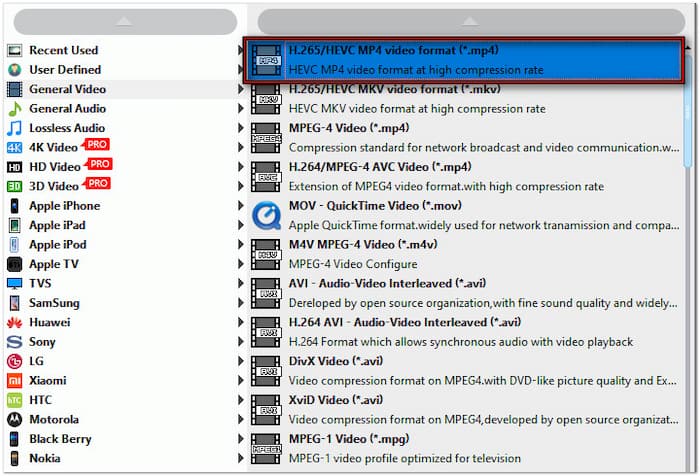
Step 3. Click the Profile selector and navigate to the General Video category to select the format. Select the H.265/HEVC MP4 video format (*mp4) as your new output format. This format is recommended for efficient compression with good quality.
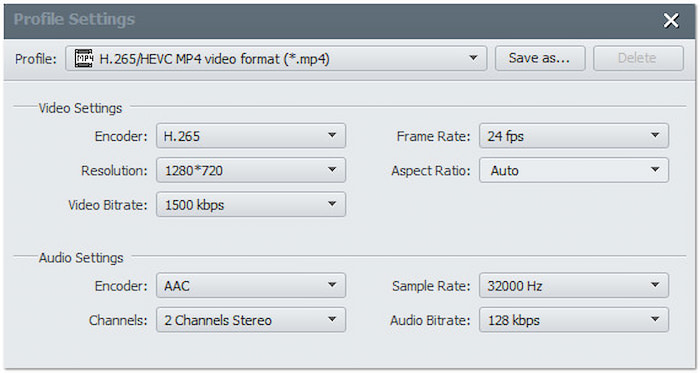
Next to the Profile selector, click the Settings button to configure re-coding options. Apply the following settings for effective compression without quality loss:
Video Encoder: H.265 (Offers better compression with comparable quality)
Resolution: 1280×720
Video Bitrate: 1500 kbps
Frame Rate: 24 fps
Aspect Ratio: Auto
Audio Encoder: AAC
Channels: 2 Channels Stereo
Sample Rate: 32000 Hz
Audio Bitrate: 128 kbps
Step 4. Click the Browse button next to the Destination selector to specify the output directory. Then, click Convert to start ripping and compressing the Blu-ray. During conversion, the software will re-encode the Blu-ray using your chosen settings.
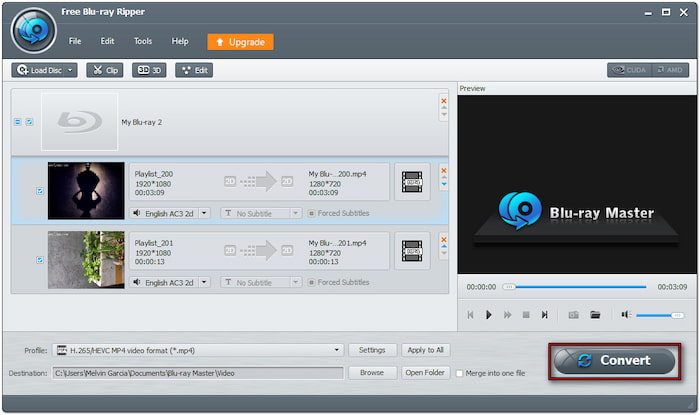
Blu-ray Master Free Blu-ray Ripper, as the best Blu-ray shrink software, provides a convenient solution to minimize the size of larger Blu-ray files. It lets you convert and compress Blu-rays with rich format options and high-efficiency encoding, all at no cost.
Want to learn how to rip Blu-ray to PC? Learn the easiest way to back up your discs here!
Part 3. FAQs about Compressing Blu-rays
-
What is the best compression method to use on Blu-ray?
The best compression method for Blu-ray is re-coding it to H.265/HEVC. H.265 offers superior compression efficiency, reducing file size by up to 50% while maintaining similar visual quality.
-
How much can I compress a Blu-ray without losing quality?
You can compress BD-50 to BD-25 with no quality loss when using an efficient codec. The key is to avoid aggressive compression to retain most of the visual quality.
-
Can I compress 4K Blu-rays?
Yes, you can compress 4K Blu-rays. However, compressing 4K to a smaller file size is feasible, but maintaining the original quality isn't guaranteed. Some quality loss may be inevitable, depending on the compression level.
Wrapping up
Creating a backup of Blu-ray discs to ISO is a smart solution to protect them from damage. It also simplifies storage and lets you enjoy playback without relying on physical media. For a reliable and user-friendly solution, use Blu-ray Master Free Blu-ray Copy. This software supports full disc copying, customizable settings, and ISO output, all while maintaining the original quality.
More from Blu-ray Master
How to Copy Blu-rays

Free tool to copy any Blu-ray file to disc, folder, or ISO images losslessly.
100% Secure. No virus
