

Jul 10, 2025Posted by Kevin Miller to Copy DVD
Copying a DVD on Windows has become a common task for those with extensive DVD collections. Some want to keep their disc content, create backups, or convert physical DVDs into digital files for easier access. Whatever the purpose, DVD copying offers an efficient way to secure and access content at any time. With multiple versions of Windows still in use, it's important to understand the best tools and methods that work across these platforms. This post outlines various methods to copy DVDs on Windows. It includes ripping DVDs to digital format and cloning DVDs in a 1:1 copy. We'll also cover the limitations of built-in Windows tools and discuss how to select the most suitable method. So, if you're copying personal videos or backing up commercial discs, this guide will provide the best options available.

- Does Windows 10/11 Have DVD Copy Software Built-in?
- Method 1: Copy DVD on Windows (Ripping)
- Method 2: Copy DVD on Windows in a 1:1 DVD Copy (Cloning)
- FAQs about Copying DVDs on Windows
Does Windows 10/11 Have DVD Copy Software Built-in?
Does Windows 10 have DVD copy software? No!
Windows 10/11 does not come with built-in software for full DVD ripping or cloning. Although these systems include disc-burning, it's not the same as copying a DVD or creating a full DVD backup. The built-in tools only let you drop files onto a disc, but they cannot rip or clone DVDs. To perform such tasks, you'll need specialized software to copy DVD to computer. It involves using DVD-ripping or DVD cloning software to create an exact copy, whether digital or physical. These tools are designed to handle full structure and encryption removal, neither of which is supported by the built-in Windows disc features.
Method 1: Copy DVD on Windows (Ripping)
Blu-ray Master Free DVD Ripper is a free yet highly efficient tool to copy a DVD in Windows 7 to 11 and Mac OS (10.12 or later). It allows you to digitally copy and convert DVDs to over 200 profiles and device presets. Options include MP4, MKV, MOV, M4V, AVI, and various formats supported by Apple, Samsung, Xiaomi, HTC, smart TVs, and consoles. It can handle physical discs, VIDEO_TS folders, ISO files, and even those with encryption. Additionally, it supports AVCHD Disc/DVD_RTAV folder input format. It uses the latest acceleration technology to finish the copying process at 20× speed.
Step 1.Begin by downloading the free Blu-ray Master Free DVD Ripper. Install the DVD duplication software on your Windows system and finish the installation process. Once completed, place the source DVD on your external disc drive and run the software.
Free Download
For Windows
Secure Download
Free Download
for macOS
Secure Download
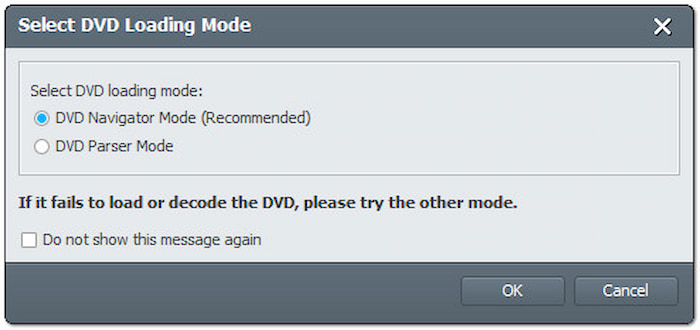
Step 2.Click the Load Disc button to import the inserted disc for digital copying. Aside from physical DVDs, you can also load a VIDEO_TS folder. Once loaded, choose a DVD detection mode in the popup window to read the source.

• DVD Navigator Mode: Use this mode to automatically detect the full structure of the DVD. It is useful when you're dealing with copy-protected discs.
• DVD Parser Mode: Use this mode to manually scan and parse the disc's files, such as VOB and IFO. It is useful when the DVD Navigator Mode fails to read the disc properly.
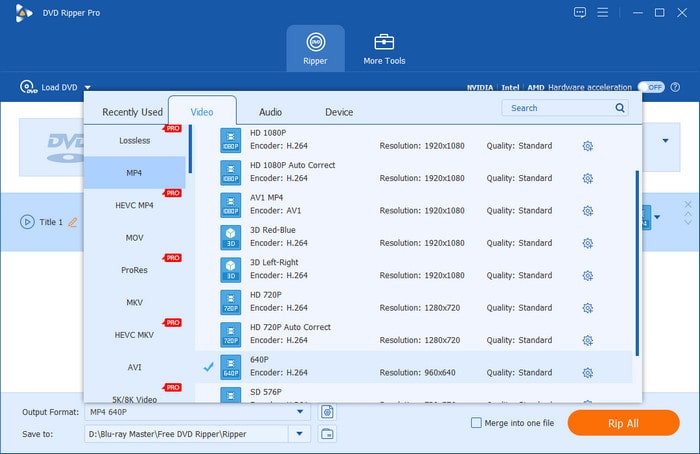
Step 3.Once the DVD content is added, it will display all the available titles. Select the titles you want to copy, click the Profile field, and select the General Video category. Choose the MPEG-4 Video (*.mp4) format, which compresses video efficiently without compromising original quality.
Step 4.Click Browse next to the Destination field to set up your output directory. After specifying the file destination, click Convert to begin the DVD copying process. The software will rip the DVD titles and convert them into MPEG-4 Video (*.mp4) format.
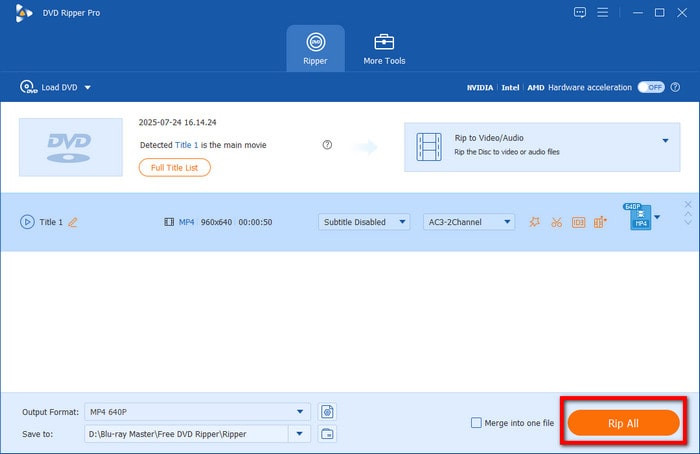
That's how do you copy a DVD on a PC through ripping with Blu-ray Master Free DVD Ripper! In addition to DVD-to-digital copying, it includes essential video editing tools. You can use these tools to merge, adjust effects, add subtitles, clip, add 3D effects, and many more. It also allows you to back up DVDs to VIDEO_TS folders or ISO image files for later use.
Now that you know the process on Windows, here's how to copy a DVD on Mac just as easily.
Method 2: Copy DVD on Windows in a 1:1 DVD Copy (Cloning)
Blu-ray Master highly recommends DVD Copy to clone DVD on Windows 7, 8, 10, and 11. It lets you exact 1:1 copies or compressed copies of DVDs to blank discs. It can output blank discs in various formats, including DVD-R, DVD+R, DVD-RW, and DVD+RW. You can also backup them as ISO files or save them as VIDEO_TS folders.
Furthermore, DVD Copy enables both full DVD duplication and selective copying. It offers three copy modes: Full Copy, Main Movie, and Custom Mode. But what makes it truly remarkable is its support for handling DVD copy protections and region codes. It delivers high-speed duplication of up to 50× while maintaining original video and audio quality.
Here's how to copy DVD to computer Windows 11:
Step 1.Before you start, download the DVD Copy, recommended by Blu-ray Master, for free. Ensure you download the correct version for your Windows system and complete the installation process. Once finished, insert the source disc into the DVD drive and open the software.
Free Download
For Windows
Secure Download
Free Download
for macOS
Secure Download
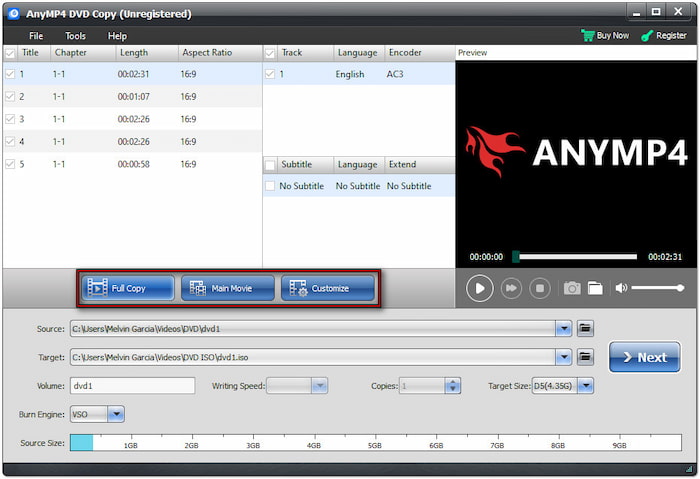
Step 2.Click the Source pulldown menu to add the DVD (physical disc, VIDEO_TS folder, or ISO file). Then, navigate to the Target field, specify the file, and set the output directory. If you are copying directly to a blank DVD, select your computer's disc drive.
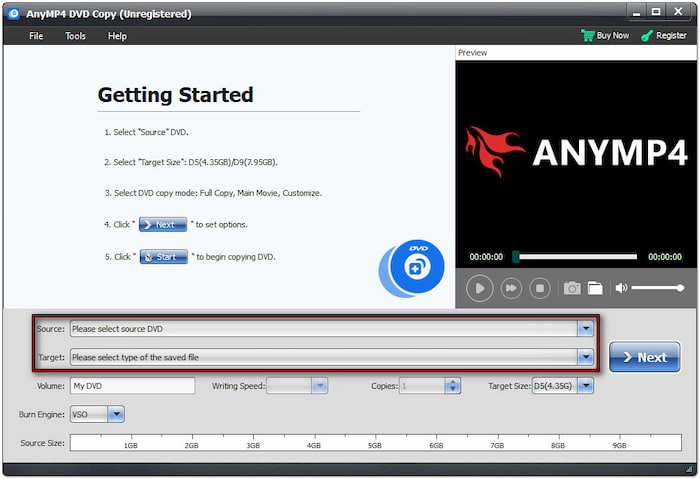
Step 3.You'll be presented with various copy modes: Full Copy, Main Movie, and Custom. Among the available options, select the most suitable mode based on your specific needs. Since you want a 1:1 DVD clone, select Full Copy and then click Next to proceed.
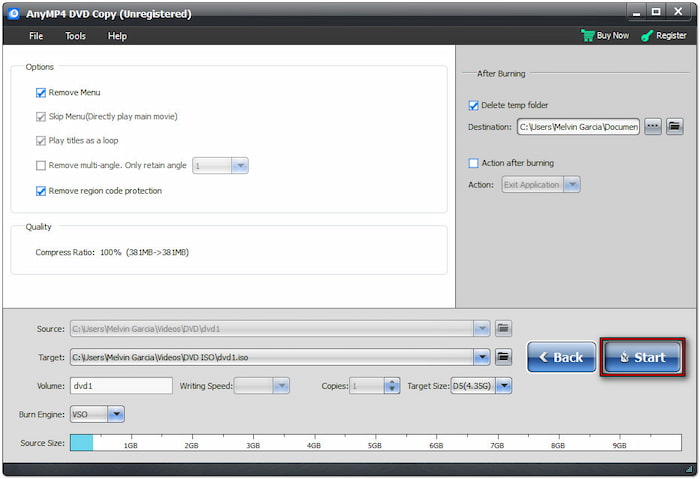
Step 4.In the next window, modify the necessary DVD settings based on your preferences. You can freely remove menus, skip menus, play titles in a loop, and more, including multi-angle and region-code protection. Once you have completed the settings configurations, click Start to begin the 1:1 DVD cloning.
DVD Copy, preferred by Blu-ray Master, offers a straightforward solution to copy DVDs to DVDs on Windows 10/11. This DVD cloner can output DVDs, VIDEO_TS folders, and ISO files that closely match the source file size. Additionally, it's compatible with most DVD reader/writer drives and is optimized for beginners.
FAQs about Copying DVDs on Windows
-
How long does it take to rip a full DVD?
In actuality, the time it takes to rip a full DVD depends on several factors. It includes the length of the movie, the speed of your DVD drive, your PC's processing power, and the format you choose. However, using fast software like Blu-ray Master Free DVD Ripper, a standard single-layer DVD can be ripped in 20 minutes with good quality settings.
-
Can you copy DVDs to DVD on Windows 8?
Yes, you can copy DVDs to DVDs on Windows 8, but not using built-in tools. Windows 8 does not include native support for DVD cloning or DVD burning. To perform a proper DVD-to-DVD copy, you'll need DVD Copy, a software specifically designed for Blu-ray Master. It allows you to create 1:1 copies, burn to blank discs, or save ISO files and VIDEO_TS folders.
-
Can I copy a DVD using Windows Media Player?
No, Windows Media Player cannot copy or rip DVDs. You can only use it to burn music, pictures, and videos onto blank CDs or DVDs. In simple words, it does not support ripping or copying video DVDs. So, as you know, burning means writing files from your computer to a disc.
Wrapping up
Mastering how to copy DVDs on Windows is a smart way to back up your media or duplicate discs. If you need to rip a DVD for portable viewing or clone an entire disc in 1:1 quality, the right tools make all the difference. Blu-ray Master Free DVD Ripper provides a fast, free, and straightforward solution for converting DVDs into digital files. Meanwhile, DVD Copy lets you make exact disc-to-disc copies or save DVDs as ISO files or VIDEO_TS folders. This tool is trusted and recommended by Blu-ray Master for its performance and ease of use.
More from Blu-ray Master
