

Jul 10, 2025Posted by Kevin Miller to Copy DVD
There are situations where you don't need the entire DVD content but only a specific clip. This process is commonly referred to as extracting video from a DVD. It involves identifying and isolating desired segments instead of ripping the entire disc. For example, you may want to combine clips from multiple DVDs to create a custom compilation. Fortunately, there are several practical methods to withdraw video from a DVD using reliable software. This post will explore two methods for extracting video from a DVD to make a precise point using a short clip. This way, you can save your desired segments without extracting or converting the full disc content.

- Part 1. Can you Withdraw the Video from the DVD
- Part 2. How to Withdraw Video from a DVD in Free DVD Ripper
- Part 3. How to Withdraw Video from a DVD in VLC
- Part 4. FAQs about Withdrawing Video from DVD
Part 1. Can you Withdraw the Video from the DVD
DVDs have long been a medium for storing multimedia content, such as personal videos and movies. However, the transition to digital consumption has led to an increasing demand for extracting content from DVDs. In response to the outlined question, yes, you can extract video clips from a DVD. However, this process involves several steps to complete. You will need to rip the video content and copy DVDs to a Mac or Windows. After the video is ripped, use the built-in tools, if any, to trim specific portions you want to keep. It allows you to isolate only the scenes you need without keeping the entire video.
Part 2. How to Withdraw Video from a DVD in Free DVD Ripper
Blu-ray Master Free DVD Ripper is a flexible DVD-ripping software that allows you to extract video from a DVD. With it, you can effortlessly extract video from DVD ISO files, DVD folders, or physical discs. It's fully compatible with Windows (7 to 11) and Mac (OS X 10.12 or later). It allows you to cut specific video segments from the source and save them as digital files. You can freely convert the content into profiles such as MP4, MKV, MOV, and over 200 others. To facilitate video withdrawal, the software includes a Clip feature. You can use it to select and extract specific sections of a DVD title. You can trim unwanted video portions by defining the start and end points. It utilizes the latest acceleration technology to complete video conversion at 20 times the speed.
Here's how to get video off a DVD:
Step 1.Get started by downloading the Blu-ray Master Free DVD Ripper for free. Install the DVD copy software on your system and complete the installation process. Once finished, insert the source DVD into your external or built-in disc drive and run the software.
Free Download
For Windows
Secure Download
Free Download
for macOS
Secure Download
Step 2.Click the Load Disc button to add the source DVD for digital copying. You can also load a VIDEO_TS folder or IFO file. Simply click the Load Disc pulldown menu to access the designated loading buttons. Once the source is imported, choose a DVD detection mode:
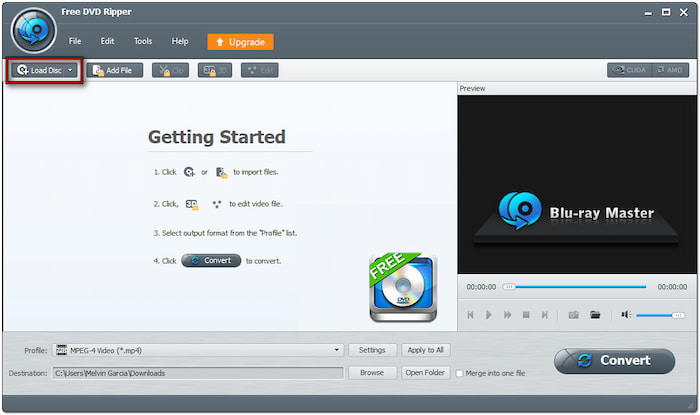
• DVD Navigator Mode: This mode automatically detects the full structure of the DVD. It is best to use when you're dealing with copy-protected DVDs.
• DVD Parser Mode: This mode manually reads and parses the disc's files, such as VOB and IFO. It works best when the automatic detection fails to read the disc properly.
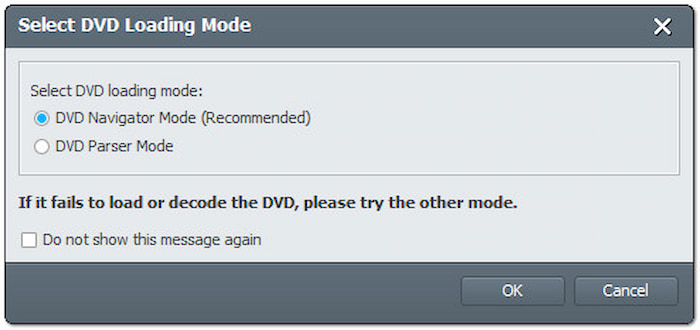
Step 3.Select the titles you want to copy, then click Clip to extract the desired video segment. Set the Start Time and End Time to accurately isolate the portion you need. Proceed to the Profile field, select the General Video category, and specify your output format. Select the MPEG-4 Video (*.mp4) format, which compresses video efficiently while maintaining the quality.
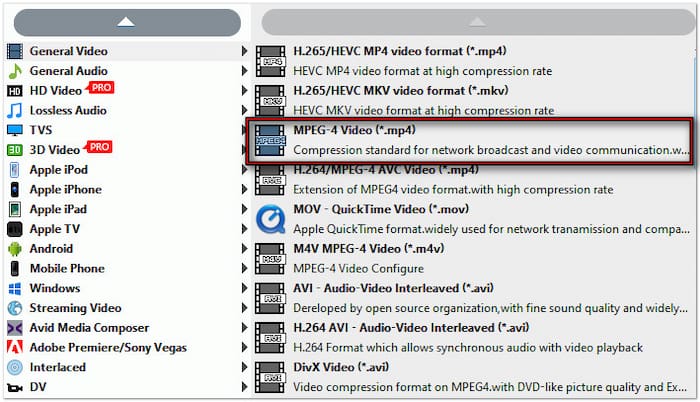
Step 4.Now, click Browse next to the Destination field to specify the output directory. Once the file destination is set, click Convert to process the video clip. Blu-ray Master Free DVD Ripper will rip only the selected DVD segment and convert them into your chosen format.
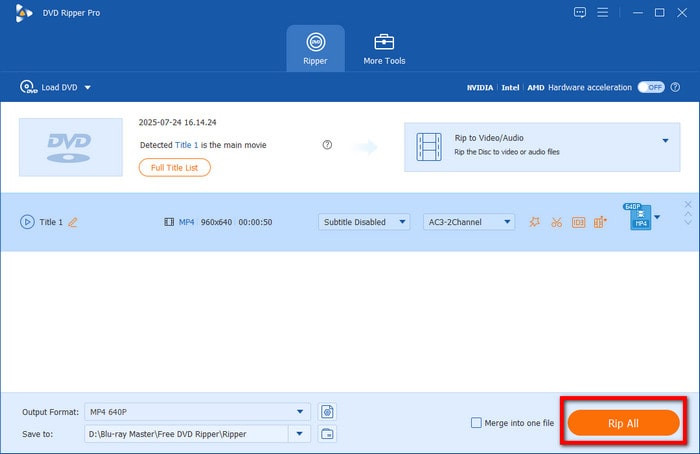
Blu-ray Master Free DVD Ripper provides a convenient solution to extract video from DVD on Mac and Windows. It saves the withdrawn DVD video as high-quality media stream formats in a simple, fast, and completely free way. If you plan to use the resulting file in the future, it is best to copy DVD to hard drive or USB flash drive for safekeeping.
Part 3. How to Withdraw Video from a DVD in VLC
VLC is more than just a free media player software; it also comes with hidden functionality. This media playback tool can help you extract video from a DVD to a computer. It lets you copy or withdraw the entire video content into a digital profile. However, VLC Media Player can only handle unprotected DVDs. It means that if your DVD has copy protection, encryption, or region coding, you will need a separate tool to perform the task.
Step 1.Place the source DVD into your DVD drive's disc tray and open VLC. Press Ctrl + R to access the Open Media window, then navigate to the Disc tab. Select the DVD option and ensure the correct DVD drive containing the inserted disc is selected.
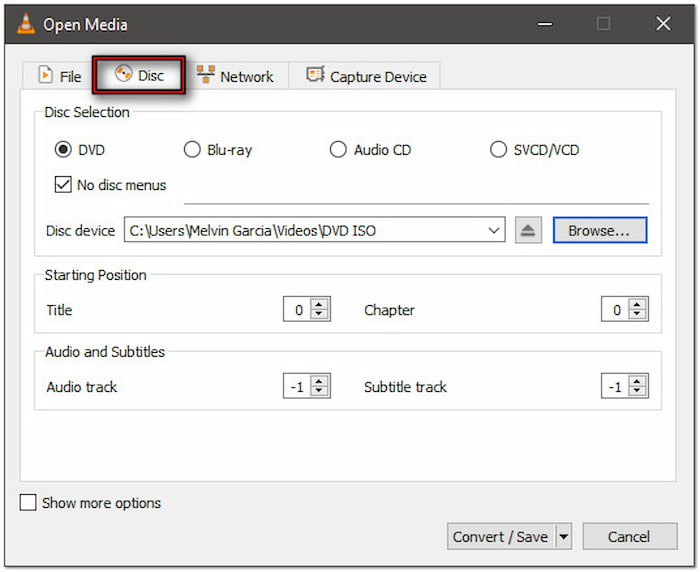
Professional Tip: Select the No Disc Menu checkbox to prevent VLC from getting stuck on DVD menus. Additionally, it ensures that it will only rip video content. Click Convert/Save to proceed to the next step.
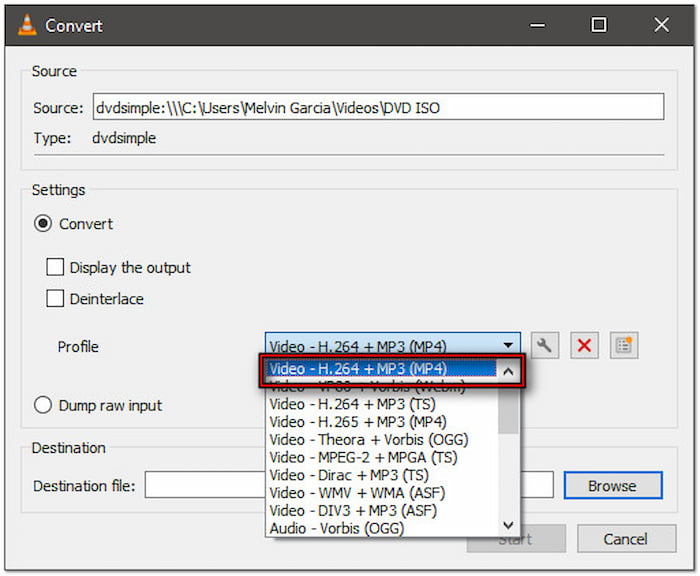
Step 2.In the Convert window, click the Profile pulldown menu to select a profile. Choose the Video - H.264 + MP3 (MP4) profile for standard output. However, if you prefer higher compression and quality, select Video - H.265 + MP3 (MP4).
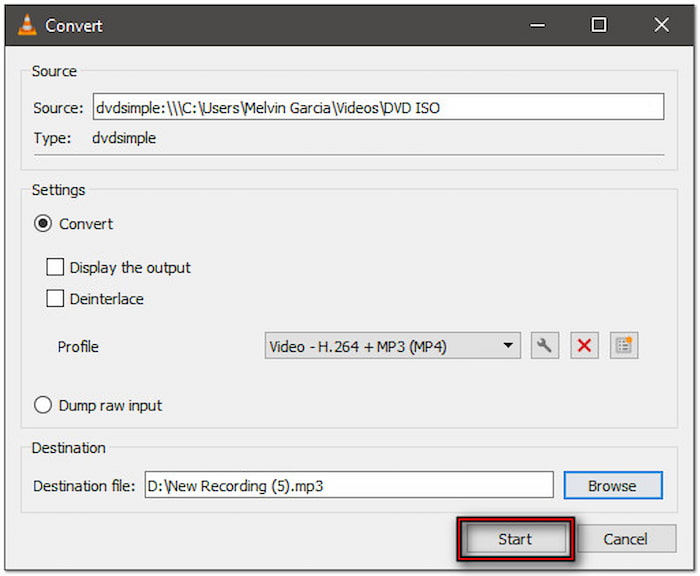
Step 3.Click Browse next to the Destination File field to specify the file's location. Ensure the file name ends with .mp4; otherwise, it will only play the DVD, not rip it. Afterward, click Start to extract video file from DVD.
VLC Media Player can easily convert video files and save them to your chosen format. However, if you need to extract only a specific portion of a video, it cannot perform this function directly. You will need an alternative method to trim video in VLC.
Part 4. FAQs about Withdrawing Video from DVD
-
Is it illegal to rip a DVD for personal use?
No, it is not illegal to withdraw videos from DVDs for personal use. Ripping DVDs lets you create a digital backup or transfer content to another device for private viewing. However, if you plan to distribute, upload, or share the withdrawn videos, it becomes illegal and a violation of copyright law. The unauthorized redistribution of commercial DVDs is strictly prohibited.
-
Can I withdraw the video from a copy-protected DVD?
Yes, you can withdraw the video from a copy-protected DVD. However, you'll need the right software to bypass the encryption. One such reliable tool is the Blu-ray Master Free DVD Ripper. It features advanced DVD Navigator Mode, which automatically detects and reads protected disc structures. It allows you to withdraw or convert the content even from encrypted DVDs.
-
Can you rip a DVD in Windows Media Player?
No, Windows Media Player does not support ripping DVDs. Although it lets you rip audio CDs into digital music files, it cannot read, decrypt, or convert DVDs. To rip a DVD, you'll need third-party software, such as Blu-ray Master Free DVD Ripper. It is designed to extract and convert DVD video into digital formats compatible with various devices.
-
Does withdrawing reduce video quality?
No, withdrawing video from a DVD does not reduce quality. By configuring the output format, resolution, bitrate, and codec properly, you can maintain high-quality results. Blu-ray Master Free DVD Ripper is built to preserve the original quality, even when converting to compressed formats like MP4. It ensures that withdrawn video matches the source without noticeable loss.
-
Does ripping a DVD ruin it?
No, ripping a DVD does not damage or ruin the disc. The process involves reading the data from the DVD using your computer's optical drive, much like it plays a movie. There is no physical alteration to the disc during the ripping process. However, poor-quality DVD drives may cause scratches or wear over time, but the act of ripping itself is non-destructive and safe for the disc.
Wrapping up
Mastering how to withdraw video from DVD is a practical way to save only the content you need. The process is simple, provided you're using the right tool and method. If you need a clip from a specific chapter, Blu-ray Master Free DVD Ripper makes the process efficient and easy. This software provides over 200+ formats, handles encrypted DVDs, and ensures high compatibility and quality. Plus, its built-in editing features allow you to extract video with ease.
More from Blu-ray Master
