

Oct 17, 2025Posted by Kevin Miller to Create DVD
You are planning on creating a homemade DVD and are ready to burn all of your memorable videos on a blank disc. However, you get confused about the different types of DVD discs, especially the variety like DVD-R, DVD-RW, and so on. This guide has all the detailed answers and explains how to use DVD-R and DVD-RW to burn effectively.

- Part 1. What is DVD-R and DVD-RW
- Part 2. Differences Between DVD-R and DVD-RW
- Part 3. Detailed Comparison Between DVD-R and DVD-RW
- Part 4. Best DVD Creator That Supports All DVD Types
- Part 5. FAQs about DVD-R VS. DVD-RW
Part 1. What is DVD-R
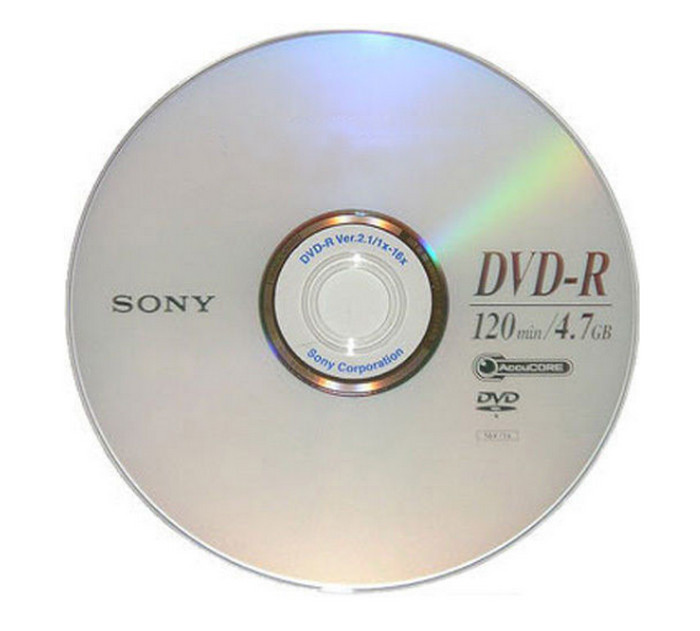
As one of the popular DVD disc types, DVD-R is a recordable DVD that allows you to store various data, including videos, songs, computer files, and so on. It has a high storage capacity, providing 4.7 GB for single-layer and 8.5 GB for dual-layer. The great thing about DVD-R is its durability, which means it can last many years while preserving the data in the best condition. Although it is a one-time use and the data cannot be edited, DVD-R is cost-effective and more affordable than other optical disc types.
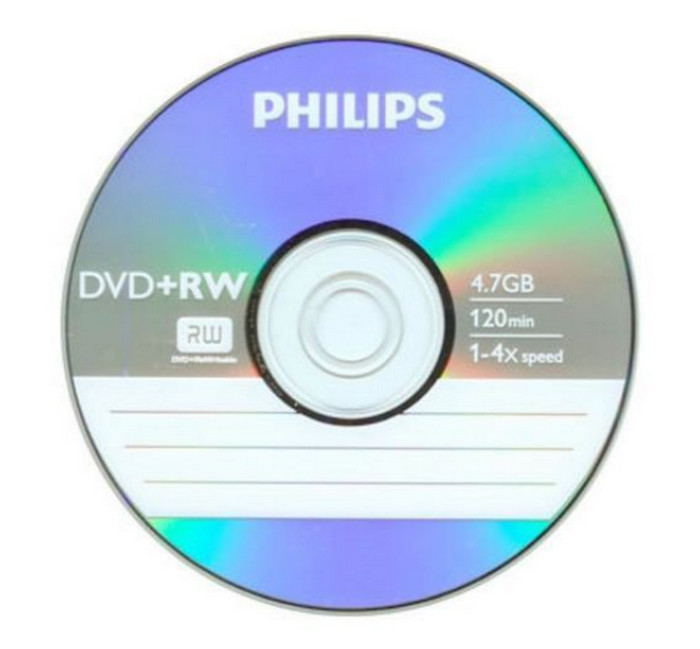
DVD Rewritable is another optical disc used as a temporary medium for data archiving. It is typically used when the user needs to make changes to the data repeatedly. DVD-RW is the disc for this purpose because it is versatile enough to store various data, including data, software, music, and more. Its storage capacity is just like DVD-R: You can get single-layer with 4.7 GB or dual-layer with 8.5 GB.
Part 2. Differences Between DVD-R and DVD-RW
The two optical discs are similar in many aspects. But the most obvious difference is how many times they can be used for storing data. To make it short, DVD-R is used as permanent storage with the limitation of one-time use. Meanwhile, DVD-RW is used for temporary backup, with a choice for users to make updates or changes to the data multiple times. Here is a table to let you see the differences between these two DVD types intuitively:
| Feature | DVD-R (Recordable) | DVD-RW (ReWritable) |
| Data Permanence | Write Once | Rewritable |
| Best Uses | Archiving (video, photos, backups) and distribution of final media. | Temporary Storage, moving files between computers, and Testing/Drafts. |
| Compatibility | Excellent | Good |
| Cost | Cheaper. Lower per-disc cost due to its one-time use nature. | More Expensive. Higher per-disc cost, but more economical in the long run if you reuse the disc frequently. |
| Storage Capacity | Standard: 4.7 GB (Single-Layer) Dual-Layer: 8.5 GB (DVD-R DL) | Standard: 4.7 GB (Single-Layer) |
| Data Durability | High | Lower |
| Speed | Faster | Slower |
Part 3. Detailed Comparison Between DVD-R and DVD-RW
1. Write Capability
DVD-R: This type of disc lets you save files just once. After you burn something onto it, you can't change or delete it. It's great for keeping final versions of videos, photos, or documents that you don't plan to update.
DVD-RW: This disc can be reused many times. You can erase what's on it and add new files whenever you want. It's handy for things like backups or projects that keep changing.
2. Storage Capacity
Both DVD-R and DVD-RW formats typically offer a standard storage capacity of 4.7 gigabytes, which is sufficient for holding approximately two hours of video content or thousands of documents and images.
3. Reusability
DVD-R: After you save files to this disc, they stay there permanently. You can't erase or reuse it, which means it's not very flexible—but it's great for keeping important stuff safe for a long time.
DVD-RW: You can erase and reuse this disc many times—up to about 1,000 times. That makes it a smart choice if you're working with files that change often or if you need a disc for short-term use.
4. Device Compatibility
DVD-R: This kind of disc works with most DVD players and computers, even older ones that might not handle rewritable discs. That makes it a safer option when you want to share videos or files with other people.
DVD-RW: These discs usually work fine with newer devices, but older DVD players or drives might not be able to read them properly. So they’re not always the best choice if you’re using older equipment.
5. Longevity and Durability
DVD-R: Since the data on this disc can't be changed, it usually lasts longer and stays in good shape. That makes it great for saving important files you want to keep for a long time.
DVD-RW: Because you can erase and rewrite this disc many times, it can wear out over time and might not work as well. It's better for short-term use or files you update often.
Part 4. Best DVD Creator That Supports All DVD Types
What you need to create the best DVD-R or DVD-RW is the reliable DVD Creator by Blu-ray Master. It is a professional burning software that lets you store digital files, like MP4, AVI, FLV, etc., to various disc types, including DVD and Blu-ray. Since it is flexible, the DVD burner also has editing tools complete to provide you with trimming, splitting, and merging videos. What’s more, you can design your DVD content by using the built-in templates with different themes for holidays, anniversaries, and more. DVD Creator is an all-in-one solution for straightforward and high-quality DVD making on Windows and Mac.
- Support creating DVD-R, DVD-RW, DVD-ROM, etc.
- Fast-speed processing without quality distortion.
- Customize DVD menu templates as you like.
- Personalized titles and chapters with themes, text, and soundtracks.
Step 1. Download and install DVD Creator on your computer.
Free Download
For Windows
Secure Download
Free Download
for macOS
Secure Download
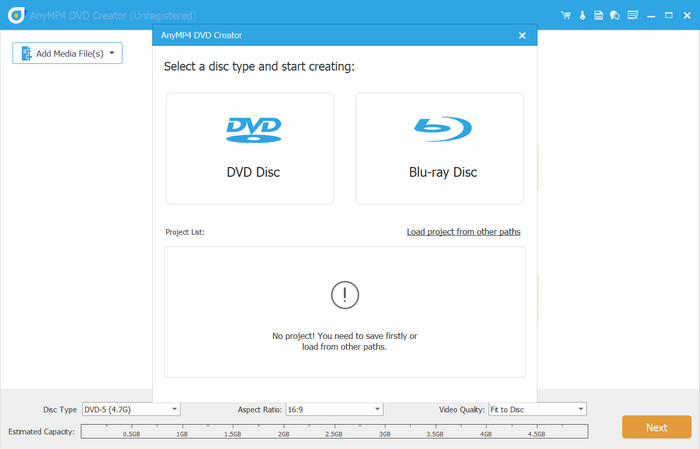
Launch the software and choose the DVD Disc option. Click the Add Media Files button to upload the video or audio files you want to burn to a disc.
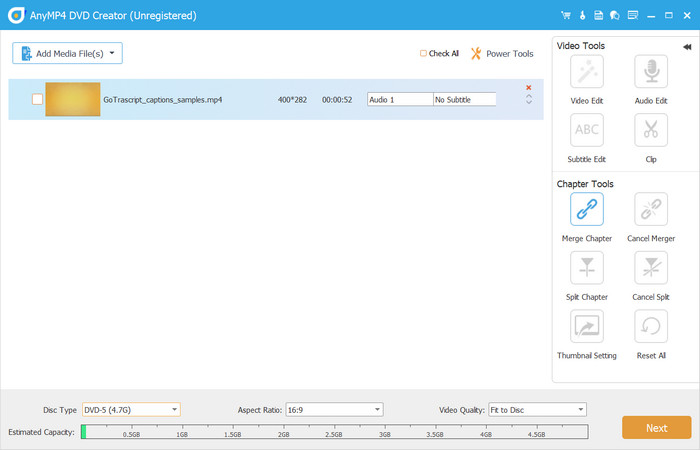
Step 2. Use the Power Tools at the upper right part of the corner, where you can edit the video, audio, subtitles, and so on. At the bottom part, you can also select the desired disc type, aspect ratio, and video quality.
Step 3. When you click the Next button, the next window will allow you to choose menu templates for your DVD. You can also add other elements, including an opening film and background music. Watch your work by clicking the Preview button.
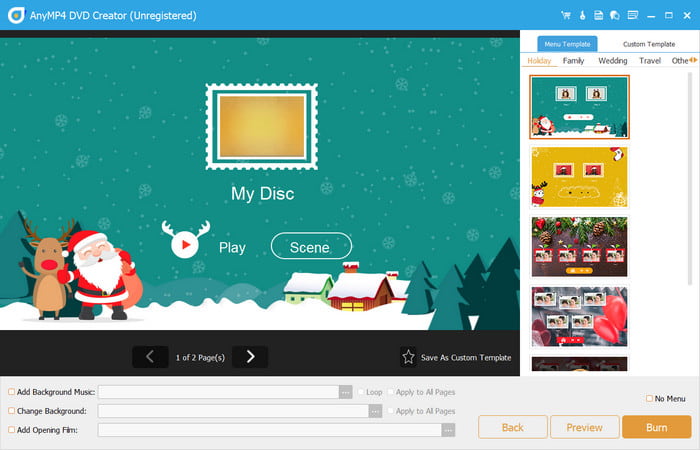
Step 4. From the Export setting, check the Burn to Disc option, and remember to insert a blank disc into the optical drive. After editing the settings, click the Start button to create the DVD-R or DVD-RW. Wait for a few moments, and the disc will be ready.
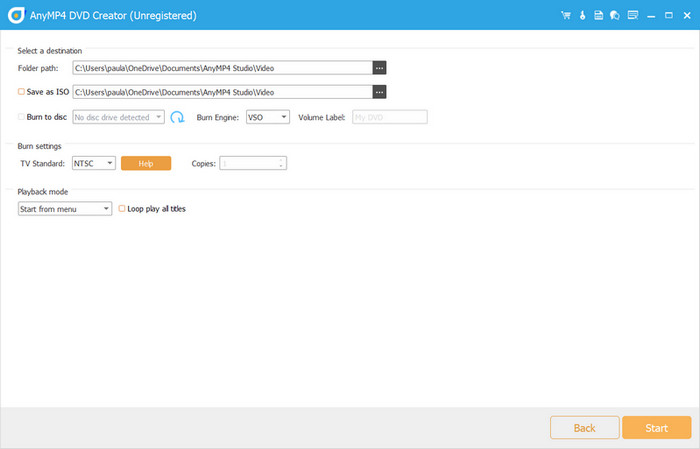
DVD Creator is professional burning software for Windows and Mac. It can also be used as a video editor, converter, and modifier without additional extensions. Download the free trial version to experience an advanced DVD burner.
Part 5. FAQs about DVD-R VS. DVD-RW
-
What is DVD-RW used for?
The DVD type stores data on a blank disc. But unlike DVD-R, you can use DVD-RW to store information and edit it temporarily as needed.
-
Can a DVD-RW drive read a DVD-R?
Yes. Most DVD-RW drives are designed to be compatible with DVD-R and DVD-RW discs. You can use this type of drive to read DVD-R discs without hassle.
-
Is DVD-R better than DVD-RW?
It depends on your needs. DVD-R is a good option for a permanent and longer way to archive information. On the other hand, DVD-RW is good for temporarily storing data but with the benefit of rewriting the content unlimitedly.
Wrapping up
DVD-R vs. DVD-RW, which one are you going to choose for data archiving or creating homemade DVDs? Here, you have learned the definition of the two types of disc and how to use them for shorter and longer archival. Either way, DVD Creator will help you make the-quality DVDs you have in mind. You only need to download and install it on Windows or Mac, and you are good to go.
More from Blu-ray Master
