

Sep 23, 2025Posted by Kevin Miller to Create DVD
What you need to create the best homemade DVD is a reputable tool that can provide your needs. In this case, you can easily search for the best DVD burner on the internet, and you might encounter ImgBurn along the way. Obviously, the tool has gained popularity because many claim that it is effective, easy to use, and, overall, a good program for burning DVDs. If you want to know more about ImgBurn, you are in the right place because we will cover all of its details.
Table of Contents
Part 1. What is ImgBurn
ImgBurn is a long-standing DVD burning software developed by LIGHTNING UK!, first released in October 2005. Originally designed to burn disc image files (like ISO, BIN, and CUE) to CD, DVD, and Blu-ray media, it quickly gained popularity for its reliability and precision. With the release of version 2.0.0.0, ImgBurn expanded its capabilities to support direct burning of MP4 and other video formats to DVD, making it more accessible for casual users and content creators.
Despite its age, ImgBurn remains freeware and continues to function smoothly on modern Windows systems. However, users should be cautious when downloading older versions, as some installers were bundled with adware. When sourced safely, ImgBurn offers a streamlined burning experience with minimal system overhead, making it a solid choice for basic disc creation tasks.
We listed the features of the ImgBurn software so you can see the functions that you are looking for in a DVD-authoring application.
- It offers various burning modes, including read, write, build, discover, etc.
- Easy to navigate with a clean interface.
- Customize the burning speed, file system, and others.
- Support a wide range of formats like ISO, CUE, PDI, etc.
- Lightweight compared to other similar programs.
- Burn DVDs with minimum interaction.
- Create image files from unencrypted DVDs and CDs.
- Able to verify written discs to make sure the data is burned correctly.
Part 2. A Closer Look at ImgBurn Features
To evaluate whether ImgBurn is still a viable DVD burning solution today, we looked at five key aspects that matter most to users:
System Compatibility
ImgBurn runs smoothly on nearly all versions of Windows, from Windows 7 to Windows 10, including 64-bit systems. It can also work on Linux via Wine, though it’s not officially supported. However, lack of updates since 2013 means newer drives and Windows 11 may face occasional compatibility issues.
Ease of Use
The interface is functional but dated. Beginners may find the layout confusing, especially with multiple operation modes like Write, Build, and Verify. There’s no drag-and-drop or modern UI flow, so it’s best suited for users familiar with disc burning workflows.
Stability and Safety
ImgBurn is known for its reliable performance and low system resource usage. It rarely crashes and handles large ISO files well. That said, older installers may contain adware (e.g., OpenCandy), so downloading from trusted sources is essential.
DVD Burning Performance
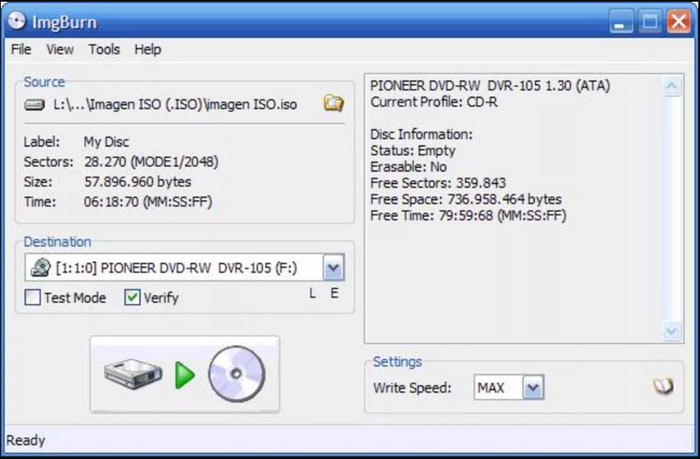
ImgBurn excels at burning ISO and image files with precision. It supports a wide range of formats (ISO, BIN, CUE, NRG, etc.) and offers fine control over burn speed, buffer settings, and layer breaks. Verification mode ensures data integrity post-burn, making it ideal for archival and backup tasks.
Price
ImgBurn is completely free to use, with no premium tiers or feature restrictions. For users who need basic burning without authoring menus or chapters, it offers excellent value - though modern alternatives may provide more convenience and polish.
Part 3. What We Like About ImgBurn
Absolutely Freeware
Overall Rating: 4.5
The first and best thing is, that you can create a homemade video DVD or audio CD on ImgBurn without paying a penny. Unlike most DVD burners in this generation, you are required to pay before you can access most of their functions. But with ImgBurn, you can make your dream DVDs without the money involved.
Simple UI Design
Overall Rating: 4
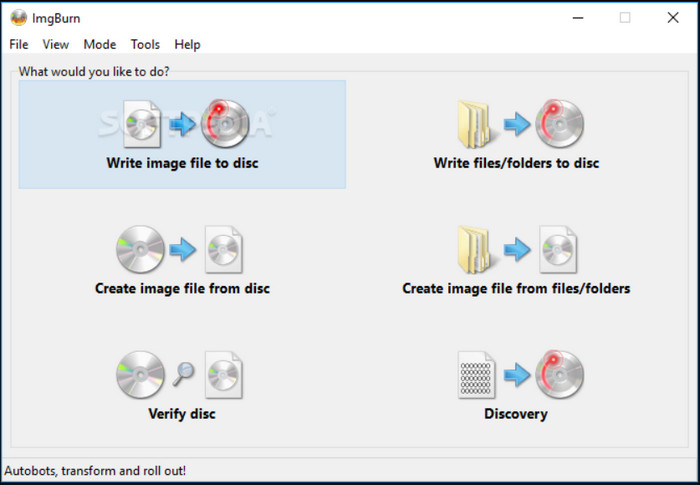
Despite receiving updates from the developer, the user interface remains simple. This is a good thing for many beginners and pros because it contributes to the burning process, making it easier to upload, edit, and burn DVDs or CDs.
Exceptional Burning Modes
Overall Rating: 4.5
Whether you want to use MP4, AVI, or ISO to USB using ImgBurn, it is permissible from one of the five modes of the DVD burner. You can use the Read mode to read a disc to an image file, use the Build mode to create, or use Write mode to write images to a blank disc. The Verify mode helps to check a newly burned disc if it’s 100% readable, while Discovery helps to check the quality by putting it to a test via a drive or media.
Wide-Ranged Supported Formats
Overall Rating: 4.5
The DVD Burner does not lack when it comes to supported input formats. From videos to audio types, you can upload and burn MPC, MP4, AAC, WMA, WMV, OGG, M4A, and more. In this case, you can burn music CDs on ImgBurn without worrying about the input formats.
It seems like it provides most of the necessary features for an effective DVD burn. ImgBurn is free to use, offers amazing modes, and supports popular input formats. With that said, let’s now go to the disadvantages we learned about the software.
Part 4. What We Don’t Like About ImgBurn
No Further Updates
Unfortunately, ImgBurn received the last update in 2013. This means there is no further modification or additional features on the DVD burner. The last version could still burn most videos at the moment, but it might not get caught up with the modern and future inputs.
Not Cross-Platform
Another problem is ImgBurn is not working on Mac, Linux, and other operating systems. It is only natively made for Windows versions, such as Windows Vista, 7, 2008, and others. You can use alternatives to ImgBurn for Mac to create DVDs and Blu-rays with ease.
Limited Blu-ray Support
Lastly, it is unsupported to burn Blu-ray with ImgBurn. Although it is stated that it could, the software only supports Blu-ray video discs from BDAV and BDMV folders.
Part 5. How to Use ImgBurn to Create a DVD
ImgBurn offers several modes for different tasks, and the DVD burning process is simple and efficient. Here's how to get started:
Step 1.Launch the Software
Download the software from the official website, and follow the on-screen instructions to complete the installation. Then, run it.
Step 2.Upload Your File
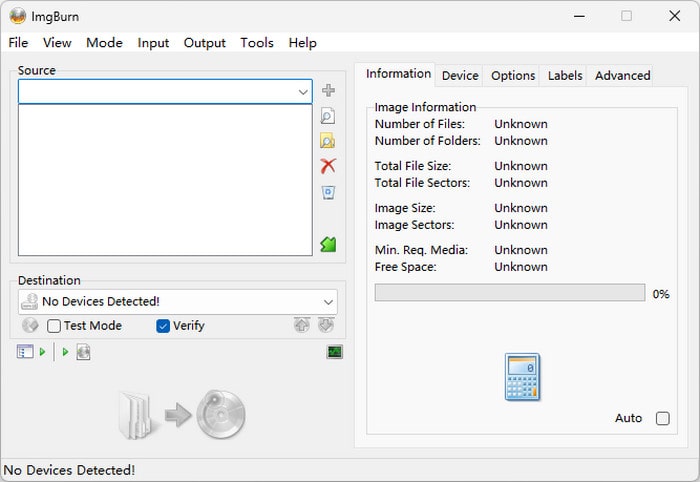
Choose a correct mode: If you have an ISO file, select ‘Write image file to disc’. And if you have the Video_TS folder or individual video files you want to burn as a DVD, select ‘Write files/folders to disc’. After that, click the drop-down menu Source to import your file or folder.
Note: Don’t forget to insert a blank DVD disc into the computer before burning.
Step 3.Adjust Burn Settings
It allows you to customize your burn speed, write method (DAO/TAO), buffer size, and other options. For best results, use a lower burn speed (e.g., 4x) to reduce errors.
Step 4.Start Burning
Click the Write button at the bottom to begin. ImgBurn will show a progress bar and optionally verify the disc after burning.
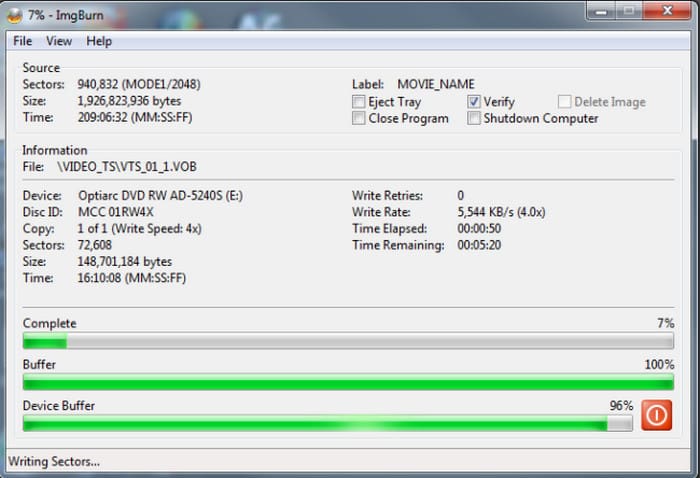
Overall, using ImgBurn feels refreshingly direct once you understand its layout. While the interface may look outdated, the actual burning process is fast, stable, and surprisingly precise. I’ve used it to archive ISO files and create bootable discs, and it consistently delivers clean burns with no playback issues. The ability to verify data post-burn adds peace of mind, especially when preserving important content. For users who value control over automation, ImgBurn remains a dependable tool.
Part 6. Final Verdict
To summarize the ImgBurn review, we saw its full potential in burning DVDs and CDs. It is free and rich in features, so there is not much negative about its overall performance. However, there are only a few drawbacks that can affect the burning workflow, or in other cases, the software cannot provide your needs, especially for Blu-ray burning. Since no more updates are to be made, ImgBurn might not be for you. But don’t lose hope because we have the right solution for you.
Part 7. Best Alternative to ImgBurn
For the best alternative, DVD Creator by Blu-ray Master is the recommended tool for Windows and Mac. The DVD Burner consists of an advanced burning algorithm with an excellent selection of supported input formats, such as MP4, MOV, AVI, MKV, and so on. Because it is a modern DVD authoring program, you can expect its support for DVD and Blu-ray, allowing you to choose discs, folders, and ISO image files as output formats. On top of that, it provides an intuitive video editor, where you can split, crop, flip, and edit the uploaded videos. Of course, you can find here the customizable menu templates to create a DVD menu with titles and chapters in a stylish way. Other features included are:
- User-friendly interface with a high-speed burning process.
- Configurable output quality, aspect ratio, and resolution.
- Quickly burns multiple videos and combines them into one title.
- Support burning DVD and Blu-ray in various output types.
Free Download
For Windows
Secure Download
Free Download
for macOS
Secure Download
| DVD Creator | VS | ImgBurnr |
| Free, $12.45 | Pricing | Free |
| DVD, CD, and Blu-ray | Support Output Formats | DVD and CD |
| High speed | Burning Speed | Average speed |
| Windows 11/10/8/7, Mac OS X 10.9, MacOS Sonoma, and later | Supported Platforms | Windows Vista/7/8/95/2000/2008, and older versions |
 | Video Editing Tools |  |
| Configurable to high, medium, and low quality | Output Quality | No configuration support |
| Safe Guarantee | |
| Support HD and 3D Videos | |
| Software Updates | |
Part 8. FAQs about ImgBurn
-
Is ImgBurn safe?
It is only determined to be safe if you download the software from the official website. But since there is no update on the site or software, there is no guarantee.
-
Is ImgBurn free?
Yes, the DVD burner remains free to download and use on any supported Windows OS. It has been licensed as freeware since it was released in 2005. You can also use it on Wine without any charge, but it may require a complex setup to effectively burn DVDs.
-
Is ImgBurn a virus?
No. It is a DVD burner, whose main task is to help you convert common video or audio files into DVDs or CDs. The software itself is free from viruses or malware, but this is not sure because the developer hasn’t updated it for years now. Also to remind you, downloading ImgBurn with bundled software can potentially harm your device. Make sure to research the other tools before installing them with the DVD burner to avoid getting viruses on your computer.
Wrapping up
After reading the ImgBurn review, you have learned that it is a DVD burner that was made over a decade ago. It is a free program that mainly burns media files to DVDs and CDs. We also discovered that it has excellent features, as well as disadvantages that are not helpful for effective DVD burning. With that, we introduced DVD Creator for a better experience in transferring common videos to DVD and Blu-ray. Click the Free Download button to see its full potential or purchase the premium version for an affordable price.
Best DVD Creator Review
