

Sep 03, 2026Posted by Kevin Miller to Play DVD
Quick Summary:
While modern Macs lack built-in disc drives, you can easily play DVDs by connecting an external USB optical drive. By utilizing robust third-party media players like Blu-ray Master, VLC, or native macOS Apple DVD Player, you can enjoy your DVD collections.
To save physical space, reduce device weight, and shift toward internet-based digital media, Apple removed the internal DVD drive from Mac computers years ago. want to play DVDs on a modern Mac (including the latest M1, M2, and M3 models) now, you need to prepare a specific hardware-software combo. Fortunately, the fix is simple. While modern Macs lack native disc drives, you can easily play DVDs by connecting a USB optical drive and using reliable media players. This guide will introduce 3 ways to play DVDs on Mac to help you bridge that gap seamlessly.
Table of Contents
- The Preliminary Check: The 'Missing Link' Hardware
- Method 1: The Best Zero-Cost All-Rounder – Blu-ray Master Free Blu-ray Player
- Method 2: The Open-Source Powerhouse – VLC Media Player
- Method 3: The Native (But Hidden) Route – Apple DVD Player App
- Going a Bit Deeper: Region Codes and Digital Ripping
- FAQs about DVD Playback on Mac
The Preliminary Check: The 'Missing Link' Hardware
Since Apple ditched built-in CD/DVD drives years ago, you obviously can't just slide a disc into a modern Mac. Before we even talk about apps, you need to sort out the hardware: an external USB DVD drive.
1. What Kind of Drive Do You Need?
You don't have to buy Apple's official SuperDrive. Pretty much any plug-and-play USB DVD drive from brands like LG or ASUS will work fine.
• My advice: If you have a newer MacBook, just get a drive that already has a USB-C cable. It saves you the headache of using dongles.
2. The Power Trap (Why Drives Start Clicking)
Here is a mistake a lot of people make: plugging the DVD drive into a cheap, unpowered USB hub.
Spinning a physical disc takes quite a bit of juice. If the drive doesn't get enough power, it'll make weird clicking noises, freeze up, or just keep spitting your disc back out.
• The fix: Always plug the drive directly into your Mac's port. If you have to use a hub or dock, make sure it's one that plugs into the wall for its own power.
3. Why isn't it showing up on my desktop?
Don't panic if you plug the drive in and nothing happens on your screen. Macs usually won't show an icon for an empty drive.
Once you actually pop a DVD in, it should spin up and appear on your desktop after a few seconds—ready for whatever player app you want to use.
Method 1: The Best Zero-Cost All-Rounder – Blu-ray Master Free Blu-ray Player
Blu-ray Master Free Mac Blu-ray Player is a powerful media player that runs on Mac OS X 10.9 or above systems. It is able to play Blu-rays, DVDs, and various video/audio formats seamlessly. To use it to play DVDs on Mac, it can bypass the DVD region codes and handle various DVD copy protections like CSS, giving you the freedom to experience any DVD. Prompted by the GPU acceleration, it shows a smooth and seamless DVD playback performance with no annoying stuttering or lags. In addition, for easy playback, it provides flexible controls to improve your viewing experience.
Now, let's follow us to see how to play DVDs on Mac using it.
Step 1. Download and install the Blu-ray Master Free Mac Blu-ray Player on your computer. Launch the software, and you will see the two central buttons: Open Disc and Open File.
Free Download
For Windows
Secure Download
Free Download
for macOS
Secure Download

Step 2.Connect your external drive and insert the disc into it.
Click the Open Disc button, and a window will pop up, where you can choose Open Folder to load the DVD folder, or select your inserted DVD.
You can also click Open File to import a DVD ISO file or other video files.
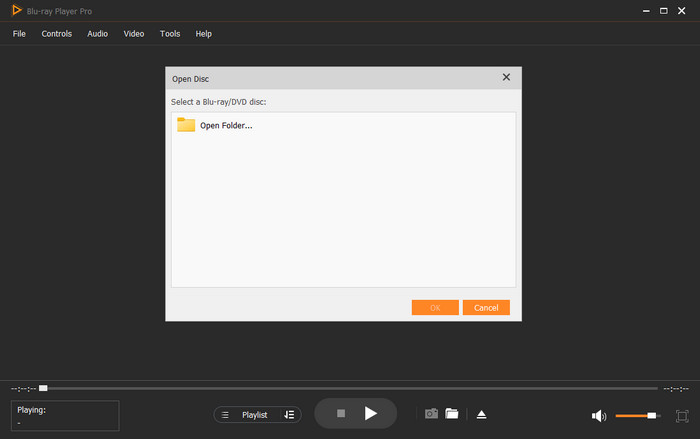
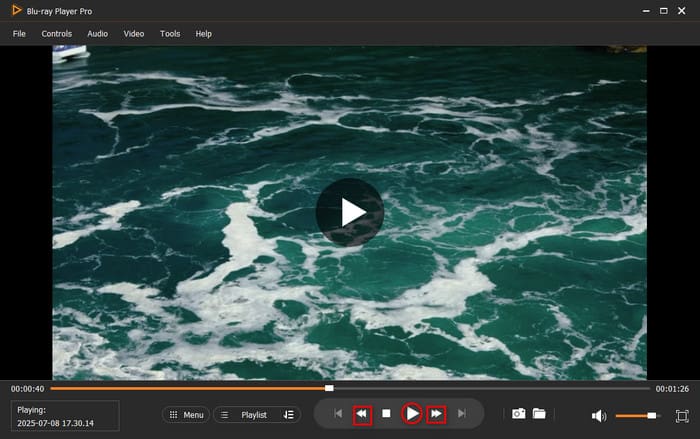
Step 3.Then, you can play DVDs on it and easily control the playback with various settings.
Tips
We really like its menu feature that allows us to jump straight to specific DVD titles or chapters, which is convenient to skip the forced studio.
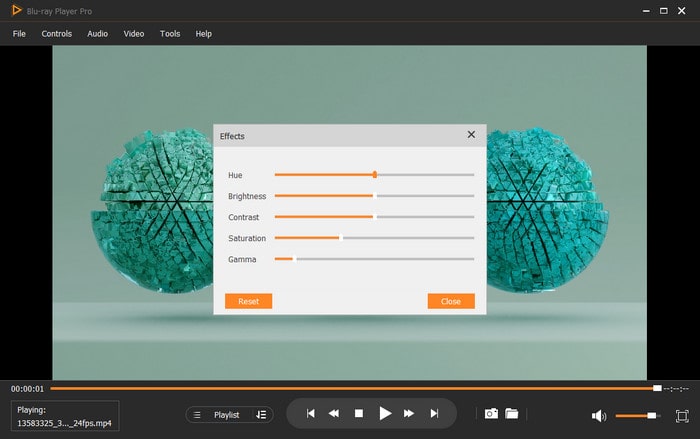
Step 4.You can explore the various settings to adjust your video effects, including adding external audio tracks/subtitles, and others.
Tips
'I absolutely love how this software lets you jump straight to specific DVD titles or chapters right from the top navigation menu—it's super handy when I just want to skip all the forced studio previews and get right to the main feature!'
It is a straightforward, elegant solution that perfectly balances professional-grade decoding power with absolute simplicity for your everyday movie nights. It is easy and intuitive for most people to play DVDs on Mac computers. With GPU acceleration and advanced decryption technologies, you can enjoy your DVD collections without limitations. Its free version is limited to playing HD videos, but for common DVD playback, it is ok.
Method 2: The Open-Source Powerhouse – VLC Media Player
VLC Media Player is always an open-source powerhouse for many people to choose to play various media files, including DVDs. It has good system compatibility so you can easily use it to play DVDs on Mac. With the built-in decrypters, it can bypass tough DVD region codes and DVD copy protections to play them properly without downloading the extra third-party plugins. In the past 10 years, its interface hasn't changed much, and it feels a bit clunky on modern macOS, but it is an absolute lifesaver for older, scratched, or heavily locked-down international physical media.
Here is a detailed guide on how to use VLC to play DVDs.
Step 1.Open VLC on your Mac computer. Click File > Open Disc to go ahead. Insert a DVD disc into the external drive.

Step 2.In the pop-up window, select the inserted DVD under the Disc section. Then, click the bottom Play button to proceed.

Step 3.Then, you can enjoy the wonderful DVD movie on your Mac computer. You can use the various settings to control the playback.

Personal Note: Navigating older DVD menus with a mouse in VLC can sometimes glitch out or skip animations. I’ve found that using the keyboard arrow keys and hitting 'Enter' works way smoother when trying to click "Play Movie" on a finicky disc.
The ultimate, reliable open-source workhorse that sacrifices a pretty interface for an unparalleled ability to play complex, region-locked, or encrypted discs.
Method 3: The Native (But Hidden) Route – Apple DVD Player App
You may not be aware that your Mac still has a built-in Apple DVD Player for you to enjoy DVD movies on Mac. This native route is incredibly lightweight and provides that classic, seamless Apple experience without needing to install anything third-party. It is highly optimized for battery life and works flawlessly, though it strictly prefers basic unencrypted discs and will usually reject commercial imports from other regions.
See the following steps to watch DVDs natively.
Step 1.Plug an external optical drive into your Mac computer. Then, insert a DVD disc into it.
Step 2.Open the Apple DVD Player. You can use the shortcut keys Command + Space to open Spotlight and type DVD Player to open it.
Step 3. Press the Space bar if the disc does not start right away, or use the on-screen play controls.
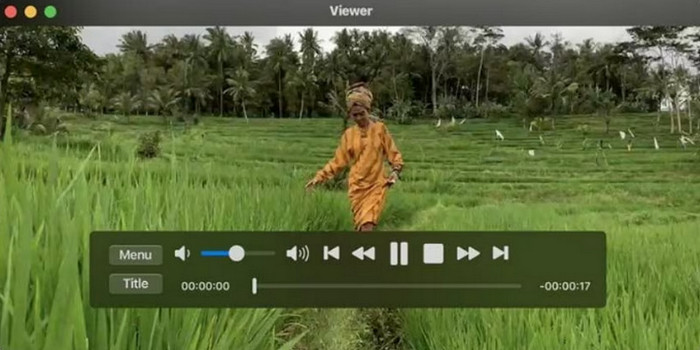
If you insert a standard home-movie DVD or an unprotected disc, this app usually triggers automatically anyway! Just be aware that if you try feeding it a weirdly burned disc that doesn't follow strict DVD-Video directory structures, it will likely just spit it back out without much explanation.
A completely hidden, native macOS gem that delivers a clean and battery-efficient viewing experience for standard, same-region discs without extra downloads.
Going a Bit Deeper: Region Codes and Digital Ripping
The Region Code Nightmare: Why won't a DVD from the UK play on a US Mac? It's due to RPC-2 drive region locking. Basically, DVD drives are hardcoded to only accept discs from a specific geographic region. Software emulation (like VLC) can sometimes bypass it, but it's a bit of a cat-and-mouse game.
The Digital Alternative (The Long-Term Fix): Instead of constantly plugging in hardware, you might eventually want to rip your physical DVDs to digital MP4/MKV files using software like Handbrake. This is a great way to store them permanently on your Mac or in iCloud.
FAQs about DVD Playback on Mac
-
Why does my Mac not recognize my external DVD drive?
Usually it is a power issue. When you use it, make sure your USB hub provides enough power, or plug the drive directly into the Mac.
-
Can I play a DVD on a Mac using an Apple SuperDrive without an adapter?
Only if you have an older Mac with USB-A ports. For modern MacBooks with only USB-C, you absolutely need a dongle or adapter.
-
How do I change the DVD region code on a MacBook?
When you insert a foreign region DVD, macOS usually prompts you to change the region. Be careful though—you can only change this setting up to 5 times before the drive is permanently locked!
-
Is there a completely free DVD player for Mac that skips ads and warnings?
Yes. VLC is always a good free choice to play DVDs on Mac without ads.
-
Why is the native DVD Player app missing from my Applications folder?
Apple hid it in the /System/Library/CoreServices/Applications/ folder to declutter the main app view, but it's still there!
Conclusion
Now, you have learned the 3 easy ways to play DVDs on Mac for free. With these powerful ways, you can enjoy your DVD collections more conveniently. Finding a reliable DVD player for Mac is easier than it seems. Each of the three tools offers a clear interface and a smooth DVD playback experience. Choose your tool, and have an immersive experience on Saturday night.
More from Blu-ray Master
Play DVD Movies
Easily play Blu-rays, DVDs, and various video/audio formats with rich playback features.
100% Secure. No virus
