

Aug 27, 2026Posted by Kevin Miller to Play DVD
Quick Summary
Since DVDs cannot be played on modern Windows 11 computers using built-in tools, third-party DVD players are the way to go. As such, the programs we highly recommend for playing DVD media on modern Windows PC are the following:
- Best Free Solution: Blu-ray Master Free Blu-ray Player
- Most Used Multimedia Player: VLC Media Player
- The Premium Option: DVDFab PlayerFab
If you are using modern Windows computers, playing DVDs today presents additional barriers, since Microsoft has discontinued built-in DVD playback tools starting with Windows 10. As such, loading DVDs is not possible by default, and you cannot access them without first buying expensive apps from the Microsoft Store. In this article, we will review three of the most reliable and free third-party software you can use to learn how to play a DVD in Windows 11 computers. We will provide a full tutorial on our most recommended tool, Blu-ray Master Free Blu-ray Player, as well as provide two more alternatives.
Table of Contents
Part 1. Why Doesn't Windows 11 Play DVDs Automatically
Before proceeding to the third-party DVD player tools you can use on Windows 11, let us first discuss why modern Windows versions do not automatically support different DVD types for playback. Back then, DVDs could be played with the default Windows player, such as Windows Media Centre in Windows 7. However, since the transition to Windows Media Player, the support for DVD playback has ended.
However, if you are looking for an official DVD player from Windows, you can download the Windows DVD Player app from the Microsoft Store. Unfortunately, it is not freeware and costs $15. The feedback for the program is also lackluster, with mixed user reviews.
If you want to learn how to play DVDs on Windows 11 reliably, we recommend using our featured program below, along with the two alternative options. These programs are all designed as reliable freeware for playing physical DVDs.
Part 2. The Best Free Solution: Blu-ray Master Free Blu-ray Player
To get started with our recommendations to learn how to play a DVD in Windows 11, we will begin by outlining the features of the best free solution on the market: Blu-ray Master Free Blu-ray Player.
Among the options on this list, this tool works best, as it is 100% free and optimized to be safe to use, both for user privacy and installation safety. Moreover, it is also versatile enough. In addition to DVDs, Blu-rays, and ISO files, the software also plays digital video formats such as MP4 and MKV.
To provide the experience of playing modern physical media, the program supports high-quality audio and video playback with Dolby, DTS, and HD video. All of which are designed to make the program fully utilize the quality of DVD and Blu-ray playback.
On top of these premium features, the software is still developed to be accessible. It has a user-friendly interface and well-labelled buttons, all of which are perfect for beginners.
To learn how to use Blu-ray Master Free Blu-ray Player, make sure to read our setup guide below.
Step 1.Download and install Blu-ray Master Free Blu-ray Player using the download link below.
Free Download
For Windows
Secure Download
Free Download
for macOS
Secure Download
Step 2.Load the DVD you want to play in your external DVD drive, then select Open Disc in the software. Then, select the loaded DVD media.

Step 3.Once the DVD content has loaded, you can watch it while using the full navigation menu available in Blu-ray Master Free Blu-ray Player.
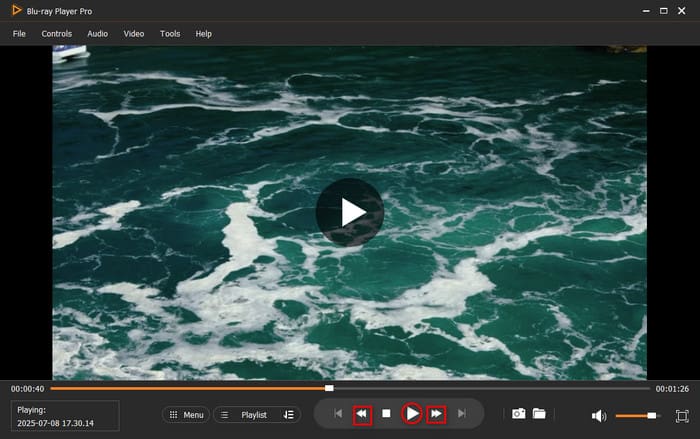
Since it was designed exclusively as a Blu-ray and DVD player, the program's interface and design were optimised to handle such system-intensive tasks. This makes Blu-ray Master Free Blu-ray Player our most recommended solution for playing DVDs on modern Windows 11 computers.
Part 3. Other Two Methods to Play DVDs on Windows 11
In addition to our featured DVD player in the Blu-ray Master's program for Windows 11, we will recommend two additional methods for playing physical DVD media on the latest version of Windows. Both of these alternatives are good solutions for learning how to play DVD files on Windows 11.
Option 1: VLC Media Player
If you are a fan of open-source multimedia players, there is a good chance you use VLC Media Player as your primary video player. If so, you are in luck, as this program has a direct DVD-loading feature, making it a functional DVD player for computers.
As such, you can use the tool to play DVDs with basic protection systems. Unfortunately, modern physical media with higher-grade encryption systems cannot be accessed by VLC. Region codes are usually the main barrier preventing the software from playing.
Fortunately, you can add the libdvdcss plug-in to the program to solve this encryption problem. If you have the technical skills to set up VLC, it makes a good alternative to dedicated DVD player software.
To learn how to play DVDs on VLC, please read our quick three-step guide below:
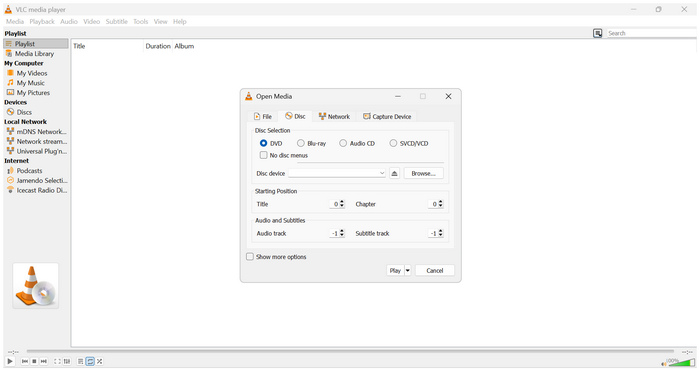
Step 1.Load the DVD you want to play on VLC on your computer via an external or built-in driver. Open VLC Media Player and then select Media. Then, select Open Disc.
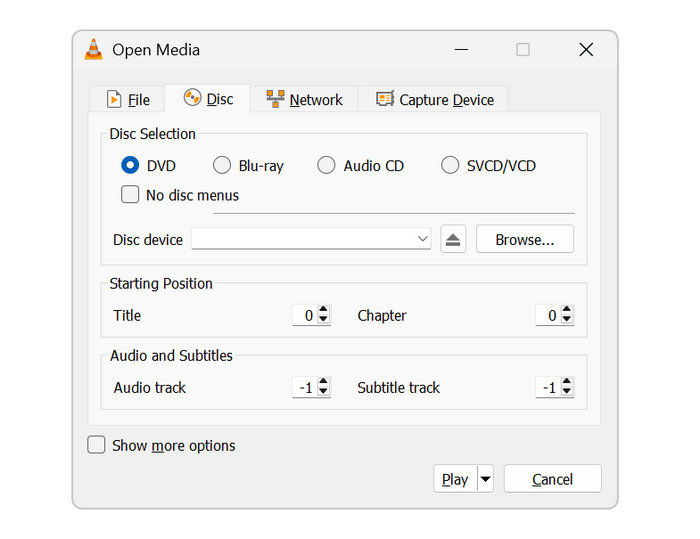
Step 2.In the Open Media tab, select DVD in Disc Selection, then click Disc Device to choose the DVD loaded on your computer.
Step 3.Click Play once the DVD is selected to begin watching your loaded DVD media.
If you plan on using VLC Media Player as your main DVD player on Windows 11, do not expect it to be as stable or as smooth as dedicated DVD players. It may get the job done, but stuttering and minor visual errors may occur because the program consumes significant system resources.
Option 2: DVDFab PlayerFab
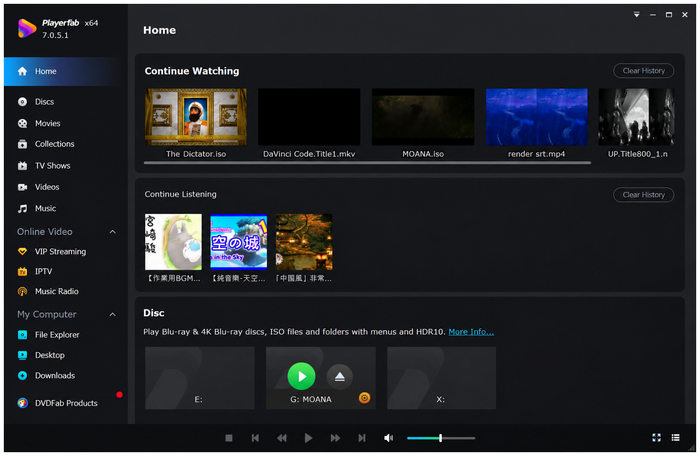
Moving forward to the more premium version, we have DVDFab PlayerFab software. Similar to Blu-ray Master's software, this tool is designed specifically for DVD playback. This makes the tool also support Blu-ray, ISO images, 4K Blu-ray, DVD folders, and digital video files.
Unfortunately, it suffers from prominent high resource consumption. This makes the program not the best solution for users with entry-level to midrange devices, since playing ultra HD videos consumes significant resources.
Despite those limitations, using the tool as the solution for users who want to play DVDs from an external drive in Windows 11 remains viable. However, make sure you are using a beefy computer capable of handling the program's heavy resource usage to prevent errors.
Learn the basics of watching DVDs on DVDFab PlayerFab with our tutorial below:
Step 1.Insert the DVD you want to play on your computer. Then, open DVDFab PlayerFab software and wait for it to automatically detect your DVD.
Step 2.Select Menu Mode to access the entire DVD content. Otherwise, click Simple Mode to watch the main movie file directly.
Step 3.Once you have selected how you want to access the DVD content, you can watch it.
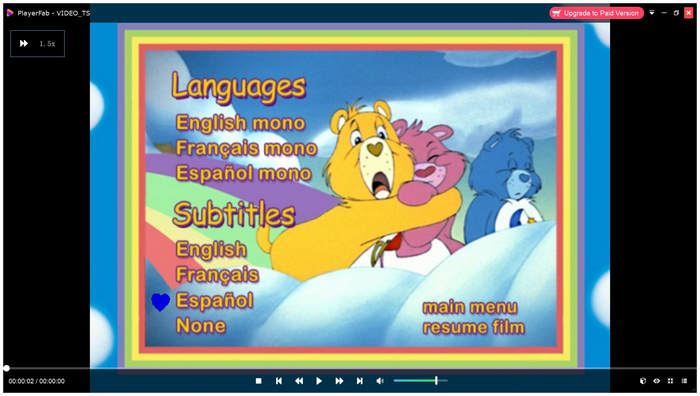
For users who prioritize ease of use and direct DVD media watching, paying for the premium and using DVDFab PlayerFab may be worth it. Its Simple Mode option makes watching DVDs feel more like opening digital videos.
Part 4. Troubleshooting Common Windows 11 DVD Issues
Issue 1: The DVD Drive is not Recognised by Windows 11
When facing such issues, the most common root cause is that your device may not be connected properly or your device driver is outdated. To fix this issue, double-check the connection of your external DVD drive to your computer. Then, check your Device Manager and find the DVD/CD-ROM drives to check for an update.
Issue 2: Region Code Errors
Region code errors occur if your DVD player and the DVD you are running have incompatible region codes. Fortunately, this is not a problem for modern digital DVD players designed to bypass copy protection. Among the programs on this list, Blu-ray Master Free Blu-ray Player offers the best solution since it can play any DVD or Blu-ray regardless of their region code.
Issue 3: The Disc is Scratched or Dirty
When trying to play old DVDs, the chance of the physical media having scratches or becoming dirty is inevitable. To clean your DVD safely and prevent further scratches, use a soft microfiber cloth and a few sprays of isopropyl alcohol. To prevent further damage, make sure your DVD is stored correctly.
Part 5. FAQs About Playing DVDs on Windows 11
-
Why doesn't Windows Media Player play my DVD automatically on Windows 11?
Windows 11 no longer has a built-in player that supports DVDs. The last DVD player for Windows that can handle DVDs by default has been discontinued since Windows 10. However, you can still use the official Windows DVD Player by buying it from the Microsoft Store.
-
Do I have to pay for the official Windows DVD Player app in the Microsoft Store?
Yes, you do. The official Windows DVD Player app is not built-in software. It has a price tag of $15.00.
-
Why does my external DVD drive keep disconnecting or clicking on my laptop?
Check the physical connection of the driver and your laptop's outlet. You may also check your Device Manager for updates. These are the usual reasons the DVD drive's connection is unstable.
-
How can I change the DVD region code in Windows 11 if my movie won't load?
Open your Device Manager. Then, go to the DVD/CD-ROM drives. Right-click and select Properties to edit the Region tab. For an easier solution, you may use region-free multimedia players, such as the Blu-ray Master Free Blu-ray Player.
-
Is it better to play physical DVDs or to rip them to MP4 for storage on Windows 11?
If your concern is storage, playing physical DVDs is better. Otherwise, ripping them to MP4 is the better solution since ripped DVD media are way more accessible. Digital videos will always be better for modern devices.
Conclusion
Although Windows 11 does not support playing DVDs out of the box with built-in media players, fixing this issue is quick and completely free. You have multiple options for playing DVDs on Windows 11. Among them, the most reliable is Blu-ray Master Free Blu-ray Player, offering a hassle-free, smooth viewing experience. If you have questions for users of the program, make sure to leave comments below or simply share your favourite DVD movies to watch on Blu-ray Master's program.
More from Blu-ray Master
Play DVD Movies
Easily play Blu-rays, DVDs, and various video/audio formats with rich playback features.
100% Secure. No virus
