

Oct 10, 2025Posted by Kevin Miller to Create DVD
As technology advances, we cannot deny that there are already modern storage devices to preserve your beloved photos and videos. However, if you plug a flash drive or an external hard drive to play your clips on the TV, you will only see a plain list of names with a file extension at the end. With this in mind, you might probably miss the old days when you visualize a fancy menu after inserting your disc on the player.
Nostalgic right? So, here is a piece of good news for you. Even today, there are still programs if you want to burn your videos into a DVD and customize a menu template to make it more interactive and personal. In this blog post, we will be uncovering the six professional DVD menu makers that you may want to try after reading.

Table of Contents
Top 1. Blu-ray Master DVD Creator
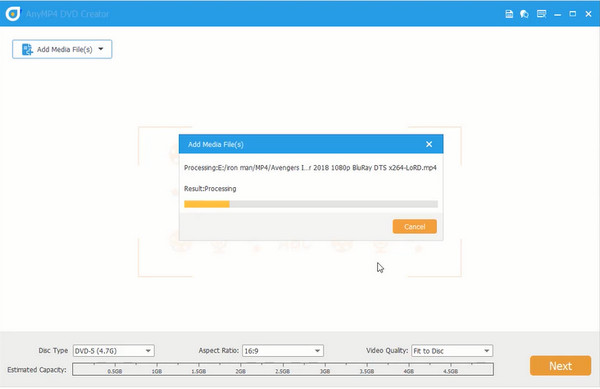
User-friendly, ultra-fast, and versatile, Blu-ray Master DVD Creator is known for these qualities. This offline program is designed for Windows and Mac platforms, making DVD burning possible. Moreover, it supports almost any video format and converts them to either DVD, Blu-ray, or an ISO file with lossless quality. Above all else, what is promising with this tool is that it contains a built-in video editor and a DVD menu creator.
Free Download
For Windows
Secure Download
Free Download
for macOS
Secure Download
Pros
- Numerous templates for the DVD menu is available.
- It has a clear and user-friendly interface for you to create DVDs.
- It adopts acceleration technologies to prompt the DVD creation.
Cons
- Exclusive features are not present in the free trial.
What Users Say
Most users are satisfied with its various DVD menu templates and rich customization settings. Moreover, this DVD menu creator offers a user-friendly interface to create DVDs and Blu-rays. However, some people reflect that the menu designs are seen as somewhat outdated.
Top 2. WinISO Review: Core Features
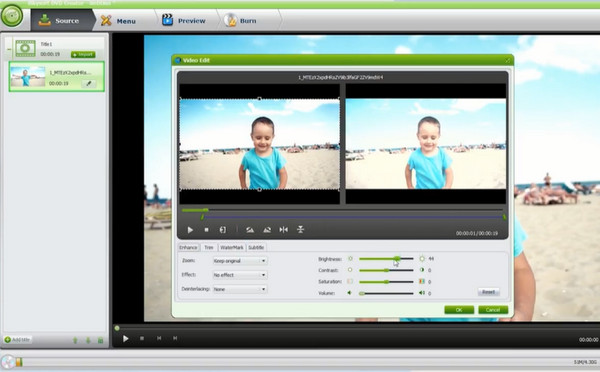
iSkysoft DVD Creator is a powerful program to author videos into DVD or ISO files. What is more, it is also one of the online programs that contain a built-in DVD menu creator to step up the game for your DVD files. In the free trial version of iSkysoft, you can have three free templates to choose from, while 123 templates are available in the paid version of the software. Lastly, with iSkysoft, you can also create a video slideshow for your pictures and add background music to it.
Pros
- Compatible with Windows and Mac platforms
- It contains a photo slideshow maker
- It provides a drag-and-drop interface and various menu templates.
Cons
- It has occasional compatibility issues with newer macOS versions.
- Unwanted freeze or crashes while using the program.
What Users Say
Users generally find iSkysoft DVD Creator easy to use, especially for beginners who want to create DVDs with custom menus and slideshows. This DVD menu maker performs well in the DVD creation process. However, some users mention that it can be slow when handling large video files and lacks advanced editing features.
Top 3. WinXDVD
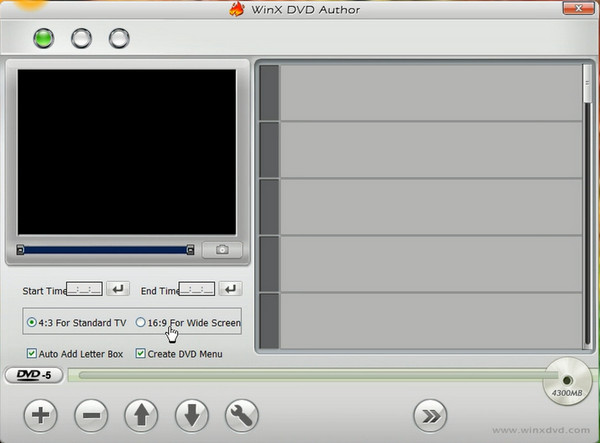
When it comes to fast burning speed and feature-packed authoring programs, WinX DVD Author is here. In fact, if you have a 4.3 GB file, the estimated DVD authoring it will take will be in just an hour. Through this offline program, you can also customize a DVD menu. One more thing is that it supports changing the aspect ratio of your files if you have a specific screen to play your DVD files on. But more importantly, WinXDVD is entirely free of charge.
Pros
- The speed in burning is fast.
- It is free to use with no watermarks or limitations.
- It supports a wide range of video formats and subtitle options.
Cons
- Outdated looking interface.
- This DVD menu software is only available for Windows.
What Users Say
WinX DVD Author is known for its free to use and simplicity. Many people appreciate its clear and intuitive layout, so that beginners can create DVDs by themselves without technical skills. There are also some people complained its limited advanced editing tools and effects.
Top 4. Cisdem DVD Burner
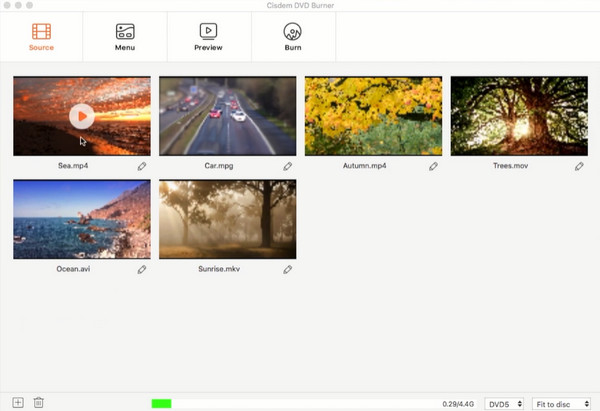
Suppose your device is Mac operated and you are looking for a DVD burner that contains a menu maker. In that case, you can go for the Cisdem DVD Burner. Some notable features you can encounter are: adding your watermarks for your video files, subtitles, video cropping, and rotation. Above all, Cisdem Video Burner contains an abundance of sophisticated templates for your DVD menu.
Pros
- Contains a drag and drop feature.
- It has a preview feature that enables you to see the menu effects in advance.
- It supports a wide range of video formats and disc types, like DVD-5, DVD-9, DVD-R/RW, etc.
Cons
- It has no free version for you to evaluate.
- It provides limited effects compared to other tools.
What Users Say
Cisdem DVD Burner is praised for its simplicity and solid performance, making it a great choice for personal DVD projects. Some people have reported occasional crashes when processing large files.
Top 5. Wondershare Simple DVD Creator
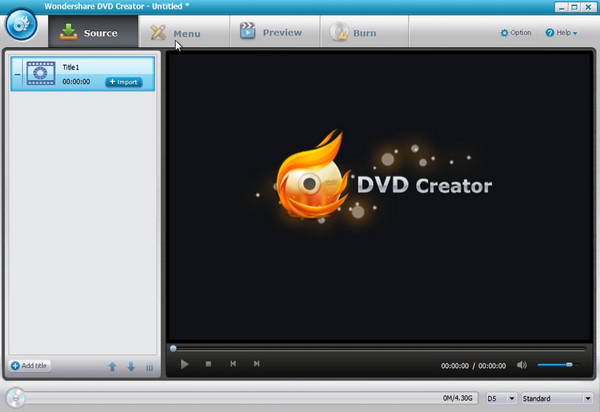
If you want to have an easy-to-use program to author DVDs, Wondershare is one of the top picks you can consider. Wondershare Simple DVD Creator supports 150 video formats to convert and burn into DVD, ISO files, and Blu-ray. Additionally, this program offers a hundred static or dynamic templates for your DVD menu. Therefore, whether your DVD files contain a collection of mundane clips or special ones, you indeed have a template to choose from that matches it.
Pros
- It allows you to add background music to the templates, like MP3, AAC, etc.
- It supports manual chapter creation and navigation menus.
- This DVD menu creator also includes basic video editing tools like cropping, trimming, and adding subtitles.
Cons
- It was reported occasional crashes in the DVD creation process.
- Its Blu-ray creation feature is only available on Windows.
What Users Say
Many users praise that the Wondershare DVD Creator is a reliable choice for casual users looking to burn DVDs with custom menus and simple edits. On the other hand, it is not suitable for professionals who want to make detailed adjustments to DVD creation.
Top 6. DVDStylerr
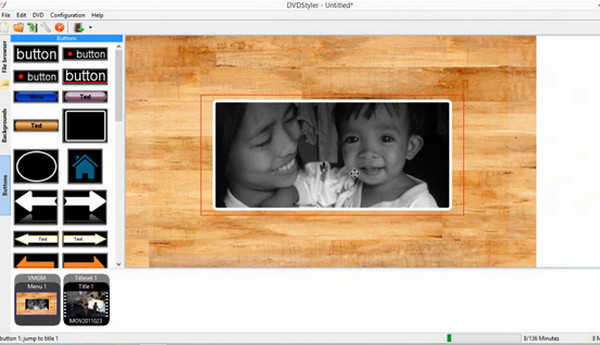
Although DVDStyler is considered open-source and free, this tool is also a rival to many DVD authoring programs in the market. Besides that, it supports popular video formats such as MPEG, MP4, AVI, MOV and converts them to DVD. With DVDStyler, you can create a customized menu for your files.
Pros
- Contains a drag and drop feature.
- This tool is free for you to make DVD menus.
- This free DVD menu maker supports multiple audio tracks, like MP3, AAC, OGG, and others.
Cons
- Templates for the DVD menu looks out-of-date.
- The interface is a little complex for beginners.
What Users Say
In general, DVDStyler was praised for its flexibility and power, especially for users who want full control over DVD design. Though some people reflect the phenomenon of accidental bugs and crashes, it is inevitable to happen because of various reasons.
Part 7. Bonus: How To Make a DVD Menu
Now that you know the best DVD burners with a built-in DVD menu creator, we won't allow you to know them without merely teaching you how to use them. This part will uncover how you can create a professional-looking menu and chapters using Blu-ray Master DVD Creator.
Step 1.Install the program
But first, you will not be able to create a DVD menu without installing a program first. Click the free buttons below to download DVD Creator on your device. Then, you run the file and follow the installation process.
Free Download
For Windows
Secure Download
Free Download
for macOS
Secure Download
Step 2.Edit the Technicals
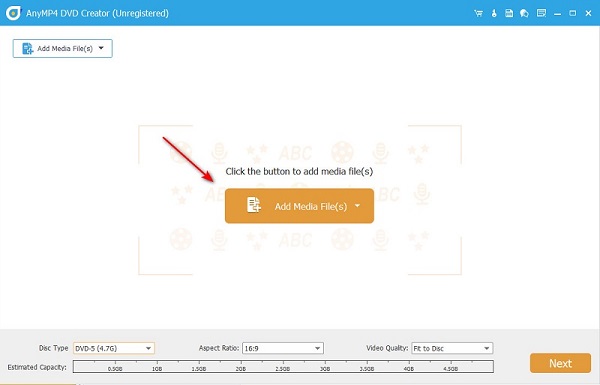
After that, hit the DVD Disc as your disc type when the program opens. Then hit the Add Media button to import your video files to burn. Make sure that the files are longer than 5 seconds, or else you will fail to add your files. Moreover, change the settings such as the Disc Type, Aspect Ratio, and Video Quality along the bottom of the interface.
Step 3.Customize Your Menu
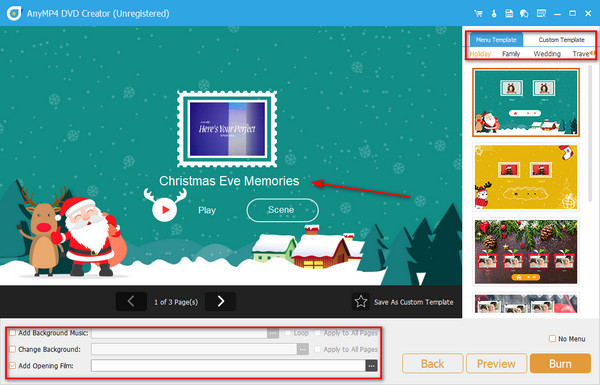
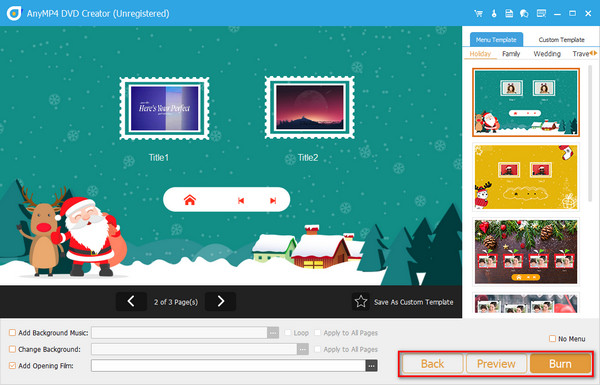
After that, hit the Next button to proceed in the best and most exciting part- the DVD menu making. As you can see, you can use tons of templates, or if you want to upload a new background image, you may do so. Move the buttons to wherever you want them in the working panel and rename the My Disc to your preferred title.
Step 4.Check the Output
Lastly, hit the Preview button and check if your work is satisfactory. When done, proceed to Burn.
Part 8. FAQS About DVD Menu Makers
-
Can I rip the DVD menu along with the DVD files?
Yes, DVD rippers can extract the DVD menu. However, it will be no use to get the menu if you want to save your DVD files on a different storage device like a flash drive. By doing this, you will not navigate the chapter and move to the file you want to play.
-
What is the advantage of having a DVD menu?
Aside from the aesthetic value of customizing a DVD menu, one of the significant advantages you get from it is the quick navigation experience.
-
Can I insert a soundtrack for my DVD menu?
Definitely, yes! If you want to insert a soundtrack for your DVD menu, you must put them during your editing process.
Wrapping up
We believe that you are ready to try one of the best DVD menu creators by this time. After reading this post, you must be clear about the advantages of each tool from the in-depth review. Be patient to pick on tool that is fit to your specific needs. Indeed, nothing is as good as when you actually try to use these powerful tools to burn DVDs with various themed menu templates. Go ahead!
More from Blu-ray Master
Digital to DVD
