

Sep 23, 2025Posted by Kevin Miller to Create DVD
"Is Windows DVD Maker free?"
"Does Windows 10 has a DVD maker?"
"Can Windows 10 burn DVDs?"
"What is the best DVD maker for Windows 10?"
Windows DVD Maker is the free DVD burning software for Windows 7 and Windows Vista released in 2007. However, the old Windows DVD Maker version has been removed from Windows 8. Microsoft Support announced that Window DVD Maker is not supported on Windows 10 in 2017.
Thus, if you want to burn a DVD on Windows 10 or earlier versions, you need to use third-party DVD burner software. What is the best Windows DVD Maker alternative for Windows 10? This article will show you the detailed information about each Windows 10 DVD burning software, such as software performance, advantages, disadvantages and more. Just read and check.
- Part 1. Why Do You Need a Windows DVD Maker Alternative
- Part 2. Top 5 Windows DVD Maker Alternatives for Windows 10
- Part 3. How to Create a DVD
- Part 4. FAQs of Best Windows DVD Maker Alternative
Part 1. Why Do You Need a Windows DVD Maker Alternative
Windows DVD Maker 2019 is a DVD burning tool designed specifically for Windows users, compatible with Windows 8, 7, Vista, and XP systems. It can convert local video files into DVD format and burn them to discs, compatible with home playback software and standalone DVD players. With extensive video format support and customizable menu features, it offers users a relatively straightforward DVD authoring solution.
- Windows DVD Maker supports up to 60 video formats for DVD creation, such as AVI, MP4, WMV, FLV, DivX, etc.
- Burn videos to DVD5, DVD9, Mini DVD and Mini DVD DL.
- Personalize DVD menus and subtitles (up to 32 for each video) with DVD Maker Windows 10 quickly.
- Create DVD chapters to cut your long video.
- Fully compatible with DVD-R, DVD+R, CD-R, CD-RW, DL DVD+RW, HD DVD and Blu-ray disc.
- Simple and easy to use interface.
Step 1.Visit https://www.topwin-dvd-maker.org/ to download and install Windows DVD Maker on Windows 10.
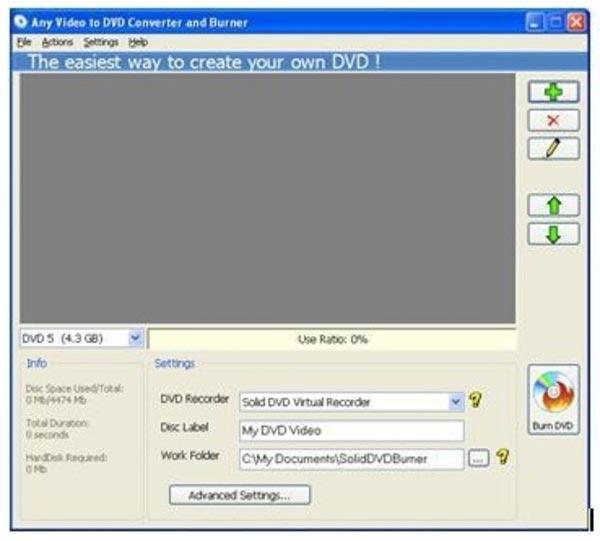
Step 2.Launch free DVD maker windows 10. Click "+" to import your video files. You can click the up or down arrows besides to adjust the video sequence.
Step 3.Double-click on the selected video to add external subtitle if necessary.
Step 4.Insert a blank DVD disc into the DVD recorder.
Step 5.Click "Burn DVD" to burn a DVD on Windows 10. You can get the estimated time from the burning progress bar.
Pros
- It is easy to burn videos into DVD discs.
- The latest Windows DVD Maker 2019 version works well with Windows 10.
- Support most home and portable DVD players.
- Offer an intuitive interface for beginners.
Cons
- The free trial of Windows DVD Maker lasts for 7 days only.
- Windows DVD Maker free will add a watermark to the burned DVD.
- You need to upgrade to Windows DVD Maker full version to remove the inserted watermark.
- The activation code may not be sent immediately.
- It is hard to uninstall Windows DVD Maker.
Therefore, while Windows DVD Maker offers basic DVD authoring capabilities, its limitations cannot be overlooked. Watermark restrictions, a short trial period, unstable activation processes, and compatibility issues on newer systems all impact the user experience. For users requiring higher-quality output, more robust editing features, or more reliable service, a more powerful alternative software would be a wiser choice.
Part 2. Top 5 Windows DVD Maker Alternatives for Windows 10
In summary, Windows DVD Maker is only suitable for users with older versions of Windows or those with minimal requirements for DVD burning. Therefore, it’s necessary to find a more flexible and powerful alternative. Here are our top five free DVD burning alternatives for Windows 10:
Top 1: DVD Creator
DVD Creator can burn Windows Movie Maker video to DVD format with high image and sound quality. There are many pre-made DVD menu templates you can choose, including holiday, travel, family, wedding and more. Of course, you can change factors and add your own image or background music to create a DVD on Windows 10.
Before burning videos to DVD formats, you can edit videos and adjust output effects with ease. The Windows DVD Maker alternative offers a built-in video editor. In addition, you can add external audio tracks and subtitles for DVD burning too. It is just your one-stop solution to edit and convert video files to DVDs.
- Burn any popular video file to DVD with high DVD burning speed and excellent quality.
- Use the provided DVD menu template or customize details to make it special.
- Specify the created DVD's format as PAL standard for Europe or NTSC standard for other areas.
- Set DVD aspect ratio as 4:3 or 16:9.
- Clip, crop, merge videos, add watermark, adjust contrast, saturation, hue, volume and more.
- Add and select any audio track and subtitle to your DVD.
- Work with Windows 10/8.1/8/7/Vista/XP and Mac OS X 10.6 or above.
Free Download
For Windows
Secure Download
Free Download
for macOS
Secure Download
User Review: Many users praise DVD Creator for its ease of use, clean interface, and high-quality output. It’s especially popular among beginners who want a straightforward way to burn DVDs without technical complexity. Users also appreciate the wide format support and customizable menus.
Pros
- Intuitive interface suitable for beginners.
- Fast burning speed with minimal quality loss.
- Rich menu customization options.
- Supports a wide range of video formats and disc types.
- Built-in editor for basic video adjustments.
- Compatible with both Windows and macOS.
Cons
- Limited features in the free trial version.
Top 2: BurnAware Free
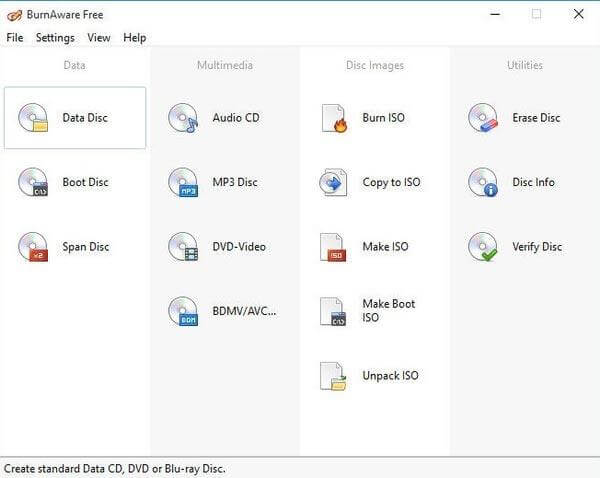
BurnAware Free is a streamlined disc burning solution that serves as a solid alternative to Windows DVD Maker, especially for users on Windows 10. It allows you to burn videos, music, documents, and ISO files to CDs, DVDs, and Blu-ray discs. While the free version covers essential burning tasks, advanced features like DVD menu customization, disc-to-disc copying, and audio extraction are reserved for the paid editions (Premium and Professional).
User Review: Users consistently praise BurnAware Free for its ease of use, fast burning speed, and minimal system impact. Beginners appreciate the intuitive layout, while more experienced users value its reliability for basic tasks. However, some users have reported issues with browser settings being altered during installation, and a few have experienced burn failures that rendered discs unusable.
Pros
- Supports a wide range of formats, including video, audio, documents, and ISO.
- Lightweight and fast, with minimal CPU/memory usage.
- Allows creation of bootable and multisession discs.
- Supports CD, DVD, Blu-ray, and M-Disc formats.
Cons
- No support for DVD menu creation or customization in the free version.
- Some users report browser default changes during installation.
- Buffering stage may be slow on older systems.
- No built-in video editing tools.
Top 3: AnyBurn
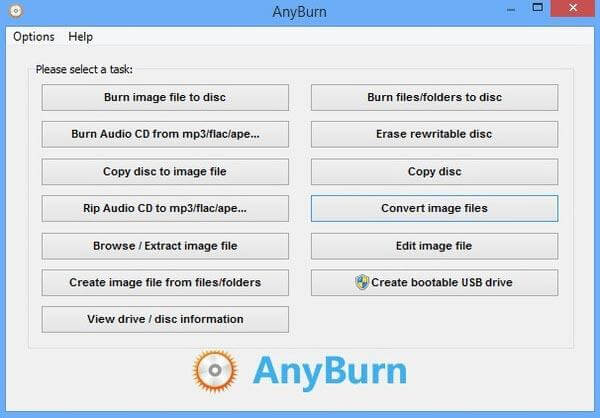
AnyBurn is a compact and highly efficient DVD burning utility that serves as a minimalist alternative to Windows DVD Maker, especially for users on Windows 10. Designed with simplicity in mind, AnyBurn organizes all its features into clearly labeled, one-click options. There are no unnecessary filters, overlays, or complex settings—just direct access to core burning tasks.
User Review: Users consistently describe AnyBurn as fast, lightweight, and refreshingly simple. It’s praised for its low system resource usage, portable version, and clean interface free of ads or bloatware. Many appreciate that it doesn’t try to upsell or distract with unnecessary features. However, some users note that the interface feels outdated, and the lack of drag-and-drop support or DVD menu creation limits its appeal for multimedia projects. Others mention occasional compatibility issues with newer disc types.
Pros
- Can create bootable discs and erase rewritable media.
- Clean interface with no ads or bundled software.
- Reliable for basic data backup and disc duplication.
Cons
- No support for DVD menu creation or video editing.
- Lacks drag-and-drop functionality.
- No preview or customization options for multimedia DVDs.
- Advanced features are limited compared to competitors.
Top 4: DVD Styler
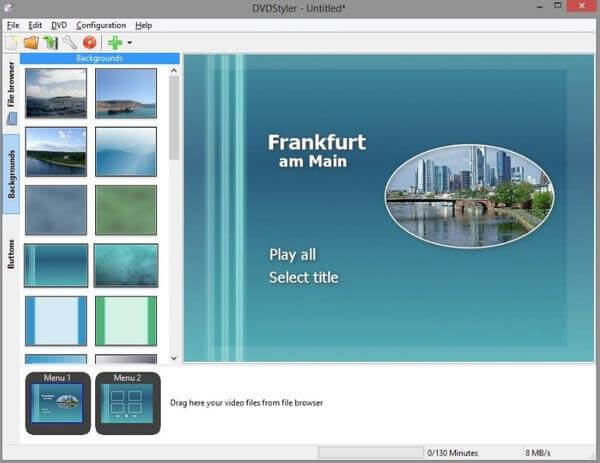
DVD Styler is a free and open-source DVD authoring software available on Windows, macOS, and Linux. As a multiplatform alternative to Windows DVD Maker, it allows users to create professional-looking DVDs with custom menus, chapters, subtitles, and audio tracks. Its drag-and-drop interface makes it easy to arrange video files and design interactive navigation structures, even for users with minimal technical experience. However, as a free tool, it comes with trade-offs. Some builds have been reported to include bundleware or browser hijack prompts during installation, and occasional stability issues have been noted, especially when burning to certain disc types or using older DVD writers.
User Review: Users appreciate DVD Styler’s flexibility, menu customization, and cross-platform availability. It’s often recommended for hobbyists, educators, and anyone needing a free solution for DVD creation. The ability to add multiple subtitles and audio tracks is a standout feature. However, others mention that the interface feels outdated, and the lack of HD support limits its use for modern video projects. A common workaround is to use DVD Styler to create an ISO file, then burn it using a more stable third-party tool.
Pros
- Free and open-source with no watermark restrictions.
- Available on Windows, macOS, and Linux.
- Available on Windows, macOS, and Linux.
- Customizable DVD menus with drag-and-drop design.
- Accepts most common video formats (AVI, MP4, WMV, etc.).
Cons
- Installation may include bundleware or browser hijack prompts.
- Occasional burn failures, especially with dual-layer discs.
- No support for Blu-ray or HD output (limited to SD DVDs).
Top 5: DeVeDe
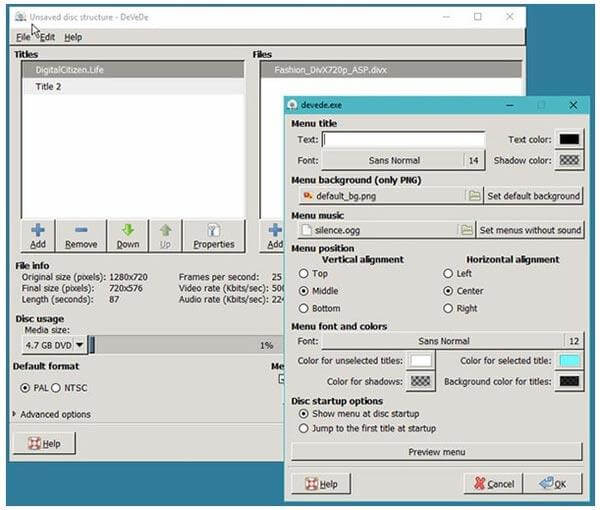
DeVeDe is an open-source and free DVD burner software designed for users who want to convert video files into playable disc formats without the complexity of commercial software. The DVDs and CDs created with DeVeDe are compatible with most home DVD players, making it a practical solution for personal archiving or sharing content offline. The software supports various input formats, including AVI, MP4, MPEG, MKV, and more. Users can customize technical parameters such as aspect ratio, video bitrate, and audio settings, giving them control over the final output. While DeVeDe doesn’t offer traditional video editing features like trimming or effects, it does allow users to add subtitles, create menus, and insert background images, which is useful for basic DVD navigation.
User Review: It’s often recommended for tech-savvy users who don’t mind using separate tools to burn ISO files. The ability to create menus and subtitles without watermarks is a major advantage. However, some users mention that installation may require manual setup of dependencies, especially on Linux systems.
Pros
- Completely free and open-source.
- Allows ISO preview before burning.
- Customizable output settings: aspect ratio, bitrate, audio format.
- Menu creation and subtitle support included.
Cons
- No built-in video editing tools.
- Interface is dated and may confuse beginners.
- Limited support for HD or Blu-ray formats.
Part 3. How to Create a DVD
Step 1.Free download and install Windows DVD Maker alternative. Insert a blank DVD disc into DVD drive. Then click "Add Media Files" to import all your source videos.
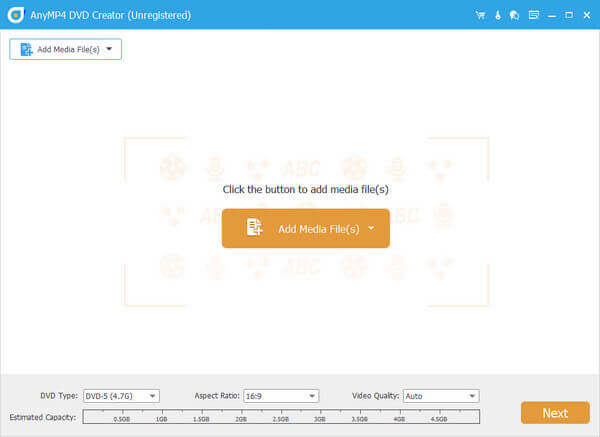
Step 2.Choose your video file. Click "Audio Track" or "Subtitle" to get related editing tools. For instance, you can click "Add Audio" to add background music.
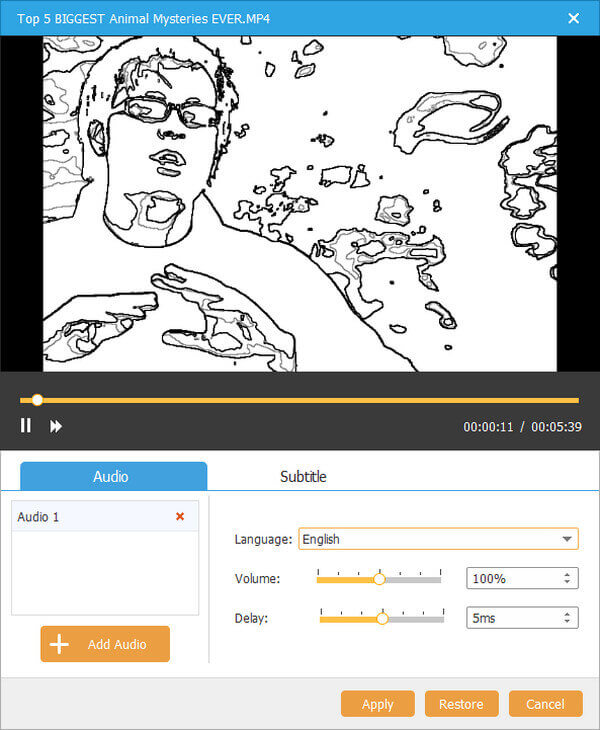
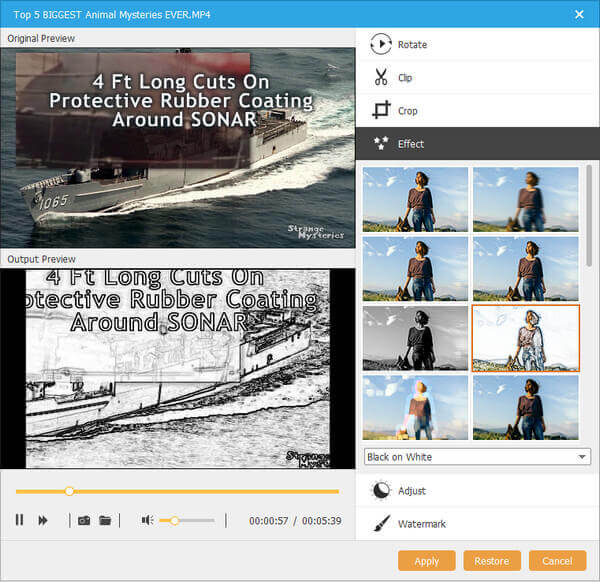
Step 3.Check your video in the main interface. Click "Edit" to access "Rotate", "Clip", "Crop" and "Effect" sections. The preview window will show you all changes instantly.
Step 4.Set the DVD format and destination folder. At last, click "Create" to start burning videos to a DVD on Windows 10.
Part 4. How to Create a DVD
-
Can I download Windows DVD Maker?
Windows DVD Maker isn't supported on Windows 10. If you want to create a DVD compatible with home-theater components, you should find an app from Microsoft Store. Moreover, you can also download the DVD maker alternative, DVD Creator, on Windows to burn any video into DVD disc.
-
Does Windows DVD Maker support MP4?
No. All the supported media formats by Windows DVD Maker are as below: Video files (ASF, AVI, DVR-MS, M1V, MP2, MP2V, MPE, MPEG, MPG, MPV2, WM, and WMV), audio files (AIF, AIFC, AIFF, ASF, AU, MP2, MP3, MPA, SND, WAV, and WMA, and picture files (BMP, DIB, EMF, GIF, JFIF, JPE, JPEG, JPG, PNG, TIF, TIFF, and WMF).
-
How to install Windows DVD Maker on windows 10?
Windows DVD Maker is not compatible with Windows 10, and it stops updates for Windows 10 users. You cannot install Windows DVD Maker on Windows 10 computer, but find the alternative like DVD Creator to create DVD and Blu-ray disc on Windows 10/8/7 computer.
-
What is the best free DVD creator on Windows 10 no watermark?
DVD Flick is the best free DVD creator on Windows 10 without a watermark. It is simple to offer all the basics that the user needs. It supports a wide range of video and audio codecs, so that you can create any video into the DVD. But the free DVD burner also has its shortcomings that it has a small number of DVD menu templates. So, if you are looking for a versatile DVD creator, you had better choose the paid ones.
Wrapping up
Throughout the article, we have learned why many users are looking for an alternative to Windows DVD Maker and explored 5 best Windows DVD Maker alternatives. Each of them has its own advantages and disadvantages, among which Blu-ray Master picked DVD Creator performs better whether in terms of format support, DVD menu templates, or video editing. Download and try it now!
More from Blu-ray Master
Best DVD Creator Review
