

Oct 20, 2026Posted by Kevin Miller to Rip Blu-ray
Quick Summary
To rip and copy the Game of Thrones Blu-ray (all 8 seasons), you need a Blu-ray ripper that handles AACS protection. This guide covers the fastest method using Blu-ray Master Free Blu-ray Ripper and the freeware MakeMKV + HandBrake route, as well as fixes for region-code and forced-subtitle errors.
Since the release of the award-winning HBO series Game of Thrones in 2012, the show's popularity has grown globally throughout its 8-season run, which ended in 2019. When it comes to physical media, Blu-ray releases have become the best option for watching official releases, and Game of Thrones is not an exception. In this article, we will provide a detailed guide and review to rip and copy Game of Thrones Blu-ray using the best Blu-ray rippers on the market, including the most reliable Blu-ray Master Free Blu-ray Ripper, along with an alternative option using the combination of MakeMKV + HandBrake. These ripper tools will greatly improve the accessibility of your Game of Thrones copy by ripping the Blu-ray content into digital video.

Table of Contents
- Part 1. How We Tested These Ripping Methods & Quick Comparison
- Part 2. What You Need Before Ripping Game of Thrones Blu-ray
- Method 1. Free Rip Game of Thrones with Blu-ray Master Free Blu-ray Ripper
- Method 2. Rip with MakeMKV + Compress with HandBrake (100% Free)
- Part 5. Troubleshooting — Region Codes, AACS Errors & Forced Subtitles
- Part 6. FAQs About Ripping Game of Thrones Blu-ray
Part 1. How We Tested These Ripping Methods & Quick Comparison
Before proceeding to our method reviews, let us first clarify the methodology we used to test both Blu-ray Ripper tools for ripping Game of Thrones Blu-ray media. To start, the hardware we used for ripping in the program is the first episode of the 6th season, as it marks the last season of the show with 10 episodes.
The ripping and performance tests were conducted on a modern Windows laptop running an AMD Ryzen 5 with 16GB of RAM. This hardware was selected because it includes features commonly found in modern entry-level devices.
| Blu-ray Master Free Blu-ray Ripper | VS | MakeMKV + HandBrake |
| GPU Accelerated (50x Faster) | Speed | Standard |
| Compressed | Output Size | Compressed |
| MP4, MOV, MKV, AVI, and 200+ formats. | Output Formats | MKV, MP4, WebM |
| Easy | Ease of Use | Intermediate |
| Free | Pricing | Free (Open Source) |
Part 2. What You Need Before Ripping Game of Thrones Blu-ray
Box Set Facts
Before ripping Game of Thrones content, the first hardware you need to prepare is the Blu-ray collection itself. If you are using a modern Windows laptop, such as the one we used for testing, you also need to use an external DVD drive that supports Blu-ray media. You also have to learn the DVD’s active copy protection and its region code information.
Legal Note
When ripping your own Blu-ray media, make sure to only use the recovered digital copy for personal consumption. Distributing ripped media files will make you an accessory for piracy. As such, once you are done ripping your Game of Thrones content, we advise our readers to keep the copies only in their own storage for personal usage and not upload them to cloud-based streaming sites.
Method 1. Free Rip Game of Thrones with Blu-ray Master Free Blu-ray Ripper
The Blu-ray Master Free Blu-ray Ripper can convert all Game of Thrones Blu-ray discs into popular, high-quality video formats. You do not need to take the Game of Thrones Blu-ray discs or a Blu-ray player with you to watch a high-quality video file. This makes the program a solid choice for learning the basics of ripping physical media into digital format.
Additionally, it is very easy to use, which is uncommon among most ripping programs. This was made possible by its intuitive interface design, making the software a solid choice for practical data ripping.
To learn how to use the program, please refer to our detailed step-by-step guide below. Before that, make sure to download it so it's easier to follow our tutorial.
Free Download
For Windows
Secure Download
Free Download
for macOS
Secure Download
Step 1. Prepare your Game of Thrones Blu-ray copy and the external DVD driver you will use. Connect the DVD drive to your computer, load the DVD, and check your file manager to confirm the Blu-ray content was read properly.
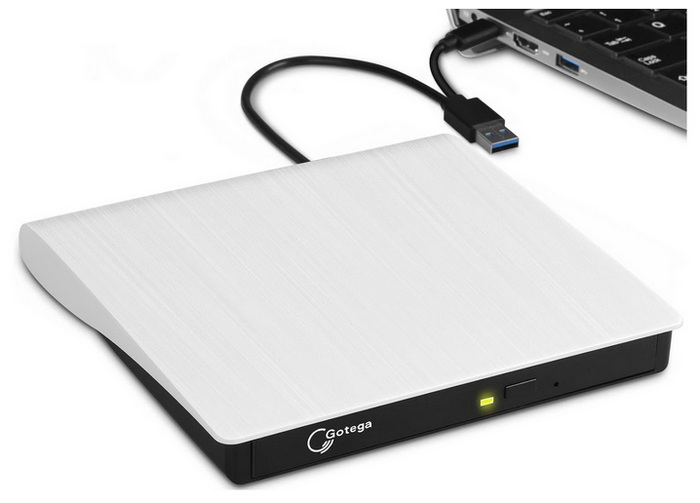
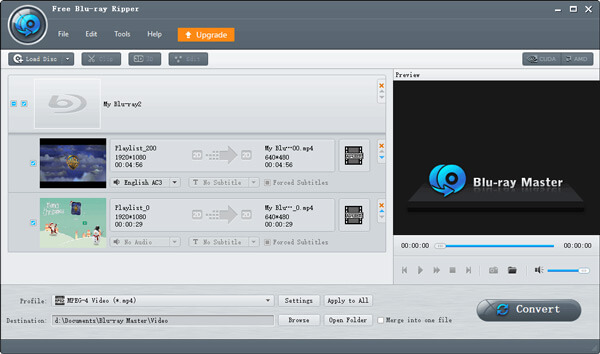
Step 2. Open Blu-ray Master Free Blu-ray Ripper, then select Load Blu-ray > Load Blu-ray Disc to open the loaded Blu-ray disc on your computer. Then, select Full Title List to make the software rip the entire content of the media.
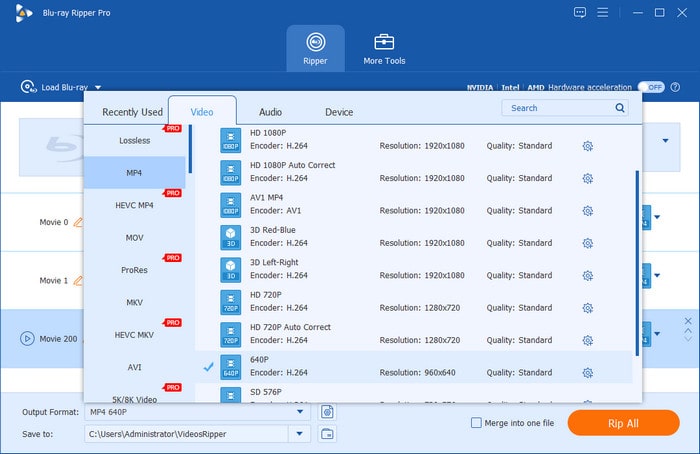
Step 3. With the Blu-ray media now loaded, click on Output Format and select the video format you want to use for conversion. We advise using MP4 or MKV as both options are popular file types.
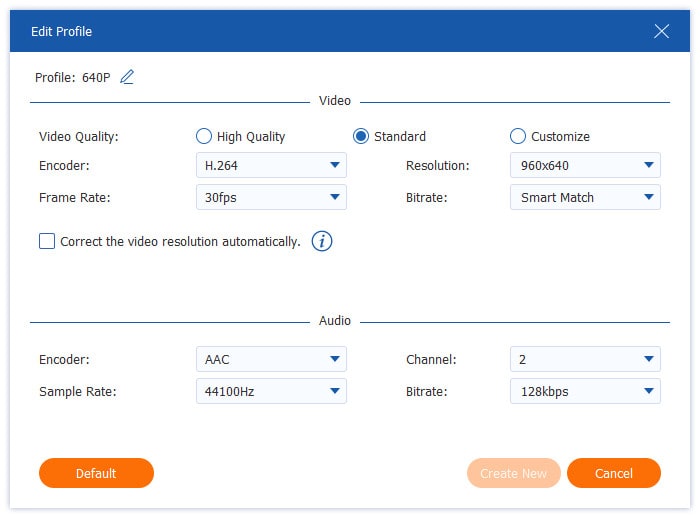
Step 4. If you wish to edit the Output Format settings, click the Settings option next to the format you selected.
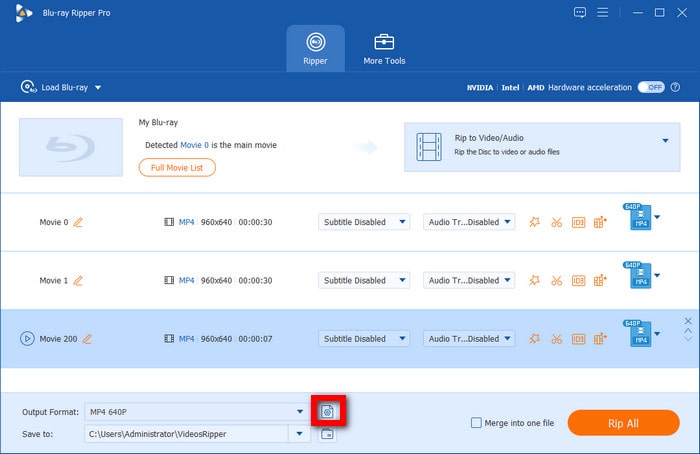
In the Edit Profile menu, you can access more advanced video settings, including Video Quality, Encoder, Resolution, Frame Rate, Bitrate, and more.
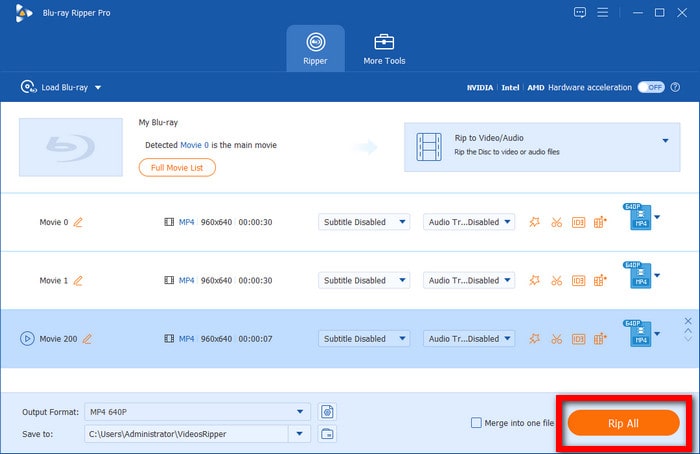
Step 5. With the Blu-ray title and output format settings now set, you may now proceed to the Ripper menu. There, click on Rip All to begin ripping the Game of Thrones content.
For beginners and users who want a faster, more efficient ripping process, Blu-ray Master Free Blu-ray Ripper is highly recommended. On top of its superior ripping performance, 50x faster than the standard, the program’s wide output format compatibility is also a major advantage.
Method 2. Rip with MakeMKV + Compress with HandBrake (100% Free)
The next method we will highlight will be the combination of MakeMKV and HandBrake. Both programs are designed for multimedia handling, with MakeMKV converting Blu-ray content to MKV digital video and HandBrake compressing the videos ripped by MakeMKV.
Unlike the previous method, using a third-party program to rip Blu-ray is advisable when using these open-source programs. To learn how to use MakeMKV to rip physical media and HandBrake for file compression, read our tutorial below.
Step 1. Open MakeMKV, set the Source to the loaded Game of Thrones Blu-ray, and then click on the DVD Icon to read the selected source.

Step 2. Wait for MakeMKV to read the Blu-ray content, then click the Make MKV icon to begin ripping the Blu-ray to an MKV file.

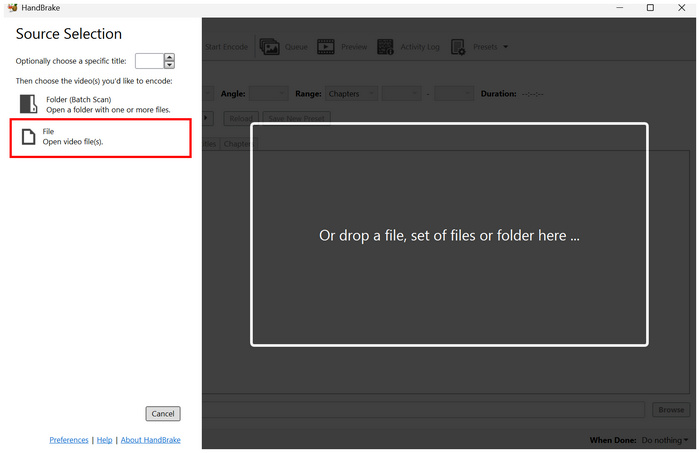
Step 3. Once the ripped MKV file is produced, open HandBrake and select File to open the converted digital video.
Step 4. In HandBrake’s main menu, click on Preset to choose the conversion profile you want to use. Then, select Format to choose the format you want to convert your raw MKV video from the previous program.
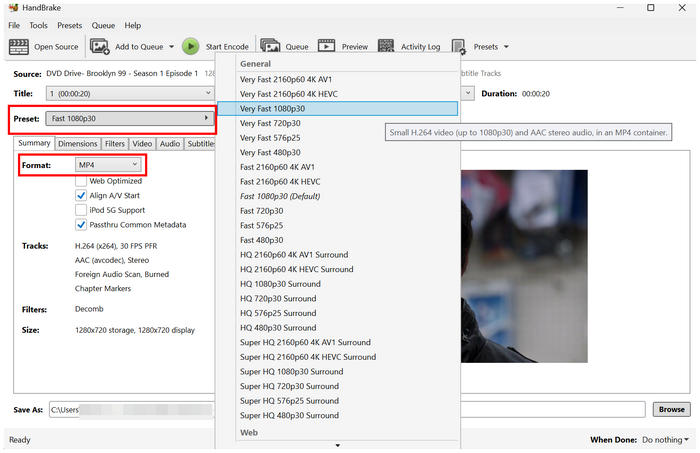
Step 5. With your preferred Preset and Format now set, click Start Encode to begin converting the raw MKV video to a compressed video format using HandBrake.
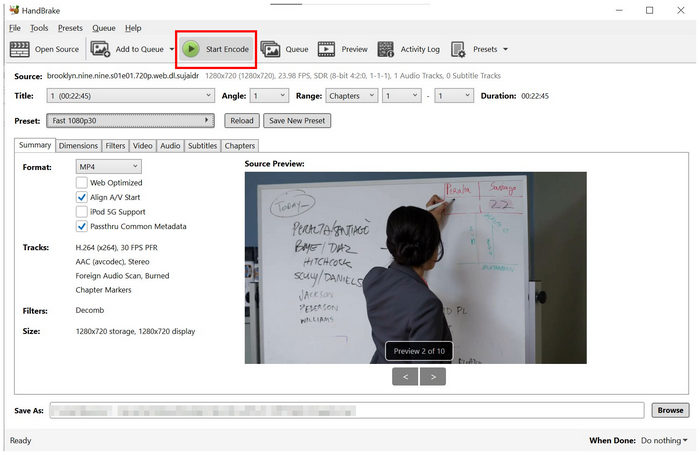
If you are an experienced practitioner in ripping physical media, open-source programs like MakeMKV and HandBrake are good options. However, we do not recommend using this option for complete beginners, as both tools might be overwhelming.
Part 5. Troubleshooting — Region Codes, AACS Errors & Forced Subtitles
When facing issues with region codes, AACS (Advanced Access Content System), and other copy-protection systems, we suggest using a program that can handle automatic protection bypass to make ripping your DVDs more efficient. Perfect examples are Blu-ray Master Free DVD Ripper and MakeMKV. Unfortunately, HandBrake does not support protection bypass by default.
For subtitle sync or adding external subtitles, Blu-ray Master Free DVD Ripper and HandBrake should be your choices. Both options support adding external DVDs to videos being processed in the programs. This includes modern SRT subtitle files, which are optimal choices for modern captions.
Based on these common issues, we strongly recommend using Blu-ray Master Free DVD Ripper, as it can bypass basic copy protections and fix subtitle-related issues.
Part 6. FAQs About Ripping Game of Thrones Blu-ray
-
Does MakeMKV rip Game of Thrones?
Yes, MakeMKV can rip Game of Thrones Blu-ray. But MakeMKV will rip the movies in their original state, which means if the Blu-ray disc stores the movies at 5GB, the ripped Game of Thrones video will take up 5GB on your computer. To reduce their size, use HandBrake to compress the ripped files.
-
How to fix the ripping error of Game of Thrones?
To fix the error of ripping the Blu-ray Game of Thrones file, you can do the following things: 1. The Blu-ray disc from the newer version of AACS may be blocked by the Blu-ray drive. 2. Make sure the Blu-ray code matches your region. If you are using professional Blu-ray ripping software, you should contact the Blu-ray Master support team to help resolve the issue.
-
Game of Thrones forced subtitles not working, how to fix?
Forced subtitles are permanently written on Blu-ray. Whether you like it or not, it will appear in the Blu-ray playback. When you try to rip the Blu-ray of Game of Thrones, you will not have the option to select forced subtitles. For more solutions about extracting the subtitles from Blu-ray, you can check them here.
-
How do I fix forced subtitles on Game of Thrones Blu-ray?
You need to use a ripper program that supports subtitle adjustments. In this article, both Blu-ray Master Free DVD Ripper and HandBrake include settings to handle this issue. This makes subtitle management an important option in the program.
Conclusion
Now that we have discussed the two most reliable methods for ripping Game of Thrones media, we hope our readers will enjoy watching Blu-ray-quality episodes on their modern hardware. Converting physical Blu-ray or DVD media to digital is highly advisable, as modern hardware is not only more accessible but also a better way to watch videos.
More from Blu-ray Master
Rip Blu-ray Movies
Rip Blu-rays to any video and audio formats of different parameters for free in minutes.
100% Secure. No virus
