

Aug 27, 2026Posted by Kevin Miller to Rip Blu-ray
Key Takeaways:
- • Beginners’ Choice: Blu-ray Master Free Blu-ray Ripper.
- • Best Choice: MakeMKV + HandBrake.
- • Recommended Format: MP4 for universal compatibility; MKV for preserving all subtitles and audio tracks.
- • Time Required: Approximately 30 – 60 minutes per film, depending on drive speed.
For every Potterhead, the Harry Potter 8-Film Collection is more than just a box set; it’s a portal to a decade of cinematic magic. From the nostalgic corridors of The Sorcerer's Stone to the epic showdown in The Deathly Hallows Part 2, these discs hold the definitive high-definition experience of the Wizarding World.
However, physical discs are fragile and tethered to your living room. Whether you want to protect your limited edition Wizard's Collection from scratches or stream the journey to Hogwarts on your Plex server, tablet, or phone, digitizing your collection is the ultimate solution. In this guide, we’ll show you how to safely rip your Harry Potter Blu-rays into high-quality digital files, preserving every magical detail—from the soaring John Williams score to the intricate spell-casting CGI—without spending a Galleon.

Table of Contents
- Why the Harry Potter Blu-ray Collection Is Worth Ripping
- How We Test the Best Ways to Rip Harry Potter Blu-ray
- What You Need Before Ripping a Blu-ray Disc
- Method 1: Blu-ray Master Free Blu-ray Ripper (Easiest)
- Method 2: MakeMKV + HandBrake(Lossless Gold Standard)
- Troubleshooting: Common Errors When Ripping Harry Potter Blu-rays
- FAQs about Harry Potter Blu-ray Movies Ripping
Why the Harry Potter Blu-ray Collection Is Worth Ripping

The Harry Potter films are visually rich, with detailed environments, magical effects, and immersive soundtracks. Many people try Blu-ray ripping for several benefits:
- Instant access without swapping discs
- A safe backup in case your discs get damaged
- Better portability for phones, tablets, and laptops
- Smooth streaming on Plex, Kodi, or a home media server
- Smaller file sizes if you choose compressed formats
If you want the full Hogwarts experience without the hassle, digital copies are the way to go.
Below are the correct .mpls file numbers for each Harry Potter Blu-ray movie(primarily based on North American editions).
| Movie Title | Edition / Cut | Correct .mpls | Notes |
| 1. Harry Potter and the Sorcerer’s Stone | Extended Version | 00101.mpls | Official extended release |
| Theatrical Cut | 00100.mpls | Original cinema version | |
| 2. Harry Potter and the Chamber of Secrets | Extended Version | 00101.mpls | Official extended release |
| Theatrical Cut | 00100.mpls | Original cinema version | |
| 3. Harry Potter and the Prisoner of Azkaban | Theatrical Cut | 00000.mpls / 00100.mpls | No official extended Blu-ray cut |
| 4. Harry Potter and the Goblet of Fire | Theatrical Cut | 00000.mpls / 00100.mpls | No official extended Blu-ray cut |
| 5. Harry Potter and the Order of the Phoenix | Theatrical Cut | 00000.mpls / 00100.mpls | No official extended Blu-ray cut |
| 6. Harry Potter and the Half-Blood Prince | Theatrical Cut | 00000.mpls / 00100.mpls | No official extended Blu-ray cut |
| 7. Harry Potter and the Deathly Hallows: Part 1 | Theatrical Cut | 00100.mpls / 00200.mpls | No official extended Blu-ray cut |
| 8. Harry Potter and the Deathly Hallows: Part 2 | Theatrical Cut | 00100.mpls / 00200.mpls | No official extended Blu-ray cut |
How We Test the Best Ways to Rip Harry Potter Blu-ray
We ripped all 8 Harry Potter films from the Blu-ray 8-Film Collection (standard 1080p)using both Blu-ray Master Free Blu-ray Ripper and MakeMKV + HandBrake on a Windows 11 PC (i7-13700, 16GB RAM, external USB Blu-ray drive). We compared output quality, file size, rip time, and subtitle/audio track preservation.
| Feature / Metric | MakeMKV + HandBrake (Recommended) | Blu-ray Master Free Blu-ray Ripper |
| Max Output Resolution | Up to 4K UHD / 1080p Full HD (1:1 Original Bitrate) | 720p HD (Free Version) / 1080p/4K (Pro Upgrade) |
| Audio Track Preservation | Pass-through (DTS-HD MA 5.1/7.1, TrueHD, Dolby Atmos) | Stereo / AAC / AC3 (Converts multi-channel audio) |
| DRM & Encryption Bypass | Excellent (AACS, BD+, Region Codes updated via online keys) | Good (Handles basic AACS & BD+ protection) |
| Subtitles & Forced Tracks | Full support (Preserves PGS, SRT, & Parseltongue forced subtitles) | Basic embedded subtitles |
| Rip & Transcode Time | ~20 min for MakeMKV remux; ~35 min for HandBrake encode (x265) | ~25–40 min direct conversion |
| Price | Free | Free |
What You Need Before Ripping a Blu-ray Disc
1. Legal Considerations and Ethics
Before you begin, it is crucial to understand the legal landscape, which is often a 'grey area.'
- Ownership vs. Licensing: In many regions, purchasing a disc gives you the right to view the content, but 'format shifting' (moving it from disc to digital) may technically bypass Digital Rights Management (DRM) protections.
- Regional Differences: In the U.S., the Digital Millennium Copyright Act (DMCA) generally prohibits bypassing encryption, even for personal use. However, in other countries, 'fair use' or private copy exceptions may apply.
- The Golden Rule: Regardless of local law, the ethical standard among enthusiasts is to only rip discs you physically own and never share or distribute the resulting files.
2. The Hardware: Blu-ray Drives
Not all disc drives are created equal. To read a Blu-ray, you need a laser specifically designed for it (standard DVD drives will not work).
- External vs. Internal: USB 3.0 external drives are the most popular choice for laptop users. If you have a desktop, an internal SATA drive is often faster and more reliable.
- '4K UHD Friendly' Drives: If you plan on ripping 4K Ultra HD discs in the future, you will need a specific 'UHD-friendly' drive. Some drives require 'flashing' (updating) the firmware to allow the software to read the raw data on the disc.
3. Ripping & Transcoding Software
'Ripping' is the act of copying the data, while 'Transcoding' is the act of compressing it into a smaller file. There are multiple powerful Blu-ray ripping software for you to choose from.
4. System Requirements
Blu-ray files are massive and require significant 'horsepower' to process, especially if you are compressing them.
- CPU (The Engine): A multi-core processor (Intel i5/i7 or AMD Ryzen 5/7) is essential. Transcoding a movie can take anywhere from 30 minutes to several hours, depending on your CPU speed.
- RAM: 8GB is the minimum, but 16GB is recommended if you want to use your computer for other tasks while the software is running in the background.
- Storage (The Vault): A single Harry Potter Blu-ray can range from 25GB to 45GB for a 1080p version. If you are ripping 4K versions, expect 50GB to 100GB per movie. An external Hard Drive or a NAS (Network Attached Storage) is highly recommended for long-term storage.
Method 1: Blu-ray Master Free Blu-ray Ripper (Easiest)
If you don't want to deal with complex encoding settings or open-source plug-ins, Blu-ray Master Free Blu-ray Ripper is a perfect one-click conversion choice for you to back up Harry Potter Blu-rays. It’s a basic, all-in-one ripper that turns your physical discs into digital files with just a few clicks.
It comes with various output profiles, including MP4, MOV, MKV, and multiple preset profiles for specific devices like iPhones, iPads, or tablets. So, if your goal is just to quickly load a couple of Harry Potter movies onto an iPad for a long flight, this gets the job done without a steep learning curve. Moreover, you can use the provided editing tools to crop, cut, apply filters, and do others to improve the video quality.
Keep in mind (Free Version Limitations): While the free version easily bypasses standard disc protection, it does export the videos at 720p HD resolution. If you want full 1080p/4K resolution and lossless DTS audio for a big-screen TV, you can either upgrade to the Pro version or use the MakeMKV and HandBrake combination below.
Pros
- It has an intuitive interface with zero steep learning curve.
- It includes many ready-to-use profiles for tablets, phones, and media players.
- It is able to handle most Blu-ray decryption technologies.
- Allows quick cropping, trimming, or adjusting brightness before exporting.
Cons
- The free version limits output resolution to 720p (requires Pro upgrade for 1080p/4K).
- Slower transcoding speeds compared to GPU-accelerated tools unless upgraded.
Free Download
For Windows
Secure Download
Free Download
for macOS
Secure Download
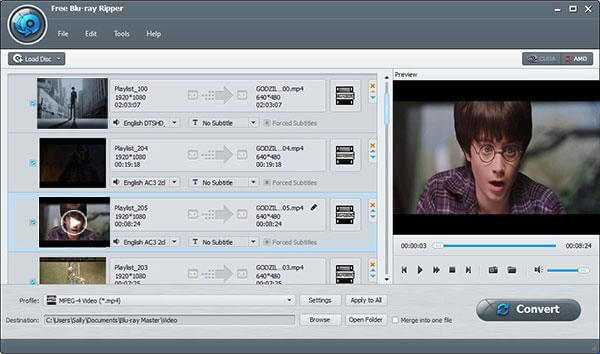
Step1.Download and Launch the Blu-ray Master Free Blu-ray Ripper
Just download and install the Free Blu-ray Ripper, you can launch the program as the screenshot.
Step2.Load the Harry Potter Blu-ray movie
Click the 'Load Blu-ray' option to load the Harry Potter Blu-ray movies to the program. Make sure the movies are playable. You can manually select the title, audio track, and subtitles you want to maintain.
Step3.Choose video format for your device
Make sure the video formats compatible with the device. You can also choose the device for playing Harry Potter Blu-ray movies.
Note: MP4 (H.264/AAC) is the best choice for mobiles that have universal compatibility and have a balanced size.
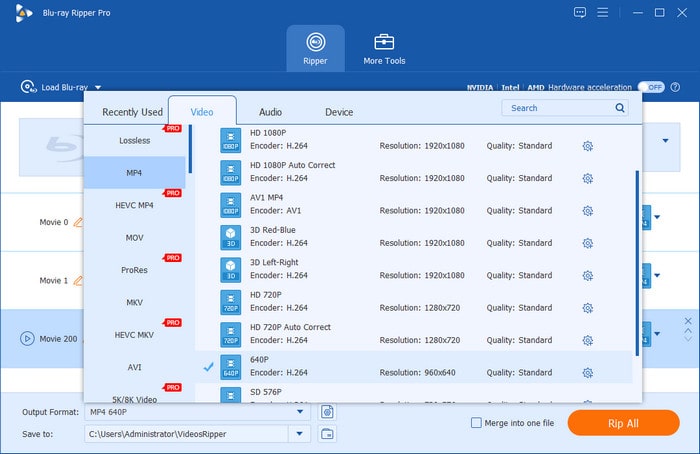
Step4.Free rip the complete eight films of Harry Potter Blu-ray set
You can also adjust the parameters for the device types, and then convert Harry Potter Blu-ray box set to the video format.
It is an easy and flexible choice that allows you to rip Harry Potter Blu-ray movies to MP4, MKV, and other compatible formats. No need for professional knowledge; you can use Blu-ray Master Free Blu-ray Ripper to get the digital backups in just one click. Download it on your computer to have a try!
Note: You can use a Constant Rate Factor (CRF) to balance file size and clarity with ease.
Method 2: MakeMKV + HandBrake(Lossless Gold Standard)
While all-in-one rippers are convenient, the most reliable way to digitize the Harry Potter 8-Film Collection without losing a single pixel of magic is the 'Dynamic Duo' of the ripping world: MakeMKV and HandBrake.
Before you can compress or play your movie, you need to bypass the complex encryption on the Warner Bros. discs. This is where MakeMKV shines. It acts as a 'decrypter' and 'remuxer.' It strips away the AACS/BD+ protection and takes the raw video/audio data from the disc, wrapping it into an MKV container. Why is it perfect for Potterheads? Because it preserves 100% of the original quality. You get the exact same bit-for-bit video and the high-end DTS-HD Master Audio found on the Blu-ray. It’s like having the physical disc, but in a digital file.
After that, HandBrake takes the giant MKV file created by MakeMKV and 'transcodes' (compresses) it into an MP4 file using modern codecs like H.264 or H.265 (HEVC). It allows you to downsize those 40GB files to a manageable 5GB–10GB without noticeable quality loss. It also lets you 'burn in' subtitles—crucial for those scenes where Voldemort and Nagini speak in Parseltongue.
Now, let's see how to use them to rip Harry Potter Blu-rays.
How to Use Two Free Tools to Rip Harry Potter Blu-ray Movies
Step 1. Download and install MakeMKV and HandBrake on your computer. Open MakeMKV and load the Harry Potter Blu-ray from the Source section.
Note: MakeMKV is currently free during its Beta phase. If the trial expires, simply visit the MakeMKV forum to download the latest free Beta key—this works indefinitely.
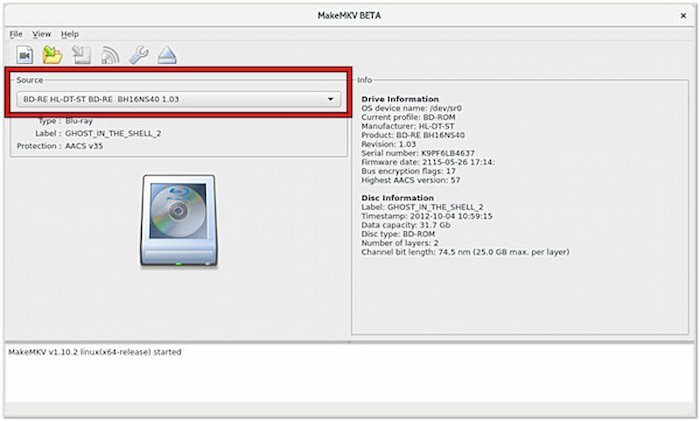
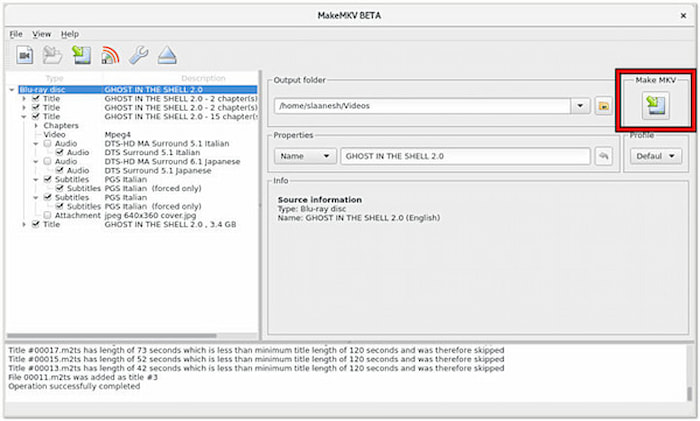
Step 2. It will automatically scan the full information of the Blu-ray and show the titles and audio tracks in the interface. Check and uncheck the items you want to maintain. Then, click the Make MKV button to start the ripping.
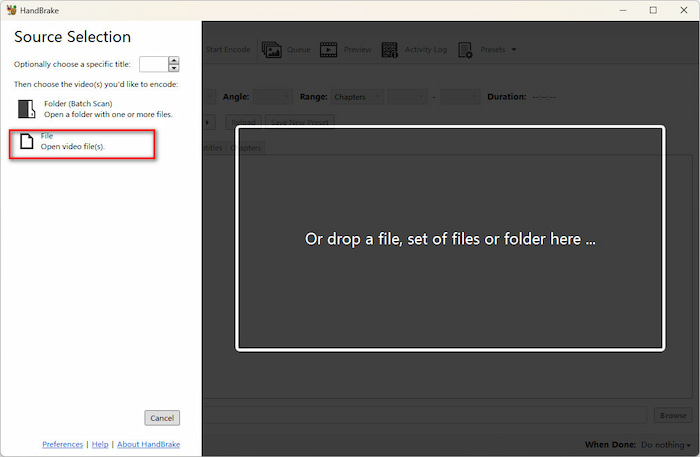
Step 3. When the process is done, open HandBrake to import the converted MKV files via the File option.
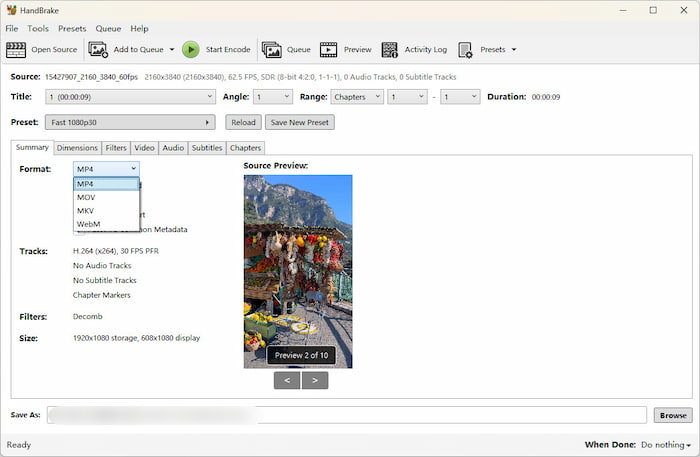
Step 4. Under the Summary section, choose MP4 as the output format, which offers the strongest compatibility (with smartphones and older TVs). However, it has several limitations: it does not support PGS subtitles, and its support for 7.1-channel audio is less stable than that of MKV.
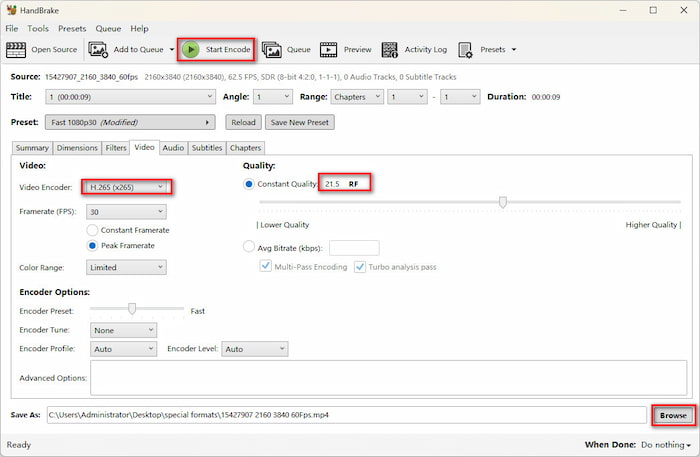
Note: To balance volume and image quality, recommend the following settings: H.265(x265) or AV1 (SVT-AV1), and RF 20 – 22.
Step 5. Lastly, set the download folder from the bottom Browse button and click Start Encode to start the video conversion.
So, here are the complete steps for using MakeMKV and HandBrake to back up Harry Potter Blu-ray movies. The steps are intuitive and you can follow them even if you are new to Blu-ray ripping. Once completed, you'll have a digital Harry Potter library ready for Plex, your tablet, or any media player.
Pro Tip: How to Keep 'Parseltongue' Forced Subtitles in HandBrake
One of the biggest headaches when ripping Harry Potter movies (especially The Chamber of Secrets and The Deathly Hallows) is missing the forced subtitles for scenes where characters speak Parseltongue.
If you don't configure your settings correctly, HandBrake might skip these short translation tracks, leaving you with no idea what Harry or Voldemort is saying. Here is how to fix it:
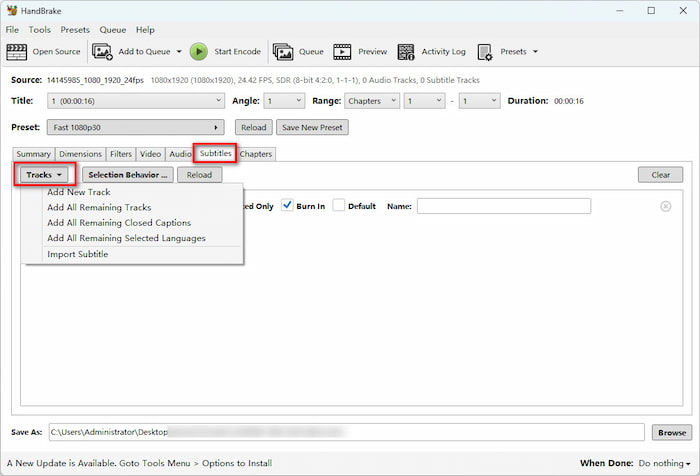
Step 1. After loading the MKV file on HandBrake, go to the Subtitles tab. Click Tracks > Add New Track and choose English (or your primary language). Blu-rays usually include both full movie subtitles and a smaller 'forced' track just for non-English dialogue.
Step 2. Under the track options, check the Forced Only box. This tells HandBrake to scan the subtitle file and only render text when a foreign/magical language is spoken on screen.
Step 3. Burn-In vs. Soft Subtitles: Check Burn In if you want the Parseltongue subtitles permanently embedded into the video (best for maximum compatibility on smart TVs or old devices).
Leave it unchecked if you are exporting to MKV and want selectable soft subtitles for media servers like Plex.
Doing this ensures you won't miss a single word of Parseltongue during your next Wizarding World marathon!
Troubleshooting: Common Errors When Ripping Harry Potter Blu-rays
Even with the right tools, digitizing a massive collection like the Harry Potter 8-Film Set can run into technical hiccups. Here are the most frequent issues and how to bypass them:
1. Handling Cinavia Protection
Some later pressings of the Harry Potter Blu-ray collection (especially those released in specific regions) may carry Cinavia watermarking.
- • The Situation: Your audio might mute or the playback stops abruptly after 20 minutes on a Cinavia-enabled player (like a PS5 or Sony Blu-ray player).
- • The Fix: Rip the disc to MKV (lossless) using Blu-ray Master Free Blu-ray Ripper or MakeMKV. When playing back, use VLC Media Player or Plex—both skip Cinavia detection entirely. Do not use a Sony Blu-ray player or PS5 for playback of the digital file.
2. 'No Disc Found' or Optical Drive Noise
The Harry Potter discs are often played heavily, leading to micro-scratches that Blu-ray drives struggle to read.
- • The Fix: Clean the disc with a lint-free microfiber cloth from the center out to the edge. If the drive is making a ‘grinding’ noise, it may be a firmware lock. Ensure your drive is ‘UHD-friendly’ or has the latest firmware to handle the high-density layers of the 8-film collection.
3. AACS and BD+ Decryption Failures
Warner Bros. frequently updates encryption for its major franchises.
- • The Fix: If the software says ‘Decryption Failed,’ ensure you are using the latest version of your ripping tool. Most modern rippers require an active internet connection to download the latest decryption keys for the Harry Potter AACS protection.
FAQs about Harry Potter Blu-ray Movies Ripping
-
1. Is Blu-ray ripping legal?
It is a legal grey area. In many regions, bypassing DRM (copy protection) is technically illegal under copyright law. However, ripping for personal, non-commercial backup is generally tolerated and rarely prosecuted.
-
2. What is the best format for Harry Potter movies?
MKV (H.265/HEVC) is the best choice. It preserves the high-quality visuals and dark details of the series while supporting multiple audio tracks (for different languages) and subtitles in a single file.
-
3. How long does it take to rip a Blu-ray?
20 - 40 minutes for a direct 'remux' (copying data without quality loss). 2 - 8+ hours if you are 'transcoding' (compressing the file to a smaller size), depending on your computer's power.
-
4. Can I rip Blu-ray for Plex?
Yes. Plex is designed specifically to host such files. Using MakeMKV to rip the disc is the standard method for Plex users to maintain full Blu-ray quality.
-
5. What’s the difference between MP4 and MKV?
MP4 is highly compatible with almost any device (phones, old TVs) but supports fewer subtitle and audio options.
MKV is highly flexible and acts as a 'container' that can hold unlimited audio, video, and subtitle tracks, making it the standard for high-quality movie collections. -
6. Can I rip only the extended cuts of Harry Potter movies?
Yes. Both MakeMKV and Blu-ray Master Free BR Ripper let you select individual titles. Look for the longest playlist—that's typically the extended cut.
Conclusion
Now, you must be clear about how to rip Harry Potter Blu-ray movies with 2 easy ways. Whether you choose the precision of MakeMKV + HandBrake for lossless archives or the simplicity of Blu-ray Master Free Blu-ray Ripper for quick MP4 exports, you now have everything you need to digitize all 8 films.
More from Blu-ray Master
Rip Blu-ray Movies
Rip Blu-rays to any video and audio formats of different parameters for free in minutes.
100% Secure. No virus
