

Sep 11, 2025Posted by Kevin Miller to Create DVD
Wondershare never gets behind in releasing software that people find beneficial. Indeed this team is always all out to make their creative ideas turn into reality. Some of their renowned software are Wondershare Filmora, Wondershare EdrawMax, Wondershare PDFelement, and Wondershare Filmstock.
But for today's blog, our team will tour you with a detailed guide about the Wondershare DVD Creator. Here, you will know the pros and cons of the program, its distinct features, supported formats, and even the cost. So, fasten your seatbelts, and let's get into it.

- Part 1. Wondershare DVD Creator Verdict
- Part 2. Wondershare DVD Creator Detailed Review of All Features
- Part 3. Pros and Cons of Wondershare DVD Creator
- Part 4. How to Use Wondershare DVD Creator
- Part 5. Best Alternative to Wondershare DVD Creator
- Part 6. FAQs about Wondershare DVD Creator
Part 1. Wondershare DVD Creator Verdict
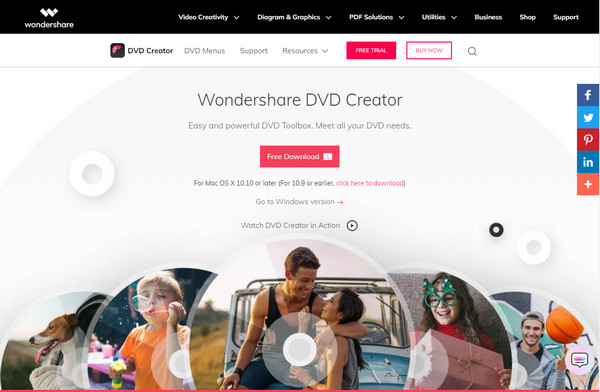
Wondershare DVD Creator has been hailed by many as an all-in-one program. This desktop program allows you to burn images, videos and documents on a DVD, Blu-ray, or even an ISO. Moreover, tons of users love Wondershare DVD Creator because even a non-techy person can burn their data by themselves.
I personally spent about 2 hours testing the software on a Windows laptop, using a mix of MP4 and MOV files from a recent family trip to Lake Geneva. The interface was intuitive, and I was able to create a Blu-ray disc with a custom menu featuring a summer theme. The drag-and-drop functionality made organizing clips super easy, and the preview feature helped me fine-tune transitions before burning.
Meanwhile, if you need to extract your file on the DVD, this tool can also work for you because it can function as well as a CD ripper. Another thing, it is perfect for customizing a navigation menu. Whether your files have the themes of a great summer experience, Christmas season, under the waters, and sports, the sky's the limit here.
Lastly, if you have tons of photos and want to curate them beautifully, Wondershare DVD Creator also contains a slideshow maker. As you put your lovely photos, you can as well add a piece of background music to make them more sentimental and unique.
Ease of Use:
OS Compatibility:
Pricing:
Disc Format Support:
Video Editing Tools:
Menu Templates:
Part 2. Wondershare DVD Creator Detailed Review of All Features
To help you decide whether Wondershare DVD Creator is the right tool for your DVD burning needs, we’ve broken down its core features and performance across several key areas. From system compatibility to editing capabilities, here’s an in-depth look at what this software truly offers.
System Compatibility
Wondershare DVD Creator is impressively versatile when it comes to system support. It runs smoothly on Windows XP and all later versions, including Windows 11, making it accessible even on older machines. For Mac users, the software supports macOS 10.10 and above.
Note: Blu-ray burning is only available on Windows. This limitation may disappoint Mac users who need Blu-ray functionality.
Ease of Use
One of Wondershare DVD Creator's greatest strengths is its user-friendly interface. The interface is clean and intuitive, supporting drag-and-drop operations that greatly simplify the workflow. Even beginners with no prior experience in disc authoring can get started with ease. During testing, I completed a DVD project within 30 minutes, including menu customization and video editing.
Stability
In terms of stability, the software performs well under normal usage. I tested it with over 5GB of MP4, MOV, and AVI files, and the software remained responsive throughout without crashing or freezing. CPU usage was moderate, which allows smooth operation even during encoding and burning phases. However, performance may vary slightly depending on device configuration when processing high-resolution Blu-ray content.
Supported Input Formats
Wondershare DVD Creator supports over 150 media formats, making it one of the most flexible tools in its category. Supported video formats include MP4, AVI, MKV, MOV, WMV, FLV, MPEG, and M4V, among others. It also accepts image formats like JPG, PNG, BMP, and audio formats such as MP3, AAC, and WAV. This wide compatibility ensures that users can work with virtually any media file without needing to convert it beforehand.
Output Disc Types
The software supports a wide range of output formats, including:
• DVD+R, DVD-R, DVD-5, and DVD-9.
• Blu-ray formats: BD-25, BD-50, BD-100 (Windows only).
• ISO image files and DVD/Blu-ray folders for later burning.
Editing Features
While not a full-fledged video editor, Wondershare DVD Creator offers a solid set of basic editing tools. Users can trim, crop, rotate, and adjust brightness/contrast, as well as apply simple filters. You can also add watermarks and subtitles, which is useful for branding or accessibility. The built-in slideshow maker is a standout feature—it lets you create photo slideshows with transitions and background music, perfect for family events or presentations.
Price Plans
Wondershare DVD Creator offers two main pricing options:
• Lifetime License: $55.95 – One-time payment with full access to all features and future updates.
• Year License: $39.95 – Annual subscription with full feature access.
• Free Trial: Available, but limited to only 3 menu templates and adds watermarks to output files.
While the free version is useful for testing the interface, serious users will benefit from upgrading to the paid version to unlock full functionality and remove limitations.
Part 3. Pros and Cons of Wondershare DVD Creator
Based on hands-on testing and user feedback, here’s a clear breakdown of what the software does well and where it falls short.
Pros
- It is easy to use even for beginners.
- Supports 150+ formats with strong compatibility.
- Rich menu templates available in the paid version.
- Practical slideshow feature with background music support.
- Stable performance during the burning process.
Cons
- Blu-ray burning is not supported on the Mac version.
- The free version is limited and adds watermarks.
- Editing features are basic and lack advanced options.
Overall, Wondershare DVD Creator is a practical and approachable solution for users who want to burn DVDs or Blu-rays without technical complexity. Its wide format support, stable performance, and intuitive design make it especially suitable for beginners and home users. While the Mac version lacks Blu-ray support and the free trial has limitations, the full version delivers solid value.
Part 4. How to Use Wondershare DVD Creator
Here’s a step-by-step guide to help you burn your videos, photos, or documents to DVDs or Blu-rays with Wondershare DVD Creator:
Step 1.Download and Installation
Download the software from the official website, then install it following the onscreen instructions.
Step 2.Choose the Burning Tool
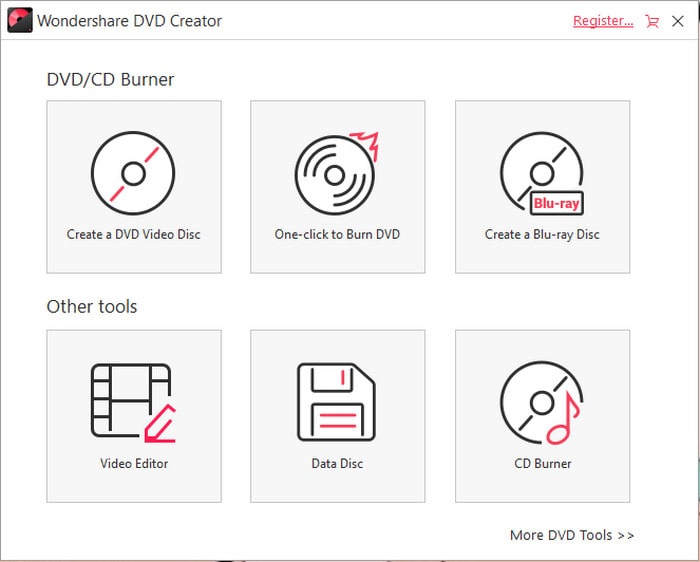
Open the software, and you will see the different burning tools, including DVD burner, Blu-ray burner, and CD burner. Here, we take the DVD burner as an example. Click the Create a DVD Video Disc button to continue.
Step 3.Upload Materials
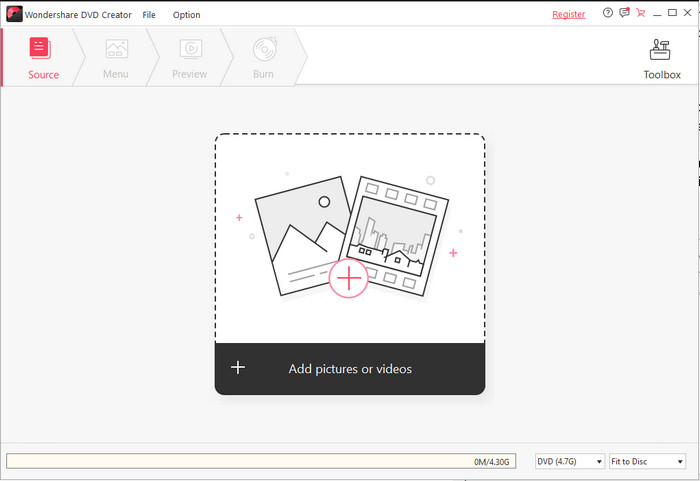
Click the plus button to upload your videos and photos that you want to burn. If you have a long video, you can create chapters by selecting a point in the video and using the chapter creation tools.
Step 4.Customize DVD Menu
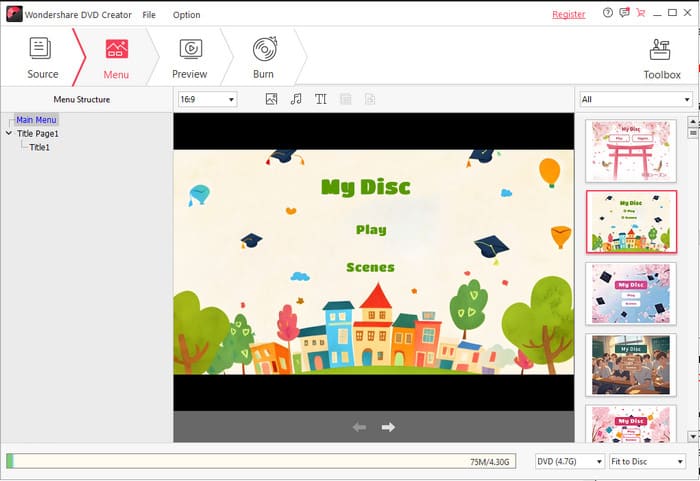
After that, click the Menu button to browse the available DVD menu templates. Then, double-click a template to apply it to your project.
Note: You can further customize the menu by changing the background image, editing the background music, customizing text, etc.
Step 5.Preview and Burn
Before burning it to DVD, click the Preview button to see how your DVD menu and videos will look and function. Once you're satisfied with the design and content, click the Burn button to start the process of writing your project to a DVD.
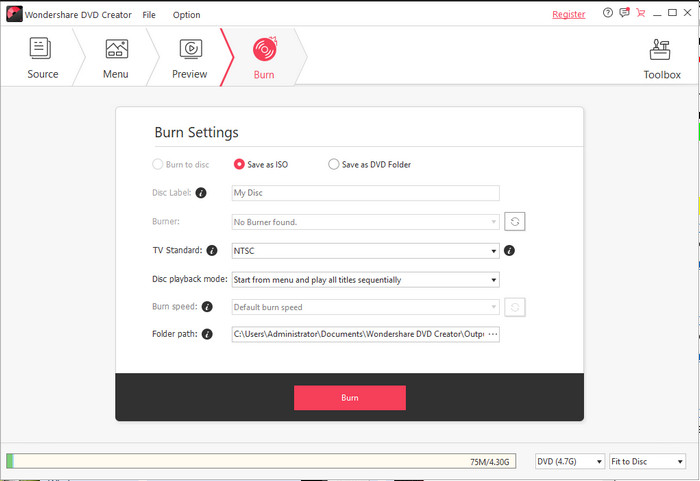
Overall, Wondershare DVD Creator features a very clear workflow that's perfect for beginners to get started quickly. From importing media to customizing menus, each step is guided with explicit instructions, requiring almost no additional learning effort. During my hands-on use, I particularly enjoyed its menu template feature—not only does it offer a wide variety of styles, but it also allows customizing background images and music, making the final product more personalized. Although the software is somewhat simplified for advanced editing, it remains stable and efficient for pure burning needs.
Part 5. Best Alternative to Wondershare DVD Creator
Marching on, there is also a tool that performs way more than Wondershare DVD Creator does and it is called AnyMP4 DVD Creator. As we all know, authoring Blu-ray files is only available on the Windows version of Wondershare. However, using AnyMP4 DVD Creator, this powerful program facilitates authoring both DVD and Blu-ray files and ISO Folders both on Windows and Mac platforms. Not only the popular video formats, but AnyMP4 DVD Creator also covers other strange file containers, including MOD, TS, TRP, MJPEG, MKV, and more.
On the other hand, you can customize a DVD menu for your files to navigate your watching experience without the hassle. This DVD burner provides you with glamorous and sophisticated templates for creating one. One more thing, you can even create chapters and edit your videos like a pro.
Key Features
• It contains a built-in video editor.
• Provides a wide range of templates for DVD menu.
• Set your video quality in four modes: default, low, medium, and high.
• Compatible with Mac and Windows OS.
• Supports various disc types and video formats.
• It has a preview feature.
Pros
- Fast burning speed.
- Easy-to-use interface.
Cons
- Dynamic DVD menu templates are not available.
You can compare and contrast these two programs yourself and decide which one you will resort to. Of course, your goal is not only to learn the details. To use AnyMP4 DVD Creator, refer to the detailed tutorial written below.
Step 1.Install the Best Alternative to Wondershare DVD Creator
To have the software installed on your device, begin by clicking the Free Download buttons below. Remember, choose the button that matches your operating system. After that, run the program and follow the setup wizard to install.
Free Download
For Windows
Secure Download
Free Download
for macOS
Secure Download
Step 2.Add Your Videos to the Tool
As the program launches, select the DVD Disc as your option. Next, tick the button at the center of the interface that says Add Media File/s. Then, a pop-up window will show your computer folder. Select your target videos to burn and hit Open.
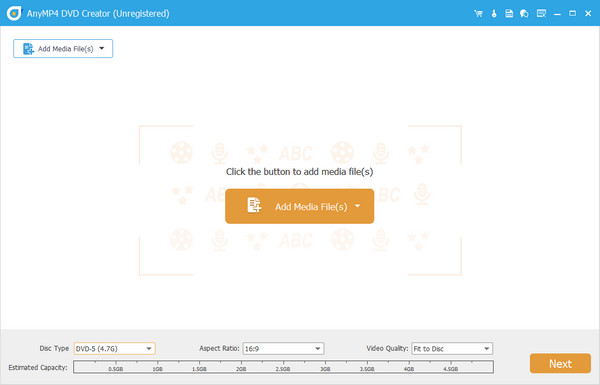
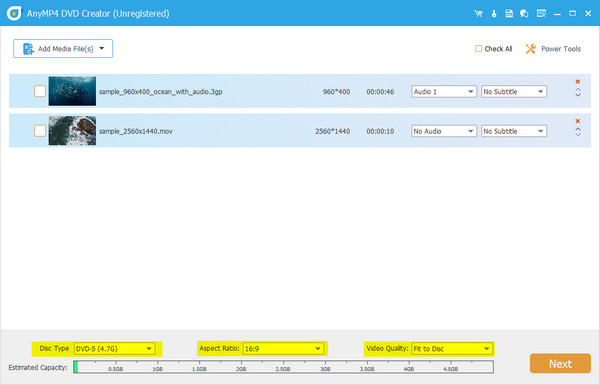
At the lower side of the interface, you will see an indicator of the consumed storage for your DVD. Also, change the Disc Type, the Aspect Ratio, and the Video Quality.
Step 3.Edit Your Videos Like a Pro
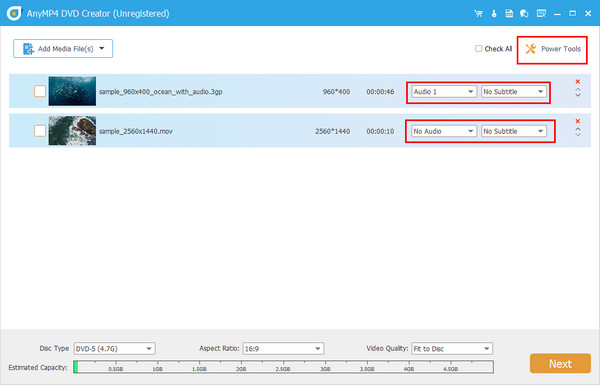
Before hitting the Next button, you can opt to enhance your videos using the Power Tools. You can add a watermark, put special effects, rotate, and trim one file at a time. On the other hand, expand the Audio and Subtitle button if you want to add one.
Step 4.Customize a DVD Menu
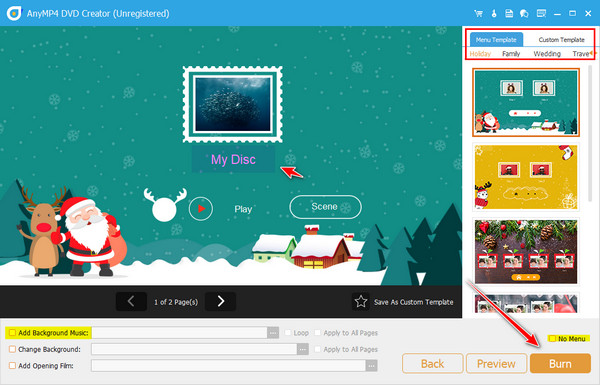
The next part is optional. To create a DVD Menu, be free to use any template available on the program. More the Play and Scene buttons anywhere you like and put a new title if you want. To check your work, hit the Preview Button. Check the No Menu box and then proceed to Burn to skip this.
Step 5.Wait for the Final Output
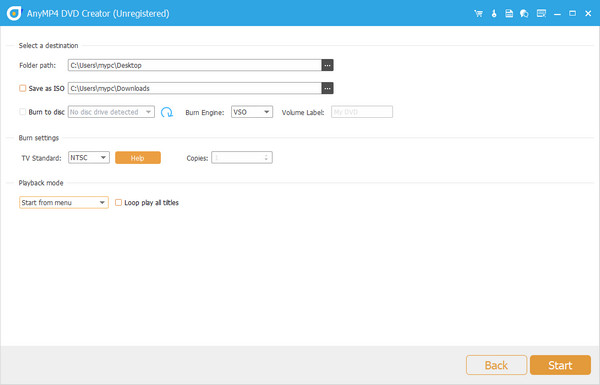
Finally, insert your disc and wait for the program to read it. Then, select your Burn Engine, TV Standard, and Playback Mode. Now, click the Start button and anticipate the final output.
Part 6. FAQs about Wondershare DVD Creator
-
Is Wondershare DVD Creator suitable for beginners?
Definitely, yes! Wondershare DVD Creator is made for everyone. As you can see, the interface is simple, and you can follow the process without confusion.
-
What should I consider when choosing a DVD burner?
Indeed, it is challenging to decide on the best one. In choosing a DVD burner, you should consider some essential things. First is the interface – is it easy to use? Secondly, the system requirements – is it compatible with your device? Next are the features – how does it function?
-
Are DVDs still available on the market?
Help, I purchased the Wondershare DVD Creator but did not get the code. If you did not receive the code, worry not because the program has customer service. Should you have any concerns, they are available 24/7.
Conclusion
Throughout this Wondershare DVD Creator review, we have learned its core features, performance, pros, cons, and more. Although it can meet the basic DVD and Blu-ray burning demands, it lacks more powerful editing tools and more advanced options. Therefore, Blu-ray Master DVD Creator is a more reliable choice. Don’t hesitate, download and try it now!
More from Blu-ray Master
Best DVD Creator Review
