

Oct 16, 2026Posted by Kevin Miller to Play Blu-ray
Quick Summary:
When you want to open and play BDMV, it always shows the ‘Format not supported’ error. BDMV is a complex Blu-ray folder structure. To play them properly, try Blu-ray Master Free Blu-ray Player or VLC Media Player. Otherwise, you can use the Blu-ray ripping tools to convert BDMV folders to more compatible video formats.
If you have tried backing up your Blu-ray collections to digital, you might have ended up with a massive folder named BDMV. When you double-click on it, you surprisingly see the 'Format not supported' prompt from Windows Media Player or QuickTime. What is the BDMV? How to play it on computers?
BDMV is not a single file you can open and play with one click. You need to use the specific video player to decode and—watch it. This guide aims to explain how to play BDMV folder fluently and seamlessly. Follow us to see the details.

- Part 1. What is BDMV File
- Method 1 - Play BDMV Directly with Blu-ray Master Free Blu-ray Player
- Method 2 - Use VLC Media Player (Free, Open-Source)
- Method 3 - Convert BDMV to MP4 for Universal Playback
- Part 5. FAQs about BDMV File
Part 1. What is BDMV File
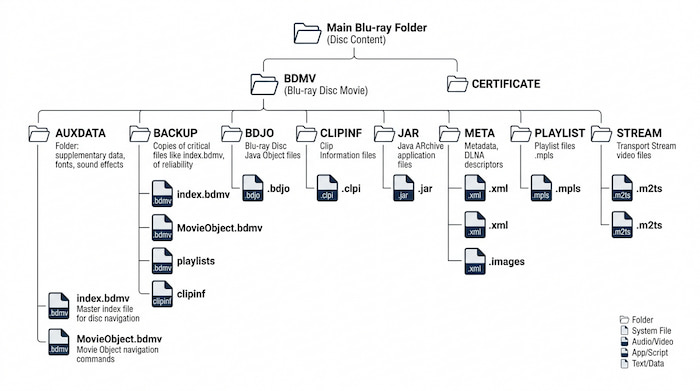
BDMV is a directory container that stores all the metadata, menu layouts, audio streams, and folder structure required to run a Blu-ray disc. So, it plays a crucial role in storing and organizing content, compatibility, and navigation. Moreover, a BDMV file usually has index.bdmv that provides the titles and MovieObject.bdmv for the movie metadata of the Blu-ray disc.
Because BDMV relies on this strict directory layout, never try to open individual .bdmv files separately. To play the movie successfully, you must always import or drag the entire Blu-ray folder (the parent folder containing the BDMV folder) into your media player.
Blu-ray Master Free Blu-ray Player is a professional media player that supports Blu-ray BDMV folders playback. It is a lightweight tool that has powerful decryption ability. Without any complex configuration, you can enjoy your BDMV folders, including commercial ones. What makes it effective for BDMV is its user-friendly interface, equipped with controls for a seamless experience. Moreover, it has special features to offer, including the insertion of subtitles, resizing the screen flexibly, and more. This tool is suitable for people who want an easy plug-and-play solution to play BDMV folders.
Method 1 - Play BDMV Directly with Blu-ray Master Free Blu-ray Player
Blu-ray Master Free Blu-ray Player is a professional media player that supports Blu-ray BDMV folders playback. It is a lightweight tool that has powerful decryption ability. Without any complex configuration, you can enjoy your BDMV folders, including commercial ones. What makes it effective for BDMV is its user-friendly interface, equipped with controls for a seamless experience. Moreover, it has special features to offer, including the insertion of subtitles, resizing the screen flexibly, and more. This tool is suitable for people who want an easy plug-and-play solution to play BDMV folders.
- Professionally play Blu-ray movies in HD quality.
- Create a custom playlist for continuous streaming.
- Support various videos like MP4, WMV, MOV, etc., even 4K videos.
- Built-in filters to change the video brightness, contrast, etc.
Free Download
For Windows
Secure Download
Free Download
for macOS
Secure Download
Step 1. Once you have downloaded and installed it, launch Blu-ray Player on your computer. Click Open Files and browse for the BDMV file you want to play.
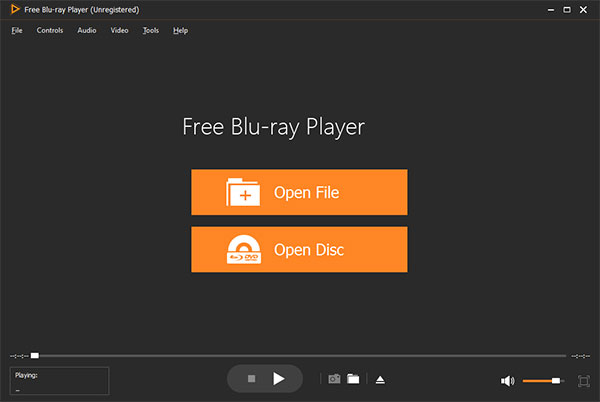
Step 2. Naturally, the video will automatically play when you click on it. Resize the screen or adjust the volume level as you desire.
Step 3. With Blu-ray Player, you can also adjust a few settings to your video from the top menu. You can change the language setting, and add subtitles, and effects.
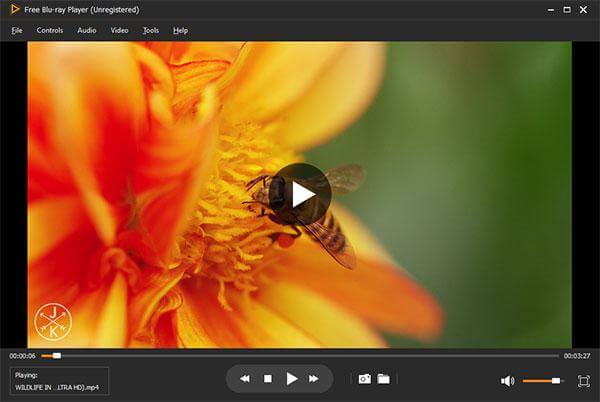
Blu-ray Master Free Blu-ray Player offers a free and seamless way to open and play BDMV folders. Without complex configurations, you can enjoy high-quality video playback. Moreover, it has full menu navigation, chapter selections, and multi-language audio tracks. This tool is ideal for people who want a plug-and-play, reliable solution to enjoy premium Blu-ray content on Windows or Mac without technical troubleshooting.
Method 2 - Use VLC Media Player (Free, Open-Source)
It is possible to play BDMV on VLC. As you may know, VLC is one of the best video players for Mac, Windows, and Linux. It gained popularity because of its free service, complex settings, and accessibility. Of course, its wide range of supported file types is one of the best features it could offer since it supports Blu-ray, DVD, and common videos like MKV, AVI, FLV, and more.
Pros
- Play almost all types of video, audio, and images.
- Open-source, which makes it open for modification.
Cons
- Too many reports of errors in playing BDMV files.
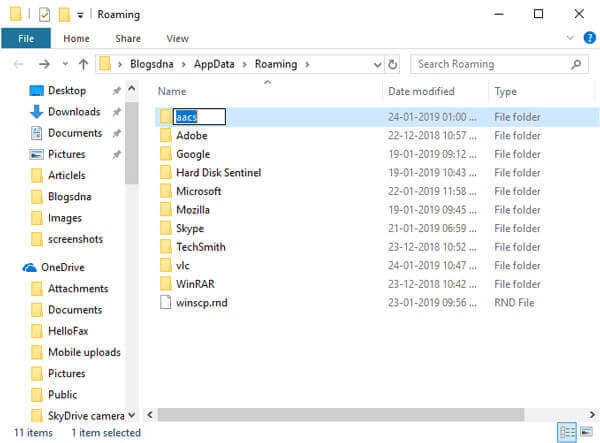
Step 1.To play encrypted BDMV folders with VLC, you need to install two files first. Go to a trusted open-source AACS key database site, like vlc-bluray.whoknowsmy.name, to download KEYDB.cfg and libaacs.dll (libaacs.dylib for macOS).
Step 2.On Windows, Press Win + R, type %APPDATA%, press Enter, create a new folder named aacs, and you can paste KEYDB.cfg inside (C:Users
For Mac users, put KEYDB.cfg into ~/Library/Preferences/aacs/ (create the folder if it doesn't exist).
Step 3.Then, you need to place libaacs into the VLC installation directory. On Windows, you can copy libaacs.dll directly into your main VLC installation folder (usually C:Program FilesVideoLANVLC). If you use a Mac computer, right-click the VLC app icon, select Show Package Contents, and move libaacs.dylib to Contents/MacOS/lib/.
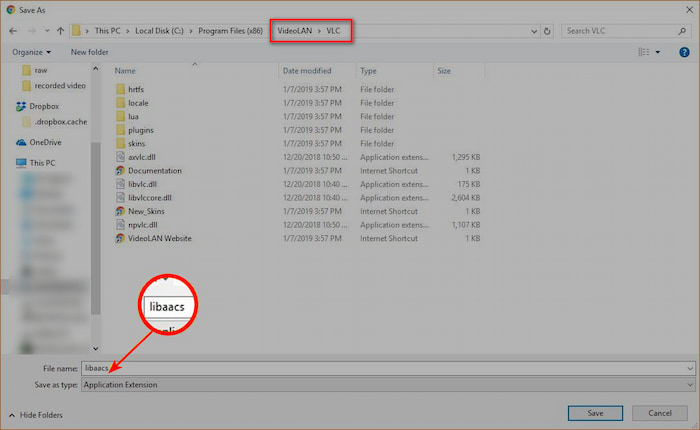
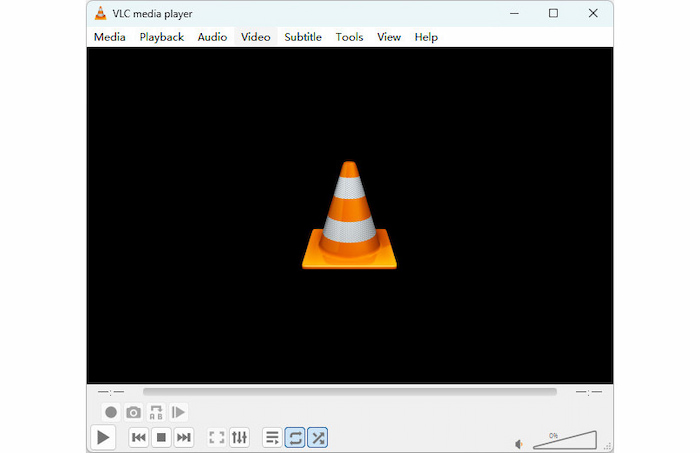
Step 4. Download and install VLC from its official website. Once done, double-click on the app icon to open it.
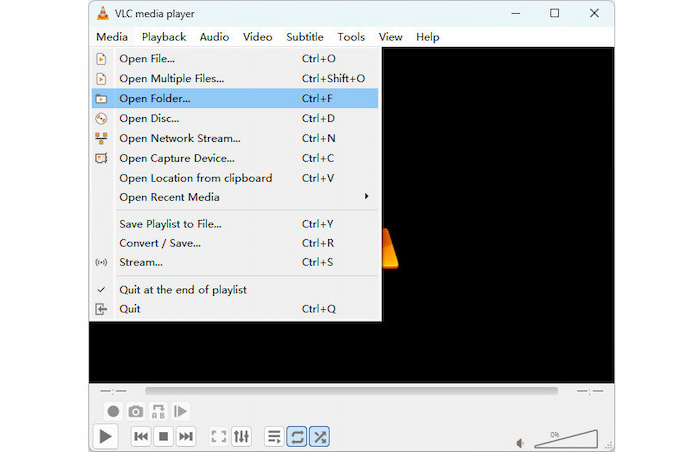
Step 5. In its main interface, go to the top menu bar and click Media. In the drop-down list, select Open File to open the BDMV folder you want to watch.
Step 6. It provides various settings for you to adjust video playback. Choose and adjust as you need.
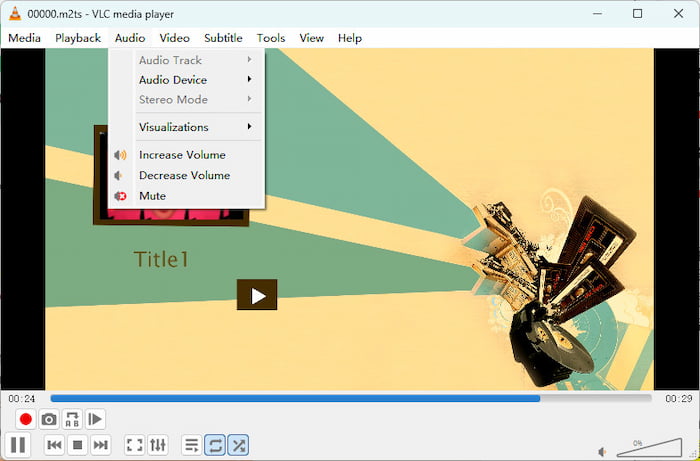
VLC is a globally trusted, free choice to play BDMV folders on Windows, Mac, and Linux. Though it can play BDMV folders, you need you manually download and configure a third-party key database and AACS dynamic library into your system directories to handle protected files. Note that VLC is not capable of handling the latest released Blu-ray disc/BDMV folders. If you have a limited budget, this tool is good for you to watch some older, unprotected BDMV folders.
Method 3 - Convert BDMV to MP4 for Universal Playback
At one point, using a media player may not work for you, because you may need to open .BDMV folders on your other devices like iPhone, iPad, TV, etc. For that, you need to digitalize your BDMV files and save them as a popular format like MP4 or MOV. That is why Free Blu-ray Ripper comes.
With this desktop software, you can convert BDMV to MP4, MOV, or other common video formats to make it compatible with your device. It has AI technology, which means it converts videos precisely without losing the original quality. Moreover, you can take the chance to manage the output since the converter allows you to change the resolution, quality, bitrate, FPS, and other settings as needed. Indeed, it is the ultimate solution to convert and play videos professionally.
- Convenient for batch conversion without delay.
- Edit videos with effects, filters, trimming, splitting, etc.
- Support MP4, FLV, HEVC, and hundreds of formats.
- Convert BDMV to 4K videos in high quality.
Step 1. Download and install the Blu-ray Master Free Blu-ray Ripper to get started.
Free Download
For Windows
Secure Download
Free Download
for macOS
Secure Download
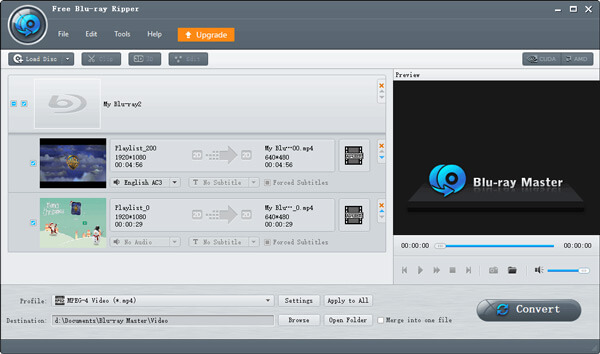
Once the software is running, click the Load Blu-ray > Load Blu-ray Folder buttons to upload the BDMV file. That file is often under the Blu-ray folder.
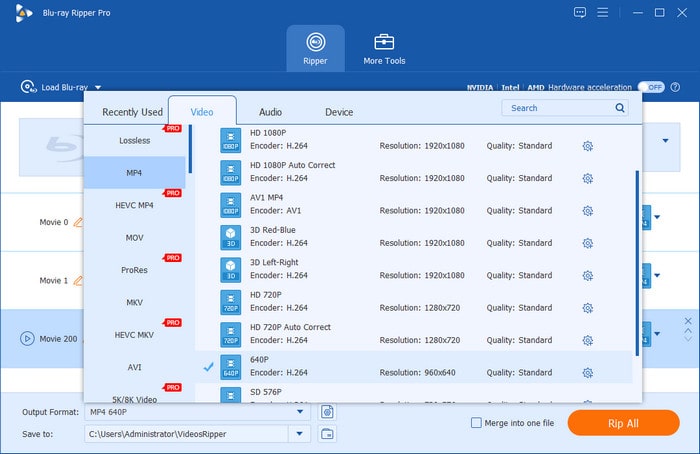
Step 2. At the bottom of the interface, click Output Format and choose one profile from its drop-down list. MP4 is a desired choice for its wide compatibility.
Tips
You can click the gear icon to customize the output parameters in detail, such as resolution, encoder (H.264/H.265), bitrate, and others.
Step 3. After setting up the output, click the folder icon to choose a folder where you want to save the converted files.
At last, click the Rip All button and wait for a few moments until it is done. The converted BDMV file is now accessible for playback.
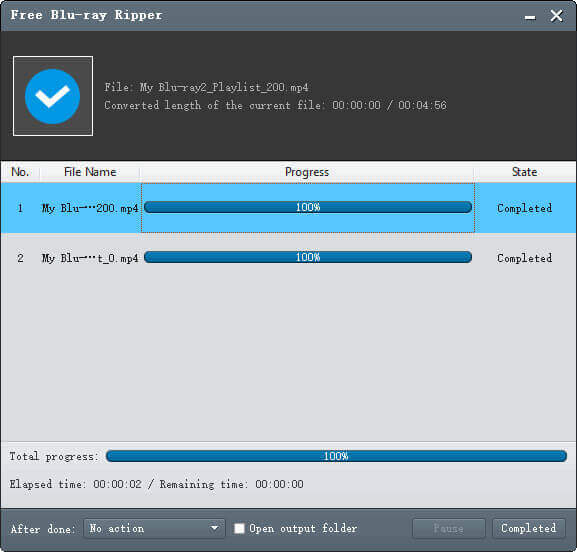
Free Blu-ray Ripper is the right choice for converting BDMV to digital formats. With the advanced converting algorithm and easy process, Blu-ray content is achievable on your computer.
Part 5. FAQs about BDMV File
-
What is the BDMV directory structure?
It is a folder that handles a Blu-ray disc’s core content. Within it, you will find main folders, including STREAM, CLIPINF, PLAYLIST, AUXDATA, etc. Also, there will be additional files like index.bdmv and MovieObject.bdmv for the titles and metadata.
-
VLC won't play BDMV, it says AACS decoding is needed. How to fix it?
VLC fails to handle copy-protected BDMV folders. If you want to watch them, you can try Blu-ray Master Free Blu-ray Player to play
-
Where is the actual video file located inside a BDMV folder structure?
You can find them by navigating through the following path: Your Blu-ray Folder -> BDMV -> STREAM. Inside the STREAM folder, there are multiple M2TS files.
-
Can Plex or Jellyfin direct play BDMV folders, or do I need to convert them?
No, they cannot. You need the professional Blu-ray ripping tools, like MakeMKV, Blu-ray Master Free Blu-ray Ripper, etc., to convert BDMV folders to digital formats.
-
What's the best way to convert BDMV to a single MKV file without quality loss?
MakeMKV is of course the best choice for ripping BDMV to MKV.
-
What is the difference between BDMV and ISO, and which one is better for backing up Blu-rays?
BDMV is basically the disc extracted into an open folder. It's great if you want to dig into specific files, but loose folders can get messy and confuse some media players.
ISO is a single image file that clones the entire disc. It acts like a clean, all-in-one package with top-tier compatibility for full Blu-ray menu playback.
For backing up Blu-rays, choose ISO for a hassle-free full-disc archive and menus. Choose BDMV if you want easy access to raw files or plan to stream them via certain setup servers. -
Why are the subtitles out of sync when I directly play M2TS files from the BDMV STREAM folder?
Blu-rays use 'Seamless Branching,' meaning the movie is actually split into dozens of small .m2ts video chunks. The playlist file (.mpls) acts as the conductor, telling the player when to jump cuts and delay subtitles. If you just double-click a raw .m2ts file, you skip the conductor entirely—so the subtitle timing gets thrown completely off.
Wrapping up
Common media players do not easily access BDMV files, and it takes a few procedures to play their content. However, you have learned the right way to open and play BDMV files with available tools like Blu-ray Master Free Blu-ray Player and VLC. Alternatively, Free Blu-ray Ripper helps convert BDMV to MP4 so you can stream the video on your computer. These are the ultimate solutions for streaming, converting, editing, and modifying videos on Windows and Mac.
More from Blu-ray Master
Play Blu-ray Movies
Easily play Blu-rays, DVDs, and various video/audio formats with rich playback features.
100% Secure. No virus
