

Jul 30, 2025Posted by Kevin Miller to Copy DVD
Nothing is more annoying than when the DVD starts stuttering or skipping frames when you're enjoying a movie night. The excitement of watching a movie might quickly be destroyed by such abrupt technical malfunctions. Whether it's a family film that captures significant memories or a treasured DVD that has been accumulated over the years, any playback problems can be extremely upsetting. Statistics show that terms like ‘DVD skipping fix’ or 'how to fix a skipping DVD' are searched for more than 500,000 times every month worldwide, which accurately shows how common these problems are. Fortunately, in most cases, these issues can be completely resolved at home.
This tutorial will walk you through a variety of techniques, from quick cleaning tips to extensive repairs, to help you get a smooth viewing experience again. Now it is time to begin our restoration trip!

- Part 1: Quick Checks Before Diving Deep
- Part 2: Addressing Common Surface Issues
- Part 3: What to Do About Minor Scratches
- Part 4: When the Problem Might Be More Than Just the Disc
- Part 5: Prevention is Key
Part 1. Quick Checks Before Diving Deep
When a DVD skips, it is necessary to start with some quick checks to identify the reasons why this issue occurs before diving into more complex solutions like cleaning the DVD player lens, polishing the scratches, or copying a DVD to a hard drive. Follow the steps to conduct initial checks:
Check the DVD Player
There is no need to run to a professional repair agency when you discover that the DVD is skipping. It is advised that you start by doing a simple inspection of the DVD player. All you have to do is turn the player off entirely for a minute, then turn it back on. This simple operation can remove the device's temporary cache and fix the majority of occasional problems. At the same time, please carefully check all the connection ports to ensure that the HDMI and power cables are firmly connected.

Try a Different Player
If the DVD still skips frames after restarting the player, it is recommended to play this disc on a different player. It is possible to use the game console and optical drive of the computer as test devices. If the disc functions properly on other devices, the problem lies with the original player. In the event that the DVD still does not play correctly, there is probably a problem with the disc itself, and you will need to check the surface of the DVD.
Inspect the DVD surface.
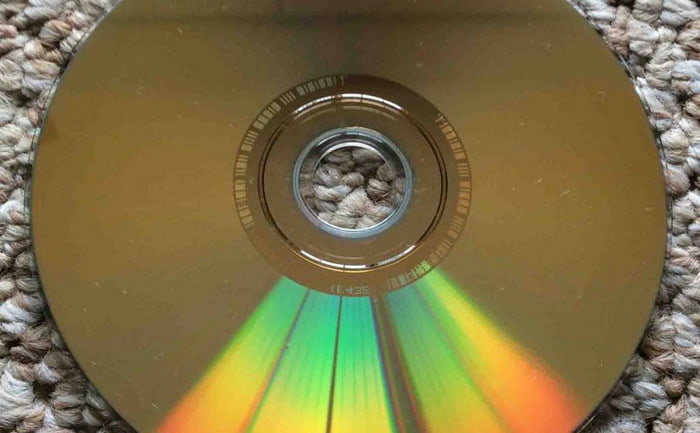
Another major cause of DVD skipping or freezing is scratches and dust on the disc's surface. Any type of DVD may have skipping or other playback problems if there are scratches or dust on its surface. To thoroughly examine the data side, it is advised that you locate a well-lit area and tilt the disc at a 45-degree angle, where the dust and scratches that impact playback are easy to see from this perspective. At the same time, make sure to look for any cracks or warping on the disc's edges, as this physical damage can frequently cause playback issues.
Tip: Please make it a habit to hold the disc by its edges when doing various tests, which not only prevents new fingerprints from being left on the data side but also prevents disc deformation caused by improper handling.
Part 2. Addressing Common Surface Issues
If there are fingerprints or dust on the surface of the disc, these minor imperfections are often the culprits causing DVD skipping and freezing, no matter what type of DVD it is. Let's systematically address these common issues to help you restore a smooth viewing experience.
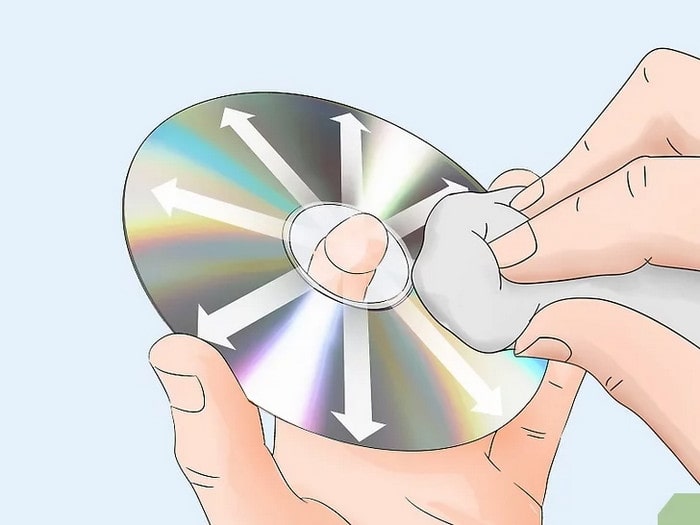
It is advised to use a specific lint-free cleaning cloth while cleaning a DVD of dust. You may find these specific cleaning cloths at large stores. The proper way to clean a DVD is to place a flat cleaning cloth on its surface, beginning at the center hole, and then use even pressure to wipe outward in a straight line along the radius.
As for the fingerprints and smudges, you can also wipe the DVD with a cloth dipped in alcohol or distilled water. For particularly stubborn fingerprints, you can rinse the disc under running distilled water for 5-8 seconds, ensuring the water flow is soft and the temperature is maintained between 20-25°C.
Note: Don’t use tap water. Tap water contains salt, which can further damage the DVD.
Part 3. What to Do About Minor Scratches
Try these three tried-and-true repair techniques if your DVD freezes while playing because of a few scratches. Please be aware that each procedure needs to be handled carefully, since if it is not, the damage could get worse.
Toothpaste Trick
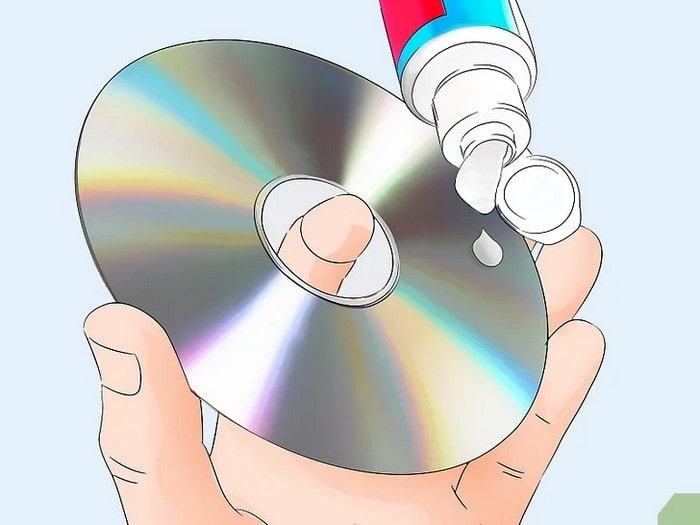
Step 1.Apply toothpaste to the scratch using a cotton swab or a lint-free cloth. And avoid using your fingers, which could cause additional harm to the DVD's surface.
Note: Make sure you have common white paste toothpaste ready, rather than gel-type or particle-containing whitening toothpaste.
Step 2.Use the cotton swab to rub the area in tiny, circular strokes.
Note: When applying toothpaste to the scratch, you should make an effort to be as gentle as you can.
Step 3.Wipe the toothpaste from the middle to the edge of the DVD with a wet and lint-free cloth.
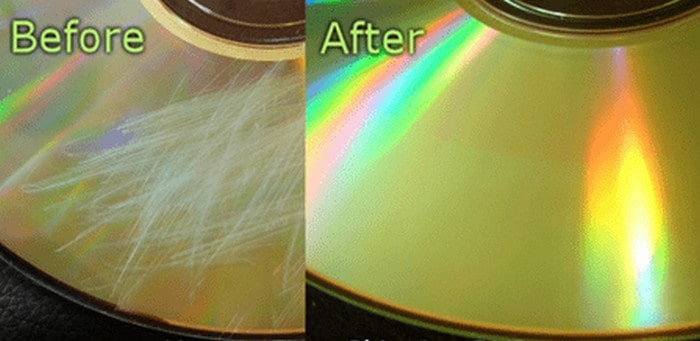
This method is particularly suitable for dealing with those very small surface scratches with a depth of 0.1mm or less.
Wax Polishing
It could be wiser to use wax polishing if the scratches are shallow but substantial. It is advised to use premium furniture care wax or silicone-free vehicle wax because they are fine-textured and won't harm the disc's surface.
The only steps involved are dabbing a little quantity of wax with a cotton swab, filling in the scratches with a thin layer, and waiting 15 minutes for the wax to completely harden, much like when applying ointment to a wound. It is crucial to remember that the protective coating created by this technique is just temporary and requires upkeep around every six months, much like when you wax your car regularly.
Part 4. When the Problem Might Be More Than Just the Disc
If you have verified that the disc surface is undamaged and unbroken after the preceding inspections, the problem might be more than just the disc. Let's look at some other typical situations that cause DVD freezing when playing.
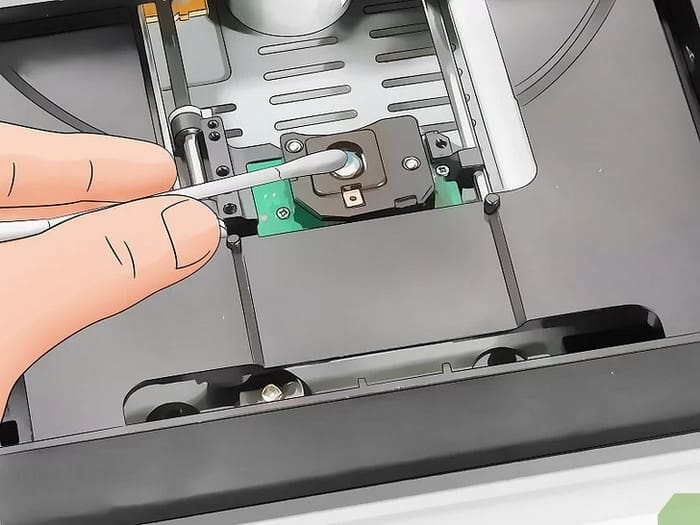
Dirty or Damaged DVD Player Lens
First, we must address the problem of DVD player lens aging or collecting dust. The lens must be kept clean, just as we examined the disc's surface in the first section. Youcan use a special player lens cleaning disc, and make sure you adhere to the manual's directions whenusing it. Usually, you should only play the cleaning disc for ten to fifteen seconds; otherwise,excessive cleaning can harm the fragile optical parts.
Overheating DVD Player
The player overheating is another problem that is frequently disregarded, particularly during the summer or in poorly ventilated areas. Prolonged overheating not only causes DVD skipping but also significantly shortens the device's lifespan. To aid in heat dissipation, you can try moving the player to a well-ventilated place or leaving at least 10 centimeters around it. It is advisable to switch off the device right away and give it more than half an hour to rest if you observe it getting abnormally heated.
Software Glitches or Firmware Issues
Freezing or frame skipping during DVD playback may also be caused by software problems. Many contemporary DVD players require frequent firmware updates, much like smartphones do. To find the most recent firmware version, visit the manufacturer's official website and enter the model of your device. Next, update the firmware by downloading the file to a USB drive, inserting it into the player's USB port, and following the instructions.
Part 5. Prevention is Key
Following the thorough inspection and repair instructions previously given, I believe you have already mastered the useful methods to fix DVD skipping and freezing. However, rather than waiting for problems to arise and then remedying them, it is wiser to prevent them in advance. Therefore, this part will provide professional preventive strategies, including scientific storage methods and copying a DVD to a Mac or Windows, which will greatly increase the longevity of your DVDs while also avoiding typical playback issues.
Scientific Storage
Storage conditions have a direct impact on DVD longevity and playback effects. Protection from light, a constant temperature between 15°C and 23°C, and a relative humidity between 40% and 50% are the ideal storage conditions. Additionally, because they can effectively reduce external vibrations, I suggest keeping CDs in professional storage cases with sponge linings.
DVD Backup
Making a DVD backup is a useful solution if you regularly experience DVD skipping or freezing. It can guarantee a more dependable and seamless viewing experience and aid in the long-term preservation of your material. DVD copy software is a versatile tool that can assist you.
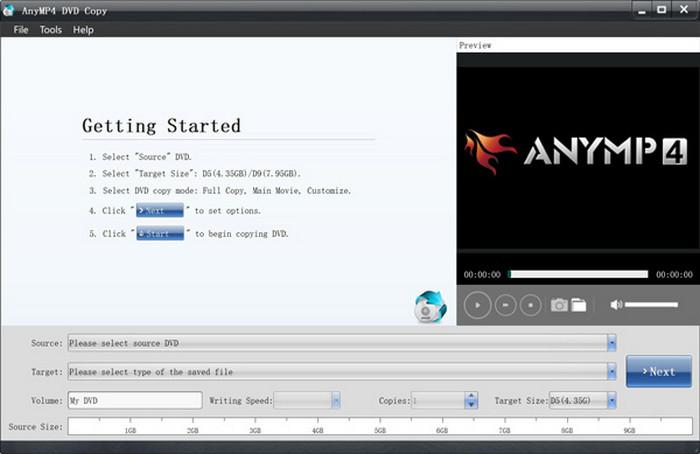
DVD copy software is capable of creating exact or compressed copies of DVDs to blank DVD media or saving them as ISO image files or DVD folder structures on your computer. And, it offers different copy modes (such as full disc and main movie) to meet your needs. In addition, its copy speed is fast, and its performance is stable. Moreover, its interface and operation are straightforward and user-friendly, even for beginners.
Free Download
For Windows
Secure Download
Free Download
for macOS
Secure Download
Wrapping up
Through this guide, you have learned a lot of methods on how to fix skipping DVD, from basic cleaning, scratch repair, to player maintenance and DVD copy. Although the above methods can solve most DVD playback skipping or freezing problems, severely damaged discs might be beyond repair. Therefore, using a DVD copy software to copy a DVD is a superb solution before it is damaged. Let's take action now and let those wonderful scenes play smoothly again!
More from Blu-ray Master
