

Oct 10, 2025Posted by Kevin Miller to Create DVD
Do you want to create DVDs? Then, you will need an outstanding DVD creator, like AnyBurn software. It is free and has a user-friendly option. But the question is this: is it the right tool for you? In this genuine review, we will focus on the program’s capabilities for burning files to DVD. Also, we will explore AnyBurn’s advantages, disadvantages, pricing, and how to use it. After that, we will also give you another program with the same capability as AnyBurn. With that, you will have another option when creating DVDs. Without further ado, read this article as we discuss all the necessary information about AnyBurn software.

Table of Contents
Part 1. A Quick Verdict to AnyBurn
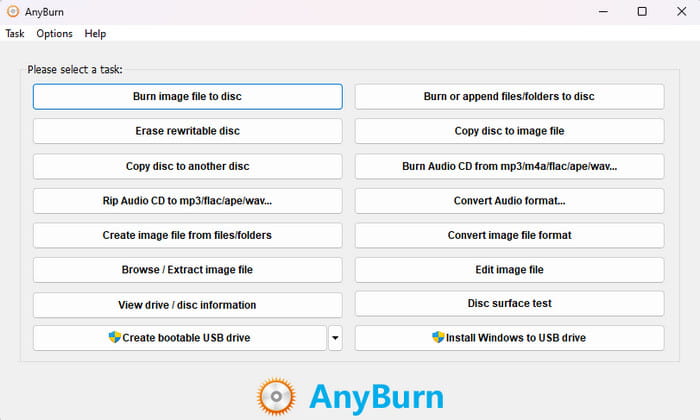
For our quick verdict, AnyBurn is a lightweight and open-source software capable of burning DVDs, CDs, and Blu-rays. The software can do a lot of tasks that may help you in terms of creating DVDs. It includes copying one disc to another disc, copying a disc to an image file, burning videos to DVD, and more. Aside from that, the program can offer a simple user interface which can be navigated easily and quickly. All the functions are placed in a single place, making it more comprehensible than other DVD creators. However, we have discovered some disadvantages while using the software. The program doesn’t support a drag-and-drop function. It also lacks basic editing tools since it only focuses on burning DVDs and other discs.
Is it Right For You?
If your main goal is to burn DVDs, we can tell the program is perfect for you. It can help you create DVDs without any problem. However, if you want to add a menu before the burning process, sad to say, you can’t do so. The software is also incapable of editing the file. With that, ensure you already know your main objective before using the program.
Part 2. AnyBurn Features and Benefits
Usage Scenarios
Rating:
You can do various tasks when using AnyBurn software, especially for burning or creating DVDs. First, it is used for burning disc images. It lets you burn CUE, IMG, BIN, and ISO disc image files into blank discs. It is also used for burning files and folders. All you need is to add the folders or files to the program and begin the data disc-creation process. It is good for backup and storage purposes. What’s more, AnyBurn is also capable of copying a disc to another disc. You can replicate the content, copy it to another blank disc, and make it like the original. The program has more uses, including burning and ripping audio, converting various image disc formats, creating bootable USB drives, and more.
Burning or Creating DVD
Rating:
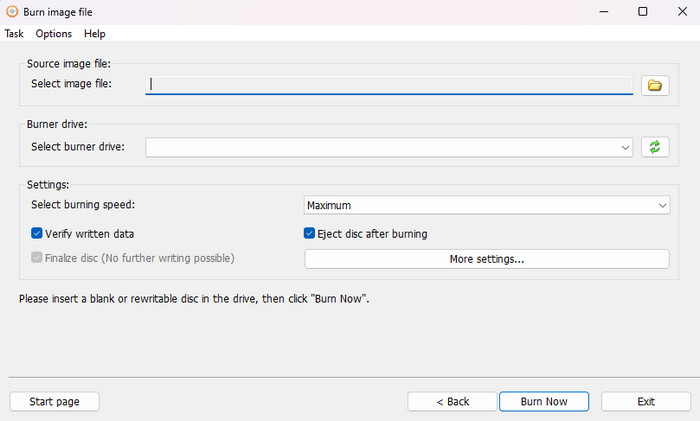
One of the core features of AnyBurn software is the ability to burn DVDs. With this, you can effectively select your file from your computer and turn it into a DVD. Plus, we found out from this feature that you can add files without reducing their quality. You can still get the same quality after the DVD creation process.
Copying Disc to another Disc
Rating:
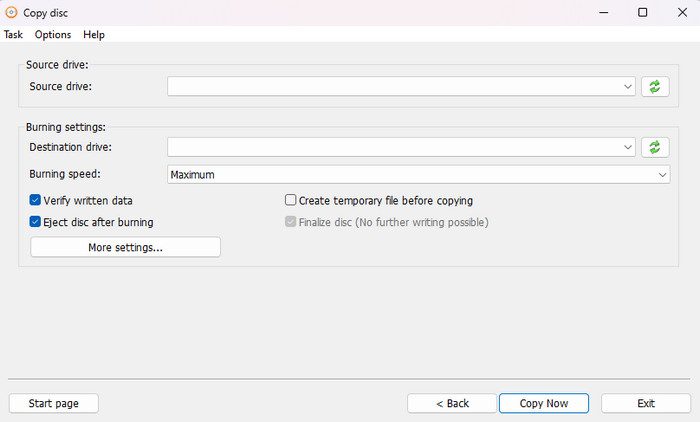
Another feature you must discover from the software is its ability to copy one disc to another. The feature can help you get the same content from the disc, making it ideal for users.
Convert Audio File Format
Rating:
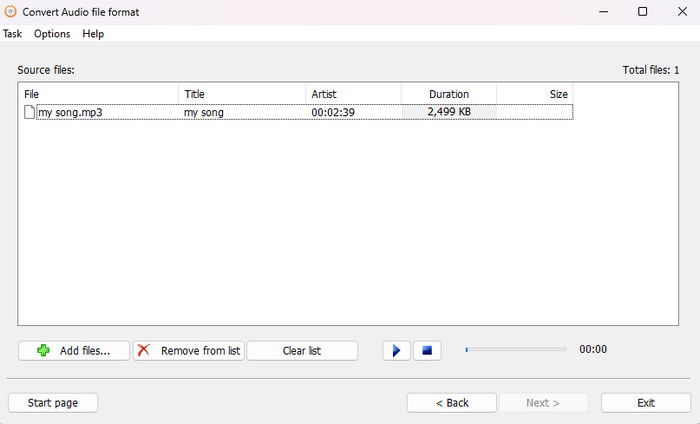
Besides creating DVDs, you can also rely on the program to convert audio files. You can convert your audio file to various formats like MP3, FLAC, WMA, WAV, and more.
Create an Image File from the Disc
Rating:
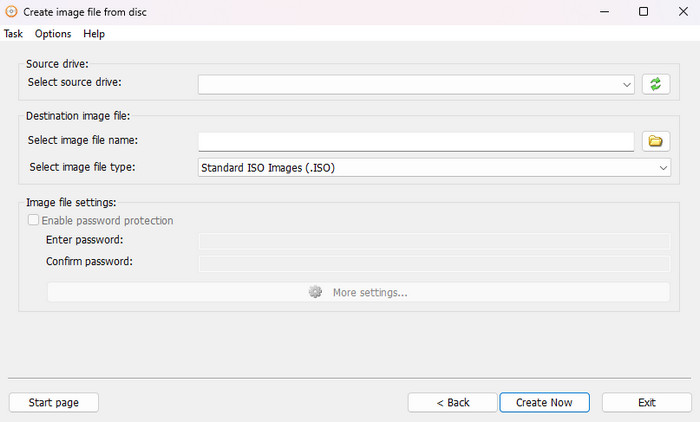
One of the best features we can share when using the DVD burner is its capability to create an image file from the disc. With this feature, you can turn your file into an ISO file, which may help you organize your file based on your needs.
There are more features you can enjoy, especially when using AnyBurn, such as:
- Erase rewritable disc.
- Rip audio CD to MP3, FLAC, APE, and more.
- Extract the image file.
- Burn files or folders to disc.
- Convert image file format.
- Create a Bootable USB Drive
Part 3. AnyBurn Pros and Cons
Pros
- The offline program is perfect for creating DVDs easily and quickly.
- The user interface is easy to navigate.
- It can convert image and audio files to another format.
- The software won’t reduce the file's original quality during the DVD-creation process.
- It is free for you to access its most DVD burning features.
Cons
- The user interface is looking outdated.
- The program lacks basic editing tools.
- Some features are accessible in the Pro version.
Part 4. How to Get Started with AnyBurn
Step 1.Click the AnyBurn Download button from its main website. After that, proceed to the installation process. Once done, run it immediately.
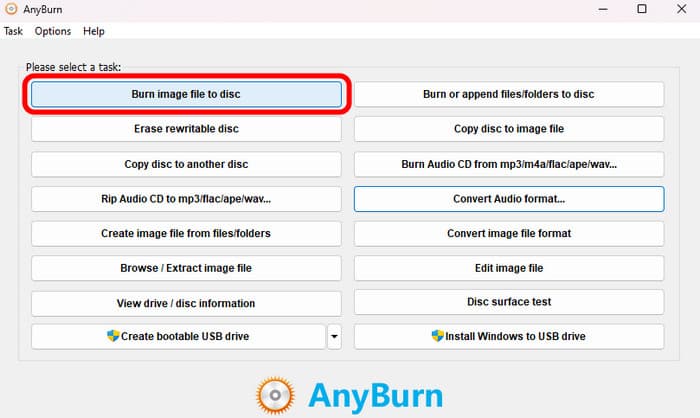
Step 2.You need to burn the file to a disc when creating a DVD. So, click the Burn Image File to disc option from the main interface.
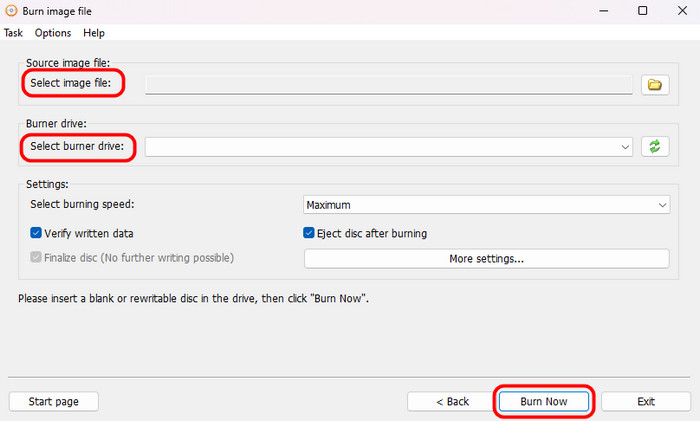
Step 3.Afterward, Select Image FIle to add the file from your computer. Then click the Select burner drive and choose your preferred option. Once done, click the Burn Now button for the final creation procedure.
Part 5. AnyBurn Performance and Final Verdict
AnyBurn is an easy tool with simply operation and intuitive interface. Many people appreciate its ease of use and simplicity. The program is reliable and runs smoothly, with helpful features like checking burned discs for errors. It’s also regularly updated to fix issues and respond to user feedback. When burning DVDs, it is impressively fast and lightweight, demanding minimal system resources.
Final Verdict: In conclusion, AnyBurn is a robust, free, and highly effective DVD burning tool that worth a try. It is particularly valued for its exceptional ease of use and lightweight design, which delivers impressively fast performance even on older systems. While it lacks advanced features to optimize your DVDs, it comes with all the basic tools you need, like burning files to discs, making disc images, and creating bootable USBs, so it’s a dependable choice for most disc-related tasks.
Part 6. Best Alternative to AnyBurn
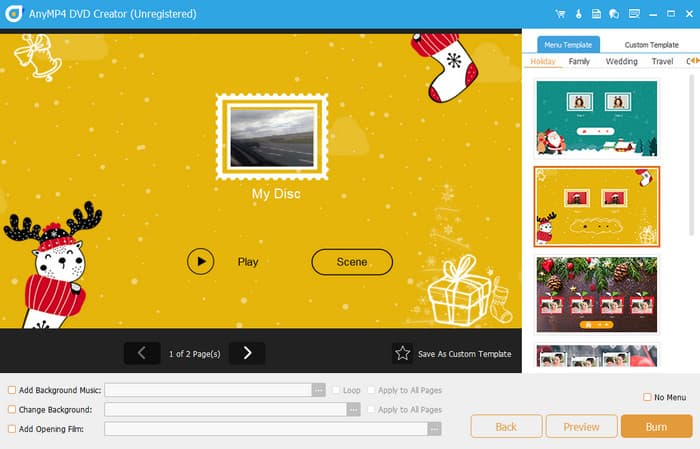
As we have discussed in the previous part, there are some disadvantages you might encounter when using AnyBurn. So, if you want to achieve your objective without any hassle, the best AnyBurn alternative is DVD Creator, selected by Blu-ray Master. While experiencing the program, I discovered that it is a better DVD creator than AnyBurn. Its main interface is more understandable and easy to view, and it can offer editing functions you can’t find on AnyBurn. Also, when it comes to creating DVDs, you can still improve your file since it offers various menu templates. Plus, the DVD-creation procedure is too quick. In just a few seconds, you can already have your DVD with the content you have. It is also downloadable on Mac and Windows computers, making it more accessible. So, if you want to try the program to create a DVD, you can hit the free download button below.
Free Download
For Windows
Secure Download
Free Download
for macOS
Secure Download
| Blu-ray Master DVD Creator | VS | AnyBurn |
| Create/Burn DVD Video Conversion Basic Editing | Primary Function | Burning DVD Burning Image File Copy DVD |
| DVD, Blu-ray, ISO, AVI, MP4, WMV, MKV, MOV FLV, and more. | Supported Formats | DVD, Blu-ray, CD. |
| 1080p or High-definition 4K | Resolution | 1080p or High-definition |
| Extensive DVD-burning options Menu creation Chapter editing | Burning Feature | Create DVD Rip Audio CD Burn Image File |
| RotateM CropM WatermarksM Add Filters and EffectM Trim | Basic Editing Tools | None |
| Monthly $39.95 Lifetime $59.95 | Pricing | AnyBurn Pro $25.95 |
| Customizable Menu Templates | Menu Creation | None |
| Simple | User Interface | Simple |
| Windows Mac | Platform | Windows |
| Video Enhancement Watermarking Sharing Create Video and Photo Collection Adding Music Changing Background | Additional Function | Erase rewritable disc. Rip audio CD to MP3, FLAC, APE, and more. Extract the image file. Burn files or folders to disc. |
| It is perfect for creating DVDs, converting disc and digital formats, and editing videos. | Overall Suitability | It is ideal for creating DVDs, ripping audio, and copying discs. |
Part 7. FAQs about AnyBurn Review
-
Is AnyBurn safe?
Definitely, yes. The software is safe. You can create DVDs without worrying about your privacy and security. AnyBurn software will ensure that your information won’t leak out.
-
What is the best free MP3-burning software?
There are various MP3-burning software you can use. It includes CDBurnerXP, Express Burn, DeepBurner Free, and more. With these burners, you can effectively burn your MP3.
-
Is AnyBurn free?
The AnyBurner software is not totally free. There is a free version you can use, but it has limited features. So, if you want to access all of the features, get the AnyBurner Pro, which costs $25.95.
-
4Is there AnyBurn for Mac?
Unfortunately, you can’t access AnyBurn to burn movies to DVD on Mac since it is only available on Windows. If you want to create a DVD, it is best to use DVD Creator. With this, you can easily create DVDs with hassle-free methods.
Wrapping up
After reading this honest AnyBurn review, you already know about the program. Also, if you are looking for another DVD creator that has the same capability as AnyBurn, use Blu-ray Master DVD Creator. The program is better since it is accessible to all platforms and can offer basic editing tools, menu templates, and more, which you can’t find on AnyBurn.
Best DVD Creator Review
