

Jul 17, 2026Posted by Kevin Miller to Play Blu-ray
You bought a Blu-ray disc and want to enjoy it on Friday night, but when you insert the Blu-ray disc into a Windows 10 computer, it results in absolute silence. This jarring experience stems from corporate licensing economics rather than technical flaws. Microsoft intentionally stripped native DVD and Blu-ray codecs from Windows 10 to cut recurring royalty costs owed to the Blu-ray Disc Association (BDA), spearheaded by Sony and Panasonic. Consequently, licensing liability was shifted entirely to consumers.
Nowadays, to watch Blu-rays on computers, you can use various Blu-ray player software. Many modern Blu-ray players can efficiently play Blu-ray movies and provide various features to improve your viewing experience greatly. In this article, we will simply show you the 3 best Blu-ray players for Windows 10/11.

Table of Contents
Behind the Screen: Our Real-World Testing Protocol
To ensure rigorous testing and avoid replicating superficial marketing content commonly found on supplier websites, we conducted empirical evaluations of each tool in an independent laboratory environment. Our standard test platform included: a retail version of Windows 10 Home Edition (64-bit, Build 22H2), an LG Slim Blu-ray drive connected via USB 3.0, an AMD Ryzen 5 processor, and a mid-range NVIDIA RTX graphics card—all specifically designed to assess the actual performance of standalone hardware acceleration technologies.
This evaluation employed two specialized stress-testing resources designed for different isolation thresholds: a highly encrypted, standard commercial 1080p Region-A Blu-ray disc to assess the real-time background key handshake process, and a 100 GB 4K UHD Blu-ray ISO folder structure to compare memory usage, network polling frequency, and frame loss rate. Throughout the 45-minute streaming session, the system continuously monitored performance metrics, recording real-time CPU peak load, audio synchronization deviations on the movie's standard interface, and response times of the native interactive Blu-ray menu.
| Product Name | Decryption Level | Real-Time CPU Usage | 4K UHD & Menu Support | Advanced Audio Output | Price Range |
| VLC Media Player (Modded) | No(Requires manual KEYDB.cfg updates) | 10% – 18% (Highly Variable) | No | Fully customizable manual configuration & mapping | Free |
| Blu-ray Master Free Player | Advanced AACS, BD+, and region codes | 9% – 13% (Very Low/Optimized) | No native 4K menu support; standard 1080p navigation | Standard Dolby/DTS 5.1 downmixing only | Free |
| DVDFab PlayerFab | Advanced Cloud-AACS 2.0 & BD+ | 15% – 22% (Efficient via GPU Acceleration) | Full interactive Java-based BD/UHD menu support | Bitstream Passthrough (True Dolby Atmos & DTS-X) | Paid |
Product 1. VLC Media Player
When it comes to media players, VLC Media Player is one we cannot miss. As a well-known media player, it can also play Blu-ray movies on Windows 10/11. It is a free and open-source tool that can read and play unprotected Blu-ray discs, folders, and ISO files. With GPU acceleration, you can enjoy a smooth, seamless Blu-ray viewing experience. Moreover, it incorporates advanced features such as audio synchronization, spatializer setups, and deep video equalizer tweaks.
Pros
- It supports a wide range of formats, including Blu-rays, DVDs, and various digital formats.
- It leverages GPU acceleration (Intel Quick Sync, NVIDIA NVENC) to reduce CPU load.
- This free Windows Blu-ray player supports audio passthrough for multi-channel sound systems.
Cons
- It cannot play commercial Blu-rays.
- It lacks advanced features, like menu navigation, etc., for quick control.
As one of the tools people are most concerned about for Blu-ray playback, we will now show you how to use it to play Blu-rays.
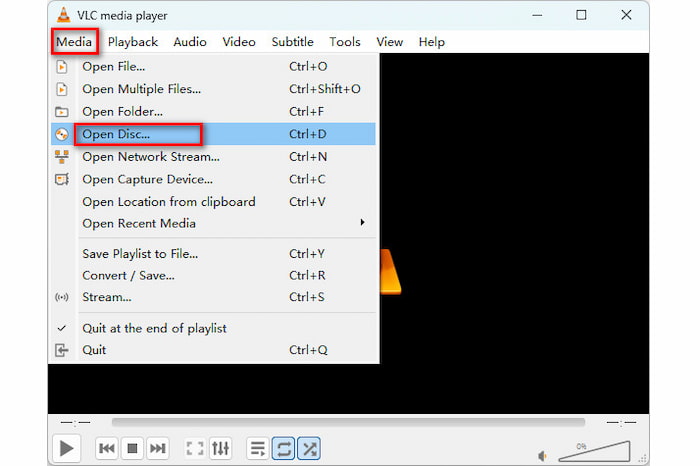
Step 1. Download and install VLC Media Player on your Windows 10/11. Launch the software and click Media > Open Disc.
Tips
If you want to play Blu-ray folders or ISO files, choose the corresponding Open Folder or Open File option.
Step 2. In the pop-up window, choose Disc > Blu-ray. Then, you can click Browse to select and load the Blu-ray disc you want to watch.
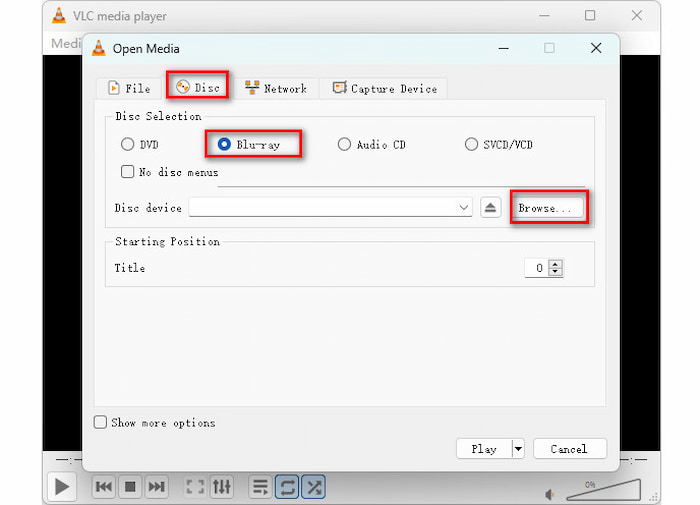
Step 3. If you need to, configure the Starting Position and Audio track. Finally, click the bottom Play button to play it properly.
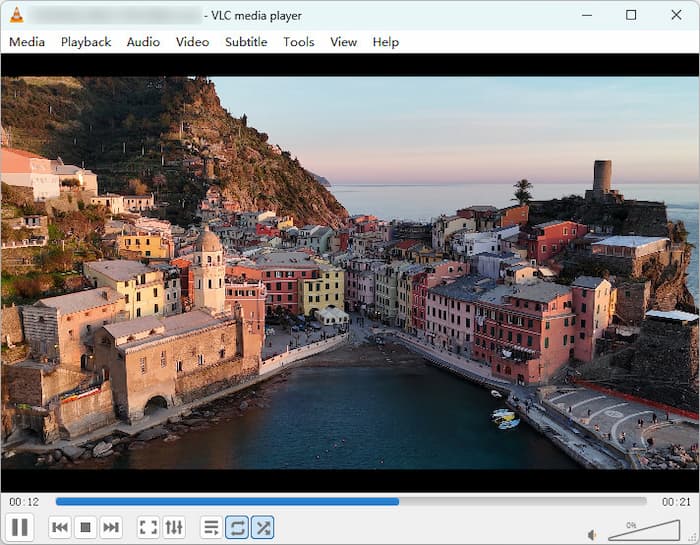
With this free tool, you can watch your Blu-ray collections with ease. However, its limitations are also obvious. It cannot handle encrypted Blu-ray movies, since open-source software must make its source code publicly available, and it is legally prohibited from embedding proprietary, copyright-protected AACS decryption keys. While VLC can be configured for standard 1080p Blu-rays, it struggles to decode commercial 4K UHD discs due to advanced AACS 2.0/2.1 encryption. If you want to play 4K physical discs smoothly, you need to use a premium, licensed player like PlayerFab.
Product 2. Blu-ray Master Free Blu-ray Player
Blu-ray Master Free Blu-ray Player is also one of the most powerful Blu-ray players. This program delivers high-quality playback and a rich feature set, allowing users to launch Blu-rays instantly through an intuitive, user-friendly interface. Recent optimizations have integrated advanced GPU Acceleration—supporting Intel, NVIDIA, and AMD hardware—to ensure stutter-free performance even when playing demanding 4K UHD content. Our team’s internal tests confirm a rapid loading speed of just 5 seconds for most discs, significantly outperforming standard media players.
Beyond its core speed, the tool now features AI-powered Upscaling, which enhances standard-definition visuals to near-4K clarity on modern monitors. It remains a robust region-free player, granting you the freedom to watch movies from any corner of the globe without restriction. Users can easily customize their viewing with external subtitle support, various screen modes (full-screen, half-screen, etc.), and a precise snapshot function to capture high-definition stills from any scene. For those seeking a reliable, high-performance Blu-ray experience on Windows 10/11, this program remains a top-tier recommendation.
Pros
- It can load and play Blu-ray movies at a fast speed with GPU acceleration.
- It uses decryption technologies to handle most Blu-ray copy protections, such as region codes, AACS, and BD+.
- Highly efficient system resource footprint (9%–13% CPU).
Cons
- High-resolution video quality, such as 4K, 5K, and 8K, is available in the pro version.
- It has no hardware-driven AI upscaling for lower-resolution media.
So, how to use it to play Blu-rays on Windows 10?
Step 1. On your Windows, download and install the Blu-ray Player. You can hit the Download button below to access the program instantly. After that, run it to begin the process.
Note: Ensure that the Blu-ray is already inserted into your computer.
Free Download
For Windows
Secure Download
Free Download
for macOS
Secure Download

Step 2. Then, if you are already on the main interface, click the Open Disc button to load the Blu-ray disc. If you want to watch the BDMV folder, choose the Open Folder option.
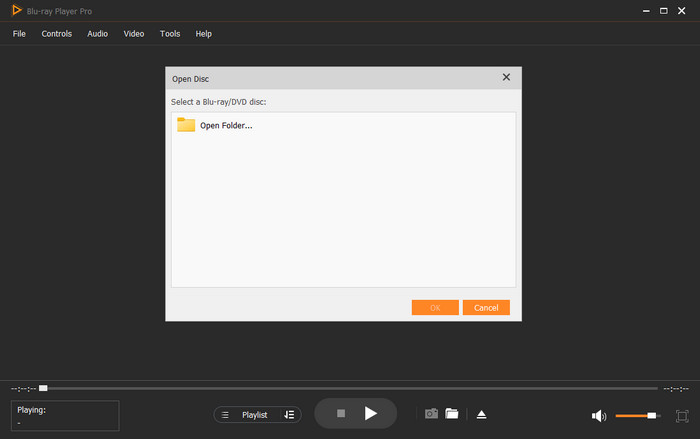
Step 3. After that, you can already enjoy watching the film. You can also use some functions from the interface, like the Snapshot button, to take a capture while watching.
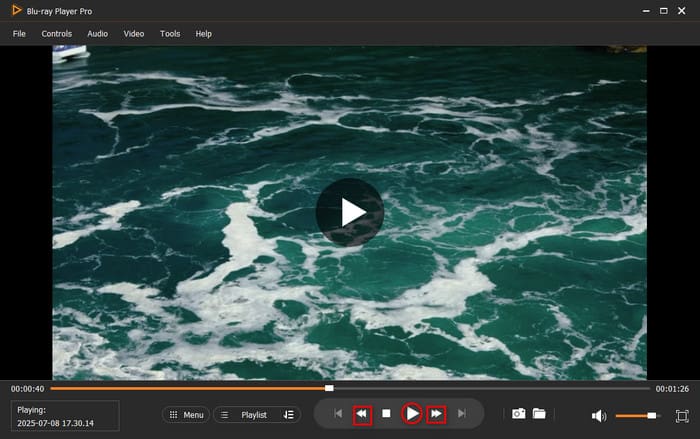
Its interface is intuitive, allowing you to easily master how to use it. In our test, it can load the files instantly, completely clear of background telemetry bloat or intrusive memory leaks. With the advanced decryption ability, you can enjoy your Blu-ray collection limitlessly.
Product 3. DVDFab PlayerFab
DVDFab PlayerFab is one of the top-rated Blu-ray players that is specifically designed for dedicated physical media collectors. It has the PC and TV modes to meet different watching needs. Designed natively for Windows 10 and 11, it effortlessly bypasses Region A, B, and C restrictions on commercial Blu-rays and 4K Ultra HD Blu-rays. What sets PlayerFab apart is its full Menu Mode navigation, which replicates the authentic hardware Blu-ray player experience right on your PC. Supported by a complete High Dynamic Range (HDR) stack—including HDR10, HDR10+, and Dolby Vision—and capable of passing through lossless cinematic audio like Dolby Atmos and DTS:X, PlayerFab transforms your desktop into a high-end home theater.

Pros
- It can automatically circumvent all Blu-ray region codes, easily loading encrypted retail discs, BDMV folders, and ISO files without third-party plugins.
- It provides a comprehensive interactive menu experience for both standard and 4K UHD Blu-rays.
- It fully supports HDR10, HDR10+, and Dolby Vision, with robust 3D playback options.
- It can preserve high-resolution audio pass-through for up to 7.1-channel surround sound systems, natively supporting Dolby TrueHD, DTS-HD Master Audio, and DTS:X.
Cons
- The price of the lifetime license is high for most people.
- Sometimes lags during loading compared to the local disc player.
Windows 10 Optimization Tips for Blu-ray Playback
To achieve high-bitrate, stutter-free playback without dropping frames or losing audio sync, your Windows 10 configuration should be optimized using the following structural settings:
- Enable Native HDR in Windows: If your monitor or home theater display panel supports High Dynamic Range, navigate to Windows 10 Settings > System > Display and toggle on 'Play HDR games and apps' before launching your player software. This ensures the operating system hands off color space metadata directly to the hardware without artificial clipping.
- Enforce Dedicated Graphics Driver Updates: Relying on generic Windows Update to update drivers often causes critical hardware acceleration features (such as NVIDIA NVDEC or AMD Unified Video Decoder) to fail. Update your graphics drivers directly using the NVIDIA GeForce Experience Suite, AMD Software, or Intel Arc Control Tools to ensure efficient 4K HEVC decoding performance.
- Provide Dedicated External Drive Power: Blu-ray discs with a high-density three-layer physical structure require significant laser assembly and tracking power consumption during random reading. If your external optical drive experiences frequent disconnections, lagging, or clicking sounds during movie playback, connect it via a dedicated external USB 3.0 hub rather than relying on the motherboard's low-voltage interface.
FAQs About Windows Blu-ray Player
-
Why does Windows 10 say "Format Not Supported" when I insert a Blu-ray disc?
Windows 10 does not bundle the native H.264/HEVC video codecs and hardware-level disc decrypters required by the Blu-ray Disc Association.
-
Is there a completely free way to play commercial Blu-ray movies with full menu support on PC?
Yes. Blu-ray Master Free Blu-ray Player allows you to play commercial Blu-ray movies for free.
-
What is an AACS decoding error, and why does it happen on newer movie releases?
AACS is one type of Blu-ray copy protection, which aims to combat piracy. If your player tool fails to decrypt the disc, it will trigger an explicit AACS decoding error.
-
Can a standard DVD drive read a Blu-ray disc if I use the right software?
No, it can't. This is a physical hardware limitation that no software can bypass.
-
Do I need an active internet connection for my Windows 10 Blu-ray player to work?
For older versions or standard 1080p discs, a local offline decryption key can meet the requirements. However, for newly released films or 4K UHD content, an active internet connection is recommended to enable the media player to download decryption key information in real time from a secure cloud server.
Conclusion
It's not complex to play Blu-ray movies on Windows 11 computers. In this article, we share with you the 3 best Blu-ray player software programs with their full information and usage. VLC is good for unprotected Blu-ray movies. Blu-ray Master Free Blu-ray Player is a fast and reliable free way to play commercial 1080P Blu-rays. If you are building a high-fidelity home theater setup centered around uncompressed 4K visuals, Dolby Atmos audio, and complete menu control, invest in DVDFab PlayerFab.
More from Blu-ray Master
Top Blu-ray Player
Easily play Blu-rays, DVDs, and various video/audio formats with rich playback features.
100% Secure. No virus
