

Jul 30, 2025Posted by Kevin Miller to Copy DVD
Although DVDs seem to be outdated, many people still rely on them to store movies, backups, and important data. Nevertheless, as time passes, DVDs may develop scratches, smudges, and dust, which makes it difficult to read them properly. What’s even more annoying is the fact that rewritable discs (DVD-RW, DVD+RW) often require a complete data wipe before being used again, yet many users have experienced problems with unsuccessful erasures or unintentionally deleting crucial data. Understanding the proper cleaning and erasing techniques is essential, whether you're trying to resolve DVD playback problems or getting ready to delete rewritable discs to make room for new content.
The best techniques for fixing damaged DVDs will be covered in this guide, along with common DVD eraser myths and how to use the best DVD eraser to erase rewritable discs.

Part 1. Why Clean or Erase DVDs
Reasons for Cleaning
As a traditional data storage medium, DVDs are still useful in many contexts today. Their lifespan and reading abilities, however, may be significantly impacted by a variety of physical harms sustained during regular use. Surface scratches are the most frequent problem. During video playback, these minor scratches may cause freezing or frame skipping by interfering with the laser head's regular reading. More significantly, deeper scratches on the disc could cause direct harm to the data layer, which means that before copying DVDs to a computer, some content would be permanently lost.
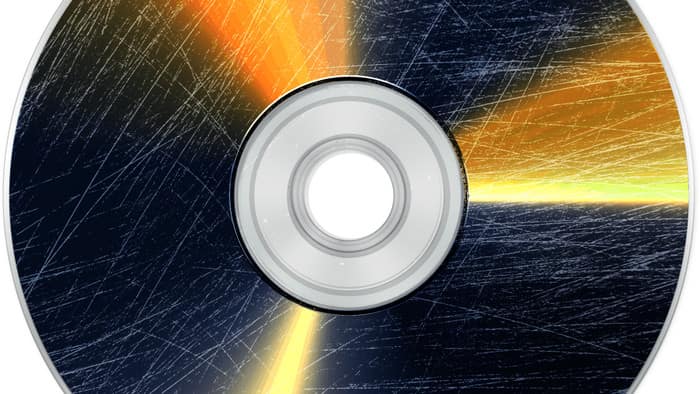
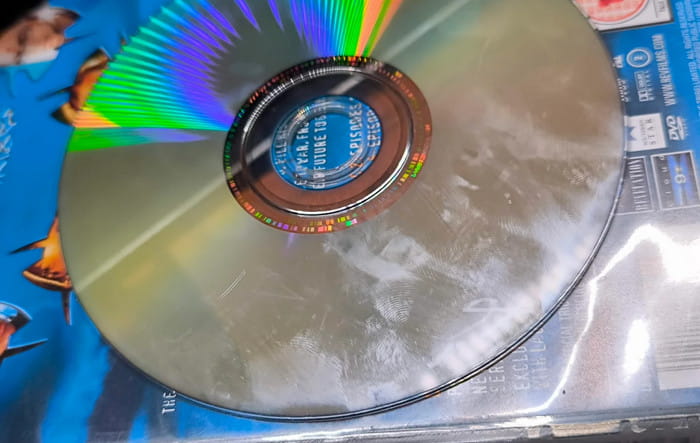
In addition to scratches, the fingerprints and smudges left by our fingers on the disc, although difficult to see with the naked eye, can significantly affect the reflection quality of the laser signal. These little contaminants can result in read errors, particularly when viewing HD content. Furthermore, dust will continuously accumulate on the surface of CDs exposed to the environment for extended periods of time. These microscopic particles will also lower the success rate of the CD drive's reading.
Reasons for Erasing
Regular DVD erasure is even more crucial for rewritable DVDs like DVD-RW. These discs' greatest benefit is their reusability, but before writing new data, it is essential to make sure that all previous data has been deleted. Otherwise, it will not only waste storage space but also cause confusion between new and old data, affecting usability. On the other hand, the disc's average reading speed can increase by over 30% following expert cleaning, which greatly lessens the strain on the drive's error correction system and provides a more smoothy playback experience.
Note: Regular DVDs and rewritable DVDs are cleaned using fundamentally different methods. Whereas the latter allows for total data erasure, the former can only be surface-cleaned. Understanding the key difference is essential for formulating the correct cleaning plan.
Part 2. How to Erase a DVD
Understanding the necessity of cleaning and erasing DVDs is just the first step. In order to turn this knowledge into practice, we also need to master the specific operation methods. In this section, we will explore how to clean and erase a DVD according to different DVD types, so that you can easily deal with various DVD maintenance needs.
Physical Cleaning
Let's start with the most basic physical cleaning first. For surface stains or dust of DVDs, using professional DVD cleaning wipes is the safest and most effective way. These specially designed non-woven fabrics can gently remove the fingerprints and dust from the surface without causing secondary damage.
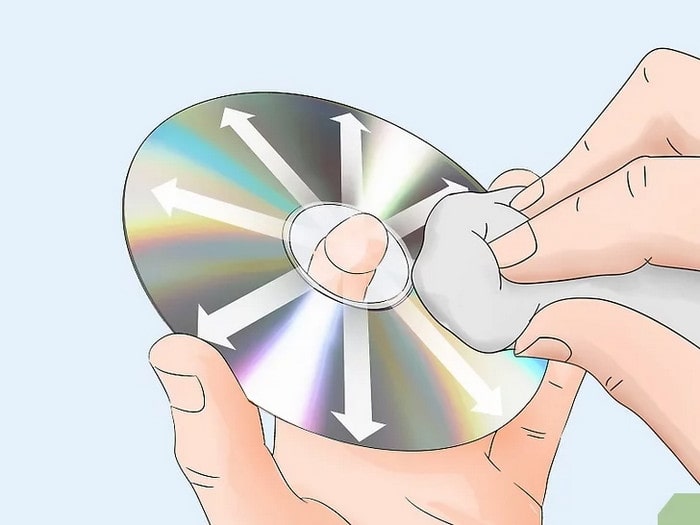
When using it to clean a DVD, be sure to wipe in a radial pattern from the disc's center outward to avoid generating new scratches. For the stubborn smudges, you can also wipe the DVD with a cloth dipped in a specialist disc cleaner. But you must avoid using alcohol or other organic solvents, as these substances may corrode the protective layer of the disc.
Data Erasure
Mastering the correct physical cleaning method can effectively fix the reading problem of DVDS, but this only addresses disc surface maintenance. More expert data erasure techniques must be used when it comes to data, particularly when rewritable DVDs need to be reused or information needs to be deleted entirely. Whether using the built-in eraser in the computer system or relying on some professional DVD erasure software, data erasure is feasible.
Actually, the best eraser is the built-in eraser of your computer, no matter it is Windows or Mac. Because all of them have been deeply optimized by the system, which can stably complete the erasing task, and are completely free. Additionally, compared with third-party software, the system's built-in tools have better compatibility. Also, they are safer without ad plugins and are capable of automatically updating with the system.
Next, we will take the built-in DVD eraser of Windows as an example to provide you with a detailed tutorial on how to erase a DVD.
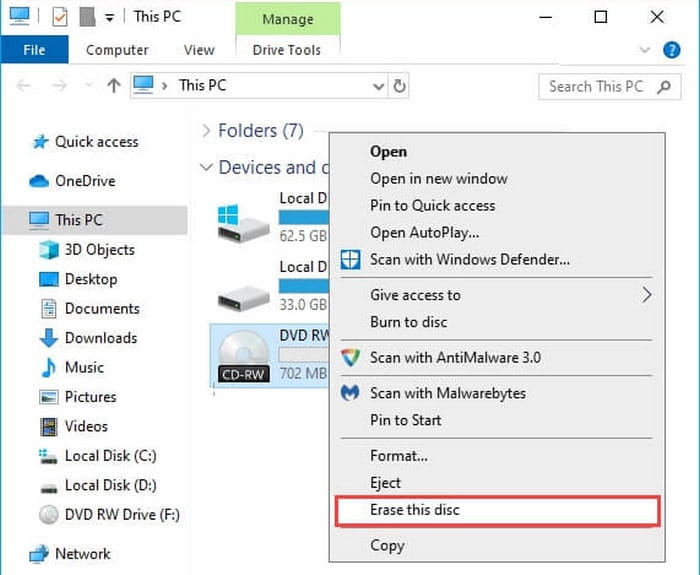
Step 1.Insert the DVD-RW into the DVD drive, then double-click This PC on the desktop or click the Windows icon at the bottom of the screen to find the Explorer icon.
Step 2.Click Explorer, and you’ll have options to go into multiple drives on the computer. Then, select the DVD drive.
Step 3.Click the downward icon in the top right corner to access the top ribbon.
Step 4.Choose the Manage tab at the top menu, and then click Erase this disc to erase or clear DVDs successfully.
Note: Different types of rewritable discs have different tolerances for the number of erasures, and excessive rewriting may lead to disc failure.
Once we have mastered the proper techniques for cleaning and erasing DVDs, we must also think about the crucial question of how to prevent unintentional operations from permanently destroying valuable data. Therefore, before performing any erasure operation, backup is an indispensable security measure. Next, we will provide a detailed introduction to DVD copy software, ensuring that your important data is properly preserved.
Part 3. Backup DVD Before Erasing DVD
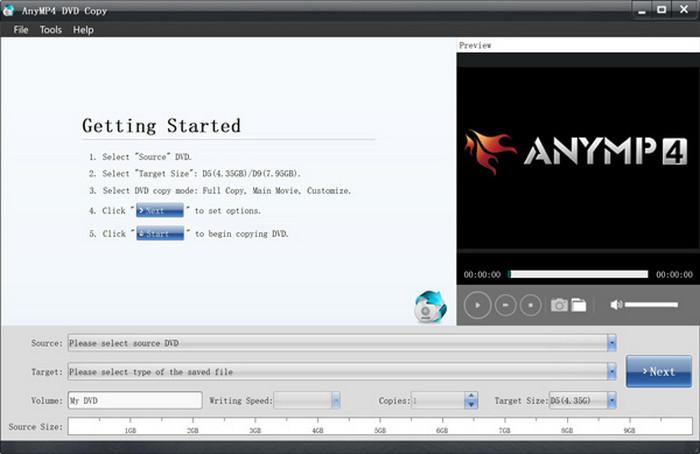
Using a DVD copy software is a helpful solution if you usually experience accidentally deleting important data. Here we take Blu-ray Master recommended DVD Copy as an example.
Free Download
For Windows
Secure Download
Free Download
for macOS
Secure Download
It is a powerful DVD backup tool that can completely copy your DVD content to a blank disc or save it as ISO image files or DVD folder structures on your computer.
• It offers three copy modes: Full Disc, Custom and Main Film.
• It is equipped with an advanced decryption engine that can automatically bypass CSS encryption and area code restrictions.
• It not only supports lossless original quality but also offers an intelligent compression option to save storage space.
• Its simple interface allows even beginners to perform DVD copying easily.
Wrapping up
In this post, we explored the reasons why we need to clean and erase DVDs and how to clean and erase different types of DVDs. At the same time, we understood the importance of choosing the right method based on the disc type. And we hope you can find the best cleaning methods and the best DVD eraser after reading this article. More importantly, don’t forget to copy your DVDs before erasing them. If you have any questions, feel free to leave a comment in the comments section.
More from Blu-ray Master
