

Aug 19, 2025Posted by Kevin Miller to Create DVD
What is an ISO file? What is the benefit of it? These questions might be roaming around your mind for quite a long time. The good thing is that your search is finally over as we give you the answer. An ISO file or ISO image contains the exact data that optical discs have. Besides, it works ideally like the discs mentioned earlier, except that these optical discs are burned on a physical container.
On the other note, the files that you want to backup for an ISO are videos since they are one of the files that goggle much space on your device. For today's blog, we will show you the 6 ISO creators that can help you solve your problems.

- Part 1. What Is an ISO File and Why Use It
- Part 2. Top 6 ISO Creator Tools Reviewed
- Part 3. ISO Creator Comparison Chart
- Part 4. How to Create ISO Files Step-by-Step
- Part 5. FAQs About ISO Creation
Part 1. What Is an ISO File and Why Use It
An ISO file, often called an ISO image, is a single file that contains a complete and exact copy of the data on an optical disc, like a CD, DVD, or Blu-ray. It's essentially a digital replica of the disc's contents, including all files, folders, and the disc's file system structure.
ISO files are used for various purposes, including backing up discs, distributing large software or operating systems, and creating virtual drives. Why do we use ISO files? The reasons are as follows:
- Convenience and Portability: ISO files can store multiple discs on a hard drive or cloud storage. It achieves accessing files anytime without physical media.
- Easy Software Distribution: They are commonly used to distribute large software packages, especially operating systems like Windows or Linux, making it easier for users to install the software.
- Data Preservation and Backup: ISO files protect the original discs from scratches and damage, which ensures a perfect copy without losing any data.
- Faster Access: Reading from an ISO is much faster than using a physical disc.
Part 2. Top 6 ISO Creator Tools Reviewed
AnyMP4 DVD Creator
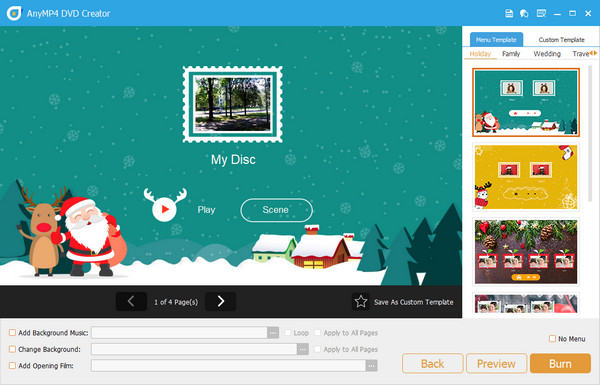
AnyMP4 DVD Creator is one-of-a-kind Bluray and DVD burning software. Aside from that, it also works perfectly as the best ISO maker. Putting these two ideas into context, you have an ISO folder that you can have for later use or burn files on the disc for a physical copy. One more thing, it has an intuitive interface, which makes the writing process hassle-free. On top of that, its working platforms are Windows and Mac devices.
In many cases, users need to refine their videos before processing them for a backup. But, using this tool, you no longer need to download another software and move from one and then to another. In other words, AnyMP4 DVD Creator provides a built-in editor, where you can trim, rotate, clip, attach watermark and put special effects on your files.
Pros
- 50x burning speed.
- Windows and Mac compatible.
- Easy-to-use interface.
- Supports 150 video formats.
Cons
- The free trial only allows a maximum of 3 ISO folders.
Jihosoft ISO Maker Free
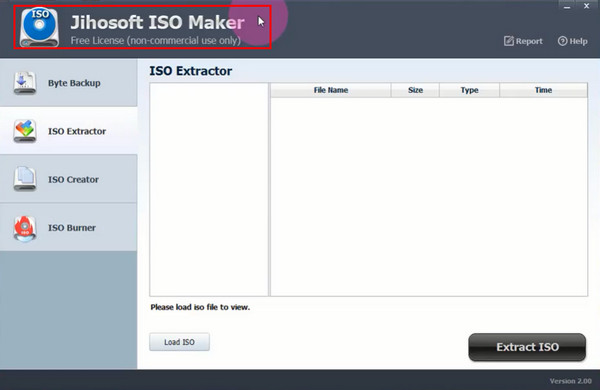
It is undoubtedly hard to find the backup maker that saves you like a hero but thanks to the Jihosoft ISO Maker Free. This program does not only burn video files on a DVD or Blu-ray disc but also creates ISO folders as instant as 1, 2, and 3. Additionally, the tool lets you extract ISO folders and save them on your drive, or you can burn ISO folders directly on a blank DVD. Take note, all types of DVDs are supported by Jihosoft ISO Maker Free, therefore, you do not need to panic about anything.
Yet, this tool is a Windows ISO creator, only compatible with Windows 2000 and earlier. But, would not it be nicer to say that it is this is a free ISO maker? Yes! You heard it right.
Pros
- It can create, burn and extract ISO files.
- Open source and free.
Cons
- It does not support Mac operating systems.
Magic ISO Maker
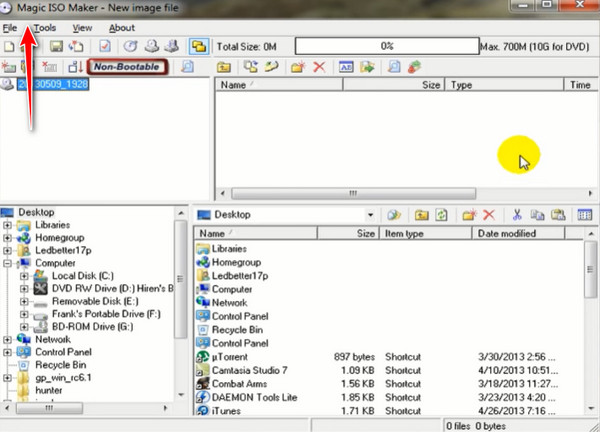
Next on the list is the Magic ISO Maker. This program comes in the paid and free versions with a fine difference separating them, especially on the features you can access. To elaborate more about this ISO maker, it can function the same as the Jihisoft ISO Maker, except that this program includes BIN image format on the menu.
As mentioned a while ago, there is a difference between the paid and free versions. One major deal here is that you can only create an ISO folder out from a file with a maximum of 300MB size. Thus, if you are into backing up a gigantic one, going for an upgrade is a deal-breaker.
Pros
- Supports various disc types.
- ffers a free version of the program.
Cons
- Outdated looking interface.
- Customer support needs improvement.
ImgBurn
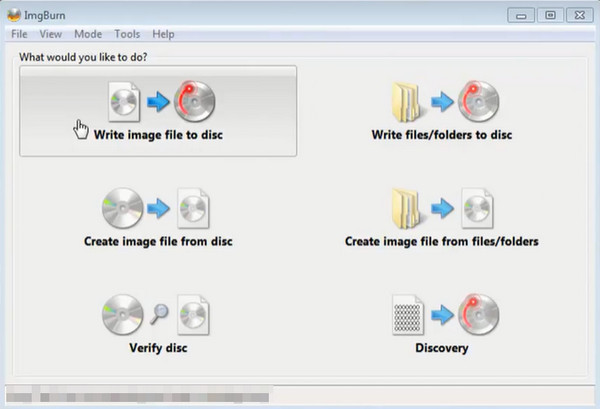
If you own a Linux or Windows computer, ImgBurn is your best friend. This ISO maker contains 6 useful tools for your specific task. It has an intuitive user interface that allows non-professional users to successfully create video files to ISO or burn the ISO to a disc. Aside from this, ImgBurn can ender Audio CDs from different audio formats.
Aside from this, ImgBurn can ender Audio CDs from different audio formats. Above all else, one of the undefeatable features of this program is it can verify the quality of your files using the Discovery tool.
Pros
- Cost-free ISO maker.
- Easy-to-use interface.
- Can create or burn ISO.
Cons
- Mac OS not supported.
CDBurnerXP
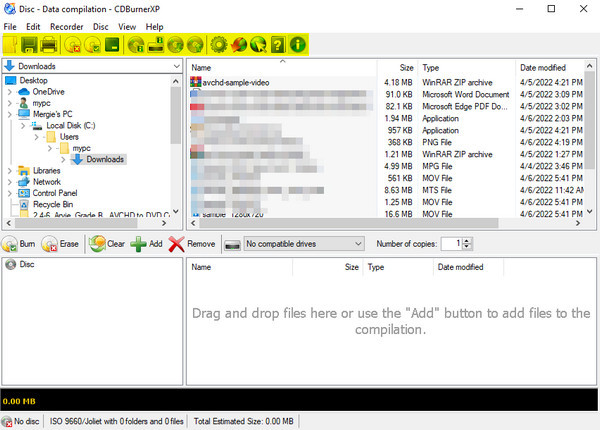
Another program that is packed with great wonders is the CDBurnerXP. This is a free Windows ISO creator and provides a multi-language interface. Not just that, you can save your ISO folders on your hard drive or burn them on a disc later.
When talking about the user experience, there is nothing much to worry about in the program. You can easily install it on your device since it's only a 6MB .exe file. Aside from ISO making, the program also performs writing files on a DVD and Blu-ray disc.
Pros
- It has a multi-language interface like French, Italian, Japanese, etc.
- Helpful in making bootable discs.
Cons
- The program may work best on older versions of Windows.
Wondershare DVD Creator
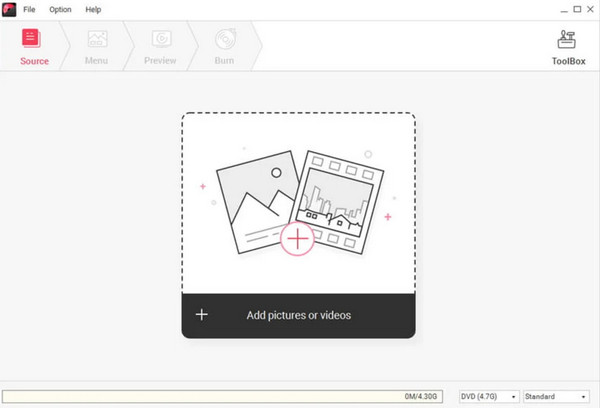
Finally, Wondershare DVD Creator is a straightforward program and enough to be called an excellent ISO generator. You will definitely enjoy its aesthetically made interface if you are a pink lover. Like the AnyMP4 DVD Creator, it can act as a 3-in-1 program. It can write files on a DVD or Blu-ray Disc and even supports the ISO folder.
Pros
- Fast ISO creation speed.
- Interactive user interface.
Cons
- Not available in Linux programs.
- Limited features on the free trial.
Part 3. ISO Creator Comparison Chart
After reading the detailed information about the programs, you can refer to the overall comparison below through a simplified chart. Here, you will see each program's compatibility with operating systems, pricing, and interface quality.
| AnyMP4 DVD Creator | Jihisoft ISO Maker Free | Magic ISO Maker | ImgBurn | CDBrunerXP | Wondershare DVD Creator | |
| Platform Compatibility | Windows and Mac | Windows | Windows and Linux | Windows and Linux | Windows | Windows and Mac |
| Price | Free/Paid | Free | Paid | Free | Free | Paid |
| Supported Formats | Supports almost all common formats, including MP4, AVI, MKV, MTS, etc., as well as a lot of DVD types, including DVD-5, DVD-9, DVD-R, DVD+R, etc. | Supports common disc image formats like ISO9660, Joliet, and UDF. | Only supports optical disc image formats. | Supports a wide range of image file formats, including BIN, CUE, DI (Atari Disk Image), DVD, GI, IMG, ISO, MDS, NRG, and PDI. | Handles various formats like WAV, MP3, OGG, FLAC, and WMA. | Supports over 150 video formats for burning to DVD, Blu-ray, or ISO files. |
| Ease of Use | ||||||
| ISO Creation Speed | ||||||
| Customization Options | Offers a variety of customizable menu templates, allowing users to change backgrounds, text, buttons, and add music. | Lacks advanced features found in premium alternatives like file system conversion or bootable image creation. | Allows users to extract the contents of ISO files. | Offers configuration options for ISO image settings, including label, image type, and restrictions. | Few customization options to choose. | Some options for video editing, menu customization, and more. |
| Customer Support |  | | | | | |
| Editing Features | Offers video trimming, cropping, effect adjustments, watermarks, subtitle addition, etc. | Does not offer video editing features. | Does not offer video editing features. | Does not offer video editing features. | Does not offer video editing features. | Includes video trimming, cropping, and adding subtitles. |
| Trial Version | | |  | | | |
| User Ratings | ||||||
| Support Blu-ray and DVD | | | | CD and DVD only | CD and DVD only | (Blu-ray is only supported on Windows OS) |
Therefore, we can draw the following conclusions:
- AnyMP4 DVD Creator: A versatile tool for creating ISO files and burning DVDs/Blu-rays, which includes a built-in video editor and supports 150+ formats.
- DVDFab DVD Copy: A powerful free tool with 6 copy modes, which is capable of backing up protected DVDs to ISO or folders. Fast and lossless.
- Jihosoft ISO Maker Free: A Simple and free ISO creator for Windows, which supports DVD/Blu-ray burning and ISO extraction.
- Magic ISO Maker: A Classic ISO tool with broad format support, which allows editing and conversion.
- PowerISO: A paid but full-featured ISO suite, which supports mounting, editing, burning, and bootable disc creation.
- ImgBurn: A Lightweight and free ISO burner great for Windows/Linux users. It supports audio CD creation too.
Part 4. How to Create ISO Files Step-by-Step
And here's to another exciting part. Below is a quick tutorial on how you can preserve your videos to an ISO folder using the leading tool, AnyMP4 DVD Creator. Before anything else, click the appropriate download button and install the program on your device.
Free Download
For Windows
Secure Download
Free Download
for macOS
Secure Download
Step 1.Import videos to the ISO Creator
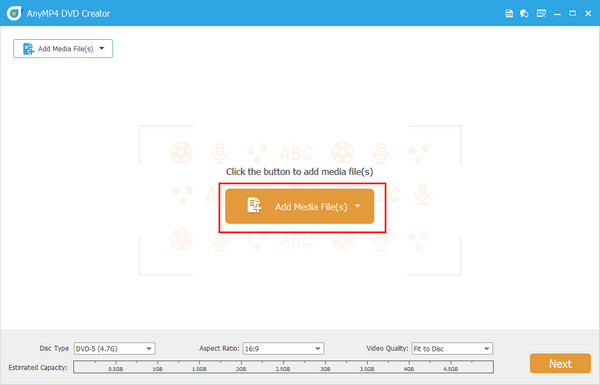
When the program launches, load your target videos on the program by hitting the Add Media File(s) button.
Step 2.Edit the other settings (Optional)
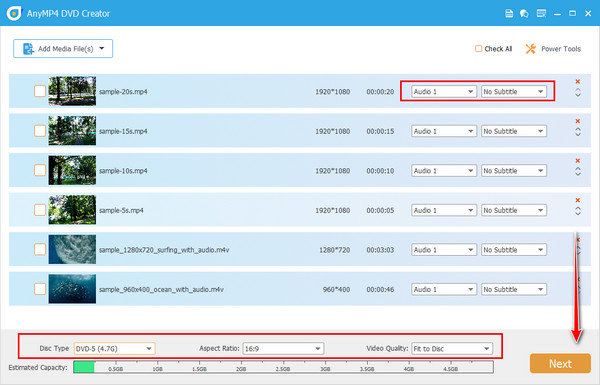
If you plan to burn your ISO folder on a DVD next time, you can take this simple tip. Navigate the interface and select the Disc Type, Aspect Ratio, and the Video Quality according to your needs. Also, you can add an audio or subtitle by expanding the drop-down tabs on each video thumbnail. When done, hit Next.
Step 3.Design a DVD Menu
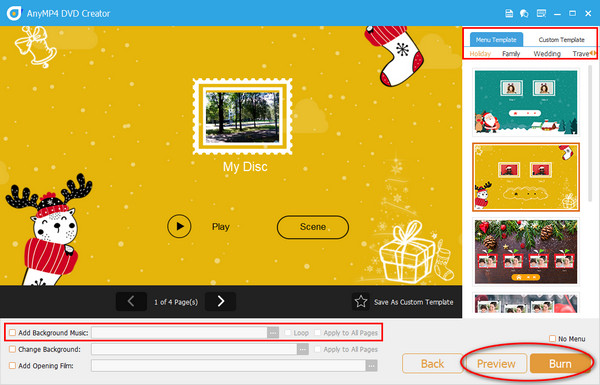
If you create your DVD menu now, you will never have to deal with it in your future burning process. Here, select the perfect template you want and add fitting background music. Hit the Preview button to avoid errors and when satisfied, click the Burn icon. However, you can omit this part by checking the No Menu box.
Step 4.Save videos as an ISO folder
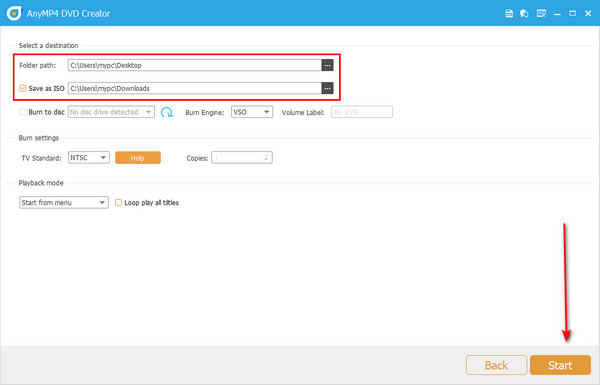
Select the Save as ISO option and the folder path for your output. After that, click the Start button, and there you have your ISO folder.
Part 5. FAQs About ISO Creation
-
What does an ISO folder contain?
If you have ever opened an ISO image, you will also see an archive of AUDIO_TS and the VIDEO_TS folders.
-
How can I burn an ISO folder to DVD?
Writing ISO files on a DVD is pretty similar to the usual process of burning any media files. The only thing you should consider is to look for a program that supports disk image burning.
-
Can I protect my ISO folder with a password?
Definitely, yes! Data encryption is also possible with your ISO folders. You can do this using the program to create an ISO image itself.
Wrapping up
Voila! After reading this article, we believe you are now geared up with all the information you need about the file to ISO creators. While using the free ISO makers is good, there is also a wide range of benefits to using the paid tools. Such is avoiding pesky ads and limited features.
More from Blu-ray Master
