

Jul 04, 2025Posted by Kevin Miller to Rip DVD
Ripping DVDs is easier when you choose a decent tool to extract the content from your computer. However, the availability of DVD rippers can be challenging, especially when you have a Linux OS. It is a good operating system since it offers high customization to the overall performance and system. Yet, the OS is still growing its ecosystem of software, so it might have been draining to find the best Linux DVD Ripper nowadays. What you can do is read this article because we review the best tools that can help you rip DVDs on Linux easily.

- Part 1. HandBrake
- Part 2. VLC
- Part 3. MakeMKV
- Part 4. DVD::RIP
- Part 5. Bonus - Powerful DVD Ripping Software on Windows/Mac
- Part 6. FAQs about Linux DVD Ripper
Part 1. HandBrake
No
MP4, MKV, and WebM
Slow
Rich customization seetings to edit video parameters.
Most people are frustrated for protected DVDs while this free tool is uncapable to do this
This is a well-known tool for video transcoding, and it is a popular DVD Ripper for Linux, Windows, and Mac. HandBrake offers a free ripping process for DVD-5, DVD-9, DVD-ROM, and other types, which you can convert to various output formats, including MP4, MKV, HEVC, etc. It also allows you to control the processing speed and quality with built-in presets you can choose from. Additionally, it has other advanced settings to ensure files are exported with the desired resolution, FPS, codec, and others.
Pros
- Professional customization of output settings.
- Able to personalize audio, subtitles, and other elements.
Cons
- It can be too complex to decode multiple files.
Step 1.Open the terminal on Linux and enter the command sudo apt install handbrake. Your computer will automatically install the software. While waiting, insert the disc into the optical drive.
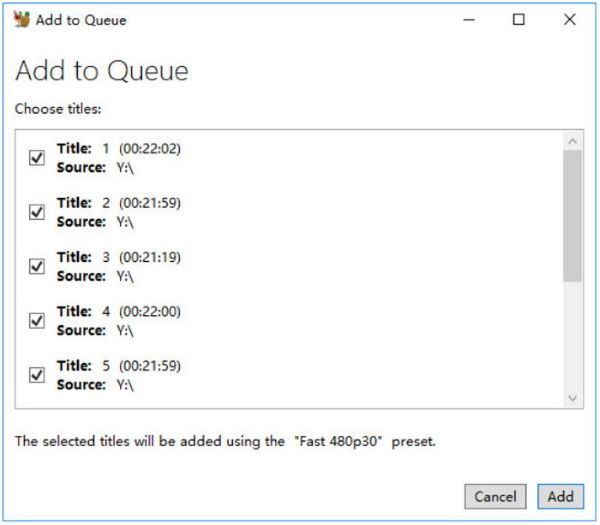
Step 2.Once the disc is recognized, open the DVD drive and choose the title you want to rip. Next, select the output format and speed preset from the dropdown menu.
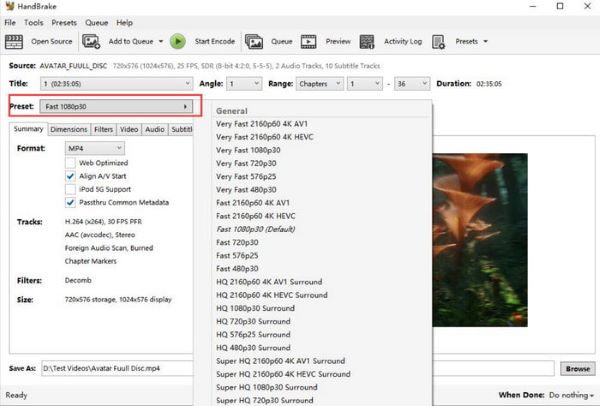
Step 3.Click the Browse button and select a destination folder on your device. Click Start Encode to rip the DVD on Linux.
HandBrake is the ideal DVD ripper for Linux, especially since you can integrate it into your computer without a problem. But to fully utilize its features, you may need to spend quite some time to get familiar with it.
Part 2. VLC
Yes
MP4, MKV, FLV, etc.
Medium
This Linux DVD ripper allows you to select part of the titles to rip DVDs
Most people are satisfied with this free and open-source DVD converter for Linux
VLC is a media player that is widely popular due to its support for playing almost all media files. But other than this, it is also a decent tool to rip DVDs on Linux. Its hidden function is capable of ripping or making backup files from discs. It is also user-friendly, allowing you to process without the requirement of extensions and add-ons. What’s more, you can rip any DVD type with this alternative, especially for common ones like DVD-R, DVD+R, etc. After that, VLC is the perfect media player to play the ripped files on your Linux.
Pros
- All-in-one media player with a ripper.
- Convert discs to MP4 and AVI.
Cons
- The output quality is not guaranteed to be good.
- It takes too much time to process.
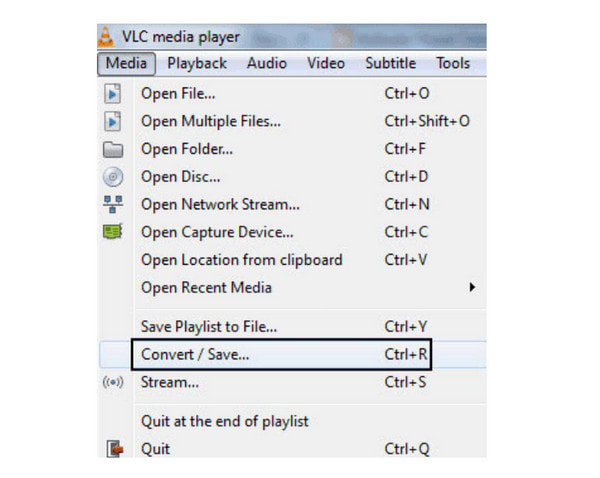
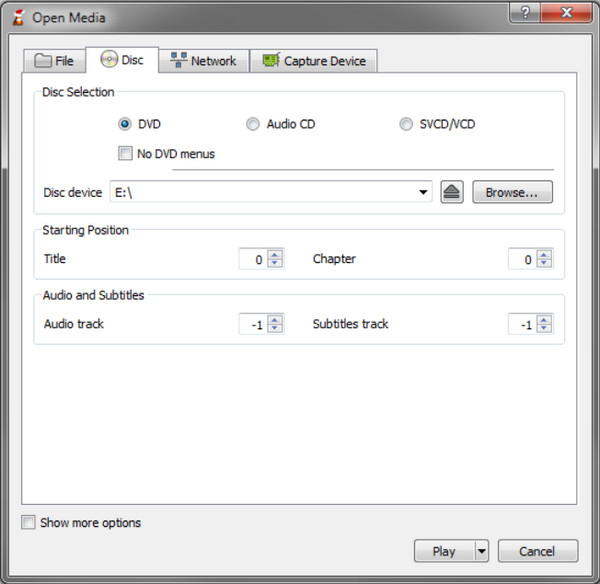
Step 1. Download and install VLC on your computer. Insert the disc and launch the tool. Open the Media dropdown menu and choose the Convert/Save option. Navigate to the Disc tab and browse for the Disc on the Disc device menu.
Step 2.Proceed to select the desired output format. It is recommended to use the MP4 format to determine the best quality. Once done, click the Start button.
This alternative is ideal for try ripping DVDs on Linux. However, it is best to note that VLC lacks the right tool for ripping, so the quality might not turn out as good as you expect.
Part 3. MakeMKV
Yes
MKV
Fast
You are allowed to select specific video, audio, and subtitle tracks.
This best DVD ripper for Linux is praised for its reliability in successfully ripping DVDs to MKV.
One way to preserve the content of your DVD collections is to use MakeMKV. It is a free and trusted DVD-ripping software for Linux, Windows, and Mac. Its main job is to preserve all chapters and titles from a DVD or Blu-ray disc, primarily converting them to MKV, a format that can handle all video and audio data in original quality. Not only that, MakeMKV is designed to read any type of discs, even if they have the latest protection with AACS and BD+. It also promises a fast-speed conversion with a batch of files to process.
Pros
- No additional software to decrypt protected discs.
- Preserve HD video and audio simultaneously.
Cons
- Only the MakeMKV BETA version is free.
- Only convert videos to MKV.
Step 1.You can download the DVD Ripper for Linux from the official website. Launch it and prepare the disc.
Step 2.Once MakeMKV recognizes the disc, it will show you all the titles that you can select for the conversion. Set a designated folder where you want to save the files, then initiate the conversion by clicking the Make MKV button.
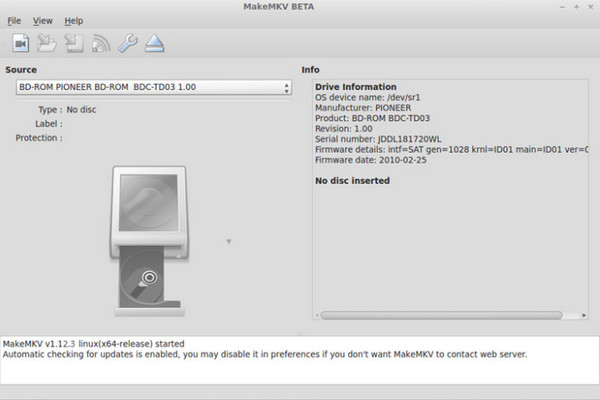
You can use MakeMKV to ensure the speed and quality of the video. While it is free for Linux and other supported platforms, its latest software version requires payment to use. However, you can think of it as an investment for better ripping.
Part 4. DVD::RIP
Limited
AVI, MPEG-4, MPEG-2, and others
Moderate
This DVD ripper for Linux provides extensive controls, such as video and audio bitrate adjustments, and others.
Many users appreciated its power and flexibility on Linux, while some reflect that it lacks modern features
The DVD ripper is a full-featured tool that you can use on your Linux computer. Since it is written in Perl i.e. front end and ffmpeg, the Linux DVD Ripper provides Gtk+ GUI to control the ripping process professionally. It being an open-source is ideal for Linux OS as it is also widely used with other similar tools.
Pros
- Able to edit the visuals and size of the movie.
- Extract audio tracks separately.
Cons
- Discontinue updates since 2010
Step 1.Download and install the software, then insert the disc into the optical drive. Choose the title to rip, or press Shift+Ctrl to choose multiple files.
Step 2.Select the language, audio tracks, subtitles, and other elements you want to include. Start processing by clicking RIP selected titles button.
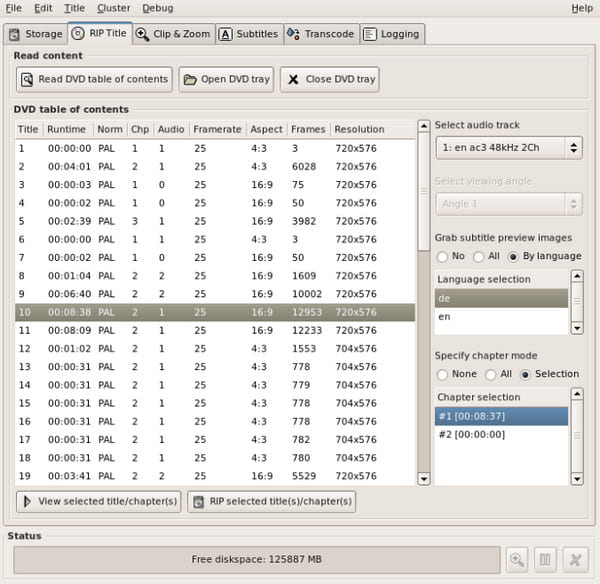
DVD::RIP can go beyond ripping on Linux with its full features to edit and process videos. While it is still available, the software remains an outdated tool, which means it might not be able to process newer DVD formats.
Part 5. Bonus - Powerful DVD Ripping Software on Windows/Mac
There is one more robust DVD ripper that you must have to extract DVDs without quality loss on Windows and Mac. Free DVD Ripper by Blu-ray Master is designed to extract videos from DVD-9, DVD-5, DVD-RAM, and other types. It has an option to rip the whole content or individually save part of the titles you want to rip. It also has an amazing set of tools that you can use to cut unwanted parts or enhance the quality. Of course, you can choose the desired output settings for the videos, as this ripper includes adjusted settings for video codec, format, resolution, bitrate, and many more. On top of these outstanding advantages, the processing only takes a few minutes, as the Free DVD Ripper has the most advanced GPU acceleration to shorten the duration.
• Rip different kinds of DVDs and export them up to 4K resolution.
• Provide presets with device compatibility, support format, etc.
• Effective editing tools to trim, merge, split, and cut, and more.
• Built-in preview where you can watch the ripped and converted files.
Step 1.Click the Free Download button and install the Free DVD Ripper.
Free Download
For Windows
Secure Download
Free Download
for macOS
Secure Download
Insert the disc into the optical drive, and click the Load Disc button from the program’s interface. Choose the title you want to rip.
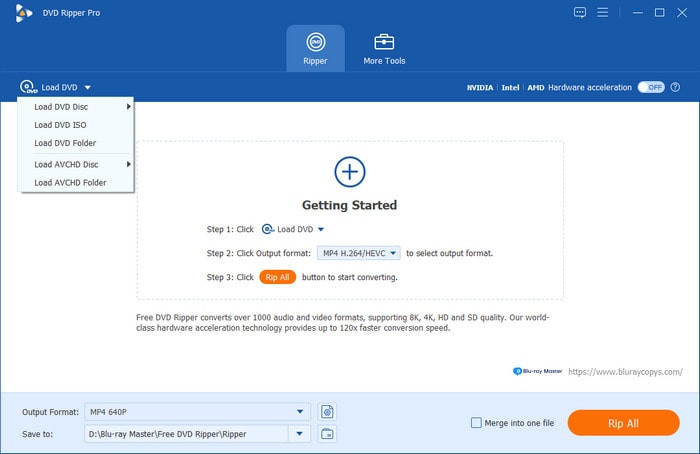
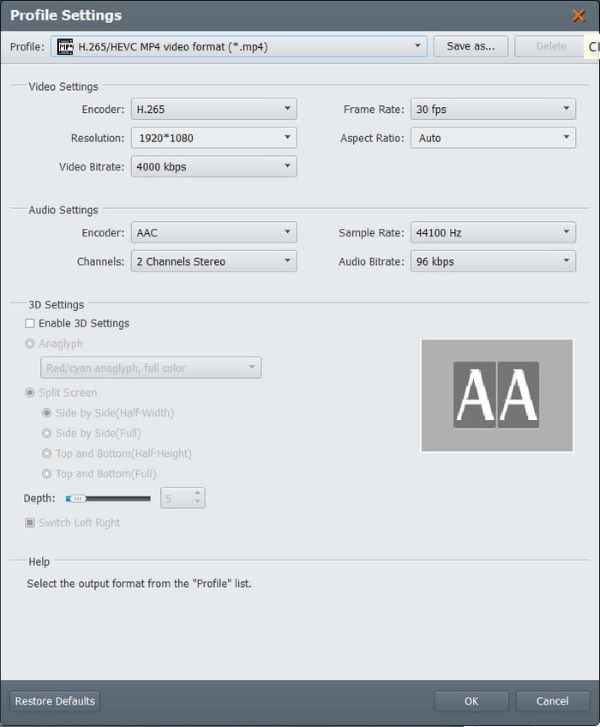
Step 2.Proceed to the Profile dropdown menu and choose a preset that has an output format, device compatibility, etc. Or, click the Settings button to manually select the desired format, encoder, bitrate, FPS, and such. Click OK to save the changes.
Step 3.You can preview the videos by clicking the Play button. After that, Click Browse on Destination to choose the location folder. Once done, click the Convert button to finally rip the DVD.
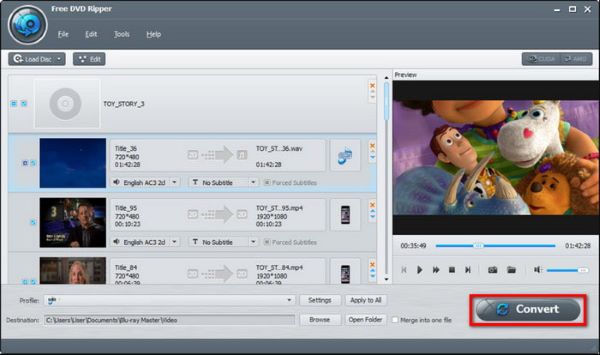
Alas, you have found one more powerful DVD ripper for any DVD type. It has easy navigation with lots of features to offer for free. What’s more, you can upgrade to the Pro version to unlock more amazing features.
Part 3. FAQs about Linux DVD Ripper
-
What are the best output formats when using a Linux DVD ripper?
Popular formats like MP4, MKV, and AVI are supported on Linux OS. You can use these as output formats when ripping DVDs.
-
Can I rip copy-protected DVDs on Linux?
It is possible to rip copy-protected and encrypted DVDs on Linux. You will only need a tool that can bypass the protection and extract the content without hassle. Note that not all DVD rippers available right now have this function, so you must find the right one properly.
-
Why does Linux only have a few applications for DVD ripping?
One reason for this is because of the open-source philosophy. The operating system has this advantage but often limits commercial applications, especially DVD rippers. Software companies are yet to invest in Linux with tools that support its philosophy.
Conclusion
What is the best Linux DVD ripper for you? Popular tools like HandBrake, VLC, MakeMKV, etc., are definitely supported by the operating system. More than this, you have learned Blu-ray Master Free DVD Ripper, which is a powerful ripping tool for Windows and Mac.
You can choose one tool from them to rip DVDs on Linux, and you are welcome to share your user experience with us!
More from Blu-ray Master
- WinX DVD Ripper Review and Its 5 Alternatives You Should Not Miss
- 5 Best Open Source DVD Rippers for Beginners and Experts
- Aimersoft DVD Ripper Review and the Best Alternative Software
- An In-Depth WinX DVD Ripper Review: Is It Worthwhile
- 10 Best (Free) DVD Rippers for Mac Without Quality Loss
- Best 3 Free DVD Rippers for Windows 10/11 [Free Download]
Top-rated DVD Ripper
Fast and free ripping software to decrypt all DVDs to digital easily on your computer.
100% Secure. No virus
