

Sep 03, 2026Posted by Kevin Miller to Rip DVD
Ripping DVDs is easier when you choose a decent tool to extract the content from your computer. However, finding DVD rippers can be challenging, especially on Linux. It is a good operating system since it offers high customization for overall performance and system settings. Yet, the OS is still growing its software ecosystem, so it might be challenging to find the best Linux DVD rippers nowadays. What you can do is read this article, where we review the best tools to help you rip DVDs on Linux easily.

Table of Contents
- Part 1. How We Tested These Linux DVD Ripper Converters
- Part 2. Quick Comparison: Top 3 Linux DVD Rippers at a Glance
- Top 1. HandBrake - Best for Beginners
- Top 2. VLC - Best for One-Off Ripping
- Top 3. MakeMKV - Best for Lossless Ripping
- Part 6. Bonus: Blu-ray Master Free DVD Ripper - When You Need More
- Part 7. FAQs About Linux DVD Ripper
Part 1. How We Tested These Linux DVD Ripper Converters
To provide objective results for the programs we review in this article, we tested them against specific criteria important for DVD ripping on Linux. Based on authentic user reviews and experience, we identified performance, DVD protection bypass, and accessibility as the primary factors for users selecting DVD rippers.
With these factors in mind, we have concluded that the following measurements are the most optimal comparison options to test the performance of our featured Linux DVD ripper converters:
- Conversion Speed
- Video/Audio Quality Retention
- Decryption Capability
- Format Support
- Ease of Use
Part 2. Quick Comparison: Top 3 Linux DVD Rippers at a Glance
For a quick glimpse of the programs' features before proceeding to our reviews, read our quick side-by-side comparison of the Linux DVD rippers we have featured in this article. We hope that these factors will give you the right impression based on what you are looking for.
| Linux DVD Ripper | Best Uses | Pricing | Platforms | Output Formats | Decryption | Watermark |
| HandBrake | Best used for beginner DVD users looking for an open-source solution. | Free (Open Source) | Linux, Windows, macOS | MP4, MKV | Limited. (Requires a plug-in to bypass DVD protection). | No |
| VLC | Basic DVD copying and simple DVD-to-video conversion. | Free (Open Source) | Linux, Windows, macOS | MP4, TS, WebM, OGG, MP3, FLAC, AAC, and more. | Limited. (Requires a plug-in to bypass DVD protection). | No |
| MakeMKV | Creating digital backup of DVDs while preserving video quality and chapters. | Free | Linux, Windows, macOS | MKV | Excellent (Bypasses advanced copy-protections). | No |
| Blu-ray Master Free DVD Ripper (Editor’s Choice) | Beginners looking for a DVD ripper with a GUI, limitless output formats, and essential video editing tools. | Free | Windows, macOS | MP4, MKV, AVI, MOV, WMV, FLV, MP3, AAC, FLAC, WAV, and 200+ formats. | Good (Bypasses basic copy-protections). | No |
Top 1. HandBrake - Best for Beginners
This is a well-known tool for video transcoding, and it is a popular DVD Ripper for Linux, Windows, and Mac .HandBrake offers a free ripping process for DVD-5, DVD-9, DVD-ROM, and other types, which you can convert to various output formats, including MP4, MKV, HEVC, etc. It also lets you control processing speed and quality with built-in presets. Additionally, it offers advanced settings to ensure files are exported with the desired resolution, FPS, codec, and more.
Pros
- Professional customization of output settings.
- Personalize audio, subtitles, and other elements.
Cons
- It can be too complex to decode multiple files.
Key Features at a Glance
- Converts DVDs via ripping to common video formats like MP4, MKV, and WebM.
- Supports encoding videos in modern codecs such as H.264, H.265, AV1, MPEG-4, VP8, and VP9.
- Practical video presets for specific video quality, device, and web videos.
How to Use HandBrake as a Linux DVD Ripper
Step 1. Open the terminal on Linux and enter the command sudo apt install handbrake. Your computer will automatically install the software. While waiting, insert the disc into the optical drive.
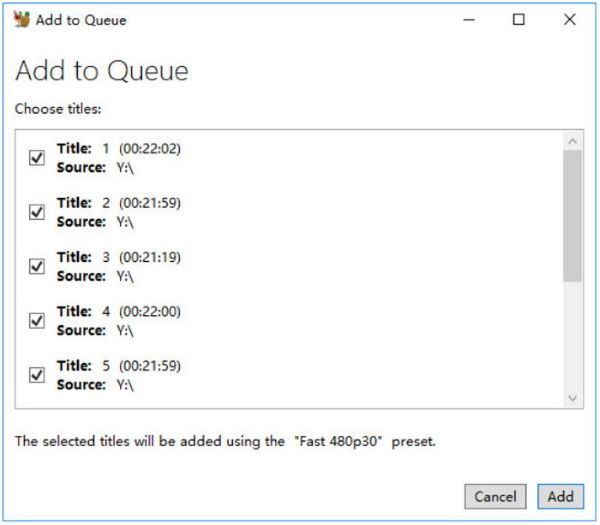
Step 2. Once the disc is recognized, open the DVD drive and choose the title you want to rip. Next, select the output format and speed preset from the dropdown menu.
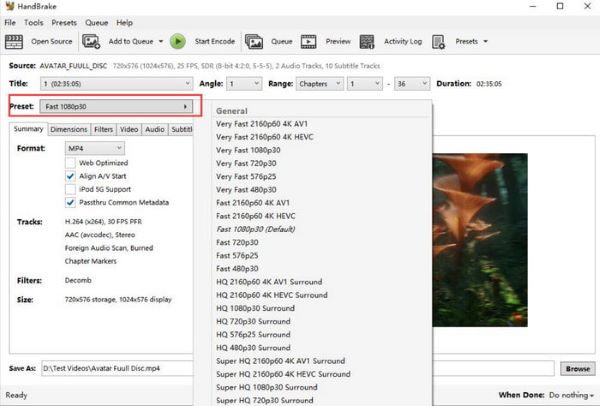
Step 3. Click the Browse button and select a destination folder on your device. Click Start Encode to rip the DVD on Linux.
HandBrake is the ideal DVD ripper for Linux, especially since you can integrate it into your computer without a problem. But to fully utilize its features, you may need to spend quite some time getting familiar with it.
Top 2. VLC - Best for One-Off Ripping
VLC is a media player that is widely popular for supporting almost all media files. But beyond that, it is also a decent tool to rip DVDs on Linux. Its hidden function is capable of ripping or making backup files from discs. It is also user-friendly, allowing you to process without requiring extensions and add-ons. What’s more, you can rip any DVD type with this alternative, especially for common ones like DVD-R, DVD+R, etc. After that, VLC is the perfect media player to play the ripped files on your Linux.
Pros
- All-in-one media player with a ripper.
- Converts discs to MP4 and AVI.
Cons
- The output quality is not guaranteed to be good.
- It takes too much time to process.
Key Features at a Glance
- Cross-platform multimedia player for different devices and operating systems.
- Equipped with a basic but functional DVD ripper tool available in its advanced settings.
- Bypasses DVD protections using the “libdvdcss” plug-in.
How to Use HandBrake as a Linux DVD Ripper
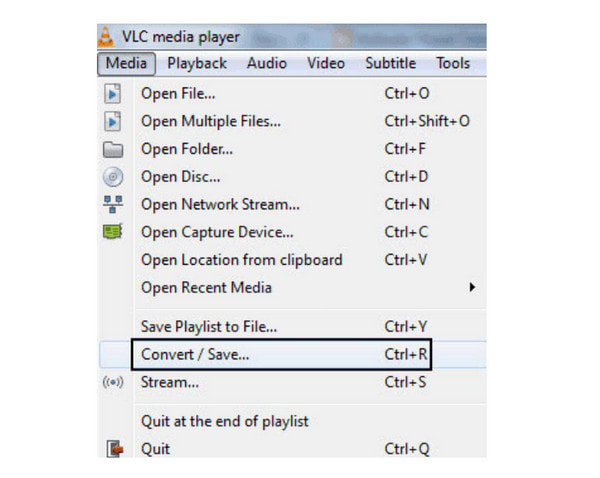
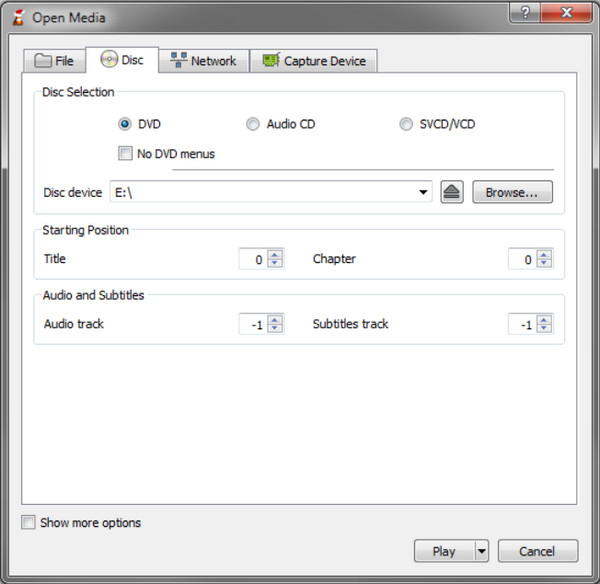
Step 1. Download and install VLC on your computer. Insert the disc and launch the tool. Open the Media dropdown menu and choose the Convert/Save option. Navigate to the Disc tab and browse for the Disc on the Disc device menu.
Step 2.Select the desired output format. It is recommended to use the MP4 format to determine the best quality. Once done, click the Start button.
This alternative is ideal for ripping DVDs on Linux. However, note that VLC lacks the right tool for ripping, so the quality might not turn out as good as you expect.
Top 3. MakeMKV - Best for Lossless Ripping
One way to preserve the content of your DVD collections is to use MakeMKV. It is a free and trusted DVD-ripping software for Linux, Windows, and Mac. Its main job is to preserve all chapters and titles from a DVD or Blu-ray disc, primarily converting them to MKV, a format that can handle all video and audio data in original quality. Not only that, MakeMKV is designed to read any type of disc, even if they have the latest protection with AACS and BD+. It also promises fast conversion for batches of files.
Pros
- No additional software to decrypt protected discs.
- Preserve HD video and audio simultaneously.
Cons
- Only the MakeMKV BETA version is free.
- Only convert videos to MKV.
Key Features at a Glance
- Ripped DVD media are saved in a lossless MKV format.
- Preserve original video quality, audio, chapters, and subtitles.
- Built-in copy-protection decrypting system.
How to Use HandBrake as a Linux DVD Ripper
Step 1. Download the DVD Ripper for Linux from the official website. Launch it and prepare the disc.
Step 2. Once MakeMKV recognizes the disc, it will show you all the titles that you can select for the conversion. Set a designated folder where you want to save the files, then initiate the conversion by clicking the Make MKV button.
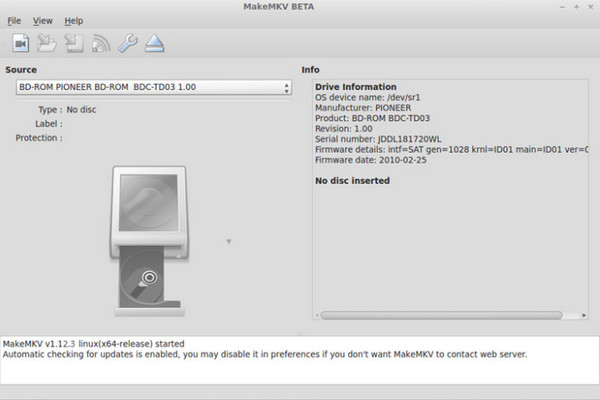
You can use MakeMKV to ensure the video's speed and quality. While it is free for Linux and other supported platforms, the latest version requires a payment to use. However, you can think of it as an investment for better ripping.
Part 6. Bonus: Blu-ray Master Free DVD Ripper - When You Need More
There is one more robust DVD ripper you need to extract DVDs without quality loss on Windows and Mac. Free DVD Ripper by Blu-ray Master is designed to extract videos from DVD-9, DVD-5, DVD-RAM, and other types. It has an option to rip the whole content or individually save part of the titles you want to rip. It also has an amazing set of tools that you can use to cut unwanted parts or enhance the quality. Of course, you can choose the desired output settings for the videos, as this ripper includes adjusted settings for video codec, format, resolution, bitrate, and many more. On top of these outstanding advantages, processing takes only a few minutes, as the Free DVD Ripper uses advanced GPU acceleration to shorten the duration.
- Rip different kinds of DVDs and export them up to 4K resolution.
- Provide presets with device compatibility, supported formats, etc.
- Effective editing tools to trim, merge, split, cut, and more.
- Built-in preview where you can watch the ripped and converted files.
Step 1. Click the Free Download button and install the Free DVD Ripper.
Free Download
For Windows
Secure Download
Free Download
for macOS
Secure Download
Insert the disc into the optical drive, and click the Load DVD button from the program’s interface and select Load DVD Disc.
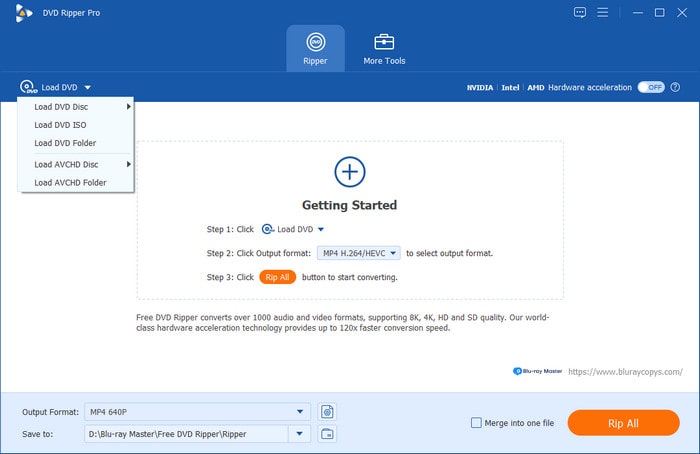
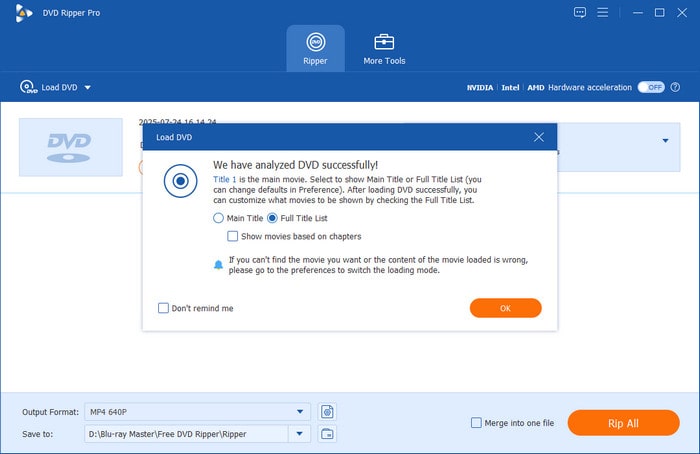
Step 2. Once the DVD has been loaded, select either to rip the Main Title or show the Full Title List to manually select which chapters to rip.
After selecting how you want to rip your DVD content, select Output Format and choose the video format you want to save your ripped DVD content into. In this article, we selected MP4 to maximize video compatibility.
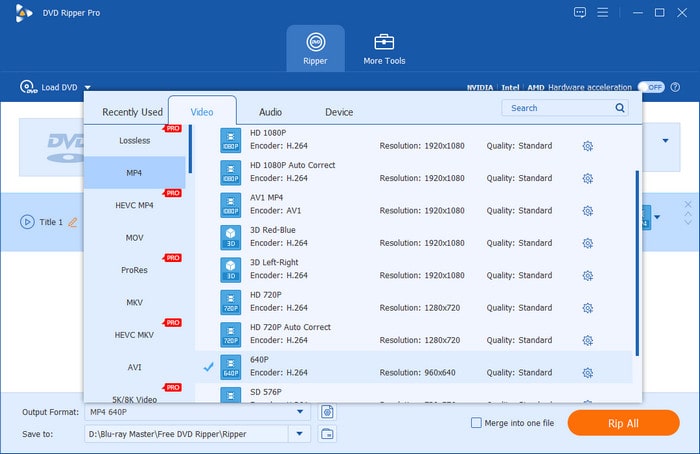
Step 3. With the Output Format now set to the video file type you want to use, proceed to the Ripper menu and select Rip All to begin the process.
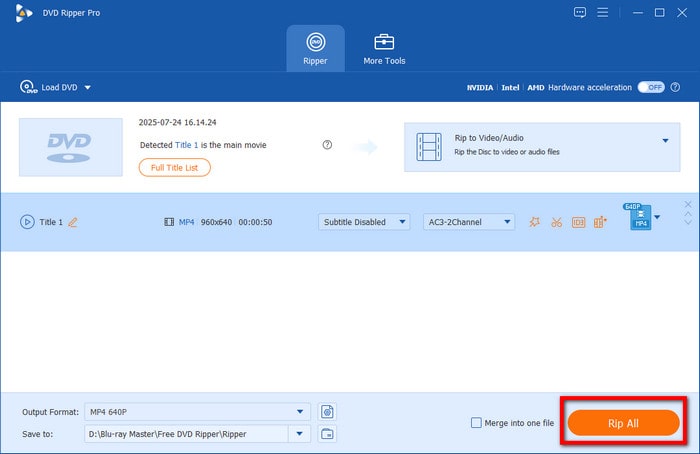
Alas, you have found one more powerful DVD ripper for any DVD type. It has easy navigation with lots of features to offer for free. What’s more, you can upgrade to the Pro version to unlock more amazing features.
Part 7. FAQs About Linux DVD Ripper
-
What are the best output formats when using a Linux DVD ripper?
Popular formats like MP4, MKV, and AVI are supported on Linux OS. You can use these as output formats when ripping DVDs.
-
Can I rip copy-protected DVDs on Linux?
It is possible to rip copy-protected and encrypted DVDs on Linux. You will only need a tool that can bypass the protection and extract the content without hassle. Note that not all DVD rippers available right now have this function, so you must find the right one properly.
-
Why does Linux only have a few applications for DVD ripping?
One reason is the open-source philosophy. The operating system has this advantage but often limits commercial applications, especially DVD rippers. Software companies have yet to invest in Linux with tools that support its philosophy.
-
What is the best Linux DVD ripper?
HandBrake is a safe choice if you are looking for a good DVD ripper. It is both free to use and requires a little practice to get a hold on how it functions. However, it still requires several reps to learn how to use it effectively.
-
Can I convert Linux DVD ripper for free?
Yes, you can. All of the programs we have provided in this article are all free to use. Among them, we recommend using MakeMKV for Linux and Blu-ray Master Free DVD Ripper for Mac and Windows.
-
Does HandBrake support encrypted discs?
No, it does not by default. However, it can do so once you have installed the libdvdcss plug-in. This plug-in is also required in VLC to access encrypted DVDs.
-
Which Linux DVD ripper has the highest quality output?
Based on quality alone, MakeMKV is the best. This program rips DVD content into raw MKV video with lossless quality. This makes the program capable of ripping a virtually identical digital video.
-
Is there a lossless Linux DVD ripper option?
Yes, there is. MakeMKV is a good solution. This program is widely known for ripping raw DVD data into lossless MKVs.
Conclusion
What is the best Linux DVD ripper for you? Popular tools like HandBrake, VLC, MakeMKV, etc., are definitely supported on Linux. In addition, you have learned about Blu-ray Master Free DVD Ripper, a powerful ripping tool for Windows and Mac. You can choose one of these tools to rip DVDs on Linux, and you are welcome to share your user experience with us!
More from Blu-ray Master
Rip DVDs to Digital

Fast and free ripping software to decrypt all DVDs to digital easily on your computer.
100% Secure. No virus
