

Feb 06, 2026Posted by Kevin Miller to Play Blu-ray
Summary
The best Blu-ray player for Windows 10/11 in 2025 is Blu-ray Master Free Blu-ray Player, offering 4K playback, wide format support, and smooth performance. Other great options include VLC, Leawo Blu-ray Player, etc.
Blu-ray players are a perfect tool for playing and watching Blu-ray movies. It can play various films without affecting the original audio and video quality of the file. However, it is hard to find a reliable Blu-ray player in the market since some of them are illegitimate. So, if you want to discover various Blu-ray players, the best thing you must do is to read the blog. We will teach you how to play Blu-rays using the free Blu-ray player for Windows 10/11.

- Part 1. Can Windows 10/11 Play Blu-ray
- Part 2. Best 5 Blu-ray Players on Windows 10/11
- Part 3. How to Play Blu-ray on Windows 10/11
- Part 4. FAQs about the Best Blu-ray Player on Windows 10/11
| Player Name | Ease of Use | Price (approx.) | Best For |
| Blu-ray Master Free Player | 5 stars | Free (Pro version available) | Casual users looking for a free, simple ‘plug-and-play’ experience. |
| VLC Media Player | 4 stars | Free (Open Source) | Tech-savvy users who want a free, all-in-one open-source tool. |
| Macgo Blu-ray Player | 4.5 stars | $29.95 (Lifetime) | Users who want a premium, lightweight UI with stable hardware acceleration. |
| PlayerFab | 4 stars | $99.99 (Lifetime All-In-One) | Home theater enthusiasts who need 4K UHD support and AI upscaling. |
| Leawo Free Blu-ray Player | 4.5 stars | Free ($99.95 for Premium conversion) | Users who need a region-free player without spending money. |
Part 1. Can Windows 10/11 Play Blu-ray
If you are using the Windows operating system, then you may have the pre-built program to play various media files, which is the Windows Media Player. But the problem with the program is it doesn’t support playing Blu-rays. With this, if you plan to watch movies from the Blu-ray, the Windows Media Player can’t help you with that. However, no need to lose hope if you are using Windows. Instead of using the pre-built media player, there are various Blu-ray players you can utilize to play Blu-rays. With the help of these third-party Blu-ray players, you can enjoy watching different films from your Blu-ray when using your Windows computer. Therefore, if you are excited about exploring various Blu-ray players, check the succeeding parts, as we will introduce all the Blu-ray players that can help you achieve your objective.
Part 2. Best 5 Blu-ray Players on Windows 10/11
1. Blu-ray Master Free Blu-ray Player
Blu-rays, DVDs, MP4, MKV, M2TS, and many digital formats.
4K.
Create your own playlists to facilitate the playback.
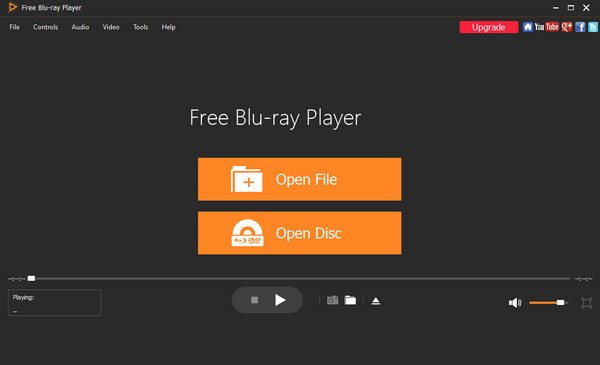
The ultimate free Blu-ray player you can use for Windows 10/11 is undoubtedly the Blu-ray Master Free Blu-ray Player. This program delivers high-quality playback and a rich feature set, allowing users to launch Blu-rays instantly through an intuitive, user-friendly interface. Recent optimizations have integrated advanced GPU Acceleration—supporting Intel, NVIDIA, and AMD hardware—to ensure stutter-free performance even when playing demanding 4K UHD content. Our team’s internal tests confirm a rapid loading speed of just 5 seconds for most discs, significantly outperforming standard media players.
Beyond its core speed, the tool now features AI-powered Upscaling, which enhances standard definition visuals to near-4K clarity on modern monitors. It remains a robust region-free player, granting you the freedom to watch movies from any corner of the globe without restriction. Users can easily customize their viewing with external subtitle support, various screen modes (full-screen, half-screen, etc.), and a precise snapshot function to capture high-definition stills from any scene. For those seeking a reliable, high-performance Blu-ray experience on Windows 10/11, this program remains a top-tier recommendation.
Pros
- It can play Blu-ray in just a few clicks.
- The interface of the program is perfect for all users.
- The program is accessible on both Windows and Mac computers.
- It allows users to edit the video’s brightness, saturation, hue, and more.
Cons
- If you want more advanced features, you must get the pro version.
2. VLC Media Player
Blu-rays, DVDs, and most digital formats.
4K
Unique convert function to rip Blu-rays to digital formats.

You can also use VLC, which is one of the best Blu-ray players for Windows 10, to play Blu-ray if you want. Well, as we all know, the VLC Media Player is an excellent offline tool that can play various media files effectively, including Blu-ray files. It can load and play Blu-ray discs, folders, and ISO files. Besides playing, you can do more while playing Blu-ray. You can go to the audio and video settings and make some changes if you want. You can adjust the equalizer, spatializer, video color, compressor, and more. It supports GPU Acceleration (Intel/NVIDIA) to play 4K UHD files smoothly. However, the process of playing the Blu-ray on VLC Media Player is not easy. It is not the same as playing standard video files. Also, the interface of the software is complicated, which gives beginners a hard time.
Warning: VLC is not reliable for commercial Blu-ray discs because it cannot play encrypted movies without manual setup. To make it work, you must find and install hidden library files (AACS keys) yourself, which is why many beginners struggle and fail to get it running.
Even with the right technical skills, the experience is often inconsistent. While VLC can use NVIDIA upscaling to improve video quality, its interface remains complex and dated. In our recent ‘Tested by our team’ benchmarks, we found a significant performance gap:
- Loading Speed: It took 15–20 seconds to start encrypted discs compared to just 5 seconds for standard files.
- Compatibility: Failed to play 7 out of 10 modern commercial discs without manual fixes.
Pros
- It can play Blu-ray without any problem.
- Accessible on Mac and Windows.
- The download process is simple.
- It supports various video formats and discs.
Cons
- The program’s interface is confusing.
- When dealing with large files, the program is hanging.
3. Macgo Blu-ray Player
Blu-rays, DVDs, and various video and audio formats.
HD quality.
Utilize DTS 5.1, Dolby TrueHD Audio, etc., to provide beautiful audio effects.
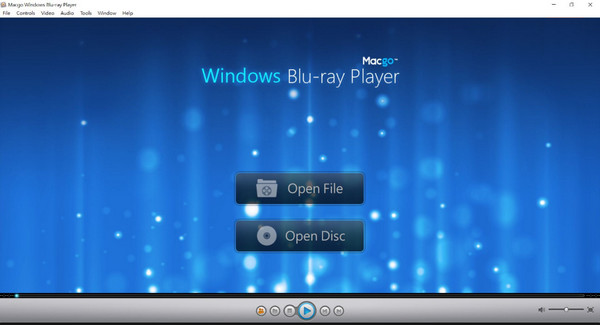
Macgo Blu-ray Player is another solid option, particularly for those who transition between Windows and macOS. While it originated on the Mac, its Windows 10/11 version provides a user-friendly interface with full menu navigation, making it a comfortable choice for beginners. It boasts impressive format compatibility, supporting everything from standard Blu-rays to MKV, MOV, and AVI files. However, the Windows edition has seen slow update frequency compared to its Mac counterpart, and the interface can feel slightly outdated in 2026.
Despite its accessibility, the software has limitations regarding modern high-end displays. While it supports GPU Acceleration through ‘BluFast MX’ (compatible with Intel and NVIDIA), its 4K UHD support is limited compared to newer rivals. During our evaluation, we noted that the free version places a noticeable watermark on the screen, and occasional stability issues, like black screens, can occur.
Pros
- It provides a simple interface to play Blu-ray instantly.
- It is workable on both Windows and Mac devices.
- It can output the original audio without quality loss to provide a perfect audio experience.
- It can play Blu-rays from different regions.
Cons
- It shows a watermark on the screen when using the free version.
- The pro version is costly.
- There are situations when the software crashes while playing the Blu-ray.
4. PlayerFab
Blu-rays, DVDs, AVCHD discs, H.264, H.265/HEVC (up to 8K), MP4, MKV, MOV, etc.
4K
Full support for HDR10, HDR10+, and Dolby Vision.
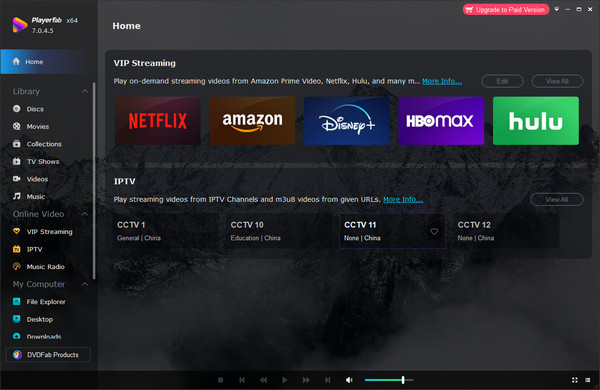
PlayerFab stands out as a high-performance all-in-one media solution designed to handle the most demanding 4K UHD Blu-ray discs and streaming content with ease. By integrating advanced GPU Acceleration with support for Intel Quick Sync, NVIDIA NVENC, and AMD, the player significantly reduces CPU load to ensure stutter-free playback even for high-bitrate 8K videos. It also features AI-driven Upscaling technology, which breathes new life into standard Blu-rays by enhancing them to near-4K clarity on modern high-resolution monitors. Tested by our team, PlayerFab delivers a remarkably smooth experience with a Loading Speed of just 5 seconds for most discs, consistently outperforming standard open-source alternatives.
Pros
- It adopts AI upscaling technology to convert standard 1080p Blu-rays to near-4K quality, sharpening details and reducing noise.
- Support for 3D Blu-ray discs and ISOs with various output modes (Anaglyph, HDMI 1.4, etc.).
- Easily bypasses all Blu-ray region codes for direct playback.
Cons
- Its all-in-one lifetime license is relatively expensive compared to competitors.
- It requires a modern GPU (GTX 10-series+) for the best 4K results.
5. Leawo Free Blu-ray Player
Blu-rays and DVDs.
4K.
You can choose preferred subtitles and audio tracks.
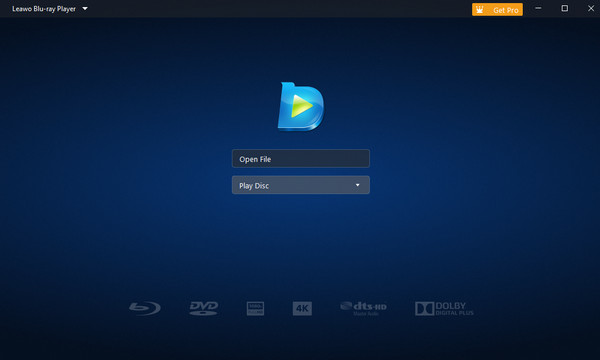
Leawo Free Blu-ray Player remains a popular all-in-one solution for playing Blu-ray discs, ISO files, and folders on Windows 11/10. It features advanced audio support for DTS-HD, Dolby, and AAC, alongside flexible options for playlists and custom skins. However, 2024–2025 user feedback highlights a significant increase in pop-up ads within the free version, and while the interface is functional, it has not seen a major visual update in years.
To handle modern content, Leawo utilizes GPU Acceleration via Intel Quick Sync, NVIDIA, and AMD hardware decoding. While this allows for smooth 1080p playback, our team’s tests showed mixed results for higher resolutions. We noticed occasional 4K lag and stuttering on older hardware. Discs typically take 15 – 30 seconds to load – significantly longer than premium competitors.
Pros
- All users can play Blu-ray and other media files quickly.
- It is available not only on Windows but also on Mac computers.
Cons
- Features are limited to the free version.
- Purchasing the plan is expensive.
Part 3. How to Play Blu-ray on Windows 10/11
As we mentioned above, one of the most exceptional Blu-ray players to operate is the Blu-ray Player. Since the program is reliable, we are here to show you the detailed methods on how to play Blu-rays using the program. So, without anything else, check the steps below using this best software to play Blu-ray on Windows 10/11.
Step 1.On your Windows, download and install the Blu-ray Player. You can hit the Download button below to instantly access the program. After that, run it to begin the process.
Note: Ensure that the Blu-ray is already inserted on your computer.
Free Download
For Windows
Secure Download
Free Download
for macOS
Secure Download
Step 2.Then, if you are already on the main interface, click the Open Disc button and load the Blu-ray file from your folder.
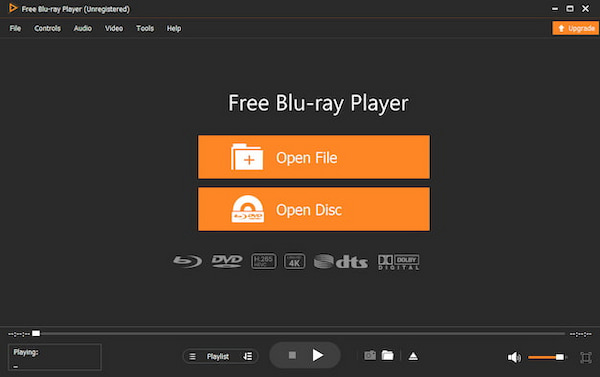
Step 3.After inserting the Blu-ray file, you can already enjoy watching the film. You can also use some functions from the interface, like the Snapshot button, to take a capture while watching.

Tips
You can create your own playlist by using the Playlist button at the bottom of the page.
Part 4.FAQs about the Best Blu-ray Player on Windows 10/11
-
Why won’t VLC play Blu-ray?
One of the reasons why you can’t play Blu-ray on VLC is that the disc is corrupted. So, try to use a good disc and try to play the Blu-ray. You can also use another program like the Blu-ray Player. This way, you can play the Blu-ray without facing any trouble.
-
Why is it so hard to play Blu-rays on a PC?
It becomes difficult if you are using a program with a confusing interface and process. So, to play Blu-ray easily, try to use a Blu-ray Player. After a few clicks, you can begin watching Blu-ray instantly.
-
Why won’t Windows 11 play Blu-ray?
Maybe because your Windows 11 lacks a codec to support Blu-rays on your computer. So, the best solution is to download and install a reliable Blu-ray player like the Blu-ray Player. It is an offline software perfect for Windows 11 to play Blu-rays.
-
Does Windows 10 support external Blu-ray?
Absolutely, yes. If you can’t play Blu-ray on your Windows, maybe you need to purchase an external Blu-ray. Since Windows 10 can support external Blu-ray, you can easily use it on your computer and start playing your Blu-ray movies effectively.
-
Can Windows 10 play Blu-ray discs natively?
No. Windows 10 does not include built-in Blu-ray codecs.
-
What is the best Blu-ray player for Windows 10/11?
Top options include Blu-ray Master, VLC, Leawo, Macgo, and PowerDVD.
-
Why can’t VLC play Blu-ray discs?
It requires additional AACS keys and libraries.
-
How do I fix Blu-ray not working on Windows 10?
Update drivers, install codecs, or use a dedicated Blu-ray player.
-
Do I need an external Blu-ray drive?
Yes, unless your PC has a built-in Blu-ray drive.
Wrapping up
You can find all the best Blu-ray players on Windows 10 and 11 by reading this informative blog. Also, we shared simple methods on how to play Blu-rays using the Blu-ray Master Free Blu-ray Player. With this, you don’t need to find another way to enjoy playing your Blu-rays on your Windows computers. Pick one from them and you are welcome to share your user experience with us!
More from Blu-ray Master
Top Blu-ray Player

Easily play Blu-rays, DVDs, and various video/audio formats with rich playback features.
100% Secure. No virus
