

Aug 28, 2026Posted by Kevin Miller to Convert Video
Quick Answer:
To convert NTSC to PAL, you need to change the video frame rate from 29.97 fps to 25 fps and adjust the resolution to 720×576 (for DVD) or standard HD resolutions. You can use free tools like Blu-ray Master Video Converter Ultimate or HandBrake to handle frame synchronization automatically.
Imagine receiving a box of classic family videotapes from a relative in the US, only to plug them into your UK DVD player or TV and get nothing but a black screen, distorted colors, or unwatchable flickering. Playing a video from another region can lead to these types of playback compatibility issues. NTSC and PAL are two video formats used in different parts of the world. Both formats have specific differences in frame rate, resolution, color encoding, and regional playback. Is it possible to convert NTSC to PAL? Yes, it is possible. Keep reading this to learn how to convert NTSC to PAL! This post will cover two dedicated programs that will help you match the PAL standard. This ensures your NTSC videos will play correctly on PAL-compatible devices.

- Part 1. Why Convert NTSC to PAL
- Part 2. Convert NTSC to PAL with Blu-ray Master Video Converter Ultimate
- Part 3. Convert NTSC to PAL with HandBrake
- Part 4. Troubleshooting & Expert Tips
- Part 5. FAQs about NTSC to PAL
Part 1. Why Convert NTSC to PAL
Before converting, check your playback setup first—you might not need to convert at all! Modern smart TVs and computers generally allow you to play NTSC and PAL, like VLC Media Player. Here are some common reasons you really need to convert NTSC to PLA.
Playback Incompatibility
Most DVD players and TVs are regional and only support the format native to their country. Playing an NTSC video on a PAL-compatible device may result in distorted playback. Although some modern hardware offers multi-system compatibility, older and non-global models strictly follow format constraints. Therefore, converting NTSC to PAL lets you play the format smoothly on a PAL-based playback system.
Scan Lines & Resolution
NTSC and PAL use different resolutions because of their distinct scan line structures. NTSC uses 525 scan lines with 720×480 resolution, whereas PAL operates with 625 scan lines and 720×576 resolution. The higher number of PAL’s scan lines provides slightly better vertical resolution and picture quality. Once you convert an NTSC DVD to PAL, it adjusts the frame rate and interpolates frames to fit the PAL timing.
Frame Rate
NTSC uses 29.97 frames per second, while PAL operates at 25 fps. This discrepancy can lead to motion inconsistencies, such as unnatural speed, when played across systems with different standards. Although converting NTSC to PAL lowers the frame rate, it’s necessary for smooth and synchronized playback. Proper frame rate conversion ensures audio syncs with video, avoiding common issues like lip-sync errors.
Color Encoding
NTSC and PAL also differ in how they encode and decode color information. NTSC tends to suffer from color stability issues over time. Meanwhile, PAL uses a phase-alternating method to achieve more accurate and stable color reproduction. The color reproduction might appear distorted when playing an NTSC video on a PAL device. If you convert NTSC to PAL, the color encoding adjusts, improving the video’s color quality and accuracy.
| Specification | NTSC Standard | PAL Standard | Conversion Tip |
| Primary Regions | North America, Japan, South Korea | Europe, UK, Asia, Australia | Match the target audience’s regional standard for physical media. |
| Frame Rate | 29.97 fps (or 30 fps) | 25 fps | Resample or drop frames to convert from 29.97 fps to 25 fps. |
| SD Resolution | 720 × 480 pixels | 720 × 576 pixels | Adjust aspect ratio carefully to prevent video stretching or black bars. |
| Refresh Rate | 60 Hz | 50 Hz | Modern digital displays auto-sync, but legacy TVs require exact frequency matching. |
| Color Encoding | YIQ / NTSC Color | YUV / Phase Alternating Line | Converting fixes color distortion or phase errors on regional hardware. |
Part 2. Convert NTSC to PAL with Blu-ray Master Video Converter Ultimate
The Video Converter Ultimate , preferred by Blu-ray Master, is a multimedia conversion software. It is compatible with Windows 11/10/8/7 and macOS 10.12 or above. You can load NTSC DVDs and video files to convert to PAL formats. In addition, you can customize the profile settings to match the PAL standard accurately. Options include quality, encoder, resolution, frame rate, bitrate, channel, and sample rate. Best of all, the software supports loading home-made or unencrypted DVDs for format conversion. It also includes built-in editing tools for customizing the NTSC content before conversion.
Here’s how to convert NTSC video to PAL using Video Converter Ultimate:
Step 1.First, you must download the Video Converter Ultimate, recommended by Blu-ray Master, for free. Install the media conversion software and finish the installation process. Once the installation is completed, run the software on your system.
Free Download
For Windows
Secure Download
Free Download
for macOS
Secure Download
Step 2.Launch the software and select the Ripper section. Click Load DVD > Load DVD Disc in the upper-left navigation to load your inserted NTSC DVD. You can also load NTSC folders and ISO files via the corresponding options.
Note: If you want to convert NTSC videos, go to the Converter section, and the steps are similar to this.
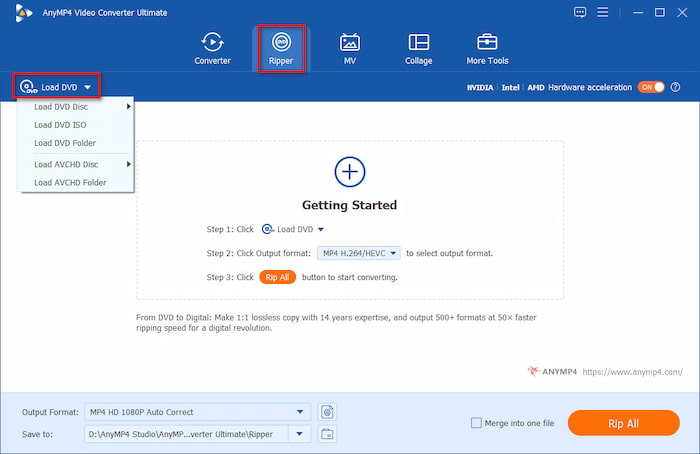
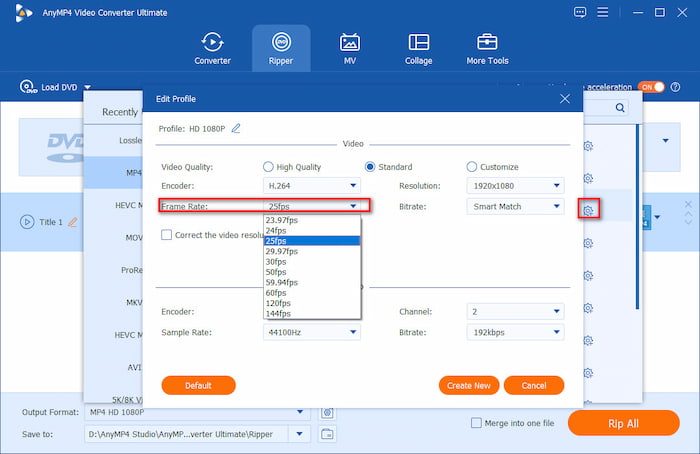
Step 3.Click the Output Format field and navigate to the Video category. You can enter PAL in the search bar to quickly locate it. However, nowadays, we prefer to choose MP4, 1080P as the output profile. Then, click the gear button to set frame rate to 25 FPS.
Note:
Traditionally, NTSC means 480p and PAL means 576p. However, for modern HD/4K videos (1080p, 4K MP4/MKV), ‘converting to PAL’ simply means changing the frame rate to 25 FPS (or 50 FPS) to match European display standards, without downscaling your resolution.
Step 4.Lastly, click the folder button to set a download folder and click Rip All to start converting NTSC DVD to PAL.
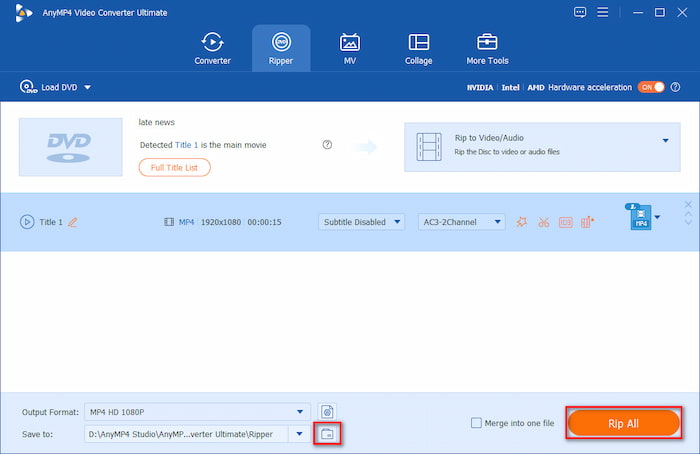
Video Converter Ultimate can convert the NTSC format efficiently without exerting too much effort. Before starting the final conversion, don’t forget to use the Merge into one file feature. This is particularly ideal if you’re working with multiple NTSC files. Check the box to combine your clips into a single PAL-formatted file.
Part 3. Convert NTSC to PAL with HandBrake
HandBrake is a highly popular video transcoding software that can convert NTSC DVDs to PAL format. But here’s the deal: HandBrake doesn’t directly convert videos to a PAL-specific format. You must adjust technical settings like frame rate and resolution to match the standard. This involves setting the frame rate to 25fps and resolution to 720×576.
Step 1.Launch HandBrake and select Folder (Batch Scan) to open a folder containing the NTSC files. The transcoding software will scan and load the imported NTSC video files and display them afterward. Once recognized, you will see the content in the Source Preview section.
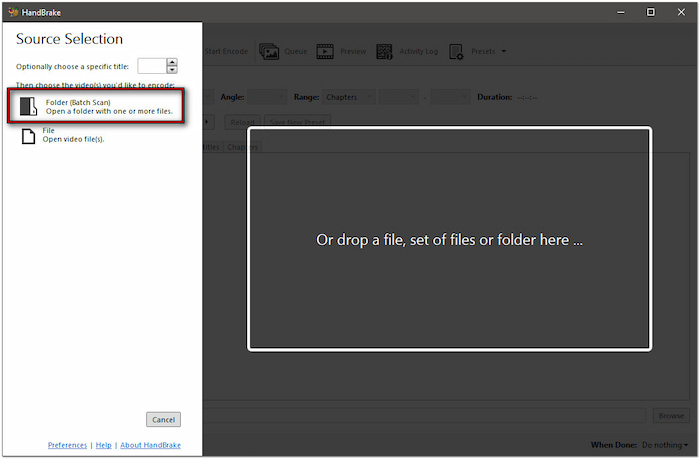
Important Note: If you added an encrypted NTSC DVD, you must decrypt it first. Unfortunately, HandBrake cannot decode encrypted DVDs alone. You need to use a separate tool to perform DVD decryption like MakeMKV
Step 2.Switch to the Video tab in the settings panel to configure the profile. Click the Framerate (FPS) pulldown menu and change the frame rate value to 25fps. Then, select the Peak Framerate option to maintain the variable frame rate.
Pro Tip: How to Avoid ‘Framerate Stutter’ (Judder)
Converting 29.97 FPS (NTSC) down to 25 FPS (PAL) means removing roughly 5 frames every second. In fast-action scenes or panning camera shots, this can cause subtle stuttering (judder).
For constant motion (sports, action movies), select Constant Framerate (CFR). For variable web videos, select Peak Framerate (PFR).

Step 3.Once the profile settings are configured, move back to the Summary tab. Select MP4 as the modern digital format for PAL and check the profile information below. Click Browse to set the destination path, and click Start Encode to change the format.
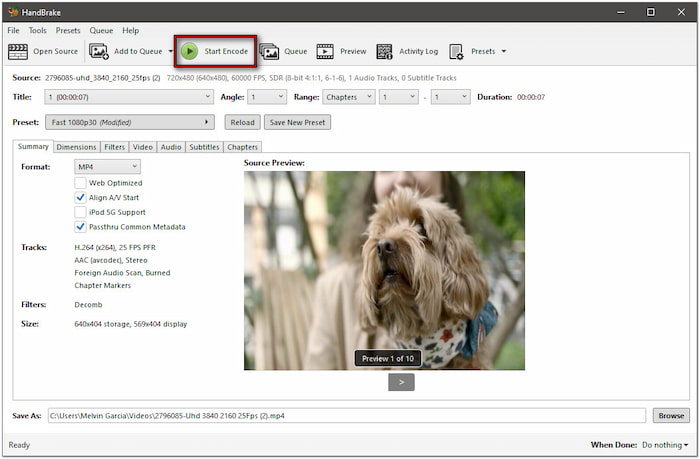
Although HandBrake does not offer a one-click option, it allows customization to adjust technical settings. By customizing the frame rate and changing the resolution, you can effectively simulate the PAL format. This makes videos more suitable for playback on PAL-based devices.
Part 4. Troubleshooting & Expert Tips
Converting between different video standards isn't always smooth sailing. Here is how to fix the top three real-world issues users encounter when converting 29.97 FPS NTSC content to 25 FPS PAL.
1. Audio Out of Sync or Pitch-Shifted (The 4% Speed Difference)
Converting video from 29.97 FPS down to 25 FPS can sometimes cause the audio track to drift out of sync over time, or make voices sound noticeably lower/higher in pitch. This happens if your converter speeds up or slows down the video stream without stretching the audio stream to match.
To avoid this situation, ensure your software uses Frame Sampling/Dropping (removing ~5 extra frames per second) rather than Speed Alteration (changing original duration).
Moreover, in tools like Blu-ray Master Video Converter Ultimate or HandBrake, keep the Keep Original Audio Track, AAC Auto Pass-through, or other similar options enabled. This forces the encoder to process video and audio as locked parallel streams.
2. Jagged Lines or Horizontal Strips (Interlacing / Comb Artifacts)
This phenomenon is most likely to occur when playing older videos. Older NTSC videos—especially those recorded on home VHS tapes or on 480i television sets—use interlaced scanning technology, in which each frame consists of two alternating rows and fields. If such videos are converted directly into digital MP4 files in PAL format without any processing, noticeable jagged 'comb lines' will appear when the image moves rapidly.
To fix this problem, turn on Deinterlacing.
- In Video Converter Ultimate: Enable the built-in video filter for deinterlacing before hitting Convert.
- In HandBrake: Go to the Filters tab, set Decomb or Deinterlace to Default or Yadif. This turns interlaced 480i fields into smooth progressive frames.
3. Choppy Playback in Action Scenes (Judder)
Reducing the frame rate to accommodate a 25 FPS playback rate may cause rapidly moving camera shots or sports event footage to appear slightly laggy.
You can use Constant Frame Rate (CFR) instead of Variable Frame Rate (VFR). If you are using advanced encoding software, enable the 'Frame Fusion' or 'Motion Compensation' feature to achieve smooth transitions between remaining frames through mathematical calculations.
Part 5. FAQs about NTSC to PAL
-
Why does my US DVD show a black screen or flickers when playing on a European DVD player?
Because US and Europe use different DVD standards: US is NTSC, and Europe is PAL. Due to the differences between their refresh rate and scan lines, this situation happens.
-
How do I convert a 29.97 fps NTSC video to 25 fps PAL without losing audio sync?
You can use the modern video encoding software, like HandBrake. It can drop roughly 5 frames per second using optical flow or frame blending rather than altering playback speed, keeping audio and video perfectly synchronized.
-
Can HandBrake convert NTSC to PAL automatically, or do I need to change settings manually?
No. You need to manually set the frame rate to 25 FPS, select PFR or CFR, and set the dimensions to 720x576 as the target standard-definition PAL.
-
What is the exact resolution and frame rate difference between NTSC and PAL standard definition?
NTSC SD: 720 × 480 resolution at 29.97 frames per second (60Hz refresh rate). PAL SD: 720 × 576 resolution at 25 frames per second (50Hz refresh rate).
-
Do modern 4K Smart TVs still have NTSC and PAL region locks?
No. The physical broadcast formats NTSC and PAL are virtually obsolete on modern TVs.
-
Will converting NTSC to PAL cause stuttering or dropped frames in fast motion scenes?
Yes. Changing video frame rate from 29.97 fps to 25 fps removes about 5 frames every second, which can cause subtle judder or stutter during fast movement (like sports or panning shots). To minimize this, use encoding tools with Motion Interpolation or Frame Blending enabled.
Wrapping up
NTSC to PAL conversion may initially seem technical, but it becomes a simple and effective process with the right tools. By configuring settings, you can ensure your NTSC videos are fully compatible with PAL-based systems. If you’re working with video files or DVDs, Video Converter Ultimate and HandBrake make achieving high-quality conversions possible. However, if you need an all-in-one solution, Video Converter Ultimate stands out. It supports NTSC to PAL conversion, allows custom profile settings, bypasses encryptions, and even includes built-in editing tools to enhance your videos further.
More from Blu-ray Master
Blu-ray Tips
