

Jul 04, 2025Posted by Kevin Miller to Rip DVD
The DVD was invented in 1995 and has been used to store digital data, especially video data. Mac users may attempt to play DVDs on QuickTime Player. One good way is to rip DVDs into QuickTime QuickTime-compatible format like MOV. MOV is a video file container that is primarily developed. You can read the passage below to learn how to convert DVDs to QuickTime MOV and enjoy them on QuickTime.

- Part 1. What is MOV
- Part 2. How to Convert DVD to MOV in Blu-ray Master Free DVD Ripper
- Part 3. How to Rip DVD to QuickTime MOV in VLC
- Part 4. How to Rip DVD to QuickTime MOV in DVDFab DVD Ripper
- Part 5. FAQs about Converting DVD to QuickTime MOV
Part 1. What is MOV
MOV, short for QuickTime Movie, is a multimedia container file format developed by Apple Inc. It’s an integral part of the QuickTime framework, designed to store various types of multimedia data, including video, audio, text, and even 3D models. Known for its high-quality video and audio preservation, MOV files are particularly favored in professional video editing and production workflows, offering flexibility and the ability to maintain distinct media tracks within a single file, despite often resulting in larger file sizes compared to more compressed formats like MP4.
Part 2. How to Convert DVD to MOV in Blu-ray Master Free DVD Ripper
If you are a Windows user and want to convert DVD to MOV file format, we highly recommend Blu-ray Master Free DVD Ripper. If you are unaware of the tool, it’s time for you to discover more. For your information, the downloadable program is perfect for transferring your DVD into QuickTime MOV and other audio and video formats. The program offers an intuitive interface and a simple procedure for the conversion process. Also, all its functions help obtain what you want for your file. Aside from that, Free DVD Ripper has all you need for a fast conversion process. It can convert your DVD with other formats in just a few seconds, making it more reliable than other rippers. Also, besides MOV files, it supports 200+ file formats. It includes MP4, MKV, AVI, FLV, MPG, MKV, WMV, and more video formats. If you want to convert your DVD to many formats, consider using Free DVD Ripper.
In addition, the program is not only reliable in converting files. You can do a little bit of enhancement on your videos. The program can provide editing functions you may utilize for making a better video. It allows you to insert and add a watermark to your video. You can also crop, add effects, and more. With this, you can tell the program is useful for its users. You can use the instructions below as your reference for learning how to convert DVDs to MOV on Windows.
Note: Before following the instructions below, ensure your DVD is inserted into your computer or DVD drive.
Step 1.The first step is to access and download Free DVD Ripper on your Windows. Then, proceed to the installation and instantly run the software on your computer.
Free Download
For Windows
Secure Download
Free Download
for macOS
Secure Download
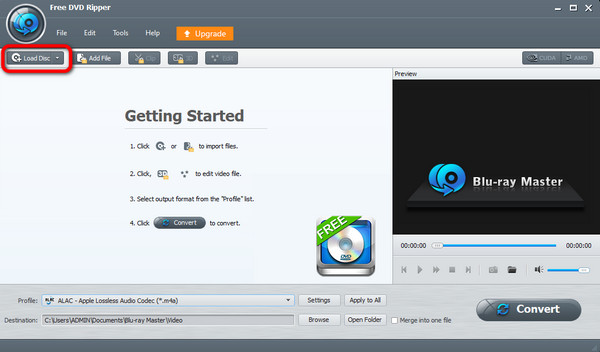
Step 2.After that, the interface of the software will appear on the screen. Then, navigate to the Load Disc button. When the file folder appears on the screen, browse the DVD you want to convert into the MOV file format.
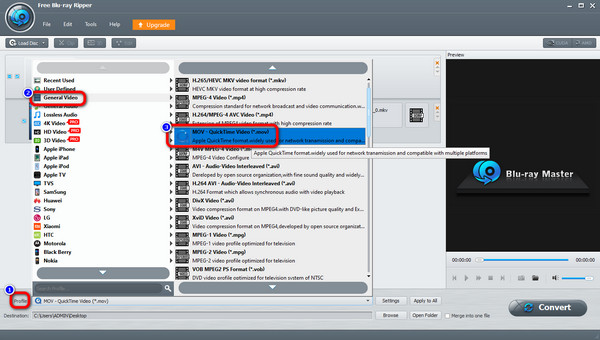
Step 3.When adding the DVD file, go to the Profile option. Then, select the General Video option to view various video formats. Select the MOV format as your final output format.
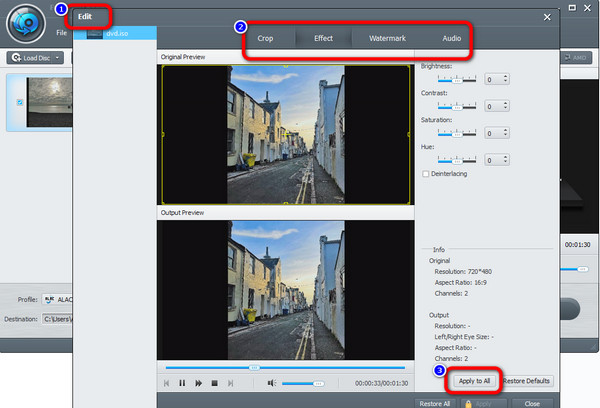
Step 4.Since the tool allows you to enhance the video, you can go to the Edit function. The function allows you to crop the video, add effects, watermarks, and more. After you make some changes, go to the lower interface and click the Apply to All button.
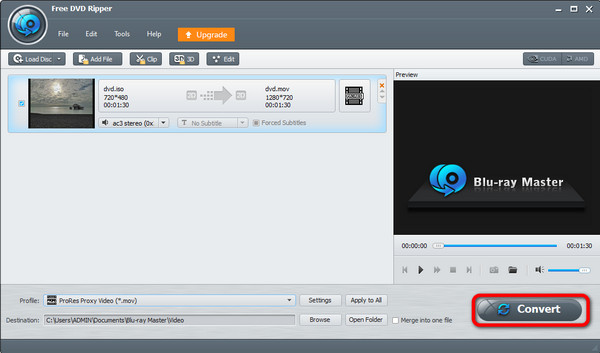
Step 5.For the last and final procedure, you can begin converting the DVD to MOV format. To do so, click the Convert button on the bottom-right part of the interface. After that, the Conversion process will start. When down, you can open the file and start watching the video.
Part 3. How to Rip DVD to QuickTime MOV in VLC
VLC Media Player is a free and open-source player and converter software. It supports the playback for most video and audio formats. It also allows you to export DVDs to MOV and play them on QuickTime without limitations. You can also replace QuickTime Player with VLC to play your DVDs. In terms of ripping DVDs, VLC Media Player is not as easy to use as the other two converters we recommended above. And the steps below might help you a lot.
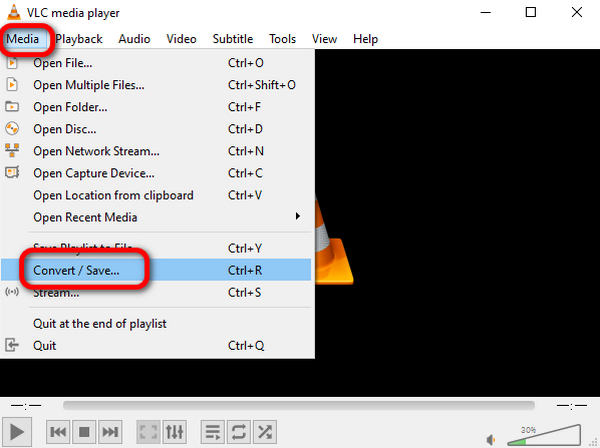
Step 1.After connecting your DVDs to your computer using a compatible drive, you can open the VLC Media Player on your PC, Click the Media menu, and choose Convert/Save to enter the Open Media window.
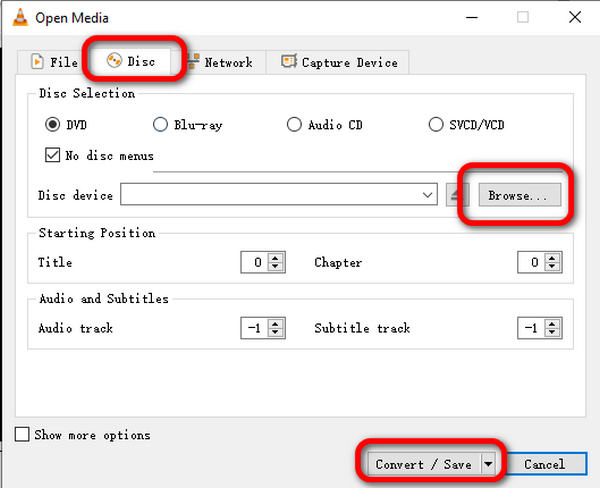
Step 2.Choose the Disc menu, and click Add to select your DVD folder. Then, click Convert/Save.
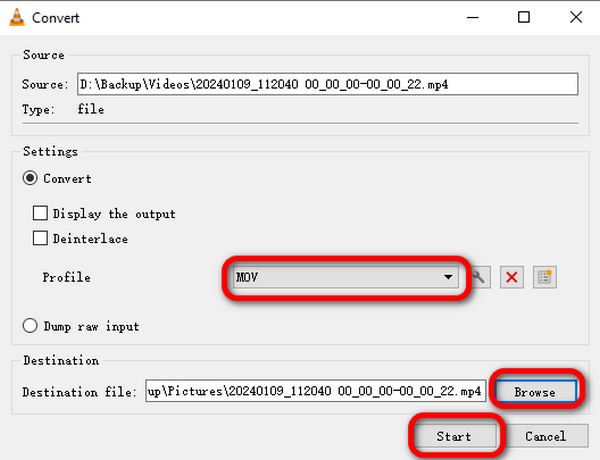
Step 3.Click the Profile drop-down list to select MOV as your output format, and click Browse to choose the destination folder. Now, you can click Start to rip DVD to MOV.
Part 4. How to Rip DVD to QuickTime MOV in DVDFab DVD Ripper
DVDFab DVD Ripper is also one of the top-rated DVD ripping tools that provides you with an intuitive interface. It can load one or several DVD files into the software and convert them to MOV at a time. You are allowed to check or uncheck the titles you want to convert with this tool. Moreover, if you want to save some storage space or speed up the DVD conversion, you can choose a low output size. Otherwise, you can also choose high-quality video output.
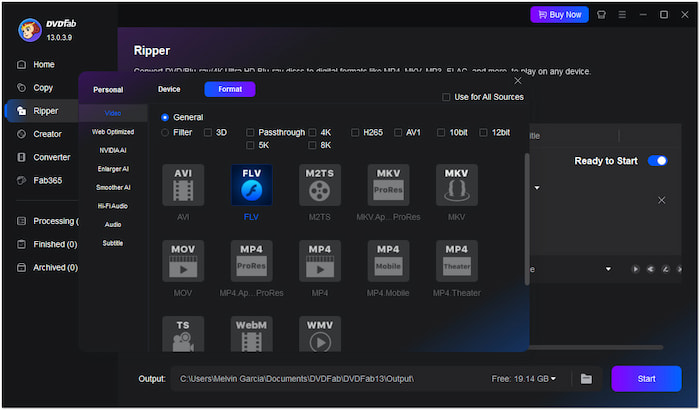
Step 1.Download and install DVDFab DVD Ripper from its official website. Then, launch the software, and select the Ripper option on the left menu bar.
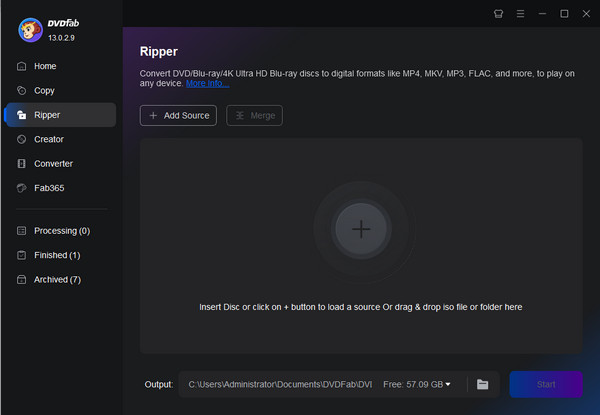
Step 2.Choose the Add Source button or click the + button at the center to load DVD files that you want to convert to the MOV format.

Step 3.You will see the information about the loaded DVD. Click FLV and select Choose Other Profile in its drop-down options to open the new window. Now, you can click Start to save your DVDs to your computer for free.
Part 5. FAQs about Converting DVD to QuickTime MOV
-
Can you turn a DVD into a digital copy?
Yes, you can. If you have a remarkable DVD-to-digital converter, it will be impossible. You can use Free DVD Ripper to transcode the DVD into digital. It has a simple interface, making it perfect for all users.
-
How do I digitize a DVD on my Mac?
You can use AnyMP4 DVD Ripper to digitize your DVD when using Mac. After launching the tool, load the DVD you want to digitize. Then, select your preferred formats from the Rip All tooption. For the last process, click the Rip All button.
-
Can I export the DVD to QuickTime MOV using HandBrake?
No, you can’t transfer DVD to MOV with HandBrake. HandBrake doesn’t support the MOV output format. But you can convert your DVD to MP4 with HandBrake and MP4 format is also supported by QuickTime Player.
-
Is copying a DVD illegal?
Well, it is a challenging question. Some people say that it is illegal to copy a DVD. But, if you want to copy a DVD for personal use, you can do so. Therefore, copying a DVD for some personal reasons is okay.
Conclusion
Now you have an idea about how to convert DVDs to QuickTime MOV in 3 different ways. You can use the tools we recommended above to achieve the conversion without any hassle. After that, you can enjoy your DVDs on QuickTime Media Player without limitations. If you have any problems, you can comment on us!
More from Blu-ray Master
Rip DVDs to Digital

Fast and free ripping software to decrypt all DVDs to digital easily on your computer.
100% Secure. No virus
